Got a tip for us?

iCloud

You can access iCloud Drive and store files, create folders, and share documents with friends and family. You can access your content from all your devices where you’re signed in to the same Apple Account, including on a Mac, where iCloud Drive is located in the Finder.

iCloud Drive is built into the Files app on devices with iOS 11, iPadOS 13, or later. You can also use it on Mac computers (OS X 10.10 or later), Windows devices (iCloud for Windows 7 or later), or online at iCloud.com. Just know that storage limits depend on your iCloud storage plan.

Turn on iCloud Drive

  1. Open Settings, tap [your name], and then tap iCloud.
  2. Tap Drive and then turn on Sync this iPhone.

Browse iCloud Drive

  1. Start the Files app on your iPhone.
  2. Tap Browse.
  3. Tap iCloud Drive below Locations.
  4. If you don’t see Locations, tap Browse again. If you don’t see iCloud Drive below Locations, tap Locations.
  5. To open a folder, tap it.

Choose which apps use iCloud Drive

It’s up to you which apps can store and edit content on iCloud Drive.

  1. Open Settings, tap [your name], and then tap iCloud.
  2. Tap See All next to Saved to iCloud.
  3. Turn on each app you want saved to iCloud, and turn off each one you don’t want saved.
Tag: iCloud

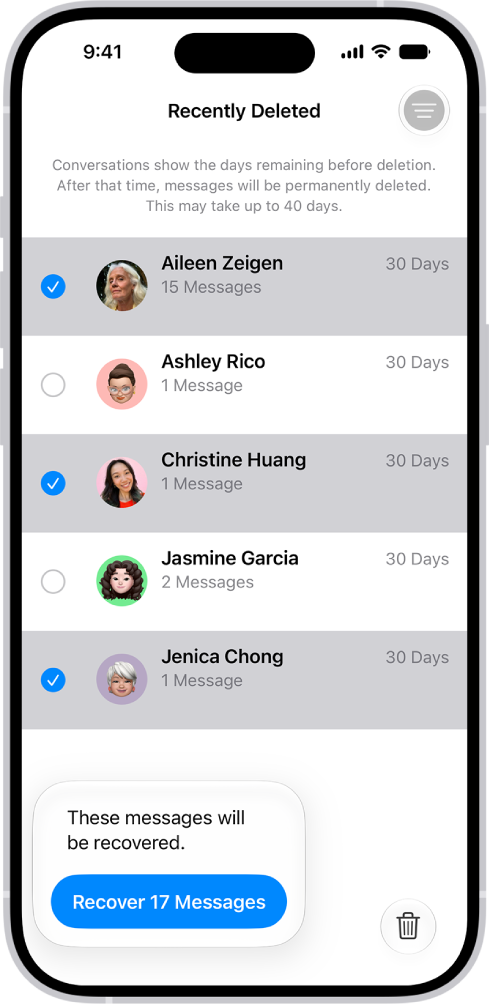
You can recover text messages you deleted on your iPhone for up to 30 days. They’re in Recently Deleted, in the conversation list. And if you use Messages in iCloud, a message you recover on your iPhone comes back on all your devices that use Messages in iCloud.

Recovering all messages deleted within two conversations.

  1. Start the Messages app on your iPhone.
  2. In the conversation list, tap the Filter button and tap Recently Deleted.
  3. Select the conversations whose messages you want to restore and tap Recover.
  4. Tap Recover Messages.

With Messages in iCloud, a message or conversation you recover on your iPhone comes back on all your devices where Messages in iCloud is on.

Note: Deleting and recovering messages affects only your iPhone and other Apple devices that use the same Apple Account. Messages, attachments, and conversations on anyone else’s device can’t be recovered.

Future messages from a blocked contact aren’t automatically deleted if you block them in a conversation with non-iMessage participants, then delete the conversation and recover it.

If you remove a message from a conversation using Undo Send, it’s permanently deleted. And audio messages that expire before being saved aren’t recoverable.

After you set up iCloud Drive, you can share folders and individual files with friends and colleagues. When you make changes to a shared folder or file, others see your changes automatically, and if you allow people to make edits, their changes appear automatically as well.

You can also send a copy of a file or folder, invite more people to collaborate, or share it with more people using a link.

Files and folders you share in iCloud Drive have these important characteristics:

  • If you collaborate on a folder, all items added to that folder by you or other participants are automatically shared.
  • The link to a shared file includes its name. If the name or content is confidential, be sure to ask recipients not to forward the link to anyone else.
  • If you move a shared file to another folder or location, the link no longer works, and people lose access to the item.
  • Depending on the app, users might need to reopen a file or tap the original link to see the latest changes.

Share or collaborate on a file or folder

For a file or folder you own in iCloud Drive, you can invite other people to view its contents or collaborate on them.

A file or folder can be shared so only people you pick can open it, or so anyone with the link can.

Allow changes to the contents of a file or folder, or restrict access so people can only view the contents.

  1. Open the Files app on your iPhone.
  2. Go to a location and then touch and hold the file or folder you want to share.
  3. Tap the Share button, tap the menu under the item’s title, and tap Share a Link.
  4. To change who can access the file or folder and whether they can edit or just view and download, tap People you choose can edit and then do any of the following:

    • Only allow people you invite or approve to access the file or folder: Tap People you choose.

      Note: When you select “People you choose,” you can turn on Access Requests, which lets other people with the link ask you to approve their access.

    • Allow anyone with the link to access the file or folder: Tap Anyone with the link.
  5. Under New Participants Can, choose whether participants can edit or view and download only.
  6. Choose how you want to send your invitation.

Send a copy of a file or folder

  1. Open the Files app on your iPhone.
  2. Go to a location and then touch and hold the file or folder you want to share.
  3. Tap the Share button and tap the menu under the item’s title. Then tap Send a Copy.
  4. Choose how you want to send your copy.

Invite more people to collaborate on a folder or file

If a folder or file you already shared has access set to “People you choose,” you can share it with more people.

  1. Open the Files app on your iPhone.
  2. Tap Shared.
  3. Touch and hold the folder or file you want to share.
  4. Tap Manage Shared Folder or Manage Shared File.
  5. Tap Add Participant and choose a method for sending the link.
  6. Enter any other requested information. Send or post the invitation.

Share a folder or file with more people using a link

When you set access to a shared folder or file to “Anyone with the link,” anyone who has the link can share it with others.

  1. Open the Files app on your iPhone.
  2. Tap Shared.
  3. Touch and hold the folder or file you want to share.
  4. Tap Manage Shared Folder or Manage Shared File. Then tap Copy Link.
  5. Choose a method for sending the link, enter any other requested information, and send or post the invitation.

Change access and permission settings for everyone

Owners of a shared folder or file can change its access at any time. It affects everyone you shared the link with.

  1. Open the Files app on your iPhone.
  2. Touch and hold the folder or file whose permissions you want to change.
  3. Tap Manage Shared Folder or Manage Shared File, then tap Sharing Options.
  4. Change either or both of the options.
    • Access option: When you change the access option from Anyone with the link to People you choose, the original link no longer works for anyone, and only people who receive a new invitation from you can open the folder or file.
    • Permission option: When you change the permission option, everyone who has the file open when you change the permission sees an alert. New settings take effect when the alert is dismissed.

Change access and permission settings for one person

As the owner of a shared folder or file with access set to “People you choose,” you can change one person’s permission without affecting anyone else’s. You can also remove that person’s access.

  1. Open the Files app on your iPhone.
  2. Touch and hold the folder or file whose permissions you want to change.
  3. Tap Manage Shared Folder or Manage Shared File.
  4. Tap the person’s name, then select an option.

Stop sharing a folder or file

If you’re the owner of a shared folder or file, you can stop sharing it.

  1. Open the Files app on your iPhone.
  2. Open the location of the folder or file you want to stop sharing.
  3. Touch and hold the folder or file. Tap Manage Shared Folder or Manage Shared File.
  4. Tap Stop Sharing.

Anyone who has the file open when you stop sharing it gets an alert. After they dismiss it, the item closes, the file disappears from their iCloud Drive, and the link stops working. Share the item again later with access set to “Anyone with the link,” and the original link works again. With “People you choose,” only the people you reinvite to share the item can use the original link again.

Tags: Files, iCloud

When you subscribe to iCloud+, you can add up to five custom email domains and create email addresses for those domains on your iPhone. You can then send and receive email in the Mail app on your iPhone, iPad, and Mac, in your Mail account on iCloud.com, and in an email app on a Windows device.

You can add a domain you already own or buy a new one. Either way, you need to have a primary iCloud Mail address first. You can also import existing email messages, and create and delete email addresses.

Here’s how to set up a custom email domain with iCloud Mail on iPhone.

Note: Sign in to the same Apple Account on each device.

On devices where you’re not signed in to your Apple Account, or where the Mail feature is turned off, your custom email domains and mail won’t be visible.

Add a custom email domain to iCloud Mail

In iCloud Mail, you can set up a custom email domain you already own, or buy a new one.

Note: Before you can add a custom email domain on iPhone, you need a primary iCloud Mail address.

  1. Open Settings, tap [your name], tap iCloud and tap Mail (under Saved to iCloud). Then make sure Use on this iPhone is turned on.
  2. Tap Custom Email Domain and tap one of the following: Buy a Domain: Choose this option if you don’t yet have a custom domain.

    After you purchase it, you can create custom email addresses.

  3. Use a Domain You Own: Choose this option if you already have a domain, and you want to use it with iCloud Mail.

    You can configure email addresses you already have at that domain, and create more.

    Follow the onscreen instructions.

    If you’re adding a domain you already own, some registrars require you to change DNS records to set up your domain.

Import existing email messages

Once someone in your Family Sharing group, or you, sets up a custom email domain for iCloud Mail, iCloud.com lets you import existing email messages from your previous email provider. This isn’t available for all email providers.

Create and delete email addresses

After you set up a custom email domain, you can create and delete email addresses for that domain easily.

  1. Open Settings, tap [your name], tap iCloud and tap Mail (under Saved to iCloud). Then make sure Use on this iPhone is turned on.
  2. Tap Custom Email Domain. Then tap the domain you want to make changes to.
  3. Tap Manage Email Addresses. Then do one of the following: Add a new email address: Tap Create Email Address, enter the new address, then tap Continue.
    • Delete an email address: Swipe left on an email address, tap Delete, and tap Remove.
    • Add People: Tap to invite someone to your custom email domain.

Remove a custom email domain

If you’re done with a custom email domain, remove it using your iPhone.

Once you remove a custom email domain, Mail can’t send or receive email for any addresses at that domain.

  1. Open Settings, tap [your name], tap iCloud, and then tap Mail (under Saved to iCloud).
  2. Tap Custom Email Domain. Then tap Edit next to Your Domains.
  3. Tap the Delete button and tap Delete.

    If you’re moving your domain to a new provider, make sure to do the following: Go to your domain registrar to update the domain records to your new email provider and remove iCloud-related records.

  4. Set up any email addresses you want to continue using with your new provider.

    Note: When you remove a custom email domain, you can still send and receive email from your primary @icloud.com address.

Allow all incoming messages to your domain

Your iCloud Mail email address can work as a catch-all address.

This way, you receive all the messages sent to your custom email domain, even when the exact address they were sent to hasn’t already been created.

  1. Open Settings, tap [your name], tap iCloud, and then tap Mail (under Saved to iCloud).
  2. Tap Custom Email Domain and tap your custom domain.
  3. Turn on Allow All Incoming Messages.

    If the domain owner allows all incoming messages, any messages that aren’t sent to an active email address go to the domain owner’s inbox.

    If this setting isn’t turned on, those messages are returned to the sender.

    Note: Messages sent to deleted email addresses are automatically returned to the sender.

Tags: iCloud, Mail

You can change the name of your iPhone, which is used by iCloud, AirDrop, Bluetooth®, your Personal Hotspot, and your computer, so it’s the name you’ll see in all those places. You can enter a new name whenever you like.

  1. Open the Settings app on your iPhone.
  2. Tap General, tap About, and then tap Name.
  3. Tap the Clear Text button and enter a new name.
Tags: iCloud, iPhone

You can keep your audio recordings up to date automatically on your iPhone, iPad, and Mac where you’re signed in to the same Apple Account and Voice Memos is turned on in iCloud settings. You’ll turn it on separately on each device.

Do the following to turn on Voice Memos in iCloud on your devices:

  • iOS or iPadOS: Go to Settings > [your name] > iCloud > See All, then scroll down and turn on Voice Memos.
  • macOS 15 or later: Choose Apple menu > System Settings, then click your name in the sidebar. If you don’t see your name, click “Sign in” to sign in to your Apple Account or create one. Click iCloud, click See All, then scroll down and turn on Voice Memos.

It’s easy to back up your iPhone. So easy, in fact, that your iPhone normally backs up automatically, so you don’t have to do anything. However, this doesn’t always go according to plan; some users have complained that their iPhone can’t back up to iCloud after iOS 26 update.

Irrespective of the exact cause, you don’t have to do anything too complicated to get your iPhone backing up to iCloud again. You just need to work out what the problem is first, and we’re here to help.

Here is how to fix the problem if your iPhone can’t back up to iCloud after iOS 26 update.

1. Check Your iCloud Settings

In order to back up your iPhone to iCloud on iOS 26, you first have to make sure you have the feature switched on. Because if you haven’t enabled it, automatic iCloud backups simply won’t happen. You’ll have to back up your iPhone using a computer instead.

To switch on iCloud backups, you should do the following:

  1. Open the Settings app, then tap your name.
  2. Tap iCloud.
  3. Scroll down and tap iCloud Backup.
  4. Turn on the switch next to Back Up This iPhone.

By doing this, you’ll switch automatic iCloud backups on. As such, any time your iPhone is connected to power, locked and on Wi-Fi, it will automatically back up whatever new data you have to iCloud.

If you want to back up your iPhone immediately, tap Back Up Now,.

Depending on how much data you have, or if this is your first time backing up to iCloud, the backup process could take a few minutes or an hour. Check below the Back Up Now button to see the exact time and date your phone was last backed up.

2. Check Your Wi-Fi Connection

As mentioned, you have to connect your iPhone to a Wi-Fi network to back up to iCloud. If you are not connected to the internet, you may see a message that says “Your Last Backup Couldn’t be Completed.” Here’s what you can do:

  • Open the Settings app, then tap Wi-Fi to make sure that you’re connected to Wi-Fi.
  • Try to back up on another Wi-Fi network.

If your iCloud backup is taking longer than expected to complete, leave your iPhone connected to power and Wi-Fi for 24 hours

3. Make Sure You Have Enough iCloud Storage

Unsurprisingly, iPhone backups occupy your iCloud storage allotment. Therefore, if you don’t have enough iCloud storage space, backups will run into problems. You might see this message on your iPhone: “This iPhone cannot be backed up because there is not enough iCloud storage available.”

Every iCloud account gets 5GB for free. But most people have more than 5GB of data on their phone — or they have more than one iOS device that needs backing up. Hence, 5GB just isn’t enough space. And maybe one day Apple will change its free tier to give us more data and make backing up easier for everyone. But until then, we need to do some calculations to optimize our iCloud accounts.

To figure out exactly how much iCloud space your backup file will take:

  1. Open the Settings app, then tap your name.
  2. Tap iCloud. At the top, you can check how much iCloud storage you’ve used.
  3. Tap Storage.
  4. Tap Backups, then tap your iPhone. Next Backup Size should show you the size of the next backup. It might take a few minutes for your device to calculate Next Backup Size.

If you haven’t backed up your iPhone to iCloud before or in a long time, the Next Backup Size will be a pretty large amount of data. Obviously, if it’s more than 5GB, you must either buy more storage or adjust what you’re backing up.

Lower on the screen under Next Backup Size is a list where you can Choose Data to Back Up. This list will have apps and how much data each has to back up. The list goes from what takes up the most space to the least. If you just need a slightly smaller backup file, uncheck larger data items from the list if you don’t mind whether or not they’re backed up.

If all you wanted to back up was your camera roll, the only setting you’d need to toggle would be iCloud Photos. Besides Photos, there is a list of every other iCloud-enabled app on your iPhone, starting with Apple’s own apps

If you don’t want to turn off apps, buy more iCloud storage with iCloud Plus. Apple does offer six price tiers for storage: the free 5GB, $0.99-per-month 50GB, $3.49-per-month 200GB, $11.99-per-month 2TB, $34.99-per-month 6TB, or $69.99-per-month 12TB per month plans. (Note, Apple doesn’t have annual pricing.)

5. Check iCloud Status

Believe it or not, Apple’s iCloud servers can sometimes go down. This means that no matter what you do you won’t be able to back up your iPhone to iCloud.

If you suspect a problem, you can quickly check the status of the iCloud servers by going to Apple’s System Status page.

Here, look for iCloud Backup. If you see a green light next to it, everything is working as it should. In other words, your backup issue is due to a problem on your end.

6. Sign Out of iCloud

You can sometimes solve iOS 26 backup issues by signing out of your iCloud account, then signing back in. This solves problems related to verification issues.

Here’s how to sign out and back in:

  1. Open the Settings app, then tap your name.
  2. Scroll down and press Sign Out.
  3. Select Sign Out But Don’t Erase.
  4. Tap Continue.
  5. Select Continue Anyway when prompted.

To sign back in, you have to tap Sign in to your iPhone. From here, you should enter your Apple account email address and password. If you have a Mac or other Apple device that’s connected to your Apple account, you’ll get a verification code on it. You need to enter this on your iPhone, then input your iPhone’s passcode.

Once you’ve signed back in, you should try connecting your iPhone to Wi-Fi and a power source. Hopefully, it will begin backing up to iCloud once locked. You can also try leaving it connected overnight, so that the backup has enough time to finish.

7. Restart Your iPhone

Next, you can try restarting your iPhone. This is a simple action, but it resets your iPhone’s temporary memory. By doing this, you can sometimes get your iPhone to back up properly again.

You can restart your iPhone by doing the following:

  1. Hold the Side button and either Volume button. Keep it held until the slide to power off slider appears.
  2. Swipe right on the power off slider.
  3. After shutdown, hold the Side button until the Apple logo appears to start up again.

8. Reset Settings

If a restart doesn’t fix your iPhone backup problems on iOS 26, you should try resetting all settings. This won’t erase your data, but it will erase preferences like your saved Wi-Fi passwords and all phone settings.

It’s a bit of a hassle to change all this back, but because something might interfere with the backup process, it’s worth trying at this point:

  1. Open Settings.
  2. Select General.
  3. Scroll down and press Transfer or Reset iPhone.
  4. Select Reset.
  5. Select Reset All Settings.

9. Update iOS

It’s possible that some kind of software bug is preventing your iPhone from backing up to iCloud. Accordingly, you should update your iPhone to the latest version of iOS 26, if a new one is available.

Here’s how you can update:

  1. Make sure your iPhone is connected to Wi-Fi.
  2. Open Settings.
  3. Select General.
  4. Tap Software Update.
  5. If an update is available, tap Update Now.
  6. If prompted, enter your passcode.

General iPhone Maintenance Tips

At least one of the steps above should be enough to help you when your iPhone won’t back up to iCloud after iOS 26 update.

However, even if you solve your problem, it’s always a good idea to regularly perform basic iPhone maintenance. By keeping your iPhone in good working order, you’ll be less likely to encounter such problems as backup failure in the future.


Tags: iCloud, iOS 26

If you tried the wrong passcode repeatedly or your kids type randomly in the lock screen, it will cause the iPad to be disabled. As a result, you will be informed that iPad is disabled connect to iTunes. In such a case, how to unlock a disabled iPad without iTunes or iCloud or computer? Let us discuss this issue together.

Part 1: How to Unlock a Disabled iPad without iTunes? Give iCloud a Try

The first method to unlock a disabled iPad without iTunes would be using iCloud. Let’s cut to the chase:

Step 1: On your browser, head over to icloud.com.

Step 2: Sign in with your Apple ID.

Step 3: Now, click on “All Devices” at the top of the window. Then choose your disabled iPad.

Step 4: Here are three options available for you:

Play Sound: Make your device vibrate and play a sound immediately for two minutes. This helps you to find your iPad if you lost it nearby.
Lost Mode: Allows you to lock and track your lost device remotely.
Erase: Erase all the data and settings from your iPad (except iCloud account).
All of the above options only work when your iPad is online.

Here choose the Erase option. If your disable iPad is online, the remote erase begins. Or it will remote erase the next time it’s online.

Step 5: Last, set up your device and restore it from your iCloud backup (if available).

Part 2: How to Unlock a Disabled iPad without iTunes/iCloud/ Computer

The second method to unlock a disabled iPad without iTunes or iCloud or computer would be using the Find My app.
To unlock iPhone with iCloud, you can refer Part 1 tutorial to conduct the operation. Here we will guide you to unlock a disabled iPad without a computer via Find My app on another iPhone or iPad. Let’s cut to the chase:
Step 1: Open the ‌Find My‌ ‌‌ app on another device.

Step 2: Sign in with your ‌Apple ID‌.

Step 3: scroll down to the missing device and tap it.
Then tap on Actions at the bottom of the iPad screen. After that, you are offered three options. Tap Erase iPad and then you will get the disabled iPad erased. Of course, the locked screen is removed from the iPad.

If your disabled iPad is online, the remote erase begins after you follow the onscreen instructions. If your disabled iPad is offline, the remote erase begins the next time it’s online.

As a matter of fact, this process is similar to unlock the disabled iPad with iCloud. The most important part is that you need to enter the right iCloud account and password.

Tags: iCloud, iTunes

Backing up your iPhone is something that you need to do periodically. If your iPhone 12 is not backing up, then you could potentially lose some of your data. When we say “data,” what we mean is the configuration of your iPhone and everything that makes it uniquely yours. That includes your apps, pictures, videos, podcasts, music, etc. Your iPhone should back up with iCloud automatically. Sometimes, though, conditions arise where that does not happen. If you find your iPhone 12, iPhone 12 pro or iPhone 12 Pro Max not backing up, you’ll need to figure out what the problem is, then how to fix it.

How to fix it if your iPhone 12, iPhone 12 pro or iPhone 12 Pro Max is not backing up

Here are some of the common reasons why your iPhone 12, iPhone 12 pro or iPhone 12 Pro Max won’t back up and how to fix the issue:

Your iCloud Settings Might Be the Reason Your iPhone 12 Backups are Not Working

The first thing that you should think of as a possibility if your iPhone 12, iPhone 12 pro or iPhone 12 Pro Max is not backing up successfully is your iCloud settings. The feature needs to be switched on. If you have not taken the needed steps to enable it, then your iPhone 12 won’t back up.

  1. Start the Settings app on your iPhone then tap your name located at the top of the screen. This will launch your Apple ID settings.
  2. Select iCloud, then scroll down to where it says iCloud Backup. Tap it.
  3. You will see an iCloud backup button. Toggle it to the on position, and it will change to green.
  4. When the prompt appears, tap Okay.

Now, automatic iCloud backups are on. Your iPhone should back up every time that you plug it into a power outlet and connect to Wi-Fi. Make sure that your iPhone is locked when you do this as well. Otherwise, it won’t work.

Your Wi-Fi Connection Could be Why Your iPhone 12 Won’t Back Up

Another common reason for your iPhone 12, iPhone 12 Pro or iPhone 12 Pro Max not backing up with iCloud could be your Wi-Fi connection not working. If you’ve got a working Wi-Fi network at home, that is the ideal place for you to back up your devices. If your Wi-Fi connection is shaky, though, the process could be interrupted, or it might not even be able to start.

If you don’t see the Wi-Fi icon on your iPhone, then you know that it’s not connected. You can easily do it, though.

  1. Start the Settings app on your iPhone then tap Wi-Fi.
  2. Tap the Wi-Fi button, moving it to the green On position. Your iOS device will automatically join your network if you have set it up to do so. If you haven’t done this, then you’ll need to select your Wi-Fi network and type in your password.

If your Wi-Fi isn’t working, then you can turn off your router and then turn it back on. If that doesn’t work, then check all the connections. If you’re still experiencing problems, then contact your internet provider. There may be a temporary outage in your area.

See also: iPhone connected to Wi-Fi but no Internet access?

Is Your iPhone Connected to a Power Source?

If you’re using iCloud to backup your iPhone, then it will need to be plugged to a power outlet. If an outlet is not available to you, you can also connect your iOS device to a computer, either a laptop or a desktop machine.

When you plug it in, make sure that the USB cable you are using is working properly. If it is, a battery icon will appear at the top right of your iPhone’s screen. It’s recommended to use the official Apple cable. If you use a third-party cable, it might be cheaper, but these might not work correctly.

Make Sure You Have Sufficient iCloud Storage to Back Up Your iPhone

iPhone backups are what take up most of your iCloud storage space. If you don’t have enough storage space, then your iPhone 12, iPhone 12 pro or iPhone 12 pro max won’t back up to iCloud.

There is no specific amount of space that you’ll need. That’s going to depend on how much data is on your iOS device. You might need only 1GB, or you might need as many as 4 or 5GBs. You can run out of space faster, but there are ways to resolve this problem.

To see how much space you have left, start the Settings app on your iPhone. Then, tap your name located at the top of the screen. Tap iCloud, and choose Manage Storage. Now the iCloud storage page will launch, and you will see how much you have used and how much is left. If all 5GB of the free storage for your iPhone has been used, you’ll know that’s why your iPhone 12, iPhone 12 pro or iPhone 12 Pro Max cannot back up.

What Can You do if You’re Out of Storage for Your iPhone?

If your iOS device is out of storage space, then you’ll need to check what you have on there. Deleting old, backed up data is one options. That might be from the iPhone itself, or some of the apps. Deleting your iPhone backup will free up the most space, but then if you restore it as it was, you’ll run into the same problem. Because of that, deleting data related to your apps or the apps themselves is usually the Best option.

Head over to the iCloud storage page, and tap the app for which you would like to delete the backed-up data.
You’ll need to tap Delete Data. In some cases, it will say Delete Documents and Data instead, or Turn Off and Delete. Any of these options performs the same task.
Press Delete again to confirm your action.
You Can Also Upgrade Your Storage Plan
Upgrading your iCloud storage plan is another option offered by Apple. It’s at least worth considering. Usually, it costs just a few extra bucks a month on your phone bill, and you get to avoid this hustle of having to choose which apps to eliminate. You will find an option to upgrade on the iCloud storage screen. You’ll get a lot of new space, and now you can take more pictures, shoot more video, or whatever else you find useful.

Check the Status of iCloud

It is also possible sometimes for iCloud servers to go down for a while. The system is imperfect, and while it’s a rarity, that might be why your iPhone 12, iPhone 12 Pro or iPhone 12 Pro Max is not backing up. If you feel like the iCloud servers might be down, you can rule out that by visiting the Apple’s System Status page. If there is an outage in service, then it will indicate there, and it will also provide updates and an approximate timeframe when it will be up and running again. Usually, Apple is quick to fix the problem.

Sign Out of iCloud, then Back in Again

Signing out of iCloud and then back in again is essentially a way of resetting your iPhone’s presence on the network. That can be a solution sometimes with backup issues.

  1. Start the settings app on your iPhone then tap your name located at the top of the screen.
  2. Scroll down through your Apple ID settings and tap Sign Out.
  3. When prompted, type in your Apple ID, followed by your password. Next, tap Turn Off, deactivating Find My iPhone.
  4. Tap Sign Out, then tap Sign Out again when the prompt appears.

From there, you can tap Sign into Your iPhone and sign back in. After entering your Apple ID and password, your iPhone should be recognized again. If you have another Apple device connected to your ID, a code might be sent to it that you will be prompted to enter.

Once you are signed back in, plug your iPhone to a power outlet, and see if the backup goes forward as it should. Usually, that will have fixed the issue.

Try Restarting Your iPhone

One last troubleshooting step you can try when your iPhone 12 won’t back up is restarting your device. It’s a simple fix for many problems, so it’s worth giving it a shot too.

  1. Press and hold down any of the volume button together with the side button. After a few seconds have passed, a power slider Will appear on the screen and the option to shut down the phone.
  2. Drag the slider from left to right, and the Device will shut down.
  3. Wait a few seconds for the phone to shut down completely and then press and hold the side button again. The phone will power back on.

Now try plugging your iPhone to a power outlet to see if the data will back up.

If you’ve tried everything that we’ve mentioned but your iPhone 12 won’t backup to iCloud, then you can either contact Apple Support through online life chat, or you can take the device into an Apple Store and talk to the Geniuses about the problem. Be sure to book a Genius Bar appointment before making a visit to avoid any inconvenience. Explain to them everything that you’ve tried, and they can inspect your device to see if there is some kind of hardware issue or another possibility that you’ve been unable to detect.

Tags: Backup, iCloud

This article explains how to unlock if your Apple ID has been locked for security reasons.

It’s save to say that security is a top priority for Apple, and if your account has been hacked it gets suspended. If this happens, you might see a notification indicating that your account has been ‘locked for security reasons’. This is terrible since your Apple ID and password are required to access Apple services. Continue reading to know how to unlock disabled Apple ID for security reasons.

How to Unlock disabled Apple ID for Security Reasons

It’s quite frustrating if your Apple account gets locked, particularly if you wanted to download a nice app from the App Store or trying to reply to an email. However, this does mean someone tried to access your Apple account, and Apple blocked them. The Apple ID gets locked when someone repeatedly enters a wrong password on an Apple device

Apple ID Disabled – Your Apple ID has been disabled for security reasons

In this article, I’ll show you what you can do to unlock a disabled Apple ID and account that was locked due to security issues.

See also: My Apple ID is Greyed Out in Settings, Check the Fix

How to know if your Apple ID is locked?

If your Apple ID got locked, you should see one of these messages on your Apple device:

  • You can’t sign in because the account was deactivated for security reasons.
  • Your Apple ID has been disabled for security reasons.
  • This Apple ID is locked for security reasons.
  • Your iCloud account has been locked for security reasons.

Here is what you can do if your Apple ID was locked:

Unlock Apple ID account that was locked for security reasons

  1. On your Mac, open Safari.
  2. To unlock your Apple ID, navigate to ‘iForgot’ Apple’s website.
  3. Type in your email, first name and last name -> click ‘Next’.
  4. If two-step verification was enabled you need to enter the recovery key. If this was not enabled proceed to the later step. Then you should print out the recovery key and save it somewhere. Type in the key number and hit ‘Next’.
  5. Next on, select the phone number that was used for two-step verification and click continue. Enter the Verification Code and select ‘Continue’.
  6. Type in the new password and confirm password field -> choose Reset Password.

And that’s all you need to do to resent your Apple ID’s password. This unlocks the disabled Apple ID / account. However, you need to use the latest password with accounts on your Apple devices

For unlocking a disabled Apple ID: Update the password on your iDevice.

Here is how you can update the password on your iOS device:

  • Go to Settings -> your profile -> Password & Security -> Change Password.

And for updating the Apple ID password in Mac OS

  1. From the Apple menu, launch System Preferences.
  2. Select iCloud -> Sign Out.
  3. Type in the new password and choose Sign In.

You would also need to enter the new password as needed in App Store, iTunes, FaceTime, and other Apple offerings. These should request the password as needed and then for later, remember the new password.

that’s all folks. Now you know what to do next time you see a message saying -“your Apple ID has been locked for security reasons”