Got a tip for us?

Security

Apple introduced a hidden flaw when they made it possible to use your iPhone or iPad to reset the password for your Apple Account. There was a perfectly good reason to make this linkage: if you could access the password-changing part of the interface, that meant you possessed your device, could unlock it via your face, fingerprint, or passcode, and had the passcode for further changes.

If Apple hadn’t let people reset their Apple Account password with their device, they would have potentially hundreds of thousands of support calls a year dealing with this issue. Instead, resetting is a relatively trivial matter—easy to find instructions online and easy to help someone with if it requires an Apple Support call or text.

However, through subterfuge or violence, it’s possible to obtain both an iPhone and its passcode, at which point someone could hijack your Apple Account and leverage access to your phone and that account to take over your life.

Stolen Device Protection takes the fangs out of this viper. It has a number of tradeoffs, but it may be worthwhile for additional peace of mind for some people. Here’s what to consider:

  • It is not enabled by default. You have to choose whether or not it’s useful to your circumstances, and then opt in.
  • It’s available only on iPhone, with Apple ostensibly reasoning it’s the most at-risk device for theft coupled with passcode acquisition.
  • While enabled, your iPhone passcode cannot be used for a host of actions related to passwords, payments, tracking, and erasure. You must use Face ID or Touch ID.
  • Apple imposes a new one-hour delay between when you want to make certain kinds of Apple Account, biometric, passcode, or tracking changes and when you are allowed to make them.

Starting in iOS 18, if you turn off or restart your iPhone, the timer restarts, counting down again from a full hour. That new hour is counted from when your device finishes its restart cycle or from the next time you power it up.

That sounds a bit annoying, no? Well, here’s the kicker: when enabled, the biometric requirement for some features and one-hour delay for others apply by default only when you are in an “unfamiliar” location. That’s right: Apple uses secure device-based stored information—to which they don’t have access—to determine whether you’re at a place you regularly linger at, like home, work, or a neighborhood pub. If you aren’t, the extra protections are enabled automatically.

Many news outlets reported that Apple enabled Stolen Device Protection by default in iOS 26.4 in early 2026. However, I never saw any confirmation from Apple, or follow-up from the news outlets. Further, I installed iOS 27 on an erased phone and Stolen Device Protection was off when the iPhone first started up.

That means when you’re at a familiar location, you won’t notice at all that Stolen Device Protection is on. If you return while using your device from an unknown to known location, the restrictions drop, too. You can opt to disable this “familiar location” feature, too, if you want the same level of deterrence everywhere.

Should you enable it?

Even though not everyone needs the feature enabled, I’d argue that if you go out into the world, it’s possible you’d be shoulder surfed and robbed, so if you have any interest in staying safe, you should probably turn it on and deal with the inconvenience.

To enable Stolen Device Protection on your iPhone, you first have to ensure all the following conditions are met:

  • Two-factor authentication for your Apple Account: Nearly all Apple Accounts have this enabled already. If yours isn’t, Apple’s support site explains how to switch it on.
  • A device passcode enabled plus Face ID or Touch ID: It’s highly unlikely you have no passcode. See how to set up Touch ID and Face ID.
  • Find My enabled: I recommend this for everyone, and it’s specifically required for this feature. Go to Settings > Account Name > Find My.
  • Significant Locations & Routes enabled: Enable via Settings > Privacy & Security > Location Services > System Services > Significant Locations & Routes. (Significant Locations & Routes are derived from your iPhone, stored locally and securely, and never sent to Apple or anyone else.)

To enable Stolen Device Protection, go to Settings > Face ID & Passcode > Stolen Device Protection. Enable the feature. You can optionally switch from Away from Familiar Locations to Always to ignore Significant Locations & Routes and always have restrictions.

Once it’s enabled, there’s a laundry list of things you cannot do when away from a familiar location (or always, if chosen).

You must use Face ID or Touch ID for the following: to retrieve passwords or passkeys, use Safari’s AutoFill stored payment methods (like credit cards), disable Find My’s Lost Mode (see below), erase the device (Settings > General > Transfer or Reset iPhone > Erase All Content and Settings), remove hardware security keys, add trusted phone numbers for two-factor authentication codes (see how to prepare for losing access to your Apple Account), apply for an Apple Card or view its virtual card number, transfer money via the Wallet (like transferring money out of your Apple Savings account), or use Quick Start or other migration tools to set up a new device.

The one-hour security delay

Across the entire history of Touch ID and then Face ID, Stolen Device Protection is the first time Apple has deferred to a biometric authentication method and disabled your passcode. In all similar cases, biometrics are either unavailable and you must use a passcode, or your iPhone, iPad, or Mac allows you to decline biometrics and enter a passcode.

The security delay of an hour works like this when you’re somewhere your iPhone thinks is unfamiliar, or you’ve disabled it:

  1. Attempt to make any of the following changes: with Apple Account, change your password, sign out on the device, or update security settings; or try to remove or change Face ID or Touch ID, change your iPhone’s passcode, reset settings (Settings > General > Transfer or Reset iPhone > Reset), disable Find My or, of course, disable Stolen Device Protection.
  2. Your device prompts you to authenticate with Face ID or Touch ID.
  3. You’re prompted to wait for an hour. Tap Start Security Delay, and a counter starts. You can also return to a familiar location within that period.
  4. When the hour is up, you receive a notification. Tap it or return to the feature in question and use Face ID or Touch ID to complete the authentication.

If Touch ID or Face ID works erratically for you, as it does for some people, you could wind up being unable to perform a number of tasks until you’re back at a familiar location.

You can disable Stolen Device Protection at any time by returning to its settings for your version of iOS. As noted above, if you’re not at a frequently visited location, it will require an hour delay to disable it. (But why would you disable it when at an unfamiliar spot?)

If you’re away from a frequently visited location and your Touch ID or Face ID stops working, you can be completely stuck until you have a way to access an iCloud backup from another device or return to a familiar spot. Apple doesn’t describe any way to override the biometric lockout except by being somewhere “familiar.”

Tags: iOS, Security

For those at high risk of being directly and individually targeted by spyware—for example, if you’re a journalist, politician, human rights advocate, or political activist—Lockdown Mode should be on your radar.

Governments, criminals, and industrial espionage agents typically deploy spyware against uniquely identified, high-value targets. Spyware, which largely relies on zero-day exploits, can be deployed as easily as texting someone a message, even if the message is never read.

With spyware installed, a remote operator may be able to exfiltrate (remotely copy off your device) all your data, access your microphone or camera without tipping you off, intercept messages sent by secure apps directly on your device, prevent messages from being sent or reaching you, plant evidence, and much more.

Apple considers spyware a significant violation of personal privacy. While in some countries there are legal methods to deploy spyware, it’s often used in contravention of national laws within countries and for national-security purposes or to violate the human rights of citizens or residents. Often, spyware is used by one country against those living in another country, including travelers, emigres, exiles, or refugees from the first country. China is notorious for pursuing current and former Chinese citizens living abroad. Apple funds researchers who try to uncover the use of this kind of software and protect against it, as part of their internal security work.

As a further effort to block intrusion, Apple added Lockdown Mode, a sort of super-firewall to resist known pathways for exploits by those who find themselves targets. Lockdown Mode works on an iPhone, iPad, Mac, or Apple Watch.

With Lockdown Mode engaged, your device will filter rich incoming media, block metadata, and prevent you from receiving invitations to any of Apple’s services. Messages blocks attachments and will receive and display only text and images, while disabling links and link previews. In Safari, Apple disables certain browser-based features that allow sophisticated code to run in web apps. (You can add exceptions and manage them, too.)

Starting with Apple’s version 26 operating systems, Messages always automatically disables links to URLs and phone numbers in messages the app identifies as spam.

Lockdown Mode also blocks incoming communications and invitations from people with whom you haven’t previously initiated contact. That is, if someone called you via FaceTime and you spoke with them, they will be unable to call you with Lockdown Mode on. If you called them in the past, however, they’ll be able to. SharePlay and Live Photos are also disabled.

Apple also blocks the installation of configuration profiles, often used to shunt network traffic for interception and to bypass security rules, and a device can’t be enrolled in mobile device management (MDM), commonly used in organizations to manage devices; MDM allows remote configuration and the overriding of user settings.

You can’t join a Wi-Fi network when Lockdown Mode is enabled unless the network has a password set. Also, the location is removed by default from images or videos shared in Photos, and Shared Albums aren’t available.

On the hardware side, you have to unlock your device before attaching to a computer or any accessory via the USB or Thunderbolt port. On a Mac, all accessories must be approved, independent of your option for accessory attachment described in the Mac settings worth changing.

How to turn it on

If you are one of those targets or just want to try out this technology, it’s simple to use. Here’s how to turn it on:

  1. Go to System Settings > Privacy & Security > Lockdown Mode and click Turn On next to the Lockdown Mode label, or go to Settings > Privacy & Security and tap Turn On Lockdown Mode.
  2. At the warning screen, read through the extensive list of limitations, and then click or tap Turn On Lockdown Mode. (Click Cancel to exit, or tap the close button.).
  3. Apple provides one additional warning that Lockdown Mode should be enabled on all your devices, and prompts you to click Turn On & Restart—or click Cancel to exit.
  4. Enter your administrator password and click OK. (You may be prompted earlier in the process for this password.)
  5. Your device restarts. On all other devices linked to the same iCloud account you receive a notification or popup dialog that prompts you to restart with Lockdown Mode. You can exit the dialog or click Later. You may receive this warning multiple times at intervals.

Living with Lockdown Mode

After your device restarts and you log in or enter the passcode, you will likely notice few differences.

When you’re browsing in Safari, a Lockdown Enabled banner appears at the top of every page: on the toolbar for a Mac and below the Location bar on iPhone/iPad. If you want to add a given site to the list of ones excluded from Lockdown strictures, Control-click/right-click in the address bar on a Mac and choose Settings for site name. Uncheck Enable Lockdown Mode. On iPhone/iPad, tap the Page Menu button in the address bar and tap the More button, then disable Lockdown Mode. You’re prompted to confirm your choice with an explanation of what that means. The banner on that page now reads Lockdown Off in red type.

You can change which websites are excluded from Lockdown Mode in Safari > Settings > Websites > Lockdown Mode on a Mac. This view shows both open websites and those you made a choice about. In this context, On means that the site has Lockdown Mode protections enabled, while Off means you have disabled any such protections for that site.

On an iPhone or iPad, go to Settings > Apps > Safari > Lockdown Mode, where you only see websites listed that you specifically disabled Lockdown Mode protections. Website exclusions don’t sync across platforms, either.

Outside of Safari, you’ll notice the difference when you attempt to perform an action that’s not permitted in Lockdown Mode. For instance, try to install a profile or view a file attachment in Messages, and you see descriptive error messages.

After you restart with Lockdown Mode disabled, you still won’t be able to open anything blocked in Messages on that device. Double-click a file and you see the same error.

To disable Lockdown Mode, follow the steps above and click Turn Off or tap Turn Off Lockdown Mode and then confirm by clicking or tapping Turn Off & Restart. You should be asked to authenticate via Touch ID or using a password. Your Mac restarts as normal and has full functionality re-enabled.

Apple’s withdrawn lawsuit

Apple sued an Israeli company offering spyware software to governments, but abruptly withdrew the suit in September 2024. They said in their filing, “Any disclosure, even under the most stringent controls, puts this information at risk. Due to the developments since this suit was filed, proceeding forward at this time would now present too significant a risk to Apple’s threat-intelligence program.”

Your single best protection against anyone unauthorized having access to data is enabling the passcode lock. This allows you to set a code required to wake and gain access to the device.

When Touch ID or Face ID is enabled, you must also have a passcode set, and Apple will ask you for that passcode on a regular basis.

A small number of people seem to avoid adding a passcode to their devices. That is extremely dangerous given how much of our lives can be affected by someone gaining access to an iPhone or other device. So the place to start is making your passcode stronger.

Set up a passcode

If you are setting up a new phone or helping someone else, here are the basics, just in case:

  1. Go to Settings > Touch ID & Passcode or Face ID & Passcode.
  2. Tap Turn Passcode On.
  3. If you want to use the default, a six-digit passcode, tap it in and re-enter it when prompted.

Passcode Options, below, lets you pick an alphanumeric password of letters, punctuation, and numbers.

Many mobile security gurus say that not only are four digits too few to resist cracking, but six aren’t enough, either (six being the default that Apple now suggests when you set up an iPhone or iPad). Experts recommend picking something that’s as long as you’re comfortable with while remaining memorable, with six digits being the absolute minimum.

Picking a three-word phrase separated by a punctuation character is often recommended and provides real security, but can be a pain to enter over and over again. (This is what I do.) For instance, horse-stapler-cracker is 100 million times more difficult to crack than 672940 through brute force algorithms. The former could take under a minute, depending on the hardware; the latter, a couple of centuries.

Apple lets you change your passcode whenever you like via Settings > Touch ID/Face ID & Passcode > Change Password, so you can improve your password today. To choose a stronger password than one that’s six digits long, tap Passcode Options and then tap Custom Alphanumeric Code.

Make sure that however many words it is, it’s at least 20 characters with a special character (like a hyphen) dividing them.

Apple has built-in features to prevent tapping in passwords rapidly using an onscreen keyboard or through external hardware, making even weak passwords difficult to crack when they’re not 0000 or 4567. However, from time to time, companies that provide software to law enforcement and governments have developed workarounds. These hacks typically work only for short periods.

There’s one big waving flag you should notice—what’s the opposite of a warning flag? Your iPhone or iPad retains the previous passcode for 72 hours. Apple lets you know you aren’t sunk if you forget your password during that grace period.

You can also enable the passcode lock remotely if you have an active iCloud account and Find My iPhone enabled on the device.

Require passcode and lock screen access

The Require Passcode option offers a few choices if you don’t enable Touch ID or Face ID, depending on your device:

  • With Immediately, you’re asked for the passcode whenever the device wakes—this is also the only option for Touch ID and Face ID. (You can set it to sleep automatically, using Settings > Display & Brightness > Auto-Lock.)
  • Longer intervals let the device be unlocked without a passcode for up to the time duration you’ve chosen from the list.

In the Allow Access When Locked section, you can also set which services are available when your device is locked, which is a good way to prevent leakage of information, such as viewing appointments, having access to Siri, or using Messages to reply.

This list used to be a few items long. Now it has 11 choices!

As a nuclear option, you can set your device to self-destruct—destroy its data, at least—by switching on Erase Data at the bottom of the settings list. If there are more than ten failed attempts to enter the passcode, boom! What do you lose? Only items created since the last iCloud backup (or Finder sync if you back up via a Mac).

Apple says entering the same wrong passcode doesn’t count toward the ten failed attempts limit.

A passcode may be required in several cases, as described in how to set up Touch ID and Face ID.

Revert to a passcode for safety

There will be times when you will want to revert to a passcode instead of Touch ID or Face ID for personal safety, extra security, or in certain legal situations. In the United States, while the law isn’t yet fully established, it appears that in criminal proceedings, the government can compel the use of a fingerprint but can’t compel you to give up your password.

You can accidentally trigger an Emergency SOS call when using some of the below sequences. Apple’s support site explains how to avoid that.

If you want to force the operating system to disable Touch ID or Face ID, you can:

  • Power down: Power down your device via Settings > General > Shut Down or one of the methods below. On restart, it’s disabled.
  • Disable biometrics: You can use a feature designed for emergencies to disable biometrics. With all new phones starting in 2017, holding down either volume button and the side/top button disables Touch ID and Face ID, while bringing up the Slide To Power Off option. You can tap Cancel, which prompts entry of the passcode, or use the slide to power down.
  • Five bad logins: Make five bad login attempts with your finger or face.
  • Use Medical ID on an iPhone: Tap or press the side or top button and swipe to show a passcode screen without using an enrolled fingerprint or having your face straight on. Tap the Emergency link and then Medical ID. After you exit Medical ID, a passcode must be used to unlock the phone.

Malware describes a broad category of unwanted software that is installed without your explicit knowledge, and which carries out tasks beneficial to the operator and creator of the malware, and detrimental to you, your local network, your friends, family, and colleagues, and potentially strangers and even the whole of the internet.

Malicious software can be as “benign” as adware, which is bundled with software you intended to install, and which redirects your browser to a portal through which the adware’s creator earns commissions when you search or make purchases; or which overlays or replaces ads on pages you view to earn income on your stolen time (also effectively stolen from the sites you visit).

But it can also be quite hostile: it might encrypt all your files and demand a ransom (more on that below), delete your files, or use your computer to launch attacks. Malware often tries to find other devices reachable on the same network—often which are more susceptible to network infiltration than from attacks launched over the internet—to infect them with the same software.

The main point is that you don’t want any software to run on your Mac that you aren’t aware of and haven’t given approval to run. What follows is the kinds of threat a Mac user faces; what Apple does about them and what you can do is separate, as is whether to install anti-malware software at all.

Why Apple avoids the worst of it

While the first widespread malware appeared on Macintoshes many, many years ago, Apple’s choices over the last 25 years have meant that Macs have been generally resistant to the most common vectors of attack that afflicted and still plague Android and Windows users, as well as people running servers of all types.

There are a lot of reasons for this, some of it due to system choices and some due to obscurity—the number of devices running each operating system.

Windows wasn’t designed with the internet in mind, nor the receipt of arbitrary emails from people outside an organization. For too many years, a successful exploit could hijack a machine by someone merely receiving (not even viewing) an email message or passively viewing a webpage. Microsoft has improved its security dramatically in Windows 10, the first release of which was 2015, but older versions—still in use on hundreds of millions of devices—still suffer from many attacks.

While Google built Android as a modern, Unix-based, internet-connected operating system, they made multiple interconnected errors that led to Android being highly insecure. Among other issues, they handed control to handset makers and carrier networks, making it difficult to push out security updates directly. They also rapidly revised and abandoned older versions, no longer releasing security updates, even while handsets were still being sold as new in the box that ran those versions. And despite the dangerous world into which Android was first launched in 2009, the OS seemed full of easily exploitable flaws that took years to move past. As with Windows, even if newer versions of Android are fairly secure (in relative terms), a billion older Android devices still remain on the market.

It’s in this space that Apple finds itself, with both iOS/iPadOS and macOS. Frankly, there are billions of better targets than any of those Apple operating systems. Apple didn’t have to engineer a system that was 10 times better than Windows, but just enough—better coupled with the substantially fewer numbers of Macs in use in the world—that malware creators targeted the low-hanging fruit instead.

While Apple has sold a lot of iPhones and iPads (and some iPod touches), the user base for Android and forked-Android phones and tablets (forked ones use open-source-derived variants) outweighs iOS and iPadOS copies by a bit under three to one—and Apple patches security flaws quickly. (Apple has closed that gap in recent years, but it’s the mass of older devices that remains the concern.)

Remember the old joke about a bear rushing toward two campers woken from slumber: one stops to put on his shoes. The other says, “You can’t outrun the bear!” The first replies, “I only have to outrun you.” Apple always ties their shoes.

The kinds of malware

Malware and its enablers come in a lot of varieties, and it’s worth knowing the terminology. Here’s a primer:

  • Virus: Malware that injects itself inside existing software, and executes whenever that software runs. It can spread by software being copied, such as an app being corrupted by a virus on a download site, so everyone who downloads it receives and runs an infected version. A virus can be a payload of a worm or Trojan horse, which install the virus.
  • Worm: Worms are free-standing malware that can spread themselves across a network, and may install other malware, such as viruses. The world’s first widespread malware was a worm.
  • Trojan horse: Malware masquerading as legitimate or desirable software that a user installs. It may result in freestanding malignant software or a virus inserted into otherwise valid software.
  • Phishing: A technique of convincing someone, typically via email, to hand over personal details, particularly payment information, by sending them to a malicious webpage that’s a close copy of a credible site.
  • Ransomware: Malware that targets user document files and encrypts them with a key that is discarded and only the attacker has access to. The attacker demands money to provide the key.
  • Bots: A bot is not a “robot,” but automated software that performs automated activity on behalf of its owner, which can include coordinated attacks against websites or servers, illegitimately clicking ads, sending spam email.

The most likely scenario for a Mac user to be infected by malware is through a series of seemingly innocent, chained actions: phishing, Trojan horse, virus, and ransomware. Often this has to be coupled with a form of understandable naïveté: bypassing Apple’s warnings and installing seemingly unknown software.

How an infection actually happens

Because I don’t want you to feel targeted in this story, let’s call the victim Bob. Bob is checking his email in Apple Mail or a third-party email app. Because Apple Mail has always been quite resistant to in-mailer attacks and most other mail clients are the same, Bob’s not at risk by reading messages.

But Bob sees a message about a piece of software he uses regularly. “Get a free 90-day trial of the new version of AliceDrawPlus! Click this link, and download and install. Because this is a special trial version, right-click the installer and click Open to make sure it runs!” (Real phishing email is often not that grammatically correct or well targeted, but some is.)

Bob isn’t thinking about unsigned software. Instead, he looks carefully at the email, which absolutely looks like other messages he’s received from Alice Corp. He downloads the file, bypasses Gatekeeper protections, and the Trojan horse he was phished to download runs and installs a virus.

Lest you think this is a problem I know about only secondhand, several years ago, one of my kids was having problems with their computer. I checked, and they had been fooled into installing an Adobe Flash “updater.” I had accidentally enabled administrator privileges on their account, and I had apparently never had the malware talk with them. We installed some anti-malware software, and fortunately the thing they’d installed was fairly benign.

But because the installer is running in Bob’s home folder, and not accessing or trying to install in a privileged location or make similar changes, it doesn’t trigger a request for an administrator password—although Bob might have entered that without worrying, too.

The software appears to install, but instead of launching, it claims there was a license problem, and the file was corrupted. “Check back in four weeks for another update!”

Meanwhile, as Bob continues to work, every file in his home folder, starting with Documents, is being encrypted and copied to a new file and then the original deleted. He may have no notion it’s happening, particularly if he has an SSD and can’t hear a hard drive working away like mad, though his fan might spin up unexpectedly.

macOS requires users to agree to allow apps access to certain folder locations, but because we have been trained to click OK most of the time, it might not raise Bob’s hackles or most of ours. See how to control which apps use your Mac camera and files.

A few hours pass and Bob tries to open a file. It has a strange extension. It won’t open in the app that created it, but when he double-clicks the file, he gets a message that explains all his files are encrypted, he needs to pay up, or the decryption key will be thrown away and his files lost forever.

Bob’s been attacked by ransomware, and his only way out may come if he has a backup history—or wants to pay the Bitcoin or other cryptocurrency the criminal demands.

If Bob were as credulous as depicted, he could just as easily have been phished, where he was presented with a website that absolutely looked like AliceCorp and told to enter his serial number and payment details for a huge discount. Phishing is a virus of the mind, and your Mac can’t help much against that.

ClickFix, the fake CAPTCHA

Bob is too clever to fall for the above, but he visits a website that flashes up a CAPTCHA, which is typically some text you are using your human eyeballs to perform OCR on or identify squares containing the same object (they are stealing our brain’s processing power here), or to solve a simple puzzle. Bob performs the sequence of actions he’s told to perform in the “CAPTCHA,” and he falls to phishing.

This technique, ClickFix, has been around since 2024, but apparently dramatically accelerated how often malware fighters detect it.

Why? Fiendishly simple. We’re so used to following the “orders” of a CAPTCHA, clicking images or solving puzzles, that this doesn’t seem that weird if we’re on autopilot.

However, it should go without saying—but I’ll say it—never paste anything into Terminal from a random source on the internet, whether it appears to have authority or not. I try to avoid it even here, because of the consequences of a Terminal-based command going wrong and taking a lot of your time to reverse.

Apple agrees, and rolled out an anti-paste warning in Terminal! Starting in Tahoe, if you have something on the clipboard that macOS deems could be harmful, you receive a warning that might cause you to think twice.

Apple can escalate further than a warning, blocking paste entirely if they’re sure there’s malware involved. Your Mac may also block a script from running for the same reason.

Ransomware is your biggest worry

While our theoretical friend Bob was fooled into installing malicious software and bypassing protections in the examples above, the risk to many people isn’t quite as straightforward as the above.

Before I dig in, I want to note that ransomware is your biggest worry, but ransomware remains nearly non-existent on Macs as Apple continues to crank up protections that make it increasingly unlikely to thrive—particularly while it’s easy to infect users of other platforms. Several of those are covered in how Gatekeeper decides which Mac apps can run and how macOS protects its own system files.

The reason I characterize it as the biggest worry is that it’s so blessedly simple to create and provides easy rewards for those who deploy it. Macs aren’t inherently resistant to it, but it feels as if they were. That luck could change with the right (“wrong,” really) exploit and timing.

You can see how with a phishing attempt like the above or email messages that tell someone a sequence of commands to perform, ransomware could be rolled out en masse to millions of people. Payments are quasi-anonymous to avoid easy tracking, and ransomware is effective against naïve and some more experienced users because it doesn’t seem like the way in which malware gets delivered and runs.

As noted above, when a ransomware app is launched, it encrypts all user files. The operation typically passes a file through an encryption algorithm, writes a new file with a new extension, and then deletes the source file.

Depending on the attack, you may get a message on screen when it’s done, explaining what happened. Some ransomware embeds the message into every file, so double-clicking provides the same text.

Send hundreds to thousands of dollars (or, as an organization, up to tens of millions of dollars) in Bitcoin to a specified address—kind of like a semi-anonymous post-office box—by the specified date and the hijacker will give you the key to decrypt it. Fail to comply, and they throw away the key.

Occasionally, white-hat hackers, who use their coding and online prowess for good, will crack open a ransomware scam and distribute passwords or a generic decrypting tool to victims!

Ransomware works on the portion of macOS (and any afflicted operating system) that contains user files and for which file and folder permissions more or less all belong to the logged-in user, as well as the partitioned-off part of memory that runs programs, called user space.

This is distinct from the system files and kernel space that contains all the components of macOS and in which the operating system itself runs. While crackers want to subvert system files and have software run with the highest permissions, that’s a hard lift—and why bother, when you can just use ransomware instead?

Here’s the other thing that should reduce your blood pressure if I just raised it: it’s also remarkably easy to mitigate the effects of ransomware (or any malware) with a little prep and ongoing work that’s not likely to exhaust your patience or wallet. The built-in measures come first, and then the question of third-party anti-malware software.

Make your Mac more secure than ever before.

Apple’s MacBooks are renowned for their robust security. After all, how often do you hear about Macs getting infected with viruses? But despite Apple’s stringent security measures, there’s still always a chance that your Mac could be compromised. A simple measure to further boost security on your Mac? Install a VPN.

The M1-powered MacBook Air in rose gold.

Consumers across the globe are using VPNs for security. But that’s just the tip of the iceberg when it comes to using a VPN on Mac. Think better internet accessibility, improved gaming – even, in some circumstances, better pricing on online shopping!

In this article, we discuss a few of the key reasons why you may want to consider downloading a VPN for your Mac. Or, if you already have one, highlight some of the less common VPN uses you can take advantage of.

Without further ado, here are the main importance of a VPN for Mac users.

1. Access geo-blocked content

There’s a common problem with streaming services: geo-blocking. This is when a service prevents users from viewing or installing content because of their geographical location. For example, when you’re unable to find a title on Netflix but your friend in a different country has access to it. And, sometimes, a streaming service may not even be available where you are, like HBO Max, which is only present in the US.

Using a VPN for streaming is handy for bypassing geo-restrictions because it connects you to servers in other countries. To a streaming service provider, your internet traffic looks local, so it unlocks that region’s catalog for you. With a VPN on your Mac, you can unlock a new world of entertainment on the go and, when you’re travelling, make sure that you can still watch what you’d normally be able to at home.

2. Tunnel through restricted apps

Whilst connected to your school or office WiFi, you may have faced restrictions when trying to access social media or other websites and apps on your Mac. This is because most schools and many companies limit internet use, and they set up firewalls on the network to prevent users from accessing certain websites.

Although it’s best to comply with the rules set out by your school or workplace, if you urgently need to access a blocked website, a VPN can help. It’ll tunnel right through the firewall to securely access all the content that’s blocked. A VPN also encrypts your internet traffic data, so your online activity will be private.

3. Security on Public Wi-Fi

Public Wi-Fi is convenient but comes at the expense of security. When you’re answering emails at a local coffee shop, someone may be tracking your online activity.

Using a VPN protects your data while you are on other networks, hiding your browsing history, banking information, account passwords and more from ill-intentioned internet strangers.

Now most credible apps these days are getting much better at securing your data, but the VPN will further encrypt the network data across all the applications on your Mac, making it even harder for intruders to read your online activity or steal your credentials.

4. Better deals on services and products

If you are willing to put in a little research, a VPN can help you save money via its location spoofing capabilities. Many types of businesses, such as subscription services and airlines, offer the same amenities or products for different prices.

A VPN can help you with this. For a website to inflate pricing on its services or products, it needs to gather your IP address details and cookies. A VPN on your Mac (or phone) will anonymize your identity, preventing the website from collecting your data and targeting you.

Now we’re not suggesting that this will work every time, but if you’re continually seeing flight, hotel and other tariffs shooting up after the first time you looked, then hopping on to another server and trying again may save you some cash.

5. Avoid bandwidth throttling

Bandwidth throttling is a major inconvenience for heavy internet users in some parts of the world. Internet service providers (ISP) use bandwidth throttling to slow down a user’s internet and provide stable speeds to everyone on the network.

One of the downsides of using a VPN is that it inherently slows your internet connection, at least by a little. There are instances where a VPN boosts your Mac’s internet speed, though. Some internet service providers throttle certain types of content.

If you stream a lot of videos, play data-heavy online games or frequently download large files, some ISPs will track that you’re consuming a lot of data and potentially limit you.

One way to try and avoid this is by installing a VPN on your Mac because it’ll mask your IP address. This way, your ISP will not know what activity of yours is using up data, and they won’t throttle your bandwidth.

Make sure you choose a good VPN for your Mac. Low-quality providers will not give you a good speed for your online activities and free VPNs often have their own server speed limits in place – so completely counterproductive.

6. Extra security for online banking

Any sensitive online data must be handled with care, and that’s exactly why online banking has high-grade security. Multiple levels of security make it difficult for hackers to breach through and access crucial financial information.

Of course online banking apps and services are getting more secure all the time and banks go to great lengths to protect their customers from cybercriminals. To have an even safer banking experience on your Mac, you can use a VPN. This will set up a secure and encrypted data tunnel to the VPN’s server so that bad actors have even less opportunity to intercept or steal your information.

7. Bypass VoIP restrictions

VoIP is the technology that applications like Skype use to make calls over the internet. As the world grows more connected, VoIP helps us to communicate at low costs with people living far away from us and is a crucial means of communication in a lot of the developing world.

VoIP apps are banned in certain countries like UAE and China, but a VPN can help you bypass such restrictions. Keep in mind that you’ll need a top-of-the-line VPN for this because not all VPNs are capable of working around blocks imposed by the government and letting you unblock WhatsApp and others.

8. Improved online gaming

Believe it or not, a VPN can help with gaming too. When playing online battle royales, timing is key, and that’s why even a little lag can give another player a competitive advantage over you. If you’re experiencing lag on your normal network, a VPN can help by reducing the ping (lag) so that you have a more responsive gaming experience.

Since a VPN encrypts and reroutes your data, it generally slows down the internet speed a bit. But if you select a VPN server that’s fast and close to your game’s server, you’ll experience better speeds. Not all VPN providers give you access to good quality servers, so pick one that has servers optimized for gamers.

In the vast and wild world of the Internet, the term VPN — or Virtual Private Network — has been thrown around quite a bit. For many, it’s synonymous with online security, acting as the ultimate shield against cyber threats. But can it really protect your Mac from malware and cyber threats? Let’s debunk some common myths.

What is a VPN, and What Can it Do?

Put simply, a VPN is software that works to increase your level of anonymity on the web.

While VPNs have numerous benefits, their capabilities and limitations are often misunderstood, resulting in myths and misconceptions. So, let’s play the role of a myth-buster and clear up what a VPN can and cannot do when it comes to protecting your Mac from malware and cyber threats.

Myth #1: : A VPN can protect my Mac from all kinds of malware

A common misconception is that a VPN can protect your Mac against all kind of malware. While VPNs play a vital role in securing your online connections, they are not designed specifically to protect your Mac from malware and viruses. That’s the job of antivirus software.

Malware typically enters your system when you download infected files or visit compromised websites, activities a VPN doesn’t necessarily prevent. A VPN can’t inspect the contents of your downloads or the scripts on websites you visit for potential malware threats. So, if a website tries to plant a Trojan horse on your Mac, your VPN won’t leap into action and save the day. In fact, like any computer program, VPNs are susceptible to malware and online attacks. If infected, a VPN’s security benefits are nullified.

The likelihood of attacks and security breaches is increased by using a free VPN service. To recoup their business costs, "free" VPN services may sell user data or run ads that could be infected with malware.

Some VPN services come with built-in malware blockers that can add an extra layer of protection. These tools can block known malicious websites, prevent tracking cookies, and sometimes even scan downloads for threats. Yet, this doesn’t make a VPN a comprehensive solution for malware, as these features are typically supplementary to the main offering and can’t replace a full-featured antivirus.

To protect your Mac from malware, it’s crucial to employ a robust antivirus software alongside a VPN. Antivirus software continuously scans your device for any hints of danger. It compares running programs to known types of malware and assesses your computing activity to make sure there’s nothing out of the ordinary.

If the antivirus finds a suspicious code, it isolates it and removes the threat automatically. By combining the encryption provided by a VPN with the malware detection capabilities of antivirus software, you can significantly enhance your Mac’s security.

Myth #2: A VPN provides complete protection against all cyber threats.

Although VPNs are indispensable for online security, they can’t protect you from everything. Here are a few cyber-threats that a VPN can’t protect you from.

  • Malicious Software (Malware): Unless it has a built-in malware blocker, a VPN won’t protect your Mac from malware downloaded from the internet. Antivirus software is the only thing that can provide complete protection from malware.
  • Social Engineering & Phishing Attacks: By using personal data, like your email, name, workplace and names of relatives, a hacker can send targeted attacks, such as phishing emails, that seem to come from a legitimate sender — like the IRS or your boss — most of the time assuming a threatening tone. Because phishing attacks and other social engineering methods happen over email or other forms of communication, there’s nothing a VPN can do to protect you from them.
  • Software Security Flaws: Software, including operating systems, can have serious flaws in their security. A skilled attacker could exploit software vulnerabilities to gain access to your Mac, install malware, and even lock your device and demand ransom
  • Human Error: Even with the best VPN, antivirus and password manager, you can still fall prey to a cyberattack. By visiting a malicious website, acting on a phishing email or inadvertently downloading an infected file, you could become the victim of a cyberattack, regardless of the cybersecurity tools you use.

You need to use a multilayered approach to fully protect your Mac online, including using antivirus software, a password manager and two-factor authentication.

Myth #3: I don’t need antivirus software if I have a VPN

Another common myth is that a VPN can entirely replace the need for antivirus software on your Mac. As we’ve already pointed out, VPNs and antivirus software serve two different purposes. VPNs primarily focus on securing your internet connection and protecting your data in transit. As a result, every bit of incoming and outgoing traffic is encrypted, meaning you can’t be tracked online and spied on by your ISP, hackers, or anyone else.

While a VPN adds an extra layer of security to your online activities, it cannot replace the comprehensive protection provided by antivirus software. A VPN will NOT protect you from viruses and malware, although some of them have these features as an addition — NordVPN, for example.

Still, A VPN’s function is to ensure online privacy and allow you to hide your browsing activities. On the other hand, antivirus software is specifically designed to identify and eliminate malware from your system.

Antivirus software uses a variety of techniques, including signature-based detection, behavior monitoring, and heuristics, to detect and remove malware. It constantly updates its database with the latest malware signatures, ensuring that your Mac is protected against the newest threats. While a VPN can help protect your data while it’s in transit, antivirus software is essential for safeguarding your Mac from malware that may be present in files, applications, or malicious websites.

Myth #4: VPNs Make You Completely Anonymous

Many people believe that using a VPN can make them completely anonymous online. While a VPN is a great tool to help separate your location (and in many ways, you) from your data, it doesn’t obscure everything about you. In fact, no internet privacy tool can completely hide your online presence. A VPN can encrypt your data, obscure your IP address, and even protect you from online trackers, but entire anonymity isn’t possible.

If you take a Facebook quiz or like a post on Instagram, the app you are using while connected to the VPN is still able to use your behavior to tailor in-app ads and content. They might not know where you are browsing from, but they will still know what you are doing on their apps.

Similarly, if cookies are enabled on your Mac, companies can follow you while you are on their site–and after. Your full data isn’t obscured with a VPN alone. Combining a VPN’s protection with Tor, an open-source tool that allows you to browse the web anonymously, and other security measures are necessary for a fuller security.

Myth #5: VPNs Are Only Necessary When Using Public Wi-Fi

Many VPNs are designed to stop nefarious users from hacking into your network. That’s something that mostly affects public connections and is unlikely to happen from home.

However, while using your own private network means you can restrict who has access to your Wi-Fi connection, it’s not 100% private. That’s because you’re still connecting directly to your ISP. By doing so, your ISP is able to see what sites you’re browsing.

By using a VPN, your data is encrypted so your ISP never knows where you’re browsing or what you’re doing online. A good quality VPN doesn’t keep logs so there’s no way to trace what you’ve been doing or when.

While accessing a public Wi-Fi network is where the biggest dangers are, threats are still viable everywhere. By using a VPN at home, you’re much safer than before and you know you’ve covered all the bases.

Crucially, no one wants their ISP to be selling their data, and using a VPN stops that. Most VPNs are available for a very low price too, meaning there’s hardly anything to lose in using one.

Myth #6: All VPNs offer equal protection

Here’s the kicker. All VPNs are not created equal. Not every VPN will necessarily protect you and some actively compromise your privacy. This is especially true with free VPNs, because if you’re not paying, your data is probably being harvested. A free VPN service usually sells your data. Even worse, one study found that 85% of free VPNs have permissions or functions that could compromise user’s privacy, while 35% of VPNs expose a user’s traffic, and 18% contain potential malware or viruses. Bottom line? Chances are good that, with free VPNs, you’re not protecting your privacy, you’re actually putting it at risk.

It’s far better to opt for a reputed, paid VPN–but beware, three popular VPN services have been hacked in recent years. Paid VPN services are the better choice because, since you are paying customer, they’re not incentivized to share your data and actively compromise your privacy. That said, paid VPN services can still have security flaws and aren’t always upfront with their customers about security breaches that puts their data at risk. Case in point: when NordVPN, which has regularly been rated the best VPN service, was hacked, they only acknowledged the attack after rumors began to circulate that a hack had occurred.

When it comes to selecting VPNs or other tools to protect your privacy, always do a thorough assessment before deciding, researching the different discussions and assessments of a tool so that you can understand its features, limitations and any security flaws. It can be tempting to opt for the free option but a good rule of thumb to remember is that if you’re not paying, your data is probably being harvested. It’s also important to be aware of what the tool _does _protect you from and what its limitations are–no single tool is going to solve all your privacy problems. A reputed VPN will protect your browsing history and other information you submit from outside eyes. It doesn’t protect you if you submit information over an insecure site or download something malicious. And even after you decide on a tool, stay alert. Keep an eye on the news and any conversations about the privacy tools you use so that if a breach _does _happen, you know immediately and can take steps to protect your data.

Role of a VPN in Cybersecurity

While it’s clear that a VPN can’t single-handedly protect your Mac from all forms of malware and cyber threats, it doesn’t imply that it’s useless. Quite the opposite, a VPN plays a vital role in your overall cybersecurity strategy.

A VPN ensures that your data is encrypted and your online activities are anonymized. This is especially important when using unsecured public Wi-Fi networks, where attackers can easily snoop on your data. By masking your IP address, a VPN also makes it harder for advertisers and websites to track your online behavior.

Moreover, as mentioned earlier, some VPNs come with additional security features such as malware blockers, tracking cookie blockers, and protection against suspicious downloads. These can provide an added layer of security, although they should not be relied upon as a primary defense against malware.

A Multi-Layered Approach to Cybersecurity

To effectively protect your Mac from malware and other cyber threats, a multi-layered approach to cybersecurity is necessary. This means combining the use of a VPN with other security tools and good cybersecurity practices.

  • Use a reliable antivirus software: A robust antivirus software will scan your system for malware, quarantine detected threats, and protect your Mac from various kinds of viruses, ransomware, and other threats.
  • Install a firewall: A firewall controls the data that enters and leaves your system. It can help block malicious software from gaining access to your computer.
  • Keep your system and applications updated: Regularly updating your Mac and installed applications ensures that you have the latest security patches, reducing the risk of hackers exploiting known vulnerabilities.
  • Practice good cyber hygiene: This includes not opening suspicious emails or attachments, avoiding sketchy websites, and refraining from downloading files from untrusted sources.

Conclusion

While a VPN offers significant advantages in terms of data privacy and security, it’s not a silver bullet solution for protecting your Mac from malware and cyber threats. It can provide essential encryption and anonymity but falls short of being a comprehensive security solution.

Employing a multi-layered approach to security–combining a VPN, a good antivirus, a robust firewall, regular updates, and good cyber hygiene practices–is the most effective way to protect your Mac from the varied landscape of digital threats.

Hopefully, this article has debunked some common myths and provided you with a clearer understanding of the role and limitations of a VPN in protecting your Mac from malware and cyber threats. In the ever-evolving landscape of digital threats, understanding the tools at your disposal is the first step in fortifying your digital life.

In this article, I’ll discuss the importance of a VPN for remote workers.

MacBook Air in starlight showcasing M2 running multiple applications.  

The business world has seen massive changes in the last few decades, mostly due to the internet going mainstream and other new advances in modern technology.

Thanks to the internet, MacBooks, iPhones, iPads, and other similar tools, a lot of employees can now work remotely, whether that means being able to access their company’s resources from home or while traveling.

The last decade has also brought a surge in the number of freelance workers, which has allowed modern companies to employ the best experts even if they are scattered around the world.

Of course, while working remotely is quite convenient, and provides greater flexibility, there are still issues with this approach and some problems that companies and their employees need to keep in mind, such as security and privacy.

On average, someone tries to hack a computer every 39 seconds. This is why remote workers need to use a VPN to protect themselves.

In this article, we’ll explain five importance of a VPN for remote workers.

Remote workers — What are the problems?

As you know, working remotely revolves around accessing the company’s resources and database from afar, which means that there is a constant stream of data traveling from the company to the remote worker.

This is when the firm’s sensitive information is at its weakest, and regardless of how much money the company spent on its own security, if its remote workers are vulnerable, the sensitive data could still leak and end up stolen by online criminals.

Working remotely is done in two ways these days:

  • Employees can access the company’s resources from their own computer
  • They use a screen-sharing app to connect to their computer at work and control it from afar

In both cases, the information traveling between the employee and the company is vulnerable, and that connection needs to be protected.

A similar issue can be found when it comes to freelancers, who are often hired by firms or private clients for all kinds of work, which can sometimes be sensitive.

As such, freelancers also need to secure their connection to their clients and prevent this data from getting into the wrong hands. Fortunately, a VPN is a solution for both situations.

What is a VPN?

A VPN, or virtual private network, is a tool that helps to keep your online activity private and secure. When you connect to the internet through a VPN, your traffic is routed through a secure server operated by the VPN provider.

With that in mind, here are 5 benefits of a VPN for remote workers.

Importance of a VPN for remote workers

1. Avoid Data Throttling

Data throttling is when your ISP (internet service provider) decides to slow down your internet speed intentionally. As a remote worker, you’re most likely working from home or a café using a private network supplied by a local internet service provider (ISP).

ISPs usually throttle the bandwidth of their users during congestions or whenever they deem necessary. This action leads to a slow internet connection, significantly affecting a remote worker’s efficiency and productivity.

Using a VPN on your Mac, your IP address will be hidden, effectively getting you around these throttling measures. This means you never again have to worry about your internet being slowed down intentionally while you are working.

2. VPNs Make Connections More Secure

Remote workers often do a lot of their business online. Whether you’re accessing your banking info, tax records, or any other sensitive information, you want to make sure your data isn’t being leaked.

The most important way a VPN will help you stay safe online is by securing this information, whether in public or at home.

As a remote worker, you may at times find yourself working in public places such as airports, libraries, shared workspaces, hotels, or your local coffee shop. You’ll need to connect your Mac to a public Wi-Fi in such areas given that personal hotspot is much slower.

However, these public hotspots are not often secure and are usually an easy target for hackers preying on unprotected MacBooks. A VPN allows you to use public Wi-Fi networks on your MacBook securely and without worrying about hackers in public places. As such, with a VPN, you can take advantage of public networks and get the work done in time wherever you are.

3. Get Around Internet Restrictions

Being a remote worker allows you to work from any part of the globe. You can travel to a different country and work from there as you enjoy your vacation. However, several websites and services are often blocked in some countries due to geo-restrictions.

Some of the reasons why these measures are necessary include; government censorship, copyright laws, security concerns, and monetization strategies, among other individual preferences. For example, if you work or live in countries like China or Russia, you may not be able to access internet basics like Gmail or Twitter.

Not being able to access a particular resource or service due to geo-restrictions can negatively affect your productivity. For some remote workers, accessing geo-restricted content is the primary reason to use VPN on a Mac. A VPN will help you to bypass any geo-blocks by making it appear that you are in a different location altogether.

Even if you aren’t living in a totalitarian state, geo-restrictions and firewalls can hinder your productivity. If you live in another country, you may not always want to be redirected to a website in a foreign language. A VPN can adjust your location so that you can get your preferred version of these websites. Furthermore, have you been in a hotel that has an erroneous firewall stopping you from getting work done? A VPN can tunnel through this firewall and let you work in peace.

4. Manage Other remote workers efficiently

As an employer, you may sometimes outsource tasks to remote workers. This happens when you’re overwhelmed with work or seeking niche professionals for a particular task.

While outsourcing enables you to find specific talents for improved outcomes; it comes with its fair share of security challenges. Outsourcing gives cybercriminals new avenues for launching their attacks. For instance, hackers can intercept unencrypted connections and steal passwords, as well as sensitive information shared between you and the remote worker.

With a VPN, however, you can efficiently manage remote workers and ensure top-notch security. A VPN makes it possible to centralize and manage remote access by enabling the remote workers to access vital resources over the public internet as if they were plugged into a secure private network.

In summary, VPNs, especially cloud-based VPNs, facilitate better management of remote workers. Your remote workers can simply install the software on their devices and start working right away with minimal cyber threats.

5. Cost-Effectiveness

There are a lot of benefits to being a remote worker. One of the most important is that it allows you to live anywhere. But living abroad can bring with it a lot of extra costs. A VPN can sometimes help you cut down on those. But how?

Many companies base their prices on where you live. A flight, a piece of software, or a phone call can all have different prices depending on where you live. By altering your location with a VPN, you can do away with price discrimination and bring down the costs of living abroad. So if you often use Skype to call home, you could use a VPN so that you appear in your home country, effectively bringing down the per-minute price of that call.

It’s also worth noting that VPNs are a cost-effective way of achieving internet security. Compared to other internet security tools such as firewalls, Smart DNS and access control, VPNs are much more cost-effective plus offer a smoother onboarding process.

With a starting price of around $4.00 per month, you can get an effective VPN and enhance your productivity. A few dollars a month barely scratch your wallet, especially when dealing with internet security and enhanced productivity.

What to look for in a VPN for remote workers?

When it comes to choosing a VPN, it can be a difficult task, even when it comes to picking a service for private use, even more, when you pick a VPN for work.

Even so, that doesn’t make it easy, as there are hundreds of VPN providers around the world, and without knowing what it is that you are looking for, picking one is a dangerous gamble.

Fortunately, there are easy ways to determine if a service is good or not, and all you need to do is make sure that it has the right features by carefully studying its website in detail.

Things that you should look for include:

1. No-logs policy

Above everything else, ensure the remote work VPN you’re using on your Mac doesn’t keep logs.

It wouldn’t do to go through all the trouble of securing your connection only to have all that sensitive data stored on the VPN servers.

This is why you should check the service’s privacy policy and terms of service, and make sure that all data that gets stored on its servers is deleted after your session is over or not collected at all. Fortunately, all major VPN services do this, so finding one that respects user privacy should not be difficult.

2. Fast speeds

Having good speeds is crucial as well; otherwise, your work will suffer. You need your data to properly flow back and forth, without delays, jams, and similar problems. This is particularly important for freelancers, who often work with images, videos, audio files, and the like.

3. Strong privacy & security features

Since privacy and security are the main reason for using a VPN in the first place, you should ensure that your VPN does a proper job at protecting your data stream. Since this is of such large importance, you should go for the best right away, and look for services that use **OpenVPN **security protocol and 256-bit AES encryption.

This encryption has never been broken, and the protocol is the best in the industry, apart maybe from some custom-made solutions that some services have developed themselves.

In addition to that, ensure that the VPN you are using has a DNS leak protection, a kill switch, perhaps even split tunneling and auto-connect options. The existence of these features will ensure that you are dealing with a proper, serious VPN service and that** you won’t lose data in case of VPN malfunction**, or have it leak without your knowledge.

Finally, ensure that the VPN is located in a privacy-friendly country to avoid any online surveillance by the government or some other entity that might find a way to request that the VPN hands over your details, or force it to start recording your logs.

4. Large server network

A large server network is always a desirable feature when it comes to VPNs. Most of the time, these are used for unblocking geo-restricted content, bypassing censorship, and alike.

This may come in useful in some situations, as mentioned, but for remote workers, the best use of a large server network is connecting to nearby servers, which will increase your internet speed even further.

Basically, the closer the server is, the lesser the distance that data needs to travel, and the quicker the response, so keep that in mind.

5. Large device coverage

Also, you need to ensure that the VPN you plan on using has a lot of dedicated apps that cover all systems and devices that you may need. There is nothing worse than discovering that the VPN you have paid for doesn’t have an app for your device or OS.

This is usually not a problem, as most VPNs already cover Windows, iOS, iPadOS, Mac, and Android, with many also having a dedicated app for Linux. However, if you happen to pick the one that doesn’t cover it, and you are a Linux user, that might make it completely useless for you.

6. Money-back guarantee

Lastly, check the VPN’s money-back guarantee. Nearly all VPNs have it, and all the good ones definitely feature one, but the length may differ from one provider to another.

Money-back guarantees are important, as you may discover that your VPN doesn’t work quite well only after you have been using it for a while. It may not have servers in the necessary locations, or it might be too slow for your needs.

It might simply not be user-friendly enough, or you may notice that your connection is constantly breaking up. No matter what the problem ends up being, you should have the ability to switch to a different provider without having to pay twice, so make sure that you get a good, long money-back guarantee that will give you enough time to test the service.

A VPN Is a Great Fit for Your Remote Work

From preventing data throttling to enhancing internet security and better managing employees, a VPN is indeed a great fit for your remote work. The digital age has numerous online security challenges, especially with the growing threat of malware and phishing attacks.

With such threats, companies, as well as remote workers, should now, more than ever, be concerned with cybersecurity. As a remote worker, a VPN enhances your productivity and ensures your online activities are secured.

The future of remote work and VPNs is promising. With companies moving towards a more flexible and remote workforce, the demand for VPNs is expected to rise further. For Mac users, VPNs will continue to be a significant tool that guarantees online privacy, security, and unrestricted access to resources, thereby facilitating a more efficient and productive remote work environment.

Everything we do now revolves around being online at all times

In today’s digitally connected world, online privacy has become a growing concern for many. As you browse, stream, and interact online, keeping your information and data secure is crucial. One effective solution to protect your online privacy is using a virtual private network (VPN) on your Mac. But how exactly does a VPN work on a Mac, and why do you need one?
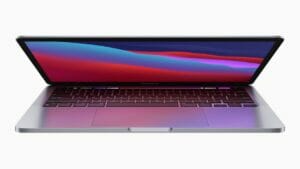
The M1-powered 13-inch MacBook Pro.

In this comprehensive guide, we dive into the nuts and bolts of VPNs, exploring how they function, their advantages, and why they’re essential for safeguarding your privacy in the digital age by protecting your Mac.

What is a virtual private network (VPN), and how does it work?

A VPN creates a secure, encrypted connection between you and the internet. The VPN masks your IP address and location through an encrypted virtual tunnel. This ensures a protected connection that makes your IP address and online activities invisible to everyone.

Your Internet service provider (ISP) gives you a unique number known as an Internet Protocol (IP) address, which allows you to access the Internet. However, your online activities can be traced back to your physical home address using this number. Your ISP can also see everything you do by default, which isn’t great for privacy concerns. A virtual private network (VPN) service stops them from snooping on you. A VPN conceals your home IP address and encrypts your data through a secure tunnel, ensuring that your online activities remain private and inaccessible to third parties. Not even your ISP will know what you’re doing online.

When connected to a VPN, the initial web traffic starts its journey by authenticating your client or device with the remote server location. That data is encrypted based on the security protocol you use, sent to the remote server, and out to the public web. Your actual home IP address is faked or hidden using the new one from the VPN service or provider. Since encrypted data packets are sent between you and the remote VPN server when browsing online, you stay safe and secure no matter what. This entire process is often referred to as VPN tunneling.

Privacy Breaches and Data Leaks: How Mac Users Without VPNs are at Risk

Mac users who do not utilize a VPN are putting their privacy and data at significant risk. Without a VPN, your internet connection is vulnerable to interception by hackers and cybercriminals. Sensitive information, such as passwords, credit card details, and personal documents, can be easily accessed by malicious individuals.

Moreover, without the protection of a VPN, your online activities can be monitored and tracked by various entities, including government agencies and internet service providers. This invasion of privacy can lead to targeted advertising, identity theft, and even blackmail.

By not using a VPN, Mac users are essentially leaving their digital footprint exposed for anyone to exploit. It is crucial to prioritize online security by employing a reliable VPN service that encrypts your data and shields your identity from prying eyes.
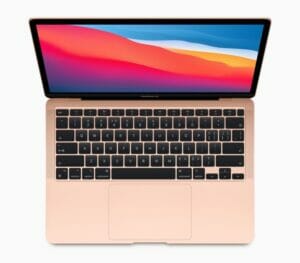
The M1-powered MacBook Air in rose gold.

How a VPN Increases Security and Privacy on Your Mac

Evading Government Surveillance and Censorship Using a VPN for Mac

Government surveillance and censorship are growing concerns in today’s digital age. Mac users can benefit greatly from using a VPN to bypass these restrictions, ensuring secure internet browsing.

With a VPN, Mac users can hide their online activities from prying eyes, including government agencies that monitor internet traffic. By encrypting data and routing it through remote servers, a VPN provides an added layer of protection against surveillance.

Moreover, some countries impose strict censorship on internet access or block certain websites and services. With a reliable VPN service on your Mac, you can easily bypass these restrictions, gaining access to blocked content while maintaining your privacy.

Using a VPN not only enhances security but also empowers Mac users to take control of their online experience by evading government surveillance and censorship effectively.

Shielding Your Mac from Cyber Threats: Enhancing Security with a VPN

With the continuous rise of cyber threats, protecting your Mac from potential dangershas become more crucial than ever. Using a VPN for secure internet browsing is one of the best steps you can take to enhance your online security. By encrypting your connection and masking your IP address, a VPN shields your Mac from hackers and other malicious actors.

A VPN also offers an additional layer of protection when using public Wi-Fi networks, which are notorious for their vulnerabilities. With a trusted VPN service, you can browse the web with peace of mind, knowing that your sensitive information is safe from prying eyes.

Investing in a reliable VPN not only safeguards against cyber threats but also preserves your privacy by preventing unwanted tracking and data collection. Don’t compromise on security – make sure to incorporate a VPN into your Mac usage for safer internet browsing.

Protecting Your Online Privacy: Why Mac Users Need a VPN

As a Mac user, your online privacy should be one of your top concerns. In today’s digital age, cyber threats are becoming more sophisticated and prevalent than ever before. Hackers can easily intercept your internet connection and gain access to your personal information, including passwords, financial details, and browsing history.

A VPN (Virtual Private Network) is an essential tool that provides an added layer of security for Mac users. By encrypting your internet traffic and masking your IP address, a VPN ensures that your online activities remain private and protected from prying eyes. Moreover, it prevents advertisers and ISPs from tracking your behavior and selling your datawithout consent.

With the increasing number of cyber attacks targeting Mac users specifically, using a VPN has become vital for safeguarding both your personal information as well as maintaining control over who has access to it.

Safeguarding Personal Information on Public Wi-Fi Networks with a Mac VPN

Public Wi-Fi networks can be incredibly convenient, allowing us to stay connected while we’re on the go. However, they also pose significant risks to our online security and privacy. Hackers often target these networks to steal personal information or intercept sensitive data.

That’s where a VPN for Mac becomes essential. By encrypting your internet connection, a Mac VPN creates a secure tunnel between your device and the websites you visit. This means that even if someone tries to access your data on a public Wi-Fi network, they won’t be able to decipher it.

With a Mac VPN, you can confidently browse the web, check emails, or use online banking services without worrying about potential threats lurking in public Wi-Fi hotspots. Protecting your personal information has never been easier!

Should you use a free or premium paid VPN service?

That all comes down to what you need and how often you plan to use a VPN with your Mac. Clearly, free VPNs have their downsides. But are there any instances when they’re worth using? The answer is yes, although it depends. If you’re someone who’s never used one of these services before and want to try one out before buying a premium version, then downloading a free VPN isn’t a bad idea. It’ll give you an idea of what VPNs can do.

If you don’t plan on using a VPN often and want it for a specific task, then a free version should be fine. But again, they’ll lack a lot of features and won’t offer the best performance. Overall, paying for a premium version will not only provide more capabilities but will be much safer to use. And many of these services are actually quite cheap, costing as low as $2 per month which is negligible considering the additional privacy features, server selection, and modern VPN security protocols. And many of the well-known VPN services offer excellent multi-year subscription discounts, making it a small price to pay in the long run.

MacBook Air in midnight displaying a wallpaper.  

What can you expect when using a free VPN service?

A lot of the time, free VPNs make money through in-app advertisements. But these are often intrusive, make apps frustrating to use and can even affect device performance. To make things worse, these free services aren’t always legitimate; there have been many instances of malware masquerading as VPN services. So instead of improving online privacy and security, free VPNs can make your Mac less secure.

It’s also worth noting that free VPNs may employ weak or outdated encryption protocols, leaving your data vulnerable to interception and unauthorized access. Premium VPN services however, use advanced encryption standards and industry-standard networking protocols to secure your online communications and data transmission.

Many free VPN services also have various paid options, but that may not always translate to them being trustworthy with your personal data. Depending on the VPN service’s reputation and logging policy, they may collect or misuse your data even if you’re paying for a premium subscription tier. It’s also a good idea to avoid the random free VPN apps that pop up overnight on the Apple App Store. Most of them aren’t designed with your best interest in mind. Their sole purpose is to siphon your data without you ever knowing.

What about premium paid VPN services?

On the other hand, a premium paid VPN service typically offers more unique features than what you get with a free option. With a premium VPN, like ExpressVPN, NordVPN or Surfshark, you can strengthen your defenses through real-time malware defense, ad blockers that stop sneaky tracking practices, and protection from most known malicious websites. Additionally, a premium paid VPN service prioritize your security and employ robust encryption protocols to ensure your online activities remain private. Premium VPN service also operate with a strict no-logs policy, meaning they do not monitor, collect, or store your internet traffic.

A premium paid VPN service also tends to have an extensive selection of high-quality servers you can access worldwide. Since there may be times when a server gets bogged down due to high traffic, the more options you have, the better. In this case, your connection speed can suddenly drop and become unstable, so server hopping would be beneficial. You also get more VPN security protocol choices, including Wireguard and other unique implementations. For example, NordVPN has NordLynx, while ExpressVPN offers Lightway. Both protocols are built around the needs of their respective customers.

What are some popular VPN services for Mac?

There are numerous VPN services available for Mac, each with its own set of features and pricing plans. Some popular options include:

ExpressVPN

ExpressVPN owns all of its own ‘TrustedServer’ DNS servers, meaning at no point in the chain is your data ever handed over to a third party. Combine that with impenetrable encryption and a rock-solid, fully audited zero-logging policy, and you can feel safe in the fact that your personal info won’t be compromised.

Proton VPN

Proton VPN delivers excellent protection for its users across the board. Fully audited apps, an excellent no-logging policy and full AES-256 encryption alongside more unusual features like Tor over VPN and its rock-solid Secure Core servers make it a good choice for anyone looking for a properly secure Mac VPN.

Surfshark VPN

Surfshark is an affordable, feature-rich Mac VPN with over 3,000 servers in 65 countries. With full support for WireGuard, OpenVPN and IKEv2, industry-standard AES-256 encryption and a few extra features like split tunneling and Double Hop, it’s a complete package. The simple, friendly interface also makes these features easy to either use or ignore, and just like ExpressVPN it’s a great option for first-timers.

NordVPN

NordVPN offers all the basics like powerful encryption and multiple protocols, but it also delivers a few features that aren’t available with rivals ExpressVPN and Surfshark. The unique ‘Onion over VPN’ setting routes your through the Tor network, which sacrifices speed for unrivalled privacy. You’ll also get two kill switches, and a nifty Double VPN feature.

How can you tell if a VPN service is safe and legitimate?

The first thing to look for in a VPN service is its no-logging policy. You need to be sure your information is safe and won’t be mishandled at any point. Some countries or governments may enforce strict data-logging policies, so look further into the company’s no-logging claims. Find the location or country where the VPN is based, then dig a little deeper using your own independent research. The goal is to see if the country they set up shop in requires a data-logging policy.

Aside from verifying their no-logging claims, you’ll want to learn as much about that VPN company or service as possible. For this part, stray away from their official website and explore other details using a search engine. Find out who runs it and how trustworthy they are based on community feedback. You should look up multiple third-party articles and videos to see if they all agree on its legitimacy. You can also check the user-based VPN app reviews on the Apple App Store for a little extra insight.

Can your personal data still be tracked when using a VPN?

This is a complicated question that often has a misleading answer, inadvertently giving the average user a false sense of security. A VPN can encrypt your internet traffic and keep your browsing session private to an extent. However, it won’t protect you from everything. For example, you can still be indirectly tracked by website cookies, ad trackers, and the information you share on social media. And the more online accounts you log in to that are tied to your factual personal details, the higher your chances of having that data getting tracked, sold, or stolen by an unwanted third-party entity.

A reputable and well-designed VPN does what it was meant to do by keeping your internet traffic encrypted. However, it still falls on the user to practice safe online browsing habits for everything a VPN can’t protect you from. We also trust these big tech companies and websites to keep our online accounts and personal information safe from harm. Still, data breaches and ransomware have been on the rise recently, which is beyond our control. Because of that, your private data can sometimes be taken from you without your consent or knowledge, VPN or not.

Overall, a VPN can encrypt your internet traffic and keep your browsing activities hidden from others on the public web to an extent. Your ISP won’t be able to tell what you’re doing either. They can only see that you’re using a VPN. This allows you to browse the web and use internet-connected devices, without being tracked by the unique IP address given to you by your ISP. Just be cautious about what information you put online, which links or websites you visit, and how much of your personal life you share with strangers on social media.

What are some safe online browsing habits you can use with a VPN?

No amount of VPN security can protect you from sharing private details online that can be tied to your personal information. People often overlook this when using a Mac VPN. It’s not a magic bubble that keeps you protected without thinking about your actions. VPN users must still be careful when freely browsing the open web. The VPN companies or services offering a premium subscription won’t always point this out either. You have nothing to worry about here if you combine various safe online browsing habits while using your favorite VPN provider.

So what are some examples of safe online browsing habits you can use in your personal life? For starters, avoid websites that are unencrypted and marked as unsafe. Web browsers are excellent at alerting you to this, but you still have to back out of the site manually. At the same time, don’t fall victim to spam calls, emails, or text messages. If it sounds too good to be true, it most likely is. Some VPN services have features to identify and protect you from these common scams.

We also want to touch on two-factor authentication (2FA), which can further protect your online security. In this case, you should ensure your VPN account has a strong primary password and that 2FA is enabled. A VPN might be able to encrypt your web traffic. However, your VPN account is still susceptible to being hacked. Once 2FA is active, you’ll enter a random passcode before you or anyone can log in to the account. You should use 2FA for as many online accounts as possible to keep your personal and private information safe.

Is there another reason to use a VPN ona Mac other than security purposes?

Many Mac users likely use a VPN service for its privacy and security features. Still, another popular reason makes them appealing. Most streaming services offer unique content that can’t be viewed if you live outside a specific country. Using a VPN to spoof or fake your personal IP address in order to bypass these geo-restrictions can give you instant access to many of these shows you couldn’t view before. Some Mac users are less concerned about security and more interested in streaming content outside their own country. For them, the added safety features of a VPN would be a welcomed bonus.

It’s worth noting that using a VPN to bypass geo-restrictions or access blocked streaming content may violate the terms of service for some websites and streaming services. When you sign up for a service, you agree to follow their terms and conditions, which might forbid VPNs. If you ignore those rules and use a VPN, you could risk getting your account suspended or terminated. So, be smart and cautious with your VPN usage when it comes to streaming!

Potential downsides and risks of using a VPN ona Mac

While VPNs offer many benefits to Mac users, there are also some potential downsides and risks to consider. One concern is that using a VPN can sometimes result in slower internet speeds since your data must travel through the VPN server before reaching its destination. This can be particularly noticeable when using a VPN server located far away from your actual location, so it’s best to choose a location that is closer to your current location.

Another concern is the trustworthiness of the VPN provider. When you use a VPN on your Mac, you are essentially entrusting your data to the VPN company. Some VPN providers may log your data or even sell it to third parties, negating the privacy benefits of using a VPN. To minimize these risks, it’s essential to choose a reputable VPN provider with a strict no-logs policy and strong encryption standards.

Step-by-Step Guide to Set Up a VPN on your Mac: Easy Ways to Strengthen Online Privacy

Setting up a VPN on your Mac is easier than you might think. With just a few simple steps, you can enhance your online privacy and strengthen your security. First, choose a reputable VPN service that meets your needs and offers strong encryption protocols. Next, download the VPN client software provided by the service onto your Mac computer.

Once installed, launch the app and enter your login credentials to connect to the server of your choice. Many VPN services offer servers in various locations worldwide, allowing you to bypass geo-restrictions and access content from different regions.

To ensure maximum security, it’s recommended to enable features like kill switch or automatic connection on startup in case the VPN connection drops unexpectedly. You can also customize other settings according to your preferences.

Remember to regularly update both the VPN client software and macOS for optimal performance and protection. By following these steps, you’ll be able to take full advantage of a secure internet browsing experience on your Mac with peace of mind knowing that your data is protected from prying eyes.

Protecting your Mac with a VPN has never been easier

If you’ve gotten this far, you now know that a VPN is an essential tool to keep your personal information safe while using your Mac. With a VPN, your online activities are private and secure, even from your internet service provider. However, a VPN cannot protect you from everything, like sharing private information online or falling for scams. Always practice safe online browsing habits, like avoiding unencrypted websites, enabling two-factor authentication, and being cautious about what information you share with strangers on social media.

While free VPN services may seem tempting, it’s best to invest in a premium paid VPN service to avoid data caps and get extra features like real-time malware defense and ad blockers. Finally, be sure to research and choose a VPN provider with a no-logging policy and a good reputation to ensure your personal data is safe.

Have you ever used a VPN on your Mac, and if not, what’s holding you back? We’d love to hear your thoughts in the comments below!


While a virtual private network (VPN) is a great way to protect your privacy and security online, it’s not designed to defend you against hackers in all situations. We explain how and when a VPN can help to protect your Mac from hackers.

The Liquid Retina XDR display is shown on 14 Inch MacBook Pro.

Connecting to public Wi-Fi networks, such as those found in coffee shops, airports, and other public areas, is incredibly risky.

All it takes is one hacker connected on the same network and they can easily spy on all your activity.

In this guide, we’ve put together everything you need to know to use a VPN to protect your Mac from hackers.

What Is A VPN?

VPN stands for ‘virtual private network—a tool that protects your internet connection and privacy online. It does this by creating an encrypted digital tunnel between your computer and the internet, protecting your online identity and hiding your IP address (which is a series of numbers that identifies a device or network).

Another way to understand a VPN is to picture it as an outer packet that ensures your data stays secure inside the packet. This keeps the data safe during transfer.

A VPN also allows you to use public Wifi hotspots safely. It’s a buffer against the nasties of the internet, and you’ll certainly be better off with a VPN on your Mac than without. But will it protect your Mac from hackers?

We explain below the ways a VPN can – and can’t – have your back against hackers, and the different kinds of cyberattacks you can experience when being hacked.

What hackers can a VPN protect your Mac against?

A VPN can quite literally block your IP address from everyone. Governments, hackers, or anyone else spying on you as you navigate the web.

A VPN works by changing your IP address and encrypting your online activity. There are certain forms of hacking, then, that the best VPNs are reliable in protecting you against where hackers require your IP address. These include:

  • Remote hacking: Attempting to gain access to your system through all devices connected to your Wi-Fi, this is done through your IP address. However, when connected to a VPN, your IP address is concealed with all your browsing data instead tied up in another server, leaving you untraceable.
  • Man-in-the-Middle attack: Targeting you at the point before connection, here a hacker goes through the network you’re connected to, circumvents the weak encryption in place, and intercepts your data.
  • DDoS attack: Commonly mentioned when it comes to gaming, a hacker will flood your network in order to slow down and even get you kicked off your network. Once again, the hacker needs your real IP address to do this.

It’s worth noting if for whatever reason a hacker already knows your IP address, a VPN can’t protect you against these kinds of attacks, and you should instead speak to your Internet Service Provider.

What hacking attacks are VPNs less well equipped for?

It’s fair to say hackers can be scarily sophisticated these days – whether targeting Macs or any other internet-connected devices – and a lot of internet safety can come down to common sense and being extra vigilant. This much is true when it comes to malware and phishing, where the fundamentals of a VPN’s IP spoofing abilities don’t offer the same realm of protection. That’s because this comes down to the websites you choose to visit, and avoiding clicking on certain links in dodgy emails, or downloading dangerous files.

That said, a lot of VPN providers go the extra mile to equip users with features that can tackle these safety concerns.

Can a VPN on my Mac protect me against hackers?

Essentially, yes. It does this by creating an encrypted digital tunnel between your Mac and the internet, protecting your online identity and hiding your IP address.

Please Note: while a VPN offer a stronger connection that makes you less susceptible to particular hacking approaches, it’s not a foolproof way to protect your Mac from external dangers infiltrating your device.

The best thing to do to protect yourself is to remain vigilant and avoid clicking on suspicious links or attachments from unknown users.

For more complete protection, you should equip your Mac with antivirus and firewalls for more comprehensive protection against online threats.

Make sure you shop around, and be a little wary of free VPNs as they may not be as secure.

Which VPNs Are the Most Secure?

When trying to track down a VPN service to use on your Mac, start by thinking about why you need one in the first place.

For example, if you’re using free Wifi in the cafe a lot, then maybe it’s a good idea. Alternatively, if you work from home and don’t want your browsing history to be trackable, particularly if you work in a sensitive industry, such as banking, accounting or media, then it may be worthwhile.

A VPN also means you don’t have to worry about content restrictions if you’re using your mac to conduct research online, for example.

Also consider whether the VPN is free, or is offered via a subscription service. You should also check if you can contact the provider with any questions. You can read online reviews of VPN online.

Conclusion

So, to wrap things up, does a vpn protect your Mac from hackers? Essentially, yes. A VPN is a great way to keep anyone unwanted from accessing your data.

VPNs offer top-tier encryption protection, making your online activity practically impossible for hackers to observe. It will also keep your real IP address hidden, making it harder to target you in a cyber attack.

Like most elements of the big wide web, VPNs aren’t all built the same, and they are still capable of being hacked.

VPNs protect your privacy online so you cannot be targeted or discriminated against based on location. It is important to note that you can also still be susceptible to phishing scams and being infected by malware whilst having a VPN, so it is vital that your Mac is current with all software updates and that you have a reputable antivirus/anti-malware software installed.