Got a tip for us?

How-To

It’s normal for the iPhone 17 to have a hiccup now and then. Fortunately, you can often resolve the problem at home without any cost. The solution is to soft reset your iPhone 17.

Let’s first quickly look at what an iPhone soft reset does. Then, we’ll go through the steps on how to soft reset an iPhone 17.

Note: Information in this article applied to iPhone 17, ipPhone Air, iPhone 17 Pro, and iPhone 17 Pro Max.

What Is an iPhone Soft Reset?

A soft reset is also known as a force restart. A soft reset differs from a "normal" restart. The latter simply involves turning off your iPhone and turning it on again.

Take note that a soft reset also differs from a hard reset. When you hard reset or factory reset your iPhone, the procedure erases your iPhone’s data and restores your device to its blank, default state, as though you just bought it.

You’ll likely soft reset your iPhone 17 when it’s completely frozen. For example, when your iPhone 17 is stuck on the Apple logo. A soft reset does not erase any data.

How to Soft Reset an iPhone 17

Follow these steps to soft reset your iPhone 17, iPhone 17 Pro or iPhone 17 Pro Max:

  1. Press the Volume Up button once and release it.
  2. Press the Volume Down button once and release it.
  3. Press and hold the Side button until you see the Apple logo. You can now release the Side button.

It’s important to press each button in immediate succession. However, you don’t need to rush through the steps urgently. Pacing it at one button per second is sufficient.

Carry Out an iPhone 17 Soft Reset Easily

Whenever you face issues with your device, a quick go-to solution is to simply soft reset your iPhone 17. The methods are similar on iPhone 17, iPhone 17 Pro and iPhone 17 Pro Max, and they’re easy to carry out once you know the steps.

However, if the problem persists, you might need to put your iPhone 17 in recovery mode and reinstall iOS. Just don’t forget to back up all your data before you do that.

See also: How to Put Your iPhone 17 in DFU Mode

  • DFU mode is a way to recover your iPhone using a computer.
  • To put an iPhone 17 into DFU mode, you’ll need to use either iTunes or Finder.

Most of the faults your iPhone 17 software will develop can be solved with a few tricks or by resetting it using Recovery mode. On rare occasions, however, those options may not work. Before you search for the nearest Apple repair center, you should try to restore your iPhone 17 using DFU mode instead.

In this article, we’ll check out how to put your iPhone 17 in DFU mode and also how to exit this mode.

Note: Information in this article applied to iPhone 17, ipPhone Air, iPhone 17 Pro, and iPhone 17 Pro Max.

What Is DFU Mode?

Device Firmware Update mode — or DFU mode for short — is a state that an iPhone can be put in to get your device back into working order.

DFU mode is similar to the BIOS on Windows computers or Recovery Mode on a Mac. It exists "below" the operating system level — iOS — but can still communicate with iTunes or Finder on a Windows or Mac computer.

In DFU mode, your iOS device is accessible to iTunes or Finder at a more privileged level. This allows for more to be changed than normal. However, going into DFU mode on its own does not change anything on the iPhone.

Quick tip: DFU mode can be useful for installing older versions of iOS if a beta release does not allow you to install an update.

Does DFU Mode Delete iPhone Data?

Unfortunately, if you use this mode to install something or restore your iPhone 17, all of your iPhone’s data will be erased. This works similarly to the iTunes restore method, which also deletes all of your data.

It completely erases your iPhone, erasing all of your videos, photos, messages, apps, and even the previously configured settings. When you’re finished with this mode, you’ll have to reset your device to use it. We recommend backing up your files before entering DFU mode, then restoring them after the process.

Put an iPhone 17 in DFU mode

To put an iPhone 17 into DFU mode, follow the steps below.

Before you begin:

  • Back up your iPhone if you can, as a DFU restore will erase your iPhone data.
  • Install the latest version of iTunes or macOS on your Windows or Mac.
  • Do not disconnect your iPhone when iTunes or Finder is actively reinstalling the system software and firmware.
  • If your iPhone 17 is damaged in any way, and especially if it’s water-damaged, a DFU restore may break your iPhone.

It is necessary to note that using DFU mode to downgrade iOS or jailbreak your device can cause damage and void the warranty.

Entering DFU mode on an iPhone 17 involves a combination of pressing, holding, and releasing different buttons. You will also need a compatible USB cable to connect the device to a Mac or a Windows PC running the latest version of macOS or iTunes.

Important: Macs running macOS Catalina and later will use Finder. PCs and Macs running macOS Mojave or earlier will need iTunes.
3.

Follow these steps to enter DFU mode on an iPhone 17:

  1. Quickly press and release the volume up button, then quickly press and release the volume down button, and then press and hold the side button until the screen goes black.
  2. As soon as the screen turns black, press and hold the volume down button while continuing to hold the side button.
  3. After 5 seconds, release the side button while continuing to hold the volume down button until your iPhone shows up in iTunes or Finder.
  4. As soon as it appears in iTunes or Finder, release the volume button. Ta-da! Your iPhone 17 is in DFU mode.

Note: If the Apple logo is appearing on the screen, you held down the volume down button for too long. Start the process over from the beginning and try again.

How to Exit DFU Mode on an iPhone 17

  1. Quickly press and release the Volume up button.
  2. Quickly press and release the Volume down button.
  3. Press and hold the Side/Power button until the Apple logo appears on your phone screen.

DFU Is Powerful, But Not Perfect

If your iPhone 17 isn’t working and you’ve tried all the other solutions, you might still be able to fix it using DFU mode. However, a DFU restore is not the ultimate fix for all iPhone 17 problems Some issues may be plain hardware faults and cannot be fixed with system software or firmware restore. If your iPhone 17 stubbornly refuses to enter DFU mode, or the issues persist after performing a reset, consider seeking a professional repair instead.

You might need to put your iPhone 17 in recovery mode to fix all manner of software problems, from a short battery life to totally unresponsive phone. Recovery mode is also especially useful if you’re having trouble updating or restoring your iPhone 17.

Before we get started, you should know that you’ll need a computer (running macOS or Windows) and a cable to connect it to your iPhone 17. If you’ve got everything you need, follow the steps below to learn how to put your iPhone 17 in recovery mode.

Note: Information in this article applied to iPhone 17, ipPhone Air, iPhone 17 Pro, and iPhone 17 Pro Max.

Data Loss Concerns With Recovery Mode

If you need to put your iPhone 17 in recovery mode to restore it, you can ignore this section because you’re going to erase all your data anyway. However, if you’re using recovery mode to update or troubleshoot your iPhone 17, you should know that it comes with a risk of data loss.

This isn’t always the case; usually you can enter and exit recovery mode without losing any data on your iPhone 17. But if something goes wrong, you may need to erase and restore your iPad to get it out of recovery mode again.

For that reason, we strongly recommend that you back up your iPhone 17 before putting it into recovery mode.

How to Enter Recovery Mode on iPhone 17

The iPhone 17, iPhone Air, iPhone 17 Pro and iPhone 17 Pro Max use the same set of steps to enter recovery mode. The below steps will work with the iPhone 17, iPhone Air, iPhone 17 Pro and iPhone 17 Pro Max.

  1. Make sure that your Mac is up to date. If you’re using a PC, make sure you have the latest version of the Apple Devices app or iTunes.
  2. Connect your iPhone 17 to your computer with a USB cable.
  3. Open the Finder on your Mac, or open the Apple Devices app on your PC. If your PC doesn’t have the Apple Devices app, or your Mac is using macOS Mojave or earlier, open iTunes instead.
  4. Keep your iPhone connected and wait until the Connect to computer screen appears.
  5. Press and quickly release the volume up button. Press and quickly release the volume down button. Then, press and hold the side button until you see the Connect to computer screen.

After Putting an iPhone 17 in Recovery Mode

Once your iPhone 17 is in recovery mode, you need to use Finder or iTunes on your computer to update or restore the device.

Select your iPhone from the sidebar in Finder or from the top-left corner in iTunes, then go to the Summary or General tab and click Update or Restore, depending on your needs. Update will install the latest version of iOS without erasing any data. Restore will update iOS while also erasing all the data and resetting your iPhone 17 to factory settings.

Force Restart Your iPhone 17 to Exit Recovery Mode

If you need to exit recovery mode, but you don’t want to update or restore your iPhone 17, you should be able to do so by force restarting your iPhone 17. To do this, disconnect your iPhone 17 from the computer, then quickly press and release the volume up button, then quickly press and release the volume down button, and then press and hold the side button until you see the Apple logo.

And if recovery mode didn’t help solve your software issues, consider using DFU mode with your iPhone 17 instead, which offers a deeper level of software reset for your device.

iPhone 17 Recovery Mode, Made Easy

We’ve seen how to enter recovery mode on an iPhone 17, iPhone Air, iPhone 17 Pro and iPhone 17 Pro Max. It’s a simple process once you know it, but the increasingly confusing button combinations are a bit obtuse. Hopefully, you won’t need to use these often, if ever.

See also: How to Put Your iPhone 17 in DFU Mode

  • To fix the "iPhone Unavailable" with no timer issue, you need to erase your device and restore it from your most recent backup.
  • To avoid triggering the "iPhone Unavailable" screen in the future, be careful when entering your passcode and ensure Face ID or Touch ID is working properly. Regularly backup your iPhone using iCloud or macOS/iTunes for Windows.

You’ve reached out for your iPhone to make a call only to be greeted with an error that says "iPhone unavailable" with no timer. As frustrating as it can be to have the “iPhone Unavailable” without a timer, rest assured that there are several tips and tricks that can help you fix this issue.

Why Does iPhone Say iPhone Unavailable with no time limit?

The iPhone Unavailable with no time limit appears when the iPhone passcode has been entered incorrectly ten times in a row. This is a great safety tool to keep your device away from prying eyes and to ensure someone doesn’t randomly guess your password through multiple sign in attempts.

In most cases, you will see a timer beneath the message informing you of how long you need to wait before your iPhone becomes available again. After five incorrect attempts, the timer is set to a minute, with the delay increasing to five, 15, and 60 minutes with each subsequent attempt.

After 10 incorrect passcode attempts your iPhone will be permanently locked, with no timer displayed.

If you don’t see a timer and instead your iPhone simply displays an "iPhone Unavailable" message then this means that no amount of waiting will fix the issue. Your iPhone is permanently locked and will need to be erased and restored from scratch again.

How to Fix iPhone Unavailable with no timer

iPhone Unavailable without a timer issue may seem scary at first, however, there are quick ways to fix the problem and get back to scrolling through Twitter or Reddit without much downtime. Here’s how:

Method 1: Fix iPhone Unavailable No Timer Using the Erase Option

Any time you encounter this problem, you can use your Apple ID and password to erase and reset your phone. This is the best method to fix iPhone Unavailable with no timer issue. It’s also the best method to fix iPhone Unavailable without computer.

Before you begin, you’ll need to ensure your iPhone is running iOS 15.2 or later and is connected to a cellular or Wi-Fi network. You’ll also need the Apple ID and password you used to set up your iPhone.

Step 1: From the "iPhone Unavailable" screen, tap on the Erase iPhone option (iOS 15/16) or Forgot Passcode? (iOS 17 or newer).

Step 2: On the Security Lockout screen, tap on Erase iPhone or Forgot Passcode? again to confirm.

Step 3: Enter your Apple ID password to sign out of your Apple ID on your iPhone.

Step 4: Tap on Erase iPhone to confirm.

Your device will erase itself, removing everything including the iPhone Unavailable message. When your iPhone restart, follow the onscreen instructions to set up your device again, restore your data and setting from a backup, and set a new passcode.

If you can’t follow these steps, or if you can’t see the Erase iPhone option, use a computer to get rid of iPhone Unavailable message.

Method 2: Fix iPhone Unavailable No Timer With iTunes or Finder

Another way to get rid of iPhone Unavailable screen when there’s no timer is to restore your phone using in recovery mode. Recovery mode allows you to erase the iPhone, giving you access to set it up again.

After you erase your iPhone, you can restore your data and settings from a backup. If you didn’t back up your iPhone, you can set it up as a new device and then download any data that you have in iCloud.

On PC and Mac that runs macOS Mojave and earlier, use iTunes to fix the iPhone Unavailable screen. While on Mac running macOS Catalina and later, use Finder instead.

Step 1: Open iTunes (Mac/PC) or open the Finder (Mac), but don’t connect your device just yet.

Step 2: Turn off your iPhone

Depending on your iPhone model, follow the steps below:

  • iPhone 8, iPhone 8 Plus, iPhone X and later, including iPhone SE (2nd and 3rd generation): Press and hold both the side button and the Volume down button until you see the power off slider. Drag the slider from left to right to turn off your iPhone.

  • iPhone 7, iPhone 7 Plus, iPhone 6s, and iPhone 6: Press and hold the side button until you see the power off slider. Drag the slider from left to right to turn off your iPhone.

  • iPhone SE (1st generation), iPhone 5s, and earlier: Press and hold the top button until you see the power off slider. Drag the slider from left to right to turn off your iPhone.

Step 3: Put your iPhone in recovery mode

  • For the iPhone 8, iPhone 8 Plus, iPhone X and later, including iPhone SE (2nd and 3rd generation,) press the side button while immediately connecting your iPhone to a computer.

  • For the iPhone 7 and iPhone 7 Plus, press the Volume down button while immediately connecting your iPhone to a computer.

  • For the iPhone SE (1st generation), and iPhone 6s and earlier, press the Home button while immediately connecting your iPhone to a computer.

Continue to hold the appropriate button while the Apple logo appears, and don’t release the button until the image of a computer and cable appears.

If you see the passcode screen, you need to turn off your iPhone and start again.

Step 4: Restore your iPhone with your Mac or PC

Locate your iPhone in the Finder, or in iTunes or the Apple Devices app if you connect to a PC.

When the option to Restore or Update appears, choose Restore. Your computer will download software for your iPhone and begin the restore process. If the download takes more than 15 minutes and your device exits the recovery mode screen, let the download finish, then turn off your iPhone and start again.

To restore and update your iPhone with your computer, you must tap Restore and Update to confirm.

Wait for the process to finish. When the process finishes, your device will restart and show a setup screen.
At this point, the iPhone Unavailable message is gone. Simply disconnect your iPhone from the computer, then set up and use your iPhone.

Method 3: Fix iPhone Unavailable No Timer Via iCloud

As long as you’ve enabled Find My iPhone, which should be on by default, you can get rid of iPhone Unavailable message by erasing your device from the iCloud web page. Here’s how:

Step 1: Go to iCloud.com on another device and sign in with your Apple ID and password.

Step 2: Select Find My, and sign in if you’re prompted.

Step 3: When you see a map and list of your devices, choose the iPhone you need to unlock and select Erase This Device.

Once your iPhone has been fully erased, it will restart in an out-of-the-box configuration and you’ll have to go through the setup process again. Once you’ve done that, you can complete the setup process and choose to restore a backup from iCloud or your computer or set your iPhone up as brand new if you prefer to do that instead.

Method 4: Fix iPhone Unavailable No Timer With Find My app

Whenever your iPhone says “iPhone Unavailable" with no timer, you can fix it with the Find My app. Much like the other methods on this list, this will erase your iPhone’s data. Here’s how:

Step 1: Open the Find My app on another iPhone or iPad.

Step 2: Tap Devices at the bottom of the screen, then select your iPhone.

Step 3: Tap Erase This Device, then tap Continue.

Step 4: Tap Erase.

Step 5: Enter your Apple ID password, then tap Erase again.

After your iPhone is erased, the iPhone Unavailable error will be removed, and you can follow the directions to restore the iPhone with a recent backup.

How to Fix iPhone Unavailable Without Losing Data

If your iphone says iPhone Unavailable and there’s no timer, the only way to fix the problem is to erase everything on your iPhone and return it to factory settings. The good news is that if you have a recent backup — either in iCloud or on your Mac or PC — you can be up and running again in a couple of hours. While your device backup contains all of your important data, it doesn’t include your device passcode, so you can set a new one after restoring it.

Avoiding a iPhone Unavailable message

The best way to get rid of iPhone Unavailable error message is to avoid getting one in the first place. There are a number of strategies you can use to prevent accidental lockouts.

Tip #1: Set a numeric passcode that is easy to remember and that no one else knows or is likely to guess. No mistakes mean no error messages.

Tip #2: Use Touch ID (for iPhones with home buttons, from 5S through iPhone SE 2022) or Face ID (for iPhone X and later and iPad Pro models).

Even with these unlock options, your device still has a passcode — you just don’t need to worry about entering it as often. Instead, just look at your phone screen or tap and hold your finger and your device unlocks.

Keep in mind that biometric security options are about convenience, not security. Anybody can still unlock your iPhone with a standard passcode, and your iPhone will prompt you to enter your passcode once in a while for extra security and to ensure that you don’t forget it. However, since you won’t need to enter it nearly as often, you can choose a more complex passcode or even an alphanumeric password — just be sure it’s something you remember, as you’ll still need to enter it sometimes, and your Face ID and Touch ID won’t help if you’ve forgotten it.

Tip #3: While it’s pretty uncommon for other things touching your screen to result in lockouts, you can avoid this entirely by disabling the "Tap to Wake" and "Raise to Wake" settings that automatically turn on your screen. Here’s how to find these settings:

  • Go to Settings > Accessibility > Touch and switch off Tap or Swipe to wake.
  • Go to Settings > Display & brightness and switch off Raise to wake.

Easily Fixed iPhone Unavailable No Timer Issue

Figuring out how to fix iPhone unavailable without a timer issue can be a challenge. Thankfully, Apple enables you to achieve this goal, making it incredibly easy to get your iPhone out of unavailable mode and regain access to your device.

If you can’t complete any of these steps or if you need any other assistance, contact Apple Support.


  • If your iPhone says iPhone Unavailable and don’t have a computer nearby, you can still unlock it.
  • If your iPhone displays an "iPhone Unavailable" error with a timer, wait for the timer to expire and enter your passcode correctly.
  • You can also use iCloud or Find My app to erase data to remove the iPhone Unavailable message.

You’ve pulled your iPhone out of your pocket only to be greeted with an error that says "iPhone unavailable" with seemingly no solution. As frustrating as it can be to have the “iPhone Unavailable” error, rest assured that there are several tips and tricks that can help you fix this issue.

While you most likely triggered the iPhone Unavailable screen through your own actions, it’s possible someone else did it without your knowledge. Whatever the reason, we’ll show you how to fix the iPhone Unavailable error without a computer, either for yourself or someone else—and possibly even save a life.

What Does “iPhone Unavailable” Mean?

The “iPhone Unavailable” screen pops up when there have been several unsuccessful password attempts. This is Apple’s way of guarding against brute force attacks, where someone tries multiple passcodes to break into your phone.

In most cases, you will see a timer beneath the message informing you of how long you need to wait before your iPhone becomes available again. After five incorrect attempts, the timer is set to a minute, with the delay increasing to five, 15, and 60 minutes with each subsequent attempt.

After 10 incorrect passcode attempts your iPhone will be permanently locked, with no timer displayed. Below, we’ll show you how to fix iPhone Unavailable without computer, including using the Erase iPhone option, iCloud, and the Find My app. Let’s jump into details.

How to fix “iPhone Unavailable” without computer

Fix “iPhone Unavailable” by Waiting It Out

If your iPhone is flashing an “iPhone Unavailable” screen with a countdown, don’t fret – just hang in there. Once the timer runs down, you can get back to your phone using the right passcode. Be very careful when doing this, since entering the wrong passcode will increase the timer again (for example, from one minute to five on the second attempt).

Fix “iPhone Unavailable” by Restoring Your iPhone

If your iPhone says “iPhone Unavailable” and there’s no timer, it means the waiting game won’t do the trick. Sadly, your iPhone is locked for good and you’ll need to erase and restore it from scratch. After entering the wrong passcode a few times, you’ll get an "Erase iPhone" option in the bottom corner of the lock screen. This lets you reset it right from there, no computer needed.

To erase your iPhone and remove the iPhone Unavailable message without using a computer, follow these steps:

  1. On the iPhone Unavailable screen, select Erase iPhone.
  2. Enter your Apple ID password to log out of your Apple account.
  3. Press Erase iPhone again, and your iPhone will reset.

Get rid of iPhone Unavailable With iCloud

As long as you’ve enabled Find My iPhone, which should be on by default, you can use iCloud to remotely erase your device and remove the iPhone Unavailable message. Here’s how to do it:

  1. Using any web browser, visit iCloud.com and log in with your Apple ID and password.
  2. Select the Find My option.
  3. Choose your phone from the list and select Erase This iPhone.

Your device will erase itself remotely, removing everything including the iPhone Unavailable message. Note that this doesn’t disable the Activation Lock feature, so you will need to enter your Apple ID and passcode before setting up your iPhone to confirm that you’re the actual owner. Once you’ve done that, you can complete the setup process and choose to restore a backup from iCloud or set your iPhone up as brand new if you prefer to do that instead.

Use Find My app

If you have another iPhone or iPad, you can use the Find My app to wipe your iPhone and start over fresh at any point after the "iPhone Unavailable" screen first appears and bypass the requirement for any other tools like a computer or web browser.

  1. Open the Find My app.
  2. Tap Devices” tap.
  3. Select the phone that says “iPhone Unavailable.”
  4. Press “Erase This Device.”
  5. Tap “Continue.”
  6. Tap “Erase.”
  7. Enter your Apple ID Password.
  8. Tap “Erase” to confirm.

Remember to Always Back Up Your Devices

Now that you’ve successfully fixed iPhone Unavailable problem without a computer, you’re back into your iPhone. To avoid this happening again, it might be a good idea to make a note of your iPhone’s passcode somewhere.

And, as an extra safety precaution, make sure to regularly back up your iPhone in case you ever experience the iPhone Unavailable notification again. But don’t just back up your iPhone to your computer, store it on an external device for added security.

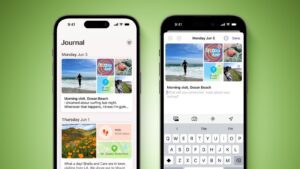
Apple’s Journal app lets you record your daily thoughts and activities, incorporating data like photos, music listened to, workouts, and more, plus it suggests topics to write about.

Journal App iOS 17 Feature Green  

A common issue that iPhone users have is that they keep getting Journal notifications even though they do not use the app. By default, notifications for the Journal app are enabled. Depending on your settings, the number of notifications you get will vary. For example, if you turn on the Journaling Schedule feature, your notifications will increase.

Getting constant Journal notifications is not only overwhelming but it is also distracting. Checking your iPhone constantly, only to see alerts from an app you don’t use can be frustrating. Also, while you swipe away all the notifications from Journal, you may miss essential announcements from other apps. The good news is you can put a stop to this by learning how to turn off Journal notifications.

If you are not using the Journal app, you can remove it from your iPhone. To remove it, find the app icon on the Home screen, press and hold it, then tap Remove App. When the app is gone, its notifications will be gone too.

If you do not want to remove the app but only stop its notifications, you can change your settings:

  1. Open the Settings app on your iPhone.
  2. Tap Notifications.
  3. Scroll down and find Journal and Journal Suggestions from the list of apps. They are listed alphabetically.
  4. Open each and turn off the Allow Notifications option.

Alternatively, you can also change your notification settings via the Journal app settings. Here is how:

  1. Open the Settings app on your iPhone.
  2. Scroll down and tap Journal.
  3. To turn off Journal notifications fully, tap Notifications and turn off Allow Notifications. Then, tap Journal Suggestions and Suggestions Notification Settings and turn off Allow Notifications.
  • To fix iPhone not receiving text from Android issue, check your cellular reception and make sure you’re not blocking the Android’s phone number.
  • You should also try restarting your iPhone, enabling MMS Messaging, and checking for iOS update.
  • If all else fails, contact your carrier for assistance.

One of the most commonly asked questions on GeeksModo is how to fix the iPhone not receiving texts from Android problem.

Many of our readers ask us why their iPhone is not getting text from Android phones.

In this article, we will show you how to fix the iPhone not receiving text from Android issue so your messages can start coming through again.

Why Your iPhone is Not Getting texts From Android

The most common reason for iPhone not receiving text messages from Android is due to a glitch with your cellular network. This means that when a text message is sent out from an Android phone it may not make it into your iPhone.

It is also possible you’ve blocked the Android phone number and that’s why you’re not getting those texts.

If you have trouble receiving texts from Android users with embedded photos or videos, MMS might be turned off on your iPhone.

Your cellular provider may also be having a problem with their network coverage – maybe their SMS service is down.

With that said, let’s take a look at how to fix the iPhone not receiving text from Android issue.

Fixing iPhone not receiving Texts From Android Issue

Try the suggestions below in this order until your issue is fixed:

1. Toggle Airplane mode

Not getting a text you’re expecting? Perhaps you’re not getting any messages because there’s a glitch with your cellular radio or the wireless software. Turning your phone’s cellular radio off and back on again may resolve the issue. Swipe down from the top right corner of the screen to reveal the control center, then tap Airplane mode to turn it on. Wait a few seconds, then tap it again to re-enable your wireless networks.

2. Make sure you have cellular connectivity

If you’re having trouble getting SMS messages from Android users, remember that these can only arrive via your cellular network — not WiFi. Be sure to check your wireless signal strength in the status bar at the top of the screen, and move outdoors if needed. Toggling Airplane mode can also help reestablish a solid cellular signal.

3. Doublecheck MMS options in Settings

If you have a problem receiving texts from Android users with embedded photos or videos, MMS might be turned off. Here’s how to check:

  1. On your iPhone, open the Settings app,
  2. Scroll down and select Messages.
  3. Make sure MMS Messaging is enabled.

4. Check your blocked contacts

It’s possible that the problem is relatively mundane — you might have blocked the Android contact and that’s why you’re not seeing text messages from that number. Here’s what to do:

  1. Open Settings.
  2. Tap Messages.
  3. Scroll down, and select Blocked Contacts.
  4. If you recognize any names or numbers in the list that you want to hear from again, tap Edit and then the red circle next to each entry.
  5. When you’re finished, tap Done.

5. Update iOS

It’s also possible that there’s a more pervasive problem with your phone, such as a software bug or incompatibility that’s preventing your iPhone from receiving Messages from Android. Check to make sure iOS is up to date and then install any available updates, if needed.

  1. Open Settings.
  2. Go into General.
  3. Tap Software Update.
  4. If an update is available, tap Update Now and follow onscreen instructions.

6. Restart your iPhone

If all else has failed so far, rebooting your iPhone might get your texting working again.

Follow these steps to restart iPhone XR, iPhone 11, iPhone 12, iPhone 13, iPhone 14, or iPhone 15:

  1. Press and hold both the Side button on the right side of the iPhone and any of the volume buttonson the left side. Release the buttons when you see the power off screen.
  2. Drag the power off slider to the right. Doing this will turn off the iPhone.
  3. Wait for at least 30 seconds.
  4. Press the Side button and release it when you see the Apple logo on the startup screen. In a few seconds, your iPhone will turn on.

Follow these steps to restart iPhone SE (2nd generation) and iPhone SE (3rd generation):

  1. Press and hold the Side button until you see the power off screen.
  2. Drag the power off slider to the right. Your iPhone is switched off now.
  3. Wait for at least 30 seconds.
  4. Press and hold the same Side button until you see the startup Apple logo.

7. Check for a carrier settings update

Carriers regularly push out network-specific settings updates meant to solve flaws or ensure compatibility. Normally you’ll be automatically prompted to install these, but if you think you missed one, you can install them manually.

  1. Open Settings.
  2. Tap General.
  3. Tap About. If an update is available, you should see a pop-up in a matter of seconds. It may be worth waiting a minute or two to be sure.

8. Turn Off Message Filtering

iPhones allow you to filter text messages from unknown senders. While this is off by default, you may have accidentally turned it on. If that’s the case, you could be missing text messages from Android numbers you don’t have saved on your phone.

To resolve this, turn off message filtering on your device. You can do this by following the steps below:

  1. Open Settings.
  2. Tap Messages
  3. disable Filter Unknown Senders. You should start receiving text messages again if it was enabled all this time.

Once you turn it off, head to the Messages app to find any unread messages that the filter hid. Filtered messages don’t get deleted. Instead, they get stored in another folder. Once you turn off Message Filtering, you’ll see them in the Messages app.

9. Delete old text messages

When the iPhone’s storage is full, it might not have the room to accommodate incoming messages. If you have a bunch of messages, it might be time to delete some of them to free up some space for new ones.

  1. Start the Messages app on your iPhone.
  2. Tap Edit in the top left corner of the screen.
  3. Tap Select Messages.
  4. Tap on any text message that you don’t need – it will have a checkmark on the left to indicate that you have selected it.
  5. After you’ve selected all the messages you want to remove, tap Delete in the bottom right corner.
  6. Tap Delete to confirm your action.

Quick tip: If you want to keep your old messages but still need to free up space on your iPhone, you can try other methods. For example, you can delete or offload apps you don’t need.

10. Reset your network settings

Sometimes, third-party apps, iOS updates, and bugs can cause your network settings to malfunction. If this happens, you might not receive text messages from Android phones.

Before contacting your carrier, you should try resetting your network settings. Some users reported that this does fix many issues related to your iPhone not receiving texts from Android.

  1. Open Settings.
  2. Go into General.
  3. Scroll down and tap Transfer or Reset iPhone.
  4. Tap Reset.
  5. Select Reset Network Settings and follow onscreen instructions.

11. Contact Your Carrier

If you tried the above fixes and your iPhone still isn’t receiving text messages from Android, it’s time to call your carrier. After all, there are many other ways your carrier can help you. For example, there could be a cell tower outage near you that they can inform you of, or you could have an issue with your account.

If you pay your carrier for service and aren’t receiving text messages from Android, the carrier is responsible for restoring your text messaging. The carrier can verify your plan, check for outages, and try resetting your account if necessary. You may also want to consider trying a new SIM card and see if that helps.

When calling your carrier, just let them know you aren’t receiving text messages from Android. If the carrier can’t help you, consider switching to a different network provider unless you have a carrier-locked phone.

iPhone Not Receiving Texts from Android? There Are Things You Can Do

You could miss important events or updates if your iPhone is not receiving text messages from Android phones. This can be difficult for anybody. Because of this, you’ll want to get this fixed as soon as possible. After all, you might have already missed some important messages and don’t want to miss them anymore.

Luckily, there are several things you can try before contacting your carrier. Sometimes, a simple setting can change whether you receive messages. There are also cases when resetting your network settings fixes your carrier issues, so you don’t need to call and wait.

No matter what the issue with your iPhone is, you have several steps to try, and hopefully, you can get it fixed and start receiving messages from Android again.

  • If your iPhone is not sending texts to Android phones, there are a number of ways to troubleshoot the problem.
  • Make sure that your iPhone is configured to send SMS and check that the Android’s phone number isn’t registered with Apple’s iMessage system.
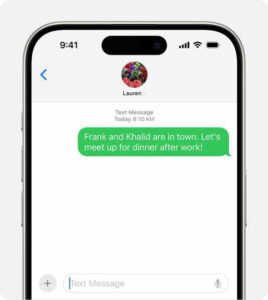
An iPhone showing an SMS/MMS message
Photo Credit: Apple

Are you frustrated by your iPhone not sending text to Android?

As an iPhone user, you need to send text messages to your Android friends and family.

In this article, we’ll show you the easy way to fix iPhone not sending text to Android.

Why your iPhone is not sending texts to Android

  • You don’t have an active mobile service plan.
  • There is something wrong with your cellular connection.
  • Your iPhone is not configured to send SMS.
  • The Android’s phone number could be registered with Apple’s iMessage system.

Here are 11 ways to troubleshoot if your iPhone isn’t sending texts to Android phones.

Fixinh iPhone not sending texts to an Android phone

Please try the steps below. Please ensure to check the Messages app after each step to see if texts sending to Android contacts starts working.

1. Make sure Your Mobile Plan is Active

The first thing to check is whether you currently have an active mobile service plan. If you don’t have one, you won’t be able to send texts to Android users.

While the vast majority of phone plans offer standard unlimited texting, you might have exceeded your monthly limit of text messages if you have a limited plan.

In either case, you should contact your network provider to ensure there are no issues with your account services.

2. Check the Number You’re Texting

If you’re trying to send a text message from your iPhone to an Android user, but they aren’t receiving it, the next thing you should do is make sure you’re sending the message to the correct number.

Often, many people tend to ignore small mistakes like this, and mistyping a digit or two of a phone number could be the reason your message isn’t getting delivered.

This should be no problem when you message a contact stored on your iPhone, but it can require care when entering a new number. So take your time when entering numbers.

If you continue to have trouble, contact your intended recipient by other means to confirm the number.

3. Close and reopen the Messages app

Another solution for your iPhone not sending texts to Android phones is to restart the Messages app. Here’s how:

iPhones With Face ID

  1. Swipe up from the bottom of the screen to open the app switcher. You should see all of your apps represented as cards.
  2. Swipe side-to-side through your apps until you find the Messages app.
  3. Swipe Messages up and off the top of the screen to close it.
  4. Tap the app icon to reopen it.

iPhones Without Face ID

  1. Double-press the Home button. This starts the app switcher, where you should see all of your apps represented as cards.
  2. Swipe side-to-side through your apps until you find the Messages app.
  3. Swipe Messages up and off the top of the screen to close it.
  4. Tap the app icon to reopen it.

4. Configure your iPhone to send SMS messages

You won’t be able to send text to Android if you haven’t enabled the Send as SMS option on your iPhone. So, turn it on to send SMS to Android from your iPhone. Here’s how:

  1. Open the Settings app.
  2. Scroll down and then tap Messages.
  3. Turn on Send as SMS by swiping the button to the right.

5. Toggle Airplane mode

One of the most common reasons iPhone can’t send text to Android is because of a glitch with your cellular connection. You can generally fix this by toggling it off and then back on again. To do this, enable and disable Airplane Mode. You can toggle your iPhone’s Airplane Mode on and off from the Control Center.

  1. To reveal the Control Center on iPhone with Face ID, swipe down from the top right corner of the screen. If you’re on iPhone without Face ID, swipe up from the bottom of the screen.
  2. Tap on the Airplane Mode icon, which is represented by a plane inside a circle. When the icon is orange, Airplane Mode is enabled; when it’s grayed out, it’s disabled.

Quick tip: You can also turn Airplane Mode on or off by opening the Settings app and tapping the toggle for Airplane Mode.

6. Restart the iPhone

Sometimes, the problem is related to a software problem on your iPhone, but toggling Airplane mode didn’t do the trick.

In a situation like this, try turning your iPhone off, wait a minute, and then turn it back on again. Restarting the phone can flush out any misbehaving software or corrupted data and restore it to full operation.

iPhones with Face ID

  1. Press and hold down the side button and either the volume up button or volume down button.
  2. When the power slider appears, swipe the power button inside it to the right.
  3. After the iPhone has completely shut down, press and hold the side button again until the Apple logo appears.

iPhones without Face ID

  1. Press and hold down the side button.
  2. When the power slider appears, swipe the power button inside it to the right.
  3. After the iPhone has completely shut down, press and hold the side button again until the Apple logo appears.

7. Ask the Android owner to deregister iMessage

This problem can catch a lot of people off-guard. If the Android user previously had an iPhone and transferred the SIM card to an Android without changing the phone number, that phone number may still be registered as an iPhone in Apple’s database, and so when iPhone users text a number that’s still in the iMessage system, the text goes to iMessage and can’t be delivered to the Android phone. The solution? Ask the Android user to deregister his or her phone number from Apple’s iMessage system.

8. Check for iOS updates

You should always keep your iPhone updated with the latest version of iOS. New updates for iOS can iron out software issues and bugs. So if your iPhone still can’t send text messages to Android, it’s a good idea to update.

To update, you need to have your iPhone connected to a Wi-Fi network and a power source. You should then do the following:

  1. Open the Settings app on your iPhone.
  2. Tap General.
  3. Tap Software Update.
  4. At this point, your iPhone will check if an update is available. When one is found, tap Update Now.

9. Check for a carrier settings update

Carrier settings update may potentially fix this problem, so see if there is any pending update that need to be installed. Here’s how:

  1. Connect to a cell phone or Wi-Fi network of your choice.
  2. Open the Settings app on your iPhone.
  3. Tap General.
  4. Tap About. Should an update be available, you’ll be able to do so from this screen.

10. Reset your network settings

You shouldn’t take resetting your iPhone’s network settings too lightly. Network settings save data such as Wi-Fi networks and passwords, so it isn’t ideal to erase them.

That said, it’s worth doing if you’ve tried everything above and your iPhone still won’t send text messages to Android phones.

  1. Open the Settings app on your iPhone.
  2. Tap General.
  3. Select Transfer or Reset iPhone at the bottom.
  4. Tap Reset.
  5. In the menu that appears, tap Reset Network Settings.

11. Contact your carrier network or Apple Support

If your iPhone still won’t send SMS to Android after all this, your last option is to contact your carrier. Try calling the customer service line. If they can’t help you, it’s likely a hardware issue, and you should contact Apple or an authorized service provider for expert assistance.

Depending on your location, you can book an Apple Store appointment at a Genius Bar. You may have to eventually replace the iPhone, but that should be the last case scenario.

Fix Your iPhone Messaging Issues

Congratulations, you’ve fixed iPhone not sending texts to android issue.

If you’ve tried everything we listed above but your iPhone still can’t send text messages to Android, it might be time to get another device.

In this tutorial, we’ll share some troubleshooting tips to follow if the iPhone speaker sounds muffled on calls.

There are myriad reasons why your iPhone sounds muffled during phone calls. We’ll try to cover a few main aspects of why this happens, and then we’ll give you some tips on how to troubleshoot.

Why does my iPhone speaker sound muffled during calls?

Here are some reasons your iPhone speaker sound muffled when you call someone:

  • Dust may be obstructing the earpiece.
  • Your case may be obstructing the earpiece.
  • Your iPhone’s earpiece is damaged.
  • Poor cell reception

What to do if your iPhone speaker sounds muffled on calls

Clean iPhone earpiece

If you use your iPhone in a dirty environment, check the earpiece for obstructions like dirt and grime. These things can easily get into the speaker grille of your iPhone and muffle sounds on calls. One of the key indicators of a problem like this is when the caller’s voice is distorted or muffled rather than clear, and you don’t have a case on.

If necessary, carefully use a small, dry soft-bristled brush to clear away any lint, dirt, or grime around the earpiece.

Take off iPhone case

Some protective cases that you use with your iPhone may obstruct the sound and give it the effect of playing sound underwater since the sound waves have nowhere to go. Some highly protective cases are known for causing muffling during calls because you trade off your user experience for protection but never rule out that your case could be the problem.

To see if your case is causing the problem, remove it and then make a phone call again. If it still sounds muffled or distorted, then the dust idea above may be your culprit rather than the case itself. If this is the case, you either need to find a new brand or go caseless.

Move to an area with better cell reception

If the sound is muffled or crackles when you’re on a phone call, it could be because of poor cell reception. You can try calling later or move to an open area with a better cell signal. If you’re in an open area and still can’t get good reception, try moving away from tall buildings, trees, and anything else that could cause interference. If you’re in a rural area, try moving to a higher elevation.

Turn your iPhone off and on again

Restarting your device is a simple and effective way to fix common issues without much trouble. If your speaker sounds muffled on calls even after trying the above solutions, turn off your iPhone and turn it back on after a minute to restart it.

Update to the latest version of iOS

By this point, one or more of the above solutions should have fixed your iPhone sound muffled on calls. But in case you’re still having problems, make sure your iPhone is running on the latest iOS. To do that, go to Settings > General > Software Update.

Use headsets

If iPhone sounds muffled on calls with the built-in speaker after trying all of the above steps, try using the headsets. If you are able to hear the caller clearly via the headset when a headset is connected, there could be a problem with your earpiece.

If you believe an issue is tied to the earpiece, then you will most likely have to visit an Apple Store to have your speaker serviced. If your iPhone is under warranty, it should be replaced for free. Otherwise, you may be facing a bench and labor charge.

Reset Network Settings

The last method you can try is to reset the network settings on your iPhone. This deletes network-related data and returns the settings to its default state. Go to Settings > General > Transfer or Reset iPhone > Reset > Reset Network Settings.

Tag: Calls

Got yourself a new iPhone? Take your Android photos with you!

QUICK ANSWER

There are various ways to transfer photos from Android to iPhone, but we recommend only a few to most people. You can use Apple’s Move to iOS app, or upload all your photos to iCloud from any browser. Alternatively, using your computer to move all your photos is also possible.

Moving from Android to iPhone can feel like a daunting task—but it’s really not that bad. Photos are probably one of the most important things to transfer in the migration. We’ll show you a few ways to do it.

How to transfer photos from Android to iPhone

Method 1: Transfer photos from Android to iPhone without computer during setup

My go-to method for file transferring is Apple’s own Move to iOS service. Move to iOS makes it very simple to transfer photos from Android to iPhone without computer.

In order to transfer photos from Android to iPhone using Move to iOS app, you’ll have to be in the iOS Setup Assistant, which is the startup page when you first turn on your new iPhone — the one that cycles between "Hello" in different languages. If you’ve already set up your iPhone and can access the home screen, you’ll have to factory reset it to use Move to iOS. Otherwise, use other methods discussed in this guide.

Let’s show you how to move photos from Android to iPhone using Move to iOS tool.

  1. Download and install Move to iOS from the Google Play Store on your Android device.
  2. Open the Move to iOS app and follow the instructions to get it ready. Steps include agreeing to terms and allowing certain permissions.
  3. You will eventually reach a page that asks you for a code. When you get here, put down the Android device and move to the iPhone.
  4. During the iOS initial setup, you will reach a Quick Start page. Select Set Up Manually.
  5. Pick Move Data from Android.
  6. This is where your iPhone will provide the code we mentioned in step three. Please make note of it.
  7. Grab your Android phone and enter the code.
  8. During this step, the iPhone will create a temporary Wi-Fi network, and the Android phone will look for it. Hit Connect to continue.
  9. Ensure that Photos has a check next to it and tap Continue.
  10. Your Android device will now begin transferring the photos over to your iPhone. Depending on the number of photos that are being transferred, it could take a couple of minutes for the entire process to complete. It took me less than 10 minutes.
  11. Move to iOS will transfer photos into the Photos app on your iPhone. When the success message displays, tap done.

Method 2: Transfer Photos from Android to iPhone using iCloud

Move to iOS does a good job of transferring photos from Android to iPhone, but the method only works if your iPhone is brand new and is being set up for the first time. If you’ve already set up your iPhone, you can transfer photos from Android to iPhone is using iCloud. You can upload all your images using any browser, including Chrome for Android, which should already be on your Android device. Let’s walk you through the process.

  1. Using your Android device, open your browser and go to iCloud.com. Log in with your Apple ID and password.
  2. Tap on the Apps icon, which looks like a four-by-three app grid. It’s in the top-right corner.
  3. Select Photos.
  4. Locate the Upload button at the bottom and tap on it.
  5. Find the photos you want to upload and select them. Then, tap on done.
  6. Your photos will upload.

Once you do this, all your Photos will be on your iCloud account, which will also sync to your iPhone. If you don’t see your pictures in Photos app, make sure iCloud Photos is syncing on your iPhone. Head to Settings > Photos > iCloud Photos and toggle the option on.

Method 3: Transfer photos from Android to iPhone on a computer

If you prefer taking matters into your own hands, you can always transfer everything manually, using a computer. You will essentially have to transfer your photos from the Android device to the PC, then move them to the iPhone. Let’s walk you through the steps.

  1. Plug your Android device into the computer using a USB cable.
  2. On your Android phone, pull out the notification area and tap where it says Charging this device via USB. Tap on it again.
  3. Under Use USB for, select File transfer / Android Auto.
  4. On the PC, navigate to your Android device under This PC and locate your photos. They are usually in a folder labeled DCIM.
  5. Select, right-click, and copy the images you want to transfer and paste them into a temporary folder on your computer. I like using the desktop to keep files handy.
  6. When the files are in your computer, unplug the Android device
  7. Plug your iPhone into the computer.
  8. Your iPhone will ask for permission for the computer to access your files. Hit Allow.
  9. Now, you need to download and install iTunes. Do so, if you haven’t.
  10. After iTunes is set up, you will need to Trust the connection between the iPhone and the PC.
  11. Go to iTunes and click on the iPhone button.
  12. In the left sidebar, you’ll see the Settings section. Select Photos.
  13. Check the ”Sync Photos” box. Then select the dropdown menu under ”Copy photos from” and select Choose folder.
  14. Select the temporary folder you created and hit Select Folder.
  15. Click Done, and then Apply.
  16. The iPhone will now sync. All the photos will be on your iOS handset when the process is finished.

FAQs

Can I use the ‘Move to iOS’ app even if I already set up my iPhone?

No, unfortunately, you cannot use the file-transfer service if you already completed the iOS Setup Assistant. My best advice is to back up anything on your new iPhone that you’d like to keep, factory reset the iPhone, use the Move to iOS service, and then retrieve what was backed up. Again, just make sure you have enough storage to hold everything.

What is the fastest way to transfer photos from Android to an iPhone?

Apple’s Move to iOS service is the most seamless and efficient transferring service that I’ve used, especially when I’m still going through the initial phase of setup.

Can I transfer photos from Android to an iPhone after setup?

Sure. The best method is to use iCloud. You can upload all your images using any browser, including Chrome for Android, which should already be on your Android device.

Conclusion

With Apple’s "Move to iOS" app and iCloud access from the browser, it’s not terribly difficult to move your photos from Android to iPhone. While you’re here, you may want to learn how to transfer data from android to iPhone with computer.

Tag: Photos