Got a tip for us?

How-To

Security is an integral part of electronic devices. This is why most computer and phone users put password or PIN codes on their devices. These passwords keeps their important data secure and ensure a feeling of safety. However, we sometimes forget these essential passwords and it becomes impossible to access our own devices. Indeed, we often remember frequently used passwords such as one we used for our mobile. But, the passwords that we use less such as Windows password, there are changes that we can forget it. Suppose you’ve locked your Windows 7, and now you want to bypass Windows 7 password to regain access to your data as soon as possible. You may be looking for reasonable and efficient ways to bypass Windows 7 admin password. Don’t worry, we got your back.

This article will show you exactly how to bypass windows 7 password if locked out. Continue reading.

Part 1: Bypass Windows 7 Password with Command Prompt

Command Prompt is an easy yet free way to reset your forgot Windows 7 Administrator password, but it’s challenging and risky to perform Command Prompt especially for non tech-savvy users. If you’re a computer geek then this method will be appropriate for you. It’s easy and totally free! You simply need to prepare a Windows installation CD that can be used to boot your Windows 7 computer, then bypass Windows 7 password by executing a few commands. Simply follow these steps:

Step 1: insert your windows installation cd to computer then make boot from cd. do so you need sure set as the first order in bios.

Step 2: After restarting your PC and wait for the installation interface to appear, simply press SHIFT + F10 to bring up the command prompt.

Step 3: In the command box, go ahead and replace the Sticky Keys application (sethc.exe) with cmd.exe by entering the command below: Please keep a copy for it handy in order to restore it later.

move d:\windows\system32\utilman.exe d:\windows\system32\utilman.exe.bak

Step 4: After the utilman.exe is replaced successfully, go ahead and type wpeutil command to reboot your PC.

Step 5: Once the restart process is complete, you will be presented with a “Easy of Access” button in the login screen. Click it to launch a command prompt with admin permission. Now, we can activate the super admin account by executing the command below.

net user Administrator /active:yes

Step 6: After the administrator account is activated, then you can go ahead and login Windows 7 without password. After you login your system then you can reset or re-create password of any other accounts in the control panel. You can also directly reset a new password in the command box by typing command below.

net user username new_password

Step 7: After the password is reset successfully, you need to restore the Utility manager by executing the following command:

copy d:\ utilman.exe d:\ windows \ system32 \ utilman.exe”

After the command is completed successfully, the new password has been successfully reset. Then reboot your PC and login your Windows 7 with new password.

Candidly speaking, when you’re locked out of Windows 7, I don’t suggest you perform this method if you’re not tech-savvy, if you persist in that, you may cause damage to your PC or lose system data, all at your own risk. I suggest you take a look at the Part 2 and then determine which method is the best.

Part 2: Bypass Windows 7 password with third-party tool

You can use a professional but safe program – PassFab 4WinKey software to bypass Windows 7 password without system reinstallation. The tool will help you retrieve the lost or forgotten windows password and grant your access to your computer in just three easy steps. Here is how:

Step 1: CREATE WINDOWS PASSWORD RESET DISK

  1. To get started, download and install PassFab 4WinKey on a spare Mac or Windows PC. Then, open the software, and you will be presented with its main interface.
  2. On this screen, you will be presented with various options to create a bootable password reset disk. For example, you can select a CD/DVD or USB flash drive. Select the device and hit ‘Next’ to continue.
  3. You will see a warning saying that your boot device will lose all its data due to formatting. Click on ‘Next’ to initiate the process of creating the bootable disk.
  4. Wait for the the burning process to complete.

Step 2: BOOT WINDOWS SYSTEM FROM CD/DVD/USB

  1. To start, go ahead and insert the bootable USB/ DVD/CD to the locked computer.
  2. Now, restart the computer and press F12 or ESC to bring up the BIOS menu.
  3. From the BIOS setting screen, navigate to the Boot menu and change the booting sequence from Hard Drive to USB.
  4. Save and close the BIOS menu.

Step 3: RESET/REMOVE/CREATE/DELETE WINDOWS ACCOUNT LOGIN PASSWORD

After you close the BIOS settings, your PC will restart. This time around, your computer will boot from the Password Reset Disk. As such, you will see the PassFab 4Winkey interface. Suppose you want to remove Windows password:

  1. Simply go ahead and choose which Windows you wish to remove the account and password and then hit ‘Next’ to continue. Wait for a few minutes and the login password of your Windows 7 computer will be successfully removed.
  2. Click on ‘Reboot’ and eject the reset disk. This will restart your PC, and you will be able to log into your windows 7 computer without any password.

Highlights of PassFab 4WinKey

  • No need to reinstall Windows system and does not erase data
  • Create a Windows password reset disk (USB/CD/DVD) in one click
  • Only 3 simple steps to reset forgotten Windows local administrator, domain and other user account passwords.
  • Compatible with all kinds of computer brands including Dell, Hp, Sony, Toshiba, Acer, Samsung etc.
  • Compattible with Windows 10, 8.1, 8, 7, Vista, XP, 2000, etc. and Windows server.
  • Does not require professional skills to use

The bottom line

If you are in a situation of forgotten Windows 7 password, you may want to know how to bypass Windows 7 admin password. This article explained two different methods to bypass Windows 7 password and regain access to your computer and important data. You can choose any method that suits you. We recommend bypassing Windows 7 password with PassFab 4WinKey because it is effective than other methods. In addition, you don’t have to reinstall your operating system, no data loss or damage. The method will help you bypass Windows 7 password in no time.

The need to bypass iCloud activation is usually at minimal as one is always aware of his or her iCloud account details. However, if you really got yourself in an awkward situation where you forget your Apple ID or you get a locked device from a seller, then you should know that you can actually bypass the lock through iCloud unlock software or bypass iCloud activation tool.

So, if you are experiencing iCloud locked problem, we are going to show you the easiest method on how to bypass iCloud activation on iPhone. We hope this iCloud removal Method can get rid of your iCloud locked problem.

Using a dedicated iCloud activation lock bypass tool is the most reliable way to bypass the activation lock on your Apple device.

There are tons of software and tools out there, but not every bypass iCloud activation lock tool can help you unlock your phone successfully. Therefore, today we are going to show you the best tool that can help you bypass the activation lock. Lets cut to the chase!

The best activation lock bypassing software on the market right now is PassFab activation unlocker.

What is PassFab activation unlocker? And why should you download it?

PassFab activation unlocker is an excellent bypass iCloud activation lock tool that can help you remove iCloud activation lock. No matter why your phone is locked, it will remove the lock without any hassle. It’s a trusted software that can provide you with promising results.

You would use this app legally if you forgot activation lock password, could not activate iPhone, experiencing activation error or if you buy a second-hand iPhone from someone who forgot to turn off Activation Lock.

The software is compatible with different iDevices including iPhone 5S to iPhone X running iOS 12.3 and later versions, as well as the latest iOS 14 running on iPhone 6s, 6s, Plus/SE 1st, iPad 5th, iPad Mini 4 and iPad Pro 1st. If you are not so sure if your iDevice is supported by the application or not, you can also download and try it for free before you make the payment. It can help you in removing the lock within a few minutes.

It’s safe to say that with PassFab activation unlocker Bypassing iCloud activation has never been so easy. You just need to download and install the software on Mac or windows computer. After installation, simply perform the three steps below to remove iCloud Activation Lock:

How to Use PassFab activation unlocker to Bypass iCloud Activation Lock:

Step 1: Launch PassFab activation unlocker on your computer, then click “Start” to enter the program. Once done, connect your iDevice to your computer via a USB cable.

Step 2: Jailbreak the device. If you are using Launch PassFab activation unlocker on Mac, then it will choose the jailbreak package automatically according to the device and help you through the jailbreaking process.

Step 3: The last step is to remove Activation Lock. Simply click the “Start Remove” button, then the program will remove the iCloud activation lock in your device.

This excellent iCloud unlock software will take only a few seconds to bypass the lock. Once the process is complete, you can Now set up your iDevice without the iCloud activation lock.

Features of PassFab activation unlocker

  • Bypass activation lock without Apple ID and password.
  • Supports all iPhone devices from 5S to the latest iPhone 12.
  • Supports operating system from iOS 12.3 to the latest iOS version.
  • Available on Mac and Windows.
  • Free trial is available to download.
  • Does not require expert skills to use.

Where Do I Download PassFab activation unlocker?

You can get this iCloud unlock tool download free from PassFab activation unlocker website.

Our two sense…

Among all iCloud activation lock removal tools available today, PassFab activation unlocker is probably one of the most trustworthy and easy-to-use options. This software can help you get rid of the iCloud activation problem without any hassle. You don’t need to be an expert to use the software because it’s simple and straightforward. Actually, it might just be the best in its class in that respect. Give the free version of PassFab activation unlocker a try and if you find it useful, you can decide to buy PassFab activation unlocker premium.

In this article, I’m going to explain how to remove activation lock without previous owner from your Apple device quickly and easily.

When you first activate your iPhone, Apple makes a note of the device’s unique identifier and your Apple ID. It then ties your iPhone’s unique identifier to your Apple ID. This is to prevent any other Apple IDs from using the device. Without the username and password combination for your Apple ID, your iPhone cannot be reset and used by another person.

Apple’s Activation Lock technology is designed to prevent anyone else from using your iPhone, iPad, or iPod touch if it’s lost or stolen. It’s automatically enabled when you turn on Find My iPhone (or iPad…) on your device. While helpful with thefts or other loss, Activation Lock can totally disable your device if you forget your Apple ID password or received a used device from someone who forgot to deactivate the feature.

While people most often encounter issues with Activation Lock on used iPhones, the feature is also on iPads and Apple Watch. Just like it does on iPhones, Activation Lock locks an iPad or Apple Watch to the Apple ID used to set it up. That’s where PassFab activation unlocker comes in!

What is PassFab activation unlocker? Why should you use it?

PassFab activation unlocker is a tool that allows you to bypass iCloud Activation Lock even if you don’t remember your Apple ID and Password. This way, you can get access to your information in a very short amount of time. This software has a high success rate, mainly because of its user-friendly interface. From beginners to experts, anyone can use it without being enmeshed into any complexity.

You would use this app legally if you totally forgot your Apple ID password and couldn’t use your device, or if you bought (or were given) an iPhone, iPad or iPod touch from someone who forgot to turn off Activation Lock. In those situations, the device is essentially “bricked” and unusable. That’s where PassFab activation unlocker comes in handy as one of the best tools to bypass Apple Activation Lock.

The PassFab activation unlocker has minimal performance risks, and you don’t have to worry about compromising the iOS architecture of your iPhone. Without further ado, here is how you can get the iCloud Activation Lock removed in the quickest, cheapest, and most reliable way possible.

How to use PassFab activation unlocker to remove Activation lock on Mac

Now in this section, i’ll walk you through the steps for installing and using PassFab activation unlocker to remove Activation lock on iDevice.

Step 1: Download and install PassFab Activation Unlocker software on your Mac. Now, run it as administrator.

Step 2: You will get a screen showing the main interface of the software. Here, click on the ‘Start’ option to begin the removal process.

Step 3: you will get a screen showing agreement. Please read it carefully and understand it before you proceed. Once you are satisfied, click on ‘Next.’

Step 4: Now, you need to build a connection between your iDevice and your Mac using a USB cable. Once it is connected, the Activation Unlocker will detect it immediately on its own.

Step 5: Now, you need to jailbreak your iDevice. For this purpose, the program will automatically download the jailbreak tool after your device is successfully connected.

Step 6: When the download process is complete, you need to click on ‘Start Jailbreak’ and then follow the on-screen prompts.

Step 7: After the Jailbreak process is complete, click on the “Start Remove” button to remove the iCloud Activation Lock. iCloud Activation Lock removal process takes some time to complete. Wait until the process is completed

Step 8: With this step, the iCloud activation lock is successfully removed from your iDevice. Simply click ‘Done’ to complete the process.

Highlights of PassFab activation unlocker

  • Remove iCloud Activation Lock without Password.
  • Supports all kinds of iOS devices, including the iPhone, iPad and iPod Touch.
  • Works in a wide range of scenarios including ‘forgot activation lock password, activation error, could not activate iPhone and much more.
  • Bypass Activation Lock in just 3 Steps.
  • Does not require professional skills.
  • Reliable 24/7 support.
  • Available to download on Windows and macOS.
  • A free version is available.

How Do I Download PassFab activation unlocker?

PassFab activation unlocker comes in two versions: for Mac and Windows. It has a free version, of course, with limited number of features. You can try out the free version before buying this software. You can choose from monthly, yearly, or lifetime subscription depending on your needs.

The Windows and Mac versions of PassFab activation unlocker are available for download on PassFab activation unlocker website. Simply select which version you’d like to purchase and download.

Of course, the price may not be a factor if you totally forgot your Apple ID password and couldn’t use your device, or if you bought (or were given) an iPhone, iPad or iPod touch from someone who forgot to turn off Activation Lock.

The bottom line

PassFab activation unlocker can be your ultimate go-to solution to remove activation lock on iPhone, iPad, and iPod touch. Download PassFab activation unlocker and do give it a try. While you are at it, do let us know about your favorite feature of the PassFab activation unlocker software.

Videos are cropped out to cut the unwanted bits so that the audience’s attention is rightfully captured. Sometimes you also want to crop the video to fit different streaming platforms. Regardless of the reason why you need to crop a video, the work needs to be seamless and effective while following a particular aspect ratio. Now, Mac users can crop usually crop their videos with iMovie, which is the free video editor that comes pre-installed in macOS.
Though iMovie is undoubtedly a great tool, there are instances when its features and usability might not suffice. So, for all those instances, you can try out four of these amazing free options to crop video online.

Cropping a Video Using iMovie

Any discussion about free video editors to use on Mac remains incomplete without a mention of iMovie. It lets you create videos using background, titles, transitions, texts, and so on. You can also share, adjust color, mute, stabilize, rotate, crop, and so on. But the cropping aspect ratio is limited to 16:9.
The pros:

  • A free video editor with a range of editing tools
  • Easy to follow the steps to crop any video

The cons:

  • Limited availability of media sources for enhancing a video
  • The cropping aspect ratio remains limited to 16:9

Steps to crop a video using iMovie:

Step 1: Run iMovie, drag and drop your video to the editor’s timeline
Step 2: Look for the cropping button and go to the option ‘crop to fill.’
Step 3: Crop your video by moving and resizing the adjustable frame
Step 4: After you are okay with the cropping result, apply the change by clicking on the ‘Crop to fill’ option
Step 5: Go to the ‘File’ option under the ‘Share’ menu (under ‘File’ on the taskbar) for saving the cropped video

Cropping videos on Mac without using iMovie

In case you do not have iMovie or the free video editor is unable to crop videos in the aspect ratio you want, you have other useful free options for cropping a video on Mac. Take a look at these three options that ensure you no longer have to depend solely on iMovie.

InVideo Online Video Editor

The intuitive online video cutter and editor offered by InVideo is an amazing tool to design professional-looking videos in no time. It comes loaded with features, and you will get an expansive library of tools, stickers, templates, filters, and more. If the lack of media options was your issue with iMovie, InVideo would not leave you with any such complaints. Moreover, the ratios and editing tools offered by InVideo make the videos compatible with all social media platforms, right from Facebook to Twitter.
The pros:

  • A free editor with a range of video editing tools
  • The tools are compatible with all social media platforms
  • It comes with an expansive library of tools, stickers, templates, filters, and more

The cons:

  • The free version leaves a small watermark in the video. However, you can easily remove it by subscribing to InVideo for a minimum sum.

Steps to crop a video using InVideo Online Video Editor:

Step 1: Create your account and log in to the free online video editor of InVideo
Step 2: Upload your video or create one using the platform’s templates
Step 3: Click on ‘Layers’ on the top-right corner and choose the layer you want to crop
Step 4: Go to the ‘Video Edit’ drop-down menu and click on ‘Crop Frame.’
Step 5: Now, drag the edges of the frame and choose between aspect ratios 1:1, 16:9, and 9:16
Step 6: Click on the play button and check how the video will look on applying the changes.
Step 7: Apply the changes if you are satisfied with the preview

QuickTime Player

You might be thinking that QuickTime Player is a media player on the macOS, so what has it got to do with video crop online? Well, QuickTime Player lets you record a part of your screen too. So, you can crop a video with the wanted aspect ratio simply by recording. But you will have to let go of the audio if you are planning to crop the video with QuickTime Player. Of course, you can make it work by cropping the video and adding a new audio track to it.
The pros

  • A free video editor that doubles up as a media player
  • Crop videos with your preferred aspect ratio
  • Record and play videos at ease

The cons

  • You need to record the video to crop it, making the process time-consuming.
  • You will not get to keep any sounds in your cropped video

Steps to crop a video using QuickTime Player:

Step 1: Play the video and pause at your desired part
Step 2: Run the QuickTime Player app on Mac
Step 3: Click on the recording option under the ‘New Screen Recording’ in the drop-down list from ‘File.’
Step 4: Drag to get a part of the video recording
Step 5: Play your video by clicking on ‘Start Recording.’
Step 6: After the video plays out, hit the ‘Recording’ option and save your cropped video.

KAPWING

KAPWING is another useful online free video editor that not only lets you crop your videos but also enhances them through images, audio, texts, and subtitles. This video editor offers a number of aspect ratios like 1:1, 16:9, 9:16, 1:2.4, 4:5, 5:4, and 820:312. You can save your video in 720P or 1080P.
The pros

  • A free editor with a range of video editing tools
  • Crop videos in different aspect ratios

The cons

  • It takes a lot of time to upload and process videos
  • Risk of information leakage

Steps to crop a video using KAPWING:

Step 1: Sign in to Kapwing by navigating to it
Step 2: Upload your video to the platform
Step 3: Hit ‘Crop’ and select a ratio
Step 4: Click on ‘Done Cropping’ and ‘Export Video’
Step 5: Download and save the video

The Endnote

And that’s it! You no longer need to rely only on iMovies. You have three more useful options that you can look into if the features and aspect ratios of iMovies do not fulfill your requirements.

Questions?
Drop us a comment and let us know.

Given how bulky the photos app can get, it’s a good idea to have the occasional photo clear-out to make space on your iPhone. So what happens if you accidentally delete an important photo? Well, with a little luck you can probably get it back. So, how can I recover permanently deleted photos from iPhone?

In this article we walk you through simple methods to retrieve lost or accidentally deleted photos on your iPhone.

See also: How to Recover Permanently Deleted Videos From iPhone

It is usually sad to hear cases like deleted photos from recently deleted folder on iPhone. People are often frustrated in learning that there are no other ways but to leave it like that. However, we would like to set the difference. We will also show you how to recover deleted photos on iPhone from recently deleted.

Recover Deleted Photos from iPhone from recently deleted folder

Photos, logically enough, are stored in the Photos app in iOS. The iOS version of Photos has much in common with its Mac equivalent, and this includes the 30-day grace period for deleted photos and videos.

If you delete a photo from the iPhone and want it back, tap Albums at the bottom-right of the screen. Scroll down until you see an album called Recently Deleted, then tap it.

Tap the photo you deleted by mistake, then Recover at the bottom-right, and finally confirm by tapping Recover Photo. The image will now be transferred back to your Camera Roll.

How to recover permanently deleted photos from iPhone without computer

This is probably the simplest and fastest way to restore permanently deleted photos from iPhone. If you have an iCloud backup from the time before you deleted the photo, you should be able to get it back by restoring your phone to that iCloud backup.

Check to see if your last iCloud backup is before you deleted the photos.
Step 1: Open Settings, tap on your profile at the top.

Step 2: Tap iCloud > Manage Storage > Backups.

Step 3: You’ll be presented with a list of backups for your devices and can tap on the one for your iPhone to see when it was last backed up.

Step 4: Even if you can find appropriate backup, it’s worth noting that you’ll need to completely reset your iPhone to factory settings before setting up your iPhone using the older backup. You will lose any data you’ve added since the backup, so be sure to separately save copies of any recent files you want to keep.

Step 5: To reset your iPhone head over to General > Reset > Erase All Content and Settings. Once your iPhone restarts and begins the setup process, select to restore from an iCloud backup and choose the backup from before you erased the photos.

How to Recover permanently deleted photos from iPhone via iTunes or Finder

If you don’t want to rely on automatic iCloud backups, or don’t have enough iCloud storage space for them, you can back up your iPhone to your PC or Mac using iTunes (or Finder in macOS Catalina or later). Just as with the previous iCloud method, this requires having a backup from before you deleted the photos and the resetting your phone, restoring from that backup. You’ll lose everything from after the backup.

Step 1: Connect your iPhone to the PC or Mac you’ve backed it up with. If iTunes does not open automatically, open it up manually. (If you’re on a Mac running Catalina or later, open Finder instead.)

Step 2: Click on the iPhone icon in the top left-hand corner. On a Mac running macOS Catalina or later, select your device from the lefthand menu bar in Finder.

Step 3: Next, click on Restore Backup. All the data you previously backed up will now replace the data on your iPhone. It will take a few minutes. As long as you haven’t backed up since deleting the photos, they should now appear in the camera roll on your iPhone.

How to recover permanently deleted photos from iPhone without backup

There are quite a few third-party software tools that promise to let you restore permanently deleted data on your iPhone, including deleted photos. It’s a bit of a risk—they’re almost never free and there’s no guarantee they’ll even work. But if you’ve exhausted all other options, it may be worth a try.

Recover Permanently Deleted Photos on iPhone from Third-Party Services

If you take and delete lots of pictures on an iPhone, you may want to invest in another backup solution. Fortunately many services offer instant upload of any photos you snap to a cloud storage space. Consider installing Dropbox, Google Drive or Box and turn on Photo Backup. Here are the steps for Dropbox:

Step 1: Sign up for a Dropbox account and download the Dropbox app for iPad or iPhone.

Step 2: Start the Dropbox app and go to Settings > Camera Upload and turn on Camera Upload.
As you take photos they will be sent to a folder in Dropbox called Camera Uploads.

Step 3: Click on the Photos tab in Dropbox to view recently uploaded images. This will also include any photos you have deleted from the Photos app.

Step 4: Select a photo in Dropbox and tap on the Share icon and choose Save Image.
This will send the deleted image back to the Photos app in iOS.

This isn’t an ideal backup solution, because it requires you to set up Dropbox in advance. However, if you take lots of photos you’ll find this service invaluable. Google Drive, Box and many other cloud services work in largely the same manner.

Conclusion

Realising a second too late that you just deleted the wrong photo: it’s a nightmare we’ve all experienced. But don’t despair, because an inadvertently deleted Photo from iPhone can often be recovered. Follow the above methods to get back permanently deleted photos on your iPhone.

Tag: Photos

You may as, can i get a deleted video back on my iPhone? “, the honest answer is that your data is recoverable. Therefore, let’s see how to recover permanently deleted videos from iPhone immediately. Here is the simplest way in 2022 provided for you.

“Are you tired of always mistakenly deleting videos and other files on iPhone? Find out how to recover permanently deleted videos from iPhone! It is extremely easy for you to recover permanently deleted video from iPhone”

One of the biggest challenges in owning and using an iPhone is the fear of deleting important files like videos. This can be caused by the touch screen sensors that are too sensitive or could be a failure of the software and could also be caused by user mistake. Whatever the reasons you have that you got your videos deleted then this is the article for you. Here is how to get back videos you permanently deleted from iPhone.

See also: Easy Ways to Recover Permanently Deleted Photos From iPhone

In this post, we will discuss the easiest Way to recover permanently deleted videos on iPhone for free.

Recover Videoes from Recently Deleted album

iOS moves deleted videos first to recently deleted album for 30 days. If you check there before 30 days is up, you can select and restore them to the Videos album.

However, if 30 days has passed or you manually deleted them from this folder, you have to try a different method.

The Recently Deleted album holds just what the label says (videos up to 30 days old). You can browse the folder and restore its videos.

To recover deleted iPhone videos:

Step 1: Start the Photos app and tap on Albums

Step 2: Now, tap Select

Step 3: Tap each video that you want to restore

Step 4: Tap Recover and confirm that you want to recover the videos

How to recover permanently deleted Videos from iPhone without computer

This is probably the simplest and fastest way to restore erased Videos from iPhone. If you have an iCloud backup from the time before you deleted the video, you should be able to get it back by restoring your phone to that iCloud backup.

Check to see if your last iCloud backup is before you deleted the videos.
Step 1: Open Settings, tap on your profile at the top.

Step 2: Tap iCloud > Manage Storage > Backups.

Step 3: You’ll be presented with a list of backups for your devices and can tap on the one for your iPhone to see when it was last backed up.

Step 4: Even if you can find appropriate backup, it’s worth noting that you’ll need to completely reset your iPhone to factory settings before setting up your iPhone using the older backup. You will lose any data you’ve added since the backup, so be sure to separately save copies of any recent files you want to keep.

Step 5: To reset your iPhone head over to General > Reset > Erase All Content and Settings. Once your iPhone restarts and begins the setup process, select to restore from an iCloud backup and choose the backup from before you erased the videos.

How to Recover permanently deleted videos from an iTunes or Finder backup

If you don’t want to rely on automatic iCloud backups, or don’t have enough iCloud storage space for them, you can back up your iPhone to your PC or Mac using iTunes (or Finder in macOS Catalina or later). Just as with the previous iCloud method, this requires having a backup from before you deleted the videos and the resetting your phone, restoring from that backup. You’ll lose everything from after the backup.

Step 1: Connect your iPhone to the PC or Mac you’ve backed it up with. If iTunes does not open automatically, open it up manually. (If you’re on a Mac running Catalina or later, open Finder instead.)

Step 2: Click on the iPhone icon in the top left-hand corner. On a Mac running macOS Catalina or later, select your device from the lefthand menu bar in Finder.

Step 3: Next, click on Restore Backup. All the data you previously backed up will now replace the data on your iPhone. It will take a few minutes. As long as you haven’t backed up since deleting the videos, it should now appear in the videos album on your iPhone.

How to recover permanently deleted videos from iPhone without backup

There are quite a few third-party software tools that promise to let you restore permanently deleted data on your iPhone, including deleted videos. It’s a bit of a risk—they’re almost never free and there’s no guarantee they’ll even work. But if you’ve exhausted all other options, it may be worth a shot.

Conclusion

In this article, you have just learned the best way of how to recover permanently deleted video from iPhone. iTunes and iCloud makes recovery even faster and better especially for beginners.

This iPhone video recovery does not have any complicated methods that can cause other issues. Apple has developed steps that are actually click-through and user-friendly.

So the next time you accidentally deleted videos on your iPhone, use inbuilt iOS Data Recovery. You will never go wrong with this method and face data loss confidently.

If you tried the wrong passcode repeatedly or your kids type randomly in the lock screen, it will cause the iPad to be disabled. As a result, you will be informed that iPad is disabled connect to iTunes. In such a case, how to unlock a disabled iPad without iTunes or iCloud or computer? Let us discuss this issue together.

Part 1: How to Unlock a Disabled iPad without iTunes? Give iCloud a Try

The first method to unlock a disabled iPad without iTunes would be using iCloud. Let’s cut to the chase:

Step 1: On your browser, head over to icloud.com.

Step 2: Sign in with your Apple ID.

Step 3: Now, click on “All Devices” at the top of the window. Then choose your disabled iPad.

Step 4: Here are three options available for you:

Play Sound: Make your device vibrate and play a sound immediately for two minutes. This helps you to find your iPad if you lost it nearby.
Lost Mode: Allows you to lock and track your lost device remotely.
Erase: Erase all the data and settings from your iPad (except iCloud account).
All of the above options only work when your iPad is online.

Here choose the Erase option. If your disable iPad is online, the remote erase begins. Or it will remote erase the next time it’s online.

Step 5: Last, set up your device and restore it from your iCloud backup (if available).

Part 2: How to Unlock a Disabled iPad without iTunes/iCloud/ Computer

The second method to unlock a disabled iPad without iTunes or iCloud or computer would be using the Find My app.
To unlock iPhone with iCloud, you can refer Part 1 tutorial to conduct the operation. Here we will guide you to unlock a disabled iPad without a computer via Find My app on another iPhone or iPad. Let’s cut to the chase:
Step 1: Open the ‌Find My‌ ‌‌ app on another device.

Step 2: Sign in with your ‌Apple ID‌.

Step 3: scroll down to the missing device and tap it.
Then tap on Actions at the bottom of the iPad screen. After that, you are offered three options. Tap Erase iPad and then you will get the disabled iPad erased. Of course, the locked screen is removed from the iPad.

If your disabled iPad is online, the remote erase begins after you follow the onscreen instructions. If your disabled iPad is offline, the remote erase begins the next time it’s online.

As a matter of fact, this process is similar to unlock the disabled iPad with iCloud. The most important part is that you need to enter the right iCloud account and password.

Tags: iCloud, iTunes

This article explains How to install 2 WhatsApp on iPhone without jailbreak.

This guide applies to all iPhone models including iPhone 12 mini, iPhone 12, iPhone 12 Pro and iPhone 12 Pro Max. Continue reading to learn How to install 2 WhatsApp on iPhone without jailbreak.

Why have two Whatsapp on iPhone?

It is quite common these days to have multiple mobile numbers. Most people have one number for personal use and one for business use. People these days prefer to communicate on the internet. One of the most famous platforms for communication over the internet is Whatsapp. 1.5 billion users in 180 countries make WhatsApp the most popular messaging app in the world. The main drawback with whatsapp is that it is only designed for single number use. It is not designed to support multiple numbers at the moment. As we all know most smartphone manufactures are offering devices with multi-sim support. Apple also started E-sim support from iPhone Xs.
Android devices have features like cloning applications for years now. This cloning feature allows users to use the same applications with different accounts simultaneously. While on the iOS side, it is quite challenging to clone applications. One method that is difficult and only a few people use is they jailbreak their iPhone/iPad and then clone applications. But this method is cumbersome and not many users prefer to jailbreak their devices.
There is still an easy method for iPhone and iPad users to get two WhatsApp accounts running at the same time on their devices. Read on to learn how to install 2 WhatsApp on iPhone without jailbreak.

How to Use Two Whatsapp accounts on your iPhone and iPad

Whatsapp is not designed to use two different numbers simultaneously. But Whatsapp realized this problem that many people these days use different numbers for their personal and business use. So Whatsapp released a separate application for their business users. Now you can get one Whatsapp for personal use and one Whatsapp for your business use on your iPhone running iOS 10 or later.
The method is pretty simple. Follow these steps to get two Whatsapp accounts on your iPhone and iPad:

  1. Assuming you already have normal Whatsapp installed on your device, head over to AppStore and search for Whatsapp Business.
  2. Next, be sure to Activate whatsapp with a secondary number you have. The secondary number you use should be able to receive texts.
  3. Once you get a verification text, simply activate whatsapp on your iPhone.

The Whatsapp Business app is the same as the normal Whatsapp app but it also allows you to set different tasks related to business like setting up auto-reply text messages, Organize your contacts or chats with labels, so you can easily find them again, etc.

This guide explains how to use Dark Mode on iPhone 12 mini, iPhone 12, iPhone 12 Pro, and iPhone 12 Pro Max.

The usage of Dark Mode has been picking up and most of the applications including Instagram now support the dark mode feature which makes it easier for the people to use the app during night time. With the introduction of iOS 13, Apple iPhone and iPad users also got their hands on the system-wide Dark Mode and they have been loving the look and feel it gives to their device.

Using Dark Mode on iOS is easy and when compared with the other smartphones it also brings in some extra features. In this guide, we are going to show you how you can enable Dark Mode on your iPhone 12 mini, iPhone 12, iPhone 12 Pro, and iPhone 12 Pro Max. So, let’s get started.

How to turn on Dark Mode on iPhone 12 mini, iPhone 12, iPhone 12 Pro, and iPhone 12 Pro Max

Method 1: How to Enable Dark Mode on iPhone 12 Using the Control Center

iOS devices features a Control Center which allows its users to turn on Dark Mode quickly. To turn on Dark Mode via iPhone Control Center all you have to do is:

Step 1: Swipe down from the top right corner of your iPhone to launch the Control Center.

Step 2: Long Press on the Brightness Slider to reveal the advanced options.

Step 3: Tap on the Dark Mode button from the bottom left corner to turn on Dark Mode on your iPhone 12.

Method 2: How to enable Dark Mode on iPhone 12 From the Settings Menu

If the Control Center method doesn’t work for you then you can use the Standard Method to turn on Dark Mode on your iPhone 12. To turn on Dark Mode from the Settings Menu all you have to do is:

Step 1: head over to Settings -> Display & Brightness to access the Display settings.

Step 2: Under the Appearance section select “Dark” to turn on Dark Mode on your iPhone.

Method 3: how to enable Dark Mode on iPhone 12 with Siri

The most easiest way to turn on Dark Mode on iPhone 12 is to just ask Siri to turn it on. To enable Dark Mode, simply say, “Hey, Siri, turn on Dark Mode” or “Hey, Siri, turn on Dark Appearance.” Dark mode will instantly turn on.

To turn dark mode off using Siri, simply say, “Hey Siri, turn off Dark Mode” or “Hey, Siri, turn off Dark Appearance.” And dark mode will immediately go off.

How to turn on Dark mode automatically on your iPhone 12

The iPhone 12 comes with a fantastic feature that allows you to change to Dark theme automatically at a specific period of time. This can come in handy to the users who just want to use Dark Mode at the night to avoid eye strain. To enable this feature on your iPhone 12 all you have to do is:

Step 1: head over to Settings -> Display & Brightness to access the Display settings.

Step 2: Turn on the Automatic Button and tap on “Options” to set a Dark Mode schedule.

Step 3: Select “Sunset to Sunrise” if you want to turn on Dark Mode on your iPhone 12 after Sunset else tap on “Custom Schedule” to turn on Dark Mode at a specific time.

That’s all folks. Doing this will make your iPhone 12 switch to Dark Mode automatically based on your preferred settings. If you liked this iOS guide, also check more iOS tips, tricks,tutorials, and guides.

This guide explains how to fix iPhone 12 battery drain issue and save Battery life.

Are you experiencing an unusual battery drain issue on your iPhone 12? Do you often find yourself with an empty iPhone battery even before the day ends? This comprehensive guide has more than 20 tips, tweaks, and solutions to help you fix iPhone 12 battery drain issue. Let’s take a look.

If you just purchased a brand new iPhone 12, you may be wondering, “why is my iPhone 12 battery draining so fast?”, “why is my iPhone 12 dying so fast?”, or even wondering, “should i return the device and ask for a refund?” Before you start searching for the best iPhone 12 charger and battery case online, learn how to improve iPhone 12 battery life.

See also: iPhone 12 mini Battery Drain Fast? Here’s How to Fix it

Fix iPhone 12 battery drain issues

Does your iPhone 12 battery drain fast? These iPhone 12 battery tips and tricks will help get you through the day without a charge.

Before we get into the short-term ways to improve iPhone 12 battery life, it’s important to know what you can do to help your battery withstand the test of time. Here’s what the Battery experts has to say:

  • Avoid exposing your iPhone to temperature extremes, both high and low, when using or storing lithium-ion batteries.
  • Reduce the amount of time a battery spends at either 100% or 0% charge, as both extremely high and low “states of charge” stress batteries.
  • Avoid charging your iPhone with “fast-chargers,” that, while convenient, also degrade lithium-ion batteries more quickly than standard charging.

If you want to do more, there are settings that can be changed and features you can toggle off to save energy. Here is what you can do right now to fix iPhone 12 battery drain issues, and hopefully make it through the day without having to recharge.

See also: iPhone 12 Pro Battery Drain Fast? Here’s How to Fix it

Remove Unnecessary Widgets from the Home Screen

Yes, iOS 14 has excellent widget support! But if you unnecessarily fill your iPhone Home screen with these, it can cause your iPhone 12 battery to die fast.

This is because widgets (such as Weather or News) constantly refresh data to serve you with the latest information. And this has an impact on battery.

To remove a widget: Long press on it and choose Remove Widget > Remove.

Use Dark Mode

Dark mode can significantly (even up to 30%) extend the battery life on iPhone 12.

Start the Settings app and tap on Display & Brightness.
Under APPEARANCE, tap on Dark.tap on display & brightness in iphone settings and select dark
Tips: You can also long-press on the Control Center’s vertical brightness slider to enable dark mode. Additionally, you may add its separate button to the Control Center. Like to use your voice? Ask Siri to enable or disable dark mode.

Activate Low Power Mode

One of your strongest weapons against battery
drain is Low Power Mode. With it enabled, your phone only performs the most essential of tasks, so background activities like downloads and mail fetching are disabled.

Low Power Mode will automatically be engaged when the battery falls below 20 percent, but you can also activate it manually to keep your phone going for longer (though it will only work if your phone’s battery is below 80 percent).

Head over to Settings > Battery > Lower Power Mode and toggle it to on. You will know the feature is activated because the battery icon in the top-right corner will turn yellow.

Adjust Screen Brightness

Smartphone displays are bigger and brighter these days, but those crisp screens keeping you awake at night are murder on your battery life. The good news is you can easily dim that brightness.

First, activate auto-brightness. Navigate to Settings > Accessibility > Display & Text Size > Auto-Brightness and toggle it to on. Your phone will then adjust its brightness based on your current lighting situation. If you have enough light to see, the screen will turn itself down and save battery life.

You can also manually adjust brightness levels in Settings > Display & Brightness, where you can turn on dark mode, but also adjust brightness via the slider bar. A slider is also accessible via the Control Center; pull down from the top-right corner. Press lightly on the brightness icon and move the slider up or down.

Turn Off Location Services

Location services are helpful for apps such as Maps or Find my, but those GPS pings can cause your iPhone 12 battery to die quickly. Turn off location services completely via Settings > Privacy > Location Services and your phone will stop feeding location data to these services.

This, however, will make a number of useful apps stop working. Your weather app won’t know where you are for the latest forecast, and you won’t be able to ask Google for directions based on your current location. As such, Apple provides the option to customize how most apps use location data: Never, While Using the App, or Always. Select “While Using the App” for Google Maps, for example, and the app will only ping your location when you open it, not in the background, draining battery.

Turn Off Background App Refresh

When you close an iOS app, it will keep running for a bit until entering a suspended state. With Background App Refresh, however, those suspended apps can still check for updates and new content—a process that can cause your iPhone 12 battery drain faster.

You can disable Background App Refresh completely or just for certain apps. Navigate to Settings > General > Background App Refresh. Tap Background App Refresh up top to turn it off, or opt to have it happen only over Wi-Fi.

To disable on an app-by-app basis, return to the previous menu and find refresh-heavy apps, like email or social networking platforms. Toggle them off. This shouldn’t have any effect on how the app works, but might take a moment longer to surface new information when you return to them.

Customize ‘Fetch New Data’

Having email on your phone can be super convenient and data fetches mean your inbox is always displaying the most recent messages. But you can customize how these fetches occur so the phone isn’t draining its battery by constantly searching for new messages or calendar items.

Turn off data pushes by navigating to Settings > Passwords & Accounts > Fetch New Data. Here, you can deactivate Push data entirely or choose how often you want your iPhone to check for new content on the various apps that support it.

Cut Down on Notifications

If your screen illuminates with a preview of every notification you receive, it’s consuming power with each text, breaking news alert, or Twitter follow. Cutting down on these interruptions can improve iPhone 12 battery life.

One option is to find a notification from an app you’d like to silence, swipe left, and select Manage. Here you can choose to have the alert delivered quietly, which means it will go to your Notification Center, but won’t show up on the Lock screen, play sounds, or show a banner or badge icon. You can also turn off notifications for this app completely.

Or go to Settings > Notifications and customize how and when specific apps will show notifications.

Turn Off Wi-Fi

Using Wi-Fi is a great way to cut down on the amount of data you use, but it doesn’t do wonders for your battery. Your phone continuously searches for nearby Wi-Fi networks, which is why the list of available networks constantly changes when you’re out and about.

The quickest solution is to shut off Wi-Fi at Settings > Wi-Fi; toggle the switch at the top of the screen to off. You can also do this via the Control Center pull-down; tap the Wi-Fi icon to shut it off. Just remember to turn it back on when you get home or to a location with steady Wi-Fi, lest you use up all your cellular data.

Shut Down Bluetooth and AirDrop

Similarly, Bluetooth and AirDrop are constantly looking to connect, but there’s no reason for them to be active at all times.

Turn off Bluetooth by heading over to Settings > Bluetooth and sliding the toggle to off. Turn off AirDrop by navigating to Settings > General > AirDrop > Receiving Off.

You can also turn AirDrop off from the Control Center. Swipe down from the top-right on iPhone X and above or from the bottom of the screen on older iPhones. Press down slightly on the menu options on the top-left. Tap AirDrop in the menu that appears and choose Receiving Off.

Switch to Airplane Mode

If you’re in a real jam for power, put your iPhone 12 in Airplane Mode, which turns off all your phone’s wireless features. Calls and texts won’t come through, but you can still connect to Wi-Fi if necessary for iMessages and other tasks. The easiest way to do this is to look for the airplane icon in the Control Center and tap it. It’s also accessible in Settings; just toggle it on.

You’ll know it’s activated if an airplane icon appears on the top right.

Turn Off Siri Suggestions

Siri is Apple’s personal assistant,” so on iOS, she will make suggestions based on your activity. If you get coffee most days, for example, Siri may suggest your order around the time you normally place it. That’s great, but she has to do some work in the background to make this happen, which—you guessed it — lead to iPhone 12 battery drain issues.

Go to to Settings > Siri & Search. Under Siri Suggestions, you can enable or disable them in search, in Look Up, and on the lock screen.

Kill Active Listening

iPhone 12 support hands-free Siri, meaning you can say “Hey, Siri” and ask a question without having to touch your device. But that means the iPhone is awaiting your command, so if you don’t use Siri that much, turning off active listening could fix iPhone 12 battery drain.

Go to Settings > Siri & Search, where you can disable “Listen for ‘Hey Siri.'” Instead, you can leave “Press Side Button for Siri” enabled, and still activate Apple’s digital assistant with the push of a button.

Turn Off Automatic App Updates

It’s always a good idea to keep your apps and operating systems up to date. Some updates can help your apps run faster and smoother, decreasing the processing power needed to make them function.

Since iOS 7, Apple has supported automatic app updates, meaning when an app update arrives, your phone will install it in the background so you’re always up to date. That process can cause your iPhone 12 battery to die fast, though. To temporarily turn it off, go to Settings > iTunes & App Store and toggle the switch next to Updates to off.

Remove Motion Effects

There are a number of iPhone features that look cool—motion effects on app icons and dynamic wallpaper, for example—but slowly drain your iPhone 12 battery.

Turn off the motion effects on apps by heading over to Settings > Accessibility > Motion > Reduce Motion, then toggle the switch to turn the feature on. Note, however, that this will also disable screen transitions and effects that dissolve as well as the parallax effect—where your wallpaper, apps, and alerts move with you as you tilt your device.

Dynamic wallpapers, meanwhile, are backgrounds that contain movement and change over time. You don’t have to turn this feature off; just choose a wallpaper that doesn’t move via Settings > Wallpaper > Choose a New Wallpaper > Stills.

Dynamic wallpaper and perspective zoom are automatically turned off when a phone is in Low Power Mode.

Manage Vibrations

Did you know the mechanism in your phone responsible for vibrations can cause your iPhone 12 battery to drain fast? Since the little motor inside the device that is in charge of vibrations requires energy, it may help a bit to silence your phone.

To disable it, head over to Settings > Sounds & Haptics and turn off Vibrate on Sound or Vibrate on Silent.

Tame iCloud

Apple’s iCloud Photos feature will send photos you take on your phone to the cloud, so you can access them on other devices and the web. It’s a nice feature, especially if your phone is lost, stolen, or damaged. But yes, sending those photos to the cloud can cause your iPhone 12 battery to die quickly.

If you need a little extra battery power while you’re out and want to take the risk, disable this via Settings > Photos > iCloud Photos.

Restart Your iPhone Regularly

One easy way to make sure that things work correctly on your iPhone is to restart it regularly. Now, you may ask, ‘how regularly?’ Well! There is no fixed answer, but I like to restart my iPhone once every 2-3 days. This keeps everything smooth.

Place Your iPhone Face Down

Did you know that when you put your iPhone with the screen down (facing the surface), the screen does not illuminate when you receive a notification?

This can tremendously safe your iPhone 12 battery life. The best part is you still hear the notification sound (and the vibration.)

Additionally, you may also choose to turn off app notifications for unnecessary apps like food or grocery delivery ones that spam with half a dozen useless alerts every day!

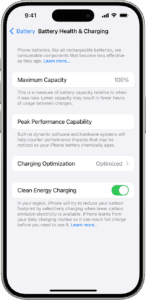
Enable Optimized Battery Charging

This feature reduces battery aging by learning from your charging routines and waits to juice up the battery after 80% until you need to use it.

For example, if you plug your iPhone 12 into charging overnight every day at your house, it will learn your habit. Now, the phone will normally charge up to 80%. But after that, it will stop charging for the entire night and finish charging past 80% (that is, up to 100%) just before you need to use the iPhone – say early morning.

A notification will display on the screen that tells you when it is scheduled to finish charging. To charge it sooner, touch and hold the notification and tap on ‘Charge Now.’

On iPhone 12, Optimised Battery Charging is turned on by default. To double-check, head over to the Settings app > Battery > Battery Health > make sure Optimised Battery Charging is green.

Buy a Battery Case

If you still can’t manage to make it through the day without recharging your iPhone 12, you may want to purchase a battery case. There are many options available for the iPhone 12.

iPhone 12 battery drain fast? Problem fixed

These are some of the long-tested and trusted solutions to fix iPhone 12 battery drain issue. I hope you followed the recommendations here according to your usage.

Tag: Battery