Got a tip for us?

How-To

If you’ve downloaded any apps on your iOS device recently, then chances are it features in-app purchases, especially if it’s a game. What was once a rarity has turned into the norm, and apps are now full of opportunities to buy virtual goods that don’t exist outside of the game. From gems and extra lives to costumes and ammunition, if there is a way to charge money for it, a developer has probably done so. In this article, we’ll show you how to block in-app purchases on your or your child’s iPhone and iPad to prevent unwanted purchases.

Why disable in-app purchases on iPhone or iPad?

If you have a kid that uses your iPhone or iPad, and if you don’t want to get a bad surprise, it might be a good idea to restrict in-app purchases. This will ensure they don’t make these purchases accidentally, even if their fingerprint or Face ID is added to the device!

Plus, turning off in-app purchases on your iPhone or iPad will prevent you from making a purchase accidentally in the heat of the moment.

How to turn off in-app purchases on iPhone or iPad

To turn off in-app purchases, you will need to set up or change the Screen Time settings.

  1. Start the Settings app on your iPhone or iPad.
  2. Go into Screen Time.
  3. Now, if you haven’t set up Screen Time yet:
    1. Choose Turn On Screen Time.
    2. Choose from This is My [iPhone]or This is My Child’s [iPhone].
    3. Follow any onscreen instructions. When you are prompted, tap on Use Screen Time Passcode or Parent Passcode, then create and verify a 4-digit passcode. Enter your Apple ID and password so that you can use it to reset your Screen Time passcode if you ever forget it.
  4. Now, with Screen Time set up, tap on Content & Privacy Restrictions. Next, toggle the switch next to Content & Privacy Restrictions slider so that it becomes green (i.e., so that it’s switched on).
  5. Tap the iTunes & App Store Purchases button.
  6. Tap In-app Purchases, then select Don’t Allow.
  7. If this is the child’s device, you may want to also disallow Installing Apps. If it is your own device, this may be too much trouble, as you will need to change the Screen Time settings anytime you want to install an app; you won’t even see the App Store icon on your device.

You may also consider using Ask to Buyon your child’s device. This is separate from Screen Time. Ask To Buy sends a request to the parent or guardian’s device anytime the child wishes to buy something. Then, the purchase can be allowed using either the parent or child’s device. In order to use Ask to Buy, you must first set up Family Sharing. You might use this instead of, or in addition to, using Screen Time restrictions.

You just replaced your AirTag’s battery, but now it isn’t turning on. No matter what you do, your AirTag is not working. In this article, I’ll explain what to do when your AirTag won’t turn on after a battery replacement.

KEY TAKEAWAYS

  • If your AirTag is not working after replacing its battery, check to ensure that the battery is compatible and in good working condition.
  • Ensure that the battery is positioned correctly. When you put the new battery in, ensure that the positive side, which is denoted by a ‘ ‘ mark, is facing up.

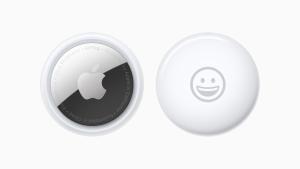
Front and back view of AirTag personalised with a smiley-face emoji.  

Why your AirTag may not work after a new battery and how to address the issue

There are a number of reasons why AirTag may not be working after replacing its battery. These include a problem with the battery, the battery’s position, or a faulty component. Here is what you can do to troubleshoot the problem:

The fix for AirTags that stop working after a battery swap

1. Ensure that the battery is compatible and in good working condition

The Apple AirTag tracker uses a standard CR2032 lithium 3V coin battery.

To discourage babies and toddlers from putting them in their mouths, some makers are applying a coating of an extremely bitter compound called Bitrex to the button cell.

According to Apple, CR2032 batteries with bitterant coatings may not work with AirTags.

Apple's instructions for changing the AirTag's battery

In fact, the main reason why the AirTags stop working after replacing the battery is because of bitterant coating in the battery.

To avoid any possible problems, Apple suggests using CR2032 batteries without the coating.

Check the packaging of your batteries to see if they have this coating. If they do, you should buy replacement CR2032 batteries that do not have any kind of coating. They are really cheap, like one dollar per battery. For example, Energizer batteriesdo not have this type of coating.

Alternatively, you can remove some of it, or just enough Bitrex for the battery contact to touch the metal of the button cell.

You don’t need to clear a big patch. Just enough for a tiny contact.

I use an alcohol wipe–a lens cleaning swab or injection swab will do the job–to clean off a small section of the coating. No swabs? A pencil eraser also does the job–just don’t pick anything that you’re going to put in your mouth afterward!

I find that cleaning about a quarter of the coin cell is enough for the battery to make contact, while at the same time retaining enough of the bitter compound to discourage ingestion.

If none of the above have worked, then it’s likely that the battery is defective. It’s rare, but it happens. If you suspect this, contact the battery manufacturer. Tell them about your problem, and what you’ve done to try and fix it.

2. Did you position the battery correctly?

Another reason why AirTags may stop working after a battery change is improper battery installation. While inserting the new battery (note orientation with on top). You’ll know when the battery makes proper contact with the AirTag because it emits a little tune. If you don’t hear anything, remove and inspect the battery. Make sure it’s clean and not dusty. Use a dry cloth and gently wipe the battery and the inside of the AirTag casing before trying again.

In the Find My app, you can check if the battery status has changed to confirm you replaced the battery correctly and the battery is good.

Use Find My to find your AirPods, Apple Watch, and AirTag  

Open the Find My app on your iPhone or iPad, tap on Items, find your tag and tapping on it.

3. Did you break something when changing the battery?

If the above solutions didn’t bring your AirTag back to life, the problem likely arose from a botched battery replacement. There’s a possibility you broke an important component while installing the new battery. Inspect the AirTag carefully. Do you see anything broken? If the answer is yes, it is probably not fixable; you may want to consider buying a new AirTag. AirTags come with a one year warranty.

If you decide to take your AirTag into an Apple Store, make sure to schedule an appointment first!

Tag: AirTag

Normally, your iPhone 15 Pro keep apps running smoothly in the foreground (or suspended in the background, ready to resume when needed). But if an iOS app misbehaves, it’s easy to force the app to close. Here’s how.

QUICK ANSWER

To close an app on the iPhone 15 Pro:

  1. Swipe up from the bottom of the screen to about a third of the way up, then let go.
  2. In the app switcher, swipe left or right to find the app you want to close.
  3. When you’ve located it, swipe it all the way up, dragging it offscreen.

Note: information in this article apply to iPhone 15, iPhone 15 Plus, iPhone 15 Pro and iPhone 15 Pro Max.

How to close apps on iPhone 15 Pro

To close an app on your iPhone 15 Pro, you’ll need to launch the app switcher screen. To do so, swipe upward from the bottom edge of the screen and pause near the middle of the screen, then lift your finger.

On the App Switcher screen, swipe left or right to navigate to the app that needs to be closed and then simply swipe up on that app preview. This will close the app for good and remove it from memory.

While this method works well for one or two apps, it can be tedious to repeat the process for multiple apps. iPhones do not offer a ‘Clear All’ button on the App Switcher screen unlike on Android devices, meaning there’s no way to clear all open apps at once. However, users can close multiple apps simultaneously on iPhones by using multiple fingers to swipe up on multiple app previews at once. Two or three fingers work best when trying to close two or three apps together. including all iPhone 15 Pro models.

Only Close Apps if They Malfunction

The iPhone 15 Pro’s operating system, Apple’s iOS, does a great job at automatically handling system resources. So you don’t need to manually force an app to close unless the app becomes unresponsive or glitchy.

While it’s temping to "clean house" by closing your suspended apps on a regular basis, doing so can actually slow down your iPhone and hurt your battery life. That’s because the next time you launch an app, the app has to completely reload from scratch. It’s slower and uses more CPU cycles, which drains your iPhone’s battery.

All you really need is a Wi-Fi connection.

You’ve finally received your iPhone 15. Maybe you picked it up at your local carrier store or preordered it and got it in the mail — but at long last, Apple’s latest phone is now in your hands. And you need to set it up — but you might need some help doing so.

In this guide, we’ll walk you through all the steps of setting up your iPhone 15, iPhone 15 Plus, iPhone 15 Pro or iPhone 15 Pro Max, from turning on your device and connecting to Wi-Fi to activating your eSIM and transferring all your data.

iPhone 15 Pro in black titanium, white titanium, blue titanium, and natural titanium finishes.

What to do before you start to set up your iPhone 15

Before you start setting up your iPhone 15, you’ll need the following things if you’re moving over from another phone or setting up an iPhone for your first time:

  • Back up your old iPhone. If you’re moving over from an older iPhone, you’ll be transferring data from your existing phone to your new iPhone 15, so it’s best to have an up-to-date backup to restore from. If you don’t have enough storage, you can back up to your computer.
  • Keep your old phone close by. No matter if it’s an Android or iPhone, it’s a good idea to have your previous phone ready. This can actually expedite the setup process.
  • And have your charger with you, just in case. Although your new iPhone 15 should have enough battery to get you through the setup process, you might need power to charge your older iPhone during the transfer.
  • Make sure you’re connected to the Internet. You need to connect to a stable Wi-Fi network to set up your iPhone 15.
  • Have your Apple ID credentials on hand. In case you need to sign in to your Apple account, to restore a backup and more, have your email and password ready. You can also create one during the setup process.

Ready? Let’s get started.

1. Turn on your iPhone 15

The first thing you need to do is turn on your iPhone. Whether you have an iPhone 15, iPhone 15 Plus, iPhone 15 Pro, or iPhone 15 Pro Max, turning it on is the same: Press and hold the side button, on the right side of your iPhone, until you see the Apple logo appear. Wait a few seconds, and the Hello screen should appear. Swipe up to begin.

2. Follow the iPhone onscreen instructions

Now you’ll have to do a couple minor things on your iPhone to get through the first part of the setup, and luckily they’re both easy to do. To start, you’ll have to:

  • Choose a language: If you’re in the US, you should see English listed directly at the top.
  • Select your country or region. Again, if you’re in the US, you should see “United States” at the top.

3. Use Quick Start to set up your iPhone 15

On the next page you’ll see the Quick Start screen, which allows you to automatically set up your iPhone 15 with the help of your previous iPhone or even an iPad. If you go this route, you’ll need to turn on your old device, connect it to Wi-Fi or cellular and then bring it near the new iPhone 15

Next, you’ll be asked to authenticate or connect the two phones. You can either use the camera on your old iPhone to scan the pattern on the new iPhone or enter a verification code. Activation will then take a few minutes.

Note: If you want to do this manually, skip down to the next section.

You’ll then be prompted to do the following, among other things:

  • Join your Wi-Fi network on your new iPhone.
  • Set Up eSIM. You should see two options: Transfer from another iPhone (the best option) or Set Up Later in Settings. If you choose the first option, you’ll be asked to double-press the side button on your old iPhone.
  • Set up Face ID.
  • Choose how you want to transfer your data. You can either do it from iCloud or from your previous iPhone.

It’s a good idea to keep both devices connected to a power source while you do this, because depending on how many apps and how much data you have, it could take a while. Follow all the steps until you’re finished and have access to iOS 17 on your iPhone 15.

4. Set your iPhone 15 up manually

Now, if you’re coming from an Android or other phone or want to set up your iPhone 15 manually, tap Set Up Manually on the Quick Start screen. If you decide to go this route, you’ll need to manually do the following things:

  • Connect to a Wi-Fi network. Wait a few minutes for your phone to activate.
  • Read the Data & Privacy prompt. Hit Continue when you’re finished.
  • Set up Face ID.
  • Create a six-digit passcode to unlock your iPhone 15. This is your backup for unlocking your iPhone 15. Enter the passcode twice.
  • Choose how to restore your apps and data. You can restore from iCloud backup, restore from Mac or PC, transfer directly from iPhone, move data from Android or don’t transfer apps and data.

Depending on your method of restoring your apps and data, you may be asked to enter your iCloud credentials to sign in to your Apple account. You then need to enter a verification code, which may appear on one of your other devices, to verify your identity.

Next, agree to the terms and conditions; customize your settings; update to the latest iOS; and set up Apple Pay, Siri and Screen Time, if necessary. You’ll also be asked whether you want to share your app analytics with developers, which helps developers improve their apps using your data (anonymously).

Finally, set up the True Tone display, choose light or dark mode and select a standard or zoomed view (for those that have impaired vision).

5. You can now use your iPhone 15 running iOS 17

Once you’re finished, you can swipe up to enter your iPhone. You may not see all your applications on your home screen or your photos and videos in your camera roll, so you’ll need to wait a bit while your phone slowly transfers all your apps and data to your new iPhone 15. Depending on how much there is to transfer, this can take as much as a few hours.

Here’s how to set up and activate an eSIM on your iPhone 15.

iPhone 15 Pro in black titanium, white titanium, blue titanium, and natural titanium finishes.

Note: information in this article apply to iPhone 15, iPhone 15 Plus, iPhone 15 Pro and iPhone 15 Pro Max.

Last year, Apple announced its ambitious plans to put an end to the old SIM card by making iPhone 14 the first eSIM-only iPhone… except for those living anywhere outside the US. Despite some rumors suggesting that Apple would expand the eSIM-only iPhone to more countries, the US is still the only country to have the iPhone 15 without a physical SIM tray.

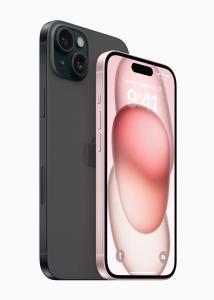
iPhone 15 Plus in black is shown from the back next to iPhone 15 in pink, which is shown from the front.

ESIM is a substitute for a physical SIM that’s embedded in the phone’s circuitry so users can easily swap between SIMs. It also enables people to host more than two SIMs. The iPhone 15 will be able to host up to eight SIMs at once. So, how easy is it to load a new eSIM on the iPhone? It should only take a few steps. Here’s how to set up and activate an eSIM on your iPhone 15.

QUICK ANSWER

To set up an eSIM on your iPhone 15, go to Settings > Cellular and tap Add eSIM. From there, you can tap on Set up eSIM. You might be prompted to scan a QR code provided by your carrier or transfer an existing eSIM from your current device.

The process might be a bit more involved with some carriers. Keep reading, and we can help you get your iPhone 15 eSIM set up on some popular network providers. Some require you to contact the carrier support team, and they might push the eSIM to your phone manually. It’s also possible to transfer eSIM from iPhone to iPhone, or you can convert a physical SIM to an eSIM. Keep reading to learn all the details.

How to activate eSIM on iPhone 15

Depending on where you bought your iPhone 15, setting up an eSIM can be as simple as powering on your device and following on-screen prompts. You should be in for smooth sailing if you purchased your phone directly from your carrier. However, we’ll also dive into some steps you might have to take if you bought your new iPhone unlocked.

Activating eSIM on iPhone 15 during the initial setup

As mentioned, if you bought your iPhone 15 through your mobile carrier, you might not have to do much of anything. Top US carriers like Verizon, T-Mobile, and AT&T support what Apple calls Carrier Activation, so your eSIM might be preloaded on your phone. If that’s the case, here’s all you have to do:

  1. Swipe up on the welcome screen to start setting up your iPhone.
  2. Select your Wi-Fi network of choice and enter your password.
  3. Wait for the Setting Up Cellular display to appear, at which point the iPhone will activate your eSIM.
  4. Press Continue once you see Cellular Setup Complete.

Activating eSIM on iPhone 15 through the settings app

If you’ve already owned an iPhone, there is no need to go through the initial setup process. You can simply add an eSIM in the settings.

  1. Go to Settings > Cellular > Add Cellular Plan. Alternatively, this setting could be under Settings > Mobile Data > Add eSIM.
  2. You’ll now be asked if you want to Transfer From Nearby iPhone or Use QR Code. Pick what applies to your situation.

How to convert your SIM card to eSIM on an iPhone

Some carriers might support quickly converting the physical SIM to eSIM without having to visit a store. Note: this won’t work on a US-based iPhone 15 because it lacks a SIM slot. Here’s what to do.

  1. Open the Settings menu and head to Cellular.
  2. Tap Convert to eSIM. If you don’t see this as an option, your carrier doesn’t support the feature.
  3. If you do see Convert to eSIM, select Convert Cellular Plan.
  4. Tap Convert to eSIM (again).
  5. Once your eSIM activates, remove your physical SIM and restart your iPhone.

Some U.S.-based carriers might have their own appsand sites to easily set up eSIM. Notably, most iPhone models will need to be connected to the internet through Wi-Fi when switching to eSIM, but eSIM-only iPhone 15 sold in the U.S. can be activated without a Wi-Fi-enabled internet connection.

How to set up an eSIM with iPhone 15 on Verizon

How you add an eSIM to a Verizon Wireless iPhone 15 depends on your specific situation. The process is different if you’re changing devices in an existing line, or if the line is new. Let’s walk you through both methods.

How to set up an eSIM on iPhone 15 if you’re switching devices on Verizon

  1. Go to the My Verizon website and log in.
  2. Go into Activate a Device on an Existing Line.
  3. Pick which type of eSIM to activate. For iPhone 15, simply choose the IMEI.
  4. Follow the instructions provided by Verizon.

Set up an eSIM on iPhone 15 if you’re adding a new Verizon line

  1. You can use the My Verizon app to enable an eSIM on a new account. This can also be done from the Bring your own device page, where you can become a new customer and set up an eSIM.
  2. Those adding a line can use the Add a linepage on My Verizon. It can also be done from the app.
  3. Activating your eSIM, regardless of the process, simply requires following the on-screen instructions.

How to set up an eSIM with iPhone 15 on AT&T

Adding an eSIM is a bit more annoying with AT&T, simply because it usually requires more involvement from the carrier. Sometimes, you’ll have to call and have them set it up manually, if you are simply changing devices. You can also use the Bring Your Own Device AT&T page, but that doesn’t always work, depending on your account or device. Regardless of the option, AT&T will have to push this eSIM to your device, and you’ll get a notification to activate it.

  1. Call AT&T or access the Bring Your Own Device page.
  2. Once you request an eSIM, AT&T will request the phone’s IMEI and EID.
  3. Make sure you are connected to Wi-Fi.
  4. The carrier will push the eSIM to your device. You’ll get a notification that says AT&T Cellular Plan Ready to be Installed.
  5. Hit Continue and follow instructions.

How to set up an eSIM with iPhone 15 on T-Mobile

The process is very similar when setting up an eSIM on an iPhone 15 with T-Mobile. You’ll need some help from the carrier (or Uncarrier).

  1. Contact T-Mobile and provide the team with your device’s EID.
  2. Make sure your device is connected to Wi-Fi.
  3. When T-Mobile support pushes the eSIM to your device, select the notification.
  4. Hit Continue.
  5. Go to Cellular.
  6. You’ll be able to see the eSIM activating. The device will be ready soon enough.

How to set up an eSIM with iPhone 15 on Google Fi

Google tends to be up-to-date on all technologies, so it’s no surprise that their setup process for activating an eSIM is so simple. All it takes is downloading the app and following instructions.

  1. Of course, you’ll need a Google Fi account, so go to the website to sign up if you haven’t. Make sure to opt in for eSIM activation.
  2. Download and launch the Google Fi iPhone app.
  3. Sign into your account and follow the instructions.
  4. Hit Get Started to begin eSIM activation.
  5. If you have a second device you can use, use it to go to the Quick Setup page and follow the instructions to get a QR code.
  6. Go to Settings > Cellular > Add eSIM > Use QR Code.
  7. Scan the QR code provided to you by Google Fi.
  8. If you don’t have a secondary device handy, select Don’t have a computer?.
  9. Follow the instructions to finish the eSIM activation.

The iPhone 15 Pro and iPhone 15 Pro Max offers a brand-new button on the side that can be customized to trigger a specific function. Here’s how to set up and use Action button on iPhone 15 Pro and iPhone 15 Pro Max.

Apple iPhone 15 pro action button

What is action button in iPhone 15 pro?

The Action button on the iPhone 15 Pro and iPhone Pro Max is a force-sensitive solid-state button that can be customized to perform specific function. The Action button sits in the same place as the side switch on previous iPhones and is used with a long press.

The Action Button switches the iPhone between ring and vibrate by default, which is vital since it has replaced the ring / vibrate switch that Apple has included on the iPhone since its debut in 2007. You can even feel haptic feedback when you switch between the modes.

Apple notes that when you change the Action button to something other than controlling Silent mode, you can head to Control Center or use Focus modes to change your ringer.

What does the action button do on iPhone 15 Pro?

While the Action button by default switches the iPhone between ring and vibrate mode, it can be programmed to do things like activating the camera, turning on the flashlight, starting a Voice Memo, opening a note, switching Focus modes, or running your own custom shortcuts. You can also set accessibility options like Magnifier.

How to use Action Button on iPhone 15 Pro and iPhone 15 Pro Max

Before we dig into the iPhone settings, here are the basics of the Action Button.

  • To trigger most functions, you’ll need to press and hold the button.
  • By default, a press and hold of the Action Button switches between sound and silent modes, much like how the original alert slider behaved.
  • On a per-app basis, a single tap of the Action Button will also trigger a secondary function. For example, a single tap while the camera is open prompts the shutter. A single tap while Voice Memo is on will stop the recording.

Customize the iPhone 15 Pro Action button

Should you want to get more creative with the Action Button, the Settings app is where to go. Here’s how to set it up:

  1. Open the Settings app on your iPhone 15 Pro or iPhone 15 Pro Max.
  2. Scroll down and choose Action Button.
  3. You can set the Action button to launch:
    • Silent mode (default)
    • Focus mode
    • Camera
    • Flashlight
    • Voice Memo
    • Magnifier and other Accessibility features
    • Shortcut
    • Translate (arriving with an update "later this year")

While there are eight main features the Action button can control, being able to set it to control Accessibility shortcuts or run a custom shortcut from the Shortcuts app is huge. That means the possibilities are pretty much endless.

Some features make use of the Action button once you’re in an app too. For example, if you launch the Camera with the Action button, you can press it again to take pictures. If you launch a Voice Memo recording, you can use the Action button to stop the recording, etc.

The Action Button, though subtle, is one of few visually noticeable changes to the exterior of the iPhone in many years — alongside the new USB-C port on the bottom of the device.

FAQs

What iPhone models have the Action Button?

Only the iPhone 15 Pro and iPhone 15 Pro Max have the new Action Button. Older models instead have a physical alert slider that switches between sound and silent modes. Naturally, cases and covers made for previous iPhone models won’t fit on the iPhone 15 Pro series.

Can I map a third-party app to the Action Button?

You can, thanks to the Shortcut option in the Action Button menu. You first need to create a Shortcut with the desired app. Then, select it as the sequence to open when the Action Button is triggered. Due to how versatile Shortcuts can be, the possibilities for what the Action Button can do are endless.

What are you wanting to customize your Action button to control? Drop your ideas in the comments section below!

Setting up and using a VPN on a Mac is easier than you may think

A VPN is an essential tool for maintaining privacy online. Here’s how to find the best one for you and how to set it up on your Mac.

Two MacBook Pro devices are shown back to back.  

These days, cybersecurity is something everyone needs to think about, not just governments and big corporations.

The good news is, you can use a few basic tools to defend yourself and become a less desirable target to hackers. Antivirus software can help protect you from viruses and other types of malware. But antivirus programs typically only secure your physical devices. To create a secure connection and safeguard your internet activity, you’ll need a VPN to protect the information you’re sending to and from your device.

Even Apple devices, which generally have fewer issues with malware, aren’t 100% safe. So, setting up a VPN on your Mac is important if you want to keep your personal information from being stolen.

A VPN is an important tool used to encrypt your internet connection and maintain your online privacy.

But VPNs are also useful for other tasks outside of protecting your internet traffic and data from prying eyes. You can use a VPN to unblock geo-restricted sites and streaming services, or to securely upload or download files.

Let’s take a look at what a VPN is, how to find the right VPN service for you, and how to set a VPN up on your Mac.

What is a VPN and how does it work?

A VPN, or virtual private network, is a tool that can be used to improve your internet security and privacy. It works by creating an encrypted tunnel for your internet traffic and obscuring information that could identify you, like your IP address. This makes it more difficult for others to track your browsing habits or see your personal information.

A VPN service encrypts your data and securely routes it through a VPN server on the way to its final destination.

This gives you a level of security and anonymity because your internet provider and the sites you’re accessing won’t be able to track you or determine your location.

Why you need a VPN for your Mac

Apple MacBooks are known for robust security protections, but their toughness against malware and viruses doesn’t automatically protect your privacy. So If you want to prevent your internet service provider from being able to see what websites you are looking at on your Mac and what apps you are using, a well-tested virtual private network will do that.

A good VPN will also prevent websites you browse — and most internet-connected apps on your Mac — from easily being able to determine your exact location. If you travel and frequently use hotel, airport or other public Wi-Fi, a VPN will protect your Mac from the snooping of other users and potentially malevolent actors.

In addition to providing an extra level of security, VPNs are also essential tools for accessing geo-restricted content. In the most extreme cases, VPNs can be used to bypass censorship imposed by authoritarian governments and maintain a free flow of information.

However, it’s more likely that you’ll want a VPN to unblock location-restricted streaming services or sporting events. VPNs are also popular for P2P file sharing or torrenting because they can hide your activity from your internet service provider.

How to choose a VPN service

Not all VPNs are created equal. The level of features, usefulness, security, and service varies greatly from one company to the next.

A good place to start is to figure out why you want a VPN for your Mac and test various services to see which one best meets your needs and fits your budget. Most of the best VPNs have money-back guarantee periods of 30 days or more.

There are free VPNs, but in most cases, you’ll want to avoid these services. A free VPN will often have severe data or performance restrictions and fewer features than a paid service. And that’s the best-case scenario.

Free VPNs could make money by selling your data or bombarding you with ads. And even free services with good intentions may not have the resources to maintain high levels of security and service.

It’s a good idea to shop around, read reviews, and test out the features. To ensure you find a VPN that works for you, here are some factors to consider:

  • Speed: VPNs can slow down your connection a bit. You want to make sure you choose a VPN that offers good speeds.

  • Server network: The more servers a VPN has, the more choices you have about where to route your traffic.

  • User-friendly apps: Some VPN apps are feature-rich, while others are simple. Make sure to pick an app that is easy to use and has all of the options you want.

  • Security and trust: Some VPNs earn money by selling ads or your data. It’s important to trust your VPN provider. Read the terms of service and look for independent audits of the company that verify the VPN is providing the level of security it claims to have.

  • Device compatibility: If you have more than one device, for example, a Mac, an iPhone, and an iPad, you’ll want a VPN that can be installed on all of them.

  • Money-back guarantee: Make sure to get a VPN that offers a money-back guarantee, so that if you don’t like the service, you can easily cancel your subscription within the allotted time frame.

How to set up and use a VPN on your Mac

VPNs are easier to use on your Mac than you may think Here’s how to get a VPN set up on your Mac quickly — and start browsing privately — in just a few minutes.

How to Set Up a VPN on Mac Using a Third-Party VPN App

Setting up a VPN on a Mac is a quick and easy process. Once you’ve found a VPN provider you want to use, just visit the VPN provider’s website to get started.

  1. **Find the download for your Mac device — **Find the appropriate application for your Mac device and begin the download. In most cases, there will be a list of download links you can click on right at the top of the VPN website.

  2. Enter the payment information — Depending on the VPN, you may be asked to provide payment information before you can use the service.

  3. Set up the VPN on your Mac–Launch the application installer to begin the installation process on your MacBook. With some products, you may be asked to grant permission to install different parts of the application, such as configuration files or helper tools.

  4. Launch the VPN service on your Mac–Once installed, launch the application and begin using the service by choosing a VPN server location (or quick connect) and connecting to the server.

And you are good to go! Once you’re connected to the VPN, you’re all set to begin browsing the web privately and securely. For peace of mind, you can check the VPN’s connection status on the application screen (it should say On/Off, or Connected/Disconnected, etc).

How to Set Up a VPN on Mac Using VPN Settings

To set up a VPN via the Mac’s built-in VPN settings, make sure you have all the necessary data first. This includes the VPN type, the server address, username, password, and shared secret. All this information is specific to each VPN and provided by your VPN operator.

How To Set up a VPN in macOS 13 Ventura

If you’re using macOS 13 (Ventura), follow the steps below to manually set up a VPN on your Mac

  1. On your Mac, choose Apple menu .
  2. Click System Settings.
  3. Select VPN from the sidebar.
  4. Click Add VPN Configuration on the right.
  5. Select the type of VPN connection you want to set up.
  6. In the Display Name field, type in a name for the new VPN service.
  7. If you’re setting up an L2TP over IPSec VPN, click the Configuration pop-up menu, then select a configuration.
  8. If you don’t need multiple configurations, stick with the Default configuration.
  9. Type in settings for the new VPN service.
  10. If needed, enter additional settings.
  11. L2TP over IPSec: You can enter settings for Options, TCP/IP, DNS, and Proxies.
  12. Cisco IPSec or IKEv2: You can enter settings for DNS and Proxies.
  13. Click Create to finish setting up BPN on your Mac.

How do I remove a VPN from my Mac?

If your VPN provider has you using an app, quit out of the app and locate it (most likely in the Applications folder) then delete it. If it’s not an app, follow the steps below to remove a VPN configuration from your Mac:

  1. Choose Apple menu.
  2. Click System Settings.
  3. Select VPN from the sidebar.
  4. On the right, click the Info button next to the VPN service you want to remove.
  5. Click Remove Configuration.
  6. Confirm you want to remove configuration.

The Bottom line

If you’re looking to secure your Mac’s internet data and keep your information private, then you should consider installing a VPN on your Mac. A VPN can also hide your location and unblock geo-restricted content, which also makes it a useful tool for streaming and P2P file sharing.

Most VPNs give you a month or more to try out the service and receive a full refund if you’re not satisfied. So it’s easy to try out a VPN and see if it’s a good fit for you.


Tags: macOS, VPN

Here’s how the new feature of WhatsApp could help you take control of spam callers on your iPhone.

Called Silence Unknown Callers, the feature does just that — it silences unfamiliar WhatsApp callers. Perfect for handling robocalls and the like. Without doubt, it’s a great WhatsApp feature that’s easy to miss. So with that in mind, let’s take a closer look.

When enabled, Silence Unknown Callers checks whether an incoming call is from a number that’s in your address book. If an incoming number is completely unknown, the call won’t ring on your phone but will be visible in your call logs afterwards.

The ability to silence unknown numbers on WhatsApp is a smart, effective feature — but it’s not enabled by default.

How to Silence Unknown Callers in WhatsApp on iPhone

Follow the steps below to silence unknown callers in WhatsApp on iPhone:

  1. Launch WhatsApp.
  2. Tap Settings.
  3. Tap Privacy.
  4. Tap Calls.
  5. Enable Silence Unknown Callers.

The feature will be available if you’re running the latest version of WhatsApp, which most iPhone users are by now.

If you’re worried about missing important WhatsApp calls, don’t fret. Silence Unknown Callers works by auto-declining calls from unknown numbers while still making them visible in the Call list.

While Silence Unknown Callers is great, it’s also worth noting that if you’re waiting to receive an important WhatsApp call from an unknown number — like a hospital — it may be wise to disable the feature, at least temporarily. Fortunately, activating and deactivating Silence Unknown Callers on WhatsApp is as simple as toggling a button.

So if you’re frequently plagued by cold callers, activate this feature and put a stop to the spammers once and for all!

Buying a used iPhone can be a cost-effective way to upgrade your device. However, the last thing you want is to buy an iPhone that’s stolen or blacklisted. It’s a common problem and can result in the device becoming unusable. But don’t worry, there are ways to avoid this. In this blog post, we’ll guide you on how to check if a used iPhone is stolen or blacklisted using the IMEI number.

What is an IMEI?

The IMEI is a unique 15-digit number assigned to every mobile device, including iPhones. It serves as the device’s identity and is used by network providers to track and identify individual devices. By accessing an iPhone’s IMEI, you can gather vital information about its history and determine if it has been reported as stolen or blacklisted.

Why should you check an iPhone’s IMEI?

There are several reasons why it’s important to check the IMEI of a used iPhone before purchasing:

  1. Stolen device detection: An IMEI check allows you to verify if the iPhone has been reported as stolen or lost. Purchasing a stolen device is illegal and could lead to legal trouble, not to mention the hassle of dealing with a non-functional device.

  2. Blacklisted status: If an iPhone is reported as lost or stolen, the network provider can blacklist the device’s IMEI. A blacklisted iPhone will not be able to connect to any network, rendering it useless as a phone. Checking the IMEI ensures that you don’t end up with a device that can’t be activated on any network.

  3. Outstanding financial obligations: An IMEI check can also reveal if the iPhone has any unpaid bills or financial obligations attached to it. In such cases, the device may be blocked from network usage until the outstanding amount is cleared.

How to Find the IMEI Number

There are several ways to find the IMEI number of an iPhone:

If the iPhone has been set up

  • Phone Dial: You can dial *#06# and the IMEI number will appear on the screen.
  • iPhone’s Settings: Go to Settings > General > About, and scroll down to find the IMEI.

If the iPhone hasn’t been set up

On the Hello screen, tap the (i) info button to see basic information about the iPhone, including the IMEI.

How to perform an IMEI check?

Once you have the IMEI number, the next step is to check if the iPhone is stolen or blacklisted. Here are the steps involved:

  1. Open a browser and navigate to the iPhone checker at [imeipro.info](https://imeipro.info/
  2. Below the ad, enter the IMEI number in the search field where it says, "Enter IMEI Number here…"
  3. Complete the Captcha and then clickCHECK.4. Scroll down past the ad to see the results. You’ll want to see:
    • Find My iPhone should be OFF
    • Simlock status should be Unlocked.
    • Blacklist status should be CLEAN.

Other IMEI databases to check

There are several online services and dedicated apps that offer IMEI checks. Some popular options include:

  • IMEI24

  • Swappa

  • IMEIpro

  • CheckMEND

  • IMEI Detective

  • Visit one of these websites or download an app on your iPhone that offers IMEI checking services.

  • Enter the IMEI: Enter the iPhone’s IMEI in the provided field on the IMEI check service website or app. Double-check that you’ve entered the correct digits to ensure accurate results.

  • Initiate the check: Once you’ve entered the IMEI, initiate the check by clicking the "Check" button or relevant option on the website or app. The service will access the necessary databases to retrieve the information associated with the IMEI.

  • Review the results: After a few moments, the IMEI check service will provide you with the results. Pay attention to the following details:

    • Stolen or lost status: The check will indicate if the iPhone has been reported as stolen or lost. If the check reveals that the iPhone is stolen, it is essential to avoid purchasing it. Acquiring a stolen device is illegal and supports unethical practices.
  • Blacklisted status: The IMEI check will also determine if the iPhone is blacklisted. If the device is blacklisted, it means it has been blocked by network providers due to reported theft or unpaid bills. A blacklisted iPhone cannot be activated on any network and should be avoided.

  • Activation status: The IMEI check may provide information about the activation status of the iPhone. It can indicate whether the device is currently activated or if it is still tied to a previous owner’s iCloud account. Ensuring that the iPhone is not linked to someone else’s account is crucial for a smooth and hassle-free user experience.

  • Outstanding financial obligations: The IMEI check may reveal if there are any unpaid bills or financial obligations associated with the iPhone. If there are outstanding payments, it is advisable to avoid purchasing the device, as it may be blocked by the network until the financial obligations are resolved.

  • Analyze additional information: Some IMEI check services may provide additional information, such as the device’s model, color, storage capacity, and manufacturing date. While not directly related to theft or blacklisting, this information can help verify the device’s authenticity and ensure that it matches the seller’s claims.

  • Cross-check information: If the IMEI check reveals any concerning information, it is recommended to cross-check the results with other reputable IMEI check services. This can help validate the accuracy of the findings and provide further assurance before making a purchasing decision.

What if the iPhone is Blacklisted?

If you find out that the iPhone is blacklisted before buying, don’t proceed with the purchase. The phone will likely not work properly, and you could be unknowingly receiving stolen property.

If you’ve already bought a blacklisted iPhone, your options are limited:

  • Contact the Seller: Try to contact the seller and request a refund. If the seller was unaware the phone was blacklisted, they might be willing to cooperate.

  • Contact the Police: If the seller doesn’t cooperate or if you suspect the phone was stolen, contact your local police department.

  • Contact Your Carrier: If the phone was blacklisted because of an unpaid balance on the phone, you might be able to pay off the balance and have the phone removed from the blacklist. This is not always possible, but some carriers will allow it.

  • Use as an iPod: As a last resort, you could still use the phone as an iPod, assuming it’s not activation locked. You’ll be able to connect to Wi-Fi and use apps that don’t require a cellular connection.

How to Protect Yourself When Buying a Used iPhone

To avoid buying a stolen or blacklisted iPhone, consider the following tips:

  1. Purchase from reputable sources: To minimize the risk of purchasing a stolen or blacklisted iPhone, buy from reputable sellers. Authorized retailers, certified resellers, and trusted online platforms are more likely to provide legitimate devices with verified IMEI numbers.

  2. Meet in person for local transactions: If you’re purchasing a used iPhone through a local transaction, arrange to meet the seller in person. This allows you to inspect the device physically, check its IMEI on the spot, and ensure that it matches the information provided by the seller.

  3. Verify proof of purchase: Request the seller’s proof of purchase, such as the original receipt or invoice, to validate the authenticity of the iPhone. Legitimate sellers should have documentation that proves their ownership of the device.

  4. Check for iCloud activation lock: Apart from the IMEI check, make sure to verify if the iPhone is iCloud activation locked. This lock prevents unauthorized access to the device and ensures that it can only be used with the owner’s iCloud credentials. To check the activation lock status, ask the seller to provide the device’s serial number or IMEI, and use the official Apple Activation Lock Status website.

  5. Consider warranty and return policies: Before finalizing the purchase, inquire about any available warranty or return policies. Having a warranty can provide additional protection and support in case any issues arise with the iPhone after purchase.

Conclusion

Performing an IMEI check is an essential step when considering the purchase of a used iPhone. By verifying the device’s status through an IMEI check, you can ensure that the iPhone is not stolen, blacklisted, or associated with any outstanding financial obligations. Remember to use reputable IMEI check services, cross-check the results if necessary, and consider other factors like the seller’s reputation and proof of purchase. Taking these precautions will help you make an informed decision and avoid potential legal and financial troubles associated with buying a stolen or blacklisted iPhone.

Does the incessant ring of your iPhone from unknown callers interrupt your daily routine? You’re not alone. Spam calls are a persistent problem plaguing millions of smartphone users around the world. But, don’t fret. There are several ways to block spam calls on iPhone, and this article will provide a comprehensive guide on how to do just that.

Understanding Spam Calls

Before we delve into how to block spam calls on iPhone, it’s crucial to understand what they are. Spam calls typically come from automated systems and can range from irritating telemarketing calls to malicious scams. According to the Federal Trade Commission, nearly 2.4 billion robocalls are made each month.

Built-in iOS Features

Apple is well aware of this nuisance and has included several features in iOS to help users handle these spam calls.

  • Silence Unknown Callers
  • Starting from iOS 13, Apple introduced a feature called "Silence Unknown Callers." This feature, when turned on, allows calls only from your contacts, recent outgoing calls, and Siri suggestions. Unknown callers and spammers are sent directly to your voicemail.

    To enable this feature:

    1. Open the ‘Settings’ app.
    2. Scroll down and tap on ‘Phone.’
    3. Scroll down to ‘Silence Unknown Callers.’
    4. Toggle on ‘Silence Unknown Callers.’

    This feature won’t block spam calls, but it will silence them, helping to reduce their disruptive impact.

  • Silence Junk Callers
  • Silence Junk Callers is pretty self explanatory. Not everyone will have this feature because it varies from carrier to carrier (Verizon, T-Mobile and Sprint users should have something of this ilk), but follow the instructions below to see if this featur is available on your iPhone.

    1. Go to ‘Settings.’
    2. Scroll down and tap on ‘Phone’.
    3. Look for ‘Call Blocking and Identification.’
    4. Turn the toggle on for ‘Silence Junk Callers.’

  • Block Specific Numbers
  • If a particular number keeps pestering you, you can block that specific number directly from your call log.

    Here’s how:

    1. Open the ‘Phone’ app.
    2. Navigate to ‘Recents.’
    3. Tap on the ‘i’ icon next to the spam number.
    4. Scroll down and tap ‘Block this Caller.’

    Third-Party Call Blocking Apps

    Beyond the built-in features, numerous third-party apps can help identify and block spam calls on your iPhone. These apps use large databases of known spam numbers and user reports to block or warn about incoming spam calls. Here are a few options:

    1. Hiya: Hiya identifies the calls you want to pick up & blocks the ones you want to avoid.

    2. RoboKiller: RoboKiller not only blocks spam calls but also uses answer bots to waste the time of spam callers.

    3. Nomorobo: Nomorobo blocks annoying robocalls, telemarketers, and phone scams.

    4. First, download a spam-blocking app like RoboKiller or Hiya from the App Store.

    5. Next, go to Settings > Phone.

    6. Tap Call Blocking & Identification.

    7. Under Allow These Apps To Block Calls And Provide Caller ID, turn the app on or off.

    Reporting Spam Calls

    Despite your best efforts, some spam calls might still slip through. When this happens, it’s essential to report them. The information you provide can help improve spam detection and blocking technologies.

    1. Reporting to Your Network Provider: Most network providers offer services to report and block spam calls. Check with your provider to learn about their specific procedures.
    2. Reporting to FTC: In the United States, you can report unwanted calls to the Federal Trade Commission.

    Also, Apple provides an option to report spam directly from your iPhone:

    To report SMS messages and calls as spam, you first need to enable an Unwanted Communication Reporting extension, called an SMS/Call Reporting extension in the Settings app (see Settings > Phone > SMS/Call Reporting). Then, follow the steps below:

    1. Open the ‘Phone’ app.
    2. Navigate to ‘Recents.’
    3. Tap on the ‘i’ icon next to the spam number.
    4. Scroll down and tap ‘Report this Caller.’

    General Tips to Avoid Spam Calls

    Blocking spam calls on iPhone is just one part of the equation. It’s equally important to adopt practices that reduce the likelihood of receiving spam calls.

  • Don’t Answer Unknown Calls
  • If you receive a call from an unknown number, it’s best not to answer it. If it’s important, the caller will leave a message.

  • Be Careful When Giving Out Your Number
  • Be cautious when subscribing to online services or filling out forms. Always check the privacy policy to see how your data will be used.

  • Register Your Number with the National Do Not Call Registry
  • In the U.S, you can register your number with the National Do Not Call Registry. This should reduce the number of telemarketing calls you receive.

    Conclusion

    iPhone spam calls can be annoying and disruptive, but armed with the knowledge from this guide, you can significantly reduce their frequency and impact. Remember to use the built-in features of your iPhone, consider the use of third-party apps, report spam calls when they happen, and adopt practices that can help avoid spam calls in the first place.

    Don’t let spammers disrupt your peace. Take back control of your iPhone and enjoy the uninterrupted flow of your daily routine.