Got a tip for us?

iPhone

The iPhone is a smartphone from Apple that runs the iOS mobile operating system. Between its apps, communication features, the camera, mobile internet access, and other functionalities, the iPhone has quickly become an integral part of many peoples tech lives.

If you have difficulty seeing or following the pointer when you use a mouse or trackpad with iPhone, you can change its size and color so it’s easier to locate on the screen. It’s all in Pointer Control, in Accessibility settings.

Go to Settings > Accessibility > Pointer Control, then adjust any of the following:

  • Increase Contrast
  • Automatically Hide Pointer
  • Color
  • Pointer Size
  • Scrolling Speed

To customize the buttons of the pointing device, go to Settings > Accessibility > Touch > AssistiveTouch > Devices.

You can find pins, places, guides, and routes in one place: your Places in the Maps app. You can also add personal notes to saved places, or pin your most frequently visited places for easier access in Maps and CarPlay. Those notes are visible only to you.

You can save dropped pins and home, work, or school addresses to Places, too. Just be careful when you clean up. Removing a place from your Places deletes any personal notes you’ve added to it.
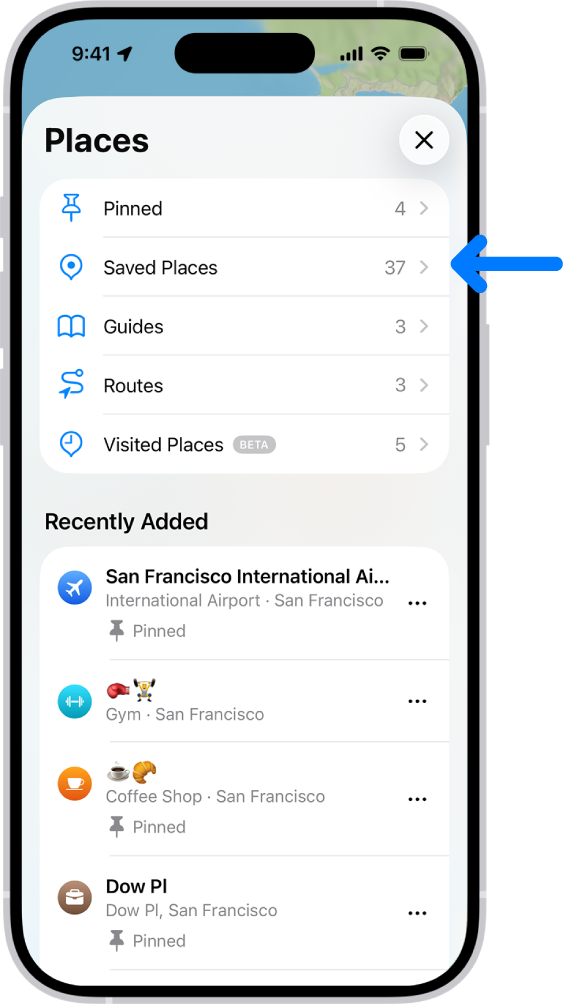
The Places screen in Maps, which shows a list of place categories like Pinned, Saved Places, and Guides. Below this, a Recently Added section lists viewed locations.

Save a place

For easier access in Maps and CarPlay, pin frequently visited places.

They appear under Pinned and as icons in your Places.

  1. Start the Maps app on your iPhone.
  2. Do one of the following:
    • Tap the Add button (you may need to swipe left), search for a location or tap a suggestion, then tap the Done button.
    • While looking at a place card, tap the Add button near the bottom of the screen (it turns to the Added button), tap the More button, then tap Add to Places.

Places can also hold dropped pins and your home, work, or school addresses.

Add notes to a place

If you add notes to a place, you can read them at any time.

Your note appears as text with the shared link when you share a place. It doesn’t save to the other person’s notes for that place, though.

  1. Start the Maps app on your iPhone.
  2. While looking at a place card, tap the More button. Then tap Add a Note.
  3. Write something and tap the Done button.

Adding a note to a place also saves it to your Places.

Remove a place from your Places

  1. Start the Maps app on your iPhone.
  2. Do one of the following:
    • Tap Places, touch and hold the More button, tap Delete from Places, then tap Delete.
    • If you’re in the place card, tap the Added button, tap to deselect Places, then tap the Done button.

Removing a place from your Places also deletes any personal notes on it.

Tag: Maps

You can automatically direct the audio of phone or FaceTime calls to the iPhone speaker, a Bluetooth® headset, or your hearing device. iPhone can also automatically answer calls after a length of time you set.

During a call, the audio switches from your hearing aid to the iPhone speaker when you remove the hearing aid from your ear.

  1. Open Settings, tap Accessibility, tap Touch, tap Call Audio Routing, and then choose an audio destination.
  2. Tap Auto-Answer Calls, turn on Auto-Answer Calls, and set the duration of time before the call is answered by tapping the Decrement button or the Increment button.

Removing your hearing aid from your ear during a call switches the audio routing to the iPhone speaker.

Tag: Maps

On iPhone, you control which of your contacts an app can access. The first time an app wants to access your contacts, you receive a request from the app, along with an explanation. For example, a messaging app may ask to access your contacts in order to find friends who are using the same app.

After you grant or deny the app’s request, choose which contacts the app can access, all of them or just a few, with Limited Access. You can always change the access you granted later.

  1. Open Settings and then tap Privacy & Security.
  2. Tap Contacts, then tap the app.
  3. Choose how much access to your contacts you’re giving the app (below Contacts Access).
  4. If you’re giving Limited Access, tap Edit Selected Contacts to choose individuals.

    Select or deselect individual contacts, then tap Done.

You can add photos and videos to and delete them from the albums you create in the Photos app. You can also search within an album to quickly find specific photos and videos.

You can work with several items at once, and search by location, date, keyword, and more. Your albums can be sorted and filtered, too.

Here’s how to add, delete, and find photos and videos in albums on iPhone.

Add photos and videos to an album

  1. Open the Photos app on your iPhone.
  2. Tap Collections and tap Albums.
  3. Tap an album to open it.
  4. Tap the More button and then tap Add Photos.
  5. Select the photos or videos you want to add to the album and then tap the Done button.

Quick tip: Tap the Search button to look for photos by location, date, keyword, and more.

Add photos and videos to an album from your library

  1. Open the Photos app on your iPhone.
  2. Tap Library. Then tap a photo or video to view it in full screen.

    To add multiple photos or videos at the same time, tap Select, then tap the items you want to add.

  3. Tap the More button, tap Add To, and then tap Album, Shared Album, or create a new one.
  4. Tap the album you want to add to.

Quick tip: To sort and filter your albums, tap the More button at the bottom of the screen. Looking for a specific album? Use the Search button.

Remove photos and videos from an album

  1. Open the Photos app on your iPhone.
  2. Tap Collections and tap Albums.
  3. Tap an album to open it.
  4. Touch and hold the photo you want to remove. Tap Remove from Album.

Search for photos in an album

  1. Open the Photos app on your iPhone.
  2. Tap Collections.
  3. Tap Albums. Tap the album you want to search in.
  4. Tap the Search button and enter the person, object, or place you’re looking for. Tap the Search button.
  5. Tap the Close button to close the search results.
Tag: Photos

With built-in accessibility features for mobility, you can navigate and interact with iPhone using just your eyes, spoken commands, assistive devices, an external keyboard, and more. You can also set options so it’s easier to use gestures and press iPhone buttons.

Some of these features let you skip touching the screen entirely. Eye Tracking, Head Tracking, and Voice Control can all be used to navigate your iPhone hands-free. Others, like Slow Keys, Sticky Keys, and Touch Accommodations, adjust the sensitivity of your input.

To explore accessibility features for mobility, go to Settings > Accessibility, then scroll down to the Physical and Motor section.

Action Related features and settings
Navigate your iPhone hands-free Eye Tracking
Head Tracking
Voice Control
Siri
Shortcuts
Call audio routing
Use simple sounds to perform gestures
Let iPhone type for you Dictation
Predictive text
Connect other inputs Switch Control
Keyboards
Bluetooth accessories
Head tracking
Control other devices Apple Watch Mirroring
Apple TV 4K remote
Control nearby devices
Platform Switching
Customize gestures AssistiveTouch
Back tap
Reachability
AirPods
Pointer scrolling speed
Side or Home button
Face ID and attention
Adjust the sensitivity of your input Slow Keys and Sticky Keys
Siri Pause Time
Touch accommodations
Turn off vibration Vibration

Quick tip: You can control your go-to accessibility features and settings from Control Center or with the click of a button.

In the App Store app, you can review and download purchases made by you or other family members. You can also set restrictions and customize your preferences for the App Store in the Settings app.

You can allow the App Store to use your location, let Siri make suggestions based on how you use it, and set content restrictions to prevent in-app purchases.

Here’s how to change settings and restrictions in the App Store on iPhone.

Change your App Store settings

  1. Start the Settings app on your iPhone.
  2. Tap Apps, tap App Store, and then adjust any of the following settings:
    • Location: Allow App Store to use your location and show apps and ads relevant to you.
    • Siri: Allow Siri to make suggestions across apps based on the way you use the App Store.
    • Search: Allow content from the App Store to appear in Search.
    • Cellular Data: To allow App Store to use cellular, turn on Cellular Data. Adjust other settings for cellular data such as automatic downloads.
    • App Downloads: Automatically install apps you purchased on your other devices.
    • App Updates: Automatically download and install app updates.
    • In-App Content: Automatically download in-app content in the background before the first time you open the app.
    • Video Autoplay: Automatically play app preview videos.
    • In-App Ratings & Reviews: Let apps ask for your feedback.
    • Offload Unused Apps: Automatically remove unused apps. You can reinstall an app at any time if it’s still available in the App Store.

Set content restrictions and prevent in-app purchases

After you turn on content and privacy restrictions, do the following:

  1. Start the Settings app on your iPhone.
  2. Tap Screen Time and then tap Content & Privacy Restrictions.
  3. Turn on Content & Privacy Restrictions.
  4. Tap iTunes & App Store Purchases and choose restrictions for installing or deleting apps and in-app purchases.
  5. Tap App Store, Media, Web & Games and choose age-appropriate restrictions such as the following:
    • Apps: Restrict apps by age ratings.
    • App Clips: Prevent App Clips from opening.

Set Screen Time limits and App Store restrictions for kids

With Family Sharing, the organizer—or another adult designated as parent/guardian—can set up the following parental controls for children or other members in the Family Sharing group:

  • Set restrictions for installing and deleting apps and in-app purchases.
  • Allow your child to access only age-appropriate apps.
  • Review your child’s requests to purchase and download apps.

You can use filters to show messages that meet criteria you choose, control which accounts appear during a Focus, or let Apple Intelligence surface priority emails at the top of your inbox.

You can turn off all filters, or just one specific filter. Your work email account and its notifications, for example, can show up only when your Work Focus is on. And during a Focus, you can choose which email accounts you receive notifications from.

Here’s how to filter emails in Mail on iPhone.

Note: Apple Intelligence on iOS 27 or later is available on an Apple Intelligence-enabled iPhone 15 Pro, iPhone 15 Pro Max, or iPhone 16 model or later.

Apple Intelligence is not available in all languages or regions, Apple notes.

Usage limits may apply.*

Filter emails

  1. Start the Mail app on your iPhone.
  2. Tap the Toggle Filtering button in a mailbox list.
  3. Tap Filtered by and then select or turn on the criteria for messages you want to view.
  4. To turn off all filters, tap the Toggle Filtering button.
  5. To turn off a specific filter, tap Filtered by and then deselect it.

Match a mail account to a Focus

When a Focus is on, you can choose which email accounts to receive notifications from.

You could set a filter, for example, so only your work email account and its notifications show up while your Work Focus is on.

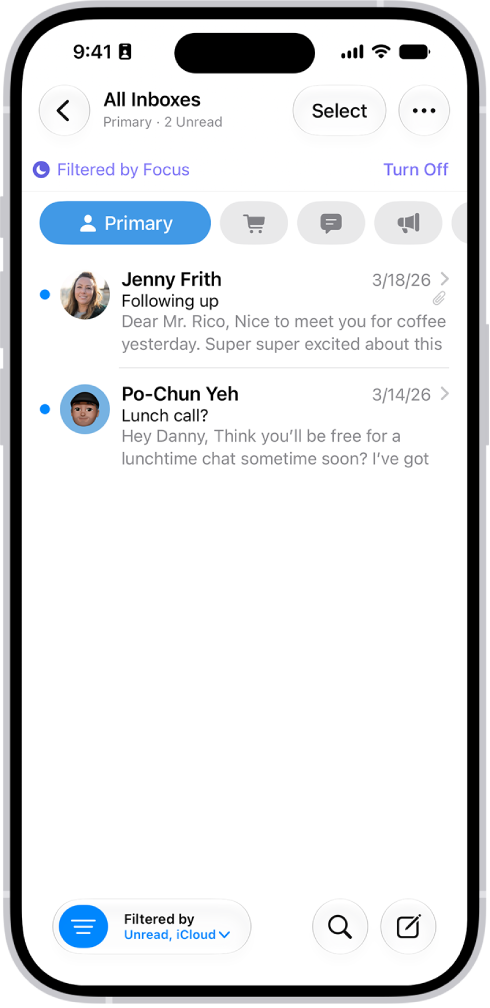
The Inbox, showing a list of messages. Above the list of messages is the label Filtered by Focus, and to the right of that it says Turn Off.

  1. Open Settings and tap Focus. Then tap a Focus.

    If you don’t see the Focus option you want, tap the Add Focus button.

  2. Tap Add Filter below Focus Filters and then tap Mail.
  3. Select the accounts you want to see in your inbox during that Focus.

View Priority Messages in your inbox

  1. Start the Mail app on your iPhone.
  2. Tap your inbox, tap the More button, and then tap Show Priority.

    Time-sensitive messages appear at the top of your inbox in the Primary category or in List View.

    Note: Apple Intelligence on iOS 27 or later is available on an Apple Intelligence-enabled iPhone 15 Pro, iPhone 15 Pro Max, or iPhone 16 model or later.

    Apple Intelligence is not available in all languages or regions.

    Usage limits may apply.* *Apple Intelligence is available with Siri and device language set to Chinese (Simplified), Chinese (Traditional), Danish, Dutch, English, French, German, Italian, Japanese, Korean, Norwegian, Portuguese, Spanish, Swedish, Turkish, or Vietnamese.

    Some features may not be available in all regions or languages.

    Some devices may not be available in all regions.

    Siri AI is available in beta in iOS 27, iPadOS 27, macOS 27, watchOS 27, and visionOS 27 and requires an Apple Intelligence–enabled device set to a supported language.

    Available in English to start.

    Siri AI will not be initially available in the EU on iOS, iPadOS, and watchOS.

    Certain Apple Intelligence features that rely on server-side models are subject to daily usage limits, including but not limited to Siri AI, Intelligent Photo Editing Tools, Image Playground, and AFM 3 Cloud models in Shortcuts.

    Daily limits may vary by feature, request complexity, system demand, system policies, and other factors.

    Expanded access to such features will be available for a fee in the future.

  3. Use of these features is subject to the Apple Intelligence Terms and Conditions.
Tag: Mail

You can view app activities on CarPlay Dashboard so you can easily follow their progress, for example, directions in the Maps app, live sports updates, food delivery estimates, and more. These are the same Live Activity settings you see on iPhone, but you can adjust them app by app. That way, you can keep the updates you want in view while you drive, and turn off the ones you don’t need.

  1. Go to the Settings app on iPhone.
  2. Tap Apps and tap the app whose settings you want to change. Tap Live Activities.
Tag: carplay

Use a widget to check stocks at a glance on your iPhone Home Screen. You can choose the size of the widget and the amount of information the widget displays.

There are two widget types, Watchlist and Symbol, and you can change the widget display whenever you like. You can add one to your Home Screen like any other widget.

Here’s how to use a Stocks widget on your iPhone.

Add a Stocks widget to your Home Screen

  1. Touch and hold the Home Screen until the apps begin to jiggle.
  2. Tap the Edit button, then tap Add Widget.
  3. Tap Stocks. Swipe left or right to view the different widget types (Watchlist and Symbol) and sizes.
  4. When you see the option you want, tap Add Widget and then tap the Done button.

To move the widget on your Home Screen, touch and hold the Home Screen until the apps begin to jiggle. Touch and hold the widget, drag it to a new location, then tap the Done button.

Change the widget display

You can change the appearance of a Stocks widget, and the information it displays, after you add it to your Home Screen.

  1. Touch and hold the Stocks widget on your Home Screen.
  2. Tap Edit Widget. Then depending on the type of widget (Watchlist or Symbol) do any of the following:
    • Change the widget symbol: Tap the current symbol and then tap the new symbol you want from the watchlist. Or use the search field to search for a new symbol.
    • Change the widget watchlist: Tap the name of the current watchlist and then tap the watchlist you want to display.
    • Change when news stories appear: Tap In Off Hours, Always, or Never. Choose an option.
    • Show the watchlist name: Turn on Show Watchlist Name.
    • Show more symbols or additional symbol information: Turn on Show More Details or Show More Symbols.

Quick tip: Put more than one Stocks widget on your Home Screen, choose a different size for each one, and you’ll quickly see updates for different symbols or watchlists.

Stocks widgets are also available for the iPhone Lock Screen.

Tag: Stocks