Got a tip for us?

iPhone

The iPhone is a smartphone from Apple that runs the iOS mobile operating system. Between its apps, communication features, the camera, mobile internet access, and other functionalities, the iPhone has quickly become an integral part of many peoples tech lives.

In Settings, you can customize your preferences for the Notes app. Choose the default account for new notes, set a password, and more.

You can lock important notes with a password, turn on an On My iPhone account, and get notifications when your name is mentioned in shared notes. You can also choose viewing options, such as the sort order. And when multiple languages are added, you can choose your preferred language.

Customize your Notes settings

  1. Start the Settings app on your iPhone.
  2. Tap Apps, then tap Notes.
  3. Adjust any of the following:
    • Accounts: Add or remove accounts in Notes.
    • Siri: Allow Siri to make suggestions across apps based on the way you use Notes.
    • Search: Allow suggestions and content from Notes to appear in Search and widgets.
    • Language: Choose your preferred language (option appears when multiple languages are added).
    • Default Account: Choose the default account when creating notes using Siri and the Notes widget.
    • Password: Lock important notes.
    • “On My iPhone” Account: Turn on the On My iPhone account.
    • Mention Notifications: Receive notifications when your name is mentioned in shared notes.
    • Viewing: Choose viewing options such as the sort order, lines and grids, and group notes by date.
    • App Links: Get suggested app links.
    • Auto Convert to Tag: Automatically change #text to a tag when typing a space.
    • Save to Photos: Save photos and videos taken in Notes to the Photos app.
    • Access Notes from Lock Screen: Choose Always Create New Note or Resume Last Note. Or turn it off to prevent access from the Lock Screen.
Tag: Notes

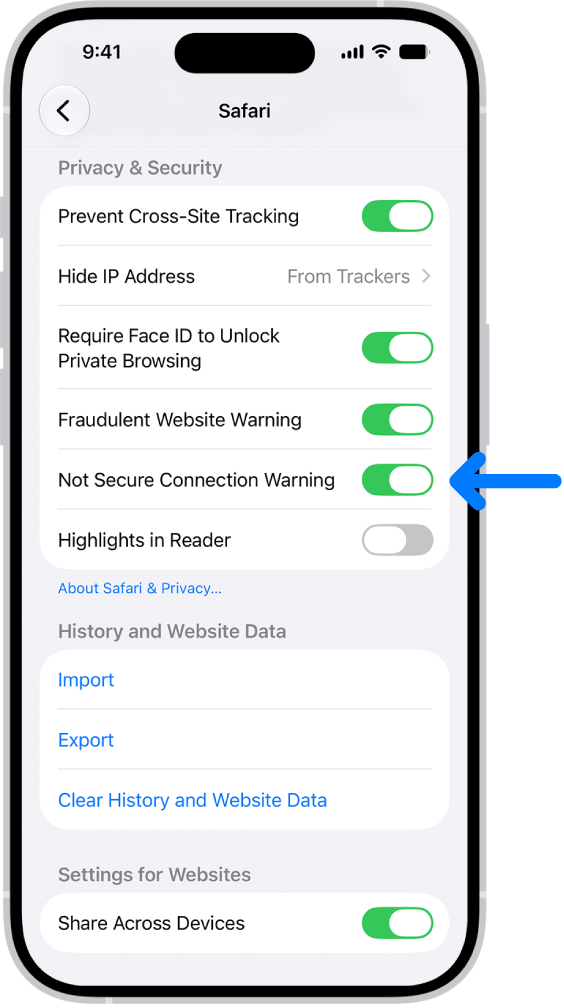
Websites use HTTP or HTTPS to transmit information to and from Safari, and HTTP doesn’t provide a secure connection. You can choose to receive a warning when you visit websites that use HTTP , with a setting called Not Secure Connection Warning.

The Not Secure Connection Warning control, located below Privacy & Security on the Safari screen in Settings.

  1. Start the Settings app on your iPhone.
  2. Tap Apps, then tap Safari.
  3. Below Privacy & Security, turn on Not Secure Connection Warning.
Tag: Safari

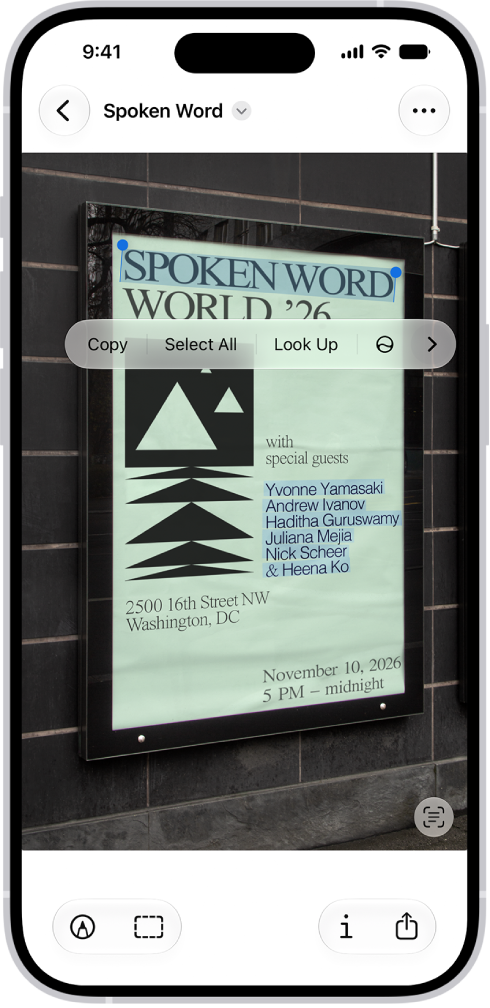
You can use Live Text in the Preview app to copy or translate text within an image, make a call, open a website, or start an email. It all starts with selecting the text. From there, you can also look up the meaning of text, or search the web for it.

A photo of a real estate sign, with the phone number highlighted. The phone number appears in the menu above the Call, Message, Add to Contacts, and Copy options.

  1. Start the Preview app on your iPhone.
  2. Open an image that shows text and then select the text.
  3. Do any of the following:

    • Copy text: Tap Copy. You can then paste the text into another document or app.
    • Look up the meaning of text: Tap Look Up.
    • Translate text: Tap Translate and choose a language.

      Note: Translation isn’t available in all languages and may not be available in some countries or regions.

    • Search the web for the text: Tap the Forward button and tap Search Web.
    • Call or text a phone number: Tap Call or Message. (You may need to tap the Forward button to see all options.)
    • Save a phone number or email address: Tap the Forward button and then tap Add to Contacts.
    • Send an email or message to an email address: Tap Email or Message. (You may need to tap the Forward button to see all options.)
    • Go to a website: Tap Open Link. (You may need to tap the Forward button to see the option.)
Tag: Preview

You can control the settings for capturing audio and video in apps and websites—for example, during a videoconference—to maximize the quality of your recording.

An input source for recording audio can be set for a specific app or website, or for your device. Voice Isolation reduces background noise so your voice comes through clearly, while Wide Spectrum keeps all the surrounding sounds.

Here’s how to improve audio and record video calls on iPhone.

Select an audio input source

For your device, or for a specific app or website, you can choose an input source for recording audio.

  1. Open the app or go to the website you want to record from.
  2. Open Control Center.
  3. Tap the button for your app or browser at the top of Control Center.
  4. Tap Input and then select an input device.
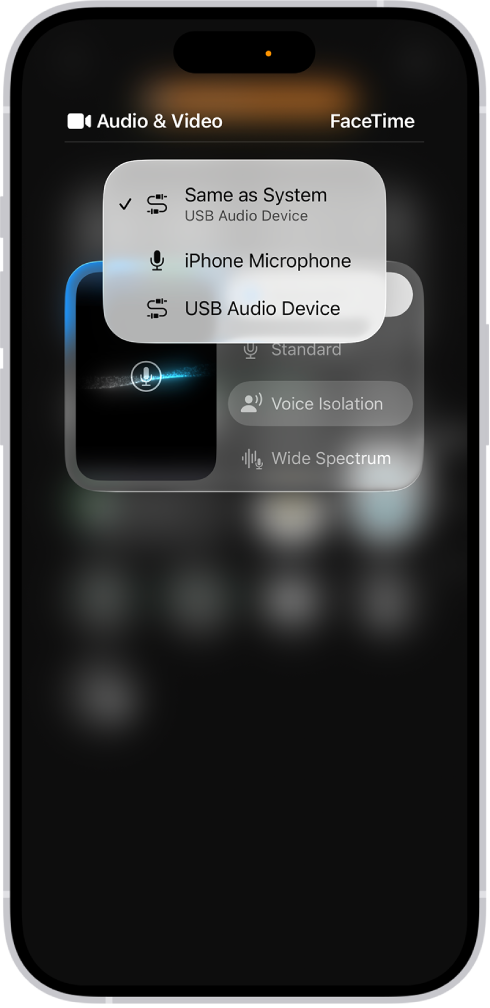
    A menu in Control Center shows input source options for recording your side of a videoconference.

Filter out background sounds with Voice Isolation

Voice Isolation cuts down on background noise so your voice comes through clearly. Wide Spectrum instead keeps all surrounding sounds, which makes it useful for music or group settings.

  1. Open the app or go to the website you want to record from.
  2. Open Control Center.
  3. Tap the button for your app or browser at the top of Control Center.
  4. Tap Voice Isolation.

To include the background sounds in your recording, tap Wide Spectrum, if it’s available. (Wide Spectrum isn’t available for all apps.)

Your recording is saved after the call in the Downloads folder in the Files app by default, unless you’ve chosen another location.

Record audio and video with Local Capture

Local Capture records high-quality audio and video straight to your iPhone. Voice Isolation and Wide Spectrum don’t apply to these recordings, but you can edit a recording afterward to adjust the sound.

Local Capture records both audio and video by default. Is another app using your camera? Then only audio is recorded.

  1. Open the videoconferencing app you want to record from.
  2. Open Control Center.
  3. Touch and hold the Local Capture button.

Note: If you don’t see the Local Capture button, add it to Control Center first.

  1. Tap Start Recording.

Note: With some audio input sources, a slider appears onscreen, and dragging it adjusts the input gain. When you use an external USB microphone, this input gain slider can attenuate the incoming volume.

Select Audio Only in Control Center to exclude video from your recording.
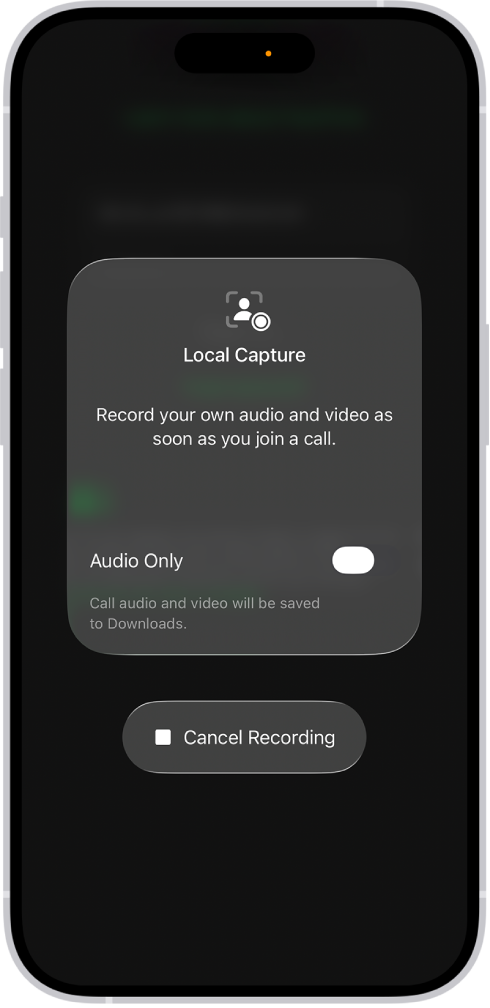
The screen for initiating Local Audio and Visual capture of your side of a videoconference.

During local capture, the recording icon appears in the Dynamic Island if your iPhone model has one.

After the call, your recording is automatically saved in the Downloads folder in the Files app, unless you specify a different location for saving Local Capture recordings. Tap the Share button to share it with other call participants. It can be combined with other participants’ recordings in a post-production app such as Logic Pro or Final Cut Pro.

Choose where Local Capture recordings are saved

Instead of the default Downloads folder in the Files app, you can specify another location for saving Local Capture recordings.

  1. Start the Settings app on your iPhone.
  2. Tap General and then tap Local Capture.
  3. Tap Save Location and then go to the folder where you want to save your Local Capture recordings.
  4. Tap the folder where you want the recordings saved and then tap Open.

Use AirPods to record audio and capture video from a distance

With supported models of AirPods and AirPods Pro, you can use your AirPods to remotely record audio and video during a videoconference. To start and stop recording, press the AirPods stem.


Tag: iPhone

With Siri AI (Beta), you can use Siri to compose, rewrite, proofread, and get feedback on what you’ve written. If you don’t have Siri AI, you can use Writing Tools.

You can select the text you want to refine and describe what you want, or choose an option like Proofread or Rewrite. Siri can even summarize text for you, and with Rewrite, you can compare the original and current versions.

Siri AI is available in beta on iOS 27 or later on an Apple Intelligence-enabled iPhone 15 Pro, iPhone 15 Pro Max, or iPhone 16 model or later with Siri and device language set to a supported language. Available in English to start. Siri AI will not initially be available in the EU on iOS. Usage limits may apply.*

  1. On your iPhone, do one of the following:

    • Select the text you want to refine, tap the Siri AI icon, then describe what you want or choose an option—Proofread or Rewrite, for example.

      Tip: When you choose Rewrite, tap the Compare button to review changes by comparing the original and current versions.

    • Activate Siri, then describe what you want.

    See the ideas below for requests you can make.

    • Compose a draft from scratch

      • “Write a story for my four-year-old explaining the concept of evaporation.”
      • “Write a day-by-day itinerary for a 3-day trip to New York.”
    • Proofread and rewrite documents

      • “Proofread this.”
      • “Tidy up the recipe I wrote down from my cooking class and format it step by step.”
    • Get feedback

      • “How’s this sound?”
    • Summarize text

      • “Condense these meeting notes to give me key points.”
  2. Swipe down on Siri’s answer to start a conversation, ask follow-up questions, or refine your work.

In Screen Time settings, you can pick the Siri features you can use and which content Siri can access.

*Apple Intelligence is available with Siri and device language set to Chinese (Simplified), Chinese (Traditional), Danish, Dutch, English, French, German, Italian, Japanese, Korean, Norwegian, Portuguese, Spanish, Swedish, Turkish, or Vietnamese. Some features may not be available in all regions or languages. Some devices may not be available in all regions. Siri AI is available in beta in iOS 27, iPadOS 27, macOS 27, watchOS 27, and visionOS 27 and requires an Apple Intelligence–enabled device set to a supported language. Available in English to start. Siri AI will not be initially available in the EU on iOS, iPadOS, and watchOS. Certain Apple Intelligence features that rely on server-side models are subject to daily usage limits, including but not limited to Siri AI, Intelligent Photo Editing Tools, Image Playground, and AFM 3 Cloud models in Shortcuts. Daily limits may vary by feature, request complexity, system demand, system policies, and other factors. Expanded access to such features will be available for a fee in the future. Use of these features is subject to the Apple Intelligence Terms and Conditions.

Tag: Siri AI

You can use the iTunes Store app to find and buy music on your iPhone. In the app, you can browse by category, choose a different genre, and see what’s popular on iTunes. You can also share an item or add it to your wish list, and buy and download content.

The iTunes Store app lets you do any of the following:

Note: You need an internet connection to use the iTunes Store. The availability of the iTunes Store and its features varies by country or region.

Find music

  1. Open the iTunes Store app on your iPhone.
  2. Tap Music, then do any of the following:
    • Browse by category: Scroll to see various categories.
    • Choose a different genre: Tap Genres at the top left of the screen. Then select one to refine your browsing.
    • See what’s popular on iTunes: Tap Charts at the top of the screen.
    • Search: Tap Search and enter what you’re looking for. Then tap Search on the keyboard.
  3. Tap an item to see more information about it.

Share an item or add it to your wish list

  1. Open the iTunes Store app on your iPhone.
  2. Tap Music, tap the Share button, and do any of the following:
    • Share a link to the item: Choose a sharing option.
    • Give the item as a gift: Tap Gift.
    • Add the item to your wish list: Tap Add to Wish List.

To view your wish list, tap the Item List button, then tap Wish List.

Buy and download content

  1. Open the iTunes Store app on your iPhone.
  2. To buy an item, tap the price. If the item is free, tap Get.

If you see the Download button instead of a price, you already purchased the item, and you can download it again without a charge.

  1. If necessary, authenticate your Apple Account with Face ID, Touch ID, or your passcode to complete the purchase.
  2. To see the progress of a download, tap More and tap Downloads.

Redeem or send an App Store & iTunes Gift Card

  1. Open the iTunes Store app on your iPhone.
  2. Tap Music, tap Featured (if necessary), and scroll to the bottom.
  3. Tap Redeem or Send Gift.

When you purchase access to movies, TV shows, music, music videos, ebooks, audiobooks, or ringtones from Apple, you also have the option to permanently download these items to a compatible iPhone, iPad, Mac, or PC. Apple cannot revoke your downloaded content, and you can always access your downloaded content without an internet connection.

Tag: Music

In the Apple TV app, you can stream TV shows, movies, sports, and more. You can also download movies and episodes, or even a full season of a TV show, right to your iPhone to watch later, wherever you are.

Subscription required for Apple TV, which in some countries and regions may include some or all of the following: Friday Night Baseball, Major League Soccer (MLS), and Formula 1. Not all features and content are available in all countries or regions. Apple TV subscription does not include third-party branded subscription services or content available for rental or purchase in the Apple TV app.

Your iMessage texts appear in blue bubbles, while SMS, MMS, or RCS messages appear in green bubbles. It’s an easy way to tell them apart. Before you start texting, you can turn on iMessage, sync messages on all your Apple devices, choose other devices for SMS, MMS, or RCS messaging, and share your name and photo.

The Messages app gives you several different ways to send text messages:

  • Over Wi-Fi or cellular service, using iMessage with others who also use iMessage. Your iMessage texts appear in blue bubbles.
  • Over cellular service with SMS, MMS, or RCS messages, which appear in green bubbles. (RCS messages aren’t supported by all carriers or in all countries or regions.)
  • Over satellite when you’re outside of cellular and Wi-Fi coverage, using iMessage or SMS on supported iPhone models and certain carriers (U.S., Canada, and Mexico only).

Turn on iMessage

  1. Open the Settings app on your iPhone.
  2. Tap Apps, then tap Messages.
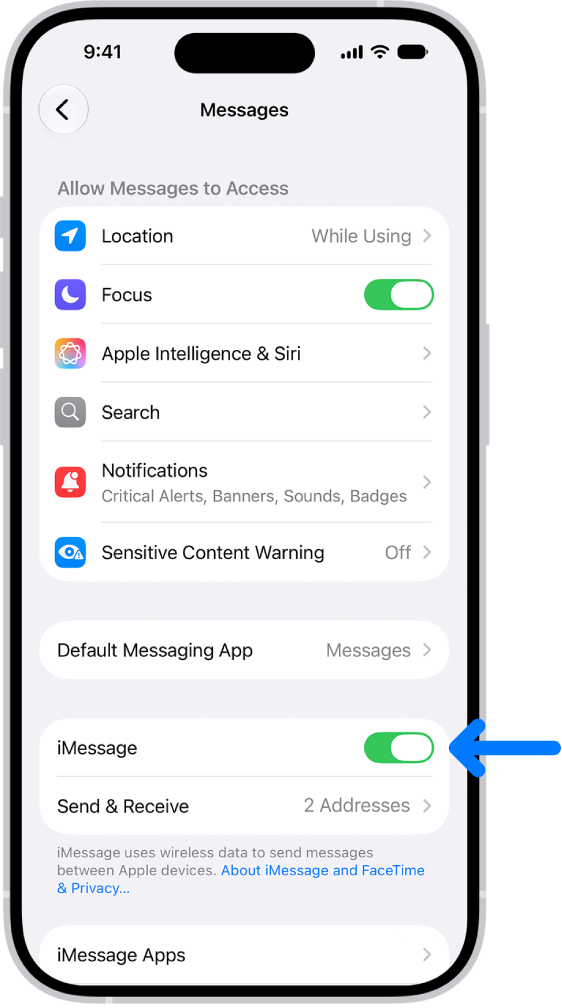
  3. Turn on iMessage.

    The Messages settings pane with iMessage turned on.

  4. To select which of your phone numbers and email addresses you want to use with iMessage, tap Send & Receive and choose from the available options below You can receive iMessages to and reply from.

Sync messages on all your Apple devices

Turn on Messages in iCloud, and iCloud saves the messages you send and receive on your iPhone. Once another device is signed in to the same Apple Account with Messages in iCloud turned on, your conversations show up and sync there as well. Your entire message history stays current on those devices, even on a new device you set up, including messages sent or received with SMS, MMS, RCS, or iMessage.

  1. Make sure that your iPhone is turned on and connected to a Wi-Fi or cellular network, and that you sign in to the same Apple Account on each device.
  2. Open the Settings app on your iPhone.
  3. Tap your name and tap iCloud. Tap Messages.

    If Messages doesn’t appear, tap See All in the Saved to iCloud section.

  4. Turn on Use on this iPhone (if it’s not already turned on).
  5. To confirm which devices receive any SMS, MMS, or RCS text messages you get on your iPhone, go to Settings, tap Apps, and then tap Messages. Tap Text Message Forwarding and turn on your other devices.

Once Messages in iCloud is on, deleting messages or attachments from iPhone also deletes them from your other Apple devices where Messages in iCloud is turned on (visionOS 1, watchOS 1, macOS 10.13.5, iPadOS 13, iOS 11.4, or later).

Note: Messages in iCloud uses iCloud storage.

Choose other devices for SMS, MMS, or RCS messaging

With text message forwarding set up on your iPhone, your other Apple devices show messages you send or receive, without needing Messages in iCloud.

Note: Availability varies by region and carrier.

  1. Open the Settings app on your iPhone.
  2. Tap Apps, then tap Messages.
  3. Tap Text Message Forwarding, then turn on any devices you want to include.

    If your iPhone is set up with Dual SIM, turn on each line.

Note: If you’re not using two-factor authentication, you’ll have to enter the six-digit activation code shown on the other device.

Share your name and photo

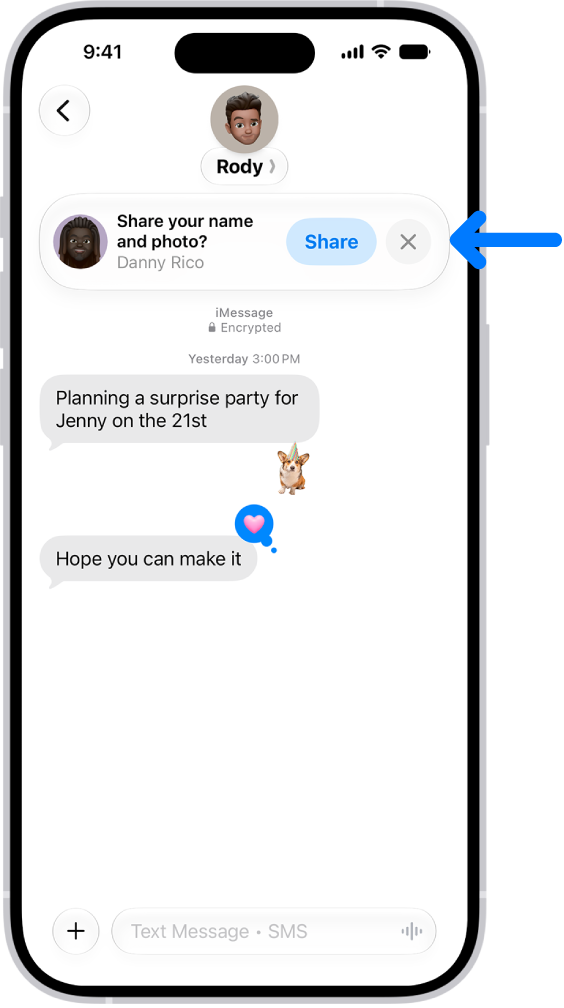
In Messages, you can share your name and photo** with others. You decide whether to share it whenever you send or receive a message from someone new.

A conversation in Messages. A notification appears at the top asking whether the user’s name and photo should be shared with the other person in the conversation.

  1. Open the Messages app on your iPhone.
  2. Do one of the following:
    • At the top of the conversation list, tap Edit, then tap Set Up Name & Photo.
    • Swipe up to the top of the conversation list, then tap Share Your Name & Photo.
  3. Choose how you want to be represented, scroll down, and then turn on Name and Photo Sharing.
  4. Tap Share Automatically and then choose one of the following:
    • Contacts Only: Anyone who is a saved contact receives the option of using the name and image you chose when they communicate with you.
    • Always Ask: You decide to share your name and photo as you communicate with each contact.
  5. Tap the Done button to save your changes.

To change these settings after you set them up, tap Edit, then tap Name & Photo.

Note: Recipients using non-Apple devices may not see your name and photo as expected.

**Availability varies by region.

Song credits and lyrics come with Apple Music. When you subscribe to Apple Music, you can show song credits and view and share lyrics.

Credits cover the performing artists, composition and lyrics, and production and engineering roles, plus available audio quality. You can view song credits while a song is playing, show or hide time-synced lyrics, share lyrics, and report a concern.

Here’s how to show song credits and lyrics on iPhone.

Show song credits

You can view song credits covering available audio quality, production and engineering roles, composition and lyrics, and performing artists.

  1. Open the Music app on your iPhone.
  2. Do one of the following:
    • While a song is playing, tap the MiniPlayer to open the Now Playing screen, tap the More button, then tap View Credits.
    • Tap the More button next to a song in a list, then tap View Credits.

Show and hide time-synced lyrics

Many songs in Apple Music show time-synced lyrics.

  1. Open the Music app on your iPhone.
  2. While a song is playing, tap the MiniPlayer to open the Now Playing screen. Tap the Lyrics button.

    Note: If you’re offline, you can view lyrics as long as the songs are downloaded to your device.

  3. Do any of the following:

    • Jump to a certain verse: Tap a specific lyric—the first line of the chorus, for example—to go to that part of the song.
    • Get help pronouncing or translating the lyrics: Tap the Translation and Pronunciation button and choose Show Pronunciation or Show Translation.

      The Translation and Pronunciation button only appears when a translation or pronunciation is available that matches your iPhone device’s Preferred Languages list. (You can view this list and add languages directly to it in Settings > General > Language & Region.) Not available in all languages.

      Tip: You can have either the lyrics or the pronunciation appear in larger text. Go to Settings > Apps > Music > Larger Text.

    • See all of a song’s lyrics: Tap the More button, tap View Credits, and then tap View Lyrics.
  4. To hide the lyrics, tap the Lyrics button.

Share lyrics

When time-synced lyrics are available, you can share up to 150 characters of a song’s lyrics.

  1. Open the Music app on your iPhone.
  2. While a song is playing, tap the MiniPlayer to open the Now Playing screen.
  3. Tap the More button, then tap Share Lyrics.

    You can also touch and hold a lyrics line to open the sharing screen.

  4. Tap the first and last lyrics you want to share. Then choose a sharing option.

Report a concern

To report a concern about time-synced lyrics, tap the More button, then tap Report a Concern.

Tag: Music

You can download attachments that are sent to you in email messages or easily search for messages with attachments in your mailboxes.

An image can go straight to the Photos app, and other attachments can be saved in the Files app or opened with another app. You can even use AutoFill to quickly fill out forms you receive in Mail.

Here’s how to download email attachments in Mail on iPhone.

Download an attachment sent to you

  1. Open the Mail app on your iPhone.
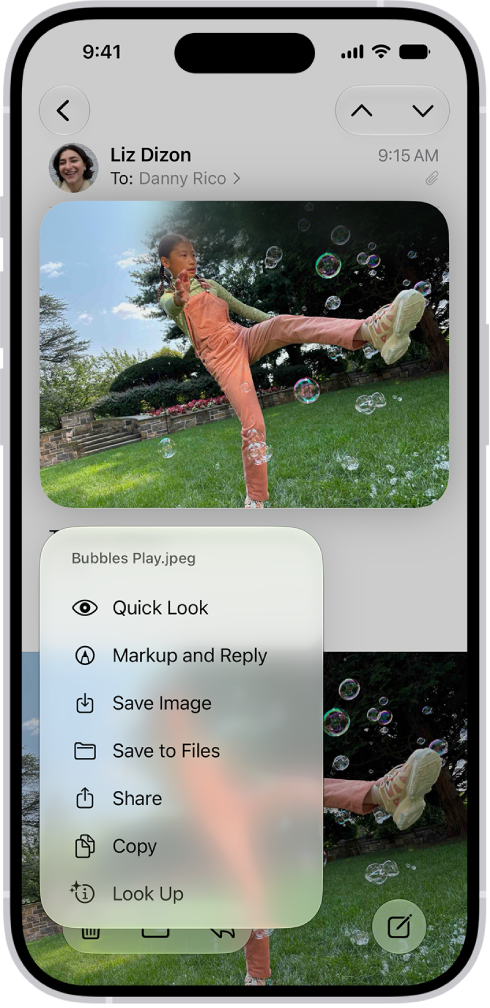
  2. In a message, touch and hold the attachment and then do one of the following: Save it in the Photos app: Choose Save Image.

    • Save it in the Files app: Choose Save to Files.
    • Open it with another app: Tap Share, then choose the app.

    An email attachment is selected with possible actions listed.

    Tip: You can identify and learn more about objects in photos you receive.

  3. Touch and hold the photo and then choose Look Up.

Quickly fill out forms you receive in Mail

Using AutoFill, you can quickly fill out forms you receive in the Mail app, then send each one back to the original sender without leaving Mail.

  1. Open the Mail app on your iPhone.
  2. In the message, tap the attachment to open the document.
  3. Tap the AutoFill button and then tap Form Filling.
  4. Tap a blank field to enter text using the onscreen keyboard.

    To fill out another line, tap it, then enter text.

  5. Tap the Done button and then tap Reply to [name].

Find emails with attachments

Having trouble finding an attachment someone sent you? Filter your email messages to show only those with attachments.

  1. Open the Mail app on your iPhone.

    In a mailbox, tap the Toggle Filtering button to turn on filtering.

  2. Tap Filtered by and then turn on Only Mail with Attachments.

    Tip: You can also show emails messages with attachments from all accounts in one mailbox.

  3. To set up the attachment mailbox, tap the Mailboxes button, tap Edit, and then select Attachments.

    The attachments mailbox appears in the mailboxes list with your other mailboxes.

Tag: Mail