Got a tip for us?

iPhone

The iPhone is a smartphone from Apple that runs the iOS mobile operating system. Between its apps, communication features, the camera, mobile internet access, and other functionalities, the iPhone has quickly become an integral part of many peoples tech lives.

You can use Private Browsing Mode, view the Privacy Report, and adjust settings in the Safari app to keep your browsing activities private and help protect yourself from malicious websites.

Tabs you open in Private Browsing don’t appear in History on iPhone or in the tab list on your other devices, even if you’re signed in to the same Apple Account. And if you have a passcode set, Private Browsing locks when it’s not in use.

Here’s how to browse the web privately in Safari on iPhone.

Visit sites privately

Private tabs you open with Private Browsing stay out of History on iPhone and out of the list of tabs on your other devices. Signing in to the same Apple Account doesn’t change that: tabs in Private Browsing aren’t shared with your other Apple devices.

Private Browsing locks when it’s not in use if your iPhone has a passcode set, though it may not lock immediately.

  1. Open the Safari app on your iPhone.
  2. Tap the Tabs button.
  3. Swipe right on the tab bar at the bottom of the screen until Private Browsing opens. Then tap Unlock.

To exit Private Browsing, tap the Tabs button, then swipe left to open a Tab Group from the menu at the bottom of your screen. The websites you have open in Private Browsing stay open, and Private Browsing locks.

To allow Private Browsing to be locked, go to Settings > Apps > Safari, then turn on Require Passcode to Unlock Private Browsing, Require Face ID to Unlock Private Browsing (supported models), or Require Touch ID to Unlock Private Browsing (supported models).

Note: Any Safari extensions you have installed that have access to browsing data are automatically turned off in Private Browsing.

Choose a search engine for Private Browsing

  1. Open the Settings app on your iPhone.
  2. Tap Apps, then tap Safari.
  3. Turn off Also Use in Private Browsing.
  4. Tap Private Search Engine, then choose a search engine.

View the Privacy Report

Safari helps keep trackers from following you across websites and viewing your IP address. On the current webpage you’re visiting, the Privacy Report shows a summary of trackers that Intelligent Tracking Prevention has encountered and prevented. Reviewing and adjusting Safari settings can also keep your browsing activities private from others who share the device, and it helps protect you from malicious websites.

  1. Open the Safari app on your iPhone.
  2. Tap the Page Menu button and tap Privacy & Security.
  3. Tap Privacy Report.

Use iCloud Private Relay to browse the web with more privacy

With an iCloud+ subscription, iCloud Private Relay can help stop websites and network providers from creating a detailed profile about you. Once it’s turned on, your iPhone’s traffic is encrypted and sent through two separate internet relays. So websites can’t see your IP address and exact location, and network providers can’t collect your browsing activity in Safari.

See Protect your web browsing with iCloud Private Relay to learn how to:

  • Turn iCloud Private Relay completely on or off for your iPhone.
  • Turn iCloud Private Relay on or off for a specific Wi-Fi or cellular network.
  • Turn iCloud Private Relay off temporarily.
  • Set the specificity of your IP address location.

Note: iCloud Private Relay isn’t available in all countries or regions.

Temporarily allow a website to see your IP address

A website that relies on IP filtering, monitoring, or rate-limiting might require your IP address to be visible. You can temporarily turn off iCloud Private Relay for that website only.

  1. Open the Safari app on your iPhone.
  2. On the website, tap the Page Menu button on the left side of the search field and then tap Privacy & Security.
  3. Tap Show IP Address.

Until you leave the website or close its Safari tab, your IP address remains visible to it. For other websites, iCloud Private Relay remains on.

Control privacy and security settings for Safari

  1. Open the Settings app on your iPhone.
  2. Tap Apps, then tap Safari.
  3. Turn any of the following on or off:
    • Prevent Cross-Site Tracking: Safari limits third-party cookies and data by default. Turn this option off to allow cross-site tracking.
    • Hide IP address: Safari automatically protects your IP address from known trackers. For eligible iCloud+ subscribers, your IP address is protected from trackers and websites as you browse in Safari. If this option is off, your IP address isn’t hidden.
    • Fraudulent Website Warning: Safari displays a warning if you’re visiting a suspected phishing website. Turn this option off if you don’t want to be warned about fraudulent websites. (Not available in all countries or regions.)
    • Camera: Choose whether Safari websites can use your camera without asking you first. Tap Camera and choose Ask, Deny, or Allow.
    • Microphone: Choose whether Safari websites can use your microphone without asking you first. Tap Microphone, then choose Ask, Deny, or Allow.
    • Location: Choose whether Safari websites can use your location without asking you first. Tap Location and then choose Ask, Deny, or Allow.

To set exceptions for a specific website, open the website in the Safari app, tap the Page Menu button, tap Website Settings, then tap the setting you want to change below Website Settings For.

Tags: iCloud, Safari

You can customize the settings for VoiceOver, such as the audio options, language, voice, speaking rate, and verbosity.

You can also save a group of settings for an activity, such as programming, so they’re applied automatically when you open certain apps. And when VoiceOver is turned on, Quick Settings lets you adjust VoiceOver from anywhere, without going back to the Settings app.

Here’s how to change your VoiceOver settings on iPhone.

Adjust the volume of VoiceOver speech and sounds

  • To increase or decrease your iPhone’s volume, including the volume of VoiceOver speech and sounds, as well as all other iPhone audio, press the volume buttons on iPhone.
  • To temporarily reduce the volume of other iPhone audio while VoiceOver is speaking, go to Settings > Accessibility > VoiceOver > Audio, tap Audio Ducking, then select When Speaking. Drag the Ducking Amount slider to set how much the volume decreases for other iPhone audio—like media and calls—when VoiceOver is speaking.
  • To set other audio options, go to Settings > Accessibility > VoiceOver > Audio, then set options such as the following:
    • Sounds & Haptics: Adjust and preview sound effects and haptics.
    • Auto-select Speaker in Call: Automatically switch to the speaker during a call when you’re not holding iPhone to your ear.
    • Send to HDMI: Route audio to externally connected devices, such as an instrument amplifier or a DJ mixer.

Set the VoiceOver language

  • Change the primary language: VoiceOver uses the same language you choose for your iPhone. To choose a different primary language, go to Settings > General > Language & Region, then tap Add Language.
  • Switch languages using the rotor: Use the rotor to switch to a voice for another language.
  • Automatically switch languages: VoiceOver can detect text in another language and automatically switch to a voice for that language. Go to Settings > Accessibility > VoiceOver > Speech, then turn on Detect Languages.

Note: VoiceOver isn’t available in all languages.

Change the speaking voice

Change the VoiceOver speaking voice, or add another voice and switch between voices with the rotor as needed.

  1. Open Settings, tap Accessibility, and then tap VoiceOver.
  2. Tap Speech, then do one of the following:
    • Change the primary voice: Tap the name of the current primary voice, then tap Voice.
    • Add another voice: Tap Add Rotor Voice.
  3. Choose a voice. To choose an enhanced voice, tap the Download button first.

Adjust the speaking voice

Go to Settings > Accessibility > VoiceOver, then do any of the following:

  • Adjust the speaking rate: Drag the Speaking Rate slider.
  • Adjust the pitch: Tap Speech, tap a voice, then drag the slider. You can also turn on Pitch Change to have VoiceOver use a higher pitch when speaking the first item of a group (such as a list or table) and a lower pitch when speaking the last item of a group.
  • Specify the pronunciation of certain words: Tap Speech > Pronunciations, tap the Add button, enter a phrase, then dictate or spell out how you want the phrase to be pronounced.

Note: Dictation needs Enable Dictation turned on in Settings > General > Keyboards.

Set how much VoiceOver tells you

Go to Settings > Accessibility > VoiceOver > Verbosity, then do any of the following:

  • Change how VoiceOver speaks punctuation: Tap Punctuation, then choose a group. You can also create new groups—for example, a programming group in which “[” is spoken as “left bracket.”
  • Change how VoiceOver reads notifications: Tap System Notifications. By default, VoiceOver reads notifications, including incoming text messages, as they occur—even if iPhone is locked. Unacknowledged notifications are repeated when you unlock iPhone.
  • Choose additional options: Have VoiceOver speak hints, uppercase letters, embedded links, and more. VoiceOver can even confirm rotor actions and tell you when the flashlight is turned on.

Customize VoiceOver settings for an activity

For an activity like programming, customize a group of VoiceOver settings. The settings for speech, audio, verbosity, typing, navigation, and braille then apply automatically when you open certain apps or adjust the rotor.

  1. Open Settings, tap Accessibility, tap VoiceOver, and then tap Activities.
  2. Choose an existing activity or tap Add Activity.
  3. Adjust the settings and then below Automatic Switching, do any of the following:
    • Apply the settings for certain apps: Tap Apps and then select the ones you want this setting to apply to.
    • Apply the settings for certain contexts: Tap Context, then select one or more contexts, such as Word Processing, Messaging, or Console.

Use flat or grouped navigation

Go to Settings > Accessibility > VoiceOver > Navigation Style, then choose one of the following:

  • Flat: VoiceOver moves sequentially through each item on the screen when you use the move next and previous commands.
  • Grouped: VoiceOver moves through items and groups of items on the screen. To move into a group, use a two-finger swipe right. To move out of a group, use a two-finger swipe left.

Set a delay between touching the screen and selecting an item

You can control the amount of time before VoiceOver selects the item you’ve touched, and increasing it may help reduce accidental touches.

Go to Settings > Accessibility > VoiceOver, tap Delay before Selection, then tap the Increment button or the Decrement button to increase or decrease the delay.

Adjust VoiceOver visuals

Go to Settings > Accessibility > VoiceOver, then turn on any of the following:

  • Large Cursor: If you have difficulty seeing the outline around the selected item, you can enlarge and thicken the outline.
  • Caption Panel: The text spoken by VoiceOver is displayed at the bottom of the screen.

Use Quick Settings to adjust VoiceOver from anywhere

When VoiceOver is turned on, you can access Quick Settings by doing a two-finger quadruple tap.

To customize Quick Settings, do the following:

  1. Open Settings, tap Accessibility, tap VoiceOver, and then tap Quick Settings.
  2. Choose the settings you want, or drag the Reorder button to reorder settings.

Reset VoiceOver settings

  1. Start the Settings app on your iPhone.
  2. Tap Accessibility, then tap VoiceOver.
  3. Tap Reset VoiceOver Settings. (You may need to scroll down.)

Reset VoiceOver Commands

  1. Start the Settings app on your iPhone.
  2. Tap Accessibility and tap VoiceOver. Then tap Commands.
  3. Tap Reset VoiceOver Commands.

Use the Find My app to erase an iPhone, iPad, iPod touch, Apple Watch, or Mac. In order to remotely erase a device, you must turn on Find My [device] before it’s lost.

Erasing doesn’t leave the device up for grabs. Activation Lock remains on to protect it, and your Apple Account password is required to reactivate it. If the device had iOS 15, iPadOS 15, or later, you can still locate it or play a sound on it afterward.

Here’s how to erase a device in Find My on iPhone.

What happens when you erase a device in Find My?

  • A confirmation email is sent to your Apple Account email address.
  • When you erase a device remotely using Find My, Activation Lock remains on to protect it. Your Apple Account password is required to reactivate it.
  • If you erase a device that had iOS 15, iPadOS 15, or later installed, you can use Find My to locate or play a sound on the device. Otherwise, you won’t be able to locate or play a sound on it. You may still be able to locate your Mac or Apple Watch if it’s near a previously used Wi-Fi network.

Erase a device

  1. Open the Find My app on your iPhone.
  2. Tap Devices, tap the name of the device you want to erase, and then tap the More button.
  3. Tap Erase and tap Continue.
  4. If the device is a Mac, enter a passcode to lock it (you need to use the passcode to unlock it).

    If the device is lost and you’re asked to enter a phone number or message, you may want to indicate that the device is lost or how to contact you. The number and message appear on the device’s Lock Screen.

  5. Tap Erase.
  6. Enter your Apple Account password, then tap Erase again.

Is your device offline? You’ll see Erase Pending, and the remote erase starts as soon as it next connects to a Wi-Fi or cellular network.

Cancel an erase

If you find an offline device you’ve erased before it comes online again, you can cancel the erase request.

  1. Open the Find My app on your iPhone.
  2. Tap Devices, tap the name of the device whose erase you want to cancel, and then tap the More button.
  3. Tap Cancel Erase, then enter your Apple Account password.

Lost your iPhone? Find Devices on iCloud.com can erase it.

Tag: Find My

With iOS 27, Apple Intelligence is integrated across your apps and experiences to help you communicate, express yourself, and get things done more easily, all while protecting your privacy. You can try Siri AI (Beta), find the perfect words with writing help, and make your photos frame-worthy.

Siri AI (Beta) is your conversational AI assistant, with personal context understanding, onscreen awareness, and broad world knowledge. It can generate a draft from scratch, summarize information, and give feedback on what you’ve written.

Note: Apple Intelligence on iOS 27 or later is available on an Apple Intelligence-enabled iPhone 15 Pro, iPhone 15 Pro Max, or iPhone 16 model or later. Apple Intelligence is not available in all languages or regions. Usage limits may apply.*

An iPhone showing Siri answering a request to plan a menu based on a calendar event.

Try Siri AI (Beta)

Siri AI (Beta) is your conversational AI assistant with entirely new capabilities, including personal context understanding, onscreen awareness, and broad world knowledge. These new capabilities make Siri a more capable assistant by allowing you to find what you need and get more done. You can also use a dedicated Siri app that brings all your conversations in one place.

Siri AI is available in beta on iOS 27 or later on an Apple Intelligence-enabled iPhone 15 Pro, iPhone 15 Pro Max, or iPhone 16 model or later with Siri and device language set to a supported language. Available in English to start. Siri AI will not initially be available in the EU on iOS. Usage limits may apply.

An iPhone with Siri mode in Camera showing a suggestion to split the bill with Apple Cash.

Discover and take action on the world around you

With Visual Intelligence, Siri mode in Camera lets you ask questions, quickly identify something, take quick actions, or search based on what’s in your camera frame. You could split a bill with friends when you get the check, for example, or quickly import a card to Apple Wallet.

An iPhone showing Siri proofreading and giving feedback on text.

Find the perfect words

Siri AI can generate a draft from scratch, summarize information, and provide feedback on what you’ve written—just describe what you want. For example, ask Siri to proofread an email or to write an itinerary for an upcoming trip.

The buttons for Clean Up, Extend, and Reframe are displayed below a photo.

Make your photos frame-worthy

You can remove distracting objects, extend a photo beyond its original frame, and adjust its perspective. With Clean Up, Extend, and Reframe, a photo doesn’t have to be finished once you take it. Open a photo in the Photos app, then tap the Edit button to get started.

And more…

Even more Apple Intelligence features can help with your daily routine and your creativity, and make it easier to communicate.

Productivity Creativity Communication
Create new shortcuts, calendar events, and reminders with a description. You can also create custom extensions in Safari, automatically organize your tabs by topic, and get alerts when a webpage has been updated (like a price change or restock). Create original images and Genmoji, transform rough sketches into images with Image Wand, create custom memory movies with a description in Photos, and more. Get relevant info in the Phone app during calls, translate across languages, and more.

Important: Check the Apple Intelligence website for more information about features, supported devices, and languages.

*Apple Intelligence is available with Siri and device language set to Chinese (Simplified), Chinese (Traditional), Danish, Dutch, English, French, German, Italian, Japanese, Korean, Norwegian, Portuguese, Spanish, Swedish, Turkish, or Vietnamese. Some features may not be available in all regions or languages. Some devices may not be available in all regions. Siri AI is available in beta in iOS 27, iPadOS 27, macOS 27, watchOS 27, and visionOS 27 and requires an Apple Intelligence–enabled device set to a supported language. Available in English to start. Siri AI will not be initially available in the EU on iOS, iPadOS, and watchOS. Certain Apple Intelligence features that rely on server-side models are subject to daily usage limits, including but not limited to Siri AI, Intelligent Photo Editing Tools, Image Playground, and AFM 3 Cloud models in Shortcuts. Daily limits may vary by feature, request complexity, system demand, system policies, and other factors. Expanded access to such features will be available for a fee in the future. Use of these features is subject to the Apple Intelligence Terms and Conditions.
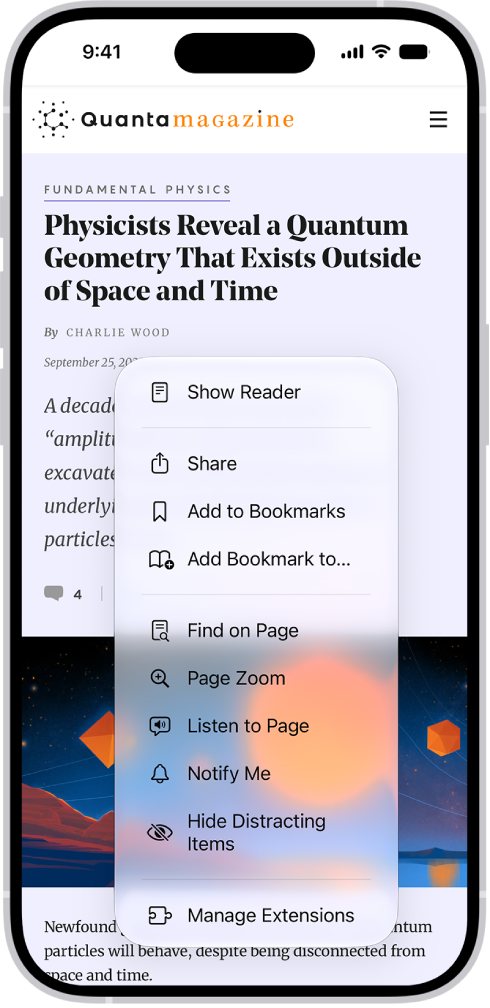
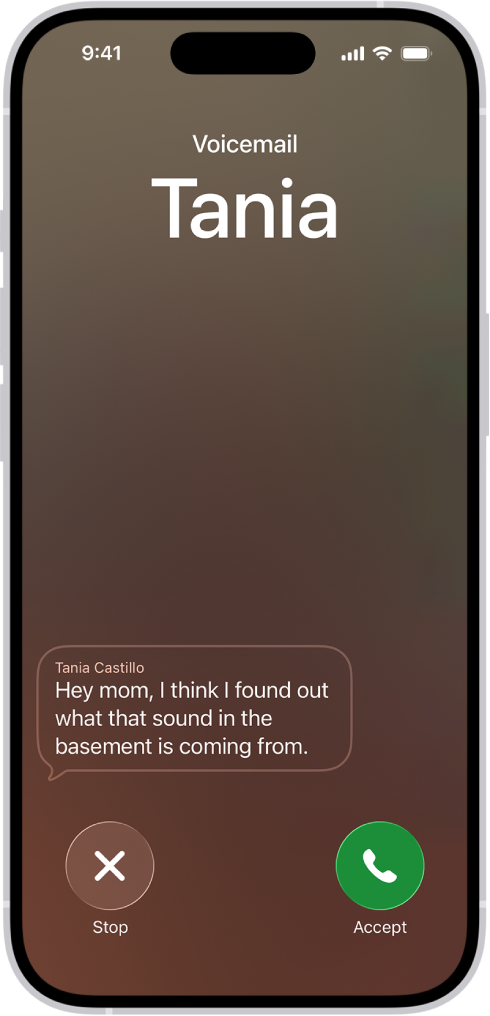
You can highlight, underline, and take notes as you read books in the Books app, and then share your annotations with others. You can also translate, copy, and share selected text.

All of your highlights and notes appear in Bookmarks & Highlights. You can go from a highlight or note to that location in the book, or share or delete multiple highlights or notes at the same time.

Here’s how to annotate books in the Books app on iPhone.

Note: Apple Books isn’t available in all countries or regions.

Highlight or underline text

  1. Start the Books app on your iPhone.
  2. Tap a book cover to open it.
  3. Touch and hold a word, move the grab points to adjust the selection. Then tap Highlight.

    To remove a highlight or underline, tap the text, then tap Remove.

  4. To change the highlight color or switch to underline, tap the text, tap Highlight, and tap an option.

    To see all of your highlights, tap the page, tap the Menu button, tap Bookmarks & Highlights, then tap Highlights. Tap a highlight to go to that location in the book.

Add a note

  1. Start the Books app on your iPhone.
  2. Tap a book cover to open it.
  3. Touch and hold a word and then move the grab points to adjust the text selection.
  4. Tap Add Note, enter text, and then tap the Done button.

To see all of your notes, tap the page, tap the Menu button, tap Bookmarks & Highlights, then tap Highlights. Tap a note to go to that location in the book.

Share highlights and notes

  1. Start the Books app on your iPhone.
  2. Tap a book cover to open it.
  3. Tap a highlight or note and tap the Forward button. Then tap Share.

Quick tip: You can share several highlights or notes at once. Tap the Menu button, tap Bookmarks & Highlights, then tap Highlights. Next, tap the Checklist button, tap the items you want to share, and tap the Share button.

Delete a note

  1. Start the Books app on your iPhone.
  2. Tap a book cover to open it.
  3. Tap a note and tap Remove. Then choose Remove Note or Remove Highlight & Note.

Quick tip: To delete several notes or highlights at once, tap the Menu button and tap Bookmarks & Highlights, then tap Highlights. From there, tap the Checklist button, tap each item you want to delete, and then tap the Delete button.

Translate, search, or copy text

Select text as you read, then translate or copy it, or search the book for it.

  1. Start the Books app on your iPhone.
  2. Tap a book cover to open it.
  3. Touch and hold a word and then move the grab points to adjust the text selection.
  4. Tap the Forward button and then tap Translate, Search, or Copy.

You can get insight into your home electricity usage and electricity rate information by connecting your utility account to the Home app. It’s for participating U.S. providers, and you must be the utility account owner or an authorized user of the account. Connecting your account allows you to:

  • View your home electricity usage over time and see how it’s trending.
  • View how much electricity you used during cleaner and less clean periods, and find opportunities to shift your usage to help the environment.
  • Learn more about your electricity rate plan, and if you’re on a time-of-use (TOU) plan, see if it’s currently a peak or off-peak time to help you decide when to use electricity, and see how much electricity you used during lower- and higher-cost periods.
  • If you have rooftop solar, know when you used electricity from the grid and when you had a surplus and sent it back, as well as how your imports and exports varied across different rate periods and during cleaner and less clean times.

Electricity usage data is typically displayed with a lag of 24 to 72 hours.

Note: To use these features, you need to have a residential electrical service with a participating utility provider, and you must be the utility account owner or authorized user of the utility account.

Set up electricity usage and rate information

  1. Start the Home app on your iPhone.
  2. Tap Home and tap the More button. Then tap Home Settings.
  3. Tap Energy and tap Connect Account.

Note: Participating utility providers are listed under Available Providers. If your utility provider isn’t listed, this feature isn’t currently supported in your area.

  1. Follow the onscreen instructions to link your compatible electricity account.

Set up electricity usage and rate for multiple utility accounts

With multiple utility accounts or providers, you can add them to the Home app by creating an additional home.

  1. Start the Home app on your iPhone.
  2. Tap Home, tap the Add button and tap Add New Home. Tap Save.
  3. From the Home tab, tap the More button. Tap Home Settings.
  4. Tap Energy and tap Connect Account.

Note: Participating utility providers are listed under Available Providers. If your utility provider isn’t listed, this feature isn’t currently supported in your area.

  1. Follow the onscreen instructions to link your additional compatible electricity account.

Disconnect your account from electricity usage and rate information

  1. Start the Home app on your iPhone.
  2. Tap Home and tap the More button. Then tap Home Settings.
  3. Tap Energy and tap your linked electricity account.
  4. Tap Disconnect Account.
Tag: Home

You can redownload items purchased from the App Store, Book Store, Apple TV app, and iTunes Store without repurchasing them. If you’re part of a Family Sharing group, you can download items purchased by other family members, too. And you can recover recently deleted email, photos, notes, and voice memos.

Tag: iPhone

If you notice something’s missing in Maps, like an address, business, transit stop, or another feature, you can add it. Maps takes other reports, too. You can report other kinds of issues, such as an incorrect step in directions or a business that has closed, and business owners can use Apple Business to help customers find them in Apple Maps, Wallet, Siri, and more.

  1. Start the Maps app on your iPhone.
  2. Do one of the following:
    • Touch and hold the map until a pin marker appears, scroll to the bottom of the card, then tap Report Something Missing.
    • Tap your picture or initials next to the search field, tap Reports, then tap Report a New Issue.
  3. Choose an option and then follow the onscreen instructions.

Whether your business is large or small, Apple Business can help your customers find it in Apple Maps, Siri, Wallet, and more.

Tag: Maps

On supported models, the Find My app can share your location via satellite when you’re outside cellular and Wi-Fi coverage. Most Find My features need a cellular or Wi-Fi network, though, so there’s some preparation before you leave coverage, and it requires an active SIM.

Note: Sharing your location via satellite isn’t available in all countries or regions and requires an active SIM.

Before you disconnect from cellular and Wi-Fi coverage

Without a cellular or Wi-Fi network, most Find My features aren’t available. If you want to send your location via satellite to friends, do the following before you head outside cellular or Wi-Fi coverage:

  • Set the iPhone you’re bringing with you as the iPhone that shares your location. On your iPhone 14 or later open the Find My app, tap Me , then make sure Share My Location is turned on. If your iPhone isn’t currently sharing your location, tap Use This iPhone as My Location.
  • Add the contacts you want to share your location with.

Send your location via satellite

If you’re not connected to a cellular or Wi-Fi network, you can still use the Find My app to share your location via satellite. To share your location with a friend via satellite, though, you’ll need to be sharing your location with that friend in Find My first.

  1. Start the Find My app on your iPhone.
  2. Make sure that you’re outside with a clear view of the sky and the horizon. If you’re under heavy foliage or surrounded by other obstructions, you might not be able to connect to a satellite.
  3. Tap Me.
  4. Tap Send My Location (below My Location via Satellite) and then follow the onscreen instructions.

Your iPhone provides guidance if connecting to a satellite means turning left or right. Just follow the onscreen instructions.

Note: Expect it to take a few minutes to send your location via satellite, and keep following the onscreen instructions until the message is sent.

There’s a limit, though: you can send your location once every 15 minutes. And when you send your location via satellite, you won’t see your friend’s location in the Find My app.

See a friend’s location sent via satellite

To see a friend’s location sent via satellite, your iPhone needs iOS 16.1 or later installed. An iPhone 14 or later isn’t required. A satellite icon appears next to a contact’s picture when they send you their location via satellite, and Satellite Location shows up in the text in the Find My app. For up to 7 days, you can view their most recent location.

Tag: Find My

Use albums in the Photos app to view and organize your photos and videos. You can also rename, rearrange, and delete albums and create folders to contain multiple albums.

If you use iCloud Photos, albums are stored in iCloud. They’re up to date and accessible on devices where you’re signed in to the same Apple Account. You can also sort and filter your albums, or put them in a custom order.

Create a new album

  1. Start the Photos app on your iPhone.
  2. Tap Collections.
  3. Tap Albums, then tap the Add button.
  4. Tap New Album and then name the album, add photos, and choose a key photo to represent the album.
  5. Tap Create.

Sort and filter albums

  1. Start the Photos app on your iPhone.
  2. Tap Collections.
  3. Tap Albums and tap the More button. Choose a sort option.

    If you choose Sort by Custom Order, touch and hold an album, then drag it to a new position.

  4. To show only albums or only folders, tap Filter and tap Albums or Folders.

To change the format of the albums list, tap the More button, then tap List View or Album Cover.

Update an album

  1. Start the Photos app on your iPhone.
  2. Tap Collections and tap Albums.
  3. Tap the album to open it, then tap the More button.
  4. Tap the current title and then do any of the following:
    • Change the name: Enter a new name in the text field.
    • Change the key photo: Tap the photo icon in the bottom-right corner of the current key photo. Then select a new photo in the photo grid.
    • Add or remove photos: Tap Add Photos and then tap the photos you want to add (tap All to see your entire library), or deselect photos to remove them from the album. Tap the Done button to save your changes.
  5. Tap the Done button to close the album.

Share photos from an album

  1. Start the Photos app on your iPhone.
  2. Tap Collections and tap Albums.
  3. Tap the album to open it and tap Select.
  4. Tap the items you want to share, or tap Select All to share everything in the album.
  5. Tap the Share button and then choose a sharing option such as AirDrop, Messages, or Mail.

Create a shared album from a personal album

Want to share an existing album with friends and family? You can copy all of its photos and videos into a new shared album.

  1. Start the Photos app on your iPhone.
  2. Tap Collections and tap Albums.
  3. Tap the album to open it, then tap the More button.
  4. Tap Create Shared Album, then tap the Done button.

Delete an album

  1. Start the Photos app on your iPhone.
  2. Tap Collections and tap Albums.
  3. Touch and hold the album you want to delete.
  4. Tap Delete Album.

Note: You can delete an album without losing the photos and videos within it. They stay in your photo library and in any other albums they were added to.

Organize albums in folders

Folders help you organize your albums, and once you create one, it appears in the Albums collection.

  1. Start the Photos app on your iPhone.
  2. Tap Collections and tap Albums.
  3. Tap the Add button, then tap New Folder.
  4. Name the folder in the text field, tap Add Albums, select the albums you want to add and tap the Done button.
  5. Tap the Done button to save and close the folder.

To remove an album from a folder, tap the folder to open it, touch and hold an album, then tap Remove from Folder.

Tag: Photos