Got a tip for us?

iPhone

The iPhone is a smartphone from Apple that runs the iOS mobile operating system. Between its apps, communication features, the camera, mobile internet access, and other functionalities, the iPhone has quickly become an integral part of many peoples tech lives.

You can use the Preview app to fill out and sign PDF forms, scan documents, and make changes to PDF documents and images. When you scan a document, the pages are combined into a single PDF that you can save and edit, and you can sign with your finger.

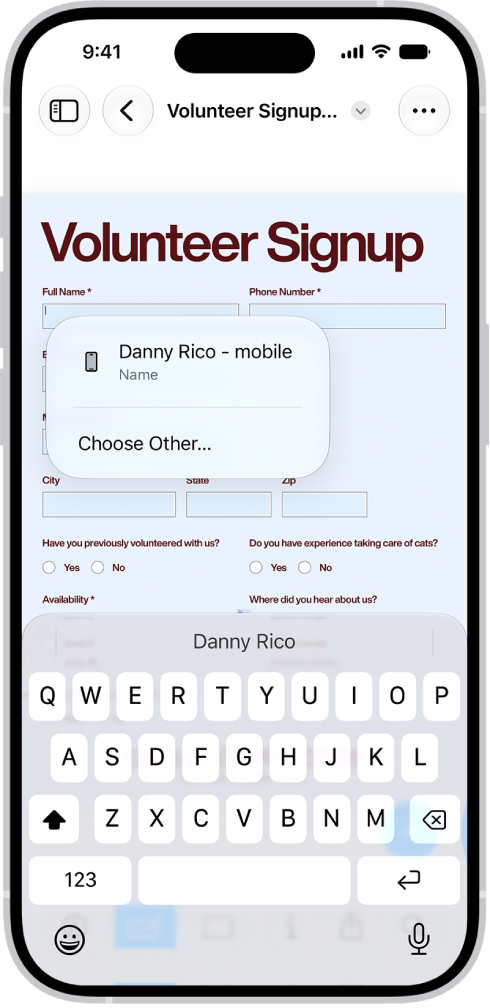
A screen showing a PDF form with fillable fields highlighted. At the bottom of the screen are the Add Annotation, Markup, AutoFill, Crop, Info, Share, and Search buttons. The AutoFill button is selected.

Fill out PDF forms

Open a PDF form, tap the Form Filling button, then select a field. Enter text, or tap an AutoFill suggestion that appears above the onscreen keyboard. In signature fields, you can use your finger to sign.

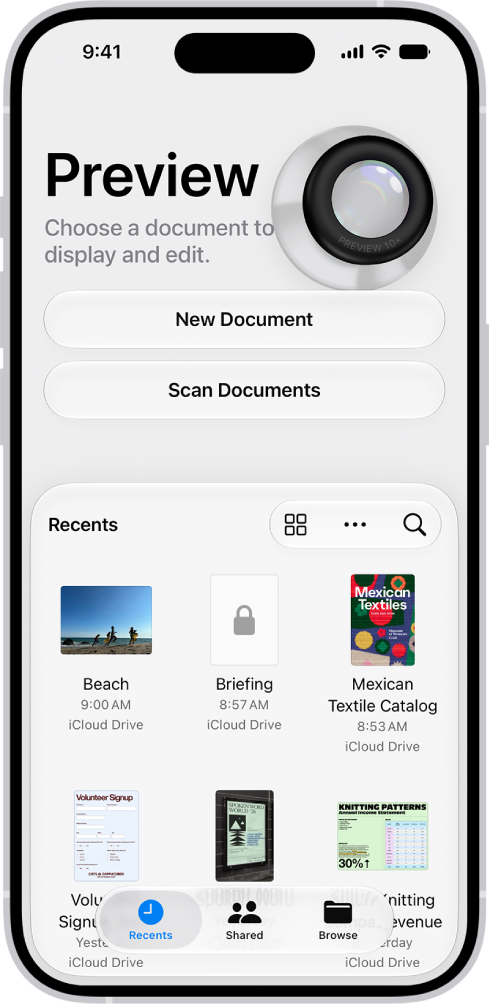
The main screen of the Preview app. The New Document and Scan Documents buttons are in the middle of the screen. At the bottom of the screen are the Recents, Shared, and Browse tabs.

Scan a document to create a PDF file

Tap Scan Documents on the Preview start screen, position each page in the camera to capture it, then tap the Done button. Preview combines the pages into a single PDF that you can save and edit.

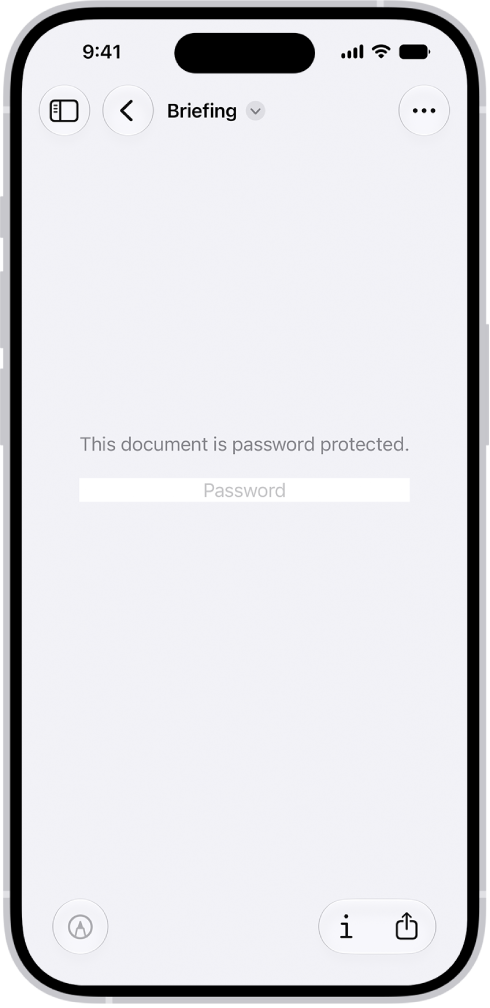
A locked PDF form in the Preview app showing a password field. At the bottom of the screen are the Markup, Info, and Share buttons.

Protect a PDF with a password

Open a PDF, tap the Actions Menu button next to the filename, then tap Lock. Enter a password, then tap the Done button.

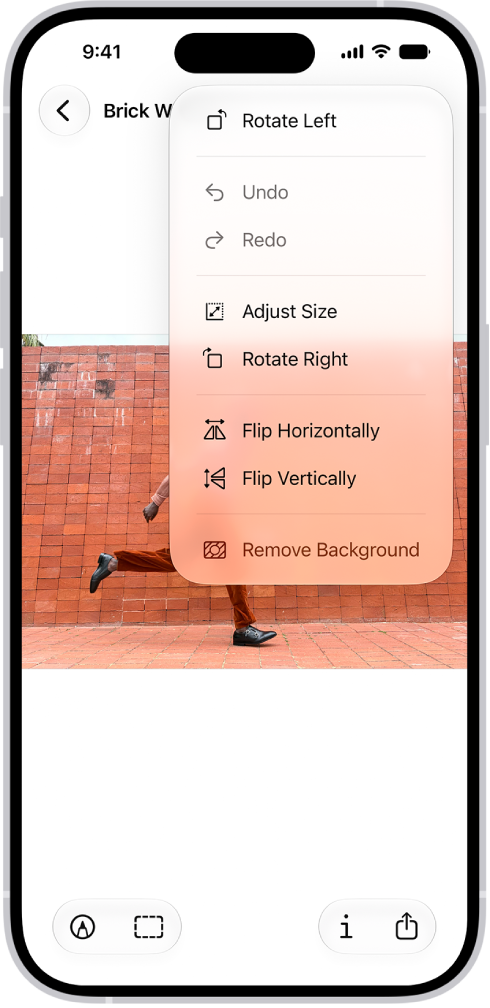
A screen showing an image with grapes in the foreground. A menu shows the Remove Background option. At the bottom of the screen are the Markup, Crop, Info, and Share buttons.

Edit an image

Open an image, then tap the More button to rotate or flip it, adjust its size, or remove the background. To crop an image, tap the Crop button, adjust the borders, then tap Crop.

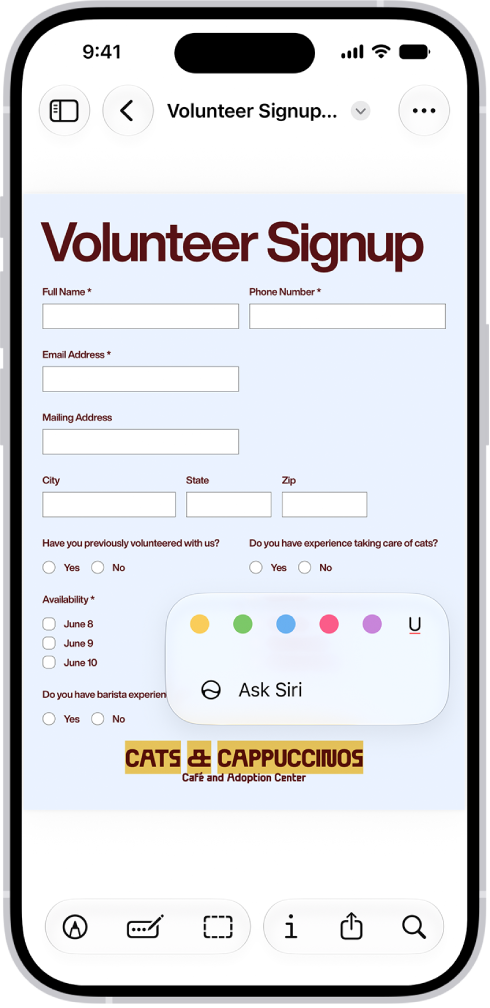
A fillable PDF form with options to highlight and underline text.

Highlight or underline text

You can highlight or underline text in a PDF. Open a PDF, then select text. Tap Highlight, then choose an option.

Tag: Preview

You can export a PDF or image as a HEIC, JPEG, JPEG-2000, PDF, PNG, or TIFF file. You can also compress the file.

Depending on the format you selected, you’ll be able to choose a smaller file size or higher quality, flatten transparency or keep transparency editable, and set the resolution. For a PDF, you can optimize the PDF for fast web loading, make the PDF searchable, or save embedded images as JPEG for a smaller file.

  1. Start the Preview app on your iPhone.
  2. Open a PDF or image.
  3. Tap the Actions Menu button next to the filename. Then tap Export.
  4. Select a file format. Available formats are HEIC, JPEG, PDF, PNG, and TIFF.
  5. Depending on the format you selected, adjust any of the following:
    • Size (HEIC, JPEG): Drag the slider left for a smaller file size or right for higher quality.
    • Alpha (PNG, HEIC, TIFF): Turn off to flatten transparency, or leave on to keep transparency editable.
    • Resolution (available when exporting a PDF to an image format): Enter a value and choose pixels per inch or pixels per cm. Higher values produce larger, more detailed images.
    • Create Linearized PDF (PDF): Turn on to optimize the PDF for fast web loading.
    • Embed Text (PDF): Turn on to run OCR on images and make the PDF searchable.
    • Optimize Images for Screen (PDF): Turn on to reduce image resolution for screen viewing. (This creates a smaller file.).
    • Save Images as JPEG (PDF): Turn on to save embedded images as JPEG for smaller file size.
  6. Tap the Done button.
  7. Choose a location for the file.
  8. Optionally, tap the Save As field and then rename the file.
  9. Tap Save.
Tag: Preview

With a HomeKit Secure Video camera or doorbell, you can use the Home app to receive notifications when people you’ve tagged in the Photos app are within the camera’s view.

It works from your photo library, and from pictures of recent visitors your camera or doorbell captures, so you can identify recent visitors, too. You can also share faces with your household.

Here’s how to use Face Recognition in Home on iPhone.

Set up Face Recognition

To identify people, Face Recognition uses the faces that appear in your photo library or in pictures of recent visitors your camera or doorbell captured.

If you’re setting up a camera or doorbell for the first time, do the following:

  1. Start the Home app on your iPhone.
  2. Add the accessory to the Home app.
  3. In the Recognize Familiar Faces card, turn on Face Recognition. Then tap Continue.
  4. Choose who can access your photo library:
    • Never: Only faces you’ve added from clips in the Home app are recognized.
    • Only Me: Only the notifications you receive have the names of people in your photo library.
    • Everyone in this Home: The notifications for everyone in your home have the names of people in your photo library.
  5. Tap Continue. Then finish setting up the camera or doorbell.

If you have an existing doorbell or camera and want to use it to identify visitors, tap it on the Home tab, tap the Settings button, tap Face Recognition, then turn on Face Recognition. Tap your photo library, then choose who can access it.

Note: These notifications can appear on any device associated with your Apple Account.

Identify recent visitors

For people who aren’t in your photo library, Face Recognition can use a picture captured by your camera or doorbell to help identify them.

  1. Start the Home app on your iPhone.
  2. Turn on Face Recognition.
  3. On the Home tab, tap the camera or doorbell. Tap the Settings button.
  4. Tap Face Recognition and tap an unidentified person listed below Recent. Then tap Add Name.
  5. Add the person’s name or their relationship to you—Mom or Mail Carrier, for example.
  6. Choose whether to be notified when they’re seen by your camera or doorbell.

Note: People with a face mask don’t appear in this list.

Share faces with your household

Members of your household can see the names of visitors identified in your photo library if you allow it.

  1. Start the Home app on your iPhone.
  2. Turn on Face Recognition.
  3. Tap the More button, then tap Home Settings.
  4. Tap Cameras & Doorbells below Notifications and tap Face Recognition.
  5. Tap your photo library and tap Everyone in this Home.
Tag: Home

You can use suggestions from Siri that appear on CarPlay Dashboard, or use Siri directly, to control your Apple Home-enabled accessories, such as garage doors, lights, and door locks, from your car. Siri’s suggestions show up right on the Dashboard.

Tag: carplay

You can display data about the weather and air quality that affects the local area shown on your map. When you zoom in on a map far enough, a weather icon shows the current conditions for that area, and in some regions, the air quality index (AQI) appears, too.

Note: Air quality and weather data aren’t available in all countries or regions.

Find out about weather and air quality in a specific map area

  1. Start the Maps app on your iPhone.
  2. Zoom in on a map until the weather icon appears.

    The icon shows the current conditions for that area.

    In some regions, the air quality index (AQI) also appears.

  3. To get the hourly forecast, touch and hold the weather icon.

    Tap the hourly forecast to open the Weather app, where you can see even more details.

Remove local weather data from your map

  1. Start the Settings app on your iPhone.
  2. Tap Apps, then tap Maps.
  3. Turn off Air Quality Index and Weather Conditions.
Tag: Maps

In the Reminders app, you can save a list as a template to reuse it for routines, packing lists, and more. You can create a link to publish and share a template with others, or download templates that others have shared.

After you make a template from a list, changes to that list don’t affect the template, and changes to a template don’t affect lists you already created from it. You can make a new list from a template, and edit or delete a template, too.

Save a list as a template

  1. Open the Reminders app on your iPhone.
  2. When viewing a list, tap the More button and tap Save as Template.
  3. Enter a name for the template.
  4. Turn on or off Include Completed Reminders and tap the Done button.

Once a list becomes a template, changes you make to that list won’t affect the template.

Make a new list from a template

  1. Open the Reminders app on your iPhone.
  2. Tap the More button and tap Templates. Tap the name of a template.
  3. Enter a name for the list and then tap Create.

Edit or delete a template

Any changes you make to a template don’t affect lists previously created from the template.

  1. Open the Reminders app on your iPhone.
  2. Tap the More button, tap Templates, and tap the Edit button next to the template you want to manage.
  3. Choose one of the following:
    • Edit Template: Add, edit, or delete any items in the template. You can also change the name, color, and icon for the template.
    • Delete Template: Remove the template.

Share a template

Sharing a template gives Apple servers access, so anyone with the link can download a copy of it on a device running iOS 16, iPadOS 16, macOS 13, or later. You decide whether the shared template keeps any dates, tags, or locations, but images are removed.

  1. Open the Reminders app on your iPhone.
  2. Tap the More button, tap Templates, and tap the Edit button next to the template you want to share.
  3. Tap Share Template and choose a method for sharing.

To manage a shared template, tap the More button, tap Templates, tap the Edit button, then tap Manage Link. If you make changes to the template after sharing, you can update the shared version. Anyone who downloaded the previous version needs to download the template again to get the updates. If you stop sharing a template, this doesn’t affect anyone who has already downloaded the template.

In sudoku puzzles, you place the numbers 1 to 9 into squares in a grid consisting of nine blocks with nine squares each, so that every number appears exactly once in each block, row, and column. Each sudoku grid comes with a few givens, squares already filled in.

Apple News+ subscribers get new sudoku puzzles every day in three difficulties: easy, moderate, and challenging. Easy puzzles include more givens, while challenging puzzles require more complex strategies to narrow down options for each empty square.

Note: Apple News, Apple News+, and puzzles aren’t available in all countries or regions.

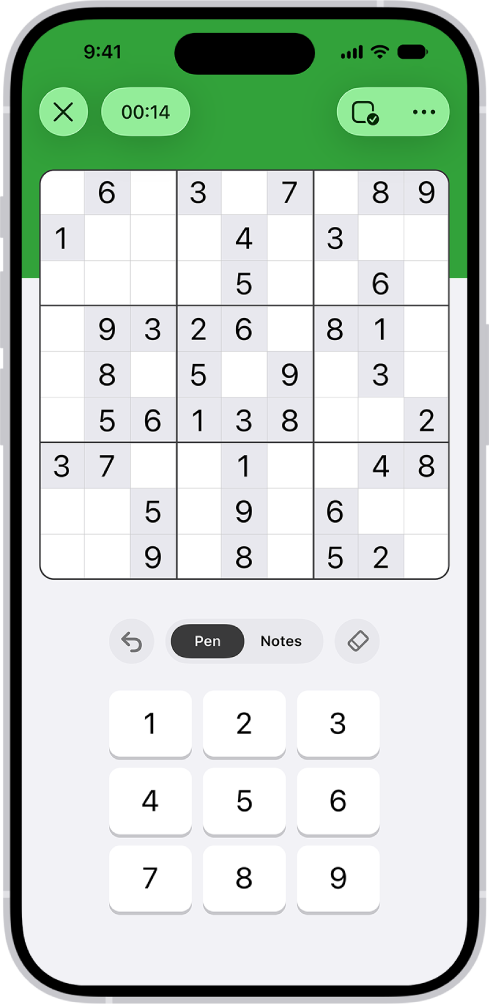
A sudoku puzzle with several features turned on: Notes, Highlight Matching Numbers, Show Conflicts, and Autocheck.

Solve a puzzle

  1. Open the News app on your iPhone.
  2. Open a sudoku puzzle.
  3. Do any of the following:
    • Enter a number: With the Pen tab selected, tap a square. Then tap a number key.
    • Delete an answer: Tap a square where you entered a number, then tap the Eraser button.
    • Step back through your actions: Tap the Undo button to undo.
  4. Continue entering numbers until every square is filled correctly.

Quick tip: Turn on Autocheck, and you’ll know when you successfully complete a block, row, or column.

Track possible answers

Notes within the puzzle help you keep track of which numbers might work in each square.

  1. Open the News app on your iPhone.
  2. Open a sudoku puzzle.
  3. Do any of the following:
    • Manually enter notes: Tap a square and tap Notes. Then tap numbers to add them to the square. Tap the number again to remove it. When you enter an answer, any matching notes in that square’s block, row, or column are removed. To turn this feature off, tap the More button and tap Settings. Then turn off Automatically Remove Notes.
    • Automatically show notes: Tap the Puzzles Options button, then tap Autofill Notes. Notes representing possible numbers appear in empty squares, based on all filled squares at that moment—givens and your answers (even if incorrect). You can still add and delete notes manually. Using Autofill doesn’t affect stats or streaks.
    • Play with or without notes: Tap the Puzzles Options button and then tap Show Notes or Hide Notes.

Think a number in your notes is the right answer? Commit it by touching and holding that number on the onscreen keypad.

Get help

If you’re unsure of an answer, you can get a little help.

  1. Open the News app on your iPhone.
  2. Open a sudoku puzzle.
  3. Do any of the following:
    • Highlight matching numbers: Tap a number on the keypad, or tap any square with a number in it. (The square you select can be a given or one where you entered or revealed the answer.) Matching numbers are highlighted in answers and notes. To turn this feature on or off, tap the More button, tap Settings, and then tap Highlight Matching Numbers.
    • Check for duplicated numbers: Tap the More button, tap Settings, and then turn on Show Conflicts. When you enter a number that already appears in a block, row, or column, the squares’ bottom-right corners are marked with red triangles.
    • Mark incorrect answers as you enter them: Tap the Puzzles Options button and tap Autocheck. All incorrect answers you already entered have a red slash through them. As you enter additional numbers, the app checks whether or not they’re correct. When you turn on Autocheck inside a puzzle, it stays on for that puzzle only. To turn Autocheck on for all sudoku puzzles, tap the More button, tap Settings, turn on Always Autocheck, tap the Done button, tap the Puzzles Options button, and then tap Autocheck (if it’s not already on).
    • Check answers: Tap the Puzzles Options button and then tap Check Square or Check Puzzle. A red slash indicates incorrect answers. Checking a square or puzzle doesn’t affect stats or streaks.
    • Identify a solvable square: Tap the Puzzles Options button, then tap Get Hint. The square having the most information available to deduce its answer is highlighted. Tap the Hint button to learn the strategy and recommended actions, like obvious pairs and hidden triplets. Using hints doesn’t affect stats or streaks.
    • Reveal answers: Tap the Puzzles Options button and tap Reveal. Tap Square or Puzzle to display the correct answer. Note: When you reveal all or a portion of a puzzle, the puzzle isn’t counted toward stats in your Scoreboard or as part of a streak. To maintain a sudoku streak, solve at least one of the current day’s sudoku puzzles of any difficulty level without revealing answers. Revealing also prevents you from undoing previous actions.
    • Review the sudoku tutorial: Tap the More button, then tap How to Play.

Restart your puzzle

For a fresh start, you can clear the puzzle’s answers and reset the timer.

  1. Open the News app on your iPhone.
  2. Open a sudoku puzzle.
  3. Tap the Puzzles Options button and then tap Clear Puzzle.

Show or hide the timer

You can show or hide the timer that appears above your puzzle.

  1. Open the News app on your iPhone.
  2. Open a sudoku puzzle.
  3. Do one of the following:
    • Tap the Timer button.
    • Tap the More button, tap Settings, then turn Show Timer on or off.

There’s no need to solve puzzles all at once, since the timer pauses while you’re away.

Tag: News

If you want to show someone something on your iPhone but want peace of mind that they can’t get into certain apps, you can lock or hide those apps.

Locking an app requires Face ID, Touch ID, or your passcode to open it, and information inside a locked app won’t appear in other places, like CarPlay, notification previews, search, Siri suggestions, or your call history. Hiding an app goes further. It removes the app from the Home Screen, App Library, and search results, and moves it to a Hidden folder in App Library that requires authentication to open.

But it only applies to that iPhone. The locked or hidden status of an app doesn’t sync with iCloud.

Note: Children under 13 in a Family Sharing group can’t lock or hide apps. Anyone aged 13 to 17 in a Family Sharing group can lock or hide an app, but a parent or guardian in the family group can see that the app was downloaded and how much time it’s used, and restrict access to it using Screen Time. (These ages vary by country or region.)

Lock or hide an app

  1. Go to the Home Screen.
  2. Touch and hold the app you want to lock until the Quick Actions menu opens.
  3. Tap Require Face ID (or Touch ID or Passcode), then do one of the following:
    • Lock the app: Tap Require Face ID (or Touch ID or Passcode).
    • Lock and hide the app: Tap Hide and Require Face ID (or Touch ID or Passcode), authenticate, and tap Hide App. A hidden app disappears from your Home Screen and moves to the Hidden folder at the bottom of App Library.

You can’t hide apps that come installed, or an app set as the default web browser or app marketplace (available only in the EU). Hiding works only for apps you download separately from the App Store.

Open a locked app

Opening a locked app doesn’t unlock it for good. Once you quit the app, it locks again automatically.

  1. Go to the Home Screen.
  2. Tap the app and then authenticate using Face ID (or Touch ID or a passcode).

Once you quit the app, it relocks, and you need to reauthenticate with Face ID, Touch ID, or a passcode to reopen it.

Unlock an app

  1. Go to the Home Screen.
  2. Touch and hold the app icon until the Quick Actions menu opens.
  3. Tap Don’t Require Face ID (or Touch ID or Passcode) and then authenticate using Face ID (or Touch ID or a passcode).

Open a hidden app

  1. Go to the Home Screen.
  2. Swipe left past all your Home Screen pages to go to App Library.
  3. Tap the Hidden folder at the bottom of App Library. Authenticate using Face ID (or Touch ID or a passcode).

    The app appears in the Hidden folder.

  4. Tap the app and then authenticate using Face ID (or Touch ID or a passcode).

Quick tip: Your hidden apps have their own list. Go to the Settings app, tap Apps, and then tap Hidden Apps.

Stop hiding an app

Stop hiding an app, and you can see it.

  1. Go to the Home Screen.
  2. Swipe left past all your Home Screen pages to go to App Library.
  3. Tap the Hidden folder at the bottom of App Library. Authenticate using Face ID (or Touch ID or a passcode).
  4. Touch and hold the app and tap Don’t Require Face ID (or Touch ID or Passcode). Then authenticate using Face ID (or Touch ID or a passcode).

The app shows up near the top of App Library.

You can use iCloud Mail Cleanup to help keep your inbox uncluttered and free up storage by deleting old promotions, unsubscribing from mailing lists, and more. When you set up iCloud Mail Cleanup recommendations, they work on any device that has iCloud Mail turned on.

Turning on iCloud Mail Cleanup doesn’t touch your inbox right away. Nothing changes until you turn on a cleanup recommendation, such as Clean Up Promotions, and you can edit the rules for a recommendation at any point.

Here’s how to automatically clean up your iCloud Mail inbox on iPhone.

Note: iCloud Mail Cleanup may not be available in all languages.

Turn on iCloud Mail Cleanup

  1. Start the Settings app on your iPhone.
  2. Tap [your name], then tap iCloud.

    Below Saved to iCloud, tap Mail, tap iCloud Mail Cleanup, then turn on Use iCloud Mail Cleanup.

    Note: Your inbox isn’t affected until you turn on a cleanup recommendation.

    You can also turn on iCloud Mail Cleanup on iCloud.com.

Turn on a cleanup recommendation

  1. Start the Settings app on your iPhone.
  2. Tap [your name], then tap iCloud.

    Below Saved to iCloud, tap Mail, then tap iCloud Mail Cleanup.

  3. Tap Get Recommendation under one of the cleanup recommendations.

    For example, you can choose Clean up Transactions or Clean Up Promotions.

    If necessary, tap the pop-up menu for a rule, then choose another option.

    Action: What happens to the email Status: Whether the action applies to unread emails, read emails, or all emails Age: How old the emails need to be before the action applies Tip: You can edit the rules for a recommendation at any point.

  4. Tap an active recommendation. Then tap a pop-up menu to choose an option.
  5. Tap Turn On.

Delete a cleanup recommendation

  1. Start the Settings app on your iPhone.
  2. Tap [your name], then tap iCloud.

    Below Saved to iCloud, tap Mail, then tap iCloud Mail Cleanup.

  3. Tap an active cleanup recommendation and turn it off.

Use iCloud Mail Cleanup recommendations to unsubscribe

iCloud Mail Cleanup can suggest senders in the Promotions and Updates categories to unsubscribe from in bulk, and it can automatically move future messages to the Trash.

  1. Start the Settings app on your iPhone.
  2. Tap [your name], then tap iCloud.

    Below Saved to iCloud, tap Mail, then tap iCloud Mail Cleanup.

  3. Tap Get Recommendations under Unsubscribe Recommendations.
  4. Select each sender you want to unsubscribe from and tap Unsubscribe.

    Note: If you don’t see any recommendations, iCloud Mail Cleanup doesn’t have any recommendations at this time.

Remove a sender from the Unsubscribed list

Changed your mind about a sender you unsubscribed from? Remove them from the Unsubscribed list to receive their emails again.

  1. Start the Settings app on your iPhone.
  2. Tap [your name], then tap iCloud.

    Below Saved to iCloud, tap Mail, then tap iCloud Mail Cleanup.

  3. Tap Unsubscribed and tap Edit.
  4. Tap the Delete button next to each sender you want to remove from the Unsubscribed list.
  5. To receive emails again from a sender you were previously unsubscribed from, you can sign up for updates and promotions through their website.

    After you resubscribe, future messages from that sender will go to your inbox.

Turn off iCloud Mail Cleanup

Once iCloud Mail Cleanup is off, iCloud Mail stops managing old messages and stops deleting messages from senders you unsubscribed from. It deletes the list of those senders, too.

  1. Start the Settings app on your iPhone.
  2. Tap [your name], then tap iCloud.

    Below Saved to iCloud, tap Mail, tap iCloud Mail Cleanup, then turn off Use iCloud Mail Cleanup.

Tags: iCloud, Mail

With Apple Intelligence, you can communicate and share information with ease—strike the right tone and proofread your writing with Write with Siri, provide relevant info during calls, communicate across languages in real time, and more. Live Translation can translate messages, show live translated captions in FaceTime, and give spoken translations for calls.

Note: Apple Intelligence on iOS 27 or later is available on an Apple Intelligence-enabled iPhone 15 Pro, iPhone 15 Pro Max, or iPhone 16 model or later. Apple Intelligence is not available in all languages or regions. Usage limits may apply.*
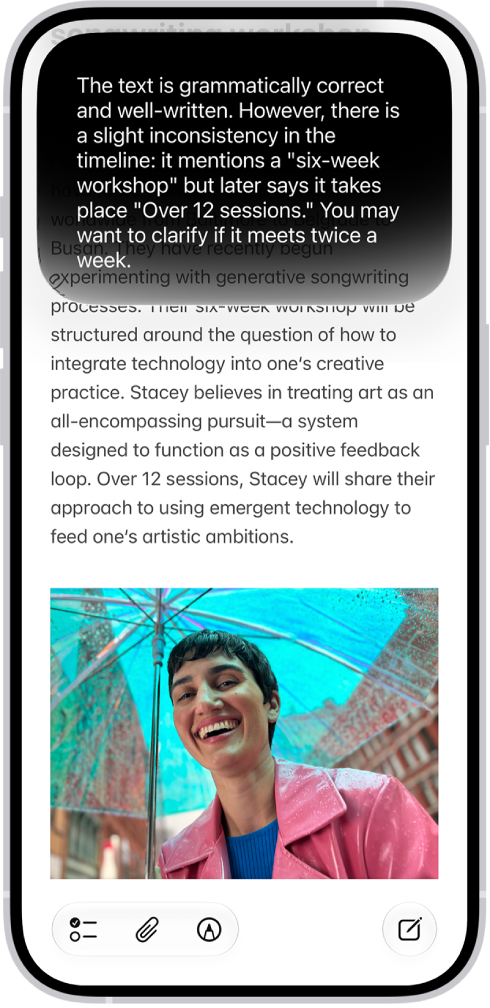
An iPhone showing Siri proofreading and giving feedback on text.

Find the perfect words

Siri AI (Beta) can generate a draft from scratch, summarize information, and provide feedback on what you’ve written—just describe what you want. For example, ask Siri to proofread an email or to write an itinerary for an upcoming trip.

Siri AI is available in beta on iOS 27 or later on an Apple Intelligence-enabled iPhone 15 Pro, iPhone 15 Pro Max, or iPhone 16 model or later with Siri and device language set to a supported language. Available in English to start. Siri AI will not initially be available in the EU on iOS. Usage limits may apply.
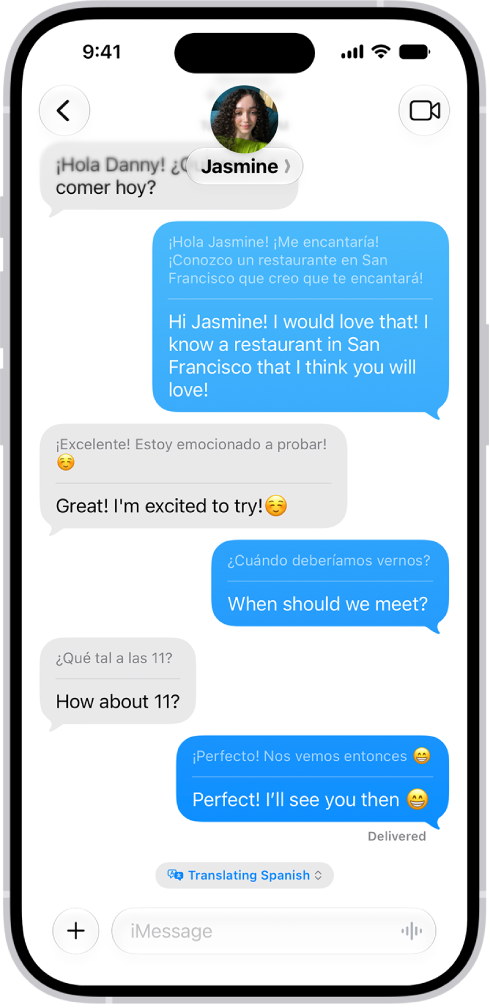
A conversation in the Messages app translated from Spanish to English.

Translate across languages

Live Translation can automatically translate your messages in the Messages app and show live translated captions in FaceTime. In the Phone app, it gives you spoken translations for calls.

To get started, go to the Translate app, tap the More button then download the languages you want to be able to translate between. When you’re on a call, tap the More button, then tap Live Translation.
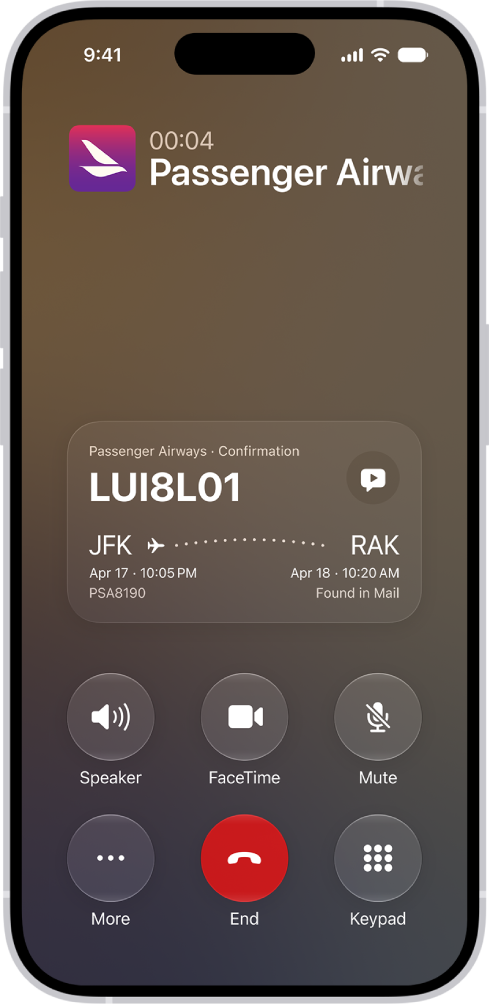
The call screen, showing a Call Context card with a flight confirmation.

Get relevant information while on a call

When you’re calling a business, Call Context can proactively surface relevant information from your apps. Call an airline, for example, and it can bring up a confirmation code from Mail.

Even more communication features

  • Live Translation with AirPods

    When someone nearby speaks to you in a different language, you can use Live Translation with AirPods to hear what they’re saying translated into your preferred language in real time.

  • Craft quick responses in Mail and Messages

    Smart Reply helps you compose fast responses in Mail and Messages to make sure you covered everything.

  • Get suggested polls

    Apple Intelligence can suggest a poll when it detects different options in a conversation.

  • Get suggestions in Mail

    Use suggestions in Mail to take quick actions based on context from your conversations. For example, you can add a calendar event and create reminders with a tap.

*Apple Intelligence is available with Siri and device language set to Chinese (Simplified), Chinese (Traditional), Danish, Dutch, English, French, German, Italian, Japanese, Korean, Norwegian, Portuguese, Spanish, Swedish, Turkish, or Vietnamese. Some features may not be available in all regions or languages. Some devices may not be available in all regions. Siri AI is available in beta in iOS 27, iPadOS 27, macOS 27, watchOS 27, and visionOS 27 and requires an Apple Intelligence–enabled device set to a supported language. Available in English to start. Siri AI will not be initially available in the EU on iOS, iPadOS, and watchOS. Certain Apple Intelligence features that rely on server-side models are subject to daily usage limits, including but not limited to Siri AI, Intelligent Photo Editing Tools, Image Playground, and AFM 3 Cloud models in Shortcuts. Daily limits may vary by feature, request complexity, system demand, system policies, and other factors. Expanded access to such features will be available for a fee in the future. Use of these features is subject to the Apple Intelligence Terms and Conditions.