Got a tip for us?

iPhone

The iPhone is a smartphone from Apple that runs the iOS mobile operating system. Between its apps, communication features, the camera, mobile internet access, and other functionalities, the iPhone has quickly become an integral part of many peoples tech lives.

You can view your call history on your iPhone and delete all your recent calls or just specific calls.

You can filter by Calls, Missed, Unknown Callers, or Spam, and get more details about your call history.

Here’s how to view and delete your call history on iPhone.

Delete your call history

  1. Start the Phone app on your iPhone.
  2. Tap the Filter button and tap Calls, Missed, Unknown Callers, or Spam.
  3. Do one of the following:
    • Delete calls one at a time: Swipe a call all the way to the left.
    • Delete multiple calls: Tap Edit, tap Select, tap the calls you want to delete, and tap Delete.

To recover a deleted call history, restore your iPhone from a backup you made before the data was deleted.

Get more details about your call history

  1. Start the Phone app on your iPhone.
  2. Tap the Filter button, then tap Calls or Missed. If you’re in the Classic layout, you may also have the option to filter by Unknown Callers.
  3. Do one of the following, depending on which Phone app layout you’re using:
    • Unified layout: Tap a call or contact.
    • Classic layout: Tap the Info button next to a call.

Note: For more information about deleted calls or older call histories, check with your carrier.

Tag: Phone

Use the Books app to listen to audiobooks on your iPhone. As an audiobook plays, you can adjust the volume, skip forward or back, go to a specific time or a different chapter, speed it up or slow it down, and set a sleep timer. Some audiobooks come with supplemental PDFs, too.

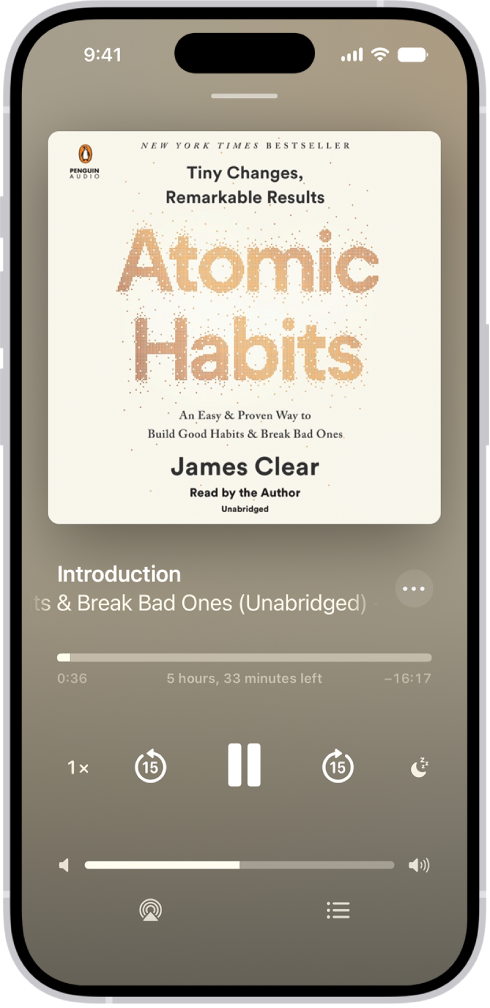
The audiobook player screen showing, from top to bottom, the audiobook cover, the name of the section that’s playing, the playhead, pause button, and the skip forward and back buttons. At the bottom is the volume slider and below that are buttons for controlling playback speed, setting a sleep timer, choosing a playback destination, and viewing a list of the book’s tracks.

Note: Apple Books isn’t available in all countries or regions.

Play an audiobook

  1. Open the Books app on your iPhone.
  2. Go to an audiobook. Tap the cover to start playing it.
  3. While the audiobook is playing, do any of the following:

    • Skip forward or back: Tap or touch and hold the rounded arrows next to the Pause button. Or, use external controls such as headphones or car controls.

      Note: To change the number of seconds to skip forward or back, go to Settings > Apps > Books. Below Audiobooks, tap Skip Forward or Skip Back, then tap an option.

    • Go to a specific time: Drag the slider below the audiobook cover left or right.
    • Go to a different chapter: Tap the Table of Content Switch button and tap a chapter.

      Note: Some audiobooks refer to chapters as tracks, or don’t define chapters.

    • Adjust the volume: Drag the slider below the Pause button left or right.
    • Speed it up or slow it down: Tap 1x in the lower-left corner and drag the dial up or down to adjust the narration speed. Touch and hold the narration speed to reset it to 1x.
    • Set a sleep timer: Tap the Sleep button, then choose a duration.
    • Play on a different device: Tap the AirPlay button. Then choose an available device such as HomePod, Apple TV 4K, or Bluetooth® speakers.
    • Switch to the audiobook mini-player: Swipe down from anywhere on the screen, or tap the Close button at the top of the screen. Tap the mini-player at the bottom of the screen to go back to full screen.
    • Close the audiobook player: Switch to the audiobook mini-player, touch and hold the audiobook mini-player and then tap Close Audio Player.

If a Wi-Fi connection to the internet isn’t available, audiobooks play over your carrier’s cellular network, which may result in additional fees.

Find supplemental PDFs

Some audiobooks come with supplemental PDFs. To view the PDF as the audiobook plays, tap the Table of Contents has Supplemental Content button, or do the following:

  1. Open the Books app on your iPhone.
  2. Tap Library. Then tap the More Info button below an audiobook cover.
  3. Tap View PDF Content.

You can use Camera or Control Center to scan Quick Response (QR) codes for websites, apps, coupons, tickets, and more. In Camera’s Photo mode, a link appears at the bottom of the screen once the QR code is inside the camera frame. With the Scan Code control in Control Center, you can even add more light with the flashlight.

Use Camera to scan a QR code

  1. Open Camera on your iPhone.
  2. In Photo mode, position iPhone so that the QR code appears inside the camera frame.
  3. Tap the link that appears at the bottom of the screen.

Use Control Center to scan a QR code

  1. Open Control Center on your iPhone.
  2. If you don’t see the Scan Code control, add it to Control Center.
  3. Tap the Scan Code button and then position iPhone so that the code appears on the screen.

Quick tip: Tap the flashlight to add more light.

The Camera Control can also scan QR codes on supported models.

Tag: camera

In the App Store app, you can discover new apps, featured stories, tips and tricks, in-app events, and offers.

Today shows featured stories, apps, and in-app events, while Games and Apps let you explore new releases and top charts. You can also get information about an app, buy and download it, and share it. You need an internet connection and an Apple Account to use it.

Here’s how to get apps in the App Store on iPhone.

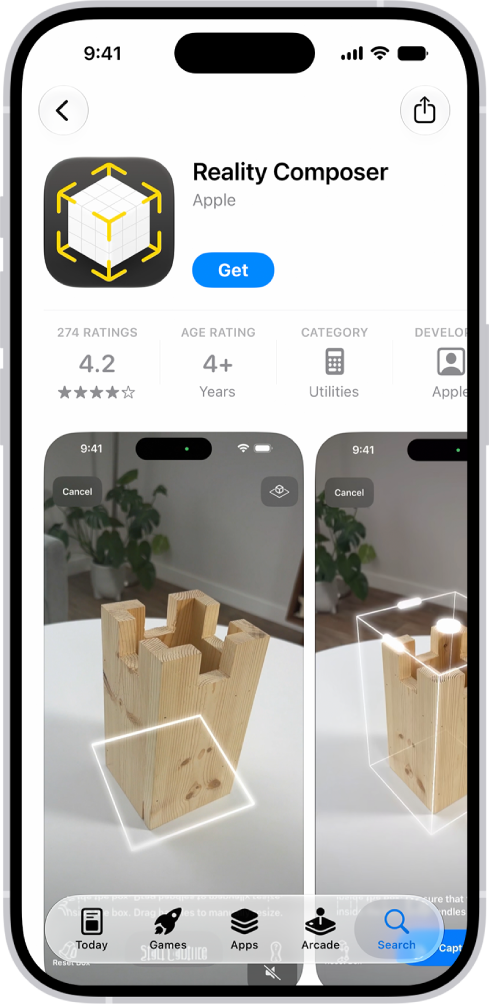
The information page for an app in the App Store. The page shows the Get button, ratings, age ratings, the developer, screenshots, and more. At the bottom, from left to right, are the following buttons: Today, Games, Apps, Arcade, and Search.

Note: You need an internet connection and an Apple Account to use the App Store. The availability of the App Store and Apple Arcade varies by country or region.

Discover and find apps

  1. Open the App Store app on your iPhone.
  2. Tap any of the following:
    • Today: Browse featured stories, apps, and in-app events.
    • Games: Find your next game across dozens of categories including action, adventure, racing, puzzles, and more.
    • Apps: Explore new releases, see the top charts, or browse by category.
    • Arcade: Enjoy the curated collection of premium games from Apple Arcade (subscription required) without ads or in-app purchases.
    • Search: Tap the Search button, then enter what you’re looking for. You can search by app name, category, developer, and more. You can also explore different categories or browse the suggested apps.

Get information about an app

  1. Open the App Store app on your iPhone.
  2. Tap an app’s name or icon to see the following details:
    • Screenshots or previews
    • Ratings and reviews
    • In-app events and offers
    • Developer
    • File size
    • Compatibility with other Apple devices
    • Supported languages
    • Age rating
    • Game Center and Family Sharing support
    • Supported accessibility features
    • Privacy information

Buy and download an app

  1. Open the App Store app on your iPhone.
  2. Go to the app you want and tap Get (if the app is free) or the price.

    If you see the Redownload button instead of Get or the price, you’ve already purchased this app before. Tap the Redownload button to download it again for free.

  3. If required, authenticate with Face ID, Touch ID, or your passcode to complete your purchase.

Purchases are made with the payment method associated with your Apple Account.

Look for the app in the Recently Added category in App Library. A progress indicator appears on the app icon while it downloads.

Share and approve purchases with Family Sharing

In a Family Sharing group, you can view and download eligible apps that other family members purchased.

Note: Family members’ purchases are only visible to you if they choose to share their purchases. And once a family member leaves the family group, purchases made with Family Sharing may not be accessible anymore.

When family members under a certain age make eligible purchases, the family organizer can review and approve them.

You can play audio you recorded on your iPhone using the playback controls. You can also adjust the playback options to change playback speed, reduce background noise, and fill in silences.

Those options go further, too. You can enhance a recording, skip over gaps when playing back a recording, turn on Studio Sound, or reset the playback options, and none of it changes the recording itself.

Here’s how to play a recording in Voice Memos on iPhone.

Note: These settings don’t change the recording itself. Whatever you choose stays with that specific recording, which means it’s applied each time you play it but doesn’t apply to other recordings.
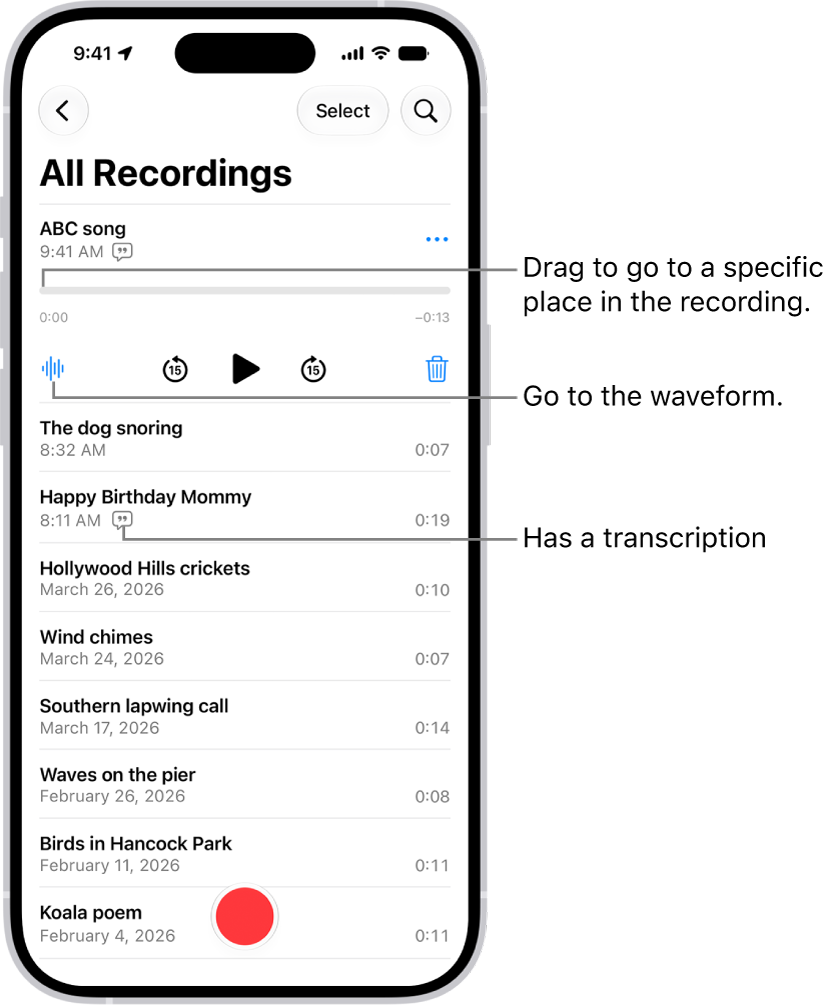
The Voice Memos list screen with a selected recording at the top. The recording timeline has a playhead, which you can drag to go to a specific place in the recording. The play controls are below the timeline.

Control Description
the Play button Play
the Pause button Pause
the Rewind Fifteen Seconds button Skip backward 15 seconds
Skip forward 15 seconds

Quick tip: You can tap its name to rename it any time the recording is open.

Change the playback speed

You can play a recording at a faster or slower speed.

  1. Open the Voice Memos app (in the Utilities folder) on your iPhone.
  2. In the list of recordings, tap the recording you want to play. Tap the More button.
  3. Tap the Options button and drag the slider toward the tortoise for a slower speed, or toward the rabbit for a faster speed.
  4. Tap the Done button and tap the Play button to play the recording.

Enhance a recording

When you play Mono and Stereo recordings, turning on Enhance Recording reduces background noise and echo.

  1. Open the Voice Memos app (in the Utilities folder) on your iPhone.
  2. In the list of recordings, tap the recording you want to enhance and tap the More button.
  3. Tap Options, then turn on Enhance Recording.
  4. Tap the Done button and tap the Play button to play the recording.

Skip over gaps when playing back a recording

For Mono and Stereo recordings, Voice Memos can analyze them and automatically skip over gaps during playback.

  1. Open the Voice Memos app (in the Utilities folder) on your iPhone.
  2. Tap the recording you want to play and tap the More button.
  3. Tap Options and turn on Skip Silence.
  4. Tap the Done button and tap the Play button to play the recording.

Turn on Studio Sound

In a Spatial Audio recording, Studio Sound adjusts the levels of background sound and reverb so the voice sounds more like it was recorded in a studio.

Only Spatial Audio recordings work with Studio Sound.

Studio Sound also recognizes music, rather than treating it as background sound. But music is properly isolated only if you’ve made the recording in Spatial Audio on iPhone 18 Pro models. Other iPhone models reduce music along with background sound.

  1. Open the Voice Memos app (in the Utilities folder) on your iPhone.
  2. Tap the recording you want to play and tap the More button.
  3. Tap Options and turn on Studio Sound.
  4. Drag the slider to increase or decrease the effect.
  5. Tap the Done button and tap the Play button to play the recording.

Reset the playback options

At once, you can return a recording’s playback options to their original settings.

  1. Open the Voice Memos app (in the Utilities folder) on your iPhone.
  2. Tap the recording you want to turn off playback options for. Then tap the More button.
  3. Tap Options, then tap Reset.
You can add, delete, rotate, reorder, or crop pages in a PDF in the Preview app on your iPhone.

You can insert a blank page, insert a PDF or image, or insert a scanned document, and you can delete the selected page, too. And if you make a change you don’t want, you can undo it.

Here’s how to add, delete, rotate, move, or crop PDF pages in Preview on iPhone.

Add or delete pages

  1. Start the Preview app on your iPhone.
  2. Open a PDF.
  3. Tap the page count to show thumbnails. (If the page count doesn’t appear, tap the PDF.)
  4. Touch and hold a thumbnail and then do any of the following:
    • Insert a blank page: Tap Insert Blank Page.
    • Insert a PDF or image: Tap Insert from File.
    • Insert a scanned document: Tap Scan Pages, scan the document, then tap the Done button.
    • Delete the selected page: Tap Delete Page.

Rotate a page

  1. Start the Preview app on your iPhone.
  2. Open a PDF.
  3. Tap the More button. Tap Rotate Left or Rotate Right.

Move a page

  1. Start the Preview app on your iPhone.
  2. Open a PDF.
  3. Touch and hold a thumbnail until menu options appear. Then drag the page thumbnail above or below another one. (If you don’t see thumbnails, tap the screen to show the page count, then tap the page count.)

Crop a page

  1. Start the Preview app on your iPhone.
  2. Open a PDF.
  3. Scroll to the page you want to crop. Then tap the Crop button.
  4. Drag the blue handles to select an area and then tap Crop. (If Crop doesn’t appear, tap within the selected area.)

To undo a change, tap the More button, then tap Undo.

Tag: Preview

When you find a show you like in the Podcasts app, follow it to add it to your library so you can get notified about new episodes, change the playback order, and more.

Podcasts you follow are on your other Apple devices and the Apple Podcasts website, too. You can follow a show from search results, show information, or Now Playing, and unfollow it later.

Here’s how to follow your favorite podcasts on iPhone.

Follow a podcast

Following a podcast adds it to your library, and you can access the podcasts you follow on your other Apple devices or the Apple Podcasts website.

  1. Start the Podcasts app on your iPhone.
  2. Search or browse for a show.
  3. Do any of the following:
    • From search results: Tap the Follow button.
    • While viewing show information: Tap the Follow button. You can also tap the More button and then tap Follow.
    • While viewing episode information, or from Now Playing: Tap the More button and then tap Follow Show.

Unfollow a podcast

  1. Start the Podcasts app on your iPhone.
  2. Tap Library, then tap Shows.
  3. Tap a show you follow, tap the Unfollow button, and then tap Unfollow Show.

You can also tap the More button, then tap Unfollow.

Get notifications for new episodes

For podcasts you follow, you can get notified when new episodes are available.

  1. Start the Podcasts app on your iPhone.
  2. Tap Home.
  3. Tap the My Account button or your profile picture.
  4. Tap Notifications and turn on notifications for the shows you want. If Allow Notifications on This iPhone appears at the top of the screen, notifications are turned off for Podcasts. Tap Allow Notifications on This iPhone and tap Allow.

Quick tip: Each show has its own settings page, where you can also control its notifications. Open the show and tap the More button, then tap Settings and turn Notifications on or off.

Customize playback speed and Enhance Dialogue settings for a show you follow

  1. Start the Podcasts app on your iPhone.
  2. Tap Library, tap Shows, and then select a show. (You can also search or browse for a show you follow.)
  3. Tap the More button, tap Settings, and then scroll down to Speed & Audio Adjustments.
  4. Choose Custom for This Show. Select a playback speed and turn Enhance Dialogue on or off.

You can create rules to automatically move, delete, forward, or mark new or already-received emails as read based on specific criteria. For example, you can create a rule that sorts emails from a particular sender into a specific folder.

You can edit and delete these rules at any time, and reorder them, too.

Here’s how to use iCloud Mail rules to automatically apply actions to emails in Mail on iPhone.

Note: New or changed rules can take up to 15 minutes before they’re applied to incoming emails.

Create a rule

  1. Open the Settings app on your iPhone.
  2. Tap your name, then tap iCloud.

    Below Saved to iCloud, tap Mail, tap iCloud Mail Rules, then tap Add Rule.

  3. Enter a name for the new rule.
  4. Use the pop-up menu next to Message and the text field to specify the type of emails you want to manage.
  5. Use the pop-up menu next to Action to specify an action for the rule.
  6. Tap the Add button.

    Important: If you apply rules to a folder and then delete the folder or change its name, make sure to update the rules for that folder accordingly.

    For example, you can’t forward emails to a deleted folder.

Change a rule

  1. Open the Settings app on your iPhone.
  2. Tap your name, then tap iCloud.

    Below Saved to iCloud, tap Mail, then tap iCloud Mail Rules.

  3. Tap a rule and then specify new conditions in the pop-up menus and text fields.
  4. Tap the Done button.

Reorder rules

Multiple rules are applied in the order they appear in the list.

  1. Open the Settings app on your iPhone.
  2. Tap your name, then tap iCloud.

    Below Saved to iCloud, tap Mail, then tap iCloud Mail Rules.

  3. Tap Edit.
  4. Press and hold the Grab button and drag a rule up or down in the list.
  5. Tap the Done button.

Delete a rule

  1. Open the Settings app on your iPhone.
  2. Tap your name, then tap iCloud.

    Below Saved to iCloud, tap Mail, then tap iCloud Mail Rules.

  3. Tap Edit, tap the Delete button next to the rule you want to delete, and then tap the Trash button.
  4. Tap the Done button.
Tags: iCloud, Mail

The Photos app creates collections of your photos and videos based on where they were taken. You can use the Map view to see photos taken in a specific location, look for photos taken nearby, and see collections of photos on a map.

Only photos and videos with embedded location information, or GPS data, show up on the map. You can also check where any single photo or video was taken from its info.

View your photo library on a map

A map lets you browse your photo library by location.

  1. Start the Photos app on your iPhone.
  2. Tap Library, tap the Sort and Filter button, and tap Show Map. Only pictures and videos that have embedded location information (GPS data) are included. Tip: Pinch the map to zoom in and out, or drag to see more locations.
  3. Tap a photo thumbnail to see all of the photos and videos taken in that location.

Check where a photo or video was taken

To see where a photo or video was taken, check its location while you’re viewing it.

  1. Start the Photos app on your iPhone.
  2. Open a photo and swipe up or tap the Info button.
  3. Tap the map or address link to see more details.

Quick tip: Tap Show Nearby Photos for more photos or videos from this location.

View a collection on a map

On a map, you can also browse a collection’s photos and videos by location.

  1. Start the Photos app on your iPhone.
  2. Tap Collections and then tap a collection such as a trip or a recent day.
  3. Tap the More button and then tap Show Map. Tip: Pinch the map to zoom in and out, or tap Show Nearby Photos to view more photos taken in the area.
  4. Tap the Close button to close the map.
Tag: Photos

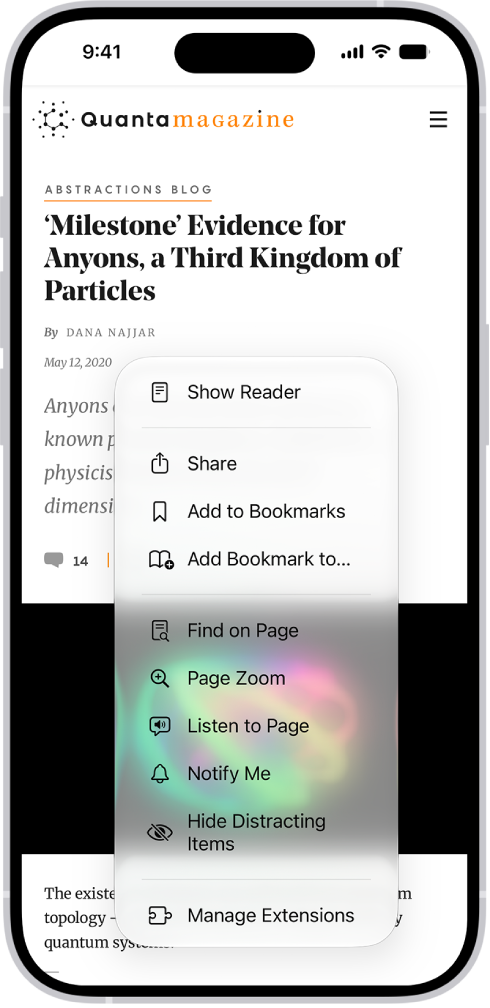
You can have supported webpages read aloud in the Safari app on your iPhone. Listen to Page is in the Page Menu, and while you’re listening to a webpage, you can pause listening, then start listening again from the same menu.

A website is open in Safari. The Page Menu button is selected and listening controls are displayed.

Listen to a webpage

  1. Start the Safari app on your iPhone.
  2. Open the page you want to listen to.
  3. Tap the Page Menu button. Then tap Listen to Page.

Pause listening

While listening to a webpage, tap the Page Menu button, then tap the Pause button. To start listening again, tap the Page Menu button, then tap the Play button.

Tag: Safari