Got a tip for us?

iPhone

The iPhone is a smartphone from Apple that runs the iOS mobile operating system. Between its apps, communication features, the camera, mobile internet access, and other functionalities, the iPhone has quickly become an integral part of many peoples tech lives.

As soon as you subscribe to Apple Music, you can make selections so that you see playlists, albums, and songs based on your preferences. If you don’t want Music to make recommendations, you can also turn off your listening history.

Apple Music asks you what you like at first, and uses those preferences when recommending music. Turning off your listening history also hides the music you play from your followers on Apple Music.

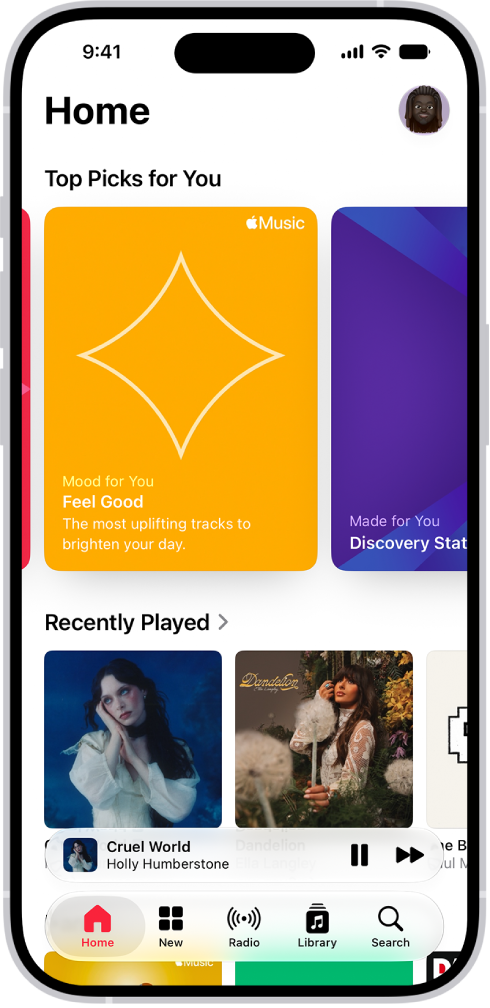
The Home tab in the Music app showing Top Picks at the top. You can swipe left or right to view more music chosen just for you. Recently Played appears below.

Select your favorite genres and artists

When you first tap Home, you’re asked to tell Apple Music what you like. Apple Music uses these preferences when recommending music.

  1. Open the Music app on your iPhone.
  2. Tap the genres you like (double-tap those you love, and touch and hold the genres you don’t care for).
  3. Tap Next. Then do the same with the artists that appear.

Tell Apple Music to ignore your listening habits

If you turn off your listening history, Apple Music ignores your listening habits, adjusting the contents of Replay playlists and new music recommendations.

  1. Open the Settings app on your iPhone.
  2. Tap Apps and tap Music.
  3. Turn off Use Listening History.

All the music you play is also hidden from your followers on Apple Music.

Quick tip: You can create a custom Focus to turn off Use Listening History. For example, if you’re a parent listening to your favorite songs and your child wants to listen to something they like, you can turn on that Focus so their songs don’t influence your recommendations.

Tag: Music

With CarPlay accessibility features for vision, you can make it easier to read text and differentiate colors on the CarPlay touchscreen in your car.

You can apply filters for color vision deficiencies, change the text size, or view the entire screen in grayscale. You can also make the text bold so it’s easier to read. And with Voice Control, the microphone of your iPhone lets you control CarPlay with voice commands.

Note: CarPlay isn’t available in all countries or regions.

Filter display colors

Colors on the CarPlay touchscreen are easier to differentiate when you view the entire screen in grayscale or apply filters for color vision deficiencies.

  1. In CarPlay, open the Settings app.
  2. Tap Accessibility, then tap Color Filters.
  3. Turn on Color Filters.
  4. Tap a filter. To change the intensity of the filter, tap Low, Medium, or High.

Change the text size

  1. In CarPlay, open the Settings app.
  2. Tap Accessibility, then tap Text Size.
  3. Tap a text size. You can see a preview of the text size below each number.

Make text bold

To make what’s on the CarPlay touchscreen easier to read, turn on bold text.

  1. In CarPlay, open the Settings app.
  2. Tap Accessibility and turn on Bold Text.

Control CarPlay with voice commands

With the microphone of your iPhone, you can control CarPlay with voice commands.

  1. In CarPlay, open the Settings app.
  2. Tap Accessibility and turn on Voice Control.
Tag: carplay

With Apple Intelligence, Visual Intelligence helps you learn more about what you’re viewing on your iPhone screen, across your apps.

It starts the same way as when you take a screenshot, and then you can search visually, ask questions, and take action, like turning a flyer or invite into a calendar event. The tools you see vary depending on your screenshot. And if you’re using Siri AI (Beta), you can use Siri AI to learn about what’s on your iPhone screen.

Note: Siri AI is available in beta on iOS 27 or later on an Apple Intelligence-enabled iPhone 15 Pro, iPhone 15 Pro Max, or iPhone 16 model or later with Siri and device language set to a supported language. Available in English to start. Siri AI will not initially be available in the EU on iOS. Usage limits may apply.
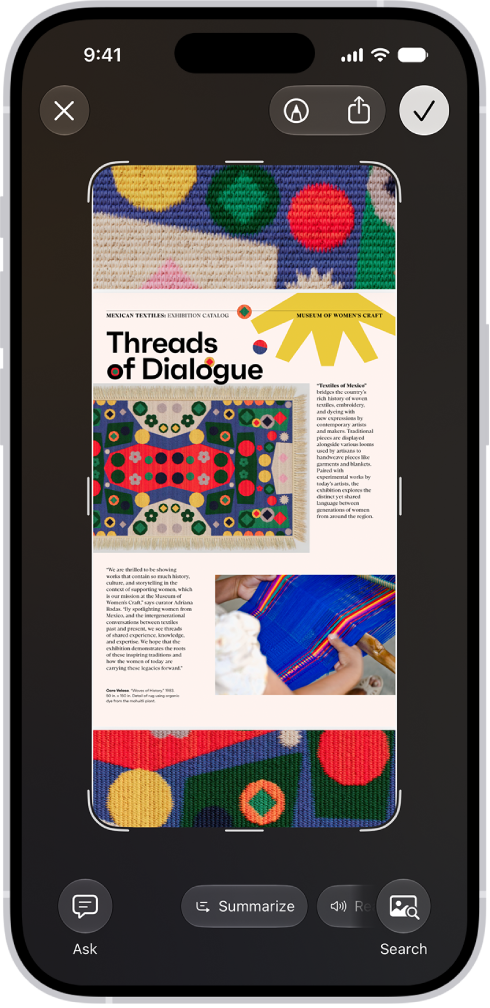
A document from the Preview app open in Visual Intelligence. A button to summarize the document appears at the bottom of the screen.

Note: Apple Intelligence on iOS 27 or later is available on an Apple Intelligence-enabled iPhone 15 Pro, iPhone 15 Pro Max, or iPhone 16 model or later. Apple Intelligence is not available in all languages or regions. Usage limits may apply.*

Learn more about the content on your iPhone screen

Visual Intelligence can tell you more about whatever you’re viewing on your iPhone. From there, search across apps, add an event to your calendar, go straight to relevant websites, and more.

  1. Quickly press and release the side button and the volume up button at the same time to take a screenshot.

    The Visual Intelligence tools at the bottom of the screen vary depending on your screenshot.

  2. Depending on the tools you see, do any of the following:

    • Tap the Search button to search the web for similar items.
    • Swipe your finger on a specific item to highlight it and search for that particular item.
    • Tap the Ask button to ask a question about what’s onscreen.
    • Tap Add to Calendar to create a calendar event.
    • Tap the website to go to the relevant website.
    • Tap Summarize for a short summary of the text.
    • Tap Read Aloud to play audio of the text.
    • Tap the plant or animal identified to learn more about it.
  3. Tap the Close button to delete the screenshot or tap the Selected button to save it.

*Apple Intelligence is available with Siri and device language set to Chinese (Simplified), Chinese (Traditional), Danish, Dutch, English, French, German, Italian, Japanese, Korean, Norwegian, Portuguese, Spanish, Swedish, Turkish, or Vietnamese. Some features may not be available in all regions or languages. Some devices may not be available in all regions. Siri AI is available in beta in iOS 27, iPadOS 27, macOS 27, watchOS 27, and visionOS 27 and requires an Apple Intelligence–enabled device set to a supported language. Available in English to start. Siri AI will not be initially available in the EU on iOS, iPadOS, and watchOS. Certain Apple Intelligence features that rely on server-side models are subject to daily usage limits, including but not limited to Siri AI, Intelligent Photo Editing Tools, Image Playground, and AFM 3 Cloud models in Shortcuts. Daily limits may vary by feature, request complexity, system demand, system policies, and other factors. Expanded access to such features will be available for a fee in the future. Use of these features is subject to the Apple Intelligence Terms and Conditions.


Freeform contains hundreds of shapes in a variety of categories, like animals, food, symbols, and ornaments. After you add shapes to a board, you can customize them in a number of ways, including combining them, splitting them, or changing their size or the way they look.

Lines are in the same place as shapes: the Add Shape button in the Content Hub. Here’s how to add shapes, lines, and arrows to a Freeform board on iPhone.

Add and format shapes, lines, and arrows

  1. Open the Freeform app on your iPhone.
  2. Open a board, or tap the New Board button to start a new one.
  3. Tap the Content Hub button, tap the Add Shape button, and then select a shape or line.
  4. To change your object’s properties, tap to select the object. Then do any of the following:
    • Change the size or proportions: Drag a blue dot.
    • Adjust the form, curve, number of points, and other aspects particular to your object: Drag any green dot. If it’s part of a diagram, you can also change its connection points.
    • Change the type of shape: Tap the More button and tap Change Shape. Then choose another shape.
Tool Description
the Set Fill button Change the color of a shape. Note: The button changes to the shape’s current color.
the Set Stroke button Change the type of border, border thickness, and border color of a shape or line. Note: The appearance of the button changes to reflect its current state.
Change the formatting for all text in a shape including font, color, size, alignment, and list style.
the Set Line Ends button Add an arrowhead or other endpoint to a line.
Change the type of connection line: straight, angled, or curved. (Available when you add a connection line between two items.)
  1. Tap the Done button when you’re finished.

You can also add shapes and lines by drawing them on your board, then smoothing or straightening the strokes.

Combine or split shapes

Removing the overlapping area between two shapes, combining one shape with another, and more can create a new shape. Multipart shapes work the other way: once they’re on a Freeform board, you can divide them into their parts and edit each part individually. Divide the map of the United States in the Places category, for example, and you can change the color of each state.

When you’ve added shapes to your Freeform board, you can do one of the following:

  • Combine shapes: Select multiple items, tap the Arrange button, then below Combine Shapes, tap an option to unite, intersect, subtract, or exclude.
  • Split a multipart shape apart: Tap the More button in the formatting tools, then tap Break Apart.

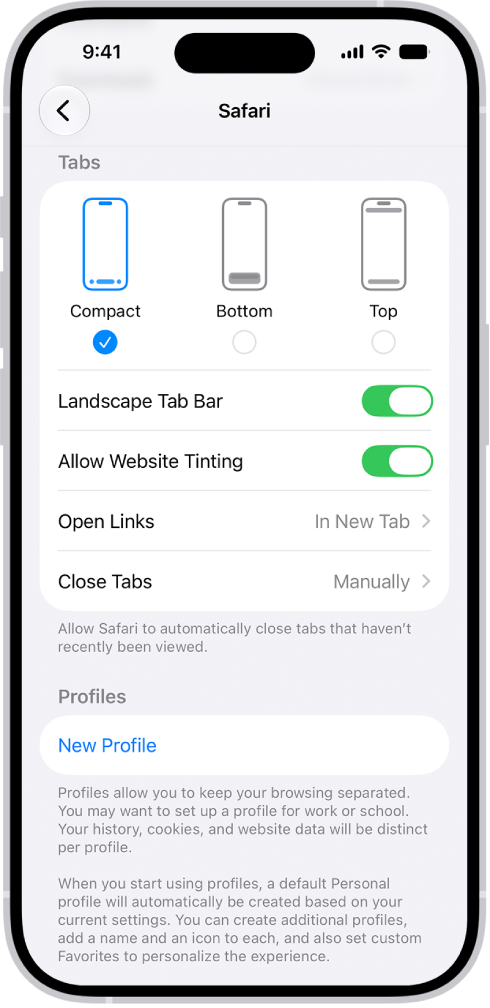
You can choose the tab bar layout that works best for you in the Safari app. There are three: Compact, Bottom, and Top. Compact keeps the tab bar small and below webpages, Bottom expands it below webpages, and Top expands it above webpages, and both show additional controls at the bottom of the screen.

  1. Open the Settings app on your iPhone.
  2. Tap Apps, then tap Safari.
  3. Scroll down to Tabs, then choose one of the following:

    • Compact: Select this option to compress the tab bar, show it below webpages, and show additional controls on both sides of the tab bar.
    • Bottom: Select this option to expand the tab bar, show it below webpages, and show additional controls at the bottom of the screen.
    • Top: Select this option to expand the tab bar, show it above webpages, and show additional controls at the bottom of the screen.

    A screen showing three Safari layout options: Compact, Bottom, and Top.

Tag: Safari

Some makers’ locks let you unlock your door with a home key in Apple Wallet, with an access code, or both. While pairing a supported lock in the Home app, a home key is automatically added to Apple Wallet on your iPhone.

There’s more than one way in. You can also set up an access code for a guest, so they can get in without a home key.

Here’s how to unlock your door with a home key on iPhone or Apple Watch.

Note: Both Apple Home and Matter-compatible locks work with the Home app.

Set up a home key

  1. Open the Home app on your iPhone.
  2. Add a supported lock.
  3. Choose an unlocking option.
    • Express Mode: Unlock the door without authenticating with Face ID or Touch ID.
    • Require Face ID or Passcode: Hold your device near the lock and then use Face ID or Touch ID to unlock it.
  4. Choose automations such as Lock After Door Closes and Lock When Leaving Home.

All residents of your household receive the home key automatically if the lock works with a home key.

Note: Not all Home app-compatible locks support home key.

Unlock your door with a home key

Got a home key on your iPhone or Apple Watch with Express Mode turned on? Place your device near the lock to unlock it. You can also share access with other people using the Home app.

Set up an access code for a guest

For people who need temporary access to your home, you can set up an access code in the Home app.

  1. Open the Home app on your iPhone.
  2. On the Home tab, touch and hold the lock, tap Accessory Settings, tap Manage Access, and tap Add Guest.
  3. Give the guest a name—Dog Walker, for example—then turn on the locks you want them to have access to.
  4. Tap Change Access Code and enter an access code. Then tap Done.
  5. Touch and hold the access code, tap Share, choose a sharing option, and then share the access code with the guest.

You can come back to this screen any time you want to change the access code, remove the guest, or turn off access to some or all of the locks.

Note: Not all Home app-compatible locks support access codes.

You can use Safety Check on iPhone to quickly stop sharing your device access and personal information with others. It’s built for an emergency.

Safety Check helps you quickly change your passcode and Apple Account password, stop sharing your location with Find My, restrict Messages and FaceTime to the device in your hand, and more, all from Emergency Reset. And beyond emergencies, Safety Check lets you periodically review and update what you share with people, apps, and devices.

  1. Open Settings, tap Privacy & Security, and then tap Safety Check on your iPhone.
  2. Tap Emergency Reset and tap Start Emergency Reset. Follow the onscreen instructions.

You can also use Safety Check to review the information you share with people, apps, and devices, and update it periodically.

Important: You might also be sharing information that Safety Check can’t review or change—for example, accounts and passwords, social media sharing, and information shared from another device.

You can use the onscreen keyboard to enter and edit text.

You can type one key at a time, or use QuickPath to glide from one letter to the next without lifting your finger, though it isn’t available for all languages. You can also enter accents and other special characters, type with one hand, and hear clicks or feel taps as you type. You can change keyboard settings, too.

Here’s how to type with the onscreen keyboard on iPhone.

Note: Magic Keyboard and Dictation are other ways to enter text on iPhone.

Enter text using the onscreen keyboard

You can tap individual keys to type, or slide from one letter to the next without lifting your finger (QuickPath isn’t available for all languages).

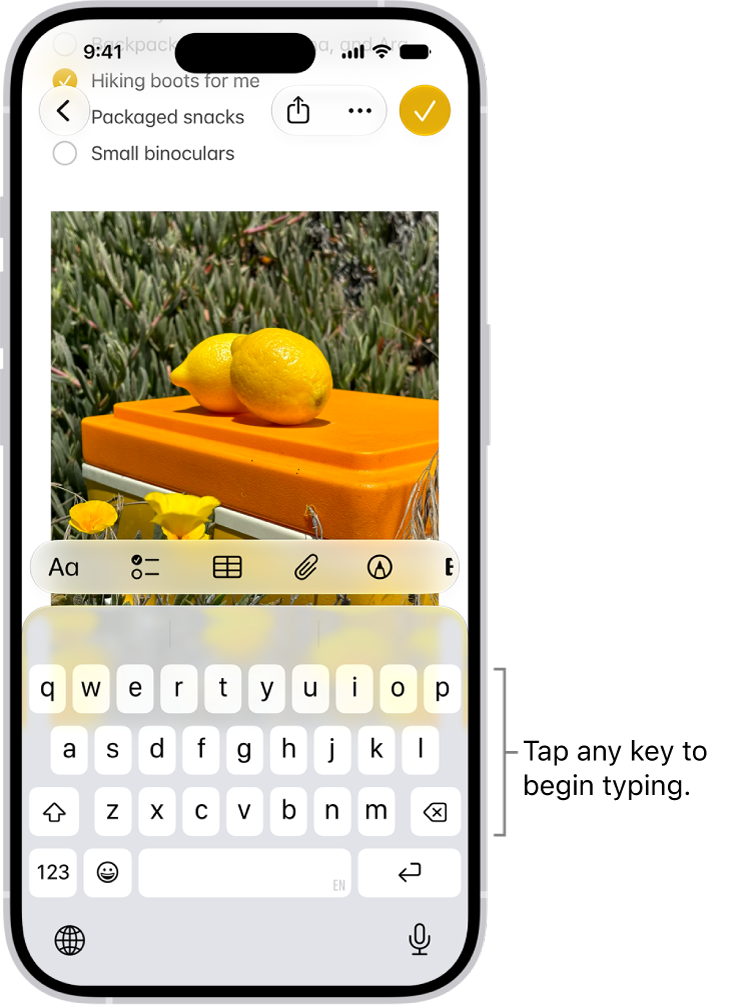
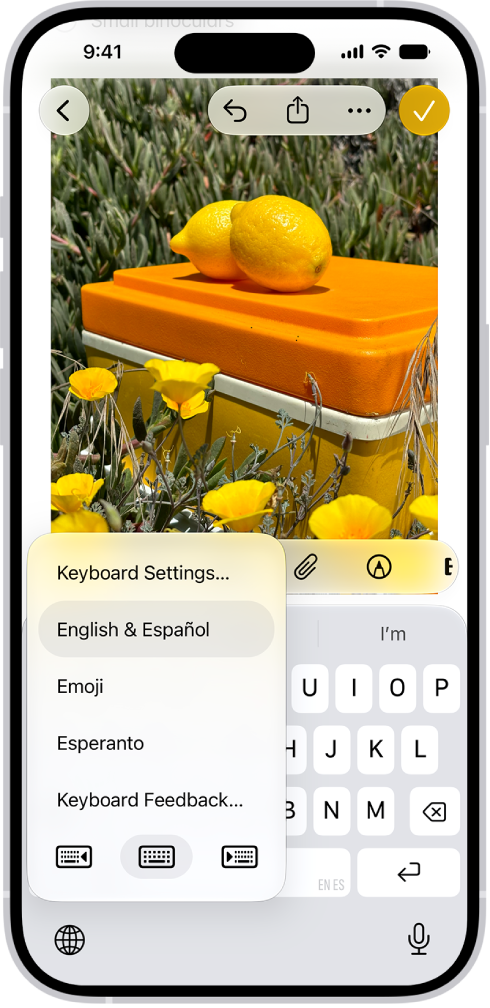
A document is open in the Notes app. The onscreen keyboard is in the bottom half of the screen.

  1. In any app where you can enter text, tap a text field. The onscreen keyboard opens.
  2. Tap individual keys to type, or touch and hold the first letter, slide to the next letters. Lift your finger at the end of a word. You can use either method as you type, and even switch in the middle of a sentence.
  3. While entering text, you can do any of the following:
    • Type an uppercase letter: Tap the Shift key, or touch the Shift key. Then slide to a letter.
    • Turn on Caps Lock: Double-tap the Shift key.
    • Quickly end a sentence with a period and a space: Double-tap the Space bar.
    • Enter numbers, punctuation, or symbols: Tap the Numbers key or the Symbols key.

Hear clicks or feel taps as you type

You can turn keyboard sounds and haptic feedback on or off in keyboard settings.

  1. Open the Settings app on your iPhone.
  2. Tap Sounds & Haptics, then tap Keyboard Feedback.
  3. Turn on Sound or Haptic

Enter accents, diacritics, and other special characters

While using the keyboard, touch and hold the letter, number, or symbol related to the character.

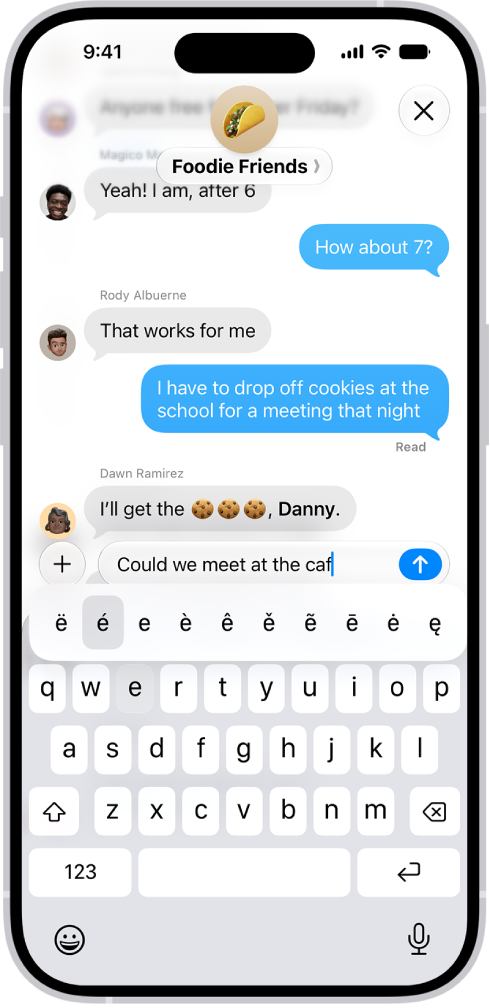
For example, to enter é, touch and hold the e key, then slide your finger and release it on the option you want.

The onscreen keyboard showing the alternate accented characters that appear when you touch and hold the E key.

On a keyboard for another language, you can also do any of the following:

  • On a Thai keyboard: To choose native numbers, touch and hold the related Arabic number.
  • On a Chinese, Japanese, or Arabic keyboard: Tap a suggested character or candidate at the top of the keyboard to enter it, or swipe left to see more candidates.

Note: Tap the up arrow on the right to view the full candidate list, and tap the down arrow to return to the short list.

You can add other characters using the emoji keyboard.

Type with one hand

Moving the keys closer to your thumb makes it easier to type with one hand.

The Keyboard Settings menu is open, and shows three options: English (US), Emoji, and Keyboard Feedback. At the bottom of the menu, from left to right, are buttons for left-handed layout, default layout, and right-handed layout. The default layout button is selected.

  1. Touch and hold the Emoji button or the Switch Keyboard key.
  2. Tap one of the keyboard layouts. (For example, choose the Right-Handed Layout button to move the keyboard to the right side of the screen.)

To center the keyboard again, tap the right or left edge of the keyboard.

Change keyboard settings

You can turn special typing features—such as predictive text and auto-correction—off and on.

  1. Open the Settings app on your iPhone.
  2. Tap General, then tap Keyboard.
  3. Turn the typing features (below All Keyboards) on or off.

Quick tip: To change your keyboard settings without leaving the onscreen keyboard, you can touch and hold the Emoji button or the Switch Keyboard key, and then tap Keyboard Settings.

If you subscribe to Apple Music, you can add music you’ve saved and playlists you’ve created in third-party music services to your Apple Music library.

There’s some setup first, like iOS 18.4 or later and Sync Library turned on in Music settings. The transfer itself is provided by a third party, and once it’s done, you can review the transfer.

Here’s how to transfer music from other music services to Apple Music on iPhone.

Note: Transferring music to Apple Music is provided by a third party. Apple Music and transferring music from third-party music services aren’t available in all countries or regions.

Before you begin

Before you start a transfer, confirm that all of the following are true:

  • You’re using iOS 18.4 or later and are signed in to your Apple Account.
  • Sync Library is turned on in Settings to transfer music. Go to Settings > Apps > Music, then turn on Sync Library if it’s not already on.

Transfer music from third-party music services

  1. Open the Music app on your iPhone.
  2. Tap your profile.
  3. Tap Transfer Music from Other Services.

    If you don’t see this option, you need to sign in to your Apple Account.

  4. Select a music service. Sign in to the service.
  5. Select what you want to transfer (all or selected items) and then tap Add to Library.

    Note: Depending on the third-party music service, you may be able to transfer all music or only certain items (for example, only playlists you’ve created).

  6. When the transfer finishes, one of the following messages appears at the top of the screen:

    • Transfer Complete: The transfer finished successfully and you see a summary of the music that’s been added to your library. Tap OK.
    • Some Music Needs Review: The transfer finished, but some music wasn’t transferred. You can review and choose alternate versions, if available (for example, a live version of a song from the third-party music service wasn’t found in the Apple Music catalog, but a deluxe version was). See Review the transfer.

Review the transfer

During the transfer, music from the third-party music service is matched with the same music offered in the Apple Music catalog. (Nothing is removed from the other music service.)

A song, album, or music video from the third-party music service won’t always have a match in the Apple Music catalog. As you review matches, you can pick from the alternates provided or ignore suggestions.

  1. On your iPhone, do one of the following:

    • Go to the Music app , then at the top of the Library tab, tap Review Now in the Some Music Needs Review message.
    • Go to Settings > Apps > Music, then tap Review Current Transfer.
  2. In the Review Alternates screen, do any of the following for each of the items that need review:

    • Choose an alternate version: Select one of the items shown as a potential match with the original song from the third-party music service. To preview the song, tap the Play button on the album cover.
    • Don’t transfer the item: Tap Ignore [item] if you don’t want to transfer an alternate version into your Apple Music library. You can also tap Ignore All to finalize the transfer and start a new transfer.

    Music that doesn’t have alternate suggestions is listed in the Not Available section at the bottom of the Review Alternates screen.

  3. Repeat step 2 until you’ve reviewed all the alternates for each item and tap Add [items] to Library.

Note: If you can’t review all your alternate matches in one session, tap Add [items] to Library to accept the matches you’ve selected so far. The initial transfer stays open for 30 days, so you can come back and complete it, but a new transfer can’t start until you finish reviewing all alternates in that one. And if Review Current Transfer shows up in Music settings, there’s music from an earlier transfer that you still need to review.

Tag: Music

If you subscribe to Apple Music and someone invites you to collaborate on a playlist, you can join it from the link you received. Then you can add, remove, or reorder music in the collaborative playlist, react to songs with emoji, and invite others with a link.

Note: Apple Music isn’t available in all countries or regions.

  1. On your iPhone, tap the link you received. Tap Join or Request to Join (if the owner of the collaborative playlist must approve you first).
  2. Do any of the following:

Note: You can share the link if you own the collaborative playlist, or if its owner hasn’t turned on Approve Collaborators.

Tag: Music