Got a tip for us?

iPhone

The iPhone is a smartphone from Apple that runs the iOS mobile operating system. Between its apps, communication features, the camera, mobile internet access, and other functionalities, the iPhone has quickly become an integral part of many peoples tech lives.

You can make changes to your wake up alarm if you’ve set up a sleep schedule in the Health app.

You can change just your wake up time, or shift your whole sleep schedule, so your bedtime and wake up time move together and your sleep duration stays the same. In Alarm Options, you can also choose a vibration or ringtone, set the alarm volume, and turn on Snooze to see a Snooze button with your alarm.

Here’s how to change your wake up alarm in Clock on iPhone.

Change your wake up alarm

  1. Start the Clock app on your iPhone.
  2. Tap Alarms, then tap Change.
  3. Do any of the following:

    • Change only your wake up time: Drag the Ringing Alarm button.
    • Shift your sleep schedule: Drag to rotate the arc between the Bedtime button and the Ringing Alarm button. (Your bedtime and wake up time change simultaneously, and the sleep duration remains unchanged.)
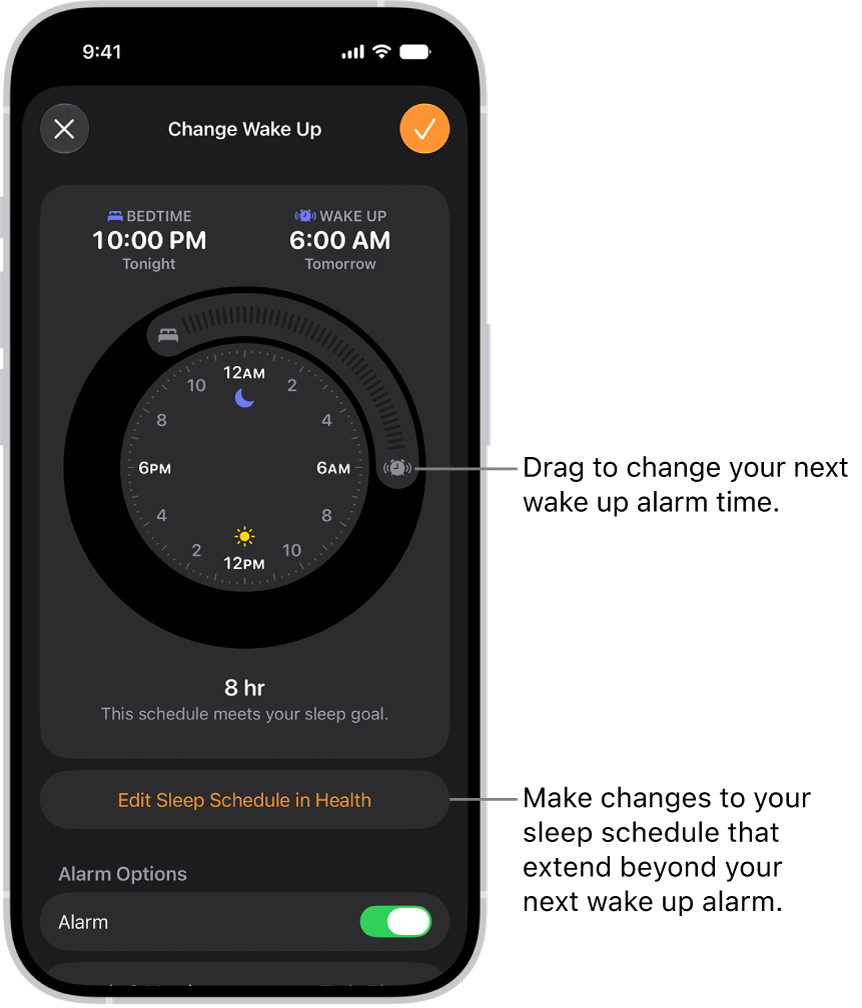
    A screen for changing the next wake up alarm. The position of the ringing alarm button sets the time of the alarm.

  4. Scroll down to Alarm Options, turn the alarm on, and then change any of the following options:

    • Sounds & Haptics: Tap to choose a vibration or ringtone.
    • Alarm volume: Drag the slider.
    • Snooze: Turn on to see a Snooze button with your alarm.
    • Snooze Duration: Choose how long to pause the alarm.
  5. Tap the Done button, then tap Change Next Alarm Only.

Note: Tap Change This Schedule, and it updates your recurring wake up alarm in your sleep schedule too.

To make changes to your sleep schedule that extend beyond your next wake up alarm, tap Edit Sleep Schedule in Health.

Turn off your next wake up alarm

  1. Start the Clock app on your iPhone.
  2. Tap Alarms, then tap Change.
  3. Scroll down to Alarm Options, then turn off Alarm.
  4. Tap the Done button, then tap Change Next Alarm Only.

Note: Your recurring wake up alarm in your sleep schedule changes too when you tap Change This Schedule.

Remove the wake up alarm

  1. Start the Clock app on your iPhone.
  2. Tap Alarms, then tap Change.
  3. Tap Edit Sleep Schedule in Health and then turn off Sleep Schedule.

You can also delete a sleep schedule or turn off all sleep schedules in the Health app.

Tag: Clock

Some long video files are too large to send in a standard text message. You can use AirDrop, iCloud, or Mail Drop to send long videos that you record with your iPhone camera.

AirDrop is the simplest way to send a large video to someone nearby on an iPhone, iPad, Mac, or Apple Vision Pro, since it sends information using Wi-Fi and Bluetooth.

Here’s how to share long videos on iPhone.

Send a video using AirDrop

AirDrop is the simplest way to send a large video to a nearby Mac, iPhone, iPad, or Apple Vision Pro. It sends information using Wi-Fi and Bluetooth®, so before you send anything, check that both you and the recipient have these controls turned on in Control Center.

  1. If the person you’re sending the video to isn’t in your contacts, have them do one of the following:

    • On iPhone or iPad: Open Settings, tap General, tap AirDrop, and tap Everyone for 10 Minutes.
    • On a Mac: Choose Apple menu > System Settings. Then click General in the sidebar. Click AirDrop & Handoff. Then click the pop-up menu next to AirDrop and choose Everyone.
  2. Start the Photos app on your iPhone.
  3. Tap the video you want to send. Tap the Share button.

    If you want to send the video in its original format, including metadata, location, and any associated edit history or captions, tap Options, then turn on All Photos Data.

  4. Tap AirDrop and then tap the contact or device you want to share with.

After you share, the recipient gets an alert asking them to accept or decline the AirDrop transfer.

Send a video using Mail Drop

With Mail Drop, you can send a large video as an attachment in Mail.

  1. Start the Photos app on your iPhone.
  2. Tap the video you want to send, tap the Share button, and then tap Mail.
  3. Tap the To field and then enter the name or email of the recipient.

    If you want to add a subject or message, tap the Subject field or email body.

  4. Tap the Send button to send.

Recipients have 30 days to download Mail Drop attachments.

Tag: Photos

If members of your home use HomePod for Intercom messages, iPhone can transcribe the messages for you. It’s two settings. One shows audio transcriptions, and the other, in the Home app, sets when you receive notifications for Intercom messages from HomePod.

  1. Open Settings, tap Accessibility, tap Subtitles & Captioning, and turn on Show Audio Transcriptions.
  2. In the Home app, tap the More button and tap Home Settings.
  3. Tap Intercom, then choose when you receive notifications.

In Apple News, you can set up a local news feed to stay up to date on news, events, and weather in the places that matter to you most. You can follow your preferred locations and customize them to prioritize news from a specific city, town, or neighborhood.

Stories from the primary location you follow also appear in your Today feed, and you can use your current location to find a news feed. You can also search for a news feed by state or country.

Note: Apple News isn’t available in all countries or regions. The Local News feed is available in the U.S. only.

Set up a local news feed

  1. Open the News app on your iPhone.
  2. From the Today feed, tap Local. Then do either of the following:
    • If you don’t follow any locations: Tap Get Started.
    • If you follow one or more locations in Local News: Tap Locations and tap Manage Locations.
  3. Do any of the following:
    • Search for a news feed using your current location: If you’re getting started with local news, tap Current Location. If you follow one or more locations, tap the search field and tap Current Location.
    • Search for a location: Tap the search field and enter a city, town, or zip code. Then select a location from the search results.
    • Search by state or country: Scroll down and select a state or country. A list of locations in that state or country appears.
  4. Tap the Add button next to the location you want to follow. Tap the Close button or the Back button to go back to the list of locations.
  5. Tap the Close button to go back to the local news feed.

The Following tab lists the locations you follow under Local News.

Read local news

  1. Open the News app on your iPhone.
  2. From the Today feed, tap Local and tap a story to read it.

Customize the news feed for a location

When you follow a location, you can prioritize a specific city, town, or neighborhood for news and weather.

  1. Open the News app on your iPhone.
  2. From the Today feed, tap Local and then tap Locations.
  3. Tap Manage Locations.
  4. Tap Customize under the name of a location you follow. If you already added a specific location, tap the location’s name to change it.
  5. Tap the search field and enter a city, town, or zip code. Then select a location from the search results.

Change locations in your local news feed

  1. Open the News app on your iPhone.
  2. From the Today feed, tap Local, tap Locations, and then select the location you want to read news about.

Follow local publishers

Search for local news feeds by state or country, and you can follow their local publishers directly.

  1. Open the News app on your iPhone.
  2. From the Today feed, tap Local and then tap Locations.
  3. Tap Manage Locations and then scroll down and select a state or country.
  4. Scroll down to Local Publishers and tap the Add button next to the publishers you want to follow.
Tag: News

You can answer, silence, or decline an incoming call on iPhone. If you decline a call, it goes to voicemail, and you can also respond to a call with a text.

You can still answer a silenced call, too, until it goes to voicemail. Before deciding whether to answer, you can even ask the caller for more information, and their reply will appear on your screen as text. In some countries or regions, though, declined calls are disconnected without being sent to voicemail.

Answer a call

Pick up the call in one of these ways:

  • Tap the Answer Call button.
  • If your iPhone is locked, drag the slider.

Silence a call

Press the side button or either volume button when a call is coming in. You can still answer a silenced call until it goes to voicemail.

Note: It’s also possible to automatically screen and silence calls from unknown numbers.

Decline a call and send it directly to voicemail

If you’d rather not answer, decline the call in one of these ways:

  • Press the side button twice quickly.
  • Tap the Decline Call button.
  • Swipe up on the call banner.

You can also tap the call banner for more options. Do any of the following:

  • Tap Voicemail to send the call to voicemail.
  • Tap Message, then choose a default reply or tap Custom.

To create your own default replies, go to Settings > Apps > Phone > Respond with Text, tap any field below Respond With, then type your own reply.

Note: In some countries or regions, declined calls are disconnected without being sent to voicemail.

Ask a caller for more information without answering a call

When you receive a call, you can type a message asking the caller for more information before deciding whether to answer. Tap Type to Reply, then type the message you want your iPhone to say to the caller. Their reply will appear on your screen as text. iPhone can help you avoid unwanted calls by identifying callers, blocking certain people, screening unknown callers, or sending spam callers directly to voicemail. You can also filter out unknown callers so they don’t appear in your recent and missed calls.

Tag: Phone

The icons in the status bar provide information about iPhone. On an iPhone with Face ID, there are additional status icons at the top of Control Center.

You’ll find icons for Privacy Indicators, Battery, Connectivity, Active Sessions, Media, and Accessibility, and the Camera In Use icon, for example, means an app is using your iPhone camera. When you have a Focus on, its icon appears in the status bar, too.

Note: Turn on a Focus, and its icon shows up in the status bar.

Privacy Indicators

Status icon What it means
The Camera In Use icon. Camera in use. An app is using your camera. If you’re not actively using a camera, check which app is running.
The Microphone In Use icon. Microphone in use. An app is using your microphone. If you’re not expecting an app to use your microphone, check which app is running.
The Location Services status icon. Location services. An app is using Location Services.
The Lock status icon. Lock. iPhone is locked.

Battery

Status Icon What it means
The Battery status icon. Battery. Shows the iPhone battery level. When the icon is yellow, Low Power Mode is on.
The Battery Charging icon. Battery charging. The iPhone battery is charging. When the icon is gray, charging is paused.
The Bluetooth battery status icon. Bluetooth battery. Shows the battery level of a paired Bluetooth device.

Connectivity

Status icon What it means
The Wi-Fi status icon. Wi-Fi. iPhone is connected to the internet over a Wi-Fi network.
The cellular signal strength status icon (four bars). Cell signal. The number of bars indicates the signal strength of your cellular service. If there’s no signal, “No Service” appears.
The signal strength status icon (four bars) for two cellular networks. Dual cell signals. On models with Dual SIM, the upper row of bars indicates the signal strength of the line you use for cellular data. The lower row of bars indicates the signal strength of your other line. If there’s no signal, “No Service” appears. To see the status icons with their corresponding cellular plan labels and carrier names, open Control Center.
The Airplane Mode status icon. Airplane Mode. Airplane Mode is on—you can’t make phone calls, and other wireless functions may be disabled.
The 5G status icon. 5G. Your carrier’s 5G network is available, and supported models can connect to the internet over that network (not available in all countries or regions).
The 5G status icon. 5G UC. Your carrier’s 5G UC network is available, which can include your carrier’s higher frequency version of 5G. Supported models can connect to the internet over that network (not available in all countries or regions).
The 5G+ status icon. 5G+. Your carrier’s 5G+ network is available, which can include your carrier’s higher frequency version of 5G. Supported models can connect to the internet over that network (not available in all countries or regions).
The 5G UW status icon. 5G UW. Your carrier’s 5G UW network is available, which can include your carrier’s higher frequency version of 5G. Supported models can connect to the internet over that network (not available in all countries or regions).
The 5G E status icon. 5G E. Your carrier’s 5G E network is available, and iPhone can connect to the internet over that network (not available in all countries or regions).
The LTE status icon. LTE. Your carrier’s LTE network is available, and iPhone can connect to the internet over that network (not available in all countries or regions).
The 4G status icon. UMTS. Your carrier’s 4G UMTS (GSM) or LTE network (depending on the carrier) is available, and iPhone can connect to the internet over that network (not available in all countries or regions).
The 3G status icon. UMTS/EV-DO. Your carrier’s 3G UMTS (GSM) or EV-DO (CDMA) network is available, and iPhone can connect to the internet over that network.
The EDGE status icon (an “E”). EDGE. Your carrier’s EDGE (GSM) network is available, and iPhone can connect to the internet over that network.
The GPRS status icon (a “G”). GPRS/1xRTT. Your carrier’s GPRS (GSM) or 1xRTT (CDMA) network is available, and iPhone can connect to the internet over that network.
The SOS status icon. SOS only. Full service from your cellular provider isn’t available, but emergency calls may be possible through other carrier networks (not available in all countries or regions).
The Satellite status icon. Satellite features. Emergency SOS, Find My, Roadside Assistance, and Messages via satellite are available in your location (supported on iPhone 14 and later).
The SAT status icon. Carrier satellite features. Your device is using a carrier-provided satellite feature.
The Wi-Fi call status icon. Wi-Fi calling. iPhone is set up for Wi-Fi calling (not available with all carriers or in all countries or regions). iPhone also displays a carrier name next to the icon.
The Personal Hotspot status icon. Personal Hotspot connection. iPhone is connected to the internet through the Personal Hotspot of another device.
The VPN status icon. VPN. iPhone is connected to a network using VPN.
The Network Activity status icon. Network activity. Shows that there’s network activity. Some third-party apps may also use it to show an active process.
The Syncing status icon. Call forwarding. Call forwarding is set up.

Active Sessions

Status icon What it means
The Call Indicator icon. Phone call. iPhone is on a phone call.
The FaceTime Indicator icon. FaceTime. iPhone is on a FaceTime call.
The Recording Indicator icon. Screen recording. iPhone is recording your screen.
The Personal Hotspot Indicator icon. Personal Hotspot. iPhone is providing a Personal Hotspot.
The Navigation Indicator icon. Navigation. iPhone is providing turn-by-turn directions.
The CarPlay icon. CarPlay. iPhone is connected to CarPlay.
The Siri Eyes Free icon. Siri Eyes Free. You can ask a question or make a request to Siri in your car.
Syncing. iPhone is syncing with your computer.
Do Not Disturb. Do Not Disturb is turned on.
Portrait orientation lock. The iPhone screen is locked in portrait orientation. To unlock your screen orientation, open Control Center and tap the Portrait Orientation Lock status icon.
Alarm. An alarm is set.

Media

Status icon What it means
Headphones connected. iPhone is paired with Bluetooth® headphones that are turned on and within Bluetooth range.
AirPlay. AirPlay is on.

Accessibility

Accessibility icons

Status icon What it means
Voice Control. Voice Control is turned on, and you can use your voice to interact with iPhone.
TTY. Software RTT/TTY or Hardware TTY is turned on.
Tag: iPhone

You can easily create a connected diagram, such as a flowchart, by using connectors and the shape picker in Freeform. Depending on the type of item, you can attach lines to an item or near it.

You can connect two items with a line and change connection points. You can quickly add equally spaced, aligned shapes with connectors, too.

Here’s how to add diagrams to a Freeform board on iPhone.

Create a diagram

  1. Open the Freeform app on your iPhone.
  2. Open a board, or tap the New Board button to start a new one.
  3. Tap the More button, tap View Options, and then tap Show Connectors.

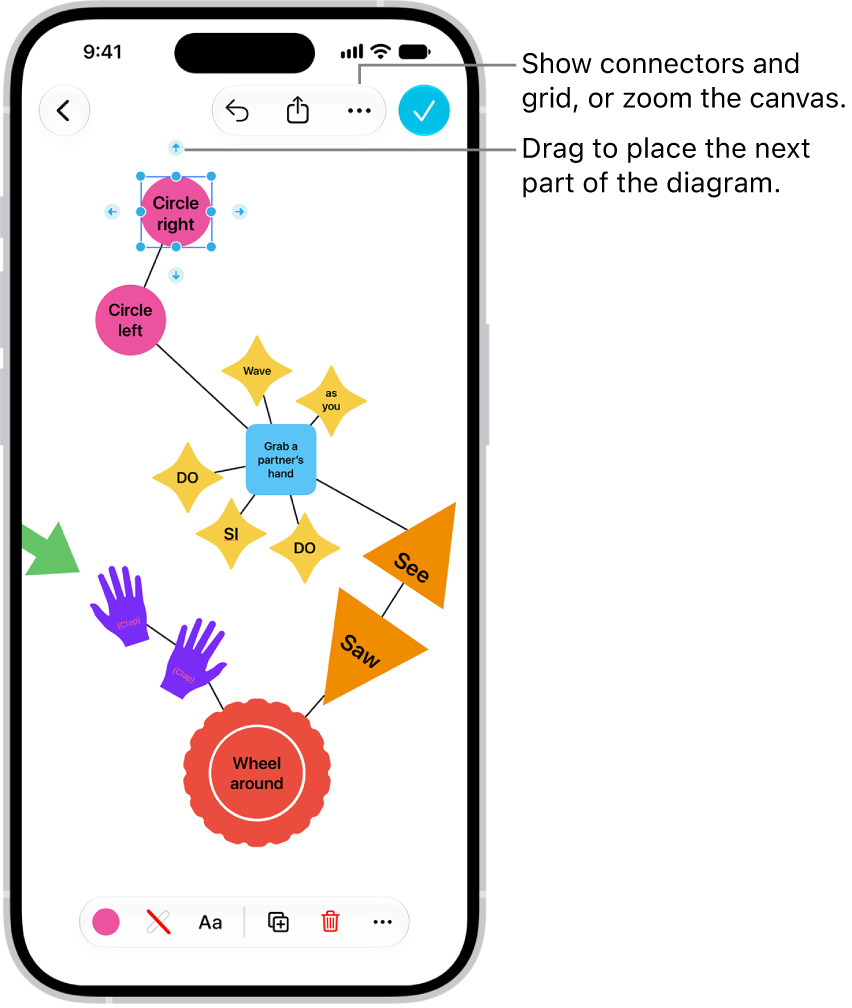
    A diagram on a Freeform board, with connectors showing on a selected shape, and the shape formatting tools visible at the bottom of the screen.

  4. To begin your diagram, add an item by tapping the Content Hub button, the Add Text Box button, or the Media button.
  5. Drag a connector arrow to where you want the next part of your diagram. When you let go, a small menu of shapes opens. Tap to select the next shape you want to add.

    To browse other shapes, tap the Other button.

  6. Tap the Done button when you’re finished diagramming.

Connector arrows don’t appear when you select a line or multiple items.

Quick tip: There’s a quick way to add equally spaced, aligned shapes with connectors. First, tap to select a shape, and then touch and hold a connector arrow. You’ll see a preview of the shape and line as you hold, and when you let go, they’re added to the board.

Connect two items with a line

  1. Open the Freeform app on your iPhone.
  2. Open a board with items on it.
  3. Touch and hold an item on your board, then, with another finger, tap another item to select it too.
  4. Tap the More button in the formatting tools at the bottom. Tap Add Connection Line.

Change connection points

You can change how a connection line connects, even after you add it to a diagram on a Freeform board.

  1. Tap to select a connection line, then drag one of its endpoints (the blue dots).
  2. Attach the endpoint to another item on the board at a new connection point.

Your item has connection points at its center, top, bottom, and sides. When a connection is possible elsewhere, in the item or near it, a filled circle appears.

You can turn off Find My on your iPhone if you no longer want to share your location or view the location of your friends, devices, and items. It’s in your Apple Account settings, and you’ll need your Apple Account password to finish.

  1. Open Settings, tap [your name], and then tap Find My.
  2. Tap Find My iPhone, then tap to turn it off.
  3. Enter your Apple Account password, then tap Turn Off.
Tag: Find My

With Live Text on supported models, you can use your iPhone camera to copy, share, look up, and translate text that appears within the camera frame. Camera also provides quick actions to easily call phone numbers, visit websites, convert currencies, and more, based on the text that appears in the frame.

You can select specific text or all of it, and you’re able to search the web for it or share it using AirDrop, Messages, Mail, or other available options.

  1. Open Camera on your iPhone.
  2. Position your iPhone so the text appears within the camera frame.
  3. After the yellow frame appears around detected text, tap the Detect Text button.
  4. Touch and hold the text. Use the grab points to select specific text and perform any of the actions below:

    • Copy: Copy text to paste into another app such as Notes or Messages.
    • Select All: Select all the text within the frame.
    • Look Up: Show personalized web suggestions.
    • Translate: Translate text.
    • Search Web: Look up the selected text on the web.
    • Share: Share text using AirDrop, Messages, Mail, or other available options.

    Tip: Depending on the content, you can tap a quick action at the bottom of the screen to do things like make a phone call, visit a website, start an email, convert currencies, and more.

  5. Tap the Selected Detect Text button to return to Camera.

To turn off Live Text on your iPhone camera, go to Settings > Camera, then turn off Show Detected Text.

Note: Live Text isn’t available in all regions or languages.

With Apple Intelligence, Visual Intelligence lets you interact with text around you.

Note: Apple Intelligence on iOS 27 or later is available on an Apple Intelligence-enabled iPhone 15 Pro, iPhone 15 Pro Max, or iPhone 16 model or later. Apple Intelligence is not available in all languages or regions. Usage limits may apply.*

*Apple Intelligence is available with Siri and device language set to Chinese (Simplified), Chinese (Traditional), Danish, Dutch, English, French, German, Italian, Japanese, Korean, Norwegian, Portuguese, Spanish, Swedish, Turkish, or Vietnamese. Some features may not be available in all regions or languages. Some devices may not be available in all regions. Siri AI is available in beta in iOS 27, iPadOS 27, macOS 27, watchOS 27, and visionOS 27 and requires an Apple Intelligence–enabled device set to a supported language. Available in English to start. Siri AI will not be initially available in the EU on iOS, iPadOS, and watchOS. Certain Apple Intelligence features that rely on server-side models are subject to daily usage limits, including but not limited to Siri AI, Intelligent Photo Editing Tools, Image Playground, and AFM 3 Cloud models in Shortcuts. Daily limits may vary by feature, request complexity, system demand, system policies, and other factors. Expanded access to such features will be available for a fee in the future. Use of these features is subject to the Apple Intelligence Terms and Conditions.

Tag: camera

You can turn off Apple Intelligence features like Siri AI (Beta), summarization features, and more. That includes Messages, email, and notification summaries, priority notifications, and Writing Prompts in Journal, and you can switch to Siri Classic instead of Siri AI. You can also restrict access to Apple Intelligence features in Screen Time.

Note: Apple Intelligence on iOS 27 or later is available on an Apple Intelligence-enabled iPhone 15 Pro, iPhone 15 Pro Max, or iPhone 16 model or later. Apple Intelligence is not available in all languages or regions. Usage limits may apply.*

Go to the Settings app on your iPhone to change these settings, then do any of the following:

Option Description
Siri AI (Beta) Tap Siri, scroll down, then tap Turn Off Siri. Tap Turn Off Siri again to confirm. Note: Siri AI is available in beta on iOS 27 or later on an Apple Intelligence-enabled iPhone 15 Pro, iPhone 15 Pro Max, or iPhone 16 model or later with Siri and device language set to a supported language. Available in English to start. Siri AI will not initially be available in the EU on iOS. Usage limits may apply.
Switch to Siri Classic To use Siri Classic instead of Siri AI, follow the steps above to turn off Siri. Tap Turn on Siri, then tap Siri Classic.
Messages summaries Tap Apps, tap Messages, then turn off Summarize Messages.
Email summaries Tap Apps, tap Mail, then turn off Summarize Message Previews.
Notification summaries Tap Notifications, tap Summarize Notifications, then turn off Summarize Notifications.
Priority notifications Tap Notifications, tap Prioritize Notifications, then turn off Prioritize Notifications.
Personalized Smart Replies in Mail Tap Apps, tap Mail, then turn Personalize Smart Replies on or off.
Voicemail suggestions in Phone Tap Apps, tap Phone, then turn Suggestions in Voicemail on or off.
Call Context cards Tap Apps, tap Phone, tap Apple Intelligence & Siri, then tap Show When Calling.
Writing Prompts in Journal Tap Apps, tap Journal, then turn Get Writing Prompts on or off.
Restrict access to Apple Intelligence features in Screen Time See Block or allow Siri and Apple Intelligence features for restricting access for yourself. For your child, see Block or allow access and changes to features on your kid’s device in Apple Devices for Kids and Families.
Change how you see suggestions from your apps See Customize where suggestions appear.

*Apple Intelligence is available with Siri and device language set to Chinese (Simplified), Chinese (Traditional), Danish, Dutch, English, French, German, Italian, Japanese, Korean, Norwegian, Portuguese, Spanish, Swedish, Turkish, or Vietnamese. Some features may not be available in all regions or languages. Some devices may not be available in all regions. Siri AI is available in beta in iOS 27, iPadOS 27, macOS 27, watchOS 27, and visionOS 27 and requires an Apple Intelligence–enabled device set to a supported language. Available in English to start. Siri AI will not be initially available in the EU on iOS, iPadOS, and watchOS. Certain Apple Intelligence features that rely on server-side models are subject to daily usage limits, including but not limited to Siri AI, Intelligent Photo Editing Tools, Image Playground, and AFM 3 Cloud models in Shortcuts. Daily limits may vary by feature, request complexity, system demand, system policies, and other factors. Expanded access to such features will be available for a fee in the future. Use of these features is subject to the Apple Intelligence Terms and Conditions.