Got a tip for us?

iPhone

The iPhone is a smartphone from Apple that runs the iOS mobile operating system. Between its apps, communication features, the camera, mobile internet access, and other functionalities, the iPhone has quickly become an integral part of many peoples tech lives.

You can view and copy passwords, add notes like security question reminders, and more with the encrypted account information stored on iPhone. iCloud Keychain securely keeps this information up to date across all your approved devices.

You can also view and copy a password for a website or app account, go to the website for an account, or remove an account from your iPhone and iCloud Keychain.

Here’s how to view your passwords and related information on iPhone.

View and copy a password for a website or app account

  1. For an account that uses a password, do one of the following:
    • Ask Siri something like, “Show me my passwords.”
    • Open the Passwords app on your iPhone.
    • On a sign-in screen, tap the Password AutoFill button.
  2. Tap an account, then tap the Password field.
  3. To copy the password to use elsewhere, tap Copy Password.

Add notes for an account with a password or passkey

You can securely store notes about security questions, recovery key information, PIN numbers, and similar details.

  1. Open the Passwords app on your iPhone.
  2. Tap All, then tap an account.
  3. Tap Edit, tap Notes, enter your text, and then tap the Save button.

To update the notes, tap Edit, then tap the Notes field.

Go to the website for an account

  1. Open the Passwords app on your iPhone.
  2. Tap All, then tap an account.
  3. Do one of the following:
    • Tap the Safari button.
    • Tap the website URL, tap Copy Website, then paste the URL into the address field of your browser.

Remove an account from your iPhone and iCloud Keychain

  1. Open the Passwords app on your iPhone.
  2. Tap All, then tap an account.
  3. Swipe left on the account, tap Delete, and then tap Delete Password to confirm.

For example, you might want to remove the account for a website or app that’s no longer available. Note: This action doesn’t remove the account from the website or app where you created it.

Remove a password or passkey from your iPhone and iCloud Keychain

  1. Open the Passwords app on your iPhone.
  2. Tap All, then tap an account.
  3. Tap Edit.
  4. Tap Delete. Tap Delete Password or Delete Passkey to confirm.

Note: The password or passkey stays on the website or app where you created it.

Cinematic mode applies a depth-of-field effect that keeps the subject of your video sharp while creating a beautifully blurred foreground and background. It’s available on supported models.

You don’t have to manage the focus yourself. iPhone automatically identifies the subject of the video and keeps it in focus throughout the recording, and if a new subject is identified, iPhone automatically transitions the point of focus. But you can also manually adjust the point of focus while you record, or change it later in the Photos app.

  1. Open Camera on your iPhone.
  2. Swipe left on the screen to select Cinematic mode.
  3. Before recording, you can make the following adjustments:

    • Tap the Camera Controls button, then tap Depth or Exposure to adjust these values. On iPhone 18 Pro models, you can also adjust additional tools, such as Shutter Speed, Lens Aperture, White Balance, and Histogram.
    • Tap 2x or 3x next to 1x to zoom in (on supported models).
    • Tap the resolution and fps values in the corner of the screen to change the settings (on supported models).
  4. Tap the Record button or press either volume button to start recording.

    • A yellow frame on the screen indicates the person in focus; a gray frame indicates a person is detected, but not in focus. Tap the gray box to change the focus; tap again to lock the focus on that person.
    • If there isn’t a person in the video, tap anywhere on the screen to set the focus point.
    • Touch and hold the screen to lock the focus at a single distance.
    • On iPhone 15 Pro models, iPhone 16 Pro models, iPhone 17 Pro models, and iPhone 18 Pro models, tap 2x to zoom in.

    For a more precise zoom control, touch and hold 1x, then slide the dial.

  5. Tap the Record button or press either volume button to stop recording.

Even if you didn’t record it in Cinematic mode, you can apply the Cinematic effect on iPhone 18 Pro models to a video shot in Video mode with the Main camera.

Quick tip: The Camera Control can adjust the depth-of-field effect on supported models.

Once you’ve recorded a video in Cinematic mode, you can remove or change the cinematic effect.

Tag: camera

You can print a PDF or image in the Preview app on your iPhone. Print is in the Actions Menu next to the filename, and from there, you can select a printer and send your PDF or image to it.

  1. Start the Preview app on your iPhone.
  2. Open a PDF or image.
  3. Tap the Actions Menu button next to the filename. Then tap Print.
  4. Select a printer, then tap the Print button.
Tag: Preview

Before you can use the Find My app to locate a lost iPhone, you need to connect the device to your Apple Account. When you add your iPhone to Find My, you can also get notified if you leave it behind.

Find My can locate your iPhone even when it’s offline, using the Find My network, for up to 24 hours after it’s turned off on a supported iPhone. Activation Lock also stops anyone else from using your device, even if it’s completely erased.

Add your iPhone

  1. On your iPhone, open Settings, tap [your name], and then tap Find My.

    If you’re asked to sign in, enter your Apple Account information. If you don’t have an Apple Account, tap “Don’t have an Apple Account or forgot it?” then follow the instructions.

  2. Tap Find My iPhone and turn on Find My iPhone.
  3. You can also turn on or off either of the following:

    • Find My network: If your device is offline (not connected to Wi-Fi or cellular), Find My can locate it using the Find My network.

      On a supported iPhone, turning on the Find My network allows you to locate your iPhone for up to 24 hours after it’s turned off, or up to 5 hours when it’s in power reserve mode.

    • Send Last Location: If your device’s battery charge level becomes critically low, its location is sent to Apple automatically.

Your iPhone also includes Activation Lock, a feature that prevents anyone else from activating and using your device. It works even if the device is completely erased.

Add a family member’s device

If you set up Family Sharing first, you can see your family members’ devices in Find My. They appear below yours in the Devices list.

You can’t add friends’ devices to Find My. Friends who lose a device can go to Find Devices on iCloud.com and sign in to their Apple Account.

Tag: Find My

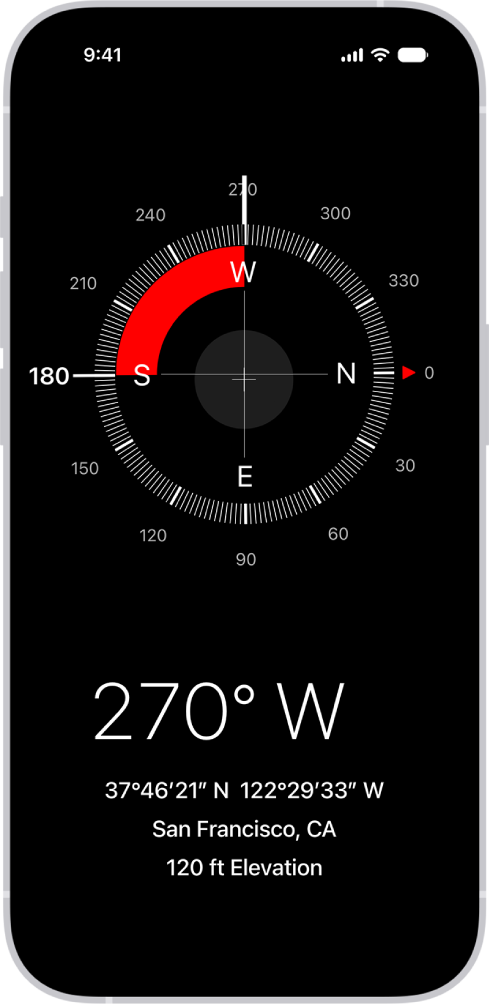
The Compass app shows you the direction iPhone is pointing in, your current location, and the elevation.

For accurate bearings, you hold iPhone flat. And to see your location, you allow Compass to access it.

Here’s how to use the compass on iPhone.

The Compass screen showing the direction iPhone is pointing in, the current location, and the elevation.

Note: Your coordinates and elevation may not be available in certain countries or regions.

See your bearings, coordinates, and elevation

Your bearings, coordinates, and elevation are shown on the screen.

  1. Start the Compass app on your iPhone.
  2. For accurate bearings, hold iPhone flat to align the crosshairs at the center of the compass.
  3. To lock your current direction, tap the compass dial.

A red band appears when you’re off course.

To open your location in Maps, tap the coordinates.

Allow Compass to access your location

If your location isn’t available in Compass, make sure you’ve turned on Location Services.

  1. Start the Settings app on your iPhone.
  2. Tap Privacy & Security and tap Location Services. Turn on Location Services.
  3. Tap Compass, then tap While Using the App.

Important: The accuracy of the compass can be affected by magnetic or environmental interference. Use the digital compass only for basic navigation assistance. Don’t rely on it to determine precise location, proximity, distance, or direction.

Tag: Compass

When you’re on a video call in the FaceTime app, you can take a FaceTime Live Photo to capture a moment of your conversation (not available in all countries or regions). The camera captures what happens just before and after you take the photo, including the audio, so you can see and hear it later just the way it happened.

You can take one during a one-to-one call or a Group FaceTime call, as long as FaceTime Live Photos is on.

Note: Check that FaceTime Live Photos is turned on in Settings > Apps > FaceTime.

  1. During a video call in the FaceTime app, tap the screen to show the FaceTime controls (if they aren’t visible).
  2. Do one of the following:
    • During a call with one other person: Tap the Take Live Photo button.
    • During a Group FaceTime call: Tap the tile of the person you want to take a picture of. Then tap the Take Live Photo button.

Once the photo’s taken, you both get a notification, and the Live Photo is saved in your Photos app.

In the Notes app, you can use tags as a fast and flexible way to categorize and organize your notes. You can add one or more tags to a note, such as #shopping and #work, and easily search and filter your notes across folders using the Tag Browser or Smart Folders.

Adding a tag is simple: it starts with #, followed by the tag name, and the tag turns yellow when it’s active.

Add tags to notes

To add a tag to a note, type # followed by the tag name, then add a space after the tag to activate it. Active tags turn yellow. You can also choose an existing tag from the menu above the keyboard. Tags must be one word, but you can use dashes and underscores to combine words. If you save a note without activating your tag, it won’t be saved as a tag. You can add multiple tags to a note. Tip: You can use your finger to handwrite a tag in a note. Tap the underlined tag, then tap Convert to tag.

View notes with tags

Under the Tags section at the bottom of the folders list, you can do any of the following:

  • View all notes with tags: Tap All Tags.
  • View notes with specific tags: Tap one or more tags. To exclude a tag, tap the tag until the name has a line through it.

Rename or delete a tag

To rename or delete a tag, do any of the following:

  • Below the Tags section at the bottom of the folders list, touch and hold a tag, then tap Rename Tag or Delete Tag.
  • Tap Edit (at the top of the folders list), scroll down to the tags, then tap a tag to rename it or tap the Delete button. When you delete a tag, it’s also removed from all Smart Folders that use it.
Tag: Notes

Apple Intelligence delivers intelligence that is relevant for you and grounded in your personal context while protecting your privacy. In many cases, Apple Intelligence models run entirely on device, so a task can be completed without data leaving your iPhone.

For more complex requests that require more computational capacity, Apple Intelligence can use Private Cloud Compute, which extends the privacy and security of your Apple products like iPhone into the cloud. Private Cloud Compute uses larger, server-based models, but your data isn’t stored there or made accessible to Apple. It’s processed only to fulfill your request, the results are returned securely to your device, and nothing is retained by Private Cloud Compute.

And you don’t have to take Apple’s word for it. Independent privacy and security researchers can verify this privacy promise at any time, and you can generate a report of the requests your iPhone has sent to Private Cloud Compute.

Note: Apple Intelligence on iOS 27 or later is available on an Apple Intelligence-enabled iPhone 15 Pro, iPhone 15 Pro Max, or iPhone 16 model or later. Apple Intelligence is not available in all languages or regions. Usage limits may apply.*

About Private Cloud Compute

When a user makes a request, Apple Intelligence analyzes whether it can be processed on device. For more complex requests, it can draw on Private Cloud Compute, which extends the privacy and security of your iPhone into the cloud. With Private Cloud Compute, only the data that is relevant to your request is processed on Apple silicon servers, before being removed. The data being processed in Private Cloud Compute is not stored or made accessible to Apple.

It is processed only to fulfill your request, after which point the results are returned securely to your device and are not retained by Private Cloud Compute. Independent privacy and security researchers can inspect the code that runs on Apple silicon servers that enable Private Cloud Compute to verify this privacy promise at any time.

The Apple silicon servers that form the foundation of Private Cloud Compute provide unprecedented cloud security, Apple says. This starts with the Secure Enclave, which protects critical encryption keys on the server just as it does on a user’s iPhone, while Secure Boot ensures the OS running on the server is signed and verified, just like in iOS.

Trusted Execution Monitor makes sure only signed and verified code runs, and attestation enables a user’s device to securely verify the identity and configuration of a Private Cloud Compute cluster before sending a request. And to verify Apple’s privacy promise, independent experts can inspect the software that runs on Private Cloud Compute servers.

Note: Private Cloud Compute isn’t available in all regions.

Create an Apple Intelligence Report

Want to see what your iPhone has sent to Private Cloud Compute? You can generate a report of those requests.

  1. Start the Settings app on your iPhone.
  2. Tap Privacy & Security.
  3. Tap Apple Intelligence Report. Then choose a report duration for the last 15 minutes (default) or last 7 days. Choose off to disable the report. Note: The report may be empty if there haven’t been any Private Cloud Compute requests since you changed the duration.
  4. Tap Export Activity and choose a place to store the file. Tap Export. The report is saved as a file named Apple_Intelligence_Report.json.
  5. Open the file with a text reader.

*Apple Intelligence is available with Siri and device language set to Chinese (Simplified), Chinese (Traditional), Danish, Dutch, English, French, German, Italian, Japanese, Korean, Norwegian, Portuguese, Spanish, Swedish, Turkish, or Vietnamese. Some features may not be available in all regions or languages. Some devices may not be available in all regions. Siri AI is available in beta in iOS 27, iPadOS 27, macOS 27, watchOS 27, and visionOS 27 and requires an Apple Intelligence–enabled device set to a supported language. Available in English to start. Siri AI will not be initially available in the EU on iOS, iPadOS, and watchOS. Certain Apple Intelligence features that rely on server-side models are subject to daily usage limits, including but not limited to Siri AI, Intelligent Photo Editing Tools, Image Playground, and AFM 3 Cloud models in Shortcuts. Daily limits may vary by feature, request complexity, system demand, system policies, and other factors. Expanded access to such features will be available for a fee in the future. Use of these features is subject to the Apple Intelligence Terms and Conditions.


In the Photos app, you can create a slideshow to view a selection of photos and videos that you choose from your photo library. You can also turn any album or collection into a slideshow. Slideshows are automatically formatted and set to music.

You can still make it your own. As the slideshow plays, you can change the transition style, speed, and time per slide, choose a song, or play it on loop.

Make a slideshow from selected photos

  1. Open the Photos app on your iPhone.
  2. Tap Library.
  3. Tap Select and tap each item you want to include.
  4. Tap the More button, then tap Start Slideshow.
  5. As the slideshow plays, tap the screen to do any of the following:
    • Change the transition style, speed, and time per slide: Tap Customize and tap Transition & Duration.
    • Choose a song: Tap Customize, tap Music, and then tap Choose Song.
    • Mute the song: Tap the Mute button.
    • Play on loop: Tap Customize and tap Loop.
    • Share: Tap the More button, tap Share, and select a sharing option such as Messages or Mail.
    • Play on a connected AirPlay device: Tap the More button and tap AirPlay. Select a device.

Make a slideshow from an album or collection

  1. Open the Photos app on your iPhone.
  2. Tap Collections.
  3. Open any album or collection and tap the More button. Tap Start Slideshow.
Tag: Photos

You can easily check the day’s top and trending stories from the News app, as well as stories about a topic of your choosing, right from the Today or Topic widget. Any story headline in the widget opens the story in News, so you can read it in full.

Access stories from News widgets

In the Today or Topic widget, tap a story headline to open the story in News.

Tag: News