Got a tip for us?

iPhone

The iPhone is a smartphone from Apple that runs the iOS mobile operating system. Between its apps, communication features, the camera, mobile internet access, and other functionalities, the iPhone has quickly become an integral part of many peoples tech lives.

You can register to be an organ, eye, or tissue donor with Donate Life America. If you later change your decision, you can remove your registration. Your decision to donate is accessible to others in your Medical ID.

Not sure yet? The Health app has an overview of organ donation and Donate Life America, and you can change your donor information or remove your registration later. You’ll find it all in Organ Donation.

Learn about organ donation

  1. Open the Health app on your iPhone.
  2. Tap Summary, then tap your picture or initials.
  3. Tap Organ Donation and tap Learn More for an overview of organ donation and Donate Life America.

Register with Donate Life America

  1. Open the Health app on your iPhone.
  2. Tap Summary, then tap your picture or initials.
  3. Tap Organ Donation and tap Sign Up with Donate Life.

To later change your donor information or remove your registration, tap your picture or initials, tap Organ Donation, then tap Edit Donor Registration.

Tag: Health

You can create a passcode that you must enter before changing Screen Time settings you selected for yourself. After you set a passcode, you can change or remove it later in Settings.

It’s a four-digit passcode. And if you set up Screen Time Passcode Recovery, you can use your Apple Account to reset it if you ever forget it.

Here’s how to create, change, or remove a Screen Time passcode on iPhone.

Create a Screen Time passcode

Before you change the settings you’ve chosen for yourself, you can choose to enter a Screen Time passcode.

  1. Open the Settings app on your iPhone.
  2. Tap Screen Time, tap Manage Screen Time, and then tap Lock Screen Time Settings.
  3. Enter a four-digit passcode and then enter the passcode again to verify it.

Note: You can also set up Screen Time Passcode Recovery after setting a passcode for yourself. That way, if you ever forget your Screen Time passcode, your Apple Account can be used to reset it.

Change a Screen Time passcode

  1. Open the Settings app on your iPhone.
  2. Tap Screen Time and tap Change Screen Time Passcode. Tap Change Screen Time Passcode.
  3. Enter your current passcode, enter a new four-digit passcode, and then enter the new passcode again to verify it.

Remove a Screen Time passcode

  1. Open the Settings app on your iPhone.
  2. Tap Screen Time, tap Change Screen Time Passcode, select Turn Off Screen Time Passcode, and enter your current passcode.

You can change Magic Keyboard options for autocorrection, autocapitalization, and more. When Auto-Capitalization is on, an app supporting this feature can capitalize proper nouns and the first words in sentences as you type, and with Auto-Correction, it corrects the spelling as you type. There’s also a “.” Shortcut option.

Go to Settings > General > Keyboard > Hardware Keyboard, then do any of the following:

  • Turn Auto-Capitalization on or off: When this option is selected, an app supporting this feature capitalizes proper nouns and the first words in sentences as you type.
  • Turn Auto-Correction on or off: When this option is selected, an app supporting this feature corrects the spelling as you type.
  • Turn “.” Shortcut on or off: When this option is selected, double-tapping the space bar inserts a period followed by a space.
  • Change the action performed by the Command key or other modifier key: Tap Modifier Keys, tap a key, then choose the action you want it to perform.

With Eye Tracking, you can control iPhone using just your eyes. An onscreen pointer follows the movement of your eyes, and when you hold your gaze steady on an item—or dwell—you perform an action, such as a tap. All data used to set up and control Eye Tracking is processed on device.

It uses the built-in, front-facing camera, and you need to calibrate it every time you turn it on.

Before you begin

Eye Tracking relies on the built-in, front-facing camera on iPhone, so for the best results, make sure the camera has a clear view of your face and your face is adequately lit. Your iPhone should sit on a stable surface about a foot and a half from your face.

On supported iPhone models, Eye Tracking is available.

Turn on Eye Tracking

  1. Open Settings, tap Accessibility, tap Eye Tracking, and then turn on Eye Tracking.
  2. Follow the onscreen instructions to calibrate Eye Tracking. As a dot appears in different locations around the screen, follow its movement with your eyes.

Note: You need to calibrate Eye Tracking again each time you turn it on.

Use Eye Tracking

When you’ve turned on and calibrated Eye Tracking, iPhone follows the movement of your eyes. By default, an outline appears around an item on the screen when you look at it.

If Snap to Item is turned off, when you hold your gaze steady at a location on the screen, the dwell pointer appears where you’re looking and the dwell timer begins (the dwell pointer circle starts to fill). When the dwell timer finishes, an action—tap, by default—is performed.

Use the AssistiveTouch menu to perform additional onscreen gestures or physical button presses.

Recalibrate Eye Tracking

Changing the position of your face or your iPhone automatically starts Eye Tracking calibration if recalibration is needed, but you can also start calibration manually.

  1. Look at the top-left corner of your screen and hold your gaze steady.

    The dwell pointer appears and the dwell timer begins (the dwell pointer circle starts to fill). When the dwell timer finishes, Eye Tracking calibration starts.

  2. Follow the onscreen instructions to calibrate Eye Tracking. As a dot appears in different locations around the screen, follow its movement with your eyes.

To start recalibration, you need to look at a corner of the screen. You can change which corner that is, or assign actions to the other corners.

Set options for Eye Tracking

The Eye Tracking pointer has options you can set for how it responds to your gaze.

  1. Open Settings, tap Accessibility and tap Eye Tracking. Adjust any of the following:
    • Smoothing: Increase this value to make the movement of the pointer smoother. Or decrease this value to make the pointer more responsive.
    • Snap to Item: Have the Eye Tracking pointer automatically move to the item on the screen that’s closest to where you’re looking.
    • Zoom on Keyboard Keys: When you dwell on the keyboard, zoom in on the section of the keyboard you’re looking at. Dwell again on a key to tap it.
    • Auto-Hide: Show the Eye Tracking pointer when you hold your gaze steady for the amount of time specified. The pointer automatically fades while your eyes are moving.
    • Dwell Control: Turn Dwell Control on or off.
    • Show Face Guidance: Turn Show Face Guidance on or off to get help adjusting how you’re positioned.

To change the size or color of the Eye Tracking pointer, go to Settings > Accessibility > Pointer Control.

AirDrop lets you securely share passwords and passkeys for website and app accounts with someone using an iPhone, iPad, or Mac. Compared to sharing other types of information, though, AirDrop has more stringent requirements for passwords and passkeys. iCloud Keychain must be set up, and you each need to be in the other’s contacts.

Check the AirDrop requirements

For passwords and passkeys, AirDrop has more stringent requirements than it does for sharing other types of information.

  • iCloud Keychain must be set up on your iPhone.
  • The person youʼre sharing with must be in your contacts list in the Contacts app, and they must be listed with the email address they use for iCloud.
  • You must be in the other person’s contacts list in the Contacts app, and you must be listed with the email address you use for iCloud.

Send a password or passkey

If the person you’re sharing with is on iPhone or iPad, ask them to open Control Center and allow AirDrop to receive items. Someone on a Mac needs to allow themselves to be discovered in AirDrop in the Finder.

  1. Start the Passwords app on your iPhone.
  2. Tap All. Tap the account you want to share.
  3. Tap the Share button, then tap Share with AirDrop.
  4. Tap the device or picture of the person you want to send the password or passkey to.

Receive a password or passkey

  1. If you haven’t already done so, allow AirDrop to receive items.
  2. When you receive a request to accept a password or passkey from someone else, tap Accept.

Your iPhone saves the password or passkey, where you can see its information, and iPhone can automatically fill it in on the account’s sign-in screen. It’s saved to your iCloud Keychain, too, which makes it available on other devices where you’re signed in to your Apple Account.

You can use pins to mark places so you can more easily find those locations later.

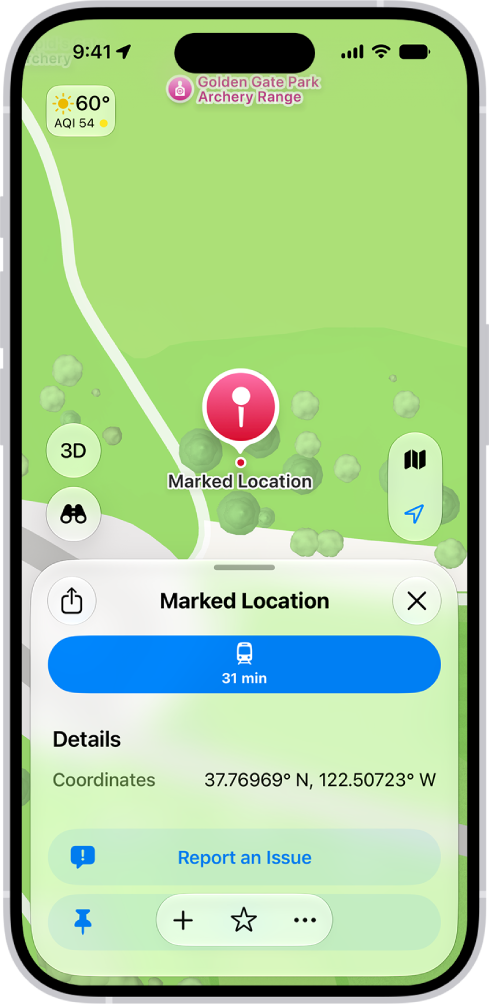
You can drop a pin to share a location, or to start or end your route at a spot that isn’t already marked on the map. Only one pin shows at a time, unless you save your pins to your Places. You can also share a pin, or get the latitude and longitude of a pin.

A map showing a dropped pin in a park. Below it, buttons to get directions to the pin, download its surrounding area, or move it appear.

Drop a pin

Drop a pin to start or end your route somewhere that isn’t already marked on the map, or to share a location with someone else.

Unless you save them to your Places, only one pin appears at a time.

  1. Open the Maps app on your iPhone.
  2. Touch and hold the map until a pin marker appears.
  3. To refine the location, tap Move and then drag the map.

    Tap Pin.

If you want to mark several places with pins, save each one as you drop it.

When you open the Maps app, your pins appear as a row of icons in your Places.

To get directions to the pin, tap the pin, then tap the directions button.

Quick tip: You don’t need the Maps app open to note your current location. Touch and hold the Maps icon on the Home Screen and choose Mark My Location.

Share a pin

  1. Open the Maps app on your iPhone.
  2. Do one of the following:
    • Touch and hold the map until a pin marker appears, then tap the Share button (at the top of the card).
    • Tap Places, tap Pinned, swipe left on the pin, then tap Share.
  3. Choose how you want to share it.

Get the latitude and longitude of a pin

  1. Open the Maps app on your iPhone.
  2. Tap Places, tap Pinned, and then tap the pin.
  3. Swipe up to Coordinates.
  4. Touch and hold the coordinates and then tap Copy.

Edit a pin

  1. Open the Maps app on your iPhone.
  2. Tap Places, then tap Pinned.
  3. Tap the Info button. Then do any of the following:

Note: If your Home, Work, or School address changes after you’re prompted to sync Maps to My Card, update it in both Maps and Contacts as needed.

Remove a pin

  1. Open the Maps app on your iPhone.
  2. Tap Places, then tap Pinned.
  3. Swipe left on the pinned location, then tap Delete.

You can also tap the Info button, then tap Unpin.

Tag: Maps

You can use Magic Keyboard, including Magic Keyboard with Numeric Keypad, to enter text on iPhone. Magic Keyboard connects to iPhone using Bluetooth®.

Make sure the keyboard is turned on and charged first. There’s one more thing to check. If Magic Keyboard is already paired with another device, you need to unpair them before you can connect it to your iPhone. And once it’s paired, you can reconnect Magic Keyboard to iPhone later.

Pair Magic Keyboard

  1. Make sure the keyboard is turned on and charged.
  2. On iPhone, open Settings and tap Bluetooth. Then turn on Bluetooth.
  3. Select the device when it appears in the Other Devices list.

Note: If Magic Keyboard is still paired with another device, you must unpair them first, then you can connect Magic Keyboard to your iPhone. Use one of these options:

  • On macOS 13 or later: Choose Apple menu > System Settings, click Bluetooth in the sidebar, Control-click the device, then choose Forget.
  • On macOS 12.5 or earlier: Choose Apple menu > System Preferences, click Bluetooth, Control-click the device name, then click Remove.

Reconnect Magic Keyboard to iPhone

If you turn its switch to Off, or move Magic Keyboard or iPhone out of Bluetooth range (about 33 feet, or 10 meters), the keyboard disconnects.

To reconnect, turn the keyboard switch to On, or bring the keyboard and iPhone back into range, then tap any key.

In the Photos app, you can find collections of photos and videos organized by media type. For example, browse all your Portrait mode photos or time-lapse videos in one place, in Media Types.

It’s easy to make it yours. The list of media types can be reordered, so the ones you access most often are easy to find, and to quickly locate your favorite media type, you can add it to the Pinned collection.

Browse photos and videos by media type

  1. Open the Photos app on your iPhone.
  2. Tap Collections, scroll down, and then tap Media Types.
  3. Tap the type of photo or video you want to view.

Quick tip: Add your favorite media type to the Pinned collection to locate it quickly.

Reorder media types

Reordering the list of media types makes the ones you access most often easier to find.

  1. Open the Photos app on your iPhone.
  2. Tap Collections, scroll down, and then tap Media Types.
  3. Tap Edit, touch and hold the collection you want to move, and then drag it to a new position. To undo your changes, tap Reset.
  4. Tap the Done button.
Tag: Photos

When you travel with iPhone, choose settings that comply with airline requirements. Some airlines let you keep your iPhone turned on if you switch to Airplane Mode.

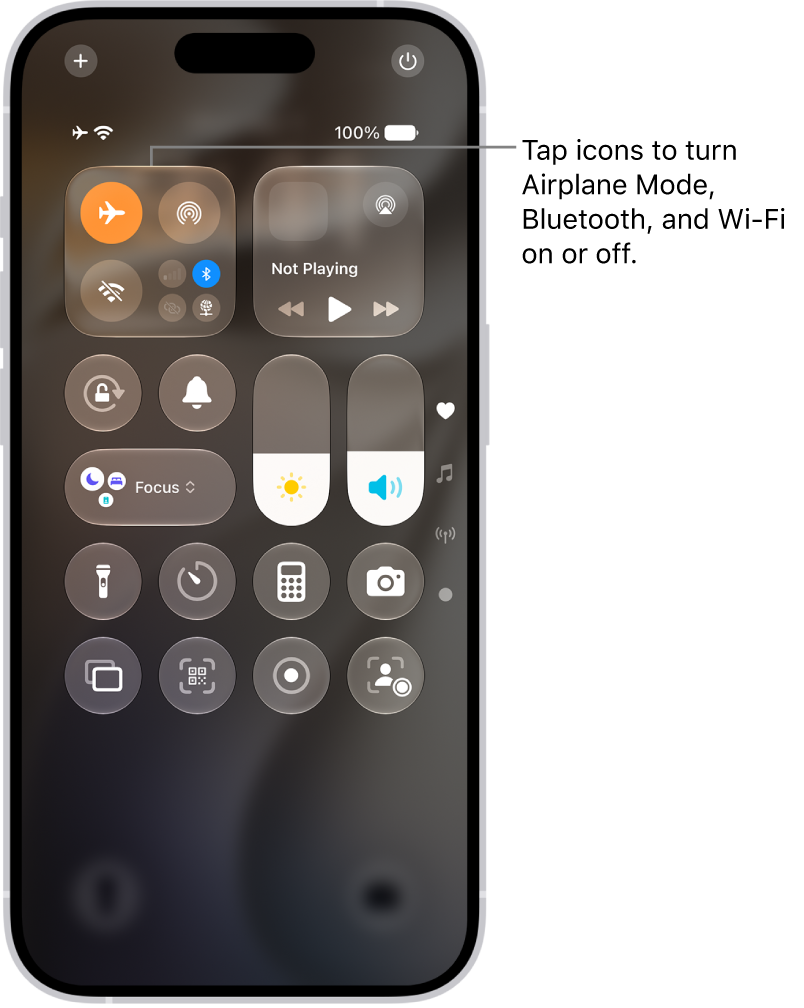
Turning on Airplane Mode switches off Wi-Fi, Bluetooth®, and cellular networks at first, but you can turn them back on even while it’s on. That way, you can make or receive FaceTime calls or use features and accessories that require wireless communication. When Airplane Mode is on, its icon shows up in the status bar at the top of your screen.

Turn on Airplane Mode

Open Control Center, then tap the Airplane Mode Switch button.

The Control Center screen showing that tapping the top-left button turns on Airplane Mode.

In Settings, you can also turn Airplane Mode on or off. The Airplane Mode icon appears in the status bar while it’s on.

Turn on Wi-Fi or Bluetooth while in Airplane Mode

Wi-Fi or Bluetooth can be used in Airplane Mode if your airline allows it.

  1. Open Control Center, then turn on Airplane Mode.
  2. Tap the Wi-Fi Switch button to turn on Wi-Fi or the Bluetooth Switch button to turn on Bluetooth.

Turning on Wi-Fi or Bluetooth in Airplane Mode means it may stay on when you next return to Airplane Mode. Control Center lets you turn it off again.

Tag: Phone

With your iPhone nearby, you’ll never miss a chance to take a photo, record a video, or snap a selfie. After you take photos, use the editing tools in the Photos app to crop, adjust the light and color, and much more.

You can open Camera right from the Lock Screen, and it automatically focuses the shot and adjusts the exposure for you. You can capture photos in low light, too.
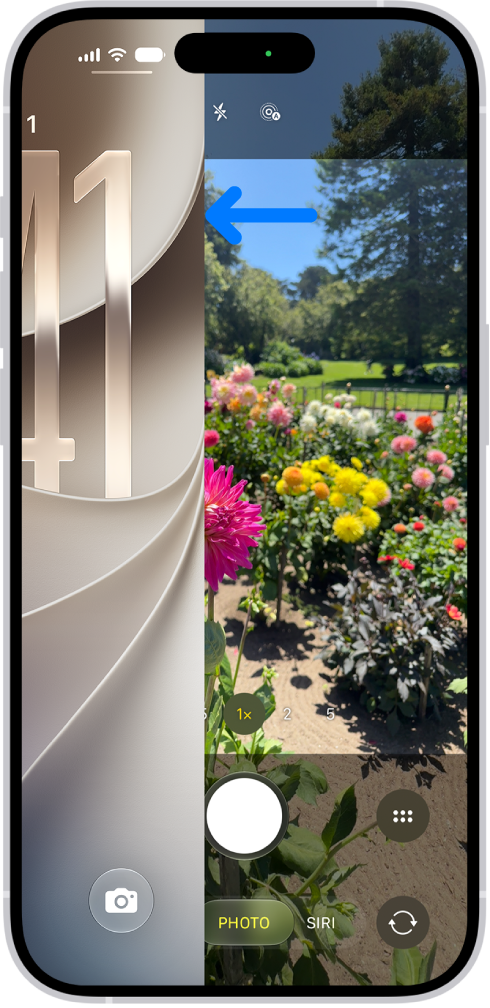
The iPhone screen showing the Lock Screen sliding to the left and the Camera open on the right side of the screen.

Capture the moment

To quickly open Camera , just swipe left on the Lock Screen. Camera automatically focuses the shot and adjusts the exposure. Tap the Shutter button to take a photo.

On supported models, click the Camera Control to open Camera, then click it again to take a photo.
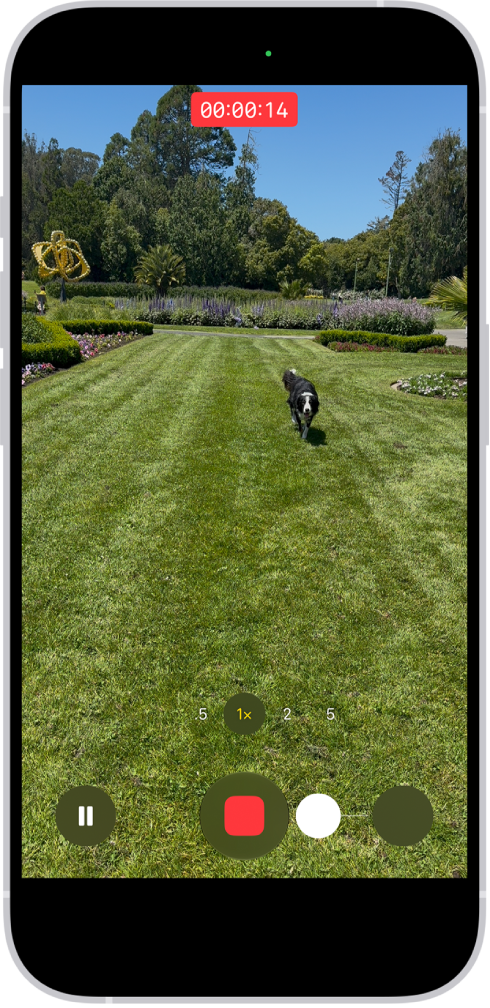
The camera frame fills the screen. At the bottom of the screen, the Shutter button moves to the right, demonstrating the movement of starting a QuickTake video.

Record video on the go

After you open Camera , tap Video to switch to Video mode, then tap the Record button to start a recording. Or stay in Photo mode and just touch and hold the Shutter button to start recording, then release the button to stop recording.

On supported models, click the Camera Control to open Camera, then click and hold the Camera Control to start a recording.
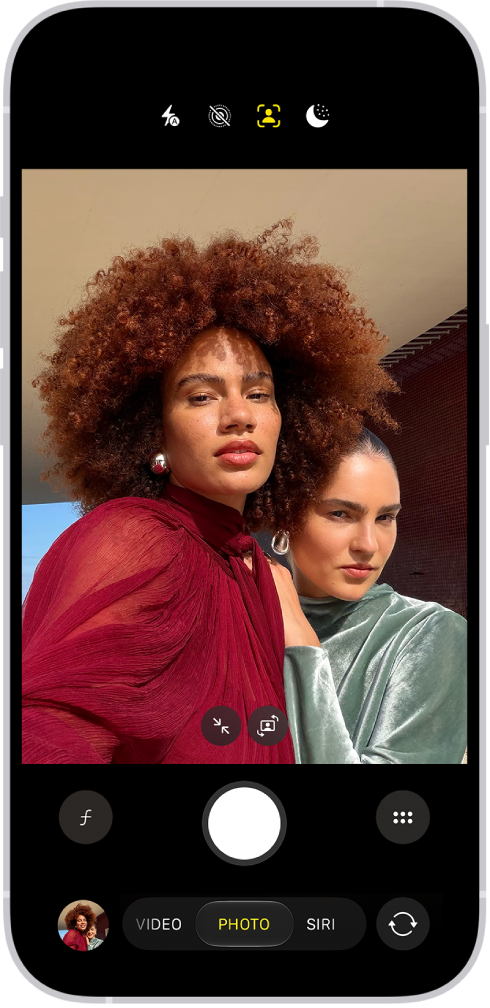
The Camera screen in Photo mode. Within the camera frame, the subjects are taking a selfie.

Snap the perfect selfie

To take a selfie, open Camera , then tap the Camera Chooser Back-Facing button. Hold your iPhone in front of you, then tap the Shutter button or press either volume button to take the selfie.

To fit more people in a selfie, the camera frame on supported models can automatically enlarge or rotate.
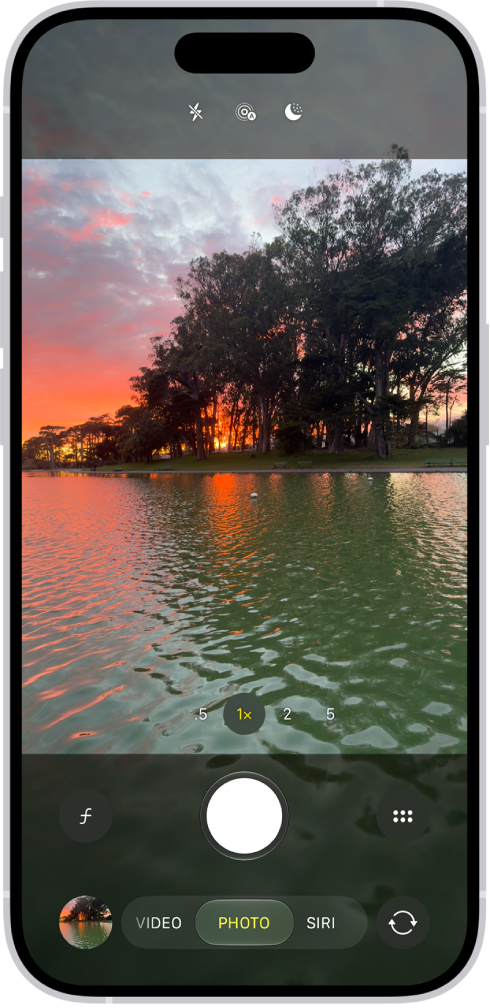
The Camera screen in Photo mode, with controls to capture a photo in low light.

Capture photos in low light

Night mode automatically improves photos taken in low light on supported iPhone models. When you see the Night Mode Off button, Night mode is on. Tap the Shutter button, then hold your iPhone steady for the best results.
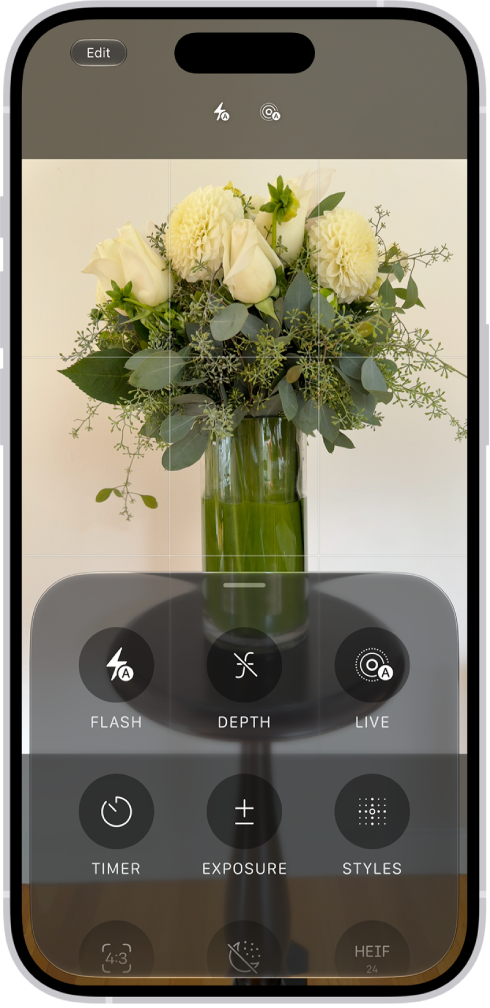
The Camera in Photo mode. At the bottom of the screen are buttons for the following camera controls: Flash, Live, Timer, Exposure, Styles, and Aspect.

Adjust camera controls

When Camera is open, you can quickly make adjustments to features like Flash or Exposure. Just tap the Camera Controls button, then tap any feature to adjust its settings and improve your shot.
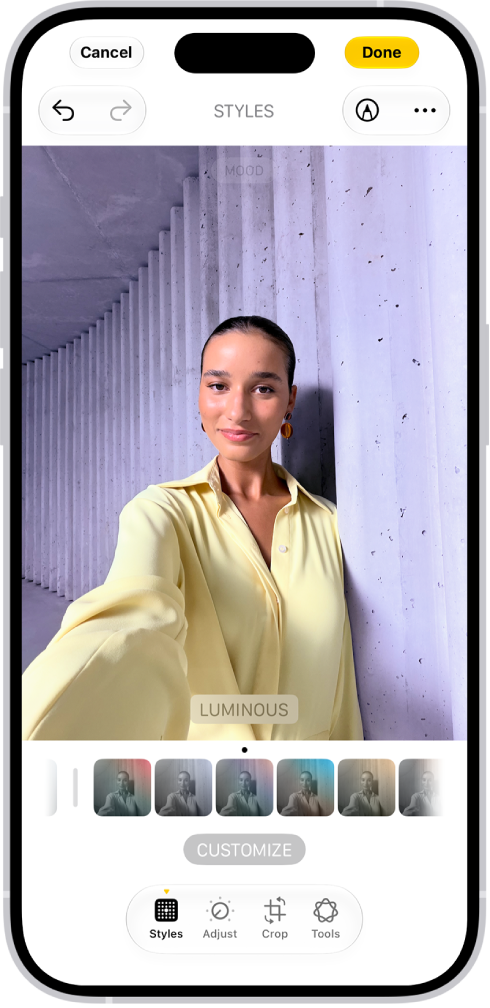
The edit screen in the Photos app.

Add the final touches

After you take a photo or video, use the editing tools in the Photos app to make it even better. Open a photo or video, tap the Edit button, then tap the buttons to adjust lighting, add a filter, crop, or rotate. As you make edits, tap the photo to compare your changes to the original.

If you want more, check out the Camera and Photos chapters.

Not all features, Apple says, are available for all iPhone models.

Tag: Photos