Got a tip for us?

iPhone

The iPhone is a smartphone from Apple that runs the iOS mobile operating system. Between its apps, communication features, the camera, mobile internet access, and other functionalities, the iPhone has quickly become an integral part of many peoples tech lives.

You can filter and sort photos and videos in the albums you create in the Photos app. For example, you can filter an album to show only photos, only videos, or photos and videos you marked as favorites.

Sorting works from the same button. You can sort photos and videos in an album by newest to oldest, oldest to newest, or in a custom order, and when you’re done with a filter, you can remove it from the album.

Here’s how to filter and sort photos and videos in albums on iPhone.

Filter photos and videos in an album

  1. Open the Photos app on your iPhone.
  2. Tap Collections and tap Albums.
  3. Tap an album to open it.
  4. Tap the Sort and Filter button, tap Filter, and choose an option.

To remove a filter from an album, tap the icon that replaced the Sort and Filter button at the bottom of the screen, then tap Remove Filter.

Sort photos and videos in an album

  1. Open the Photos app on your iPhone.
  2. Tap Collections and tap Albums.
  3. Tap an album to open it.
  4. Tap the Sort and Filter button. Choose a sort option.

If you choose Sort by Custom Order, touch and hold the photo or video thumbnail, then drag it into a new position.

Tag: Photos

The first time you use the Home app, the setup assistant helps you create a home, where you can add accessories and define rooms. If you’ve already created a home while setting up a different accessory, you won’t need to create one again.

Before you add an accessory, like a light or camera, make sure it’s connected to power and turned on. You can also show accessories in a room and change an accessory’s room assignment.

Add an accessory to Home

Before you add an accessory such as a light or camera, check that it’s connected to a power source, turned on, and connected to a network.

  1. Open the Home app on your iPhone.
  2. Tap Home, then tap Add Accessory.

You can also tap the Add button, then choose Add Accessory.

  1. If you’re pairing a Matter accessory that was previously paired to another app, tap More options and then select your accessory.

    Open the accessory’s app, then generate a pairing code, which will be used to complete pairing with the Home app.

  2. Follow the onscreen instructions.

Note: For Thread-based accessories, you need a Thread-enabled home hub like Apple TV 4K, HomePod (2nd generation), or HomePod mini, or else a compatible third-party Thread border router. Any Thread-enabled iPhone devices can pair and manage Thread accessories locally too, but that may require an update from the accessory manufacturer.

You might need to scan a QR code, or enter a code: an 8-digit Apple Home setup code, which you’ll find on the accessory itself or on its box or documentation, or an 11 or 21-digit code for Matter-enabled accessories. A QR code to scan appears on an Apple Home-supported smart TV. Once you assign the accessory to a room and give it a name, you can use that name when controlling the accessory with Siri. During setup, you can add suggested automations, too.

When you set up Apple TV 4K in tvOS, you can assign it to a room, and the Home app on iPhone then shows it in that room automatically.

Paired Matter accessories are synced across devices and stored in the Settings app using iCloud Keychain, regardless of which app you used to set them up. You can easily add a previously paired accessory that’s stored in Keychain to another Matter ecosystem app. To manage these accessories, go to Settings > General, then tap Matter accessories.

Show accessories in a room

Along with individual rooms and the scenes assigned to them, you can show a room’s accessories organized by category.

In Room View, do one of the following.

  • Tap > next to a room’s name.
  • Tap the More button, then choose a room.

Change an accessory’s room assignment

  1. Open the Home app on your iPhone.
  2. Touch and hold an accessory tile and tap Accessory Settings.
  3. Tap Room and choose a room.

Edit a room

Besides removing a room, you can change its name and wallpaper, and more. Remove the room, and the accessories assigned to it move to Default Room.

  1. Open the Home app on your iPhone.
  2. On the Home tab, tap > next to a room, or tap the More button and choose a room.
  3. Tap the More button and tap Room Settings.

Organize rooms into zones

Grouping rooms into a zone makes it easy to control different areas of your home with Siri. In a two-story home, for example, you could assign the rooms on the first floor to a downstairs zone.

  1. Open the Home app on your iPhone.
  2. Tap > next to a room on the Home tab or tap the More button and choose a room.
  3. Tap the More button and tap Room Settings.
  4. Tap Zone and then tap an existing zone, or tap Create New to add the room to a new zone.

Tag: Home

You can see the previous versions of a password for a website or app, along with the dates they were changed. You can also clear the history of changes. The history of changes also shows whether you shared the password with anyone using AirDrop, or if you shared or unshared it with a shared password group. You’ll find it in the Passwords app, under each website or app account in your list.

  1. Start the Passwords app on your iPhone.
  2. Tap All.
  3. Locate and tap the website or app account.
  4. Tap View History.

The history of changes also shows if you shared the password with anyone using AirDrop, and if you shared or unshared the password with a shared password group. To show the password, tap the Password button. To remove the list of changes, tap Clear, then tap Clear to confirm.

Tag: Safari

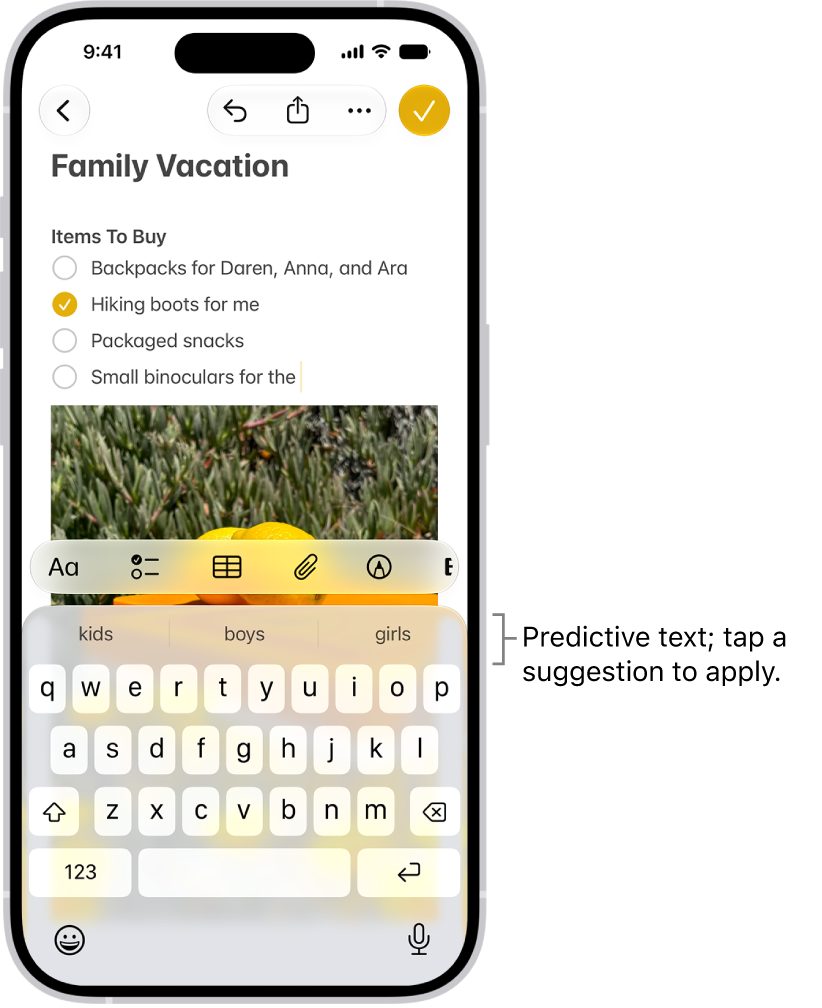
Using predictive text, you can write and complete entire sentences with just a few taps. As you type on the iPhone keyboard, you see choices for words, emoji, and information that you’d probably type.

It can fill in details about you, too. In Messages, for example, try typing something like:

  • “I’m at” followed by a space, your current location appears as an option
  • “My number is” followed by a space, your phone number appears as an option

Predictions that complete your word or phrase appear inline as you’re typing.

Note: Predictive typing and inline predictions may not be supported in your language.

Accept or reject inline text predictions

Predictions that complete the word or phrase you’re typing show up inline in gray text as you type. Then you can do one of the following:

  • Accept the prediction: Tap the Space bar.
  • Reject the prediction: Keep typing.
  • Change a prediction you accepted: Tap the Delete key, then tap the word you were in the process of typing.

Accept or reject suggested text and information

As suggested words, emoji, and information appear above the onscreen keyboard while you type, you can do one of the following:

  • Accept a suggestion: Tap a suggestion to apply it.
  • Reject the suggestions: Tap your original word (shown as the option in quotation marks), or just continue to type.

The onscreen keyboard is open in the Messages app. Text is entered in the text field and above the keyboard are predictive text suggestions for the next word.

Turn suggestions and inline text predictions off or on

  1. While using the keyboard, touch and hold the Emoji button or the Switch Keyboard key.
  2. Tap Keyboard Settings and then do any of the following:
    • Stop (or start) seeing suggestions above the keyboard: Turn Predictive Text off (or on).
    • Stop (or start) seeing predicted text inline: Turn Show Predictions Inline off (or on).

Note: When you turn off the Predictive Text setting, both predictive text and inline text predictions turn off.

Accept and reject a correction

When you turn off Predictive Text, corrections for misspelled words may still appear. To handle them, do one of the following:

  • Accept a correction: Enter a space or punctuation, or tap Return.
  • Reject a correction: Tap the “x.”

If you reject the same suggestion a few times, iPhone stops suggesting it.

In the Notes app, you can organize your notes into folders and pin the important notes to the top of the notes list.

Folders can hold subfolders, too. You can nest one folder inside another, and create new folders whenever you need them. You can also rename, move, or delete folders, sort and change the folder view, and move a note to another folder.

Here’s how to organize your notes in folders on iPhone.

Create, rename, move, or delete folders

  1. Open the Notes app on your iPhone.
  2. In the folders list (if necessary, tap the Back button to show the folders list), do any of the following:

    • Create a folder: Tap the New Folder button, choose an account (if you have more than one), tap New Folder, and then enter a name.
    • Create a subfolder: Touch and hold a folder and then drag it onto another folder.
    • Rename a folder: Touch and hold a folder, tap Rename, and then enter a new name.
    • Move a folder: Touch and hold the folder and drag it to a new location. The folder becomes a subfolder if you drag it onto another folder.
    • Delete a folder: Swipe left on the folder and then tap the Delete Folder button. Or touch and hold the folder and then tap Delete.

    If you change your mind, open the Recently Deleted folder to recover the notes.

Pin notes

Pin an important note to keep it at the top of the notes list.

  1. Open the Notes app on your iPhone.
  2. In the notes list, touch and hold the note and then tap Pin Note. Or swipe right on the note and then tap the pin.

Sort and change the folder view

  1. Open the Notes app on your iPhone.
  2. In the notes list, tap the Folder Actions button and then do any of the following:

    • Change the folder view: Choose View as Gallery or View as List.
    • Sort the notes by title or date: Tap Sort By, then choose an option. By default, the notes are grouped by date. To turn this off, tap the Folder Actions button and tap Group By Date. Choose an option.
    • Reverse the sort order: Tap Sort By. Choose Oldest First (when sorting by date) or Descending (when sorting by title).

    To choose a default sorting method for all your folders, go to Settings > Apps > Notes, then tap Sort Notes By.

Move a note to another folder

  1. Open the Notes app on your iPhone.
  2. In the notes list, do one of the following:
    • Swipe left on the note, then tap the Move Folder button.
    • Touch and hold the note, tap Move, then choose a folder.

Delete a note

  1. Open the Notes app on your iPhone.
  2. In the notes list, do one of the following:

    • Swipe left on the note, then tap the Delete button.
    • Touch and hold the note, then tap Delete.

    If you change your mind, open the Recently Deleted folder to recover the note.

Tag: Notes

You can assign distinctive ringtones to certain people, and turn the ringer on or off. A contact’s ringtone is set in Contacts, when you edit the contact. And on models with an Action button, you can turn the ringer on or off from Control Center.

Assign a different ringtone to a contact

  1. Open the Contacts app on your iPhone.
  2. Select a contact, tap Edit, tap Ringtone, and then choose a ringtone.

Turn the ringer on or off

  • On models with an Action Button: Open Control Center, then tap the Mute Switch button. You can also configure the Action Button to turn the ringer on or off.
  • On other models: Flip the Ring/Silent switch to turn Silent mode on or off.

Even with Silent mode turned on, Clock alarms still play. To silence incoming calls temporarily, turn on or schedule a Focus. And you can change the default sound for a call, text, voicemail, email, reminder, or other notification.

Lockdown Mode is an extreme protection feature for iPhone. Its protections include safer wireless connectivity defaults, media handling, media sharing defaults, sandboxing, and network security optimizations.

Lockdown Mode is optional and should be used only if you believe you might be targeted by a highly sophisticated cyberattack, such as by a private company developing state-sponsored mercenary spyware. When iPhone is in Lockdown Mode, apps, websites, and features are strictly limited for security.

Here’s how to harden your iPhone from a cyberattack with Lockdown Mode.

Important: Most people are never targeted by attacks of this nature.

When iPhone is in Lockdown Mode, it doesn’t function as it typically does. Apps, websites, and features are strictly limited for security, and some functionality isn’t available, including:

  • SharePlay
  • Shared Albums
  • FaceTime Live Photos
  • FaceTime Continuity Handoff

In addition, your iPhone must be unlocked to connect with wired accessories. (Some connections are permitted for a short time after going into Lockdown Mode.)

Turn on Lockdown Mode

Go to Settings > Privacy & Security > Lockdown Mode, then tap Turn On Lockdown Mode.

If you’ve set up an Apple Watch with your iPhone, the paired Apple Watch also gets Lockdown Mode when you turn it on. This requires watchOS 10 or later.

Important: For complete protection, all of your devices must have Lockdown Mode turned on.

Learn about Lockdown Mode

Go to Settings > Privacy & Security > Lockdown Mode, then tap Learn More.

Use Touch ID (supported models) to securely and conveniently unlock iPhone, authorize purchases and payments, and sign in to many third-party apps with your finger or thumb on the Home button.

You can choose when to use Touch ID, add a fingerprint, name or delete a fingerprint, or turn off Touch ID. You can add more than one fingerprint, too, such as both of your thumbs and forefingers.

Here’s how to set up Touch ID on iPhone.

To use Touch ID, you must also set up a passcode on your iPhone.

Turn on Touch ID

  1. Open Settings and then tap Touch ID & Passcode.
  2. Turn on any of the options below Use Touch ID For. Then follow the onscreen instructions.

With iTunes & App Store turned on, you’re asked for your Apple Account password the first time you buy something from the App Store, Apple Books, or the iTunes Store. After that, you’re asked to use Touch ID for your purchases.

Choose when to use Touch ID

To open password-protected apps, automatically fill in passwords, authorize payments, and unlock your iPhone, you can use Touch ID.

Go to Settings > Touch ID & Passcode, then turn on options below Use Touch ID For.

Add a fingerprint

You can add multiple fingerprints, like both of your thumbs and forefingers.

  1. Open Settings and then tap Touch ID & Passcode.
  2. Tap Add a Fingerprint.
  3. Follow the onscreen instructions.

Name or delete a fingerprint

  1. Open Settings and then tap Touch ID & Passcode.

If you added more than one fingerprint, place a finger on the Home button to identify its print.

  1. Tap the fingerprint and enter a name (such as “Thumb”) or tap Delete Fingerprint.

Turn off Touch ID

Go to Settings > Touch ID & Passcode, then turn off one or more of the options.

With an alternative keyboard layout, you can enter letters and marks that are different from the ones on Magic Keyboard. For example, with the ABC – Extended keyboard layout, you can type letters and enter diacritical marks for several different European languages. You can also enter tone marks for Mandarin Chinese in Pinyin.

  1. Open Settings, tap General, tap Keyboard, and then tap Hardware Keyboard.
  2. Tap a language, then choose an alternative layout from the list.

In the iTunes Store app, you can review and download music purchased by you or other family members. You can also customize content restrictions for the iTunes Store in Settings.

Family Sharing adds another layer: the family organizer can approve purchases made by younger family members. You can also view your entire iTunes Store purchase history, and see the music family members bought, too.

Here’s how to manage your iTunes Store purchases and settings on iPhone.

Approve purchases with Family Sharing

If you’ve set up Family Sharing, the family organizer can review and approve purchases from other family members under a certain age.

View and download music purchased by you or family members

  1. Start the iTunes Store app on your iPhone.
  2. Tap Purchased.
  3. If you set up Family Sharing, choose a family member to view their purchases.

Note: You can see purchases made by family members only if they choose to share their purchases.

  1. Tap Music, find the item you want to download. Then tap the Download button.

View your entire iTunes Store purchase history

Your iTunes Store purchase history shows a chronological list of everything purchased with your Apple Account, including apps, songs, books, and other items.

Your purchase history lets you do any of the following:

  • View when an order was billed to your account.
  • View the date of a purchase.
  • Resend email receipts.
  • Report a problem with purchased content.

Set content restrictions

In Music, you can restrict your child’s access to explicit content, music videos, and music profiles.

When you purchase access to movies, TV shows, music, music videos, ebooks, audiobooks, or ringtones from Apple, you also have the option to permanently download these items to a compatible iPhone, iPad, Mac, or PC. Apple cannot revoke your downloaded content, and you can always access your downloaded content without an internet connection.

Tag: Music