Got a tip for us?

iPhone

The iPhone is a smartphone from Apple that runs the iOS mobile operating system. Between its apps, communication features, the camera, mobile internet access, and other functionalities, the iPhone has quickly become an integral part of many peoples tech lives.

You can capture what’s on your iPhone screen, grab a full page beyond the edge of the screen, or save a specific portion. After you take a screenshot, you can crop it, annotate it with the Markup tools, or capture an entire webpage in Safari. Your screenshots are saved to your photo library automatically.
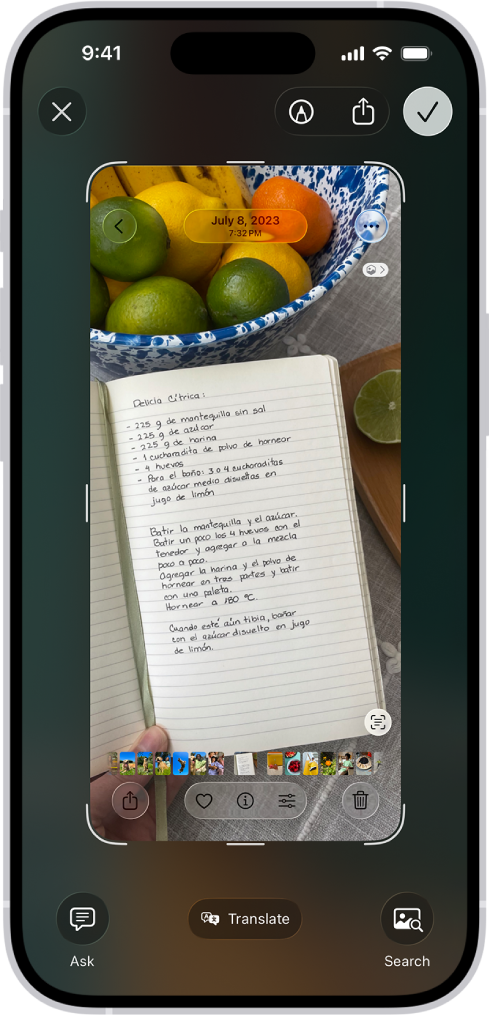
The screenshot screen, with buttons along the top (from left to right) for Close Window, Markup, Share, and Done. Along the bottom (from left to right) are buttons for Ask, Translate, and Search.

Take a screenshot

  1. Quickly press and release the side button and the volume up button at the same time.

    Note: If your iPhone has a Home button, quickly press and release it and the side button at the same time.
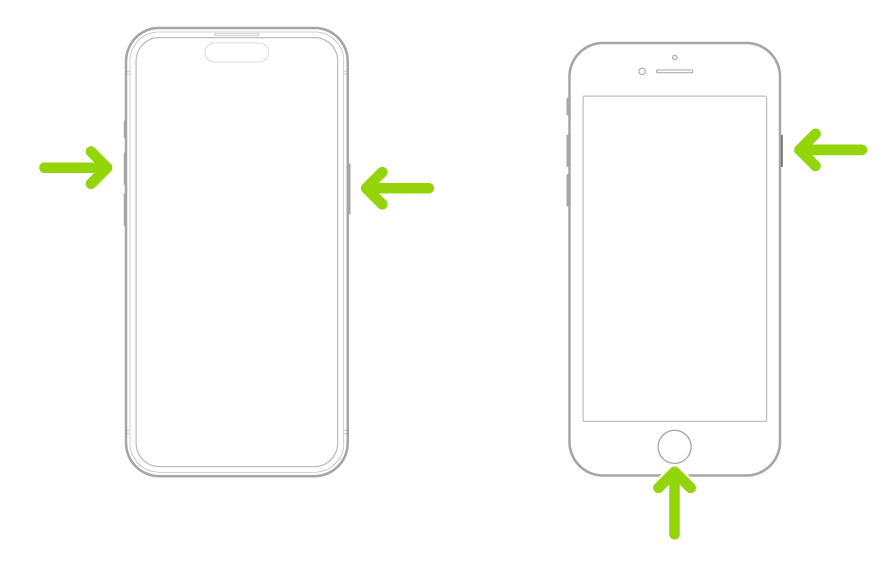
    Two iPhones, one with Face ID and the other Touch ID, with arrows pointing to the buttons for taking a screenshot. On the iPhone with Face ID, one arrow points to the side button and another arrow points to the volume up button. On the iPhone with Touch ID, one arrow points to the side button and another arrow points at the Home button.

  2. If one appears, tap the screenshot thumbnail in the lower left of the screen and then do any of the following:

    • Capture content beyond your iPhone screen: Tap Full Page. To see more of the screenshot, drag your finger on the preview image on the right. For example, you can capture an entire webpage in Safari.
    • Crop: Drag the handles. To save a smaller portion of a full-page screenshot, tap the Crop button. Drag the handles.
    • Annotate: Tap the Markup button and then use the Markup tools.
    • Cancel or delete: Tap the Close button.
  3. To save full-screen screenshots to your photo library, swipe up, or tap the Selected button and then choose an option. (Screenshots with thumbnails save automatically.)

To take a screenshot without the hardware buttons, you can use Siri, AssistiveTouch, or Back Tap.

Review your screenshots

Screenshots are automatically saved to your photo library.

  1. Start the Photos app on your iPhone.
  2. Tap Collections and scroll down to Media Types. Tap Screenshots.

Change the default settings for screenshots

You can adjust the screen capture settings so screenshots appear as temporary thumbnails in the lower-left corner or in full screen, and save them in SDR or HDR format.

iMessage is Apple’s end-to-end encrypted messaging service that you can use to send and receive text messages in the Messages app on your iPhone, iPad, Mac, Apple Watch, and Apple Vision Pro.

If someone sends a message to your email address or phone number using iMessage, you receive it on all your Apple devices that are set up to receive messages sent to that address or number. And when you view an iMessage conversation, you see all messages sent from any device, so you can keep in touch wherever you are.

You need an Apple Account to use some iMessage features. If you’ve made purchases from the iTunes Store or App Store, or you’ve signed in to iCloud, you already have one.

A conversation using iMessage.

Here’s what you should know about communicating with others in iMessage:

  • You can send texts over Wi-Fi or cellular service.
  • Texts you send and receive using iMessage don’t count against your SMS, MMS, or RCS allowances in your cellular messaging plan, but cellular data rates may apply.
  • When you communicate with others who also use iMessage on an Apple device, the texts appear in blue bubbles. (SMS, MMS, and RCS messages appear in green bubbles.)

    Messages are sent with iMessage when you see a blue send button. A green send button indicates the message is sent with SMS, MMS, or RCS.

  • In a conversation, you can see if someone’s writing a message. If someone has read receipts turned on, you can also see if they’ve opened your message.
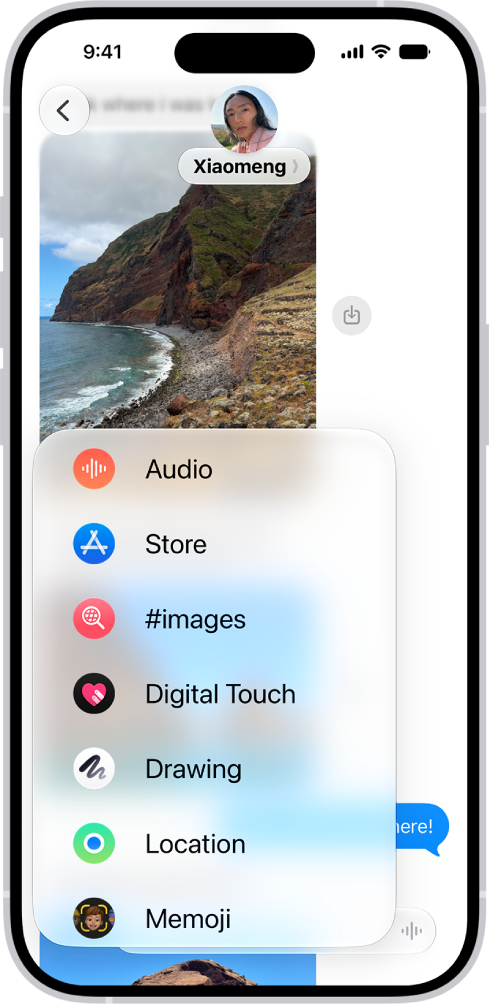
  • You can use a wider range of apps and features, like text formatting, editing, unsending, scheduling, backgrounds, polls, Memoji, drawings, collaboration, group conversation management, and more.

    The Add menu in Messages on iPhone, showing iMessage options like audio messaging, Check In, Digital Touch, location sharing, and Memoji.

  • When you use iMessage, you can report spam messages to Apple and screen unknown senders.
  • For security, messages sent using iMessage are end-to-end encrypted as they’re sent, and you can also use Contact Key Verification. When a conversation is end-to-end encrypted, you see Encrypted at the top of the conversation. If you don’t see this indicator—for example, in SMS or MMS conversations—messages in the conversation aren’t protected from being read by others as they’re sent.

About RCS

RCS is a carrier-provided messaging service. In the Messages app on your iPhone, you can use it to communicate with people on both Apple and non-Apple devices. If iMessage isn’t available, Messages can send your text as RCS instead, and those messages show up in green bubbles.

And here are a few things worth knowing about RCS messaging:

  • RCS is provided by your cellular carrier, not by Apple. To use RCS, you need a text-messaging plan from a carrier that supports it.
  • RCS supports read receipts, typing indicators, Tapbacks, inline replies, and high-resolution photos and videos.
  • RCS conversations can be end-to-end encrypted when both your carrier and your contact’s carrier support encrypted RCS.

When you subscribe to Apple News+, you can access hundreds of magazines and newspapers, along with recipes, puzzles, and audio stories. You can share issues with others or download them for offline reading.

You can subscribe to Apple News+ or to Apple One Premier, which includes Apple News+ and other Apple services. You can also share Apple News+ with family members. And you can cancel or change your Apple News+ subscription.

Note: Apple News, Apple News+, Apple One and puzzles aren’t available in all countries or regions.

Subscribe to Apple News+

  1. Open the News app on your iPhone.
  2. Do one of the following:
    • Tap the subscription button shown in a magazine, puzzle, recipe, or story.
    • Tap News+ , then tap the subscription button.
  3. Follow the onscreen instructions.

You may be asked to sign in to your Apple Account.

Share Apple News+ with family members

Once you subscribe to Apple News+ or Apple One Premier, you’re able to share Apple News+ with up to five other family members by using Family Sharing. Your family group members don’t have to do anything. Apple News+ becomes available to them the first time they open the News app once your subscription begins. Joining a family group with an Apple News+ or Apple One Premier subscription when you already subscribe means your subscription won’t renew on your next billing date, and you’ll use the group’s subscription instead. If the family group you join doesn’t subscribe, it uses your subscription.

Note: Apple News+ sharing with a family group ends when you cancel the subscription, leave a Family Sharing group, or remove a member from the Family Sharing group.

Cancel or change your Apple News+ subscription

  1. Open the News app on your iPhone.
  2. Tap Following, scroll down, tap Subscriptions (below Manage), and then do one of the following:
    • Apple News+ only: Tap Cancel Subscription and then follow the onscreen instructions.
    • Apple News+ and individual channels: Select Apple News+, tap Cancel Subscription, and then follow the onscreen instructions.
Tag: News

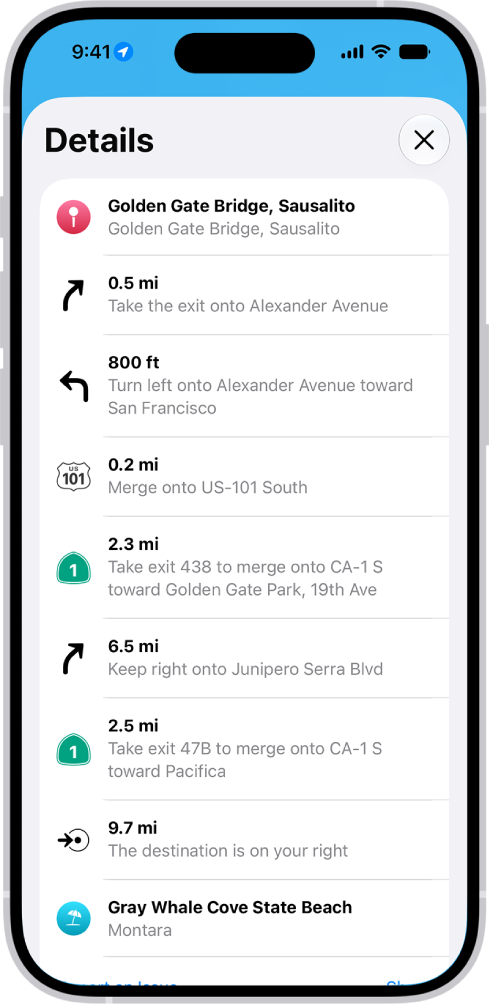
In Maps, while following driving, cycling, transit, and walking directions, you can zoom out to see your entire route on the screen, start to finish. You can also view a list of upcoming directions, and share a route with someone, too.

  1. While following driving, cycling, transit, and walking directions, you can get an overview of your route and a list of upcoming turns.

A route’s turn-by-turn directions shown in a list.

Get an overview of your route

You can zoom out to see your entire route onscreen, from the starting point to the destination.

  1. Open the Maps app on your iPhone.

Get directions.

  1. Tap the Overview Mode button.
  2. To return to turn-by-turn directions, tap the Turn-by-Turn Mode button.

View a list of upcoming directions

  1. Open the Maps app on your iPhone.

Get directions.

  1. Tap anywhere on the route card except the Go button.
  2. Scroll down to see more directions.

When finished, tap the Close button.

Share a route with someone

  1. Open the Maps app on your iPhone.

Get directions.

  1. Tap anywhere on the route card except the Go button.
  2. Scroll to the bottom of the card and tap Share. Then choose a way to share the route.
Tag: Maps

In select regions and countries, you can report traffic incidents like accidents, hazards, speed checks, and road work, though features vary by region and country. Apple evaluates incoming incident reports, and when there’s high confidence in them, markers appear in Maps for other users. You can also report on the status of a hazard or accident.

Report an incident

With turn-by-turn directions showing, select the Report button, then choose from one of the available options.

Apple evaluates incoming incident reports, and when it has a high level of confidence in them, Accident, Hazard, and Road Work incident markers appear in Maps for other users.

Note: You won’t see speed checks with incident markers. Notifications for them appear when you follow turn-by-turn directions instead.

Report on the status of a hazard or accident

Incident markers show information about hazards and accidents, and you can report their status when you’re near their locations.

  1. Select the incident marker.
  2. Select Cleared or Still Here.

Note: You can’t clear reports of speed checks.

After evaluating incoming incident reports, Apple removes an incident’s marker from Maps when there’s high confidence in reports that it has been cleared.

Note: Apple is committed to keeping personal information safe and private. To learn more, go to Settings > Apps > Maps, then tap “See how your data is managed.”

Tag: carplay

You can find all the photos and videos you saved from other apps—like Messages, Safari, and Mail—in the Recently Saved collection. Photos and videos that were sent to you using AirDrop also appear here.

You can also sort your library by Recently Added, and see the photos you saved today in the Saved Today collection. The Recently Saved collection is also below Utilities, next to the Recently Viewed and Recently Shared collections.

  1. Start the Photos app on your iPhone.
  2. Do any of the following:
    • Tap Collections , then tap the Recently Saved collection below Pinned. Tip: You can also find the Recently Saved collection below Utilities along with the Recently Viewed and Recently Shared collections.
    • Tap Library , tap the Sort and Filter button, then tap Sort by Recently Added. Tip: To see photos you saved today, tap Collections , then tap the Saved Today collection below Recent Days.
Tag: Photos

The News app keeps track of a wide variety of channels, topics, stories, and recipes, which makes it easy to find content that interests you. In the Search tab, you can enter the name of a channel, a topic like fashion or politics, an event, or a recipe title.

  1. Start the News app on your iPhone.
  2. Tap the Search tab and tap the search field.
  3. Enter any of the following:
    • The name of a channel, such as Scientific American or Washington Post
    • A topic, such as fashion, business, or politics
    • An event, such as an upcoming meteor shower
    • A recipe title, ingredient, or keyword
  4. Tap the Search button.
Tag: News

With Siri AI (Beta), you can use Siri mode in Camera, which uses Visual Intelligence to let you search, ask questions, and take action based on what’s around you with just a tap.

Point your iPhone camera at something, and Siri can identify what’s in the frame, answer a specific question about it, or suggest an action, like splitting a bill with Apple Cash. You can even ask follow-up questions about Siri’s answer.

Siri AI is available in beta on iOS 27 or later on an Apple Intelligence-enabled iPhone 15 Pro, iPhone 15 Pro Max, or iPhone 16 model or later with Siri and device language set to a supported language. Available in English to start. Siri AI will not initially be available in the EU on iOS. Usage limits may apply.*

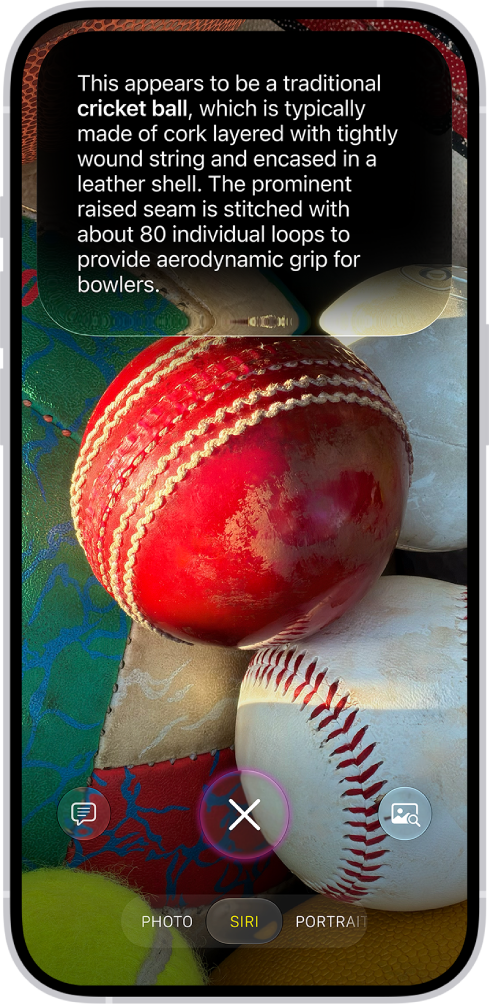
An iPhone screen shows a response from Siri identifying what's in the camera viewfinder.

  1. Click and hold the Camera Control (on supported iPhone models), or use an alternate option.
  2. Tap Siri to switch to Siri mode.
  3. Point your iPhone camera at something around you.
  4. Do any of the following:

    • Take action based on what’s in the frame: Tap an action if one appears. For example, when you point the iPhone camera at a check, tap Split Bill with Apple Cash and then follow the onscreen instructions to split the bill with friends.
    • Get quick information related to what’s in the frame: Tap the Siri button. For example, when you point the iPhone camera at an unknown object, like a cricket ball, Siri will identify what’s in the frame.

      Tip: Swipe down on Siri’s answer to continue the conversation and ask follow-up questions, like “How do you play cricket?”

    • Ask a specific question about what’s in the frame: Tap the Ask button, then ask a question. For example, when you point the iPhone camera at a bunch of ingredients, ask What can I make with these ingredients?
    • Search for similar images on the internet: Tap the Search button.
  5. Swipe up from the bottom to close the Siri conversation (if a Siri conversation is open) and then tap the Close button to close the results.

In Screen Time settings, you decide which Siri features you can use and what content Siri can access.

*Apple Intelligence is available with Siri and device language set to Chinese (Simplified), Chinese (Traditional), Danish, Dutch, English, French, German, Italian, Japanese, Korean, Norwegian, Portuguese, Spanish, Swedish, Turkish, or Vietnamese. Some features may not be available in all regions or languages. Some devices may not be available in all regions. Siri AI is available in beta in iOS 27, iPadOS 27, macOS 27, watchOS 27, and visionOS 27 and requires an Apple Intelligence–enabled device set to a supported language. Available in English to start. Siri AI will not be initially available in the EU on iOS, iPadOS, and watchOS. Certain Apple Intelligence features that rely on server-side models are subject to daily usage limits, including but not limited to Siri AI, Intelligent Photo Editing Tools, Image Playground, and AFM 3 Cloud models in Shortcuts. Daily limits may vary by feature, request complexity, system demand, system policies, and other factors. Expanded access to such features will be available for a fee in the future. Use of these features is subject to the Apple Intelligence Terms and Conditions.

Tag: camera

In your Phone settings on iPhone, you can hide your Caller ID on outgoing calls, prioritize caller identification apps, turn on Dial Assist, and change the default calling app. Dial Assist then automatically determines the correct international or local prefix when you’re dialing.

Change the Phone app layout

The Unified layout combines your Favorites, Recents, and Voicemails in a single tab, while the Classic layout sorts them into separate tabs. You can use either one.

  1. Open the Phone app on your iPhone.
  2. Tap Calls or Recents.
  3. Tap the Filter button and then choose one of the following:
    • Classic: Your favorite contacts, recent calls, and voicemails are sorted into separate tabs.
    • Unified: Your favorite contacts, recent calls, and voicemails are combined and displayed in the Calls tab.

Hide your Caller ID

Keep your Caller ID information from showing on outgoing calls on iPhone.

  1. Open the Settings app on your iPhone.
  2. Tap Apps, then tap Phone.
  3. Tap Show My Caller ID and turn it off.

Note: If Show My Caller ID doesn’t appear, your carrier may not let you turn off your caller ID information.

Prioritize caller identification apps

When a call comes in, your iPhone draws caller ID information mainly from these sources:

  • Contacts app: The people in your contacts app.
  • Name and Photo Sharing: Callers who have turned on Name and Photo Sharing in Settings > [their name] > Personal Information.
  • Carrier Call Directory: Caller information identified by supported carriers.
  • Business Call Identification: Caller information identified by Apple Business Connect or your cellular provider.
  • Call Identification apps: Any caller information identified by supported caller ID apps.

Additional caller identification apps you’ve installed can be prioritized for identifying incoming calls, and you can reorder them at any point. You might make one caller identification app the preferred one, for example, with the others coming into play only if the primary app can’t identify the caller.

  1. Open the Settings app on your iPhone.
  2. Tap Apps and tap Phone. Then tap Call Blocking & Identification.
  3. Tap Call Blocking & Identification. Tap Edit at the top of the screen.
  4. Drag the Sort button to reorder the priority of the apps.

Turn on Dial Assist

When you’re dialing, Dial Assist works out the correct international or local prefix automatically.

  1. Open the Settings app on your iPhone.
  2. Tap Apps, then tap Phone.
  3. Scroll down, then turn on Dial Assist.

Change the default calling app

Instead of the built-in Apple Phone app, an alternative, third-party app can be your default for making and receiving phone calls. Just check that the app you want to switch to supports these features, and if you aren’t sure, contact the app developer.

  1. Open the Settings app on your iPhone.
  2. Tap Apps, then tap Phone.
  3. Tap Default Calling App. Tap the app you want set as the default.
Tag: Phone

Review connection security details to determine whether a website is encrypted. Encrypted websites mask the data you exchange with them, so that only you and they can see it.

It’s important to use encrypted websites to prevent anyone from “eavesdropping” on you, and Safari on iPhone shows you the connection security details for any website you visit.

  1. Start the Safari app on your iPhone.
  2. Go to the website and tap the Page Menu button on the left side of the search field. Then tap Privacy & Security.
  3. Tap Connection Security Details.
Tag: Safari