Got a tip for us?

iPhone

The iPhone is a smartphone from Apple that runs the iOS mobile operating system. Between its apps, communication features, the camera, mobile internet access, and other functionalities, the iPhone has quickly become an integral part of many peoples tech lives.

You can register an AirTag to your Apple Account using your iPhone. When you attach it to an everyday item, like a keychain or a backpack, you can use the Find My app to locate it if it’s lost or misplaced.

AirTag can only be registered to one Apple Account at a time, but you can share an AirTag with others. You can also get notified if you leave your AirTag behind, and add supported third-party products to Find My.

Here’s how to add an AirTag in Find My on iPhone.

Add an AirTag

  1. Remove the product wrapping and battery tab from the AirTag and then hold it near your iPhone.
  2. Go to the Home Screen on your iPhone.

    Note: To retry pairing, turn your screen off and back on.

  3. Tap Connect on the screen of your iPhone.
  4. Choose a name from the list or choose Custom Name to type a name and select an emoji. Tap Continue.
  5. Tap Continue to register the item to your Apple Account. Then tap Finish.

You can also register an AirTag in the Find My app. Tap the Add button, then choose Add AirTag.

Before you can add an item that’s registered to someone else’s Apple Account, they need to remove it.

Change the name or emoji of an AirTag

  1. Open the Find My app on your iPhone.
  2. Tap Items, tap the AirTag whose name or emoji you want to change, and then tap the More button.
  3. Tap Change Name and Emoji.
  4. Choose a name from the list or choose Custom Name to type a name and select an emoji.
  5. Tap the Done button.

View more details about an AirTag

When you add an AirTag to your Apple Account, the Find My app shows more details about it.

  1. Open the Find My app on your iPhone.
  2. Tap Items, tap the AirTag you want to see more details about, and tap the More button.
  3. Tap the address of the AirTag to see the model, serial number, and the firmware version.

When the battery level is low, a message appears below the AirTag’s location. There’s also a low battery indicator next to its name in the Items list.
Tag: Find My

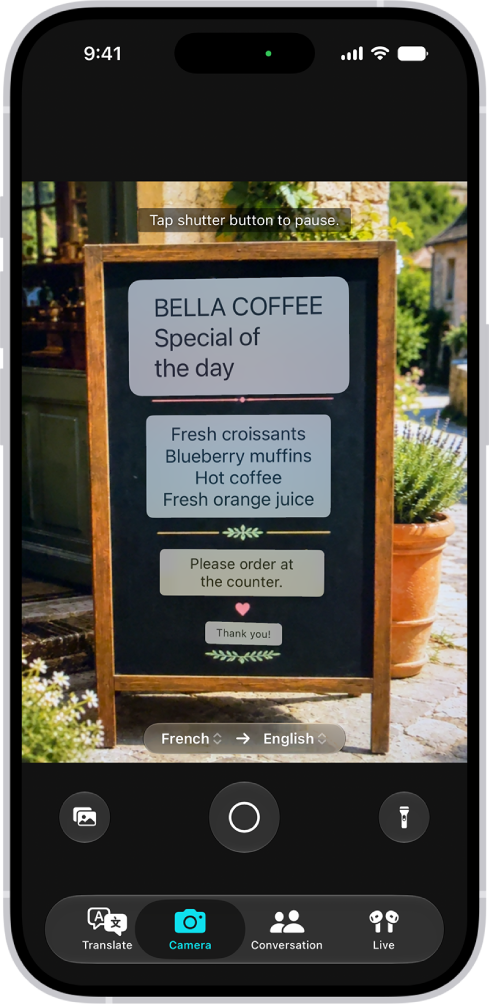
In the Translate app, use the camera view to translate text around you—for example, a restaurant menu or street signs. You can also translate text in photos from your photo library.

As you move the camera, text is translated in real time, and you can choose a different language. When you freeze the image, you can zoom in to see the overlaid translations, and copy, save, or play a translation.

Note: Translation is available for supported languages.

The Camera tab, showing a restaurant menu translated from English to Spanish.

Translate text around you with the camera

  1. Open the Translate app on your iPhone.
  2. Tap Camera and then hold your iPhone so that the text appears on the screen.

    Note: As you move the camera, text is translated in real time.

  3. Tap the Take Picture button to freeze the image and then do any of the following:

    • Switch languages: Tap a language and then choose a different one.
    • Get a closer look: Zoom in to see the overlaid translations.
    • Copy, save, or play the translation: Tap an overlaid translation to see the details. Tap an option.

Translate text in a photo from your library

  1. Open the Translate app on your iPhone.
  2. Tap Camera, tap the Photo Library button, and then select a photo that contains text.
  3. Do any of the following:
    • Switch languages: Tap a language and then choose a different one.
    • Share or save the translated image: Tap the Share button, then choose an option.
Tag: camera

In the Translate app, you can type or speak words and phrases and translate them to another language. Download languages to translate entirely on your iPhone, even without an internet connection.

You can play the audio translation, look up the translation in the dictionary, show it in full screen, or copy it. You can also save your favorite translations, and they stay up to date across devices signed in to the same Apple Account.

Note: Translation is available for supported languages.

Translate a word or phrase

  1. Start the Translate app on your iPhone.
  2. Tap the languages to choose what to translate from and to.

    To swap languages, tap the Language Swap button.

  3. Do one of the following:

    • Type: Tap “Enter text,” type a phrase (or paste text) and tap Next.
    • Speak: Tap the Listen button and then say a phrase.

    Note: Words are translated as you type or speak.

  4. When the translation is shown, do any of the following:

    • Play the audio translation: Tap the Play button.
    • Adjust the playback speed: Touch and hold the Play button and choose a speed.
    • Show the translation in full screen: Tap the Enter Full Screen button.
    • Look up the translation in the dictionary: Tap the Dictionary button.
    • Copy the translation: Tap the Copy button.
    • Delete the translation: Swipe left, then tap the Delete button.

Save and view your favorite translations

  1. Start the Translate app on your iPhone.
  2. To save a translation as a favorite, tap the Favorites button.
  3. To review your favorites, tap the Favorites List button.

Note: The Translate app keeps your favorite translations up to date on every device where you’re signed in to the same Apple Account.

With Handoff, you can start a task on one device and complete it on another. For example, you can start an email on your iPhone but then finish it on your Mac computer’s bigger screen.

You can use Handoff with many Apple apps, for example, Safari, Mail, FaceTime, and Maps, and some third-party apps also work with Handoff. It works between your iPhone, iPad, and Mac, and you can also hand off tasks between your Apple Watch and iPhone.

Here’s how to hand off tasks between your iPhone and your other devices.

Before you begin

For Handoff to work, make sure all of these are in place:

  • Both devices have Wi-Fi and Bluetooth® turned on.
  • You’re signed in to the same Apple Account on both devices.
  • Both devices meet minimum system requirements for Handoff.

Using a VPN? Make sure its configuration doesn’t prevent local networking, which may interfere with some Continuity features.

Turn on Handoff

On both your iPhone and your other Apple device, turn on Handoff.

  • On your iPhone or iPad: Go to Settings > General > AirPlay & Continuity, then turn on Handoff.
  • On your Mac: Choose Apple menu > System Settings, click General in the sidebar (you may need to scroll). Click AirDrop & Continuity, then turn “Allow Handoff between this Mac and your iCloud devices” on or off.

    Note: If your Mac has macOS 12.5 or earlier, choose Apple menu > System Preferences, click General, then select “Allow Handoff between this Mac and your iCloud devices.”

  • On your Apple Watch: Open the Apple Watch app on iPhone, go to My Watch > General, then turn on Enable Handoff.

Hand off a task between your iPhone and other devices

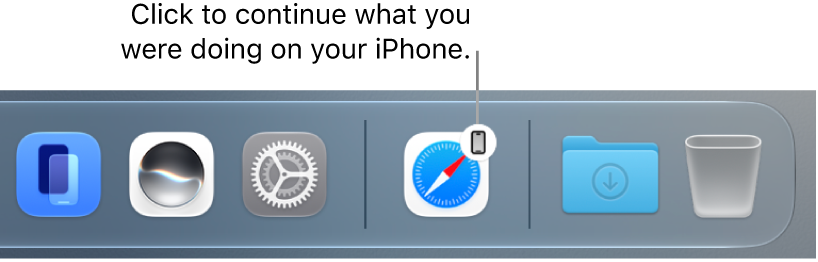
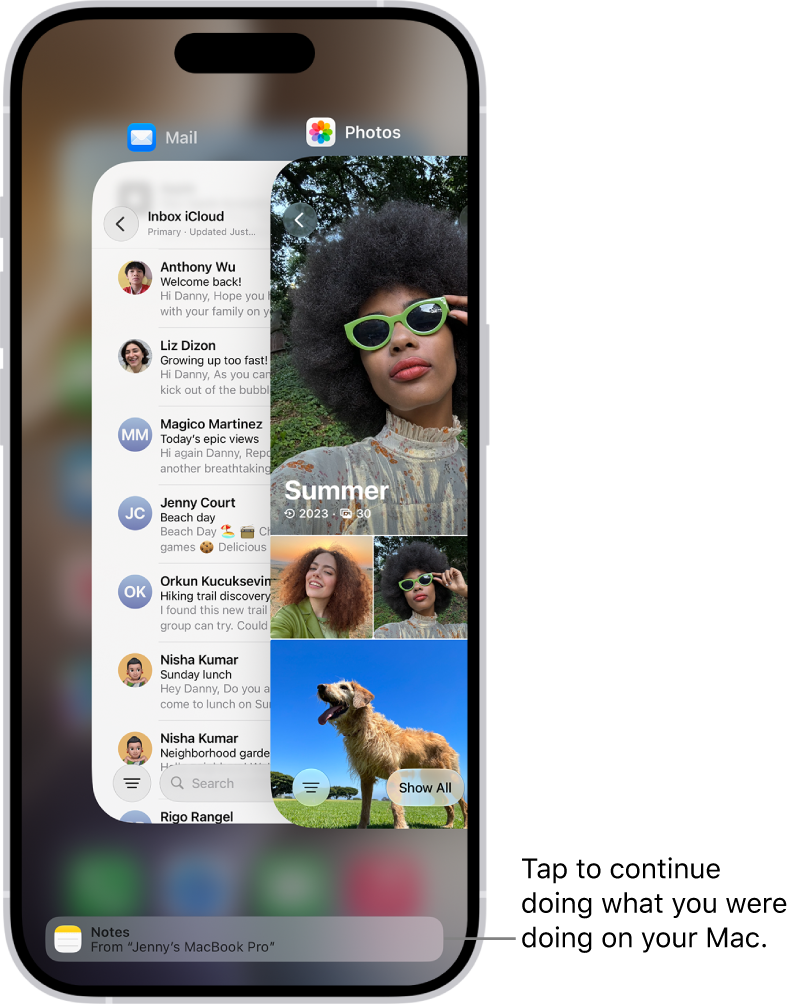
When your devices are near each other, an icon appears whenever a task can be handed off. Just tap or click the Handoff icon to continue working on your other device.

You’ll find the Handoff icon in these places on your devices:

  • On an iPhone: At the bottom of the App Switcher screen.

    The App Switcher on iPhone showing a handoff notification at the bottom of the screen.

  • On an iPad: At the right end of the Dock.
  • On a Mac: Toward the right end of the Dock, if the Dock is at the bottom of the screen. If you set up the Dock to appear on the left or right side of your screen, the Handoff icon appears at the bottom of the Dock.

    The Handoff icon visible in the Dock on a Mac.

Hand off a task from your Apple Watch

With an Apple Watch, you can hand off tasks to your iPhone from certain apps on your Apple Watch.

If Handoff isn’t working

  • Make sure that both devices have Wi-Fi and Bluetooth turned on, and you’re signed in to the same Apple Account.
  • Check that your app supports Handoff. Calendar, Contacts, FaceTime, Keynote, Mail, Maps, Pages, Numbers, Reminders, and Safari, as well as many third-party apps, allow Handoff.

Quick tip: With Handoff on, Universal Clipboard lets you copy and paste text, images, photos, and videos across devices.

iPhone displays the SOS via satellite icon when you’re outside cellular and Wi-Fi coverage, and Emergency SOS via satellite may still be available.

You can connect to Emergency SOS via satellite on your iPhone, and try the demo before going to a remote location.

Here’s how to use Emergency SOS via satellite on your iPhone.

Important: If an Emergency SOS via satellite session has been made and you don’t need emergency services, don’t end the session. Wait until a responder answers, then explain that you don’t need help.

Note: iPhone satellite features are available on supported models. Emergency SOS via satellite isn’t available in all countries or regions.

Connect to Emergency SOS via satellite on your iPhone

  1. Try calling 911 or emergency services even if your normal cellular carrier network isn’t available.

    If your carrier’s cellular network is unavailable, iPhone displays the SOS only icon and attempts to route any emergency calls through other networks, if available.

  2. If the call doesn’t go through, tap Emergency Text via Satellite to text emergency services.

    You can also go to the Messages app and text 911 or SOS, then tap Emergency Services.

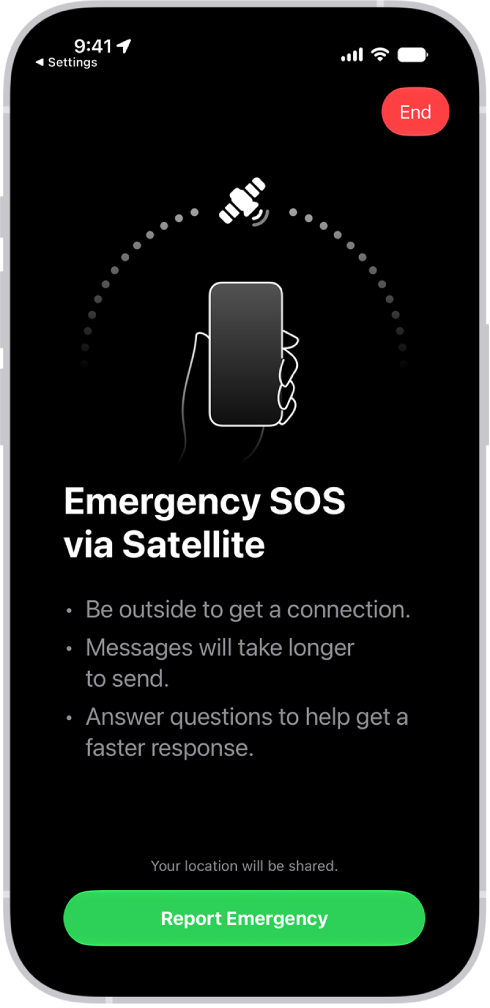
  3. Tap Report Emergency and follow the onscreen instructions.

Important: To help you connect to a satellite, make sure to hold your phone naturally in your hand—you don’t need to raise your arm or hold your phone up, but make sure your phone has a clear line of sight to the sky. If you’re under heavy foliage or surrounded by other obstructions, you might not be able to connect to a satellite.

Once you’re connected, your iPhone starts a text conversation and shares important information, including your Medical ID and, if you set them up, emergency contact details. It also sends your location (including elevation), your answers to the emergency questionnaire, and your iPhone’s battery level. You can also share what you send to emergency services with your emergency contacts.

The Emergency SOS screen, showing that the phone is connected and instructing the user to keep pointing at the satellite. The Report Emergency button is at the bottom of the screen.

Try the demo before going to a remote location

Planning a trip to a remote location? Before you go, you can try the Emergency SOS demo, create your Medical ID, and add emergency contacts.

  1. Open Settings and then tap Emergency SOS on your iPhone.
  2. Scroll down and tap Try Demo.

Note: The Emergency SOS demo doesn’t start a call to emergency services.

You can apply a depth-of-field effect that keeps your subject, whether people, pets, or objects, sharp while creating a beautifully blurred foreground and background. You can also apply and adjust different lighting effects to your portraits.

Background blur can be adjusted, too, along with where the Portrait Lighting sits and how intense it is, to sharpen eyes or brighten and smooth facial features.

Here’s how to take portraits with your iPhone camera.

Take a portrait

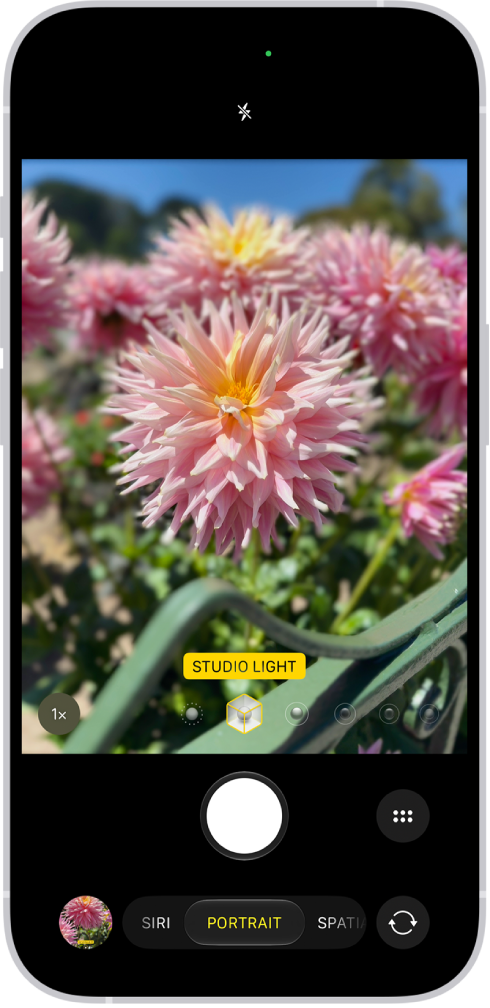
The Camera screen in Portrait mode; in the viewfinder, the subject is sharp and the background is blurred. The dial to select Portrait Lighting is open in the bottom of the frame and Studio Light is selected.

  1. Open Camera on your iPhone.
  2. Do any of the following:
    • Swipe left to select Portrait mode.
    • Tap the Depth button (if a face is detected in the camera frame; on supported models).
    • Use the Camera Control to select Portrait mode.
  3. Drag the Portrait Lighting control to choose a lighting effect:
    • Natural Light: Sharp focus with a blurred background
    • Studio Light: Bright, clean lighting
    • Contour Light: Dramatic shadows with highlights and lowlights
    • Stage Light: Spotlight effect against a black background
    • Stage Light Mono: Stage Light effect in black and white
    • High-Key Light Mono: Grayscale subject on a white background
  4. Tap the Shutter button or click the Camera Control on (supported models) to take the portrait.

After you take the portrait, you can remove the effect if you want to see the image without it. In the Photos app, open the photo, tap the Edit button, then tap Portrait to turn the effect on or off.

When the Depth button appears as you take photos in Photo mode, your iPhone captures depth information. That means you can add the portrait effect later, even if you didn’t use it for the original photo.

Night mode turns on for supported models when you take portraits with the wide (1x) lens in low-light situations.

Adjust the background blur

To adjust the level of background blur in your portraits, use the Depth Control slider.

  1. Open Camera on your iPhone.
  2. Swipe left to select Portrait mode or stay in Photo mode and tap the Depth Off button on (supported models).
  3. Tap the Camera Controls button or swipe up from Portrait mode at the bottom of the screen.
  4. Tap Depth and drag the Depth Control slider below the frame right or left to adjust the effect.
  5. Tap the Camera Control Status button to close the Depth Control slider.

You can also use the Camera Control to adjust the background blur on supported models.

To fine-tune the background blur effect after you capture a portrait, use the Depth Control slider in the Photos app.

Adjust the Portrait Lighting

You can virtually adjust the Portrait Lighting’s position and intensity to sharpen eyes or brighten and smooth facial features.

  1. Open Camera on your iPhone.
  2. Swipe left to select Portrait mode or stay in Photo mode and tap the Depth Off button on (supported models).
  3. Drag the Portrait Lighting control to choose a lighting effect.
  4. Tap the Camera Controls button or swipe up from Portrait mode at the bottom of the screen.
  5. Tap Intensity and drag the slider below the frame right or left to adjust the effect.
  6. Tap the Dismiss Portrait Effect Intensity Control button to close the Portrait Lighting slider.

Once you’ve captured a portrait, you can edit the Portrait Lighting levels in the Photos app.

Tag: camera

While using the Phone app on an iPhone, you can share your screen or ask to see someone else’s screen. In supported apps, you can also use SharePlay to watch the latest episode of a show or listen to a new song with friends in real time.

Sharing your screen brings apps, webpages, and more into a call. You can even ask to remotely control someone else’s screen.

Here’s how to share screens during a phone call on iPhone.

Note: Both you and the other participant need iOS 26 or later. SharePlay may not support the sharing of some movies, TV shows, or live sports events across different countries or regions.

Share your screen or see another person’s screen

During a phone call, you can share your screen to bring apps, webpages, and more into the call. Or ask to see someone else’s screen, and even remotely control it.

  1. Open the Phone app on your iPhone.
  2. During a call with just one other person, tap the More button. Then tap Screen Sharing.
  3. Do one of the following:
    • Share your screen: Tap Share My Screen.
    • See the other person’s screen: Tap Ask to Share Screen.

Before screen sharing begins, a countdown from 3 to 1 appears on the screen.

Quick tip: In a one-to-one phone call, a participant on an iPhone can tap, draw, or write on your screen to point out a specific area, and the circle, drawing, or writing fades after a few seconds. If you want to stop sharing your screen, tap the More button and tap Stop next to Screen Sharing, or end the call, which also ends screen sharing.

Use SharePlay to enjoy content together

SharePlay in the Phone app lets you stream music, movies, and TV shows in sync with friends and family during a call, and shared playback controls keep everyone in sync.

  1. Open the Phone app on your iPhone.
  2. During a call, tap the More button and tap SharePlay.
  3. Tap the supported app (like Apple Music or Apple TV) and then find the show, movie, song, or other content you want to share.
  4. Tap Start or Play to begin using SharePlay. For everyone who has access to the content, the content starts playing at the same time. Note: If the shared content requires a subscription, the service may ask those who don’t have access to subscribe, make a transaction, or sign up for a free trial, if available.
  5. To stop sharing the content, go to the call screen, tap the More button, and then tap Stop next to SharePlay.

Ending the call also stops the music or video. Anyone in the conversation can play, pause, rewind, or fast-forward for everyone with the playback controls, but each person controls their own settings, like closed-captioning and volume.

Quick tip: You can stream the video to Apple TV 4K after it starts playing.

Tag: Phone

You can send a group text message, name it, and assign it an icon to find it more easily. In a group conversation, you can call people’s attention to specific messages and even collaborate on projects.

When you mention someone by name in a group conversation, they’ll get a notification. To start one, you send a message to multiple people, entering each recipient’s phone number, contact name, or Apple Account.

Here’s how to have a group conversation in Messages on iPhone.

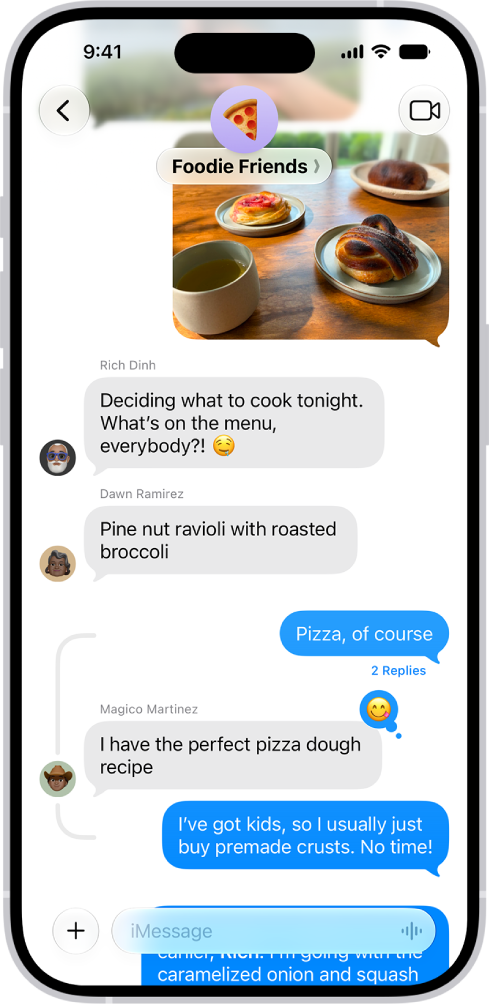
A group conversation including shared files.

Start a group conversation

To start a group conversation, send a message to multiple people.

  1. Open the Messages app on your iPhone.
  2. In the conversation list, tap the Compose button at the bottom of the screen.
  3. Tap the To field. Enter the phone number, contact name, or Apple Account of each recipient.

    To choose group members from your contacts, tap the Add Contact button in the To field.

    Note: If one or more of your recipients isn’t using iMessage, messages appear in green bubbles instead of blue ones.

  4. Tap the text field, enter a message or tap the Add button (to the left of the text field) to send a photo, video, poll, or another item with iMessage apps.
  5. Tap the Send button.

Add someone to an existing group conversation

Once a group conversation has at least two other people in it, you can add additional contacts.

  1. Open the Messages app on your iPhone.
  2. Tap the group conversation you want to add someone to.
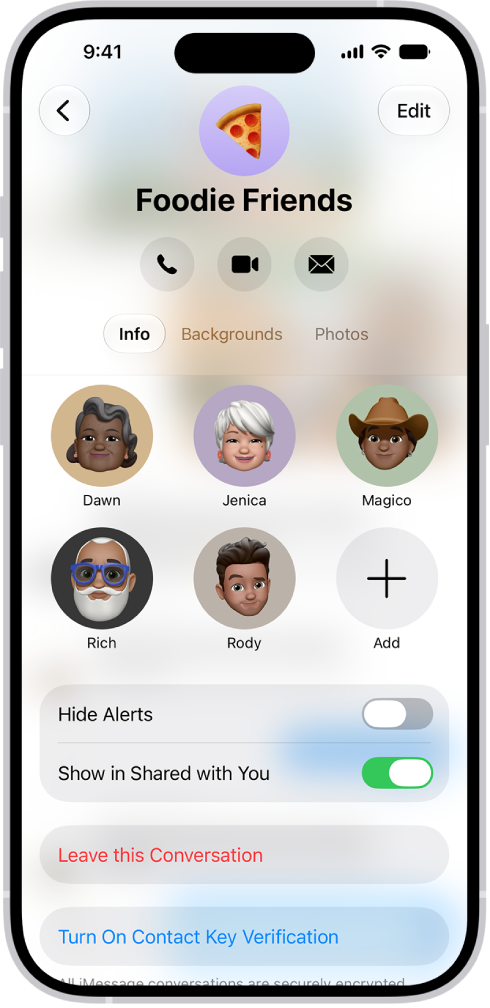
  3. Tap the group icon at the top of the conversation. Then tap Add.

    The conversation details for a group.

  4. Enter the phone number, contact name, or Apple Account of each recipient.

    To add group members from your contacts, tap the Add Contact button in the To field.

  5. Tap the Done button to save your changes.

Note: If someone in the group hasn’t turned on iMessage, you’ll need to follow the onscreen instructions to start a new group.

With only one other person in the conversation, you’ll need to start a new group conversation to add someone else.

To remove someone from a group conversation in iMessage, touch and hold their icon, then tap Remove from Group.

Leave a group conversation

You can’t leave a group chat unless there are at least three other participants in the conversation.

  1. Open the Messages app on your iPhone.
  2. Tap the group conversation you want to leave.
  3. Tap the contact or group icon at the top of the conversation.
  4. Scroll down and tap Leave This Conversation or Delete and Block This Conversation. Blocked conversations are moved to the Recently Deleted folder, where you can recover them.

To stay in a group chat without receiving its notifications, you can mute the conversation instead.

Mention people in a group conversation

To call someone’s attention to a specific message in a group conversation, mention them by name. They’ll get a notification. Depending on their settings, they may be notified even if they’ve muted the conversation.

  1. Open the Messages app on your iPhone.
  2. In a conversation, begin typing a contact’s name in the text field.
  3. Tap the contact’s name when it appears.

You can also mention a contact in Messages by typing @ followed by the contact’s name. To change whether you get notifications when your name is mentioned in Messages, go to Settings > Apps > Messages, then turn on or off Notify Me.

Name a group conversation

You can name a group chat and choose an icon* to represent the conversation. Everyone who has turned on iMessage sees the new name and icon.

  1. Open the Messages app on your iPhone.
  2. Tap the group icon at the top of the conversation.
  3. Tap Edit, tap Edit Name & Photo, and then choose an option.

*Availability varies by region.

You can select your favorite categories and channels in the Podcasts app to get better show recommendations and access shows from your subscriptions. Favorite categories rank higher in search results, and favorite channels are easier to find in your library. You can remove them if you change your mind, too.

Select your favorite categories

Adding categories to your favorites gives you better show recommendations and easier access to category pages. Favorite categories also rank higher in search results and appear first in the Categories list.

  1. Open the Podcasts app on your iPhone.
  2. Tap Library and tap Categories. Then tap Manage.
  3. Do any of the following:
    • Add a category to your favorites: Select one or more categories.
    • Remove a category from your favorites: Tap the Remove Favorite button.

Select your favorite channels

To make channels easier to find in your library, add them to your favorites. You can remove them later if you change your mind. In the Library, favorite channels show up at the top of the Channels section with a Favorite icon.

Note: You won’t see Channels in the Library tab until you subscribe to a channel, follow a show offered by a channel, or add a channel as a favorite.

  1. Open the Podcasts app on your iPhone.
  2. Tap Library and then tap Channels. You can also search or browse for a channel.
  3. Do any of the following:
    • Add a channel to your favorites: Tap the channel and tap the Favorite button.
    • Remove a channel from your favorites: Tap the channel, then tap the Remove Favorite button.

On iPhone you can block specific callers and you can change your setting to automatically identify, screen, filter, and block unknown and spam calls.

To identify incoming calls, iPhone can use Apple Business Connect, supported carriers, and call identification apps. You can also screen or silence unknown numbers, unblock a blocked contact, and view calls from unknown or spam callers. It all starts in Phone settings, under Call Blocking & Identification.

Here’s how to screen and block calls on iPhone.

Turn on call identification

Using information from supported call identification apps, supported carriers, and Apple Business Connect, iPhone can help identify incoming calls.

  1. Open the Settings app on your iPhone.
  2. Tap Apps and tap Phone. Then tap Call Blocking & Identification.
  3. Turn on one or more of the following:
    • Business Call Identification: Caller information is identified by Apple Business Connect or your carrier.
    • Call Identification apps: Caller information is identified by supported caller ID apps.

Screen or silence unknown numbers

Call Screening answers calls from unknown numbers automatically, without interrupting you. Once the caller shares their name and reason for calling, your iPhone rings and shares their response, so you can decide whether to pick up. You can also silence calls from unknown callers and send them straight to voicemail.

  1. Open the Settings app on your iPhone.
  2. Tap Apps, then tap Phone.
  3. Choose one of the following:
    • Never: Call Screening is turned off and your iPhone will ring when you receive a call from an unsaved number.
    • Ask Reason for Calling: Calls from unknown numbers will be asked for more information before iPhone rings.
    • Silence: Calls from unsaved numbers will be silenced, sent to voicemail, and appear in the Recents list.

Note: Siri speaks in your iPhone’s default language when answering calls.

Filter unknown and spam calls

  1. Open the Settings app on your iPhone.
  2. Tap Apps, then tap Phone.
  3. Turn on the following:
    • Unknown Callers: Calls from unknown numbers are removed from your Recents list and sent to the Unknown Callers list.
    • Spam: Calls identified by your carrier as potential spam or fraud are silenced, sent to voicemail, and moved to the Spam list.

You can mark an unknown caller as known to prevent future calls from being sent to the Unknown Callers list. Go to the Phone app , tap the Filter button, tap Unknown Callers, tap Mark as Known next to the call, then tap Mark as Known. To remove a number from your known callers, tap the number you want to remove, then tap Mark as Unknown at the bottom of the contact card.

Block calls from specific people or numbers

  1. Open the Phone app on your iPhone.
  2. Tap Contacts, tap a contact, and tap Block Contact.

Unblock a blocked contact

  1. Open the Settings app on your iPhone.
  2. Tap Apps, then tap Phone.
  3. Tap Blocked Contacts, then tap Edit.
  4. Tap the Remove button, then tap Unblock.

View calls from unknown or spam callers

  1. Open the Phone app on your iPhone.
  2. Do one of the following, depending on which Phone app layout you are using:
    • Unified layout: Tap Calls.
    • Classic layout: Tap Recents.
  3. Tap the Filter button.
  4. Tap Unknown Callers or Spam.
Tag: Phone