Got a tip for us?

iPhone

The iPhone is a smartphone from Apple that runs the iOS mobile operating system. Between its apps, communication features, the camera, mobile internet access, and other functionalities, the iPhone has quickly become an integral part of many peoples tech lives.

You can use the Freeform app to create boards for brainstorming and collaborating. For example, propose a trip with friends and let everyone take part in the planning, adding text, sticky notes, photos, videos, and other types of files as you go.

There’s no page to fill. The canvas expands as you add content, so you’re never constrained by space limits or page formatting, and your board is saved automatically as you work.

Here’s how to create a Freeform board on iPhone.

Create a new board

  1. Open the Freeform app on your iPhone.
  2. Tap the New Board button.

    If you don’t see the New Board button, tap the Back button.

  3. Tap one of the options, such as the Add Text Box button or the Media button, to start building your board.
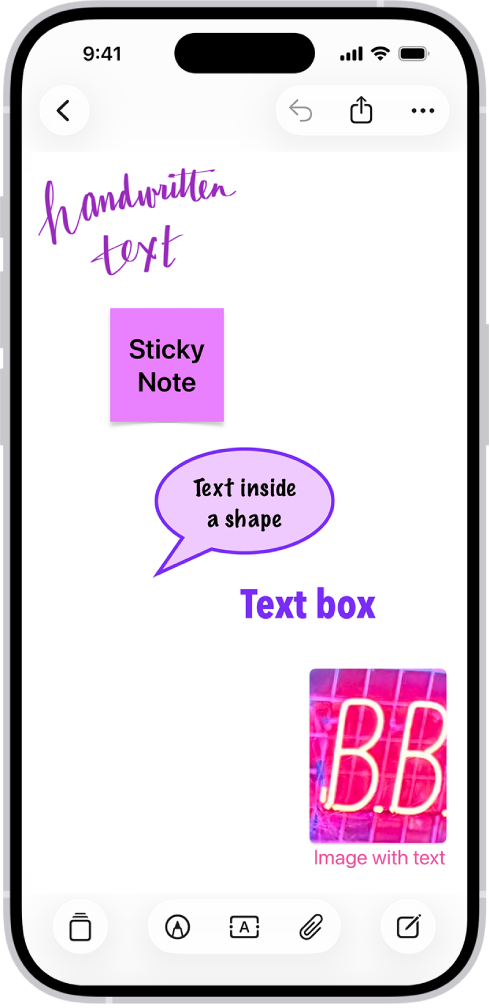
    A Freeform board with text rendered in a drawing, sticky note, shape, text box, and image.

  4. Move around your board by dragging your finger, and zoom in or out by pinching open or closed.

    Tip: To magnify more precisely, tap the More button, tap View Options, then tap a percent.

  5. Your board is saved automatically as you work. To name it, tap the More button and tap Rename.

Create a board from another app

To start a new Freeform board, you can use content from another supported app, such as Safari, Notes, Maps, Photos, Files, and more.

  1. On your iPhone, go to the app whose content you want to use on a new Freeform board.
  2. Open the item you want to place on the Freeform board (for example, a note, map, webpage, PDF, or screenshot).

    To share just one part of a file to a board (rather than the entire webpage or note), select what you want to share. If your selection includes text, only the text is shared.

  3. Tap Share or the Share button and then tap the Freeform app icon.
  4. Tap New Board, name the board and tap the Done button.

In the board, you’ll see either the item or a link.

Open a board

  1. Open the Freeform app on your iPhone.
  2. Tap the board you want to open, or do one of the following:
    • If you’re in a board: Tap the Back button, then tap a board.
    • Find a board you opened recently, shared with others, or marked as a favorite: Tap the Back button in the top-left corner, tap a category, and then tap a board.

Note: Check the Invitations section on the Shared Boards screen for any collaborations you get invited to in the Messages app. They stay there until you accept them.

Duplicate a board

  1. Open the Freeform app on your iPhone.
  2. While browsing All Boards, tap the More button. Tap Select.

    If you’re in a board, tap the Back button to browse All Boards.

  3. Tap the boards you want to copy. Then tap Duplicate.

Or touch and hold the thumbnail or name of the board, then tap Duplicate.

Note: If you duplicate a shared board, the copy isn’t shared.

Add a board to Favorites

  1. Open the Freeform app on your iPhone.
  2. Do one of the following:
    • While browsing All Boards: Touch and hold the thumbnail or name of the board, then tap Favorite.
    • If you’re in a board: Tap the More button and then tap Favorite.
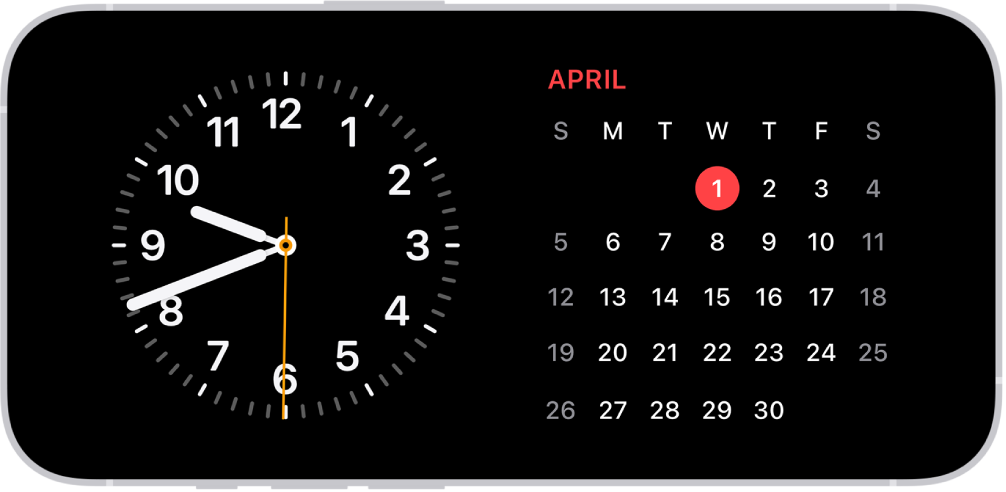
You can use StandBy to turn your iPhone into a bedside clock, a photo frame, a display for viewing widgets or Live Activities in full screen, and more.

It starts when iPhone is charging and lying on its side, without moving. You need StandBy turned on in Settings first, and you can set display preferences for when StandBy is on.

Here’s how to use StandBy to view information at a distance while iPhone is charging.

Start StandBy

  1. Open the Settings app on your iPhone.
  2. Tap Standby and make sure StandBy is turned on.
  3. Connect iPhone to a charger and set it down on its side, keeping it stationary.
  4. Press the side button.
  5. Swipe left or right to switch between widgets, photos, and clocks. Swipe up or down to scroll between options for each of these views.

When StandBy has Night Mode turned on, the screen adapts to low ambient light at night and shows items with a red tint, so it’s not intrusive while you’re sleeping.

iPhone in Standby mode in low ambient light, displaying Clock and Calendar widgets.

With the Always-On display (on supported models), StandBy stays on to show useful information. For all other iPhone models, it’s easy to activate StandBy any time by either tapping the screen, gently nudging the table your iPhone is on, or using Siri.

Siri: Activate Siri, then tell Siri to turn StandBy on or off.

StandBy remembers your preferred view, like a clock, photos, or widgets, for each location where you charge iPhone with MagSafe. That means it can show family photos in the kitchen and an alarm clock at your bedside, for example.

Set display preferences for when StandBy is on

While StandBy is on, you decide how long your iPhone display stays on.

  1. Open the Settings app on your iPhone.
  2. Tap StandBy, then tap Display.
  3. Choose one of the following:
    • Automatically: The display turns off when iPhone isn’t in use and the room is dark.
    • After 20 Seconds: The display turns off after 20 seconds.
    • Never: The display stays on as long as StandBy is on.
Tag: StandBy

Save interesting items in your Reading List so you can revisit them later. You can even save the items in your Reading List and read them when you’re not connected to the internet.

You don’t even have to open a page to save it, because you can add a linked webpage to your Reading List straight from the link. You can also automatically save all Reading List items to iCloud for offline reading.

Add the current webpage to your Reading List

  1. Start the Safari app on your iPhone.
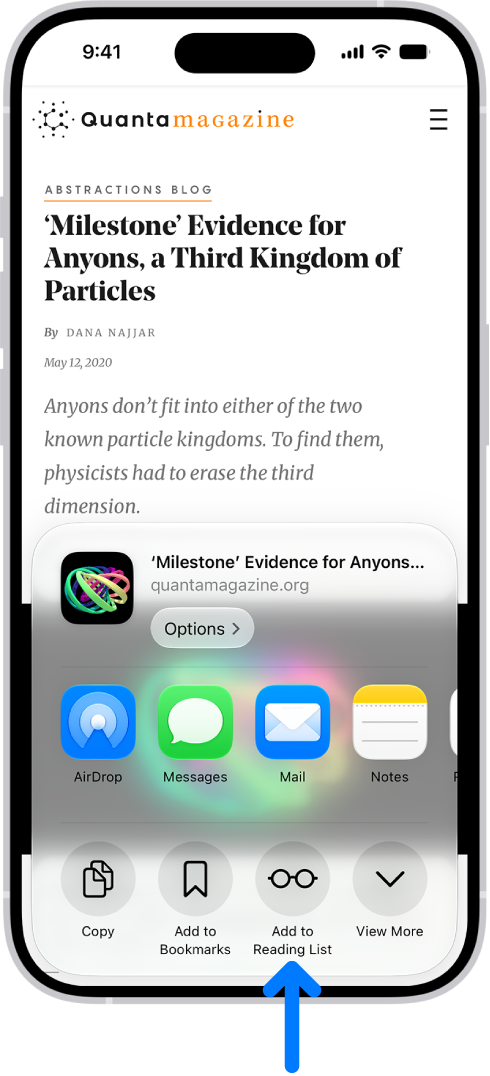
  2. Tap the Page Menu button and tap Share. If your Tabs layout is Bottom or Top, tap the Share button.
  3. Tap Add to Reading List.

Quick tip: You can add a linked webpage without opening it: Just touch and hold the link and tap Add to Reading List.

In Safari, the Share button on a webpage has been tapped, revealing a list of options, including Add to Reading List.

View your Reading List

  1. Start the Safari app on your iPhone.
  2. Do either of the following:
    • Go to your start page (or tap the Tabs button, then tap the Add button to open one), then tap the Reading List button.
    • If your Tabs layout is Bottom or Top, tap the Show Bookmarks button, then tap the Reading List button.

Quick tip: With Apple Intelligence, bookmarks and items you add to your Reading List are automatically organized into suggested topics if three or more of them are related. Tap a topic to view thumbnails, then tap a thumbnail to open it. To delete an item from your Reading List, swipe left on the item. Note: Apple Intelligence on iOS 27 or later is available on an Apple Intelligence-enabled iPhone 15 Pro, iPhone 15 Pro Max, or iPhone 16 model or later. Apple Intelligence is not available in all languages or regions. Usage limits may apply.*

Automatically save all Reading List items to iCloud for offline reading

  1. Start the Settings app on your iPhone.
  2. Tap Apps, then tap Safari.
  3. Turn on Automatically Save Offline (below Reading List).

*Apple Intelligence is available with Siri and device language set to Chinese (Simplified), Chinese (Traditional), Danish, Dutch, English, French, German, Italian, Japanese, Korean, Norwegian, Portuguese, Spanish, Swedish, Turkish, or Vietnamese. Some features may not be available in all regions or languages. Some devices may not be available in all regions. Siri AI is available in beta in iOS 27, iPadOS 27, macOS 27, watchOS 27, and visionOS 27 and requires an Apple Intelligence–enabled device set to a supported language. Available in English to start. Siri AI will not be initially available in the EU on iOS, iPadOS, and watchOS. Certain Apple Intelligence features that rely on server-side models are subject to daily usage limits, including but not limited to Siri AI, Intelligent Photo Editing Tools, Image Playground, and AFM 3 Cloud models in Shortcuts. Daily limits may vary by feature, request complexity, system demand, system policies, and other factors. Expanded access to such features will be available for a fee in the future. Use of these features is subject to the Apple Intelligence Terms and Conditions.

Tag: Safari

Your iPhone needs a SIM to connect to a cellular network. A physical SIM is a small card you insert into your device, and an eSIM is a digital SIM built into your device, with no card required. Not all options are available on all models or in all countries and regions, and on iPhone 14 and later, some models only use eSIM.

Contact your carrier to get a SIM and set up cellular service. You can also convert a physical SIM to an eSIM, and lock your SIM card.

Set up an eSIM

Supported iPhone models can store an eSIM from your carrier digitally. If your carrier supports eSIM Carrier Activation or eSIM Quick Transfer, you can activate your eSIM during setup by turning on your iPhone and following the instructions.

Quick tip: Your carrier can tell you whether to expect a notification or a QR code, or another method entirely. So if you’re not sure which method to use, contact them.

If you already completed setup, do the following:

  1. Make sure your iPhone is connected to an available Wi-Fi or cellular network. In some countries and regions, iPhone models that are eSIM only can activate without a Wi-Fi network.
  2. Add an eSIM using one of the following methods:

    • eSIM Carrier Activation: Some carriers can assign a new eSIM directly to your iPhone. When you receive the Finish Setting Up Cellular notification, tap it. Or go to the Settings app, tap Cellular, and tap Set Up Cellular or Add eSIM.
    • eSIM Quick Transfer: Some carriers support transferring a phone number from your previous iPhone to your new iPhone without needing to contact them. On your new iPhone, go to the Settings app, tap Cellular, tap Set Up Cellular or Add eSIM, and then tap Transfer From Nearby iPhone or choose a phone number. On your previous iPhone, follow the instructions to confirm the transfer.

      Note: After your phone number is transferred to your new iPhone, it stops working on your previous iPhone.

    • Scan a QR code provided by your carrier: Go to the Settings app, tap Cellular, tap Set Up Cellular or Add eSIM, and then tap Use QR Code. (You may need to tap Other Options first.) Position iPhone so the QR code appears in the frame, or enter the details manually. You may be asked to enter a confirmation code provided by your carrier.
    • Transfer from a different smartphone: If your previous phone isn’t an Apple iPhone, contact your carrier to transfer the phone number.
    • Activate service through a participating carrier’s app: Go to the App Store, download the carrier’s app. Then use the app to activate cellular service.
    • Visit your carrier’s store: In some countries and regions, you may need to activate your eSIM at the carrier store for an in-person ID check. Contact your carrier to find out.
    • Travel eSIM: A travel eSIM can maintain coverage and may help you avoid international roaming rates. Make sure you have cellular service or a Wi-Fi connection and then go to the Settings app, tap Cellular, tap Add eSIM, then tap View Travel Options.
  3. To verify the eSIM is activated, open the Settings app and tap Cellular. Make sure the new line (below eSIMs) is turned on.

Install a physical SIM

A nano-SIM card can come from a carrier, or you can move the one from your previous iPhone.

Note: Physical SIM isn’t supported on all models.

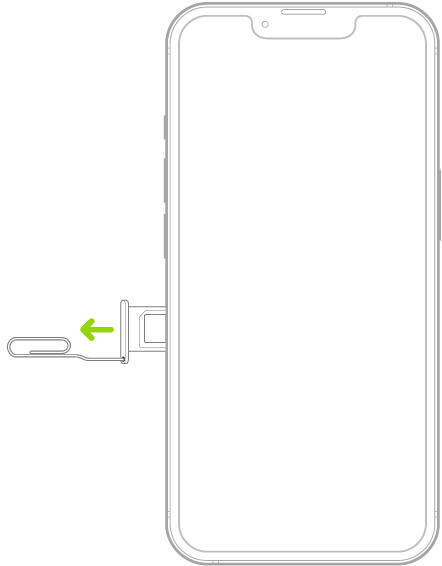
  1. Insert a paper clip or SIM eject tool into the small hole of the SIM tray. Then push in toward iPhone to eject the tray.

    A paper clip or SIM eject tool is inserted into the small hole of the tray on the left side of iPhone to eject and remove the tray.

    Note: The shape and orientation of the SIM tray depend on the iPhone model and your country or region.

  2. Remove the tray from iPhone.
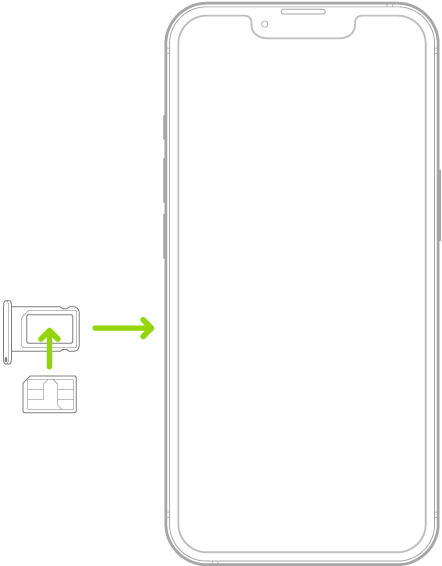
  3. Place the SIM in the tray. The angled corner determines the correct orientation.

    A SIM being inserted into the tray on iPhone; the angled corner is in the upper left.

  4. Insert the tray back into iPhone.
  5. If you previously set up a PIN on the SIM, carefully enter the PIN when prompted.

WARNING: Never try to guess a SIM PIN. An incorrect guess can permanently lock your SIM, and you won’t be able to make phone calls or use cellular data through your carrier until you get a new SIM.

Convert a physical SIM to an eSIM

Does your carrier support it? Then, on a supported iPhone model, you can convert a physical SIM to an eSIM.

Note: Your physical SIM stops working after you convert it to an eSIM.

  1. Start the Settings app on your iPhone.
  2. Tap Cellular and tap Set Up Cellular or Add eSIM.
  3. Choose the phone number with a physical SIM.
  4. Tap Convert to eSIM, then follow the onscreen instructions.

Lock your SIM card

To prevent others from using a SIM card your device uses for phone calls or cellular data, lock it with a personal identification number (PIN). The card then locks automatically every time you restart your device or remove the SIM card. You’ll have to enter your PIN.

Important: The availability of cellular capabilities depends on the wireless network, your iPhone model, and your location.

Consider applicable data, voice, and roaming charges when managing your cellular plans, especially when you travel with iPhone.

Some carriers let you unlock iPhone for use with another carrier (additional fees may apply). Contact your carrier for authorization and setup information.

You can search all your Freeform boards for text in handwriting, sticky notes, text boxes, shapes, and filenames. You can search within a board, or search all boards from the All Boards screen, and any board that contains the text appears in the search results.

  1. Open the Freeform app on your iPhone.
  2. Do any of the following:
    • Search within a board: Tap the More button, then tap Find.
    • Search all boards: Tap the search field (or the Search button) on the All Boards screen.

Any board that contains the text appears in the search results. (If you’re in a board, tap the Back button to access Search in All Boards.)

You can add a background to an iMessage conversation. Other people in the conversation see the background on their devices too and can change the background for the group.

You can use a dynamic background, a photo, or an original background you create, and revert to a plain background anytime. With a photo, you can crop the image, remove the color, or apply a color filter.

Here’s how to add backgrounds in Messages on iPhone.

Note: Conversation backgrounds only work in iMessage, and to add, view, or change one, you need iOS 26, iPadOS 26, macOS 26, watchOS 26, or visionOS 26 or later.

Use a dynamic background

  1. Start the Messages app on your iPhone.
  2. Go to the conversation where you want to add a background.
  3. Tap the contact or group icon at the top of the conversation, then tap Backgrounds.
  4. Tap Color, Sky, Water, or Aurora.
  5. Swipe left to choose an option.

    Tip: For Color, tap the swatches in the bottom corners to adjust the colors.

  6. Tap the Done button to add the background to your conversation.

Use a photo as a background

  1. Start the Messages app on your iPhone.
  2. Go to the conversation where you want to add a photo to the background.
  3. Tap the contact or group icon at the top of the conversation, then tap Backgrounds.
  4. Tap Photo. Then tap to select a photo from your library.

    Tip: If someone shared a photo you want to use as a background, touch and hold the photo in the message, then tap Set as Background.

  5. Do any of the following:

    • Crop the image: Pinch in or out.
    • Remove the color: Swipe left to Black & White.
    • Apply a color filter: Swipe left to Duotone or Color Wash. Then tap the color swatch to change the palette.
  6. Tap the Done button to add the background to your conversation.

You can set conversations to showcase backgrounds when you return to them. Go to Settings > Apps > Messages, then turn on Start with Photos Visible.

Note: You can have your (or a family member’s) iPhone receive warnings before a background image containing sensitive content is sent or received.

Create an original background

Image Playground uses Apple Intelligence to create one-of-a-kind images you can use as backgrounds for your conversations.

Note: Apple Intelligence on iOS 27 or later is available on an Apple Intelligence-enabled iPhone 15 Pro, iPhone 15 Pro Max, or iPhone 16 model or later. Apple Intelligence is not available in all languages or regions. Usage limits may apply.*

  1. Start the Messages app on your iPhone.
  2. Go to the conversation where you want to add a photo to the background.
  3. Tap the contact or group icon at the top of the conversation, then tap Backgrounds.
  4. Tap Playground, follow the onscreen instructions to create an image, then tap the Done button.
  5. Tap the Done button to add the background to your conversation.

Revert to a plain background

Note: Removing a background affects all participants in a conversation.

  1. Start the Messages app on your iPhone.
  2. Go to the conversation with a background you want to remove.
  3. Tap the contact or group icon at the top of the conversation, then tap Backgrounds.
  4. Tap None.

Turn conversation backgrounds off

Others in a conversation still see any background chosen for it, even after you turn conversation backgrounds off.

  1. Start the Settings app on your iPhone.
  2. Tap Apps, then tap Messages.
  3. Turn Conversation Backgrounds off.

*Apple Intelligence is available with Siri and device language set to Chinese (Simplified), Chinese (Traditional), Danish, Dutch, English, French, German, Italian, Japanese, Korean, Norwegian, Portuguese, Spanish, Swedish, Turkish, or Vietnamese. Some features may not be available in all regions or languages. Some devices may not be available in all regions. Siri AI is available in beta in iOS 27, iPadOS 27, macOS 27, watchOS 27, and visionOS 27 and requires an Apple Intelligence–enabled device set to a supported language. Available in English to start. Siri AI will not be initially available in the EU on iOS, iPadOS, and watchOS. Certain Apple Intelligence features that rely on server-side models are subject to daily usage limits, including but not limited to Siri AI, Intelligent Photo Editing Tools, Image Playground, and AFM 3 Cloud models in Shortcuts. Daily limits may vary by feature, request complexity, system demand, system policies, and other factors. Expanded access to such features will be available for a fee in the future. Use of these features is subject to the Apple Intelligence Terms and Conditions.

On iPhone, you can make your screen dimmer or brighter (dimming the screen extends battery life). You can also adjust the screen color and brightness manually or automatically with Dark Mode, True Tone, and Night Shift.

You can change it in Control Center or in Settings. iPhone can also adjust brightness for current light conditions using its ambient light sensor.

Here’s how to adjust the screen brightness and color on iPhone.

The iPhone Home Screen with Dark Mode on.

Adjust the screen brightness manually

To dim or brighten your iPhone screen, do one of the following:

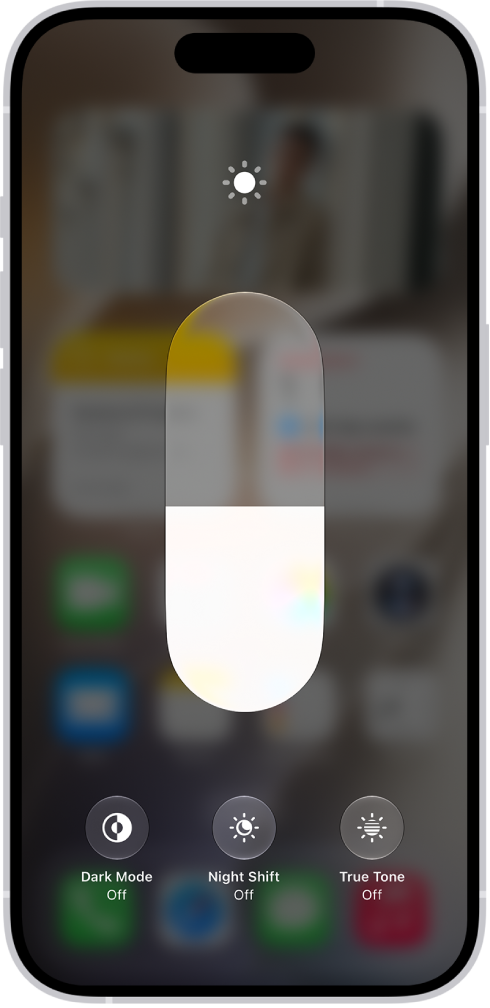
  • Open Control Center, then drag the Brightness button up or down.
  • Go to the Settings app, tap Display & Brightness, then drag the slider.

Adjust the screen brightness automatically

Using the built-in ambient light sensor, iPhone adjusts the screen brightness to match current light conditions.

  1. Start the Settings app on your iPhone.
  2. Tap Accessibility and tap Display & Text Size. Turn on Auto-Brightness.

Note: Turning off Auto-Brightness may increase power consumption.

Turn Dark Mode on or off

For low-light environments, Dark Mode is perfect: it gives the entire iPhone experience a dark color scheme. You could be reading in bed, for example, and use your iPhone without disturbing the person next to you.

You can turn Dark Mode on or off from either of these places:

  • Open Control Center, touch and hold the Brightness button, then tap the Appearance button to turn Dark Mode on or off.
  • Go to the Settings app, tap Display & Brightness, then select Dark to turn on Dark Mode, or select Light to turn it off.

Schedule Dark Mode to turn on and off automatically

If you like, Dark Mode can turn on automatically at night, or on a custom schedule you set.

  1. Start the Settings app on your iPhone.
  2. Tap Display & Brightness, turn on Automatic, and tap Options.
  3. Select either Sunset to Sunrise or Custom Schedule.

If you choose Custom Schedule, tap the options to schedule the times you want Dark Mode to turn on and off.

Choosing Sunset to Sunrise lets iPhone use the data from your clock and geolocation to work out when it’s nighttime for you.

Turn Night Shift on or off

Turning on Night Shift manually helps when you’re in a darkened room during the day.

Open Control Center, touch and hold the Brightness button, then tap the Night Shift button.

Schedule Night Shift to turn on and off automatically

At night, a Night Shift schedule shifts your display’s colors to the warmer end of the spectrum, making the screen easier on your eyes.

  1. Start the Settings app on your iPhone.
  2. Tap Display & Brightness, tap Night Shift, and then turn on Scheduled.
  3. To adjust the color balance for Night Shift, drag the slider below Color Temperature toward the warmer or cooler end of the spectrum.
  4. Tap From and select either Sunset to Sunrise or Custom Schedule.

If you choose Custom Schedule, tap the options to schedule the times you want Night Shift to turn on and off.

With Sunset to Sunrise selected, iPhone determines when it’s nighttime for you using data from your clock and geolocation.

Note: The Sunset to Sunrise option won’t appear if Location Services or Setting Time Zone is turned off. To turn on Location Services again, go to the Settings app, tap Privacy & Security, and then tap Location Services. You’ll find Setting Time Zone on the same screen, under System Services.

Turn True Tone on or off

With True Tone, the color and intensity of the display automatically adapt to match the light in your environment.

Here’s how to turn True Tone on or off:

  • Open Control Center, touch and hold the Brightness button, then tap the True Tone button to turn True Tone on or off.
  • Go to the Settings app, tap Display & Brightness, then turn True Tone on or off.
Tag: iPhone

Use the queue to see a list of upcoming songs, add songs and videos to the queue, and see what you recently played.

You can also use AutoPlay to add songs to the queue, manage the queue, and turn song transitions in the queue on or off. You can reorder the list, too. While a song is playing, the queue is on the Now Playing screen.

Here’s how to queue up your music on iPhone.

Use the queue

  1. Start the Music app on your iPhone.
  2. While a song is playing, tap the MiniPlayer to open the Now Playing screen.
  3. Tap the Playing Next button and tap a song to play it and the songs that follow.

    To reorder the list, drag the Reorder button.

  4. Tap the Playing Next button again to hide the queue.

Add music and music videos to the queue

  1. Start the Music app on your iPhone.
  2. While browsing or playing music, touch and hold a song, album, playlist, or video. Choose an option:
    • Add music right after the currently playing item: Tap Play Next.
    • Add music to the end of the queue: Tap Play After or Add to Queue.

Quick tip: When you’re using HomePod to stream music, friends on the same Wi-Fi network can add items to the queue.

Use AutoPlay to add songs to the queue

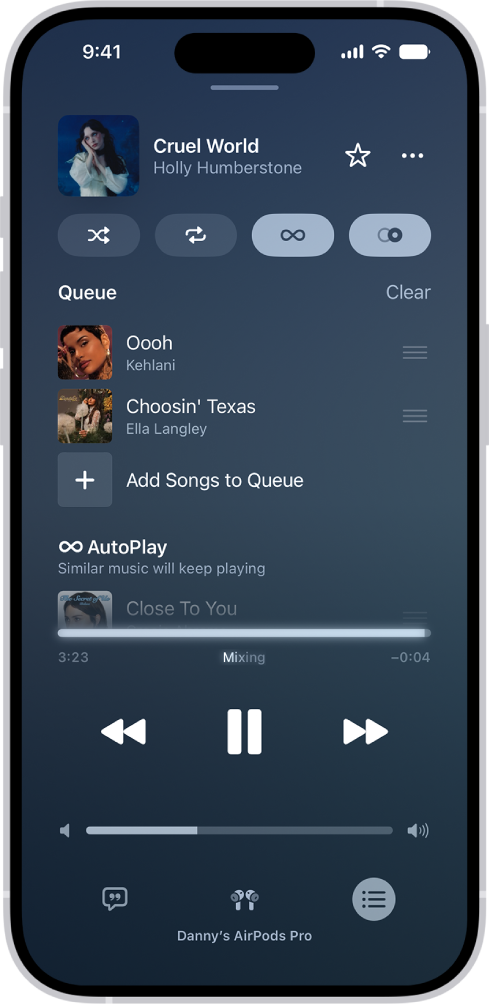
Not sure what to play next? If you’re an Apple Music subscriber, AutoPlay adds similar songs to the end of the queue and plays them when you play something. With AutoPlay on, the AutoPlay icon appears at the top of the queue while a song is playing.

The Now Playing screen showing the queue with AutoPlay and AutoMix turned on. Similar songs appear below the songs in the queue.

  1. Start the Music app on your iPhone.
  2. While a song is playing, tap the MiniPlayer to open the Now Playing screen.
  3. Tap the Playing Next button and tap the AutoPlay button at the top of the queue to turn AutoPlay on.

    When AutoPlay is on, the button changes color. Tap it again to turn it off.

Note: If you turn off AutoPlay on one device that uses your Apple Account (your iPhone, for example), it’s also turned off on every other device using the same Apple Account.

Manage the queue

  1. Start the Music app on your iPhone.
  2. While a song is playing, tap the MiniPlayer to open the Now Playing screen.
  3. Tap the Playing Next button and then do any of the following:

    • Change the order of songs in the queue: Drag the songs into the order you want them to play.
    • Add more songs to the queue: Scroll below the Queue section and tap Add Songs to Queue.
    • Remove a song from the queue: Swipe left on the song and tap the minus button.
    • See how many songs are in the queue: Scroll to the bottom of the queue.

      When multiple songs are repeating, you can see how many songs will be repeated instead.

    • Remove all songs from the queue: Tap Clear at the top of the queue.

Quick tip: Friends on the same Wi-Fi network can also reorder items in the queue while you’re streaming music on HomePod.

See what you recently played

  1. Start the Music app on your iPhone.
  2. While a song is playing, tap the MiniPlayer to open the Now Playing screen.
  3. Tap the Playing Next button. Then swipe down to see your playing history.

    To play a song in the history, tap it. To remove your playing history, tap Clear.

Turn on or off song transitions in the queue

  1. Start the Music app on your iPhone.
  2. Tap the Playing Next button and tap the AutoMix button or the Crossfade button in the top-right corner to turn on or off AutoMix or Crossfade.
Tag: Music

Use the Home app and Control Center to control accessories in your home.

The available controls depend on the type of accessory you have. With some lightbulbs, for example, you can change colors, and with your smart TV, you can choose an input source. You can also add Home scenes and accessories to Control Center, and see accessories in categories like Lights, Climate, and Security, organized by room.

Here’s how to control accessories with Home on iPhone.

Control accessories in the Home app

On the Home tab, tap an accessory’s icon on the left side of the tile—a light, for example—to quickly turn the accessory on or off.

Tap the accessory’s name on the right side of the tile to show the accessory’s control. The available controls depend on the type of accessory. For example, with some lightbulbs, there are controls for changing colors. With your smart TV, you can choose an input source.

Add accessories to Control Center

To get to your most used accessories quickly, you can add Home scenes and accessories to Control Center.

  1. Open Control Center on your iPhone.
  2. Tap the Add button and tap Add A Control at the bottom.
  3. Tap the Home Scene or Accessory control.
  4. Tap Choose Scene or Accessory. Select a home and device or scene you want to control.

View categories and home status

The Lights, Climate, Security, Speakers and TVs, and Water categories gather all the relevant accessories by room, so you can quickly get to them.

  1. Open the Home app on your iPhone.
  2. Tap Home.

Below your home’s name, buttons show the status of accessories belonging to a category—for example, a Lights category that shows “3 on.”

  1. Tap one of the category buttons to show all accessories within that category, organized by room.
  2. While viewing a category, tap the icon on the left side of an accessory tile to perform an action—turn a light or group of lights on or off, start playing music on a HomePod, or lock the front door.

View Activity History

If your home hub is using the latest software, everyone in your home other than guests can see the activity history for accessories like locks, garage doors, security systems, and adaptive temperature thermostats. You can learn when a door was unlocked, for example, and who unlocked it.

  1. Open the Home app on your iPhone.
  2. On the Home tab, tap the More button and then tap Home Settings.
  3. Go to Activity and tap One Month to view up to 30 days of activity.
  4. In the Home tab, tap the Security or Climate category. Then tap Home Activity to show the Activity History.

Turn Activity History on and off

Activity History can be turned on and off only by the home owner or by a shared home user who has permission to add and edit accessories. Turning it off permanently deletes all previous activity for the home.

  1. Open the Home app on your iPhone.
  2. On the Home tab, tap the More button, tap Home Settings, and tap Activity.
  3. Choose One Month to turn Activity History on, or choose Off.

Turn on Adaptive Lighting

Some Apple Home-compatible lights can adjust their color temperature, from cool blue to warm yellow, and you can set supported lights to change it automatically as the day goes on. Wake up to warm colors, stay alert and focused with cooler ones at midday, and wind down at night by removing blue light.

For a light that supports Adaptive Lighting, follow these steps:

  1. Open the Home app on your iPhone.
  2. Tap the light’s tile to show the controls.

    You can also touch and hold the tile, and then choose Accessory Settings.

  3. Tap the Adaptive Lighting button. Turn on Adaptive Lighting.

Note: You’ll need a home hub, such as Apple TV 4K or HomePod speakers, to use Adaptive Lighting.

Edit home accessories

To edit accessory settings, tap the right side of an accessory tile, tap the Settings button, then do any of the following:

  • Rename an accessory: Tap to delete the old name, then type a new one.
  • Change an accessory’s icon: Tap the icon next to the accessory’s name, then select a new icon. If you don’t get a choice of other icons, it means the icon can’t be changed for this accessory.

Group accessories

You can control multiple accessories with the tap of a button by grouping them.

  1. Open the Home app on your iPhone.
  2. Tap the right side of an accessory tile and tap the Settings button. Tap Group with Other Accessories.
  3. Tap the accessory you want to group with this accessory—another light in the room, for example.
  4. In the Group Name field, type a name for the group.
  5. Tap Done.

To have the group show up in Favorites on the Home tab, turn on Include in Favorites.

Tag: Home

You can find the password of the Wi-Fi network you’re currently using and see all the Wi-Fi networks and passwords you’ve previously saved. You can share the password of the Wi-Fi network you’re currently using with a nearby friend or family member.

All of them are in the Wi-Fi section of the Passwords app, where you can also copy a password to use elsewhere.

Here’s how to find and share your Wi-Fi password on iPhone.

Find a Wi-Fi password

  1. Open the Passwords app on your iPhone.
  2. Tap Wi-Fi. If you’re connected to a Wi-Fi network, its name appears at the top of the screen. You can also see all the Wi-Fi networks you’ve previously saved.
  3. Tap a Wi-Fi network.
  4. Tap the Password field.

To copy the password to use elsewhere, tap Copy Password.

Share your Wi-Fi network password with a nearby friend or family member

  1. Make sure your iPhone (the one sharing the password) is unlocked and connected to the Wi-Fi network.
  2. Have your friend of family member go to Wi-Fi settings on their iPhone, iPad, or Mac and then choose the network.
  3. When a message asks if you want to share your Wi-Fi password, tap Share Password.

Note: To share your Wi-Fi network password, devices need to be within Bluetooth and Wi-Fi range, can’t be using Personal Hotspot, and have to be added to each other’s contacts. Another option: Go to the Wi-Fi network, tap Show Network QR Code, and let friends and family scan it to join the network.

Tag: Wi-Fi