












Got a tip for us?

When buying a new phone, people usually have to choose between two of the most popular operating systems. Here are 15 reasons why iPhones are better than Android phones.

Nothing sparks debates in the tech community faster than saying iPhones are better than Android devices or vice versa. Android users often argue that iPhone users only care about branding. On the other hand, iOS fans believe Android devices have unnecessarily complex, impractical features.

However, shopping for smartphones should go beyond opinions. Although both have their bad and good points, there are several areas wherein one operating system outperforms the other.

So, if you’ve been leaning toward buying a new iPhone, we’ve rounded up all the ways that iOS is better than Android to help you make an informed decision.

Fifteen reasons why iPhone is better than Android

Here are fifteen reasons why Apple iPhones are better than Android phones!

1. iPhones Retains Market Value

Unlike their Android rivals, an iPhone holds good resale value over time. Apple also holds tight control on device prices among third-party vendors. You will hardly see an iPhone going for a discounted sale in the first six months of availability.

The latest iPhone models typically cost at least 10% more than top-of-the-line releases from Android brands like Samsung or LG. However, they usually retain their market value longer. All smartphones depreciate after a year or two, but Apple products frequently end up with resale prices closer to their original retail value.

For instance, let’s compare the Samsung Galaxy S21 with the iPhone 12. Apple released the iPhone 12 Pro Max in November 2020, retailing for $1,199. In November 2022, you can get a used model for around $900 on eBay.

On the other hand, the S21 Ultra hit the market in January 2021, also retailing for $1,199. However, its resale value has already dropped to around $550 on eBay.

2. iPhones have Less Security Risks

iPhones are better than Android smartphones when it comes to cybersecurity. iPhones have tighter security than Android, thanks to the exclusive Apple App Store, closed ecosystem, and prompt updates. These make iOS devices challenging to infiltrate.

Also, an iPhone is extremely unlikely to be infected with a virus. Most iOS devices with compromised security systems were either jailbroken or rigged by unauthorized technicians.

That said, Google’s cybersecurity measures are nothing to scoff at. However, frequently customizing Android devices leaves them prone to several security threats.

3. iPhones Have Extremely User-Friendly Interface

Android features an open platform that accommodates full-on customization. You’ll have total control over your smartphone’s settings, and you can use the broad scope of apps on Google Play to execute them.

However, this level of customization also creates a steep learning curve. You’ll need some technical proficiency and customization experience to utilize Android’s platform, which not all smartphone users have.

On the contrary, iOS devices have a straightforward, user-friendly interface. They come with various pre-installed, out-of-the-box features, so you can start using them right from the get-go. You wouldn’t need much time to learn an iOS interface.

4. iPhones Have Superior Phone Protection Plans

AppleCare plan comes at a steep premium. Alternatives like Asurion, SquareTrade, and Samsung Care offer relatively cheaper phone protection plans.

However, none of them compare to Apple’s streamlined, hassle-free services. Instead of spending hours on the customer service line, you can simply visit your local Apple Store for repair quotes and estimates.

Also, claims are a breeze. Most of the time, you can consult an in-store Apple employee and walk out with a brand-new or newly repaired device in an hour or two.

5. Seamlessly Integrated Apple Ecosystem

The range of Apple products has grown notably in recent years. The company started out making computers and has since added music players, tablet computers and smart watches to their product selection. Today, Apple provides a wide range of products and services for various purposes.

The devices work seamlessly and effortlessly together. You don’t need to download or install separate applications to link them together, it’s enough when you sign in to the devices with the same Apple ID. Photos, emails, notes and calendars can be shared to all the devices. You also don’t have to pay twice for apps, movies or books – they can be found on all your devices.

The closed ecosystem also guarantees the user safety. The operating environment is secure when devices, users, manufacturers and app developers are all in the same ecosystem.

The situation is different for Android phones. Several different manufacturers produce phones and tablets based on the same operating system, so a safe ecosystem and using the devices together seamlessly cannot be guaranteed.

6. Easy to Spot Fakes

If you intend to buy a secondhand smartphone, learn to verify authenticity. Scammers have been selling counterfeit devices for decades now. Moreover, the Android knockoffs circulating in the market look almost identical to their original counterparts. You’ll need to watch out for super-minute details.

Fortunately, spotting a fake iPhone is significantly easier. iOS devices have an exclusive interface, so you can easily spot fakes since they likely wouldn’t have features like Siri, iCloud, or even the App Store.

Also, each device comes with a unique serial number. Go to Settings > General > About, then scroll down to the Serial Number section in the middle portion of the page.

Next, copy-paste it into Apple’s service and coverage page. You’d see the device’s valid purchase date, telephone technical support expiration, and warranty coverage if the serial number is legit.

7. Get the best apps first

The developers of the best and highest quality apps still favour Apple. Most apps use Apple’s App Store as their launch platform and release their apps there much earlier than they do in the Android phones’ Google Play store. This has been the case with some of the most popular apps of recent years, such as Super Mario Run and Snapchat.

Some of the high-profile apps and games are iOS-exclusive only. Clubhouse is a recent example of such a trend. Halide is another popular developer that is iOS-only. It’s much harder for app developers to create games and apps for Android phones, as there is a wide range of them and many unique features of the phones should be taken into account in the development. The App Store’s revenue model also serves the developers of high-quality apps better, which will guarantee safe and good apps for iPhone users in the future as well.

8. Every eligible iPhone gets software updates at the same time

Software updates have always been an area iPhones are better than android smartphones as a whole. Unless you own one of Google’s Pixel phones, you never really know when you’re going to receive a security update or major feature release, because that timing is up to each individual phone brand. Some are more consistent than others.

On the other hand, when Apple releases a software update for the iPhone, every single user has immediate access to that update as long as their iPhone is still supported. Currently, iOS 16 supports iPhones all the way back to the iPhone 8, which was released in 2017. And when iOS 16.2 is made available in the coming weeks, every eligible iPhone, from the iPhone 14 to the iPhone 8 will get the update at the same exact time.

You just don’t get that kind of consistency and assurance on the totality of Android phones.

9. Apple Pay Is Simpler to Use

Apple Pay is Apple’s payment service, which enables making credit and debit card payments using your phone. Paying works the same way as contactless payment with a plastic card, i.e., by placing the phone by the card reader. The card is protected with Face ID, Touch ID or the phone’s passcode, which let you keep your payment information safe.

Apple Pay can also be used to make purchases in apps: reserving a hotel room, shopping for clothes or ordering a pizza couldn’t be easier.

Options like Google Pay and PayPal also offer noteworthy features. However, their interfaces are a bit more challenging, plus they don’t come pre-installed on Android devices.

Also, Apple Pay is widely used, at least in the United States. The Apple Pay homepage states that more than 85% of retail shops, grocery stores, taxis, and vending machines in the US accept Apple Pay. Google Pay is not yet available in many countries, so users in need of a simple and easy mobile payment method should opt for the Apple iPhone.

10. Wireless headphones and earbuds are a breeze to set up and use

Pairing the wireless AirPods earbuds to your iPhone is a seamless experience that makes Apple’s system leagues ahead of Google’s. One of the most impressive benefits is being able to use the same AirPods with your Mac or Apple Watch without having to pair them again.

Samsung’s Galaxy Buds try to recreate that magical experience, and they come close, but lack the range and ease of use across multiple devices. Google’s Pixel Buds 2 are Android users’ best hope for recreating that magic — and they do a good job, but so far, nothing has truly matched the AirPods experience.

See also: 5 Best AirPods Pro 2 tips and tricks to try first.

11. iPhones Have No Bloatware

Bloatware, crapware. Whatever you want to call it, it doesn’t exist on an iPhone. In this regard, iPhones are better than android phones because Apple doesn’t allow carriers to install any apps before you get the phone, unlike Android devices that are loaded with carrier-specific apps from the moment you first turn them on.

Yes, you can delete or hide those apps in just a few minutes on your Android phone, but it’s not something users should have to deal with. Who really needs the AT&T locker app? Or random games pushed on you because the developer struck a deal with your carrier? I know I don’t. Not to mention, researchers have found that preinstalled apps are prone to bugs and security issues. In my opinion, the owner of a phone should have control over what is and isn’t installed.

12. Video calls with iPhone are as simple as a phone call

FaceTime is one feature that makes iPhone better than Android. FaceTime works so well because it’s encrypted and ready to use the moment you set up your new iPhone.

Like iMessage, FaceTime is for many people synonymous with video calls. It’s the only app they want to use and they don’t have to log into a third-party app or search for contacts to set it up and start a call. It’s just automatically linked to your contacts, camera and dialer to do all the work. It’s this ease that makes FaceTime one of the reasons that family groups stay rooted to the iPhone.

13. Seamless backup and restore

I’ve set up hundreds of Android phones, and the process has never been as painless as it is when I set up a new iPhone. With the iPhone, I log into my iCloud account, tap on Restore and then wait about 20 minutes. That’s not the case with an Android phone.

Google’s backup and restore service does a decent job, but more often than not there are apps I need to reinstall or log into, setting to adjust, and disappointment to manage when the phones frequently fail to restore my home screen layout exactly how I had it. The Restore feature is supposed to save time, but I still spend a chunk of it fine-tuning the Android devices I set up this way.

Meanwhile, my iPhone backs up to iCloud every night (as long as it’s connected to Wi-Fi and charging) and completely restores installed apps, accounts, home screen and settings without fail.

14. iMessage gives you that blue bubble feeling

Perhaps the biggest feature that Android users don’t have, and likely never will, is Apple’s proprietary messaging platform iMessage. It seamlessly syncs across all of your Apple devices, is fully encrypted and has a ton of playful features like Memoji.

When you send a message to another iPhone and you see the chat bubble turn blue, you know that the person on the other end of the conversation is using an iPhone, too. That makes you part of a club, sure, but it also includes certain benefits, like chatting over Wi-Fi and being able to share high-res videos and photos with the person on the other end of the line.

iMessage also lets you request or send money via Apple Pay and pepper the message with extra colorful animations, for example, which makes for a more robust conversation than using standard SMS on the iPhone. You’ll know you’re in typical texting mode when the chat bubbles are green.

Google recently announced the global rollout of its own take on iMessage as part of its Messages app. It uses something called rich communication services that let you send higher quality photos and videos, and see read receipts and even typing indicators so you know when the other person is replying. While Google’s RCS brings huge improvements to chatting on an Android phone, it’s not as widely used as iMessage right now and doesn’t have Apple’s full set of features.

15. Better-looking widgets

Sorry, it’s true. Apple may be late to the game or copied Google here, but it did it right. There are a few different sizes of widgets that developers can create for their apps, which you can then place anywhere on your home screen. You can stack widgets on top of each other and let iOS decide which one to show you depending on your device usage, or you can scroll through them on your own.

Reasons why iPhones are better than android phones? Now you know!

These are the reasons why iPhones are better than android smartphones. iPhones are user-friendly, straightforward device that requires minimal tech knowledge to utilize. You’ll find Apple’s ecosystem convenient.

If you’re looking for more features that make the iPhone better than Android, look no further than this long list of features Apple added in iOS 16, and if you’re still not convinced, here’s a healthy list of hidden iPhone features you probably didn’t know about.
Found yourself in a situation where earphones are not working on your iPhone 14 Pro Max? Problems with the earphones on iPhones aren’t as uncommon as you may think. It happens to many users and can be extremely frustrating, especially for those who regularly listen to music and so on. In this article, I’ll explain what to do if headphones are not working on your iPhone 14 Pro Max. Without any further ado, let’s get started.

Note: information in this article apply to iPhone 14, iPhone 14 Plus, iPhone 14 Pro and iPhone 14 Pro Max.

1. Try Other Headphones

The first step when you find headphones not working on your iPhone 14 Pro Max is an obvious one. It’s quite possible that your headphones are broken. The easiest way to do this is to get another set of headphones—ones that you already know work properly—and plug them into your iPhone 14 Pro Max. If you can hear audio when using your earphones with your iPhone 14 Pro Max, you’ve found the source of the problem. Just purchased a new pair of EarPods, and you’re good to go. If they’re not working with your iPhone, something else is to blame. It’s time to try out one of the other fixes listed below.

If the problems still happen even with new headphones, confirm that the headphones work on another iOS device and then move on to the next step.

2. Check Your AirPlay Output

One reason that you might not hear audio through your headphones is that your iPhone 14 Pro Max is sending the audio to another output. The iPhone is supposed to automatically recognize when headphones are plugged in and switch audio to them, but it’s possible that hasn’t happened in your case. One potential cause is that audio is being sent to an AirPlay-compatible speaker or AirPods. To check for that:

  1. Swipe up from the top right of the iPhone’s screen to bring up Control Center.
  2. Tap the AirPlay button in the top right of Control Center to reveal all available output sources.
  3. Tap Headphones (or iPhone, whichever option is present).
  4. Tap the screen to dismiss Control Center.

With those settings changed, your iPhone’s audio is now being sent to the headphones or the iPhone’s built-in speakers. If that doesn’t solve the problem, check the next solution.

3. Check to see if your iPhone is connected to a different device via Bluetooth

If your iPhone is paired with wireless headphones, a speaker, or any other device via Bluetooth, the lighting jack may be disabled. Normally, when you plug in your earphones, the iPhone should recognize them, and everything should work as intended regardless of the existing Bluetooth connection. However, this isn’t necessarily always the case.

It’s a quick and easy fix, as all you have to do is start the settings app on your iPhone, find the Bluetooth option, and check to see if it’s on. In that case, the iPhone is likely paired with one of the other devices you have in your house. If that’s the problem, turn it off, plug in your earphones, and see if that solves it. If they still don’t work, you should move on to the next solution on this list.

4. Clean the Lighting Port

As you can imagine, dust, as well as lint, can accumulate on the lightning port over time. This might cause the problem, as the dirt can actually block the connection between the earphones and the lightning jack.
The first thing you should do if you are experiencing the problem of iPhone 14 Pro Max earphones not working is to look into the lightning port to see just how dirty it really is. A flashlight might come in handy for this. The next step is to try and clean it and hope that that solves the issue. There are a lot of different ways to do this, some of which work better than others. One option is to blow into the lightning port, which should take care of at least some of the dust and lint found inside. You can also use a can of compressed air if you have one nearby.

A great option is to use a cotton swab. Push it into the port and swirl it around a little bit to get the dust and lint out. Be very careful when you do this, as the last thing you want to do is to damage your iPhone further. You can also damp the cotton swab with rubbing alcohol but make sure you don’t use too much of it.

After you’re done, look into the lightning port again to see just how much dust and lint you were able to get out. If things look better, plug in your earphones to check if your issue is fixed.

5. Check audio settings

There’s also a chance the problem isn’t with the earphones you’re using but has to do with the iPhone’s audio settings. If this is the case, you’ll be able to sort it out in no time. Just start the settings app on your iPhone and check the volume level and any other settings that might mute the sound.

Thankfully, there aren’t many settings like these on an iPhone, so you should find the problem more or less right away. If there is one, that is.

6. Restart the iPhone

If everything seems to be in order, but you are still facing the problem of iPhone 14 Pro Max earphones not working, there’s another simple fix you can try, which is restarting your phone. This can sometimes solve a ton of different iPhone-related problems and takes less than a minute to do. Just press and hold the Side button and either of the volume buttons, wait for the device to turn off completely, and then power your iPhone back on. Now check to see if the problem persists.

7. iPhone 14 Pro Max earphones not working maybe a hardware issue?

If you find your iPhone 14 Pro Max earphones not working after trying the fixes discussed above, your lightening port is probably broken and needs to be repaired. If your iPhone is still under warranty, the best thing to do is contact the seller or Apple. Please explain the problem to the company, and send it in for repair or replacement. This can take quite some time in some cases, but at least it’s free.

In case the warranty has expired, you do have phone insurance. Just make a claim with your provider.

The third solution is definitely the worst one. You may have to get your iPhone repaired by Apple or an Apple certified technician. You’ll have to open up your wallet and pay up to get it fixed, but at least you’ll be able to use the earphones again. Otherwise, you could opt for a pair of wireless Bluetooth headphones, which will also solve the problem. Well, sort of.

These are some of the fixes that we hope will help you resolve iPhone 14 Pro Max earphones not working issue. If you think we have missed any, do let us know in the comments. Also, feel free to share which of the solutions listed above — if any — worked best for you.

Apple’s brand new iPhone 14, iPhone 14 Plus, iPhone 14 Pro, and iPhone 14 Pro Max have been out for a few weeks now, and we’ve managed to go all this time without a single “gate” scandal. However, there are still some problems that early adopters have run into. Luckily, there are often simple solutions to even the most frustrating iPhone 14 and iPhone 14 Pro problems, and in this post, we’ve compiled six of the most common iPhone 14 issues people are running into, along with potential solutions.

1. Battery drain Issue on the iPhone 14

Battery drain issue on the iPhone 14 is relatively common. If it’s a software issue, there’s a chance you can fix it. You can use Low Power Mode, limit your iPhone 14 Pro’s frame rate, disable always on display, lower the screen brightness, disable haptic feedback for keyboard, and stop background app refresh to improve your battery’s performance.

If you notice “Home & Lock Screen” on your battery usage is higher than you’d expect, it’s good to check those settings.

Auto-Lock at 30 seconds will help you preserve the most battery life. Especially with iPhone 14 Pro having an always-on display, 30 seconds can be worth it.

Navigate to Settings > Display & Brightness > Auto-Lock.

Lowering your screen brightness will also help with battery life, but this will come down to personal preference. You can do that in Control Center (swipe down from the top right corner) or Settings > Display & Brightness.

With iPhone 14 Pro HDR brightness now going up to 1600 nits and outdoor peak brightness going to 2000 nits, this is something to keep an eye on to help keep battery life in check.

If you’re looking to eke out the most battery, turning off the always on display feature could help a touch.

Head to Settings > Display and brightness > Always On at the bottom.

To use Low Power Mode, head to Settings > Battery and tap the toggle for Low Power Mode.

If you choose not to use Low Power Mode, you can manually control Push and Fetch for your email/internet accounts.

Head to Settings > Mail > Accounts > Fetch New Data. One approach is to leave your primary account(s) as push to receive new mail asap, and turn less important accounts to fetch every hour or even set them to manual.

If you have one of the Pro models, you can limit your iPhone 14 Pro’s frame rate by opening Settings > Accessibility > Motion and tapping the Limit Frame Rate toggle. Doing this will cap the frame rate at 60 frames per second.

Low Power Mode turns off background app refresh across the board, but you can customize which apps use this feature for a more convenient experience as well as improved battery life. Head to Settings > General > Background App Refresh.

You can also opt to only use background app refresh on Wi-Fi in addition to Wi-Fi and Cellular or turn the feature off totally. However, most users will find leaving Wi-Fi and Cellular on while customizing which apps are used for background app refresh to be the best fit.

Turning off Background App Refresh prevents apps that you’re not actively using from updating (until you open them again).

Dialing in your location services settings is another way to extend battery life. (It can reduce cellular data use too). Head to Settings > Privacy & Security > Location Services to update the privileges for your apps.

Look out for any apps that ask to Always use your location and switch to While Using, Ask Next Time, or Never.

haptic feedback "might affect the battery life of your iPhone." No specifics are given as to how much battery life the keyboard feature does drain, but if you want to conserve battery, it’s best to keep this feature disabled.

Fortunately, it is not on by default. If you’ve enabled it in yourself, go to Settings > Sounds & Haptics > Keyboard Feedback and toggle off Haptic to turn off haptic feedback for your keyboard.

2. iPhone 14 Touchscreen Issues

Unlike battery problems, iPhone 14 touchscreen issues are relatively rare. However, they can make the device virtually unusable. There’s a chance you can fix it without sending it in for repairs, as it’s usually caused by software or user errors.

First, ensure your iPhone 14 is running the latest version of iOS. Next, thoroughly clean your iPhone and disconnect all cables. Restart your iPhone 14 and check if the touchscreen starts working again.

If it doesn’t fix the touchscreen issue, you can try factory resetting your iPhone 14. And, if all else fails, you’ll have to send your iPhone to Apple for repairs. But if you have the hardware expertise, you can take advantage of Apple’s Self Service Repair program.

3. iPhone 14 Wi-Fi Issues

One of the most common iPhone 14 issues has to do with Wi-Fi connections. Sometimes, even while connected to a Wi-Fi network with access to the internet, your iPhone might not work properly.

There are three things you can try to fix this problem:

  • Toggle the Wi-Fi connection off and on.
  • Forget the Wi-Fi network and reconnect.
  • Turn off the Wi-Fi Assist feature on your iPhone.

To toggle your Wi-Fi connection off and on, head to Settings > Wi-Fi. Then, tap the toggle at the top right of the screen. After 30 seconds, tap it again to enable it.

To forget and reconnect to a Wi-Fi network, open Settings > Wi-Fi. Then, tap and hold the corresponding network. Next, tap Forget This Network and then try to reconnect from the Wi-Fi settings menu.

To turn off Wi-Fi Assist, open Settings > Cellular and toggle off Wi-Fi Assist at the bottom of the menu.

4. Activation Error on the iPhone 14 and iPhone 14 Pro

One of the more frustrating iPhone 14 bugs involves activation problems. If you can’t activate your iPhone 14, you won’t be able to log in to use the phone at all.

This can happen in two ways. You’ll either get an activation error, a message stating that the phone can’t detect your SIM card, or that it’s invalid.

Fortunately, you can follow a few steps to solve the iPhone 14 activation bug. However, they’re pretty limited. Here’s one method you can try:

  • Restart your iPhone 14.
  • Connect to a Wi-Fi network.
  • Try activating your iPhone 14 again.

You can try an alternate method if these steps don’t solve the activation issue. For these steps, you’ll need the latest version of macOS or iTunes. Here are the steps you can try:

  1. Update iTunes on your Windows PC. If you use a Mac, update macOS to the latest version.
  2. Ensure your computer has an internet connection.
  3. Use your iPhone 14’s charging cable to connect it to your computer.
  4. Your computer should automatically detect your iPhone 14.
  5. If Set Up as New or Restore from Backup notifications show up on your computer, your iPhone 14 is activated. If SIM card invalid or No SIM Detected notifications appear, you’ll need to reach out to your phone carrier.

But if you see the activation information was invalid message, you’ll have to enter recovery mode to restore your iPhone 14.

You’ll likely have to reach out to Apple or your phone carrier at some point during the activation process if you’re still running into errors after following these steps.

5. iPhone 14 Face ID Issues

Face ID on iPhone 14 can stop working randomly, potentially barring you from using certain apps and built-in features. Fortunately, you can try a few methods to fix Face ID.

First, consider cleaning the front-facing camera. It’s surprising how often Face ID won’t work just because there’s a smudge or two on the camera lens.

You can also check the Face ID settings. To do this, head to Settings > Face ID & Passcode. Then, ensure all the items listed in this menu are toggled on. This includes:

  • iPhone Unlock
  • iTunes & App Store
  • Wallet & Apple Pay
  • Password AutoFill

You can also toggle on Face ID for specific apps from the Settings menu. Simply scroll down, find the app you want to use Face ID for, and use the toggle to enable it.

Another option is to remove and reset Face ID. To do this, go to Settings > Face ID & Passcode. Then, tap Reset Face ID.

Finally, you can add an alternative appearance. First, open Settings > Face ID & Passcode. Then, tap Set Up an Alternative Appearance.

If these tips aren’t working, you can check out our list of solutions for Face ID not working on iPhone 14 Pro.

6. iPhone 14 Pro Max Overheating Issues

If your iPhone 14 is overheating, it might be from overuse. While in most cases, you’ll likely need to send your iPhone 14 in for repairs if it’s overheating, there are a few tweaks you can try beforehand. These are also useful for other battery issues, but they can sometimes help to solve overheating.

First, consider tweaking a few of your iPhone 14’s battery settings. This includes lowering the brightness, disabling Background App Refresh, and turning off Location Services. These changes reduce the overall processing power required by your iPhone, reducing the load on your battery.

If your iPhone 14 is still overheating after these changes, try resetting all settings and restarting your phone. And if that doesn’t help either, you’ll likely have to send your iPhone 14 in for repair.

Fixed the most common iPhone 14 Problems

While every new generation of iPhones comes with impressive hardware and software, none of them are immune to bugs and problems. iPhone 14 issues are relatively common. Luckily, there are a few ways you can solve these issues without sending your phone in for repair.

More often than not, a restart or factory reset can solve most of the bugs or problems. If our list of common iPhone 14 issues and solutions didn’t help, you could try some of the tips in our other guides.

Apple periodically releases updates and upgrades to its iOS operating system. These updates may bring new features and fixes for bugs. Upgrades are major (e.g., iOS 16 etc.), and updates are minor (e.g., iOS 16.1) releases. Usually, these updates are easy to do and go smoothly. However, sometimes you may run into issues. A common issue that can occur with any update is when iPhone 14 Pro is stuck on a screen saying, “Preparing Update…“With this issue, the iPhone never passes this screen. This issue may also occur on the iPhone’ 14, iPhone 14 Plus, or iPhone 14 Pro Max. In this article, I’ll explain why your iPhone 14 Pro is stuck on preparing update and show you what you can do to fix this error.

What is ‘Preparing Update…’?

The Preparing Update step is a part of the iOS update and occurs after your device has downloaded the update from Apple’s update servers. This step involves your device preparing and configuring the downloaded files. After this, your iPhone restarts to install the new update. This step usually lasts a few minutes. You will also see a progress bar under it. However, if you notice that the progress bar is not moving at all for a long time and the screen hangs in this step, there is something wrong with the update. If your iPhone hangs on this screen for more than an hour, you should cancel the update and try again.

Why is your iPhone 14 Pro stuck on ‘Preparing Update…’?

There could be many reasons your iPhone 14 Pro is stuck on preparing update, for example:

  • Poor Wi-Fi connection.
  • Some sort of interruption in the download, process causing corrupted files.
  • Lack of response from Apple’s servers.
  • Lack of available storage on the iPhone.

How to fix iPhone 14 Pro stuck on preparing update issue

Follow these steps in this order until your problem is fixed.

Make sure your iPhone is connected to the Internet

If your iPhone 14 Pro is stuck on preparing update, make sure that your device is connected to a strong Wi-Fi network. While you can download an iOS update via mobile data, it is advisable to update your iPhone over a Wi-Fi. Try the following:

  • Restart your Wi-Fi router.
  • If you are using Hotspot, turn it off.
  • If you are using a VPN, disconnect and try again.

Make sure you have enough storage space

If your iPhone 14 Pro is still stuck on preparing update, ensure that your device has enough available storage to install the update. Ensure that your iPhone has at least 6 GB of free space. You can check your storage by going to Settings > General > iPhone Storage. This screen will show your storage details. This screen will also show how much each app is taking up. You can delete or offload apps to free up storage. You can also delete your videos or photos if needed.

restart your iPhone

iPhone 14 Pro still stuck on preparing update? Restart your phone and then try again.
Go to settings > General > Shut Down.

Delete the update

Delete the downloaded update file, and then restart the process. As I said above, this ‘Preparing Update…’ occurs after you download the iOS file. Follow these steps:

  • Go to Settings > General > iPhone Storage. Wait for a few seconds for the screen to populate. Find the iOS update file from the list of apps and tap it. Then tap Delete Update.
  • After deleting it, restart your iPhone.
  • Then go to Settings > General > Software Update and restart the update process again.

update iPhone manually

If your iPhone 14 Pro is still stuck on preparing update screen, update your device manually instead of wirelessly. For this, you will need a computer. Back up your iPhone first before you continue. Restart your iPhone and then follow the steps below, depending on your computer. Here is how:

If you have a Mac with macOS Catalina or later:

  • Connect your iPhone to your computer with the USB cable.
  • Open a Finder window.
  • From the left Finder sidebar, select your iPhone.
  • Click General > Check for Update and then follow the onscreen instructions.

If you have a Mac with macOS Mojave or earlier or a Windows PC:

  • Open iTunes on your computer.
  • Connect your iPhone to your computer.
  • Then in iTunes, select your iPhone and go to Summary > Check for Update.

Apple released macOS Ventura to the public in the fall, and the update brings notable improvement for Mac users. Here are the best macOS Ventura tips and tricks you should try first.
With macOS Ventura, Apple has brought major additions to the stock apps and bridged the gap between iPhone and Mac. Beyond the headline features, Apple has also made numerous tweaks and changes to macOS that aim to make the time you spend using your Mac‌ more efficient, more functional, and more enjoyable. To that end, we’ve pulled out the best macOS Ventura tips and tricks, some of which may have gone under your radar, and we’ve highlighted five of them below. Keep reading to learn some of the best macOS Ventura tips and tricks in 2022.

Best macOS Ventura tips and tricks

1. Stage Manager

Unlike iPad, Apple doesn’t limit Stage Manager to a few Mac models only. All MacBook models are compatible with the Stage Manager function. The option is disabled by default. You can turn it on from the Mac Control Center.

Once you enable Control Center, the system automatically organizes your apps and windows in a single view on Mac. The function helps you focus while moving between tasks. You can even create a group of apps for specific tasks or projects. For example, you can group Lightroom, Photoshop, and Canva and pin them in Stage Manager to summon with a single click.

Similarly, you can group social media or writing apps and focus on a single project, removing other obstructions. While Stage Manager is off to a rocky start, it will be interesting to see how Apple continues to evolve it in future updates.

2. utilize Continuity Camera

You no longer need to settle with a below-average webcam during important video meetings on your MacBook. With this MacOS Ventura trick, you can set your iPhone to wirelessly connect to the Mac as a web camera, allowing you take advantage of the phone’s better cameras instead of relying on the lower-resolution cameras that are often built into MacBook laptops. The new feature, named Continuity Camera, works with most iPhone models that are running iOS 16. Just remember to enable Wi-Fi and Bluetooth on both devices and sign in using the same Apple account.

Once you enable Continuity Camera from Settings > General > AirPlay & Handoff menu on iPhone, you will find an option to use your phone camera as the default

You do require separate hardware from a third-party manufacturer like Belkin to hold your iPhone on top of your Mac and need to change the default camera from your preferred video calling app like Zoom, FaceTime, Teams, or Google Meet.

Your iPhone camera on Mac does support Center Stage to stay centered in the camera frame during video calls, Studio Light, Portrait Mode to blur the background, and Desk View to show your desk and face at the same time.

3. Give Apple Mail a Try

Thanks to macOS Ventura trick, Apple Mail now lets users unsend an email they have just sent, schedule emails to hit the perfect timing in the recipient’s time zone, and get reminders to follow up or come back to a message later. The Mail app also has an improved search function to deliver more accurate and astute results and provides suggestions before you start typing.

In short, Apple Mail receives a major feature boost with the macOS Ventura update. If you have ditched Mail in favor of Outlook or Spark on Mac due to a lack of features, it’s time to give Mail another shot after the latest update.

4. Use Spotlight Like a Pro

Spotlight is a major part of the macOS experience, and Apple has enhanced its capabilities with the Ventura update. Simply hit the Command Space keys on your Mac and find images in Photos, Messages, Notes, the Finder, and the web right from the Spotlight Search. You don’t need to open any respective app and navigate dozens of menus to find a photo.

Spotlight even lets you use Live Text to search for an image based on the text inside it. Spotlight also supports quick actions to set the alarm, start Focus, find the name of a song using Shazam integration, run a shortcut, and more.

The default search function on Mac does miss out on a few features, as we usually find in third-party alternatives, but it’s still a promising start with the macOS Ventura update. The update also brings richer search results when finding info about an actor, TV show, movie, sports event, and business. Go ahead, give Spotlight Search a try, and be amazed by the search results.

5. Share Your Photo Library

The default Photos app on Mac allows you to create and share a separate photo library among up to six family members. While creating an iCloud Shared Photo Library, you can select specific photos, people, and scenes like Forest, Sky, Beach, etc., and invite others to collaborate. Everyone can add, delete, edit, or favorite shared photos and videos. The same will appear under every user’s Memories tab in the Photos app.

Unfortunately, you can only create one iCloud Shared Photo Library. You can’t create multiple photo libraries with friends and family.
See also: Apps crashing on macOS Ventura? Here’s the Fix

These New MacOS Ventura Tips and Tricks Make Your Mac Much Better

So these were some of the best macOS Ventura tips and tricks you would love to try on your Mac today. My favorite macOS Ventura tips and tricks include using the stage manager, and using an iPhone as a wireless webcam with Camera Continuity. There’s surely plenty more hidden macOS Ventura tips and tricks to discover, so I’ll keep tapping, swiping and noting anything I find. Did we miss out on something important that needs to be added to the list? Which are your favorite macOS Ventura tips and tricks? Share your thoughts in the comment section below.

In this article, you’ll be excited to learn that there are several new hidden features that could completely change how you use your iPhone.

Now running the 16th major release of iOS, the iPhone is packed with so many features that mastering them all is no less complicated than learning all the nuances in Windows or MacOS. If you want to get the most out of your iPhone and learn the best tips and tricks for using your phone, here are 14 of the best lesser-known features in Apple’s mobile pocket-sized computer.

If you want to take a closer look at some of the hidden iPhone features, like password-protected photo albums and easily accessible Wi-Fi passwords, here’s what you need to know.

1. Hide apps you don’t use without deleting them

It doesn’t take long to accumulate so many apps that they become hard to manage and organize. If you have apps you rarely use but don’t want to delete them entirely, you can hide them from the Home screen. They’ll still show up in Siri search and you can find them in the App Library (that last page on your iPhone when you keep swiping left). This also comes in handy for hiding built-in apps that Apple doesn’t let you delete.

Just tap and hold the app icon until the pop-up menu appears, then tap Remove App. Instead of tapping Delete App, tap Remove from Home Screen.

2. Automatically close old Safari tabs

If you’re like most people, you may have countless Safari tabs open. But it’s surprisingly easy to tame Safari using this hidden iPhone feature. Start the Settings app and then tap Safari. In the Tabs section, tap Close Tabs. Here you can specify when your iPhone should automatically clean house by closing old tabs — you can choose After One Day, After One Week, After One Month, or Manually, which leaves them open until you close them yourself.

3. Change the iPhone’s default browser

Not a fan of Safari? Perhaps you are a dedicated Chrome or Firefox fan on your desktop computer, and would rather use one of those browsers on your iPhone as well. With this iPhone hidden feature,changing your default browser is easily done. Start the Settings app and then tap Safari. Tap Default Browser App and choose whichever installed browser app you prefer.

4. Lock your camera’s focus and exposure

Digital SLR and mirrorless camera photographers know how easy it is to lock the focus and exposure settings — usually just by pressing a button near the shutter release — so they can reframe and recompose the photo. Thanks to this hidden iPhone feature, you can do the same thing on your phone. Start the Camera app and then tap and hold the screen where you want to lock the focus and exposure. After a moment, you’ll see the AE/AF Lock message at the top of the screen; as you recompose the shot, the focus point and exposure setting will stay fixed until you take the picture. You can drag your finger up or down to manually adjust the exposure. To cancel the lock, tap anywhere on the screen.

5. Set a sleep timer for any media

Want to play music or a show at bedtime so the phone shuts off after a set time? You can easily enable a sleep timer using this hidden iPhone feature. Start the Clock app and tap Timer at the bottom. Set the amount of time you want the music to play and then tap When Timer Ends. In the pop-up menu, choose Stop Playing, then Set. Now you can start your timer and the Music app will stop playing automatically.

6. Reply to a specific message in Messages

Did someone send you a long string of messages, and you want to respond to something from a particular message way up in the conversation? Simply use this hidden iPhone feature. In the Message app, tap and hold the message you want to respond to, then tap Reply. Now you can write a message and it’ll appear in the Message app attached to the original message so it’s clear what you are referring to.

7. Tag contacts in group messages

If you’ve been in a group chat you probably know that it’s sometimes hard to get a specific person’s attention, especially if not everyone is closely following the conversation. If you are group chatting in the Messages app, you can use this hidden iPhone feature to tag a specific contact so they get a notification when you send the message. In the Messages app, open a group message and type the @ symbol followed by someone in the chat’s name, like @dave. When you press Space or add punctuation, the @ symbol will disappear and you’ll see a subtle animation effect on the name. When you send the message, that person will get a notification.

8. View and share saved Wi-Fi passwords

In Settings, go to Wi-Fi and tap the tiny information icon to the right of the network you want the password for. To view the network password, tap the Password section and then use Face ID or enter your passcode to view it. You can then tap Copy to copy the password into your clipboard and share it.

9. Use the Space bar as a mouse

It can be infuriatingly difficult to position the cursor at a specific place on the screen when correcting a typo or moving the cursor somewhere else in a document. Thankfully, Apple has given you a sort-of-secret way to easily move the cursor as if your phone had a built-in mouse or touchpad. Simply tap and hold the keyboard’s Space bar. After a moment, the keyboard will turn blank. Now the entire keyboard area is a large touchpad — just move your finger around to reposition the cursor.

10. Compress the keyboard for one-handed typing

The iPhone keyboard has more secrets hiding in plain sight. If you frequently type one-handed, you can compress the keyboard and slide it to the left or right, depending upon which hand you prefer to type with. To do this, tap and hold the Globe or emoji icon at the bottom left until the pop-up menu appears. In the menu, tap the right- or left-justified keyboard icon. To cancel the compressed keyboard and go back to the ordinary one, tap the arrow to the left or right of the keyboard.

11. Find and remove duplicate photos and videos

Maybe you’ve saved the same photo multiple times or downloaded a video more than once, resulting in duplicates littering up your photo album. It may not be a problem if you’ve got storage to spare, but you’re running out of space, you can now remove every single duplicate easily with this hidden iPhone feature.

In Photos > Albums, you should see a new Duplicates album under Utilities. Apple scans through all of your photos and shows you any photo or video you’ve saved more than once in that album. From there, you can either delete any duplicates, or simply press Merge, which will keep the photo with the highest quality (and relevant data) and then move the others to the trash.

12. Bring haptic feedback to your keyboard

With this hidden iPhone feature, you can enable a slight vibration for every single key you type in. Go to Settings > Sounds & Haptics > Keyboard Feedback and toggle on Haptic. The sound option you see is the loud and annoying clacking sound you might hear when you type in something and your phone isn’t on silent mode, so you can keep that disabled.

13. Hidden and Recently Deleted albums are now password protected

Thanks to this hidden iPhone feature, you can now lock the Hidden album. You don’t actually need to do anything to toggle this feature on. If you want to check it out, launch the Photos app and go to the Albums tab at the bottom of the screen. If you scroll down, you’ll see a tiny lock next to the Hidden and Recently Deleted albums. To view the contents of those albums, you’ll need to use Face ID or your passcode.

14. Pin your favorite tabs in Safari

Safari caps your open tabs at 500, and if you’re nearing that limit, it might be pretty darn hard to find the exact tab you’re looking for. You could scroll endlessly, but with this hidden iPhone feature, you can easily find the exact tab you’re looking for.

In Safari, if you press down on an open tab, you will see an option to hit Pin Tab. This will move that tab to the top of Safari, where it will exist as a tiny tab preview, permanently pinned there, which you can then tap to view.

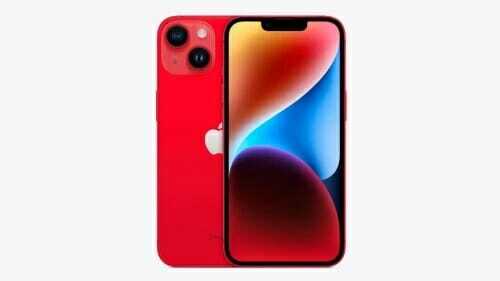
iPhone 14 and iPhone 14 Plus in Product RED

If you own an iPhone 14, you can hang up on an active phone or FaceTime call using the virtual assistant, Siri. Keep reading to learn how it works.

With each version of iOS, Apple seeks to improve the accessibility features of its mobile operating system to ensure that as many people can use it as easily as possible, and that’s been no different in its latest release, ‌iOS 16‌.

Apple has recognized that some users may need or prefer help when hanging up a phone of ‌FaceTime‌ call, and thanks to a new accessibility feature, now you can get ‌Siri‌ to do it for you so you don’t have to lift a finger.

Simply follow these steps to turn on the function on your iPhone 14.

Note: information in this article apply to iPhone 14, iPhone 14 Plus, iPhone 14 Pro and iPhone 14 Pro Max.

  1. Start the Settings app on your iPhone 14.
  2. Go to Accessibility.
  3. Scroll down to the bottom and under “General,” tap Siri.
  4. Scroll down to the bottom and tap Call Hang-up.
  5. Tap the switch next to Call Hang-up to enable the function.

Now that’s done, the next time you wish to end a phone or ‌FaceTime‌ call, simply say “Hey ‌Siri‌, hang up the call.” Note that the other person/people on the call will hear your request to ‌Siri‌ before being hung up on.

If you own an iPhone 14 Pro, you may want to set up Focus modes to filter out distractions, keeping notifications at bay and homing in on the task at hand. The feature came to the iPhone with iOS 15 in 2021, but it’s new and improved for iOS 16, as Apple’s software update has made it easier to set up a Focus mode on your iPhone 14 Pro.

That’s a welcome change. If you’ve yet to embrace the notification-silencing wonders of Focus mode, it’s likely because you found setting up and turning on the feature to be a bit of a pain. iOS 16 Focus streamlines things somewhat — it’s now easier to manage the people and apps you still want to connect with when a particular Focus is enabled. You can now link lock screens that you’ve customized in iOS 16 to particular Focus modes, and you can turn off the focus mode straight from the lock screen if you want.

If that sounds appealing and you’re ready to finally give Focus a try — or another try, if you gave up when the feature first debuted with iOS 15 — here’s how to set up a Focus mode on your iPhone 14 Pro.

Note: information in this article apply to iPhone 14, iPhone 14 Plus, iPhone 14 Pro and iPhone 14 Pro Max.

How to set up a Focus mode on your iPhone 14 Pro

  1. Start the Settings app and tap on Focus.
  2. Pick the Focus setting you wish to set up by tapping either Do Not Disturb, Personal, Sleep or Work. You can set up a customized Focus mode by tapping the Plus ( ) button in the upper right corner. For the purposes of this how-to, let’s set up a Work Focus mode together.
  3. Next, tap Customize Focus.
  4. Next on, choose the people you want to manage the notifications of in your Focus mode by tapping Choose People. From there, you can pick whether to allow notifications from the people you select or silence notifications.
  5. Tap the Plus ( ) button to add people. You can then pick people in your Contacts list and tap done. When you’ve got a complete list, tap Next.
  6. You’ll be asked to choose whose calls to allow. By default, Focus mode will let through contacts you’ve designated as favorites, but you can also change that to the people you’ve allowed in Step No. 5 or everybody. You can also allow calls from anyone in your contacts or a specific contacts group. Tap Done when you’ve made your pick.
  7. Now choose the apps you wish to manage for your Focus mode by selecting Choose Apps. Once again, you can pick whether to allow or silence notifications from a given app.
  8. Tap the Plus ( ) button to add apps. Then pick the apps you want to allow/silence notifications from out of the supplied list and tap Done.
  9. You’re back on the Choose Apps to Allow page. Tap Done again.

At this point, you’ve got the Focus mode basics, with filters set up for people and apps. But iOS 16 lets you take things one step further by tying your Focus mode to a specific lock screen. (You could previously assign a home screen to your Focus mode, which you can still do in iOS 16.)

Here’s how you can set up a Focus mode with specific lock and home screens.

How to set up a Focus mode with specific lock and home screens

  1. Tap Choose under the screen you wish to customize. We’ll start with the lock screen, where you have the option of creating a new lock screen, or selecting one of your existing lock screens. Tap Done when you’ve made your selection.
  2. Tap Choose under the home screen to set a custom home screen for your Focus mode. Again, you can pick from your existing home screens or you can create a new home screen that the Focus mode will populate with relevant apps. For instance, a Focus-generated home page tied to a Work Focus mode, includes the Calendar, Notes, Reminders and Mail apps among others. You can tap Edit Apps to add and delete options, including third-party apps.
  3. When you’re satisfied with the apps on your home screen, tap Add in the upper right corner.

Again, you can stop customizing your Focus mode right now, or you can take advantage of scheduling features for your Focus mode. You have the option of turning on your Focus mode automatically at a set time or location; you can also tie it to a specific app.

How to schedule a Focus Mode

  1. Tap Smart Activation to turn on the feature automatically and then move the slider to the on position on the next screen. This will turn on your Focus mode when your phone decides that it’s a relevant time or location.
  2. If you prefer not to leave such things to chance, tap Add Schedule and then pick a specific time, location or app to activate your Focus mode. In this case, I’ve turned on my work focus between 9 a.m. and 5 p.m. on weekdays.

You can add other times, locations or apps by tapping Add Schedule again.

How to use Focus Filters to set up a Focus mode on your iPhone 14 Pro

Focus Filters is a new addition to iOS 16 that allows you to filter out irrelevant or distracting data when a Focus mode is enabled. Here’s how Focus Filters work with Focus mode.

  1. Tap Add Filter and on the next screen, pick the app you want to customize. We’ll pick Calendars in this example, but you can filter inboxes in Mail, Tab Groups in Safari, conversations in Messages and other apps, including third-party software that’s updated with Focus Filter support.
  2. You now choose which calendar shows up when. For instance, I want my GeeksModo Calendar to show up when my Work Focus is turned on. Tap Add when you’ve selected the right calendar.
  3. You can go back and add more filters if you want by tapping Add Filter.

When you’re satisfied with your Focus mode, tape, the Focus menu button in the upper left corner of the screen to return to the main menu. All your changes will be saved.

How to enable and disable a Focus mode in iPhone 14 Pro

Once you’ve set a Focus mode on your iPhone 14 Pro, it will automatically be turned on. You can turn if off from the Focus screen in Settings by going to the command center (swipe diagonally downward from the lefthand corner of the home screen) and tapping the Focus control. Tap the enabled Focus mode to turn it off.

As of iOS 16, you can also turn off Focus modes from the connected lock screen. Tap the Focus icon on the bottom of the screen and then tap the enabled Focus mode to turn it off from the menu that appears.

Believe me, it’s a lot easier to set up and customize a Focus mode on iPhone 14 Pro than it was before, even if that does sound like a lot of steps. And you should reap the benefits of Focus, as you’ll see fewer unwanted notifications and remove the temptation to fool around with games, text messages and other potential distractions when you really need to be working. (Conversely, Focus is also great for setting up a Personal mode that hides all your work related apps so you can actually spend time relaxing.)

See also: How to Use Siri to Hang Up a Call on iPhone 14

Apple includes an accessibility feature that allows you to unlock your iPhone 14 using just your voice. Keep reading to learn how it works and how to set it up on your ‌iPhone 14‌.

For several years now, Apple’s iOS mobile operating system has included a voice control feature that enables users to control a variety of system functions on their ‌iPhone‌ using only their voice as the trigger.

Until recently, one of the limitations of Voice Control was that it wouldn’t work if your ‌iPhone‌ was locked. Thankfully, Apple includes an enhanced version of the feature so that if your ‌iPhone‌ is on the lock screen, you can now use your voice to enter the passcode and unlock it.

How to Unlock Your iPhone 14 Using Voice Control

The following steps show you how to set up Voice Control to unlock your ‌iPhone‌ 14 using a simple speech command.

Note: information in this article apply to iPhone 14, iPhone 14 Plus, iPhone 14 Pro and iPhone 14 Pro Max.

  1. Start the Settings app on your ‌iPhone 14‌.
  2. Go to Accessibility.
  3. Under ”Physical and Motor,” tap Voice Control.
  4. Toggle on the switch next to Voice Control.
  5. Now lock your ‌iPhone‌ using the Side button.
  6. Tap your ‌iPhone‌ to wake the Lock Screen, then say ”Go Home” to unlock your ‌iPhone‌ with Face ID. If that doesn’t work and you’re presented with the passcode screen, say (for example) “Tap 1” to press the 1 key on the screen with your voice. Repeat this action for all six digits in your passcode to unlock your ‌iPhone‌.
  7. That’s all there is to it. Note that the same Voice Control accessibility feature also works with iPad.
  8. See also: How to set up a Focus mode on your iPhone 14 Pro

2022 was a big year for Apple Fan. The year brought us new phones, like the iPhone 14 and 14 Pro, and new software updates, like iOS 16. Whether you bought something new, updated your iPhone with new software, or just kept on trucking with the same old tech, we were here to help you use it all. These are our favorite iPhone hacks and tips of 2022.
If you dive into the Settings app, you can find some cool iPhone hacks you might not have even known existed. Want to declutter your home screen? Use your battery a little less throughout the day? You can do all that — and more. Some of these iPhone hacks are relatively straightforward, while others are hidden deep within your device.

In this guide, we’ve got 25 iPhone hacks that you’ll definitely want to try today.

1. Stop apps from tracking your exact location

Apps like Doordash, Postmates, Google Maps and Waze all require your exact location to deliver food to the right location or direct you to where you want to go. But not all apps need to know precisely where you are at every moment.

Thanks to this iPhone hack, you can easily prevent any app from tracking your exact location. In the Settings app, choose an application (like Instagram, for example), tap Location and then toggle off Precise Location. Any app with Precise Location off will only know your approximate location, within a few miles.

Don’t toggle this feature off for apps that require exact location, like food delivery and navigation services.

2. Turn the back of your iPhone into a button

With this cool iPhone hack, the back of your device can be used as a secret button to activate certain actions, like take a screenshot or enable low power mode, and run shortcuts that can automatically play music when you arrive at the gym or turn on your smart lights when you get home. However, the option is hidden deep in your settings — here’s how to find it.

In the Settings app, go to Accessibility > Touch > Back Tap and choose one of the two tapping options (double or triple tap). You should see a list of actions you can run by tapping the back of your iPhone, like opening your camera, turning on the flashlight, scrolling up and down and more. Tap on on action or shortcut to set it for double or triple tap.

3. Bring back full-screen incoming call alerts

If your iPhone is unlocked and you receive a phone call, a banner-style notification will appear at the top of your screen, with a photo and name of the person calling, and the options to pick up or deny the call. But this banner wasn’t always there.

Before iOS 14, the incoming call screen would take over your entire display when your iPhone was unlocked and in use. It was disruptive, sure, but it also got the job done.

When the banner appeared, it was a welcome change for many, because it’s more discreet and allows you to still use your phone while receiving a call. However, if for any reason you’re not a big fan of the banner and want to revert to the more attention-grabbing full-screen alert, you will appreciate this hidden iPhone hack. Go to Settings > Phone > Incoming Calls and tap Full Screen.

4. Turn off 5G coverage you don’t want or have

Apple touts a Smart Data feature that’s specific to its 5G phones (iPhone 12 and iPhone 13) that will automatically switch between 4G LTE and 5G networks based on how you’re using your device.

However, you may find that your iPhone’s battery drains faster than it did before. If you don’t want to sacrifice battery life for faster 5G speeds, shut it down with this neat iPhone hack. You can always turn 5G back on when you want it, or when service in your area improves.

To turn off 5G on your iPhone 12 or iPhone 13, forcing it to always use 4G LTE even if you have 5G coverage, open the Settings app, then go to Cellular > Cellular Data Options > Voice & Data and tap LTE.

Alternatively, if you want your iPhone to exclusively use a 5G connection when available, you can select 5G On.

5. Fine-tune how much data is used by a 5G connection

If you’re happy with your 5G performance, here’s a related iPhone hack you should check out. Go to Settings > Cellular > Cellular Data Options > Data Mode, where you’ll find three different options: Allow more data on 5G, Standard and Low Data Mode.

Even though there are brief descriptions below the three different settings, they don’t paint a complete picture for the first option. According to an Apple support document, allowing more data on 5G will give you high-quality video and FaceTime calls. It also enables your phone to download software updates and stream high-definition Apple TV and Apple Music content, and it allows third-party developers to also improve their respective apps.

The default setting on this page will depend on your carrier and your data plan, so it’s a good idea to check your iPhone and make sure it’s correctly set to your preference.

6. Stop apps from cluttering up your home screen

The App Library is a place where you can quickly find and access all of your applications. And while apps are housed here, all newly downloaded apps also appear on your home screen. This may not be a problem if you download apps sparingly, but if you’re installing new apps on a consistent basis, they can quickly clutter up your home screen.

Thanks to this iPhone hack you can stop downloaded apps from appearing on your home screen. Go to Settings > Home Screen and select App Library Only. If you want to find the app, you’ll have to swipe left on your home screen until you reach the App Library.

7. Stop unexpected (and embarrassing) photo popups on your iPhone screen

Apple’s artificial intelligence helps surface photos and videos in various places across your iPhone, as a reminder of family vacations, couple photos and holidays — but you may not always want your personal pictures to pop up unexpectedly, especially if they’re private, embarrassing or inappropriate.

With this iPhone hack, you can now prevent Featured Photos, as well as curated collections known as Memories, from appearing in photo widgets on your home screen and the Search and For You sections in Photos.

To block these tailored photos, make sure you are running iOS 16 or higher. Now, launch the Settings app, go into Photos and toggle off Show Featured Content. All featured content will no longer appear across your device — instead, it’ll only be available in your photo library and albums.

8. Put the address bar in Safari back on top

The address in Safari migrated to the bottom of the screen with the introduction of iOS 15 — a welcome addition for those with smaller hands who had difficulty reaching it with one hand at the top. While this move might feel more natural, since it’s closer to the keyboard and where you typically place your thumbs, it can be off-putting since many people are used to seeing the URL bar near the top of the screen.

Thanks to this hidden iPhone hack, you can easily put the address bar back at the top of the screen. Go to Settings, tap Safari and choose the Single Tab option under the Tabs subheading.

9. Add features that can be used when your iPhone is locked

There are times when you might want to have certain info handy even when your phone is locked. That’s why Apple allows you to enable some features without having to unlock your device, such as the notification center, Control Center, the ability to reply to messages and the Wallet app.

To customize the features you’d like to access on the lock screen, simply use this iPhone hack. Launch the Settings menu, tap Face ID & Passcode and enter your passcode when prompted. Scroll down until you see the Allow Access When Locked section, and toggle the sliders based on your preferences.

10. Make your favorite email app or web browser your default

It was a long time coming, but 2020’s iOS 14 update finally brought the ability to choose your own default apps — at least for email and web browsing. That means that when you tap a link or an email send button, your iPhone will automatically launch the web browser or email provider of your choosing rather than Safari or Mail.

To set up this iPhone hack, open the Settings menu and select the app you’d like to set as a default (such as Google Chrome or Outlook). You should then see a button that says Default Mail App or Default Browser App. Tap that option and select the app of your choosing instead of Safari or Mail.

11. Get full notifications on your lock screen

The first time you experience Apple’s Face ID tech, you’ll notice that you can’t see the content of new alerts and notifications on the lock screen. For example, instead of seeing who sent you a text message and what it says, you’ll only see a generic Messages alert.

By default, all iPhones with Apple’s Face ID tech will hide the content of an alert until you pick up your phone and unlock it. It’s a privacy feature that I rather enjoy, but I also understand how it could be annoying (I’ve heard a few complaints from readers and family members alike).

Thanks to this cool iPhone hack, you can change how notifications appear on your lock screen by going to Settings > Notifications > Show Previews and selecting Always. Conversely, you can select Never if you want to keep the content of your notifications always hidden from the lock screen.

12. Turn off (or on) HDR video for sharing videos

Phones in the iPhone 12 and iPhone 13 lineups can record high dynamic range (HDR) video with Dolby Vision. That means your videos will be brighter with more accurate colors and improved contrast. Sounds awesome, right? It is. But there’s a problem — not every app or service will work with HDR video.

Developers will need to update their apps in order to accept HDR video, but even then, the person viewing the video will need a capable device to see the difference in quality. For Apple devices, those include the iPhone 8 or newer, the 2020 iPad Air, the second-generation iPad Pro and some Macs.

So, what can you do to share videos universally? Well, you have a few options:

You can turn off HDR video by going to Settings > Camera > Record video and turning the switch next to HDR Video to the Off position. Going forward, all videos will be captured in standard dynamic range, and you shouldn’t have any issues sharing or editing it.
Leave HDR Video turned on, but when you want to share the video, with Facebook for example, use the Photos app instead of going into the Facebook app and uploading it. When you use the Photos app, your iPhone will automatically convert the video to SDR and upload it. When you send the video to another iPhone user, Apple will detect if their iPhone, iPad or Mac is compatible with HDR Dolby Vision. If it’s not, Apple will convert the video automatically.
If you leave HDR Video on and need to edit your video, you can use Apple’s iMovie app or the Photos app that’s built into your iPhone. You can even use iMovie to export the video as SDR if needed.

13. Customize your home screen with fancy wallpaper

Another iPhone hack related to home screen you should implement involves your wallpaper or background. Apple has added some new wallpapers of its own, with a pretty cool twist.

Open the Settings app on your iPhone and select Wallpaper from the list. Make sure the switch labeled ”Dark Appearance Dims Wallpaper,” which you’ll see below the two thumbnail previews of your wallpaper, is turned on. Now, tap Choose a new wallpaper and select either Stills or Live. See the circle near the bottom of each wallpaper? It’s half black, half white.

That circle means that the wallpaper has both light and dark mode versions and will change automatically based on the system status of your phone.

You can also set live wallpapers as your background if you’re not sold on dark and light mode.

14. Turn on dark mode to save your battery

Speaking of dark mode, if you don’t want to have to repeatedly adjust your screen’s brightness, you can use your phone’s dedicated dark mode. Dark mode converts all of the white backgrounds in apps to, more often than not, a black background. In turn, your phone is able to save battery power thanks to the darker colors.

Turn on this cool iPhone hack by going to Settings > Display & Brightness and selecting the Dark option at the top of the screen.

Apple’s apps will automatically switch to a dark color scheme, and most third-party apps have also adopted the feature.

15. Manage your notifications with Focus Mode

We get a lot of notifications every day, but not all of them are relevant all the time. With iOS 15, Apple introduced a feature called Focus Mode. Think of it as a custom Do Not Disturb feature that’s tailored to specific circumstances.

Focus Mode blocks less relevant alerts, while allowing notifications from important people and apps to come through so that you don’t miss anything. You can set up different types of Focus Modes for specific circumstances.

Apple currently offers options for Do Not Disturb, personal, sleep, work, driving, fitness, gaming, mindfulness and reading, but you can also create your own custom mode. You can schedule Focus Modes so that they turn on automatically when needed, and display your status in apps so that others know you have notifications silenced.

To set up this neat iPhone hack, open the Settings menu, tap Focus and choose one of the available options to set up your notification preferences. Tap the plus ( ) symbol in the top right corner to add a new Focus.

16. Make your screen text bigger or smaller

With a couple of taps on your iPhone’s screen, you can adjust the font size to make it easier to read. Open Settings and go to Display & Brightness > Text Size where you can use the slider until you’re happy with the font size.

For a little added oomph, you can turn on Bold Text (it’s just below the Text Size button).

17. Add an alternate appearance to Face ID

Apple’s facial recognition feature — Face ID — constantly learns different aspects of your face with each scan. If you’re struggling to get Face ID to consistently recognize you, try this hidden iPhone hack.

Go to Settings > Face ID & Passcode > enter your PIN > Set Up An Alternate Appearance and go through the process of enrolling your face again.

18. Disable auto brightness for longer battery charge

Your iPhone’s screen brightness level can have a big impact on battery life. By default, iOS will automatically adjust the display’s brightness based on how much light its ambient sensor detects. But if you want to take complete control, you can disable auto-brightness using this iPhone hack, meaning the brightness level will stay where you set it until you adjust it again.

Open Settings > Accessibility > Display & Text Size and at the bottom of the page, you’ll find a switch to turn off Auto-Brightness.

Now, whenever you want to adjust your screen, you can do so by opening Control Center with a swipe up from the bottom of the screen on a device with a home button, or a swipe down from the top-right corner on newer iPhones.

19. Triage your privacy settings

The first time you set up an iPhone with all of your apps, you’re bombarded with prompts asking for permissions to access personal information ranging from tracking your location to your Apple Health information or your camera roll.

It’s far too easy to get in the habit of approving everything just so you can use the app, but take a few minutes and go through your privacy settings to tailor what each app can and can’t see. We walk you through the whole privacy process in two quick steps.

20. Go back to using old iPhone lock screen notifications

Apple’s latest redesign brings widgets, customizable fonts and colors, a wallpaper gallery and stylized date and time to the lock screen, as well as one overlooked change to notifications. Instead of appearing at the top of your lock screen, notifications now appear at the bottom, which you can then tap on to appear full screen.

However, not everyone may be happy with this change. If you want to go back to the way notifications appeared on iOS 15, simply use this iPhone hack. Launch the Settings application and go to Notifications > Display As. You’ll then see three options:

  • Count: Notifications appear as a numbered count at the bottom of the screen.
  • Stack: Notifications appear in a stack at the bottom of the screen.
  • List: Notifications appear fully across your screen.

To go back to the old notification style, choose the List option.

21. Use Control Center to access apps with a swipe or tap

The iPhone’s Control Center is a convenient spot to quickly change songs, turn on airplane mode, connect to Wi-Fi or start a timer, but there’s so much more to it than that. You can quickly turn your flashlight on, check on a timer or start recording your screen with a quick swipe and tap.

Customize which apps and features are available in Control Center by opening Settings > Control Center. Remove an option with a tap on the red minus button or add an option by selecting the green addition button. Drag features up or down using the three-line icon on the right side of the screen.

Personally, I like having quick access to the Wallet app and toggles for low-power mode and dark mode.

As a reminder, if you have an iPhone with a home button, like the iPhone SE, you can swipe up from the bottom of the screen to open Control Center. If you have an iPhone with Face ID, you’ll need to swipe down from the top-right corner of the screen where the battery icon is.

22. Strip the new search button from your iPhone’s home screen

Your iPhone’s search feature lets you quickly find a text message, third-party app, file, note or location — pretty much anything on your device or on the web. As you know, to get the search bar, you just swipe down anywhere on the screen, and it appears.

With iOS 16, Apple adds another way to access Search from the home screen, via a small button right above your dock.

However, the new search button is easy to accidentally trigger, because it’s near where your thumb might go when you swipe between your various home pages.

But, like many new features on iOS 16, you can turn this setting off. Simply launch the Settings app, go to Home Screen and toggle off Show on Home Screen to remove the search button from your home screen.

The Search bubble should disappear, replaced by a few small dots representing your various home screens.

23. Organize alerts with Notification Summary

Apple wants to help you manage your notifications in iOS 15, starting with the Notification Summary feature. Rather than letting notifications pile up on your home screen, you can schedule alerts that aren’t urgent to arrive in a bundle at a specific time of day.

Important notifications like calls, direct messages and other time-sensitive alerts (like the status of your Uber or Lyft ride, for example) will still appear immediately.

To try this iPhone hack, open Settings, press Notifications and tap Scheduled Summary.

24. Keep from accidentally ending your own phone calls

The side/power button on the side of your iPhone allows you to quickly sleep and wake up your device, but if you accidentally hit it during a phone call, you’ll prematurely end your call. If that’s something you’ve encountered in the past, this iPhone hack will let you prevent that from happening.

Make sure you are running iOS 16. Then go to Settings > Accessibility > Touch and toggle off Lock to End Call to prevent the side button from ending your calls. If you do hit the side button accidentally, your screen will go to sleep, but you’ll stay on your phone call, uninterrupted.

25. Change Siri’s voice

If you’ve recently set up a new iPhone, you may have noticed that Siri no longer defaults to a female voice. Instead, you’ll be asked which Siri voice you want to use, including several more recent options. Once you’ve made your selection, Apple will change Siri’s voice across all of the devices linked to your Apple ID.

You can check out the voice options by going to Settings > Siri & Search > Siri Voice.