Got a tip for us?

iPhone Tips

Who doesn’t like tricks? We are not talking about the tricks in life, rather not a witty thing to do. But what you can do on your iPhone to improve productivity. Here are the best hands-on iPhone tips and tricks you can use to make your life easier. These iPhone hacks, tips and tricks will help you to use your iPhone in a most efficient way possible in 2023.

Best iPhone tips and tricks for 2023

Here are the best iPhone tips and tricks for 2023.

1. Your headphone can capture your photos

Yes, if those shaky hands fail to capture good photos , you can use the volume up and down buttons on your headphone to do the work for you.
Here’s how to capture an iPhone photo with your Apple EarPods or older earbuds.

  1. Plug your Apple earbuds into your iPhone.
  2. Launch the Camera app. …
  3. Choose a photo subject and steady your hand. …
  4. use either the volume up or down button on your earbud cable to capture the photo.

Read, How to use Apple EarPods like a pro

2. Shake and Undo

Why to bother fingers to delete a written text! Shake your
iPhone
and Undo typing to delete your message. Changed your mind? Shake again and tap on Redo
typing to get the original message back

3. Use Headphone Cord to Take picture

Shaky hands not getting you good pictures? Well you can trigger a snapshot using the volume up or down buttons on your headphone.

4. Save your data by deleting it

Do you know the iPhone feature that automatically deletes its data if an incorrect passcode is entered 10 times in a row? Sounds good, right? Simply follow these steps to enable this feature:

  1. Start the Settings app on your iPhone
  2. Scroll down and tap Face ID & Passcode
  3. Enter your passcode
  4. Switch on Erase Data

Read on for more iPhone tips and tricks.

5. Move cursor with space bar

Yeah, You heard it right.let your thumb rest and move the cursor while typing. You just have to long press the keyboard’s space bar, and then you can move the cursor wherever you want.

6. Set timer for Music

Don’t you sometimes fall asleep before turning off the music? Here’s how your Clock can set a timer to turn off anything you’re watching or listening to on your iPhone and iPad:

  1. Start the clock app on your iPhone
  2. Tap on Timer tab located at the bottom of the screen
  3. Choose the length of time
  4. Tap on When Timer Ends.
  5. Scroll down and tap Stop Playing.
  6. Tap Set in the upper right hand corner of the display

7. Calculate on the go!

Without having to open the Calculator, swipe right on your iPhone Home Screen and type in the search bar.

8. Battery draining?

Put your iPhone on Airplane Mode and then charge, it will speed up your iPhone’s charging process.

9. Stop Apps asking for Feedback

Disable those annoying Rating & Review Popups for App on your iPhone. Head over to Settings> Tap iTunes & App Store> Switch off App Ratings & Reviews

10. Get rid of annoying advertisements

Don’t allow the advertisements look at your personal stuff based on your search history. Head over to Settings> Privacy> Advertising> Switch on Limit Ad Tracking.

11. Silence unknown callers

stop pesky robocalls with this must-install trick.

  1. Start the Settings app on your iPhone
  2. Scroll down and tap Phone
  3. Toggle Silence Unknown Callers

12. Automatically close browser tabs

Want to automatically close Safari browser tabs to keep your web browser running more efficiently? Simply follow these steps:

  1. Start the Settings app on your iPhone
  2. Scroll down and tap Safari
  3. Tap Close Tabs
  4. You can set it to close your tabs after one day, week, month, or leave it on manual mode.

13. Start a group facetime call

You’ve probably FaceTimed a thousands times with your friends and family, but have you ever FaceTimed several of them simultaneously? Here’s how:

  1. Start the FaceTime app on your iPhone
  2. Tap the + button located at the top right hand corner of your screen
  3. Enter the name or number of the person you want to call first
  4. Enter up to 30 additional contacts
  5. Tap on Video or Audio to make your FaceTime call

14. Customize text messages when you ignore a call

We get it — you’re busy and sometimes you may want to ignore a call. But instead of leaving your friends or family members hanging, the least you can do is send
a text message. Sometimes you don’t have time for that. Thankfully, your iPhone has three pre-written options (“Sorry, I can’t talk right now,” “I’m on my way,” and
“Can I call you later?”), and of course the button that lets you type your own text. You may not have noticed you can customize and overwrite the other three
options. Simply follow these steps:

  1. Start the Settings app on your iPhone
  2. Scroll down and tap “Phone”
  3. Tap “Respond with Text”
  4. Choose the field you want to edit
  5. Type in new text

15. Add Multiple faces to Face ID

Want to register multiple faces to unlock your iPhone? Well, here’s how to do it!

  1. Start the Settings app on your iPhone
  2. Scroll down and tap Face ID & Passcode
  3. Enter your passcode
  4. Tap on Set Up an Alternate Appearance
  5. Scan your face and follow the on-screen instructions

16. Measure objects with your iPhone

It seems like any time you need to measure something, you can never find the tape measure to do it. Thankfully, you can use built-in measuring tool on your iPhone to measure rooms and objects. It’s not completely accurate, but it’s a useful tool to use when you need to measure an object or the distance between two things in a pinch. Simply follow these steps:

  1. Launch the Measure App
  2. Move your iPhone around so the device can scan the area
  3. Hold your iPhone so the camera is aiming at the object you want to measure
  4. Move your iPhone around until a white circle with a dot appear in the middle
  5. Line the white dot up with the edge of the item you want to measure
  6. Press the white button with the + sign
  7. Drag to opposite edge of item
  8. Press the white button with the + sign
  9. The app will show the approximate measurement

17. LIMIT IPHONE USAGE WITH SCREEN TIME

Guilty of using your iPhone too much? You can easily cut back on time spent on social media, online shopping, or scanning headlines with the help of
Screen Time. Here are the instructions for how to enable Screen Time:

  1. Start the Settings App on your iPhone
  2. Now, tap on Screen Time
  3. Next, tap on App Limits
  4. Next on, tap Add Limit
  5. Tap a Category
  6. Tap Add
  7. Choose the Time
  8. Tap the Top Left Arrow to Save

18. One-Handed Keyboard

iPhones displays are getting bigger, which makes typing challenging , particularly with one hand. Thankfully, you can enable one-handed keyboard feature on your iPhone
so you can use one hand to type and the other to do whatever else it is that you need to do. Simply follow these steps:

  1. Hold down the emoji or globe icon on the bottom left of the keyboard
  2. Choose the left- or right-handed keyboard icon
  3. Tap the arrow in the blank space that’s created by the keyboard shift to go back to normal

19. Mute text message threads

Getting multiple short texts from a friend? Here’s a super tip for you. You can hide text-message alerts so you won’t get disrupted with alerts every time you receive texts from a particular person or group. Simply follow these steps:

  1. Start the Messages app
  2. Swipe left on the text chat you want to mute
  3. Tap on Hide Alerts button

20. Type to Siri

Talking to Siri in public is somewhat crazy. Thankfully, you can use your finger rather than your voice to ask Siri questions. Here’s how:

  1. Start the Settings app on your iPhone
  2. Now, tap Accessibility
  3. Scroll down and tap Siri
  4. Toggle on Type to Siri

Also ensure your phone is on silent mode, or Siri will announce your answer to everyone.

21. Use the document scanner in the notes app

Want to scan a document quickly right from the Notes app? Simply follow these steps:

  1. Launch the Notes app
  2. Now, start a new note or open an existing one
  3. Next, tap on the + icon that’s located above your iPhone’s keyboard in the center
  4. Next on, tap Scan Documents
  5. Use the shutter button or one of your iPhone’s volume buttons to take a picture of your document
  6. Adjust the corners of the document by tapping and dragging them, if the need be
  7. Finally, tap Save

22. Edit Screenshots

Did you know your iPhone allows you to edit your screenshots before saving or sharing them? Simply follow these steps:

  1. Capture a screenshot by pressing the side button and the volume up button at the same time
  2. Quickly tap the thumbnail of the screenshot that appears at the bottom left of your display
  3. You can now crop the screenshot, doodle on it, highlight parts, and more.
  4. When you’re done editing, simply tap Done in the top left, or tap the share icon in the top right to send it to a friend or family

23. Offload unused apps

You’ve probably gotten a “Storage Almost Full” pop-up numerous times, and you may have even deleted some apps and photos to free up some space to install iOS
13, particularly if you are running a 16 GB device. If you are one of those people, this little hack will save you a ton of stress and space over time. It automatically deletes apps that you don’t
use without deleting their documents and data. Simply follow these steps to offload unused apps and save precious storage space:

  1. Start the Settings app on your iPhone
  2. Scroll down and tap on iTunes & App Store
  3. Switch on Offload Unused Apps
  4. The deleted apps will be grayed-out on your home screen, and they can be reinstalled with a simple tap

24. Customize control center

Did you know that your Control Center settings are fully customizable? You can easily place the settings and features you use a lot
right where you want them. Simply follow these steps:

  1. Start the Settings app on your iPhone
  2. Now, tap on Control Center
  3. Next, tap on Customize Controls
  4. Next on, tap the green “+” icon next to any item you want to add and the red “-” icon to delete items you want to remove from control center
  5. Tap, hold, and slide the icon with three bars to reorganize the controls
  6. When you are finished, tap Back button at the top left hand corner of your screen
  7. Finally, swipe up from the bottom of your screen to view your customized Control Center

25. Do not disturb while driving

This feature aims to prevent accidents and cut down on distractions while driving. Do not disturb feature blocks incoming calls, text messages, and other notifications when
your iPhone detects acceleration or connects to your vehicle’s Bluetooth. When someone tries to contact you, your iPhone will send an auto-reply text to notify the person that you are driving. Simply follow these steps to turn on do not disturb wile driving:

  1. Start the Settings app on your iPhone
  2. Now, tap on Do Not Disturb
  3. Under “do not disturb while driving,” tap Automatically if you want the setting to be enabled when your iPhone detects movement
  4. Tap While Connected to Car Bluetooth if your car is Bluetooth enabled
  5. Tap Manually if you don’t want the feature to enable itself automatically, and then add “Do Not Disturb While Driving” to Control Center (Refer to the previous tip above)
  6. Tap Auto-Reply to customize and change the message, if you find it necessary
  7. Tap Auto-Reply To if you want to change who gets sent the auto-reply message. You can select All Contacts, Favorites, Recent Contacts, or No-One

26. Text replacement

Your iPhone has a text-replacement feature that lets you
type just a few characters rather than spending forever typing a complete phrase or sentence. Simply follow these steps to set up text replacement feature on your iPhone:

  1. Start the Settings app on your iPhone
  2. Now, tap on General
  3. Next, tap Keyboard
  4. Next on, tap Text Replacement
  5. Tap the + on the top right corner
  6. In the Phrase field, enter the word or phrase you want to create a shortcut for
  7. In the Shortcut field, enter the text you want to be replaced by the phrase
  8. Finally, tap on Save located at the top right hand corner

Now, any time you type the shortcut on any text field, your iPhone will replace it with the phrase after you hit the space bar.

27. Hey Siri

Want to use Siri without pressing any button? Well, simply enable Hey Siri feature. Simply follow these steps:

  1. Start the Settings app on your iPhone
  2. Scroll down and tap Siri and Search
  3. Toggle on “Listen for Hey Siri!”

Super tip: If you ever misplace your iPhone at home, just shout “Hey Siri” and you should hear a bip. Keep doing it until you locate your phone.

28. Teach Siri how to correctly pronounce names

Siri may not be pronouncing your friend’s name properly, but you can fix that! Simply follow these steps:

  1. Press the side button or say, “Hey, Siri” to activate Siri
  2. Say, “That’s not how you pronounce [name.]”
  3. Say your friend’s name
  4. Siri will suggest four pronunciation options
  5. Pick the right pronunciation

29. Set custom vibrations

You may already have custom ringtones for when certain folks call, but that doesn’t come in handy when you have your phone on silent mode. Thankfully, you can create and assign custom vibrations to particular contacts. Simply follow these steps:

  1. Start the Settings app on your iPhone
  2. Tap on Sounds & Haptics
  3. Tap on Ringtone
  4. Tap on Vibration
  5. Choose Create New Vibration
  6. Create a new vibration by tapping and holding however you want
  7. Tap Stop button at the bottom right hand corner
  8. Tap on Save at the top right hand corner
  9. Finally, name your vibration

After you create the custom vibration, simply follow these steps to assign it to a contact:

  1. Launch the Contacts app
  2. Select the contact you want to assign the custom vibration.
  3. Tap on Edit button located the top right hand corner
  4. Select Vibration
  5. Select the new vibration that you created earlier

30. Use your iPhone as a level

Did you know you can use your iPhone as a level? Well, within your iPhone is tool you may not have known about: a spirit level.
Simply follow these steps to access it:

  1. Launch the Measure app
  2. Tap Level located at the bottom right
  3. place your phone flat against the surface you want to check levelness for

If you tap the screen, you can measure the difference between the two surfaces. The red margin shows how much the two angles vary.

31. BACKSPACE ON THE CALCULATOR

The Calculator app on the iPhone just doesn’t work as well as the original thing. Because there’s no tactile feel to it, you may accidentally press a key
you didn’t mean to. So, you click the C or AC button to start over, right? WRONG. The iPhone calculator app has had a backspace button all along! It’s
as easy as a single step:
Just swipe to the left or the right at the top of the screen where the numbers are displayed. Your swipe will delete the number you tapped last.

32. Hide Photos

Sometimes you have photos in your camera roll that no one would be proud of. Thankfully, you can stop that from happening by hiding specific photos. Simply follow these steps:

  1. Launch the photos app
  2. Tap the album where the photo(s) you want to hide is located
  3. Tap Select button at the top right hand corner
  4. Select the photo(s) you need to hide
  5. Tap the share button at the bottom left hand corner
  6. Tap the hide button at the bottom right hand corner
  7. Tap Hide Photo

That’s all folks!

Best iPhone tips and tricks? Now you know

We hope these iPhone tips and tricks work for you and make your life easy. Have we missed some amazing iPhone tips and tricks here? We’d love to know in the comments section below.

Have you purchased a brand new Apple Watch or you have an Apple Watch but wants to get most of it? Here are the Best Apple Watch tips and tricks that will help you to get the most out of your Apple Watch in 2020.

Apple Watch

The smartwatch did not dramatically change the lives of people when compared to the personal computer or smartphone. However, the smartwatch has optimised how we use technology in everyday life. Here are 36 tips and tricks to use your Apple Watch effectively.

Apple Watch

General tips

1. Wake to your last-used app

By default, when you flick your wrist, Apple Watch will wake and show the time. If you’d instead rather it go back to whatever you were doing before it going to sleep, you can change that setting by heading over to Settings > General > Wake Screen.

Now, scroll down to the section On Screen Raise Show Last. The available options include While in Sessions, Within two Minutes of Last Use, Within one Hour of Last Use, and Always.

2. Make the on-screen text larger

With such a small accessory, sometimes you want the option for bigger text at your disposal. Apple has included this feature in its accessibility settings; to change the text on your Apple Watch, simply head over to Settings > Brightness & Text Size, and adjust as per your preference.

In addition, you can choose a specialty Big Text watch face if you want to see the time in large numerals.

3. Mute alerts with your palm

If the sounds on your Apple Watch are enabled, you can keep it from annoying the people around you with notification sounds: If it goes off in a place, you’d rather it not, you can cover the screen with your palm for about 3 seconds to instantly mute any new sounds. To enable this setting, you’ll need to launch the Apple Watch app on your iPhone, then head over to My Watch > Sounds & Haptics > Cover to Mute.

4. Hide watch apps

To hide third-party apps from showing up on your Apple Watch, launch the Apple Watch app on your iPhone and ensure you’re in the My Watch section. Now, scroll down to the section called Installed on Apple Watch. Tap the apps you wish to delete by toggling to the off position. Although you’ve removed their Watch interfaces, those apps will remain installed on your iPhone unless you delete them from that device, too.

Apple Watch

5. Quickly access Zoom and VoiceOver

Want to set up shortcut for Zoom or VoiceOver on your Apple Watch? You can turn on the triple-click Accessibility shortcut to automatically activate either Zoom mode or VoiceOver. To enable this setting, launch the Apple Watch app on your iPhone, then head over to My Watch > General > Accessibility > Accessibility Shortcut. From here, you can choose which you’d like to automatically activate on triple-click.

Siri can also turn VoiceOver on or off with a verbal command — simply ask your Watch.

6. Take a screenshot

Want to memorialize that Digital Touch drawing or Activity achievement? You can take a screenshot on your Apple Watch by quickly pressing both the side button and Digital Crown at the same time.

7. Force Apple Watch to restart

Is your Watch acting up? you can turn it off by pressing and holding the side button until the Power Off slider appears, then drag it across the screen. If your Watch is completely frozen, you can perform a force reboot by holding down both the side button and Digital Crown until the Apple logo appears.

At home

8. Unlock your Mac with your Apple Watch

You made the right choice when you bought the Macbook Pro WITHOUT the touch bar. Now you envy your friend because he can unlock his Macbook with Touch ID. Relax! You can unlock your Mac when you’re wearing your unlocked watch and very close to your Mac.

9. Set up timers for laundry or cooking

Every time you do the laundry or prepare a quick meal, you either completely forgot your clothes in the laundry or your pasta is well overcooked because you end up watching a Netflix episode or a ‘short’ youtube video. The good news is that you can set up a timer on your Apple Watch and enjoy your favourite Netflix series without worrying about your chore.
Tip: Ask Siri on your Apple watch to set up a timer and your Apple Watch will notify you when the timer is over.

10. Find your iPhone

So, you are in a hurry to leave home and you can’t find your iPhone. In the good old days, you had to grab your land-line or ask someone to dial your number. With your Apple Watch, you can quickly ping your iPhone from the control centre. And there you go!
Tip: Sometimes the echoed-ping is not enough to find your iPhone. Tap and hold the Find iPhone button on your Apple Watch to flash the iPhone’s LED while pinging.

11. Check the weather before leaving home

It’s always good to check the weather forecast before leaving home. Thanks to the Apple Watch, you can quickly check the weather before leaving home.
Tip: I find it very useful to have a watch face with the weather complication (Complication is simply a fancy name for a face widget).

While commuting or exercising

12. View your notifications

Reaching for your iPhone to check a notification while driving or cycling is a bit risky. However, checking the notification on your watch is a safe alternative.

Tip: Some apps such as Messages, Whatsapp, Slack and Messenger offers you the ability to reply directly from your watch. This option comes in handy when you want to reply with an emoji or dictate a reply with Siri.

13. Take phone calls

Sometimes, you hurry to your favorite shop before it closes. Once you leave home, your spouse wants something else but she can’t reach you on the phone because you are running to the shop. Taking calls on the go is another useful feature of the Apple Watch.

14. Track your activity and exercise

Have you ever found yourself hooked on a Netflix series (say Money Heist…) and end up watching the whole series in a weekend? Maybe, the Apple Watch will make you guilty and you go for a walk or run instead of spending the whole weekend inside.

Tip: Every week, your Apple Watch will suggest a Smart Move Goal. Take the opportunity to exercise as much as you can!

While shopping at a store

15. Tick off a shopping list at the supermarket

After spending long time preparing a shopping list and arriving at the grocery store, you realise that you forgot to bring your to-do list. Naturally, you bought more stuff than planned but you still forgot to buy the carrots and tomatoes. Listing your shopping items on the reminders app on your iPhone and tracking them on your Apple Watch is a great way to become a smart shopper.

Tip: If your better-half is an iOS user as well, share the reminders list with them and don’t worry about the to-do list on your paper anymore.

16. Scan your loyalty cards at checkout

It is a good idea to use loyalty cards to get more from your shopping. It can be cumbersome to keep track of all physical loyalty cards. Stocard wallet is a super handy Apple Watch app to store your loyalty card and scan them at checkout.

Tip: Don’t worry if you forgot your wallet when shopping. Check out the next tip!

17. Pay with Apple Pay

OK, so you scanned your loyalty card with your watch. Should you reach for your bank card to pay? Absolute NOT! The best function of the Apple Watch is Apple Pay because you don’t have to take out phone or card from your pocket.

Tip: If you forgot your iPhone, don’t worry. Your Apple Pay on your watch will work like a magic, you don’t have to be connected to the Internet.

Timekeeping

18. Save custom watch faces

Besides customizing Apple’s default Watch faces by performing Force Touch on the Watch display, you can also save customized faces for future use. Simply force Touch on the Watch display once more, then swipe all the way to the left and tap the New button. From there, you can customize the new version of your watch face per your preference.

If you want to delete a custom watch face, simplyswipe up.

Apple Watch

19. Set your watch five minutes fast

Like being early for your appointments? You can manually set the watch face to show 5 minutes fast — it won’t affect your alarms, notifications, or clocks from other countries, but it’ll show Display the Watch face. Here’s how to do it: head over to Settings > Time > +0 min, then turn the Digital crown to advance the time ahead up to 59 minutes.

20. Turn off snooze for your alarms

Don’t trust yourself to wake up on time? You can easily disable the Snooze button on Apple Watch. To do so: head over to Alarm app on the device and tapp on the alarm time you’d like to change. Toggle so snooze isn’t an option.

Communication

21. Pre-compose custom Messages responses

It’s not possible to type directly on your Apple Watch, however, you can set up a few pre-composed responses through your iPhone that you can tap on during conversations to auto-send. Here is how to do it: Launch the Apple Watch app, then head over to My Watch > Messages > Default Replies. You can change this list and add/remove pre-composed responses any time you want.

22. Always send your dictated text as audio

When you reply to a message with your voice, your Apple Watch presents you with one of two choices: sending it as dictated text or sending your dictation as an audio clip. If you’d like your messages to always send as audio clips or always as dication, you can set up your preference by launching the Apple Watch app on your iPhone, then heading to My Watch > Messages > Audio Messages.

23. Share your location in Messages with Force Touch

Want to send your friend your current location while on the go? Within your Messages conversation, Force Touch the screen and tap Send Location.

24. Hold a call until you can find your iPhone

While answering phone calls on the Apple Watch is quite futuristic-feeling, it’s not always practical. If you receive a call on your Apple Watch that you want to answer, but your iPhone’s not in easy reach, and you don’t want to start it on your Watch, you can tap Answer on iPhone to place the call on hold until you can find your device. The caller will hear a short repeated sound until you can get to your iPhone.

25. Turn on Walkie-Talkie

You need to activate the Walkie-Talkie feature on Apple Watch to use it. Here is how to do it, head over to the Walkie-Talk app on the Apple Watch, and switch on the Available toggle. Otherwise, people won’t be able to reach you using the tool.

Productivity

26. Clear all your notifications with Force Touch

Although you can swipe left to delete an individual notification from the Notifications screen, you can also delete all the notifications on your Apple Watch in a single tap. First, swipe down on your watch to reveal Notifications, then Force Touch the display to show the Clear All option.

27. Flag Mail messages with Force Touch

It’s not possible to compose a new email on the Apple Watch owing to its relative impracticability as an email machine, however, Apple makes it easy to flag messages you want to reply to later. Simply Force Touch on a mail message, then tap Flag.

28. Choose what mailboxes show up on your Watch

Don’t want to be bombarded with notifications and info from all your mailboxes? Well, you can choose specific mailboxes to show up on the Watch from the iPhone app. Here is how to do it: head over to My Watch > Mail > Include Mail.

29. Switch between Day and List views in Calendar

Sometimes you may want to see what your day looks like — but also view items in a list. Well, you can jump between Day and List views in the Calendar by using a Force Touch gesture on the Display while in the app.

30. Build your leaving time into your Calendar alerts

If there’s a location added to your event, you can easily create an alert to notify you when to leave that factors in driving or walking distance along with traffic. To do this, ensure the individual event has the Travel Time switch turned on; you can set up this on your iPhone by heading over to the Calendar app, tapping the event in question, and going to Edit > Travel Time.

31. Use the Taptic Engine when you’re getting directions

Your Apple Watch offers a variety of beeps, buzzes, and movements to capture your attention, but it doesn’t stop with notifications. You can also use the Taptic Engine to help navigate you around a city. When you’re getting directions via the Watch, you’ll get a series of taps when you have to make a turn.

For a left turn, you’ll receive a series of two taps, played three times: tap-tap — tap-tap — tap-tap.

For a right turn, you’ll receive a steady beat of 12 taps: tap-tap-tap-tap-tap-tap-tap-tap-tap-tap-tap-tap.

You’ll also receive a long vibration when you’re on your last leg of the journey, and when you arrive at your destination.

32. Stop directions with Force Touch

Want your Watch to stop navigating? Simply use the Force Touch gesture at any given point on the Maps app to cease directions.

33. Review your iPhone photos from your watch

The Camera app on your Apple Watch allows you to use it as a remote display and shutter for photos, but you can also quickly review any recent shots. As such, you can make sure you’ve gotten the perfect group shot before retrieving your iPhone.

34. Set a default city for your weather

The Weather app on your Apple Watch can check a variety of cities, including your immediate location. To change the default location, launch the Apple Watch app on your iPhone, then head over to My Watch > Weather > Default City.

Stay active

35. How’s your ECG?

On the fourth-generation Apple Watch, Apple has added the ability to check your ECG straight from your watch. Here is how: tap on the ECG app on your watch, then hold your finger on the digital crown for 30 seconds while electrical signals are measured.

36. Concentrate

Lastly, you can use the Breathe app on your Apple Watch to relax. In the app, use the Digital Crown to set how many minutes of breaths you would like to keep track. Next, tap on the Start button and relax.

Bonus tip: Post-Corona

Board a flight with your watch

Many people like traveling but they hate the security and boarding drills. Yet, they flock to the check-in line with a printed boarding pass as soon as boarding is open. The good news is that the Apple Watch makes the airport drills a bit pleasant as you can pass through security and board the plane with just your watch. Sounds good, right?
Need more tips? Try our guide to
amazing iPhone tips and tricks
And that covers everything about Apple Watch tips and tricks 2020. Have we missed some Apple Watch tips and tricks here? let us know in the comments section below.
When you’re using your iPhone like I’m using the kitchen, you’ll definitely know your way around all of the functions, how you can save important time and how to get things done.
But after your successful battle you’ll also leave a battlefield of dirty pans, squirts of tomato sauce on the microwave, and desperate parents (or at least a dad). Talking about your iPhone this means: You’ll have a pretty cluttered home-screen with lots of different apps and folders and notification badges all over the place, desperately trying to maintain some sort of order.
The problem with that is while I have to clean the microwave from its tomato sauce stains before using it the next time, you’ll feel overwhelmed with the different apps and notification badges lurking around before you effectively can use your iPhone again.
The funny thing is, if you ask folks most will tell you that iPhones look great and that this is one of the main, if not the single one reason, they’ve bought this freaking expensive device in the first place.

Now, I wonder if most folks find the looks of an iPhone visually appealing and if they love the minimal design, why do they clutter their home-screens with apps, with some they only use once a month?
Why do they take so precious care of the gorgeous outside and don’t pay any attention to the inside?
Poll: Are you using your iPhone to show off or as a tool to improve your life?
I don’t want to get started on society and its focus more on outward presentation than on inner values here…
But why don’t you organize apps on iPhone home screen in a way, that it’s pleasing in the eye, too? Why don’t you want to use your good-lookingiPhone as a tool to add value in your life?
Question-Time:
What if you can match the minimal outside of an iPhone with a minimal, visually appealing home screen? What if you can combine the visually appealing looks of a minimal home-screen with the powerhouse productivity you’ve been looking for? What if you can combine having less input to achieve more output?
It’s easier than you can imagine
Actually, it’s not even a combination. It’s one and the same. With less distracting input, you’ll have a more productive output.
And if you like minimal design, you’ll like the looks of it too
With the minimal ways to organize your iPhone home-screen I’d like to explain in this article, you’ll have a new way to avoid being overwhelmed from using your iPhone and use it more as a productivity tool than as time-killer.
With that in mind, here’s your simple guide on how to organize iPhone home-screen to suit your needs:

1. Become clear about your priorities

What do you intend to use your iPhone for, largely? Want to get organized and stay on top of your calendar events? Looking to get work e-mails out of the door, faster? Or do you need a small organizer keeping you up to date about milestones of a project?
Whatever it is, pick the three most important apps. The three iPhone productivity apps you need to achieve your goals and place them down into your dock. I don’t mention your most-used apps on purpose. Because, when you want to use your iPhone to help you be more productive and creative, it won’t help you to put your favorite social media apps in your dock.

The idea is, if you need to call people, why would you put the
Twitter apps
down there? Yes, you can only choose three apps for your dock, because you’ll need the 4th space for the following:

2. Place all apps in a folder

After you determine the three most important apps to use your iPhone in the way you want, the next step will be to place all the other apps in a folder and move this folder down in your dock.

3. Organize your “one-for-all” folder

Although you’re using only one folder, it needs to be organized. It shouldn’t be hard to find the apps you need with a few taps.
To solve a problem of placing all apps into one folder and then searching back and forth between the different pages of apps, I arrange them in an order according to how often I use an app.
Let me explain: On the first page, i’ve put the apps I use most often, on the second page i’ve put the apps I use the second most often and so on…

4. Use Spotlight to launch your apps

As you may already know, it could still prove tricky to find the right app in this one folder in which all of the other apps are. Swiping back and forth between 70 or even 130 apps can consume a lot of your time, however, the good news is that, we have a solution for that as well.
Apple has made it really easy to
find an app on your iPhone
by incorporating the Spotlight search feature. By swiping down on your home-screen you access it and have the chance to search for the app you want to use.

It takes way less time to use Spotlight to search for an app which is buried deep in your “All” folder, compared to searching this app with scrolling your “All” folder or looking for it on your different screens.

5. Turn off the notification badges

In my article on
how to make your iPhone work for you, not against you,
I explained why I decided to turn off almost all of the incoming notifications and the related notification badges. Here, the idea is pretty much the same. Because one of the primary reasons why you want to have a minimal iPhone productivity setup is because it appears attractive. But if you leave your notification badges on, things will get cluttered easily and quickly, which can lead to losing time in fishing for the right app and trying to “fight down” the number of unread messages, e-mails, tweets, etc. Another benefit you get after you
disable iPhone notifications
is that you won’t check your iPhone, whenever a new number pops up. In addition, you have more control and can determine the time which you check the latest news, respond to your messages and e-mails, and act on the latest social media notifications.

Bonus-Tip: Turn on Siri App Suggestions

On my spotlight search, there are additional two rows of apps, which I can access easily and quickly. These apps are suggestions from Siri (this personal assistant from Apple, everyone forgot about), based on which apps I often use on my iPhone. As such, you can use this panel with another 8 apps to your advantage, because if you use these apps all the time, they’ll be displayed there all the time, right? And this also means that you can re-structure your dock and your all-in-one folder to stop these apps from appearing first. You can simply access them via the Siri panel if you need to.
After showing you the ideal iPhone productivity setup and explained my interpretation of this principle, I would be grateful if you show and explain to me your iPhone productivity tips.
Leave your thoughts in the comments section below!

I’m certain virtually everybody uses their iPhone while on the toilet.
It’s possible you are reading this on the porcelain throne at the moment. If that’s the case, never mind. (I cannot judge you… in any way.) in this step-by-step guide, I’ll give you tips on how to break your iPhone addiction and check your phone less.

I’ve spent a disconcerting amount of time on my iPhone over the past 10 years. I do virtually everything on my phone. My iPhone has become an extension of whom I am. I use it as my wallet, my notepad, my calendar, My diary, my connection to work, and yes, the device that connects me to the world. Even when I lay down to sleep, my digital personal assistant is resting beside me, counting down the minutes until its alarm can go off shoving me to arise. However, though my iPhone has made my life convenient, many a times I’ve found myself blinking into its screen late at night, causing me to feel bleary-eyed and unproductive in the next day.

Nonetheless, everything feels urgent and significant on my iPhone. I barely notice how time flies by when I’m performing tasks such as surfing the internet, composing emails, chatting on social media, playing addicting iOS games and more.
My iPhone connects me to the world, but it’s also my personal anchor.

It’s difficult to estimate the number of hours the average person passes on their smartphone, however, the consensus is approximated to be somewhere between three and five hours daily. Cumulatively, that’s approximately 45 to 75 complete days each year. Or, say differently, those are essentially two whopping months.

To cab my iPhone usage, I’ve taken serious steps towards customizing my iPhone, making my home screen as basic as possible. Honestly, it’s quite an extreme route to take, however, it has transformed my iPhone into a tool. Currently, my apps are customed to my needs as opposed to my longings, and I’m glad to admit that, my eyes can now rest easy. If you need to break iPhone addiction, there are a few simple steps which you need to follow.
here is the step by step guide which can help you break iPhone addiction and make your iPhone support your life, not the opposite.

How to break your iPhone addiction

If you are looking for iPhone addiction help, here are the step-by-step instructions which can help you to break iPhone addiction and check your phone less.

Blow up your home screen

The most important step to breaking your iPhone addiction is to get rid of all the stuff that makes your iPhone quite sidetracking. Bid farewell to iPhone addiction apps such as
Snapchat,
TikTok,
and
Instagram.
The infinite stream of social media takes away most of your precious time.
Facebook
and
Twitter?
If not they’re essential to your job, they should not be distructive either. (Netflix should not disrupt you as well.) The key point is to Eliminate all the stuff that isn’t totally significant, cutting your apps down to the least amount. Try instead to access these services on your computer, where you can consume and produce content in a more efficient manner.

To Delete an app on your iPhone, tap and hold down its icon. Then tap “Delete App.”

Keep in mind, in case this is your very first iPhone detox, it could be quite difficult to stop the harbit completely. I suggest you keep a few apps for leisure to prevent you from reverting back to the old lifestyles.
Keep apps such as “cheat meals,” something to pick you up, as opposed to viewing apps as a bulk of your digital diet. This will help you overcome iPhone addiction.

Rearrange your apps

If you don’t want to delete some of your apps, no worries. You can use other techniques to cut back. You can
Rearrange apps Like your desk, think about how to optimize your iPhone for your needs. You can place apps into folders, you create a slight enclosure to opening them—two taps instead of one. Instead of launching them without a second thought, you are compelled to think for a minute : “What do I want to do?” And in most cases, that will suffice to hold you back from the trance of iPhone usage. If you are consciously deciding which app to launch and at what time, you are closer to breaking iPhone addiction.
To create a folder on your iPhone, tap and hold on an app’s icon. Then, drag the app over another . The iOS will create a folder with a default title. Through this trick, you can keep or change the folder name or even drag additional apps to the folder

Be cautious about the apps you place on your home screen and dock. You’ll see them each time you unlock your iPhone, therefore, be extra careful with that. Personally, I’ve placed Messages and Waze apps on my dock. I’ve transferred the Phone app because I barely use it.

Set time limits

Internet browsers, particularly Google Chrome and Safari are my weakness. Though I’ve successfully eliminated social media apps from my system, it’s unfortunate that I find ways to evade my own restrictions. By making it very hard to use my browsers, it raises the bar for when I go online. I’ve applied a number of privacy restrictions to hide Safari) and app limits (to cap how much time I spend on the internet), this has helped me limit the amount of time I spend on the web on my iPhone.

To block an app on your iPhone, head over to Settings and tap on Screen Time. Then, under Content & Privacy Restrictions, tap on Allowed Apps. You can control which apps are available on your device from this screen. Moreover, you can set limits on the amount of time you can use individual app under App Limits section.

A colleague found it quite challenging to control his iPhone usage that he requested me to set up a Screen Time Passcode for him. consequently, I’m the only person who can change the settings on his device. In most cases, this feature is used by parents to control their children’s devices. Read

Make iPhone safe for kids: guide to iOS parental control

Turn on grayscale

Besides hiding or deleting individual apps, you can make your iPhone to appear less attractive by Getting rid of its colors. It’s possible to make your iPhone appear like something out of the 1930s through a simple hack of enabling grayscale,.
To enable grayscale on your iPhone, head over to Settings > Accessibility > Display & Text Size. now, scroll down to find Color Filters and enable it. Tap Grayscale and you are all set.

You can also enable Grayscale quicklyby setting up Accessibility Shortcut. You will then be required to triple-click the home button to switch modes.
In the Accessibility Menu, scroll down to find Accessibility Shortcut, then tap on Color Filters.

Turn off notifications

To be successful in breaking iPhone addiction, it is critical to turn off notifications. Obviously, this is immensely determined by individuals, Therefore, I cannot provide absolute guidance here. What I can say is this—most people pick up their iPhone enough already (dozens if not hundreds of times every day). You seldom require extra reminders to check on an app or play a game.
To adjust your notifications preferences, head over to Settings > Notifications and choose the apps you want to send you notifications. Make sure the notifications you allow are essential and meaningful. For myself, I lean towards the side with smaller number of notifications, by just allowing Phone, Messages, Calendar and Slack to send me notifications. I’ve also enabled banner notifications for navigation apps Such as Waze and Maps.

Closing thoughts on how to break your iPhone addiction

That’s pretty much it on how to break your iPhone addiction. In a world that’s always on, these tricks have really helped me to overcome iPhone addictions. Despite the fact that my iPhone is close to me at all times, I should not allow it to consume my life. Taking control of my iPhone usage has made me feel more calm and focused on stuff that actually matter to me.
My iPhone may be less exhilarating than it should, however, it’s helping me get in touch with the world directly, as opposed to living with a screen flashing in my face.
Now, readers, which Tricks do you use to stop iPhone addiction? Let us know in the comments section below. We also have plenty of other articles that I suggest you check right now.

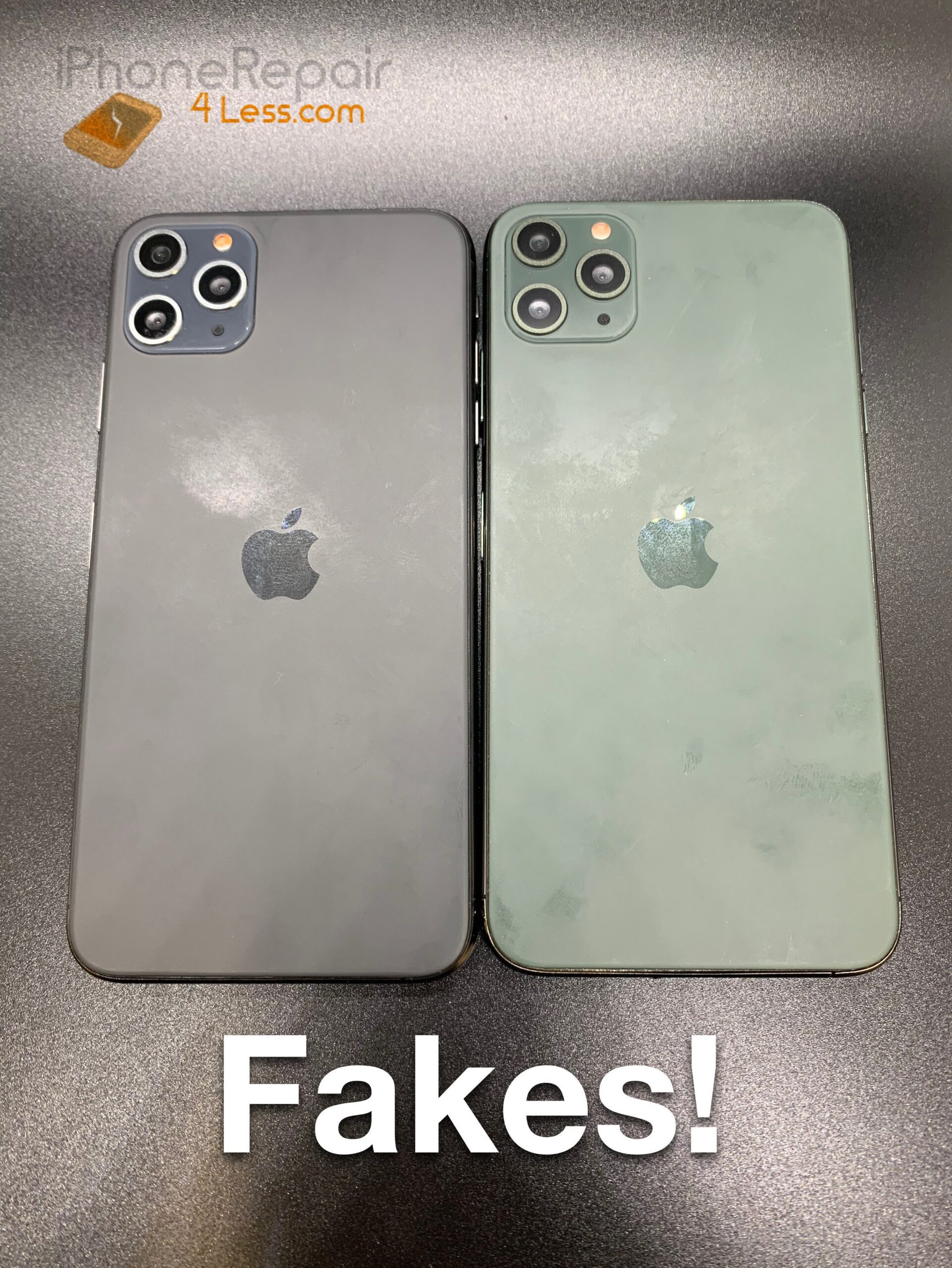
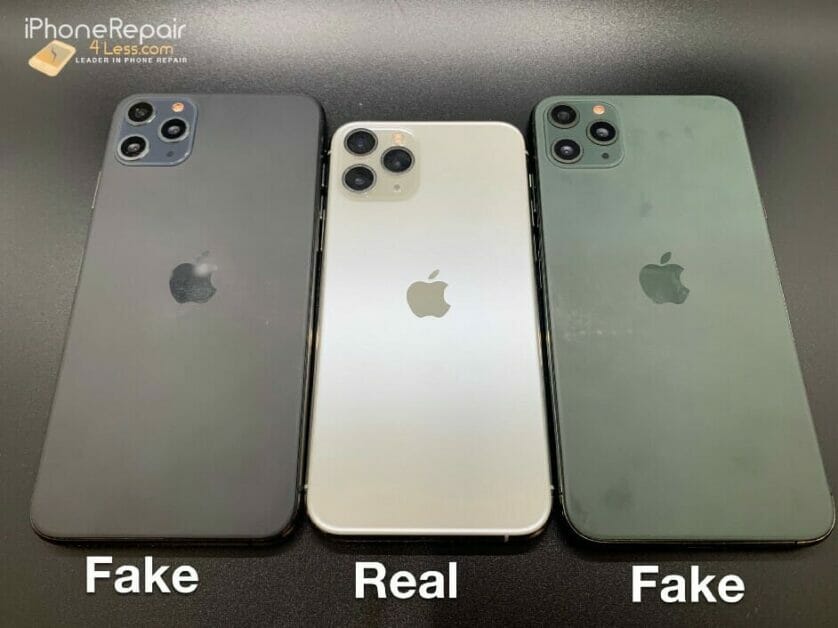
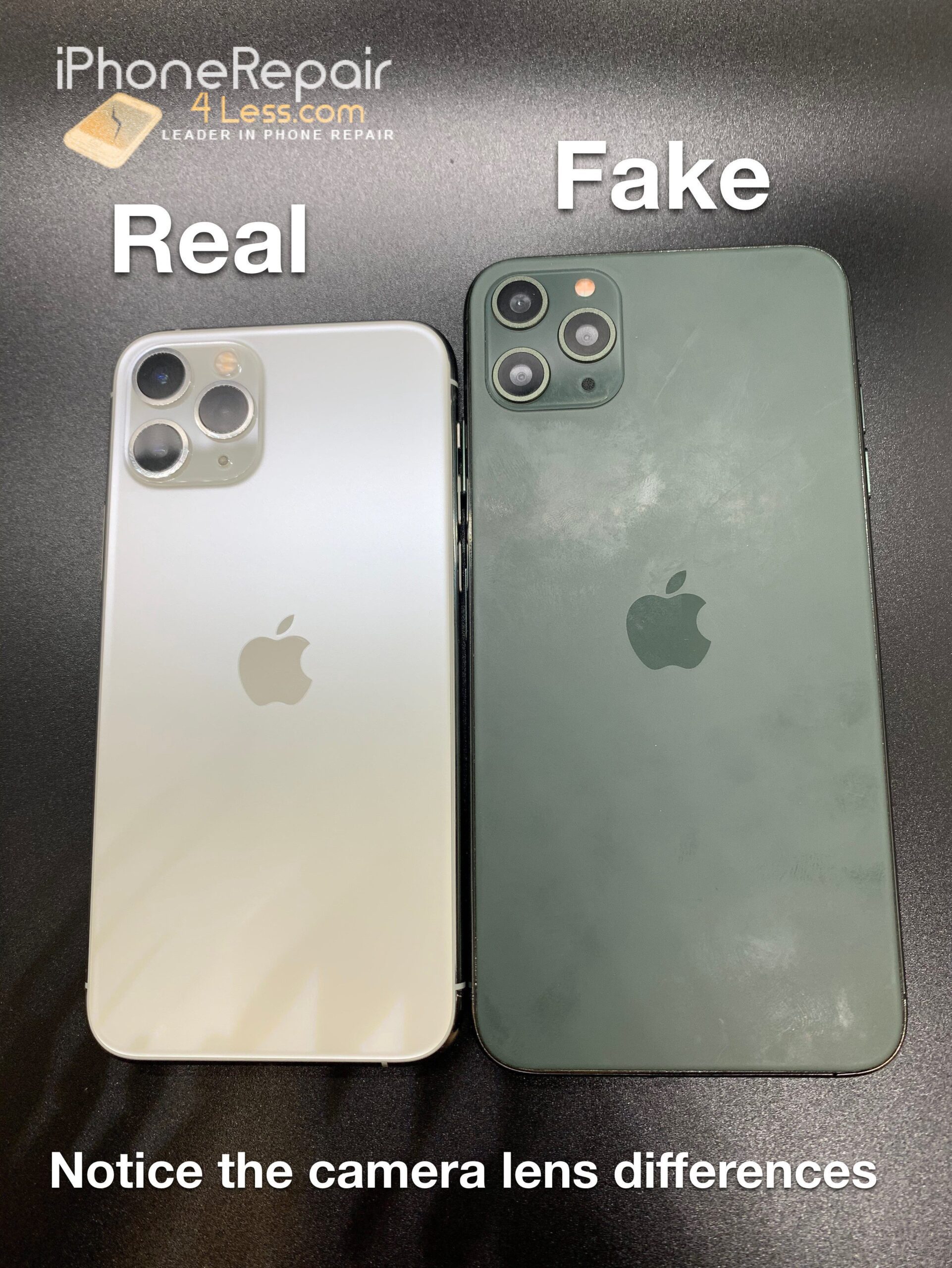
So, today I’ll give you tips on how to spot a fake iPhone 11, iPhone 11 Pro or iPhone 11 Pro Max.

iPhone 11 Pro Max clone: Image source: Slashleaks

With such a enormous market share, the “fake iPhone” business has become extremely profitable for devious phone manufacturers. Some of the previous iPhone knock-offs are so poorly done that it is very easy to differentiate a fake iPhone from a real one. But, over time, some fake iPhones are cloned very well that they are physically very identical to a real iPhone. From the size of the device, the buttons placement, the Apple logo, and other physical features of a genuine iPhone, some fake iPhones are indeed good imitations.

How to spot fake iPhone 11

How to spot fake iPhone 11

How to spot fake iPhone 11

So in case you are concerned that you may have a Fake iPhone 11, iPhone 11 Pro or iPhone 11 Pro Max, then this article is for you. This article will help you to spot a fake iPhone 11, iPhone 11 Pro or iPhone 11 Pro Max and distinguish it from a genuine iPhone.

Fake iPhone 11 Pro Max  

The iPhone 11 offers much improved cameras, a more durable design and excellent battery life for an affordable price, making it the iPhone for most people.

There are so many of fake iPhone 11 in the market that looks just like the real ones. You should be careful when buying iPhones from unfamiliar sources. In case you are buying iPhone from used market, a classified ad, or some other dealer that is not an Apple authorized dealer, use this guide to determine if the phone you are buying is actually a genuine iPhone.

See also: How to Spot a Fake iPhone 12
Most fake iPhones run an android operating system however, any settings or feature that exposes it as an android is concealed. In addition, be very careful when buying iPhone on sites such as eBay and Rakuten! You don’t want to end up with fake iPhone 11 Pro Max in your pocket.

This article gives you 17 tips that’ll tell you the difference between the real and the fake iPhone 11, iPhone 11 Pro and iPhone 11 Pro Max.

See also: How to Spot a Fake iPhone 12 Pro or iPhone 12 Pro Max

Spotting a Fake iPhone 11, iPhone 11 Pro and iPhone 11 Pro Max

Be cautioned that there are numerous fake iPhones out there and while clones or fakes are progressively becoming more prevalent you can still tell the difference between a fake and a real iPhone 11.

A little knowledge goes a long way with these devices and you always have to keep in mind that there is no one single give away when looking at a fake iPhone as they are manufactured by various companies that don’t subscribe to a single design philosophy.

There goal is typically to make a undoubted replica for as cheap as possible that are similar to a genuine iPhone. Fakes are occasionally manufactured before a official Launch based on rumors or after the official launch.

What to look out for when looking for a Fake iPhone 11, 11 Pro or 11 Pro Max?

You need to check out on the following signs to make sure that your iPhone 11, iPhone 11 Pro or iPhone 11 Pro Max is a genuine one:

Sign 1: Packaging

Always look for irregularities in packaging to the official retail packaging from Apple. In case you see a unofficial color of box art then in all probability, you have a fake iPhone 11.

Keep in mind to scrutinize accessories, as well as incorrect information that may be on the box.

Sign 2: Button Placement

One physical characteristic to watch out for is the button placement. On the genuine iPhone, the sleep/wake button is located on the top right corner of the device, while the volume buttons Are located on the upper left hand side. In case either of the buttons are not placed where they should, then you have a fake iPhone 11. Some fake iPhones have the buttons in the correct locations, but, feel the buttons by running your fingers on them. Press the buttons frequently to find out if they are not loose and are improperly fitted.

Sign 3: Check the logo

Fake iPhones have logos that are often off in placement being too high or lower than they should be. In addition, On the rear of the phone, you should find an Apple logo. In case you can’t see the Apple logo, then it’s a fake iPhone. Some fake iPhones are so convincing that they also have the Apple logo on the rear. Conversely, you can just brush your finger over the logo. If you feel a transition from the phone cover to the Apple logo, you have a fake.

Sign 4: Check the welcome screen

Typically the operating system on the clones is Android engineered to appear like Apples iOS. If at boot up for instance you are greeted with unusual welcome screen that usually on android rather than the logo of the iPhone, its certainly a clone.

In spite of the finest determinations, from time to time clones try to conceal Android features , however,they still show up and as you may understand, there are no Android OS features on Apple devices.

Sign 5: Font type

Look for the font type being used, every so often the font is off on the fakes compared to the Font used on an original Apple device. For instance, if you check for the font on your emails, you are often presented with Chinese character, causing you to first set up your iPhone to English

Sign 6: Missing Features

Check out for missing features such as Dark Mode and other unique iPhone features. In most cases, gesture controls do not function on fake iPhones.

Sign 7: Fake Settings

Look out for Fake settings that don’t open or work as they should. Some settings wont respond when you tap on them therefore, pay attention to that in settings.

Sign 8: Face ID

face ID does not function or its Fake. Typically, it may pretend to scan your face weather or not you move it. In addition, it might not function when you try to unlock your device.

Sign 9: Camera Quality

Genuine iPhones have superior camera quality while the fake ones take low quality photos and videos. A physically convincing iPhone with poor camera, irrespective of the lighting conditions, is a direct fake iPhone. Try recording a video and find out how bad does a fake iPhone shoot photos and videos.

Sign 10: Look for the serial number

You can dial the code “*#06#” on your keypad to show you your iPhone’s serial number. Alternatively, you can simply open setting > tap general > select about. This will give you the serial number. Now, you can head over to the Apple website, where you can enter your iPhone serial number to find out if it is a genuine iPhone. On the website, enter your iPhone serial number. If the site says that the code is invalid, you have a fake iPhone.

Sign 11: Check the storage capacity

Genuine iPhone has a fixed memory capacity and its not expandable. Fake iPhones require a micro SD card to increase its storage capacity. In case you spot a Micro SD card slot either on the rear or the side of the phone, then start backing out because it a fake iPhone.

Sign 12: Check for Siri

Siri application can only work on an original iPhone. Siri doesn’t function whatsoever on a fake iPhone.

Sign 13: Try to check the operating system.

If you see any application other than iOS, it is certainly fake. Apple uses proprietary iOS as its official operating system.

Sign 14. Try to connect to iTunes.

Connect your phone to a Mac or windows PC using a lightening to USB cable then try to run it with iTunes. In case you get an error, then it means iTunes does not recognize your device; therefore it is undetectable and fake.

Sign 15: Check the built-in applications.

The Original iPhone should have the built-in Apple native applications, including Podcast, Calender, Settings, Calculator, Mail, and Photos. Should you Miss any of the inbuilt apps, the phone may be jailbroken. To be certain you have an original iPhone, try to restore the original firmware. Should you miss some built-in native applications after restoring the original firmware, then you know what it is — a fake iPhone.

Sign 16: Pricing

If the price is too good to be real then its certainly or in all probability a fake iPhone. For instance, a fake iPhone 11 Pro Max costs as low as $135, which is almost 10 times cheaper than the original one. so exercise common sense.

Sign 17: Open it Up

If you can manage to Open it up, the internals are off and this is usually a sure bet way to 100% differentiate the Fake iPhone from the genuine one. The Internals are all erroneous.

Bonus

Here are couple of other ways on how we can differentiate between the real and the fake iPhone 11 Pro Max.

  • Ask about the warranty. Dealers of fake iPhones will not issue you a warranty to a certified iPhone service center.
  • Take it to an iPhone store. If your phone passes all the tests stated above, but you still have some uncertainties, head over to the nearest Apple store. Ask for the
    AppleGenius barto inspect your iPhone. They can run a diagnostic test to check for the legitimacy of your iPhone.

Where to buy Fake iPhone 11 Pro Max

It goes without saying, the fake iPhone 11 Pro Max comes with inferior specifications and I can’t recommend anyone to buy it.
However, if you wish to buy the fake iPhone 11 Pro Max and experience it on yourself, you can get it from Amazon.
As always please share this article on real vs fake iphone 11 with a friend and comment below.

We think you might also like:

30+ Best iOS 16 Tips and Tricks to Try First

Apple EarPods have a lot of use. You can use them to talk on the phone, launch Siri, fast-forward music and more. You can easily
Control phone calls, music and podcast playback, Siri, and more using the centre button. If you want to master how to use EarPods, this complete guide is for you.
Here is the step-by-step guide which will show you how to use EarPods controls like a pro.
Apple EarPods with remote control  
Apple provides it’s customers with wired AirPods for free in every iPhone, iPad, or iPod they buy.
Apple wired headphones are white in color and they are also referred to as EarPods.
Apple EarPods are not as stylish as travel headphones however, you do not have to worry about charging them and they can pretty much do everything you would need to control audio on your iPhone.
Apple EarPods are of two types:
EarPods with lightning connector
and
EarPods with 3.5 mm Headphone PlugThe
EarPods controls are attached to the wire beneath the right EarPod.
Apple EarPods have 3 buttons on the front of the controls:

  1. Volume up button
  2. Centre button
  3. Volume down button

You can use the volume buttons to increase or lower the audio level of music, podcasts and more. On the other hand,
the centre button can accomplish various tasks depending on the number of times you click it and the app you’re in.
In case you are not aware where the microphone is located on Apple EarPods, it’s positioned on the back of the control section. The microphone is placed around mouth height, where it can detect sounds during phone calls, recording memos, or commanding Siri without reaching for your
iPhone.

How to use apple EarPods

Follow these steps to use apple earbuds on your iPhone, iPad or iPod:

1. Use apple AirPods to control phone calls

When your Apple headphones are connected to your iPhone, you can talk
hands-free without having to hold your iPhone next to your mouth. Thanks to the EarPods in-built Mic.
Here is how to use Apple EarPods to talk on a phone call

  • While your iPhone is ringing, Click the centre button to answer a call.
  • While talking on your iPhone, click the centre button to end a call.
  • While your iPhone is ringing, hold the centre button to decline a call and send it to voicemail. Don’t release the centre button till you hear
    two beeps.
  • In case you get an incoming call while you’re already on the phone, click the centre button to answer the incoming call and place your present one on
    hold.
  • Switch between calls: Should you get multiple active calls, click the centre button to place your present call on hold and switch to the next one.
  • End multiple calls: Should you find yourself in multiple active calls, end your present call and switch to the next one by holding the centre button.

2. use Apple EarPods to control Music

You can control playback while listening to music, podcasts, audiobooks, or videos on your device through the centre button on your wired earphones.
Here’s how to use Apple EarPods to control audio on your iPhone, iPad or iPod:

  • To play or pause the music, podcast, audiobook, or video, click the centre button once.
  • To skip to the next song, jump 15 seconds forward on your podcast or audiobook, or skip to the next chapter
    in a movie, click the centre button twice.
  • To fast forward your song, podcast, audiobook, or video, click the centre button twice and hold.
  • To skip back to the previous song, jump 15 seconds backward on your podcast or audiobook, or go back to the
    previous chapter in a movie, click the centre button 3 times.
  • To rewind your song, podcast, audiobook, or video, click the centre buttons 3 times and hold.

3. Use apple EarPods to activate Siri

You can launch Siri with the wired headphones that comes with
your device. Moreover, you can issue hands-free commands to Siri through the use of the microphone attached to the controls of the EarPods.
Alternatively,
You can use Voice Control rather than Siri,
depending on the settings you have enabled on your device.
Here is how you can use Apple EarPods to talk to Siri:

  • Click and hold the centre button till you hear 2 beeps to launch Siri.
  • Click the centre button to exit Siri.

4. use apple EarPods to control the Camera

You can control the camera on your iPhone, iPad, or iPod touch through the centre button on your EarPods. It’s now easier to
Capture great photos on your iPhone
Since it is possible to take a photo without touching the device.
Apple got rid of this feature in subsequent iOS updates. Should the company reenable the feature, here is how you can use Apple EarPods to control the camera on your iPhone, iPad or iPod:

  • Launch the camera app on your device and click the centre button to snap a photo.
  • Launch the video camera app on your device and click the centre button to begin/end recording.

thats pretty much it on how to use Apple EarPods.

Audio Quality on Apple’s Headphones

Over the years, Apple’s wired EarPods have been extremely criticized for poor sound quality. They are not bad given that they are offered for free when you purchase new iPhone, iPad or iPod.
They come with an in-built Mic and you are able to control audio effectively with them.
In case you are considering purchasing wireless headphones, check this
.tomsguide.
Apple wireless AirPods are a bit pricy and do not offer numerous controls as Apple’s wired EarPods however, they are impressive.

Use Your Headphone Controls With Other Devices

You can connect Apple wired EarPods into any laptop, smartphone, or tablet
and most of the controls will work perfectly. You can increase/lower the volume, play/pause audio, rewind/forward, ETC.
Keep in mind , if your headphones have a Lightning connector you can only connect them into iPhone, iPad or iPod.
Questions?
Let us know in the comments section below.
As always share this article on how to Use EarPods with a friend or social media. We also have plenty of other articles that I suggest you check out right now.

There are plenty of reasons you might want to restrict access to your iPhone apps. Maybe you let your child use your phone and want to keep them out of messaging and productivity apps. Or perhaps you’d just like a little more privacy in general. There’s nothing wrong with that!

Unlike Android phones, which generally required a third party locking app to do this, Apple has a few built-in security solutions. Learn about them below.

As you do so, take this time to do a comprehensive security review of your phone. Check and refresh account passwords, and other security tools, and make sure your phone is up to date. It’s a good idea to do this at least once per month.

And don’t forget the easiest way to keep people out of your apps—don’t let them use your phone in the first place—unless you trust them.

Method 1: Use Screen Time

You might not realize this, but Screen Time does more than record your device usage patterns. It also has a handy app lock tool that you can use to prevent you from spending too much time on social media as well as restrict app access.

To turn Screen Time on:

  1. Open Settings
  2. Tap Screen Time
  3. Enable Screen Time and Screen Time passcode
  4. Tap App Limits
  5. Turn on App Limits
  6. Add Limit
  7. Choose which app you want to limit. You can also select multiple
  8. Tap Next
  9. Set Limit

Then set the limit to whatever you like. Do note that the lowest limit you can set is one minute, so someone could still access it if you haven’t used it that day.

This option is helpful when you still have easy access to the app because you can hit the ignore limit and put in your passcode to re-access the app.

Method 2: Guided Access

Guided Access is a super secure option. It restricts access on your phone to whatever app is currently accessed. This is helpful if you want to let somebody use one app without allowing them to venture elsewhere.

To enable Guided Access:

  1. Open Settings
  2. Tap Accessibility > Guided Access
  3. Turn On
  4. Set Guided Access Passcode
    You can also enable FaceID or TouchID to enable/disable it.

After turning on Guided Access, you can use the feature by opening any app on your iPhone and pressing the Side button three times (for iPhone X or newer) or the Home button three times (all older models).

To turn off Guided Access, press either the Side or Home buttons again and enter your passcode.

Method 3: Third-Party Apps

Apple has a very closed hardware ecosystem. That means you won’t find as many app locking apps as you do on Android in the App Store.

There are a few options in the App Store, but they’re not practical. Think of them more as ways to conceal some of your apps and data. But anybody who wants to will still be able to search Settings and Siri to bypass what these apps do.

If you want to use a true third-party solution that will lock your apps, you’ll have to jailbreak your phone. Do note, this voids your AppleCare warranty and may cause security or performance issues, so only do so at your own risk.

Once you jailbreak your phone, you can look into apps like AppLocker or BioProtect. However, not all locking apps are compatible with the latest iOS. Pay attention to this before you decide to jailbreak your phone or not.

How to Lock Apps On Your Apple Phone

Locking apps on your iPhone is easier than you realize. You can either use Screen Time or Guided Access if you want a built-in option. These are the best options for most Apple users.

But if you have some tech skills and don’t mind taking a little risk, you can also jailbreak your phone and try out one of the third-party options.

Whatever you do, just be sure to keep security in mind with your iPhone. Never leave your phone unattended, always lock the screen, and use security tools like Find My iPhone to erase your phone remotely if it’s ever lost or stolen.

Likewise, use other security tools like VPNs, password managers, and encryption to keep your data safe while you’re at it.

There’s no perfect way to lock your iPhone apps. But there are plenty of ways to improve your privacy and security. Use these strategies and tools to keep your phone as private as it can be.

Don’t want to use an Apple ID on your iPhone? no problem. Here’s how to set up your iPhone, iPad or iPod touch without an Apple ID.
How to use an iPhone without an Apple IDDuring the initial set up of your new iPhone, iPad or iPod touch, you are asked to sign in using existing Apple ID or create a new Apple ID.
Apple ID is the account that is used to sign in to all Apple services.
While an Apple ID is important, not everyone is comfortable sharing their information with Apple. Luckily, it is not obligatory to have an Apple ID, and in
this step-by-step guide, we’ll walk you through how to set up your iPhone without creating an Apple ID.
If you want to use your iPhone without an Apple ID, there are a few simple steps which you need to follow.
here is the step-by-step guide which will help you to set up your iPhone, iPad, or iPod touch without an Apple ID.

Steps to set up an iPhone without an Apple ID:

Whether you just purchased a brand-new
iPhone,iPad or iPod touch, or have erased your existing Apple device, you are required to
Set it up from the scratch upon powering it on.
Follow these steps to set up your iPhone without an Apple ID:

  1. Power on your iPhone by
    Pressing and holding down the device’s power button until the Apple logo appear.
    you’ll see hello in the first screen.
  2. choose your preferred language and select your region.
  3. Next up, you will see two options: Quick Start or set up manually. Tap Set
    Up Manually option to continue.
  4. Next on, you need to connect to a Wi-Fi network. If you have already inserted your SIM card,
    You can use cellular data to activate and continue setting up your device.
  5. You can now create a passcode, set up Face ID or touch ID. In case you don’t want to use these features, you can tap set up later in settings however, we recommend setting them up
    To unlock your iPhone and make purchases.
  6. Next up, you will see an option to restore or transfer your data from your old iPhone to your new iPhone, but since this is a new set up without an Apple ID, tap Set
    Up as New iPhone.
  7. Finally, you will see a sign in screen where you enter your Apple ID and password. Instead, tap the Forgot password or don’t have an Apple ID.?
    You will see three options:
  • Forgot password or apple id?
  • Create a Free Apple ID?
  • Set Up Later in Settings.
<li>Tap set up later in settings. A dialog box asking if you're sure you don't want to use an Apple ID will pop up. Tap Don't Use to confirm and you’ll be able to finish setting up your iPhone without an apple ID.</li>That's pretty much it, you’ll now be able to use your iPhone without an Apple ID. You can still sync data across your devices using apps

Such as: One Drive, Google Drive, Google Photos, and more.
Moreover, cloud services such as google drive can help you access your data, no matter the type of device You have.
Questions?
Let us know in the comments section below. We also have plenty of other articles that I suggest you check right now.
Apple has always been committed to privacy and honestly, an iOS device is more privacy oriented than an android device. However, you can tweak a few settings on your iPhone to preserve your personal privacy even more.

Apple prides itself on setting a high standard for user privacy and data security on every device it makes. However, your iPhone might not be as secure as you think.

It’s true that iPhones are more difficult to hack than their Android competitors, as they are produced by one manufacturer dedicated to keeping them secure. Tons of companies manufacture Android devices, which means greater risk of vulnerabilities.

However, malicious attackers have found creative ways to steal your sensitive data from the iPhone apps collecting it on a daily basis. They could grab your browsing history, personal images, current location, and even passwords without your knowledge.

What’s more, Apple has no control over where your information travels once it’s collected by apps. Some app providers harvest and sell your data, which means that iPhone privacy concerns go well beyond the risk of hacking.

The good news is that, there are many steps you can take to minimize your risks, and they are all FREE. Below, we’ll detail the best ways to protect your privacy on your iPhone, so that none of your sensitive information ends up in the wrong hands.

Why It’s Important to Keep Your iPhone Private

The possibility of someone watching you or sharing pictures and videos of you without your knowledge is disturbing at the least, and dangerous at worst. Unfortunately, it can happen, and it’s just one of many ways your iPhone can put your privacy at risk.

Hacking and Malware Risks

Security researcher
Felix Krause
found out that hackers can spy on you through your iPhone camera, thanks to apps they create by abusing iOS permission settings.

When you download an app from the App Store, it asks your permission to access different features of your iPhone – your camera, photos, location settings, and much more. Once you give permission to the app, it can access those features each time the app runs.

That means an app compromised by hackers can silently snap photos and record videos of you, or even run facial recognition software in an attempt to steal your identity.

Besides making you vulnerable to spying, compromised apps could infect your iPhone with malware.
“Jailbreaking”
your iPhone to download third-party apps not offered by the Apple Store greatly increases the risk of a hacking or malware attack.

With that in mind, the first step toward securing your data and device is quite easy, since all you have to do is nothing: Do not jailbreak your iPhone.
See also:
Can an iPhone Get a Virus? Know Here

Device Theft

We’ve all had those moments of distraction, not realizing we left our Smart phones at the coffee shop or grocery store until hours later. Then panic sets in. Passcodes and a fingerprint touch ID should prevent anyone who finds your iPhone from accessing your data, but will they, really?

In spite of these security measures, there is a chance a dishonest person who finds your iPhone could get into everything – your contact lists, your messages, and so much more.
See also:
Found a Lost or Stolen iPhone? Do These Things!

Data Harvesting and Other Privacy Concerns

Although your iPhone’s security features do their job and no one ever accesses your phone without your Consent, your privacy is still at risk any time you use an app. App providers and your ISP continuously collect your data, often selling it to third-party data brokers.

At a minimum, the sale of your data means you’ll be dealing with the annoyance of targeted marketing – and remember, these advertisers know your phone number. But the effects of data harvesting could be far worse than that.

Much of the data collected about you makes its way to agencies that run background checks. So whether the information is accurate or not, your data can be used against you when you make critical life decisions, such as buying a home or finding a new job.

Some sites suggest that the best way to protect your privacy is to delete all your iPhone apps, but doing that basically turns your $800 device into a flip phone. Here are some more practical tips to secure your iPhone and your data.

The Seven Best Ways to Keep Your iPhone Protected

So the hard truth is that although we’d like to imagine iPhone security risks as far-fetched scenarios, iPhones have very real vulnerabilities. The good news is that, there’s no reason to panic.

These seven simple tips will give your iPhone the boost of protection it needs to combat almost any security threat.

#1. Set a strong passphrase

It may sound obvious, but the first step is to defend your privacy from those who have direct access to our iPhone. Our smartphones holds sensitive information, personal photos, work emails and much more. Yet, I bet many of you have your date of birth as your phone’s unlock code. Bad idea!
Instead, create a robust and unpredictable password to protect your iPhone from the curious snoopers or malicious thieves.
Also, be sure to activate
Face ID or Touch ID,
so you don’t have to type in the long password every time and greatly improve the usability of your iPhone.
Here’s how to do it: Head over to Settings -> Face ID/Touch ID and set an alphanumeric password. Also be sure to carefully select what you want to be available from the lock screen. For instants, you may need to disable the Notification Center or Wallet, or maybe shut Siri down, which is sometimes a little too indiscreet. Lastly, if you use your iPhone for work and have really important Data, you can have all your data deleted after 10 failed passcode attempts, to make sure your data doesn’t go into the wrong hands.
Setting a password for your iPhone has another benefit, the data stored inside it is encrypted, making impossible to access it without unlocking the Device. Even if you connect it to a computer or take it apart, you can’t access the information inside it.

#2. Check your Find My settings

Find My
is a Super useful feature that allows you to locate your iPhone in case it gets lost all stolen. Make sure you have enabled this feature to have the possibility to delete the contents of your iPhone in case of loss, preserving your privacy.
Also make sure you don’t activate the sharing of your location with your friends, unless you want to do it on purpose.
To manage these settings: head over to Settings -> Apple Account Management -> Find My -> Find My iPhone.
See also:
How To Track a Lost iPhone, iPad, or Mac With Find My

#3. Check your location settings for Apps

Our location is arguably the most sensitive information inside our iPhone. So be sure to give each application permission to access your location only when necessary.
Of course we have to give permission to navigation apps, otherwise we won’t get directions, but maybe we can revoke permission to access our location to a video game or bank app.
To do this: head over to Settings -> Privacy -> Location Services to find the list of installed apps. For each of them you can select whether to allow access to the location, and eventually let the application use GPS in the background as well.

#4. Check your location settings for System Services

Most iPhone users do not know that iOS itself uses the position very often. Thanks to the location our iPhone can give us personalized suggestions. For instants, it can send a notification with traffic information, calibrate the compass or provide targeted advertising.
By heading over to Settings -> Privacy -> Location Services -> System Services we have the option to disable some entries, so that we can limit the amount of data collected by our iPhone operating system for the various suggestions.

Disable the access to your location for the System Services you don’t need
From the same screen you can also disable location data that is otherwise used to improve Apple products.

#5. Check your privacy settings for Apps

What most threatens our privacy are the applications. When we download an app from the App Store we are often asked to give access to a series of permissions, and most of the time we allow permission without paying too much attention, perhaps because we are in a hurry to use the app just downloaded.
In this case it’s good to apply a golden rule: give an app only the permissions strictly necessary for its operation.
By heading to Settings -> Privacy we can choose which applications to allow access to our contacts, our reminders, our calendar, our photos and much more. As we did for the localization, it’s a good idea to ask ourselves: “is it really necessary to authorize this app to access these data of mine?
Always use common sense: it’s obvious that an app that manipulates photos should be able to access our gallery, but it shouldn’t have access to our microphone. It’s obvious that a messaging app needs access to our contacts, but you probably don’t need to allow it to access our health data.

#6. Uninstall useless Apps

As I pointed out, applications are what most endanger our privacy. Applications represent a point of access to our iPhone, a way in which developers, often unknown, can gather a range of information about us.
Some applications may also have vulnerabilities that can be exploited by hackers to attack our iPhones and steal our Data.
So, try to only install the apps you really need, keep them updated, and delete them when you no longer need them. This way, we limit the possibility of our data being exposed to malicious attackers.

#7. Hide notification previews on lock screen

The last tip is to deactivate the notification preview when the screen is locked. This prevents other people from being able to see your messages and other potentially sensitive information.
If you are the owner of the iPhone and you have Face ID, you just need to look at your Device to see the previews. Otherwise, you will only have to place your finger and use Touch ID.
To disable the Notificationpreviews: head over to Settings -> Notifications -> Show Previews.
See also:
14 Tips To Protect The Private Information On Your iPhone ..

For years now, I’ve been Using an iPhone without a case. I have never been against those who want to protect their expensive devices. But I’ve always felt that I lose some of the value that the device brings when you cover it in hard plastic.

I remember when I got my very first expensive, fully-loaded computer that my Dad offered to pick for me on my birthday. At the time I worked for him at his external IT consultancy where he provided tech support to local companies. So the gift was partly , my birthday present, and partly, business expense, because he wanted to get me a computer that could help my position as a Network and PC troubleshooter.
The laptop I choose was a 2011 13-inch MacBook Air with an i7 processor, 8 GB of RAM, and 512 GB SSD. It was the most expensive computer I had ever owned and immediately felt I needed to protect it from the world it lived in. So I purchased a clear Incase plastic casing for the outside of the device.
After five months of using the MacBook Air, I realized that the case was starting to turn yellow. It was quite scratched, but I felt that was the point; instead of the MacBook Air getting scratched, the case got it.
However, the yellowing started to bother me and decided to take the case off one day. I was blown away by how beautiful the silver aluminum casing was; I hadn’t seen the outside of the MacBooks casing without the clear case since I got the laptop five months earlier.
After that day, I never put the case back on. I also took off the case from my then Galaxy S2 as well and realized how my phone felt good in hand without a case too.

iPhones, iPads, MacBooks, and even AirPods all have had cases, but we’re removed shortly afterword’s because of my desire to have a pure experience with the device as it came. The disadvantage of using an iPhone without a case may be the risk of wear and tear or destruction of a costly device if you are not careful.
For instance, I have had my
iPhone 11 Pro Max
since around September of last year, and it’s quite worn out from my constant use and exposure to different surfaces. I have not put a case around it since I got it and have enjoyed feeling the industrial design of the device every time I pick it up.
The stainless steel and glass materials that make up the
iPhone
provides a dense and solid experience as if you are holding something substantial. Covering that with a thick plastic just seems wrong, which is why I have not wrapped it up in anything.

The result of using an iPhone without a case, in some instances, is an iPhone that looks quite worn out and abused. I promise that I try and be careful with my iPhone, but it is also a tool, and I use it as such. If I place it on a table, I can place it face down to avoid distractions during a meeting or dinner.
Using an iPhone without a screen protector may appear horrifying, but my aversion to a screen protector on my iPhone outweighs the risk of possible scratches. Recently, my iPhone’s got a small but deep scratch on the screen when it slipped out of my pocket and rubbed against a staple between the base of my sofa and the cushion.
I also accidentally cracked my poor iPhone 11 Pro Max back glass after hitting asphalt from me getting out of my car and forgot that the phone was resting on my lap. The crack is small and has not affected the performance or caused any internal damage to the device. Instead, it gives a glimpse of my hardcore usage of my iPhone, which I’m proud of.

iPhones and other computing devices are expensive. When I buy something at a high cost, it should provide enough use to reflect that cost. My iPhone offers a lot of value for what I paid for it, and I use it to meet that value. This usage can cause some wear and tear, which makes sense to me.
I do understand some people are not as lucky as I am in keeping my phone from a broken screen and do understand younger people need cases because they are more likely to drop things. I’m also aware of the resale value argument if you plan on selling your iPhone each year and want to get as much money as possible to pay for the upgrade.
However, one of the advantages of Using an iPhone without a case is the beauty of actual small and compact design. Wrapping an iPhone in thick plastic or screen protectors takes away the value I feel the size and weight of the iPhone offers. As a compromise, I have to handle the scratches, dings, and cracks that may come in using a device in this way.
But truth be told, I enjoy the appearance of my weathered iPhone. It sends the message that I am getting the value I paid for it and reminds me that it is a tool over anything else. So, that’s why I use my iPhone without a case!