Got a tip for us?

iPhone

The iPhone is a smartphone from Apple that runs the iOS mobile operating system. Between its apps, communication features, the camera, mobile internet access, and other functionalities, the iPhone has quickly become an integral part of many peoples tech lives.

If you created a shared album, you can invite more participants to join the album. You can also remove participants, manage album notifications, let other participants manage the album, and turn posting for participants off and on.

By default, all participants can view and comment on album content, but you can change each person’s permissions to Can Manage Album and Photos, Can Add Photos, or Can View and Comment.

Here’s how to add and remove people in a shared album on iPhone.

Add participants to a shared album

  1. Start the Photos app on your iPhone.
  2. Tap Collections.
  3. Tap Shared Albums and tap an album.
  4. Tap the Manage Shared Album button and tap Invite Participants.
  5. Tap a share method, enter the recipients’ details, and then send the invite.

Manage participant permissions

If you’re the organizer of a shared album, you can manage and change participant permissions. By default, every participant can contribute photos and videos, view and comment on album content, and remove anything they contributed.

  1. Start the Photos app on your iPhone.
  2. Tap Collections.
  3. Tap Shared Albums and tap an album.
  4. Tap the Manage Shared Album button, tap a participant, and then tap one of the following:
    • Can Manage Album and Photos: The participant can invite other participants, rename the album, update permissions, and delete photos or videos added by others.
    • Can Add Photos: The participant can share photos and videos and remove content they contributed.
    • Can View and Comment: The participant can view and comment on photo and videos.
  5. Tap the Done button.

When participants post or comment in a shared album you’re a part of, notifications about the activity appear in the Albums Activity tab.

Remove participants from a shared album

  1. Start the Photos app on your iPhone.
  2. Tap Collections.
  3. Tap Shared Albums, then tap an album you created.
  4. Tap the Manage Shared Album button.
  5. Tap the participant you want to remove.
  6. Tap Remove Participant at the bottom of the screen.
Tag: Photos

In the News app, you can clear your reading history and adjust how you get reading recommendations. You can remove your reading history, the information used to recommend stories, or both, and the change applies on all devices where you’re signed in to the same Apple Account.

Clear your history

  1. Open the News app on your iPhone.
  2. Tap Following, tap History, tap Clear, and then do any of the following:
    • Remove your reading history: Tap Clear History.
    • Remove information used to recommend stories: Tap Clear Recommendations. Choosing this option can change the types of channels, topics, and stories shown in the Today and other feeds in Apple News on all your Apple devices.
    • Remove your history and recommendations: Tap Clear All.
  3. Your News history and recommendation information are removed from all devices where you’re signed in to the same Apple Account.

When you clear your history, the identifier used by Apple News to report statistics to news publishers is also reset. You can reset the identifier at any time by going to Settings > Apps > News, then turning on Reset Identifier.

Recommend stories based on News app reading only

Turn off Siri & Search for the News app, and recommendations are based only on your reading habits in the News app, not in Safari and other apps.

  1. Open the Settings app on your iPhone.
  2. Tap Apps, then tap News.
  3. Tap Siri and turn off Show in App.
Tag: News

In the Podcasts app, subscribe to, change, cancel, and share your podcast subscriptions. Paid subscriptions allow you to support the shows you love, and they often include premium extras, early access to new episodes, or ad-free listening.

You can subscribe to a show or a channel, and share Apple Podcasts subscriptions with others. You can also change or cancel your subscriptions later.

Here’s how to subscribe to a show or channel in Podcasts on iPhone.

Note: Not all subscriptions and channels are available in all countries, regions, or languages.

Subscribe to a show or channel

  1. Start the Podcasts app on your iPhone.
  2. Select the show or channel you want to subscribe to.
  3. Tap the subscription button (if available).

Subscribe to a show, and you automatically follow it, too. Shows you subscribe to or follow are also there on your other Apple devices or in the Apple Podcasts app. And if you follow one of a channel’s shows or subscribe to the channel, it shows up in the Channels section of your library.

Change or cancel your subscriptions

  1. Start the Podcasts app on your iPhone.
  2. Tap Home.
  3. Tap the My Account button or your profile picture and tap Manage Subscriptions.
  4. Tap a subscription to change or cancel it.

Share Apple Podcasts subscriptions

If you subscribe to podcast channels, you can share your subscriptions with up to five other family members through Family Sharing. Everyone in your family group automatically gets access to the channels you subscribe to.

When you join a family group where a member already subscribes to a show you subscribe to, your own subscription doesn’t renew at your next billing date, and you use the group’s subscription instead. And if the group you join doesn’t subscribe, it uses yours.

Note: You can stop sharing a show subscription with a family group by canceling the subscription or choosing to leave a Family Sharing group.

In the Reminders app, you can organize a list with sections and subtasks. You can also view the sections as columns and easily move items to different columns. With Apple Intelligence,* you can also automatically categorize related reminders into sections within a list.

You can change a list’s name, type, color, or icon, and edit several items at once.

Here’s how to edit and organize a list in Reminders on iPhone.

Note: Some Reminders features in this guide only work with updated reminders in iCloud, so they aren’t available when using other accounts.

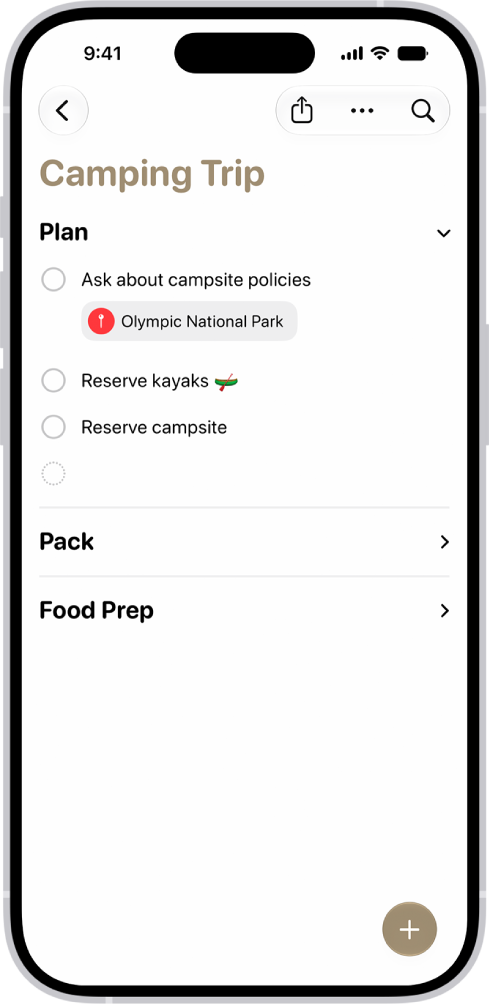
The Reminders app showing a list with one section expanded and the others collapsed.

Edit a list

  1. Start the Reminders app on your iPhone.
  2. While viewing a list, tap the More button and then do any of the following:

    • Change the list name, type, color, or icon: Tap Show List Info.
    • Edit multiple items: Tap Select Reminders or Select Items, then select the items you want to edit. You can also drag two fingers over the items. Use the buttons to add a date and time, move, delete, assign, complete, tag, or flag the selected items.
    • Sort items by due date, creation date, priority, or title: (not available in all Smart Lists) Tap Sort By. Choose an option.

      When you sort or reorder a list, the new order is applied to the list on your other devices where you’re using updated reminders. If you sort or reorder a shared list, other participants also see the new order (if they use updated reminders).

    • Remove the list: Tap Delete List.

Manually reorder or recategorize items in a list

  1. Start the Reminders app on your iPhone.
  2. While viewing a list, touch and hold an item you want to move and then drag it to a new location.

Organize with sections

  1. Start the Reminders app on your iPhone.
  2. While viewing a list, do any of the following:

    • Create a new section: Tap the More button, tap New Section, and enter a name.
    • Collapse a section: Tap the Collapse button.
    • Expand a section: Tap the Expand button.
    • Rename section: Tap the section name, then enter a new name.
    • Move a section: Touch and hold the section and drag it to a new position.

      Note: You can’t move the Others section.

    • Remove a section: Swipe left on the section and tap Delete.

      Note: Removing a section will also delete the section’s reminders.

Turn Auto-Categorize on or off

Apple Intelligence can automatically sort related reminders into sections within a list using Auto-Categorize.

  1. Start the Reminders app on your iPhone.
  2. Tap a list.
  3. Do one of the following:
    • Turn Auto-Categorize on: Tap the More button, then tap Auto-Categorize.
    • Turn Auto-Categorize off: Tap the Auto-Categorize button and tap Turn Off. Then choose whether to keep or remove the sections.

Note: Removing the sections doesn’t delete any reminders. If you don’t like how the sections are categorized, try turning off Auto-Categorize and removing the sections, then turning it back on. This resets your section titles and organization within a list. Note: Apple Intelligence on iOS 27 or later is available on an Apple Intelligence-enabled iPhone 15 Pro, iPhone 15 Pro Max, or iPhone 16 model or later. Apple Intelligence is not available in all languages or regions. Usage limits may apply.

View the sections as columns

Viewing the list in columns makes it easy to visualize and recategorize the items.

  1. Start the Reminders app on your iPhone.
  2. While viewing a list, tap the More button and then tap View as Columns.
  3. To recategorize an item, drag it into a different column.

Create subtasks

  1. Start the Reminders app on your iPhone.
  2. While viewing a list, swipe right on an item and then tap Indent. Or drag an item onto another item.

If you complete a main task, the subtasks are also completed. If you delete or move a main task, the subtasks are also deleted or moved. *Apple Intelligence is available with Siri and device language set to Chinese (Simplified), Chinese (Traditional), Danish, Dutch, English, French, German, Italian, Japanese, Korean, Norwegian, Portuguese, Spanish, Swedish, Turkish, or Vietnamese. Some features may not be available in all regions or languages. Some devices may not be available in all regions. Siri AI is available in beta in iOS 27, iPadOS 27, macOS 27, watchOS 27, and visionOS 27 and requires an Apple Intelligence–enabled device set to a supported language. Available in English to start. Siri AI will not be initially available in the EU on iOS, iPadOS, and watchOS. Certain Apple Intelligence features that rely on server-side models are subject to daily usage limits, including but not limited to Siri AI, Intelligent Photo Editing Tools, Image Playground, and AFM 3 Cloud models in Shortcuts. Daily limits may vary by feature, request complexity, system demand, system policies, and other factors. Expanded access to such features will be available for a fee in the future. Use of these features is subject to the Apple Intelligence Terms and Conditions.

You can perform arithmetic calculations with a basic calculator in the Calculator app, and Siri can do the math for you, too, like 18 percent of 225.

You can clear digits, numbers, or the display, delete the entire number you last entered, copy a calculation result, and repeat the last operation. If you need more, you can switch to another mode to access algebraic, exponential, logarithmic, and trigonometric keys, or instantly calculate unit or currency conversions.

Siri: Ask Siri something like, “What’s 18 percent of 225?”

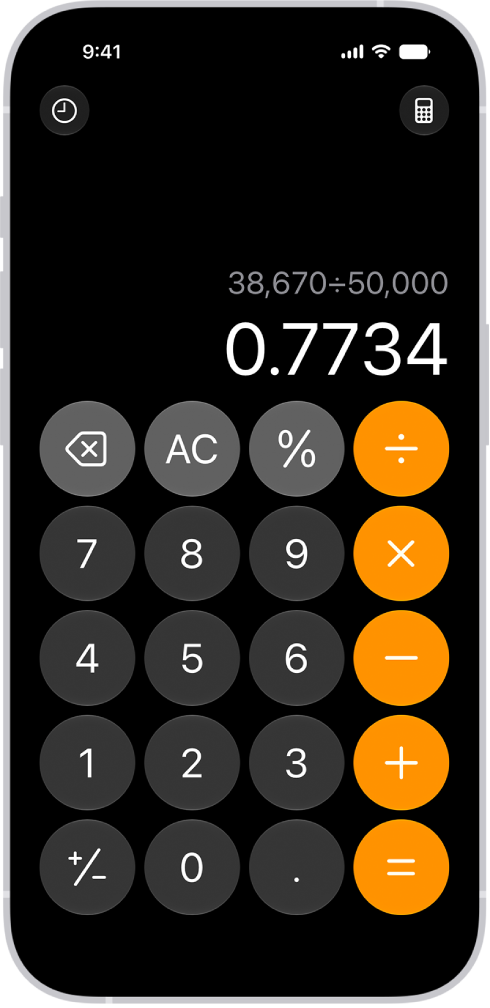
The basic calculator on iPhone.

Switch to the basic calculator

  1. Start the Calculator app on your iPhone.
  2. Tap the Change Mode button and then tap Basic.

Clear digits, numbers, or the display

  1. Start the Calculator app on your iPhone.
  2. Enter a digit or calculation.
  3. Do one of the following:
    • Delete the last digit: If you make a mistake when you enter a number, tap the Delete key.
    • Delete the entire number you last entered: Tap the Clear (C) key.
    • Delete the expression: Tap the All Clear (AC) key, or touch and hold the Delete key or the Clear (C) key.

Clear digits, numbers, or the display

  1. Start the Calculator app on your iPhone.
  2. Enter a digit or calculation.
  3. Do one of the following:
    • Delete the last digit: If you make a mistake when you enter a number, tap the Delete key.
    • Delete the entire number you last entered: Tap the Clear (C) key.
    • Delete the expression: Tap the All Clear (AC) key, or touch and hold the Delete key or the Clear (C) key.

Switch to another mode

  1. Start the Calculator app on your iPhone.
  2. Tap the Change Mode button. Do one of the following:

Note: For written math and variable names, Calculator uses select numeric systems.

Copy a calculation result

  1. Start the Calculator app on your iPhone.
  2. Enter a calculation, touch and hold the calculation result in the display, and tap Copy.
  3. Paste the result somewhere else, such as in a note or message.

You can also copy previous calculations.

Repeat the last operation

After you complete an operation, you can do one of the following:

  • Apply the last operation to the current result: Tap the equal sign.

    For example, if you enter “1 × 2 =”, your result is 2. Each time you tap the equal sign, the currently displayed answer is multiplied by 2, producing these results: 4, 8, 16, 32, and so on.

  • Apply the last operation to a new number: Enter a new number, then tap the equal sign.

    For example, if you enter “100 + 15% =”, the result is 115. Then, if you enter “150 =”, the result is 150 + 15%, or 172.5.

You can import data into Safari that you exported from another browser. Browser data can include bookmarks, history, extensions, credit cards, and passwords.

The data can come as a ZIP file, and there might be individual files for each piece of browsing data, like bookmarks or history. After you import it, a description of the browser data appears, and any passwords go into the Passwords app. For security, you’ll want to delete the file or folder you imported, since it may include unencrypted data.

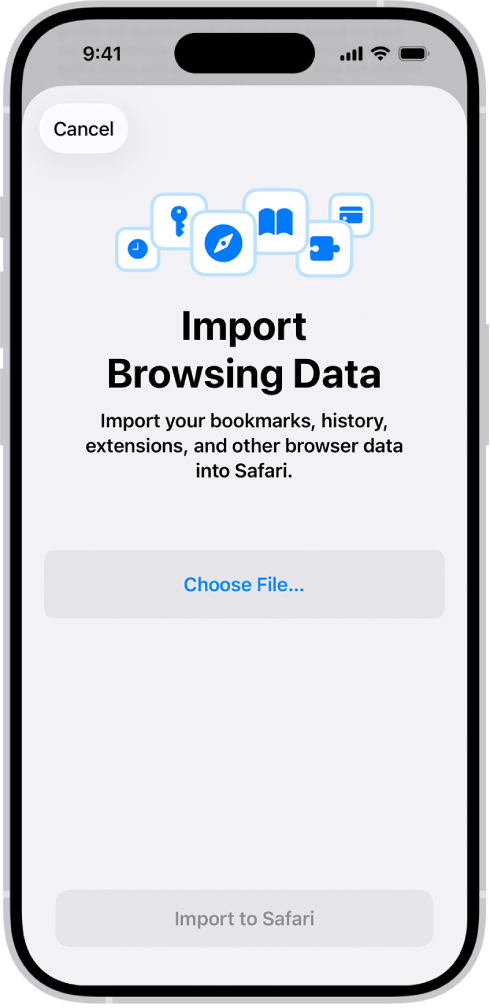
The Import Browsing Data screen, prompting you to choose a file to import.

  1. Start the Settings app on your iPhone.
  2. Tap Apps, then tap Safari.
  3. Below History and Website Data, tap Import.
  4. Tap Choose File and then choose a file (or a ZIP file of files) to import.

    Individual files might be available for each piece of browsing data, such as bookmarks or history.

  5. Tap Import to Safari.

    A description of the browser data you imported appears.

    Note: Any passwords you import go into the Passwords app.

  6. Tap Done.

WARNING: For security, delete the file or folder you imported. It may include unencrypted data and could be visible to anyone who can access it.

Tag: Safari

With math in the Notes app, you can draw diagrams, solve equations, assign variables, and plot graphs. Mathematical expressions are solved inline when you write or type an equal sign.

You can type a math expression and include an equal sign, or write one with Markup. You can even write a stack of numbers and draw a horizontal line below them to add them, and you can create a graph.

Note: The Notes app supports math you write using Western Arabic numerals and common mathematical symbols, or math you type using Arabic (Eastern & Western) and Devanagari numerals and common mathematical symbols.

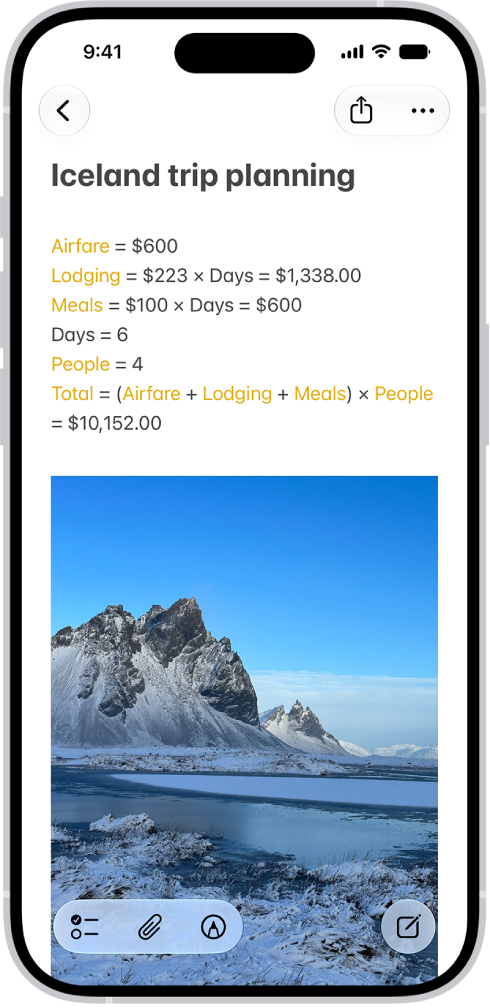
A note for planning a trip, with a calculation of the travel expenses and a photo.

Add mathematical expressions to a note

  1. Start the Notes app on your iPhone.
  2. Open a note, or tap the New Note button to start a new note.
  3. Do any of the following:
    • Type a math expression, then include an equal sign.
    • Tap the Markup button, write a math expression horizontally, then include an equal sign.
    • Tap the Markup button, write a stack of numbers, then draw a horizontal line below the numbers to add the numbers in the stack. Write a different symbol to the left of each digit if you want a different operation.
  4. Tap the equal sign to see what Notes understood in what you wrote and tap Solve.
  5. To correct mistakes, you can fix any of the following:
    • Unrecognized math and unsolvable expressions: Tap any dotted red lines to see details about the error.
    • Ambiguous characters: Tap any dotted blue lines to clarify what you wrote.

Create a graph

  1. Start the Notes app on your iPhone.
  2. Open a note, or tap the New Note button to start a new note.
  3. Type or write an equation with x and y variables, with the y variable on the left side of the equation. For example, y = 5x + 3. You can also tap the equal sign in an equation you already wrote.
  4. When you finish the equation, a menu appears. Tap Insert Graph.
  5. The y variable is represented on the vertical axis, and the x variable is represented on the horizontal axis.
  6. To add another equation to the same graph, type or write a new equation and then tap Add to Existing Graph.

Access Math Notes created in the Calculator app

  1. Start the Notes app on your iPhone.
  2. In the Folders list, tap Math Notes. You may have to tap the Back button to see your folders.
Tag: Notes

While using Messages on an iPhone that meets minimum system requirements, you can share your screen or ask to see someone else’s screen. In supported apps, you can also use SharePlay to get together with friends while you watch the latest episode of your favorite show or listen to a new song in real time.

To share your screen, you jump from Messages to FaceTime, bringing apps, webpages, and more into the conversation.

Show someone else what’s on your screen

To share your screen and bring apps, webpages, and more into the conversation, you can jump from Messages to FaceTime.

  1. Start the Messages app on your iPhone.
  2. In a conversation with just one other person, tap the FaceTime button.
  3. Tap Share My Screen.

See another person’s screen

From Messages, you can also jump to FaceTime to see another person’s screen, or even remotely control it.

  1. Start the Messages app on your iPhone.
  2. In a conversation with just one other person, tap the FaceTime button.
  3. Tap Ask to Share Screen.

Use SharePlay to enjoy content together

Right from a supported app like Apple TV or Music, you can start a Messages conversation.

You and your recipients must all be using iMessage to use SharePlay in Messages, and shared playback controls keep everyone in sync.

  1. In a supported app, find a show, movie, song, album, or other content you want to share. Tap the item to see its details.
  2. Do one of the following:
    • Tap the Share button, then tap SharePlay.
    • Tap the More button, tap the Share button, then tap SharePlay.
    • Tap the More button next to the content, then tap SharePlay.
  3. In the To field, enter the contacts you want to share with and tap Messages.
  4. Tap Start or Play to begin using SharePlay.

To begin viewing or listening, recipients tap the content’s title at the top of the conversation, then tap Open. For everyone who has access to the content, the video starts playing at the same time.

Note: If the shared content requires a subscription, the service may ask those who don’t have access to subscribe, make a transaction, or sign up for a free trial, if available.

When you select content to share and tap the Play button, you can also select Play for Everyone (if it appears) to begin it for everyone in the conversation. (Others on the thread may have to tap Join SharePlay to see the video.) Each person in the conversation can use the playback controls to play, pause, rewind, or fast-forward for everyone, but settings like closed-captioning and volume are controlled separately by each person.

Use Messages when you want no interruptions to the sound of the movie, show, song, or podcast, or tap the FaceTime button to switch to FaceTime when you want to see and hear other people as you chat.

Quick tip: The video can also stream to Apple TV 4K after it starts playing.

iPhone makes it easy to reach the people important to you, so you can catch up with phone or video calls and quickly text your group of friends. It starts with a smarter address book, where phone numbers, email addresses, and birthdays are there when you need them, from Messages to FaceTime to Mail.

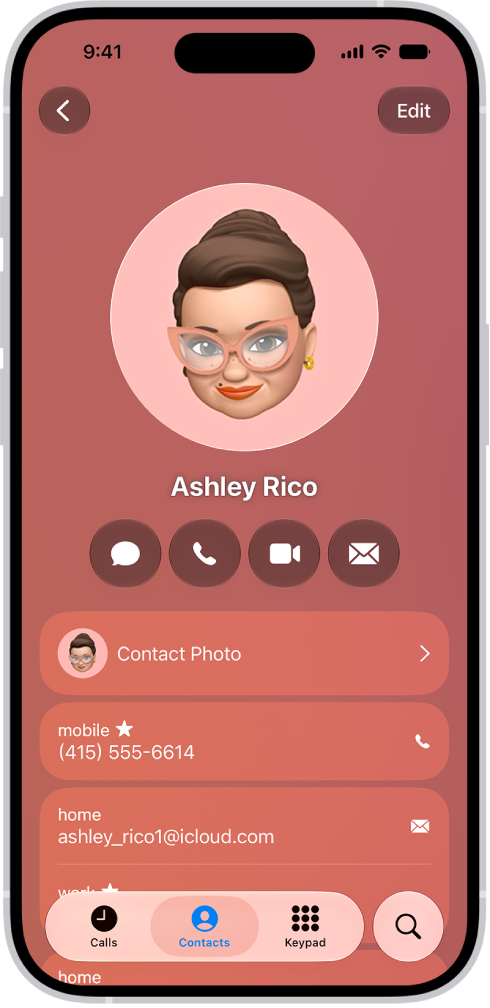
A contact card in the Contacts app.

A smarter address book

In the Contacts app, enter phone numbers, email addresses, birthdays, and more once, and you’ll have them anywhere you need them, from Messages to FaceTime to Mail.

You can also add contact information from another account (like Google or Yahoo). Go to the Settings app , tap Apps, tap Contacts, tap Contacts Accounts, then tap Add Account.

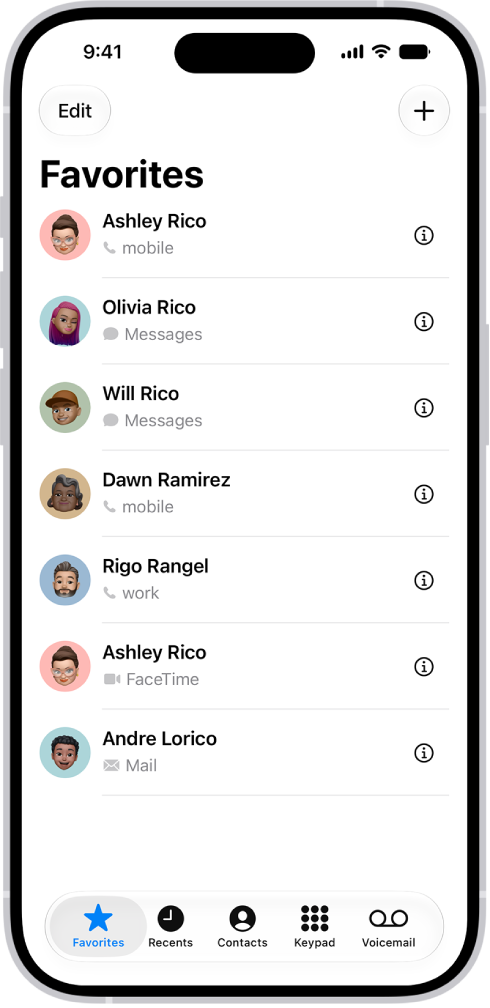
The Favorites screen in the Contacts app; six contacts are listed as favorites.

Find your favorites

Add the people you talk to frequently to your Favorites list in the Phone app to make them easier to reach. In Unified view, your favorites appear in a grid. In Classic view, tap Favorites to view your favorites in a list.

Note: To switch between Unified and Classic views, tap the Filter button.

In the Phone app, tap Contacts, select a contact, then tap Add to Favorites.

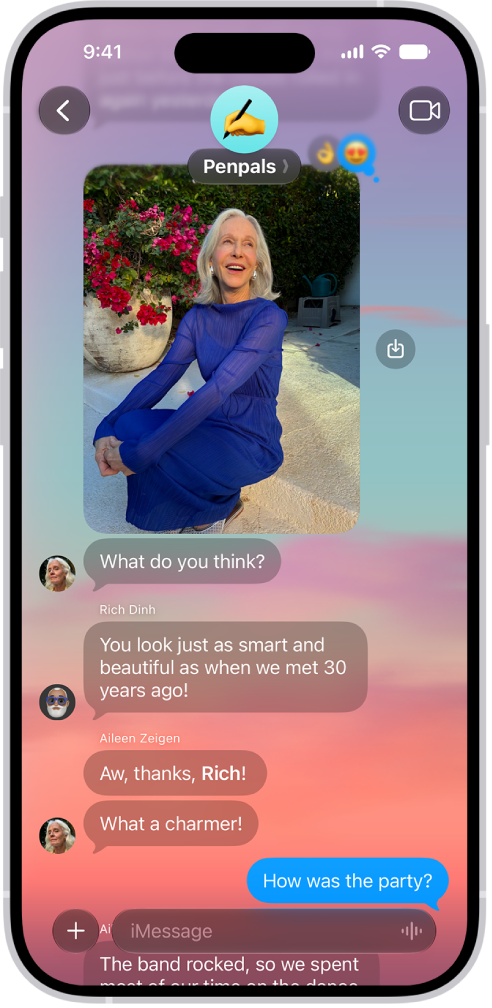
A Messages conversation with a dynamic background.

Start a group conversation

To talk to a group of people all at the same time, like members of your family, you can send them messages.

In the Messages app, tap the Compose button, enter the contacts you want to start a conversation with, then send the first message.

In group conversations, you can make payments with Apple Cash, send photos or videos, or create a poll to help make decisions like what to make for dinner or where to take your next family outing.

A FaceTime call on iPhone.

Make a video call

With FaceTime, you can make video calls to your friends and family.

In the FaceTime app , tap New Call, select the contact you want to call, then tap FaceTime.

A Group FaceTime call with five participants. Each participant appears in a separate tile. The FaceTime controls are at the bottom-right side of the screen.

Add people to a FaceTime call

You can add more people to a FaceTime call—friends and family can join at any time. Tap the screen to show the controls, tap the More button, then tap Add People.

For more ways to keep in touch, check out these guides:

Not all features, Apple says, are available in all countries or regions.

You can use the flashlight on iPhone to light your way in the dark or get a more detailed look at something.

You can turn it on or off in Control Center, with Siri, from the Lock Screen, or with the Action button.

Here’s how to turn the iPhone flashlight on or off.

Use Control Center to turn the flashlight on or off

  1. Open Control Center.
  2. Tap the Flashlight button to turn the flashlight on; tap it again to turn it off.

Use Siri to turn the flashlight on or off

You can use Siri to turn the flashlight on or off.

Siri: Ask Siri something like, “Siri, turn on the flashlight.”

Turn on the flashlight from the Lock Screen

If your iPhone has the Flashlight button on the Lock Screen, you can press it to turn the flashlight on or off.

Turn the flashlight on or off with the Action button

You can customize the Action button, if your iPhone has one, to turn the flashlight on or off.

Change the brightness of the flashlight

Once the flashlight is on, an image of the flashlight appears on the screen. Dragging the Brightness button up or down on the flashlight image changes the brightness.

Tag: iPhone