Got a tip for us?

Safari

You can erase your browsing history and data to clear the cache on your iPhone. This action removes the history of websites you visited and recent searches from your iPhone. This process also removes the cookies and permissions you granted to websites to use your location or send you notifications.

You don’t have to clear everything, either. Below Clear Timeframe, you choose how much of your browsing history to clear.

Note: Clearing your browsing history in Safari doesn’t clear any browsing histories kept independently by websites you visited, or your browsing history in other apps.

The Clear History menu. Below Clear Timeframe, Last hour is selected. All Profiles is selected below Clear For Profile. The Clear History button is at the bottom of the screen.

  1. Open the Safari app on your iPhone.
  2. Do either of the following:

    • Go to your start page (or tap the Tabs button, then tap the Add button to open one), then tap the Show Bookmarks button.
    • If your Tabs layout is Bottom or Top, tap the Show Bookmarks button.
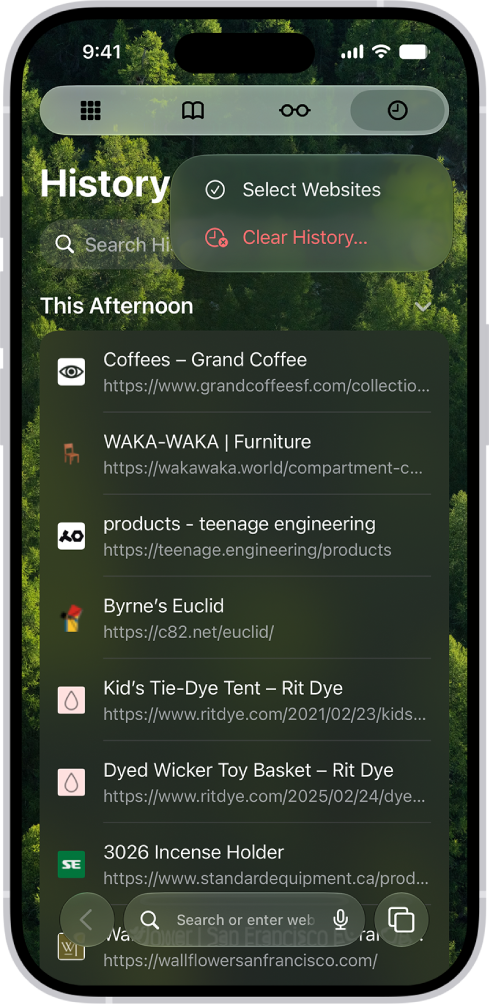
  3. Tap the History button.
  4. Tap the More button, then tap Clear History.
  5. Below Clear Timeframe, choose how much of your browsing history to clear.

    Note: If you have Safari profiles set up, select a profile to clear only the history of that profile, or select All Profiles.

  6. Tap Clear History.
Tag: Safari

Save interesting items in your Reading List so you can revisit them later. You can even save the items in your Reading List and read them when you’re not connected to the internet.

You don’t even have to open a page to save it, because you can add a linked webpage to your Reading List straight from the link. You can also automatically save all Reading List items to iCloud for offline reading.

Add the current webpage to your Reading List

  1. Start the Safari app on your iPhone.
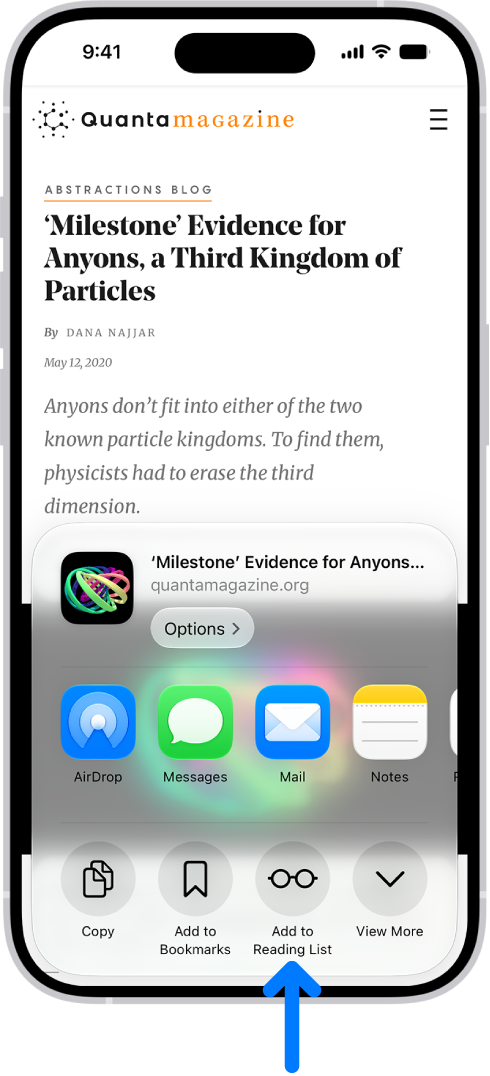
  2. Tap the Page Menu button and tap Share. If your Tabs layout is Bottom or Top, tap the Share button.
  3. Tap Add to Reading List.

Quick tip: You can add a linked webpage without opening it: Just touch and hold the link and tap Add to Reading List.

In Safari, the Share button on a webpage has been tapped, revealing a list of options, including Add to Reading List.

View your Reading List

  1. Start the Safari app on your iPhone.
  2. Do either of the following:
    • Go to your start page (or tap the Tabs button, then tap the Add button to open one), then tap the Reading List button.
    • If your Tabs layout is Bottom or Top, tap the Show Bookmarks button, then tap the Reading List button.

Quick tip: With Apple Intelligence, bookmarks and items you add to your Reading List are automatically organized into suggested topics if three or more of them are related. Tap a topic to view thumbnails, then tap a thumbnail to open it. To delete an item from your Reading List, swipe left on the item. Note: Apple Intelligence on iOS 27 or later is available on an Apple Intelligence-enabled iPhone 15 Pro, iPhone 15 Pro Max, or iPhone 16 model or later. Apple Intelligence is not available in all languages or regions. Usage limits may apply.*

Automatically save all Reading List items to iCloud for offline reading

  1. Start the Settings app on your iPhone.
  2. Tap Apps, then tap Safari.
  3. Turn on Automatically Save Offline (below Reading List).

*Apple Intelligence is available with Siri and device language set to Chinese (Simplified), Chinese (Traditional), Danish, Dutch, English, French, German, Italian, Japanese, Korean, Norwegian, Portuguese, Spanish, Swedish, Turkish, or Vietnamese. Some features may not be available in all regions or languages. Some devices may not be available in all regions. Siri AI is available in beta in iOS 27, iPadOS 27, macOS 27, watchOS 27, and visionOS 27 and requires an Apple Intelligence–enabled device set to a supported language. Available in English to start. Siri AI will not be initially available in the EU on iOS, iPadOS, and watchOS. Certain Apple Intelligence features that rely on server-side models are subject to daily usage limits, including but not limited to Siri AI, Intelligent Photo Editing Tools, Image Playground, and AFM 3 Cloud models in Shortcuts. Daily limits may vary by feature, request complexity, system demand, system policies, and other factors. Expanded access to such features will be available for a fee in the future. Use of these features is subject to the Apple Intelligence Terms and Conditions.

Tag: Safari

You can bookmark a website, add a website to Favorites, or add a website icon to the Home Screen to easily revisit it later.

You can create a new folder, move a bookmark into a folder, rename a bookmark, and reorder bookmarks. And if Safari is turned on in iCloud settings on your Mac and you’re signed in to the same Apple Account, you can see your Mac bookmarks on iPhone too.

Here’s how to bookmark a website in Safari on iPhone.

Bookmark a favorite website

  1. Start the Safari app on your iPhone.
  2. Open the webpage you want to bookmark.
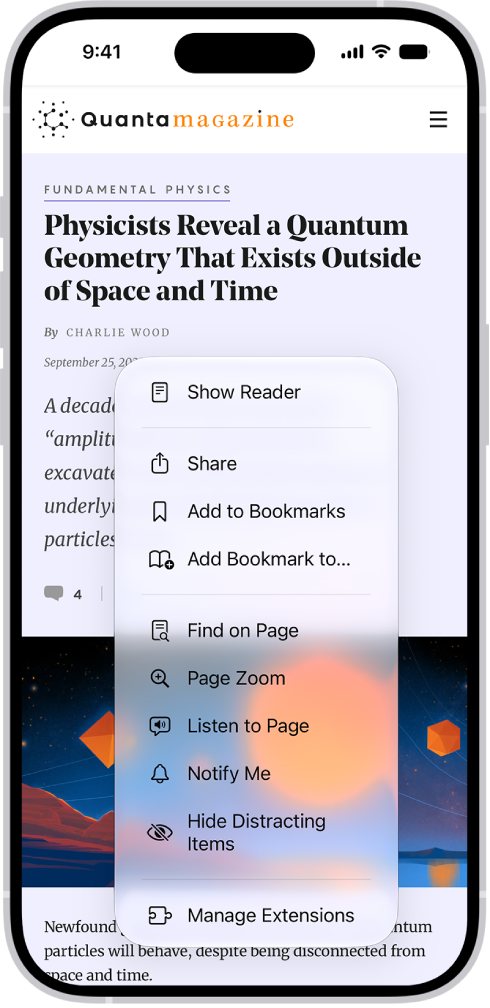
  3. Tap the Page Menu button, tap Add Bookmark to, choose a location, and tap Save.

If your Tabs layout is Bottom or Top, touch and hold the Show Bookmarks button, then tap Add Bookmark.

View and organize your bookmarks

  1. Start the Safari app on your iPhone.
  2. Do either of the following:
    • Go to your start page (or tap the Tabs button, then tap the Add button to open one), then tap the Show Bookmarks button.
    • If your Tabs layout is Bottom or Top, tap the Show Bookmarks button. Recently saved bookmarks, favorites, and reading list items appear at the top of the screen. The newest is on the left, and you can scroll through the others. Touch and hold a bookmark to copy, open, edit, or delete it. Tip: With Apple Intelligence, bookmarks and items you add to your Reading List are automatically organized into suggested topics if three or more of them are related. Tap a topic to view thumbnails, then tap a thumbnail to open it.
  3. Do any of the following:
    • Create a new folder: Tap the More button, tap New Folder, enter a name, and tap Save.
    • Move a bookmark into a folder: Touch and hold the bookmark, tap Edit, tap below Location, tap a folder, and then tap Save.
    • Delete a bookmark: Touch and hold the bookmark and then tap Delete.
    • Rename a bookmark: Touch and hold the bookmark, tap Edit, enter a new name, and then tap Save.
    • Reorder bookmarks: Tap the More button, tap Select Bookmarks, touch and hold the Reorder button, and drag the bookmark or bookmarks folder to a new location.

Note: Apple Intelligence on iOS 27 or later is available on an Apple Intelligence-enabled iPhone 15 Pro, iPhone 15 Pro Max, or iPhone 16 model or later. Apple Intelligence is not available in all languages or regions. Usage limits may apply.*

The Bookmarks screen, with options to see your bookmarks, the Reading List, and your browsing history.

See your Mac bookmarks on iPhone

  1. Start the Settings app on your iPhone.
  2. Tap your name, then tap iCloud.
  3. Tap See All and then make sure Safari is turned on.

Note: On your Mac, you must also turn on Safari in iCloud settings and sign in to the same Apple Account.

Add a website icon to your Home Screen

For quick access, add a website icon to your iPhone Home Screen.

  1. Start the Safari app on your iPhone.
  2. Go to the website you want to add to your Home Screen.
  3. Tap the Page Menu button and tap Share. If your Tabs layout is Bottom or Top, tap the Share button.
  4. Scroll down the list of options. Then tap Add to Home Screen. If you don’t see Add to Home Screen, you can add it. Scroll down to the bottom of the list and tap Edit Actions. Then tap Add to Home Screen. You can choose Open as Web App to use the website as if it’s an app.
  5. Tap Add.

The icon appears only on the device where you add it. Note: Some websites may ask for permission to send you notifications. You can change your notification settings at any time. *Apple Intelligence is available with Siri and device language set to Chinese (Simplified), Chinese (Traditional), Danish, Dutch, English, French, German, Italian, Japanese, Korean, Norwegian, Portuguese, Spanish, Swedish, Turkish, or Vietnamese. Some features may not be available in all regions or languages. Some devices may not be available in all regions. Siri AI is available in beta in iOS 27, iPadOS 27, macOS 27, watchOS 27, and visionOS 27 and requires an Apple Intelligence–enabled device set to a supported language. Available in English to start. Siri AI will not be initially available in the EU on iOS, iPadOS, and watchOS. Certain Apple Intelligence features that rely on server-side models are subject to daily usage limits, including but not limited to Siri AI, Intelligent Photo Editing Tools, Image Playground, and AFM 3 Cloud models in Shortcuts. Daily limits may vary by feature, request complexity, system demand, system policies, and other factors. Expanded access to such features will be available for a fee in the future. Use of these features is subject to the Apple Intelligence Terms and Conditions.

Tag: Safari

To keep tabs organized and make them easier to find again later, you can have Safari organize tabs into related topics, or create your own Tab Groups.

With Apple Intelligence, Safari can sort your tabs into suggested topics on its own, based on your browsing history. You can also reorder tabs, pin a tab at the top of a Tab Group, or move a tab to another Tab Group.

Here’s how to organize your tabs in Safari on iPhone.

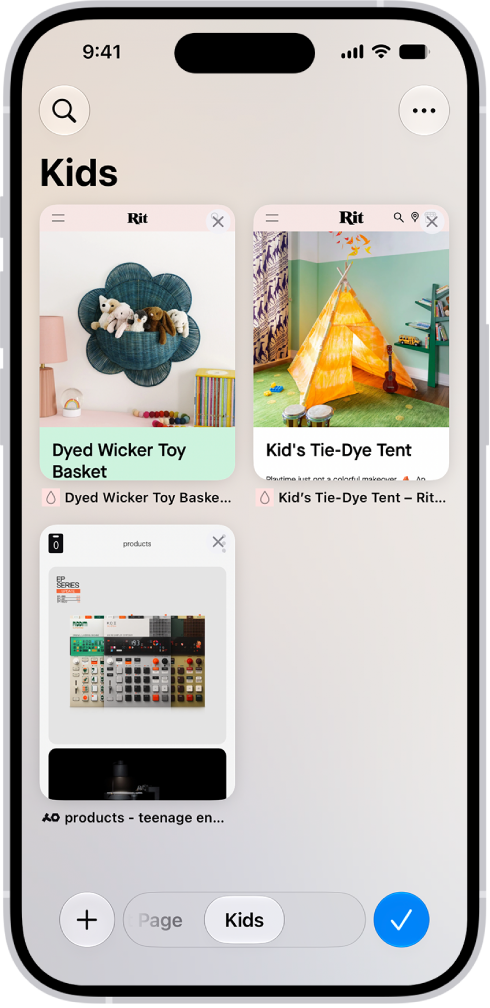
Previews of three open tabs in a Tab Group called Kids are visible on the screen.

Use Apple Intelligence to organize tabs into topics

Apple Intelligence can automatically organize your tabs into suggested topics based on your browsing history.

Note: Apple Intelligence on iOS 27 or later is available on an Apple Intelligence-enabled iPhone 15 Pro, iPhone 15 Pro Max, or iPhone 16 model or later. Apple Intelligence is not available in all languages or regions. Usage limits may apply.*

  1. Open the Safari app on your iPhone.
  2. To set whether Safari automatically organizes tabs, tap the Tabs button and tap the Organize button. Tap Automatically Create Topics.
  3. On the Tab screen, tap the New Tab button to open new tabs as you browse multiple websites. When you have two or more tabs that can be organized together by topic (for example, news), a suggested topic appears on the Tab screen with related tabs grouped together into thumbnails.
  4. Do any of the following:
    • Preview tabs in a topic: Tap a topic to see thumbnails of each tab. Tap a thumbnail to open it.
    • Open or close all tabs in a topic: Tap a topic to view all tabs within the topic. Tap the Back button to close the topic.
    • See more options: Tap a topic to view all its tabs and tap the More button. Do any of the following:
      • Copy links: Tap Copy Links.
      • Move tabs to a Tab Group: Tap Move Tabs, then select a Tab Group to move them to.
      • Close all tabs in this topic: Tap Close Tabs.
      • Provide feedback on the suggested topic: Tap Looks Good or Something Isn’t Right.

To turn this feature off, tap the Organize button on the Tab screen, then tap Never.

Reorder tabs

  1. Open the Safari app on your iPhone.
  2. Tap the Tabs button.
  3. Tap the More button, tap Arrange Tabs By, and choose an option.

Or touch and hold the tab, then drag it to a new position.

Create a new Tab Group

  1. Open the Safari app on your iPhone.
  2. Tap the Tabs button.
  3. Touch and hold a tab, tap Move Tab, and then tap New Tab Group.
  4. Enter a name, then tap the Done button.

Quick tip: Switching between your Tab Groups is easy: Tap the tab groups in the bottom center of the screen.

Rename a Tab Group

  1. Open the Safari app on your iPhone.
  2. Tap the Tabs button.
  3. Tap the More button and then tap Rename Tab Group.
  4. Enter a name, then tap the Done button.

Pin a tab at the top of a Tab Group

Your Tab Groups can have pinned tabs in each group, and a pinned tab stays at the top of the Tab Group.

  1. Open the Safari app on your iPhone.
  2. Tap the Tabs button.
  3. Touch and hold the tab you want to pin, then tap Pin Tab.

Move a tab to another Tab Group

  1. Open the Safari app on your iPhone.
  2. Tap the Tabs button.
  3. Touch and hold a tab and then tap Move Tab.
  4. Choose one of the Tab Groups you created previously, or create a new group.

*Apple Intelligence is available with Siri and device language set to Chinese (Simplified), Chinese (Traditional), Danish, Dutch, English, French, German, Italian, Japanese, Korean, Norwegian, Portuguese, Spanish, Swedish, Turkish, or Vietnamese. Some features may not be available in all regions or languages. Some devices may not be available in all regions. Siri AI is available in beta in iOS 27, iPadOS 27, macOS 27, watchOS 27, and visionOS 27 and requires an Apple Intelligence–enabled device set to a supported language. Available in English to start. Siri AI will not be initially available in the EU on iOS, iPadOS, and watchOS. Certain Apple Intelligence features that rely on server-side models are subject to daily usage limits, including but not limited to Siri AI, Intelligent Photo Editing Tools, Image Playground, and AFM 3 Cloud models in Shortcuts. Daily limits may vary by feature, request complexity, system demand, system policies, and other factors. Expanded access to such features will be available for a fee in the future. Use of these features is subject to the Apple Intelligence Terms and Conditions.

Tag: Safari

Safari is the native browser for iPhones. It comes pre-installed on iPhone, and it’s designed to be fast and efficient for it. However, most people are complaining that Safari is not working on their iPhones after updating to iOS 26.

If Safari isn’t working on iOS 26,, it means there’s a setting or software issue. It could also be due to Internet problems.

Follow these simple troubleshooting steps to fix Safari if it’s not working on your iPhone after iOS 26 update.

1. Close And Reopen Safari

Does Safari keep crashing on iOS 26? Closing and reopening Safari can get rid of minor bugs causing crashes. The app gets a fresh start when it’s opened again.

Swipe up from the bottom to the center of the screen. Hold your finger in the center of the screen until the app switcher opens.

Then, swipe Safari up and off the top of the screen. You’ll know Safari is closed when it no longer appears in the app switcher.

Open Safari again to see if it’s working now. If it’s not, move onto the next step!

2. Clear Safari History And Website Data

Your iPhone saves website data every time you visit a webpage in Safari (unless you’re using an private browsing mode. Cached webpages can sometimes prevent websites from loading, and a large amount of saved website data can really slow down Safari over time. You can fix this problem by clearing Safari history and website data. To do this, go to Settings > Apps > Safari > Clear History and Website Data. Select All History, and then tap Clear History. This will erase all extra data in the Safari app. Some users report this works, but you’ll need to do it often if you can’t eliminate storage space elsewhere on your iPhone.

3. Turn Off Safari Suggestions

Turning off Safari Suggestions is one of the simplest and most common fixes for Safari not loading or crashing on iOS 26. While we aren’t sure why this works, many users have reported that turning this off fixes the problem.

To turn off Safari suggestions, go to Settings > Apps > Safari > Safari Suggestions and turn this off. You can also turn off Search Engine Suggestions while you’re there too, as some users reported this also fixes the issue.

Some users have also said that blocking Safari popups on your iPhone can improve the memory usage of Safari. So, you may also want to give this a try.

If this fixes your issue, then you’re all set. If not, try the following steps.

4. Make Sure You Are Connected to The Internet

If you are trying to use Safari over Wi-Fi, try opening another app that uses Wi-Fi to load new content, such as Facebook or Twitter. Is new content loading, or are these apps not working either?

If new content loads, there’s an issue with Safari, not your Wi-Fi network. If content won’t load on Safari, Facebook, X, or another app that requires a Wi-Fi connection, there’s probably an issue with your Wi-Fi network. Check out our other article to learn how to fix Wi-Fi issues on iOS 26.

If you’re trying to use Safari over cellular data, make sure you have service by opening Control Center. 3G, LTE, and 5G speeds will typically be fast enough to load webpages. However, if your iPhone says SOS, SOS Only, No Service or Searching, webpages won’t load. Check out our other article to learn what to do when cellular data is not working on iOS 26.

5. Edit Your Screen Time Settings

If you’ve ever changed your Screen Time settings or blocked certain websites through Screen Time, try turning these settings off. To block websites, you need to enable Content Restrictions which can inadvertently block websites you still want to use. If you can’t load a link from an email or text message, this could also be a sign that content restrictions are on.

To fix this issue, go to Settings > Screen Time > Content & Privacy Restrictions and turn this option off. If it was on, then this was most likely your issue. If it was off already, proceed to the next fix.

6. Restart Your iPhone

Restarting your iPhone can fix a variety of small software issues, including one that may be preventing Safari from working. If Safari is frozen or just a blank white screen, restarting your iPhone can also fix these problems.

Press and hold the side button and either volume button simultaneously until slide to power off appears on the screen. Swipe the Slide to Power Off slider from left to right to turn off your iPhone. Wait about a minute to let your iPhone completely shut down. Then, press and hold the side button until the Apple logo appears on the screen.

7. Update iOS to the Latest iOS 26 Version

Some users have reported that updating their iPhone to the latest iOS 26 version resolves issues with Safari. Whether Safari isn’t loading, is crashing, or just isn’t connecting to websites, try updating iOS on your iPhone.

Apple does a great job of fixing bugs with iOS updates. Since Safari is a native iOS app, updating your iPhone is the only way to update the app too. Go to Settings > General > Software Update. Tap Update Now if an iOS update is available. After the update is complete, open Safari and see if it’s working again.

8. Reset Your Network Settings

If you’ve had issues with your network before, like not getting service or pages timing out, resetting your Network Settings could help.

To reset the Network Settings on your iPhone, go to Settings > General > Transfer or Reset iPhone > Reset > Reset Network Settings. This will reset only your Network Settings and won’t erase any other data on your iPhone.

After the reset is complete, try opening Safari to see if it’s working again. If not, proceed to the next fix.

9. Reset to Factory Default Settings

If all else fails, you can try resetting your iPhone to the default settings. This will erase all the data on your iPhone, and you’ll have to set it up from scratch. However, this is also a very effective way to resolve all kinds of software problems. To do this, go to Settings > General > Transfer or Reset iPhone > Erase All Content and Settings.

After resetting to the default settings, test out the Safari app before you install your usual apps. If Safari is working then but stops working when a certain app is installed, that means the app installed is interfering with Safari.

If Safari isn’t working when you have a fresh install, make sure you didn’t restore a backup of your iPhone. If you restored a backup, there could be something interfering with Safari that transferred over. If you reset your device without a backup and Safari still doesn’t work, you can try one of the two last troubleshooting steps.

10. Turn On JavaScript

JavaScript is on by default on iOS 26. However, if you’re having issues with Safari, it’s likely that JavaScript is off. Sometimes, one might turn JavasScript off as some websites might not support it.

If you’ve turned JavaScript off or want to check if it’s off and turn it back on, go to Settings > Apps > Safari > Advanced.

11. Use an Alternative Browser

If you’ve tried all of the fixes above and Safari still isn’t working on iOS 26, then unfortunately, there might be a major bug with Safari, and you’ll need to wait for the next iOS 26 update and hope it’s patched. Until then, you can try using an alternative browser to access the internet on your iPhone. There are many great browsers available in the App Store that can cater to your needs.

Be sure to check back for iOS updates and see if Apple has addressed the bug. You can also start a new discussion in the Apple Discussions Community to see if anyone else is experiencing the same issue. You can also contact Apple. Apple provides support online, over-the-phone, through the mail, and in-person. Visit their support website to find the best option for you.

Safari Not Working After iOS 26 Update? It’s Most Likely a Software Issue

Cracked screens and broken buttons are easy to diagnose as we can instantly see what’s wrong. But when Safari or other apps on your iPhone stop working, that usually means a software issue is at play.

You can usually fix these issues by updating iOS, changing your settings, or resetting your device. However, if the issue still isn’t fixed after trying everything above, you might need to post in the Apple forum about your issue or contact Apple for more help.


Tag: Safari

In iOS 26, Safari has received several notable changes. There’s a new look, an updated layout, and a new feature set.

Some iPhone users have reported that Safari is running slowly after upgrading to iOS 26. There could be many reasons why you experience this issue. Thankfully, there are several things you can do to speed Safari up again. This article shows how you can fix the Safari browser if it is slow after upgrading to iOS 26. The purpose is to help speed up Apple’s Safari or determine why it is running slow after iOS 26 update. If you are experiencing one of the following issues, you can use this article to address your problem:

  • Safari is so slow and seems frozen.
  • Websites are taking a lot of time to load or videos are lagging.

If you are also experiencing these problems, give these tips a try, and hopefully, Safari will be at full speed in no time.

1. Close And Reopen Safari

Closing and reopening Safari can sometimes fix a minor software bug causing it to load slowly. The app gets a fresh start when it’s opened again.

Swipe up from the bottom to the center of the screen. Hold your finger in the center of the screen until the app switcher opens.

Then, swipe Safari up and off the top of the screen. You’ll know Safari is closed when it no longer appears in the app switcher.

Open Safari again to see if webpages are loading faster now. If it’s still slow, move onto the next step!

2. Update Your iPhone

Ensure that your iPhone is running the latest version of iOS 26. Safari is a built-in app and the iOS software includes Safari. This means that updating iOS will also update Safari.

Open Settings and tap General > Software Update. Tap Update Now if a new iOS 26 update is available. After the update is complete, open Safari and see if it’s loading webpages faster now.

3. Clear Your Browsing History and Data

If Safari is running slowly on iOS 26, one of the most common reasons for sluggish speed is that your iPhone accumulated lots and lots of saved website data. This is a normal process, but if too much data builds up over a long period of time, Safari can slow down. Fortunately, clearing this data is easy.

To clear Safari cache, head to Settings > Apps > Safari > Clear History and Website Data. Select All History, then tap Clear History.

Once you do this, relaunch Safari and see if it’s loading up pages quickly enough. If it’s faster for a little while but begins to slow down again, proceed to the next tip.

4. Check Your iPhone’s Storage

If your iPhone storage is almost full, that means it can’t handle much else. Safari, like most apps, uses device storage to store data from the app. And low storage means Safari won’t have enough memory to work.

This is why some users find Safari temporarily faster once they clear their browsing history and data. However, some users might have used so much storage that Safari might not even speed up when you clear the cache.

Luckily, it’s easy to check if this is an issue. All you need to do is head to Settings > General > iPhone Storage and see how much space your iPhone has used. And if it’s almost full, you might have to delete some large files.

5. Check Your Internet Connection

You may feel that Safari is sluggish on iOS 26 because you may have a poor or unstable connection to the Internet. Use another browser (Chrome, Edge, etc) to visit a website. Or try using multiple devices in your home. Do you still experience that your browsing experience is slow? If your answer is yes, then the problem may be your connection. Is the slowness just with one website or with all of the websites you try to visit? If the problem is with just one website, then the problem is that website. However, if all of the websites appear to be slow on all devices and/or using different browsers, the problem may be, again, your connection. If this is the case, try:

Restart your modem/router. Simply unplug it from power, wait 30 seconds and then plug it back in. Wait for your modem/router to fully function (ensure that all of the indicator lights are on).

You can also see the following articles to troubleshoot your Internet problems:

6. Disable VPN

Is a VPN (virtual private network) running on your iPhone? It’s possible that’s the reason why Safari is slow.

Open Settings and tap General. Tap VPN & Device Management, then tap VPN. Tap the Status switch to turn it off. You’ll know your VPN is off when it says Not Connected.

Once you do this, relaunch Safari and see if it’s loading up pages quickly enough. If it’s faster you may want to look for an alternative VPN app or contact the app Developer to let them know about the issue.

7. Restart your iPhone

If you’ve completed all of the previous steps and Safari is still slow, turn off your iPhone and turn it on again. Turning off your iPhone purges the iPhone’s memory and gives it a fresh, clean start. Open Settings and tap General. Tap Shut Down, then drag the Slide to Power off slider from left to right to shut down your iPhone. Wait a moment, then press and hold the side button until the Apple logo comes onto the screen.

8. Disable Extensions

An extension may cause this problem. Do you have these installed? If your answer is yes, try the following:

We can turn off Safari Extensions temporarily to see if they are causing this:

  1. Open Settings and go to Apps > Safari.
  2. Tap Extensions. You will see your installed extensions.
  3. Turn all them off.

Now check Safari. Is it faster now? If turning off extensions resolves the issue, now determine the problematic extension that is causing this issue. Turn them back on, one by one, until you find the problematic extension. After each extension, you turn it on, test to see if the problem has recurred before turning on the next extension.

9. Reset Network Settings

When all else fails, you can reset your iPhone’s Network Settings. Doing this will reset all network-related connections on your iPhone, hopefully speeding up Safari in the process. Head to Settings > General > Transfer or Reset iPhone > Reset > Reset Network Settings to do this.

Once you do this, you’ll need to set up your network connections again. This means re-entering your Wi-Fi passwords. However, it can clear up a lot of bugs, so it is worth a try if all else fails. You can also reset your iPhone to factory settings as a last resort.

Browse Seamlessly in Safari

Safari comes pre-installed on iPhone. And since it’s the native browser, it works seamlessly across all your apps and Apple devices.

While switching to a third-party browser like Chrome might seem tempting when Safari is slow or lagging, you’ll miss out on a seamless experience. So, it’s worth taking the time to fix whatever issue you’re facing.

See also: Is your iPhone slow after iOS 26 update? Here’s the fix!

Tags: iOS 26, Safari

Follow these simple troubleshooting steps to fix Safari web page translation feature if it isn’t working properly on your iPhone or iPad.

Safari now comes with a translation feature baked into the browser, making it easier than ever to translate a web page on iPhone and iPad.

Once enabled, text is translated in-line on the webpage that you’re viewing. It’s a handy tool if you want to read websites that are written in different languages, and it’s available right in the address bar in Safari. However, Safari is not immune to issues. Recently, several users have reported that Safari translation is not working on their iPhone or iPad. If you also find Safari unable to translate web pages, we’ll show you how to fix it.

Best Tips to Fix Safari Translation Not Working on iPhone and iPad

Here’s how you can fix Safari if it’s not translating web pages on iPhone and iPad.

1. What are the Requirements for Using Safari Translation?

You can use Apple’s native web page translation feature inside Safari on an iPhone, iPad, and Mac running iOS 14 or later, iPadOS 14 or later, or macOS Big Sur or later.

2. Safari Translation Supported Languages

If you don’t see the language for translation in Safari, make sure the language is supported. Safari web page translation supported languages include:

  • Arabic
  • Chinese (Simplified)
  • Chinese (Traditional)
  • Dutch
  • English
  • French
  • German
  • Indonesian
  • Italian
  • Japanese
  • Korean
  • Polish
  • Portuguese (Brazil)
  • Russian
  • Spanish
  • Thai
  • Turkish
  • Ukrainian
  • Vietnamese

3. Right Way to Enable and Use Safari Translation

  1. Launch Safari on your iPhone or iPad, then visit a webpage that’s in a language you’d like to translate and watch for the address bar to indicate that a translation is available.
  2. Tap the aA button in the far-left of the address bar, then select Translate to [Language] in the dropdown menu. If you don’t see the option, the webpage either isn’t compatible with Safari’s translation feature or the language isn’t supported.
  3. The first time you do this, Apple will ask your permission to process your request. Tap Enable Translation.
  4. To view the original non-translated webpage, select View Original in the address bar options panel. You also have the option to Report Translation Issue if you see one.

4. Add more language to Safari translation

Apple says that "the availability of translations and the number of languages that can be translated may vary by country or region."

With that in mind, you can have more options for Safari translation by adding that language to your system’s language settings.

Go to Settings > General > Language & Region > Add Language and select a language. Now, you can choose to set this new language as your primary system language for all menus, settings, and everything. However, if you only need to use it for translation, tap **Use English **(or your current system language). This will add the new language to your iPhone but still keep English as the primary system language.

Now go to Safari, and it should automatically refresh your open web pages. After that, follow the above steps, and you will see Translate Website instead of Translate to English. Tap Translate Website and pick a language.

5. Close Safari and then reopen it

Closing and reopening Safari can fix minor software bugs preventing the app from translating web pages.

If your iPhone has a Home button, double-press it to open the app switcher. If your iPhone doesn’t have a Home button, swipe up from the bottom to the center of the screen. Hold your finger in the center of the screen until the app switcher opens.

Then, swipe Safari up and off the top of the screen. You’ll know Safari is closed when it no longer appears in the app switcher.

Open Safari again to see if it can translate web pages. If it’s not, move onto the next step!

6. Update your iPhone

Apple frequently releases updates to fix existing bugs and introduce new features. Ensure that your iPhone has the latest version of iOS. Since Safari is part of iOS, updating will also update Safari if there are updates to Safari. You can check for updates by going to Settings > General > Software Update. If there is an update, follow the instructions and update your iPhone. Simply tap the Update Now button and follow the steps. After updating, open Safari and check if you can use the translate feature.

7. Restart your iPhone

Restarting your iPhone can fix a variety of small software issues, including one that may be preventing Safari translation from working.

  • iPhone X and later: Press the side button and the volume up button until the Power Off slider appears. Slide it, then wait 30 seconds. Press the side button until the Apple logo appears.
  • iPhone 6S, 7, 8 or SE(2nd or 3rd gen): Press and hold the side button until the Power Off slider appears. Slide it, then wait 30 seconds. Press the side button until the Apple logo appears.

8. Clear website data and cache

If your issue continues, delete website data in Safari to try to fix this problem. Following the steps below will erase history, cookies, cache and other web data. You should also note that when you do this, the data will also be erased from your other devices signed into the same iCloud account.

  1. On your iPhone, go to Settings > Safari.
  2. Tap Clear History and Website Data.
  3. Tap Clear History to confirm.

9. Clear All Website Data

On many occasions, I have managed to fix issues related to Safari by clearing all website data.

  1. On your iPhone, tap Settings.
  2. Go to Safari and scroll all the way to down and tap Advanced.
  3. Tap Website Data.
  4. Tap Remove All Website Data.

10. Disable Safari Extensions

Your Safari extensions may cause this problem because one of your extensions may be causing a conflict. Turn off your Safari extensions to see if they are the problem.

  1. Open the Settings app.
  2. Tap Safari.
  3. Tap Extensions.
  4. Turn off all of the extensions.

Now, force-quit Safari and open again. If Safari is now working, this means that one or more of your extensions are causing your problem. What you can do is to turn on extensions one by one until you find the problematic one. When you find it, you can update or delete the associated app to fix your problem. If Safari is not working still, you can now enable your extensions.

11. Check that JavaScript is enabled

Should Safari translation continue to misbehave, check that JavaScript is enabled.

  1. Open Settings and tap on Safari.
  2. Scroll down and tap on Advanced.
  3. If JavaScript is off, toggle the switch to turn it on.

12. Disable/Enable Translation

If you still can’t translate in Safari, try turning it off and on.

  1. Open Safari.
  2. Tap the aA button in the far-left of the address bar, and deselect “Translate to [your language]”.
  3. Now, force quit Safari (swipe up from the Home Bar to bring up the App Switcher -> swipe up Safari).
  4. Next, launch Safari -> Tap the aA button in the far-left of the address bar, then select Translate to [Language] in the dropdown menu. If you don’t see the option, the webpage either isn’t compatible with Safari’s translation feature or the language isn’t supported.

13. Check for VPN and security software

Sometimes VPN can interfere with Safari functionality.

  • Open Settings, then tap on General.
  • Tap on VPN & Device Management, then tap VPN.
  • Look for any VPN that may be installed. If you have VPN software, you can delete it or contact the developer for more information about how the software could be affecting Safari web page translation feature.
  • Also, look at Settings > General > Profiles. If this option doesn’t exist, you don’t have any profiles installed. If you see something here, it may have been installed by the system administrator for your company, and you should talk to them.

14. Check if restrictions are turned on on your iPhone or iPad

It is possible you’ve turned on restrictions on your iPhone. Make sure that Web Content is not restricted. Here is how you can check this:

  • Go to Settings -> Screen Time -> Content & Privacy Restrictions.
  • Tap Content Restrictions, then Web Content.
  • Ensure that the “Unrestricted” option is not selected.

15. Reset All Settings

If you are still having this issue, reset all settings and then try again.

To reset all Settings on your iPhone or iPad, head to Settings > General > Transfer or Reset iPhone (iPad) > Reset > Reset all Settings.

Safari Translation: Working again

You’ve fixed the problem and Safari translation is working again. Now you can get back to translating your favorite websites! Make sure to share this article on social media, or leave a comment down below if you have any other questions about your iPhone.

Tag: Safari

It’s frustrating when Safari won’t load web pages on iPhone 13 Pro Max. Your connection, software, or the website could be causing the problem. Here are a few ways to troubleshoot the issue and access a website, even if it’s down.

See also: iOS 15: 10 Safari Tips to Boost Your Web Browsing Experience

Safari is one of the most used browsers loved for its simplicity and privacy-focused features. But, something may go wrong even with the best of software; and sometimes users find themselves in a situation when Safari does not open webpages on iPhone 13 Pro Max. Luckily, it can be fixed.

When Safari is not loading pages on iPhone 13 Pro Max, the first thing you should do is find out why it behaves like that. In this article, we will explain why Safari is not loading websites on iPhone 13 Pro Max and show you how to fix the issue. Let’s go!

Apple has devoted a lot of efforts to create one of the most powerful browsers there is. They update the Safari browser regularly, fixing more and more bags with every release. However, on certain occasions, you can see Safari browser unable to load websites on iPhone 13 Pro Max.

It can be quite frustrating if Safari is not loading pages on iPhone 13 Pro Max. . Some users see a blank, white page and others get errors like ‘Safari cannot open the page because iPhone isn’t connected to the internet.’ The problem becomes more complicated when Safari freezes and crashes without loading any page. There can be plenty of reasons why Safari doesn’t open web pages on iPhone 13 Pro Max. What may cause Safari issues described above:

  • Your iPhone is not connected to internet
  • Incorrect URL
  • Too much history and data that have not been cleared for a long time
  • An extension, VPN, security app, or website you’re browsing is blocking Safari from loading web pages
  • Older version of iOS

Fixes for Safari not loading pages on iPhone 13 Pro Max

1. Make sure the URL is correct

If you are trying to go to a website and you type the URL completely wrong, then Safari will probably fail to load the site. For example, make sure you use 3 W’s in the URL where relevant and also make sure you only use https:// where relevant, as some sites only use the basic https:// instead. Also make sure the meat and potatoes of the URL is also correct, as a wrong URL can direct you to an incorrect website or to no website at all.

2. Refresh the page

Sometimes a hiccup in the loading process occurs. If the page doesn’t load the first time, try refreshing it one, two, or maybe three more times. Website host servers aren’t always as stable as you’d like it to be and you can sometimes get through after the second or third try.

The easiest way to refresh a page in Safari is simply to pull or swipe down the web page from the top. This will reload the page, and you’ll be good to go.

3. Try loading another website

See if you can load a different website besides the one you’re having issues trying to load. If the second website loads, it could mean the first is experiencing maintenance, heavy traffic, or some other fluke. This would mean the problem is the fault of the website, and there’s nothing you can really do to fix the problem besides wait a little while longer before trying again.

4. Try another web browser

It’s also possible that Safari is incompatible with the website you’re using. In some cases, Safari will render HTML or CSS in different ways than other browsers, and such can actually break websites in some browsers. Try another web browser, such as Chrome or Firefox, and see if the page loads properly this time.

5. Check that you’re connected to the internet

You should always check to see whether or not your internet connection is working, because iPhone 13 Pro Max Safari won’t load pages if your device can’t establish a line of communication. You can go to Settings > Wi-Fi to see if you’re connected to a Wi-Fi network. Obviously, if you aren’t, you’ll have to connect to one before the page will load.

Sometimes by moving too far away from the network you were just on, your iPhone will drop the connection. This is common around school campuses where you’re walking around or moving from room to room quite often.

Verify whether the issue is with Safari alone or not. For that, check if other apps are working on your iPhone or iPad. If you cannot connect to the internet using other apps, then the problem is with your network connection. Switch to mobile data from Wi-Fi or vice versa.

If you can load web pages on Wi-Fi, but pages do not load on cellular data, check mobile data settings. For that, go to Settings > Cellular data/Mobile data. Scroll down and make sure the toggle next to Safari is green. If it’s off, turn it on.

6. Restart your Wi-Fi or Cellular Data

If you are connected to the internet and are still unable to load a page, try turning your Wi-Fi or cellular data off and on again from the Control Center.

7. Restart your iPhone

It’s possible that a piece of software on your iPhone is bugging out, so you might want to try rebooting your iPhone if none of the above steps worked. Go to Settings > General > Shut Down. After it restarts, attempt to load a web page once again.

8. Restart the wireless router

If you find Safari not loading pages on iPhone 13 Pro Max after trying the above steps, reset the wireless router or modem. By doing so, any problem that might have been related to the source of the internet should be fixed.

Unplug your router from the power source and wait a few seconds before replugging.

If it’s a minor glitch preventing your internet from working, this should’ve done the trick. If not, don’t worry. You can move on to the next solution.

9. Clear History and Website Data

If you have corrupted website data stored in your web browser, then Safari might be trying to load information that will lead it into a loop of failures time and time again. You can remove all current website data by going to Settings > Safari > Clear History and Website Data. This will delete all saved website data you have and let you re-load fresh data.

10. Turn off Content blockers

I’ve seen many cases where a website refuses to load until you disable your Content Blockers. Go to Settings > Safari > Extensions. Now, disable any Content Blockers or other Safari Extensions that might be hindering the web page from loading, then attempt to load the page again.

11. Disable security software

Some security software and firewalls have been known to block access to certain websites because they think they’re malicious. In some cases this is true, but in others, false positives make the software block access to these websites even when you don’t want them to. If you trust the website you’re trying to visit, you can attempt to disable your security software and load the page again.

12. Disable VPN software

VPN apps allow you to establish a secure and private network connection. Some websites might not be accessible from the selected VPN location. If you have a VPN running, try disabling the VPN and try again. Go to Settings > General > VPN & Device Management. And then, turn off the toggle for active VPN.

13. Check content restrictions

If Safari won’t load pages on iPhone 13 Pro Max after trying the above steps, check whether any content restrictions are enabled. You can do this by going to Settings > Screen Time > Content & Privacy Restrictions. If the Content & privacy restrictions toggle on the next screen is turned on, scroll down and tap on Content Restrictions. Go to Web content and select Unrestricted access.

Safari still not loading pages on iPhone 13 Pro Max?

If after everything above, and after waiting a little while to rule out that it was a website-based problem, try contacting the website administrator to see if there are any underlying problems that could be fixed.

If you ever had a problem with Safari not loading pages on iPhone 13 Pro Max, what did you do to fix it? Share in the comments below.

Are you getting “Safari Can’t Open the Page” error message while trying to visit a web page or web site on your iPhone, iPad, or Mac? In this article, I’ll explain exactly why you are experiencing “Safari Can’t Open the Page” error and how to fix the issue for good.

The “Safari Can’t Open the Page” error can happen on the iPhone, iPad, and Mac, on any version of the web browser. If you encounter this issue, you can usually fix the problem easily by following the troubleshooting steps explained below.

Fix “Safari Can’t Open Page” Error on iPhone, iPad, Mac

Fix 1: If “Safari Can’t Open the Page” Error, Check Your Internet!

The first thing you should do is check your internet connection, Ensure it is active and enabled. This applies to Mac, iPhone, iPad, and anything really.

If the device or computer is disconnected from the internet, you will encounter the “Safari Can’t Open the Page” every time.

Make sure that you have an active and functioning internet connection first, this is often the problem. Maybe it’s due to low cell phone reception, or a junky wi-fi connection, whatever it is, confirm that your internet actually is working. Visit a different web page, use a different Wi-Fi, etc.

See also:

Fix 2: Check the URL!

The next thing you want to do is check the website URL address, so that you know it is correct and proper. This is a really common reason why web pages can’t be loaded. A typo in the URL web address will prevent the site from loading. Ensure it is correct!

Fix 3: Refresh the Web Page

Simply refreshing the web page often resolves the issue, especially if the connection was interrupted for some reason.

You can refresh the webpage by clicking the ‘refresh’ button, it looks like a little circular arrow in a circle and it is near the address URL bar.

Fix 4: Reset Network Settings

On your iPhone, iPad or Mac, reset your network settings. Please note that this will remove all of your network-related settings including your VPN settings, saved Wi-Fi passwords, etc.
iPhone or iPad, head over to Settings > General > Reset > Reset Network Settings and then follow the onscreen prompts.

Fix 5: Restart

Simply restarting your iPhone , iPad or Mac may fix this problem.

  • Face ID iPhone and iPad Models: Press and hold the volume up (or down) and the power buttons together until the power off slider appears. And slide the slider. Wait for your device to turn off. Then press and hold the power button until you see the Apple logo.
  • Home button iPhone and iPad Models: Press and hold the power button until you see the power off slider. Then slide the slider. Wait for your device to turn off. Then press and hold the power button until the Apple logo appears.
  • Mac: You can restart your Mac by choosing Restart from the Apple menu.

Fix 6: Force restart your device

Performing a force restart also known as a hard reset can resolve your issue. Here is how:

  • iPhone 8 or later and iPad with Face ID models: Press and release the Volume up button followed by Volume down button. Then, Press and hold the power button until you see the Apple Logo.
  • iPhone 7 models: Press and hold the power button together with the Volume down button until you see the Apple Logo.
  • Devices with a home button including iPhone 5, iPad Air, etc: Press the power button together with the home button until you see the Apple Logo.

See also: How To Force Restart a MacBook, MacBook Air, or MacBook Pro

Fix 7: Force close Safari and restart again

  1. On an iPhone X or newer, or an iPad running iOS 12 or higher, or iPadOS, from the Home screen, swipe up from the bottom of the screen and pause slightly in the middle of the screen. On an iPhone 8 or older, double-click the Home button to bring up your most recently used apps
  2. Swipe right or left to find Safari.
  3. Swipe up on the app’s preview to close Safari.

Fix 8: Delete your history, cookies, and cache in Safari

  • To clear your history and cookies on your iPhone or iPad, head over to Settings > Safari, and tap Clear History and Website Data and confirm that you want to remove website data.
  • To clear browser data on Mac, head over to “Safari” in the menu bar > Preferences > Privacy > Remove all website data, and confirm that you want to remove website data.

Fix 9: VPN

Are you using a VPN (Virtual Private Network) on your iPhone, iPad or Mac. If so, try to disable your VPN and then try to load Safari again.

Fix 10: Updates

Ensure that your iPhone, iPad or Mac is running the latest software version. Here is how you can check:

  • iPhone and iPad: Head over to Settings > General > Software Update. This will check for iOS or iPadOS updates. And if there is an update available, follow the onscreen prompts.
  • Mac: Launch System Preferences and then click Software Update. If there are updates, follow the onscreen prompts.

Fix 11: Restore to Factory Settings

If restarting doesn’t work for you, you may want to try restoring your iPhone, iPad or Mac to factory settings. This will completely wipe the data and settings on your phone. Your iPhone will still be running iOS 14 if you choose this option.

First, backup your device. There are two options. iCloud: On your iPhone or iPad, go to Settings > iCloud > Backup. Make sure that iCloud Backup is enabled. You will be able to see when your last backup was. If you have never backed up your iPhone or iPad before or if it has been awhile, select Backup Now.

iTunes (Windows or macOS Mojave or earlier) or Finder (macOS Catalina or later): Plug your iPhone or iPad into your PC or Mac using a USB cable. Click on the iPhone icon in the top-left corner of iTunes, under the Play button. Then follow the onscreen instructions.

Now to Factory-reset your iPhone or iPad.

  1. Go to Settings > General > Reset > Erase All Content and Settings.
  2. If you have an iCloud backup, there will be an option to update it. Tap Back Up Then Erase.
  3. Type in your passcode if prompted. Tap Erase iPhone in the warning box.
  4. Enter your Apple ID to confirm.

Fix 12: Try a Different Browser

Another choice is to use a different web browser. This is in case the site loads in other browser such as Chrome but not in Safari, it may indicate a specific problem with Safari.

If Safari is not opening web sites after these troubleshooting steps, you may want to contact Apple Support.

Tag: Safari

In this article, I’ll show you how to troubleshoot when Top Sites in Safari feature is not working properly on your Mac.
The Top Sites page in Safari displays a selection of sites you visit frequently in thumbnail view, giving you the ability to quickly scan multiple web sites for new information.

Here are some of the reported issues:

  • The Top Sites feature is not working as expected.
  • Top Sites not refreshing.
  • Missing Top Sites on Safari.
  • Safari top sites thumbnails not updating.
  • Top Sites page displays error messages.

Causes of Safari Top Sites Errors

Safari’s Top Sites feature may stop working properly if you lose your Internet connection, even for just a short period. Whether the cause is your home network router, DNS problems, or your ISP going offline due to a severe storm in your location, an interrupted connection can sometimes cause the thumbnails in Safari Top Sites to either stop updating or display error messages.

How to Fix Safari Top Site not Working Issue

1. Force quit and restart

Try force quitting Safari and then open again. This may resolve your problem. Here is how:

  • Press the Option, Command, and Esc (Escape) keys together (or click the Apple menu and Force Quit).
  • The force quit window will appear.
  • Select Safari.
  • Click Force Quit.
  • Now open Safari.

2. Restart your Mac

Restart your Mac and router. This may resolve your problem.

  • Mac: You can restart your Mac by choosing the Restart option from the Apple menu in the upper-left corner of the display.
  • Router: disconnect the power, wait 10 seconds, and then connect. Wait at least two minutes to allow the router to completely turn on.

You may also want to reset your router to its factory default settings. Doing so will wipe out all of your settings. You can start over with fresh settings. Most routers include a reset button (on the back or bottom). You will need to push this button using a paperclip (or something similar.) Insert your paperclip and hold down for 30 seconds. Then wait for your router to turn on.

3. Update your Mac

Make sure that your Mac is running the latest version of the macOS software. Here’s how to update your Mac:

  • macOS Mojave or higher: Go to System Preferences and then Software Update.
  • macOS High Sierra or earlier: Launch the App Store on your Mac and then click the Updates tab.

4. reset network settings on your Mac.

5. Forget Wi-Fi

Forgetting the network can resolve the issue. Before we start, make sure to have your Wi-Fi password handy. Here is how:

  • From the Apple menu, go to System Preferences.
  • Click Network.
  • On the left, you will see a list. Choose Wi-Fi.
  • Click Advanced.
  • Click the Wi-Fi tab.
  • Select the Wi-Fi network that you wish your Mac to forget.
  • Click the remove button (–) and agree to remove it.
  • Click Ok and Apply.

Now you will need to reconnect to the Wi-Fi network. You will need to type in your password again.

6. Empty caches

  1. Click on the Safari tab at the top right of your display. From the dropdown menu, choose Preferences.
  2. Click the Advanced tab of the menu that appears.
  3. At the end of the tab, select the “Show Develop menu in menu bar” box and close the Preferences menu.
  4. Click the Develop tab from the Safari menu at the top of the page.
  5. From the dropdown menu, click Empty Caches.

7. remove Top Sites setting file

If you are still experiencing the Top Sites problem, then there is a higher chance that Top Sites setting file (plist) may become corrupted. If this is the case, your Top Sites page will not function as corrupted files are unusable. Here is how you can remove this file:

  • Launch Finder
  • Hold down the option key, then click Go and Library when the option key is held
  • The Library folder will launch
  • Locate and click the Safari folder
  • In Safari folder, locate the ‘TopSites.plist’ file
  • Drag this file to your desktop.
  • Head over to the Apple menu and Restart your Mac
  • Start the Safari App and test to see if Top Sites is working as you wanted. If it is working as expected, you may go ahead and delete the plist file that you just placed on your Desktop. if it is still not working, if you are facing problems, move back this plist file to its original place (Library > Safari) and overwrite the one Safari just created after you removed the original.

8. Safe Mode

Starting your Mac in Safe Mode may fix your problem. Please start your Mac in Safe Mode, then in Safe Mode check if Safari Top Sites feature is working. Then restart your Mac normally to exit Safe Mode. Here is how:

  • Turn off your Mac: Go to Apple menu > and choose Shut down.
  • Turn on your Mac and immediately press and hold the Shift key.
  • Keep holding the Shift key until you see the login screen.
  • When the login screen appears, release the Shift key.
  • Login.
  • Now your Mac is running in Safe Mode. Your Mac will run slower, this is normal. Now Safari and check if Safari Top Sites feature is working.
  • Either case, exit Safe Mode. Simply restart your Mac and do not press any keys.

9. Reset PRAM or NVRAM

Resetting PRAM or NVRAM may fix this problem. PRAM or NVRAM are different things, but they are reset in the same way. Here is how:

  1. Press and hold the power button on your Mac to fully shut it down. Hard discs and fans need to stop spinning, and the screen needs to turn dark.
  2. Turn on your Mac.
  3. Immediately after you hear the startup sound, press and hold the “Command + Option + P + R” keys.
  4. Keep holding them down until you hear the start up sound again and the Apple logo appears.
  5. Let go the keys, and the PRAM/NVRAM will have been reset. This will reset some of your settings such as display, volume, time zone, and more.
Tag: Safari