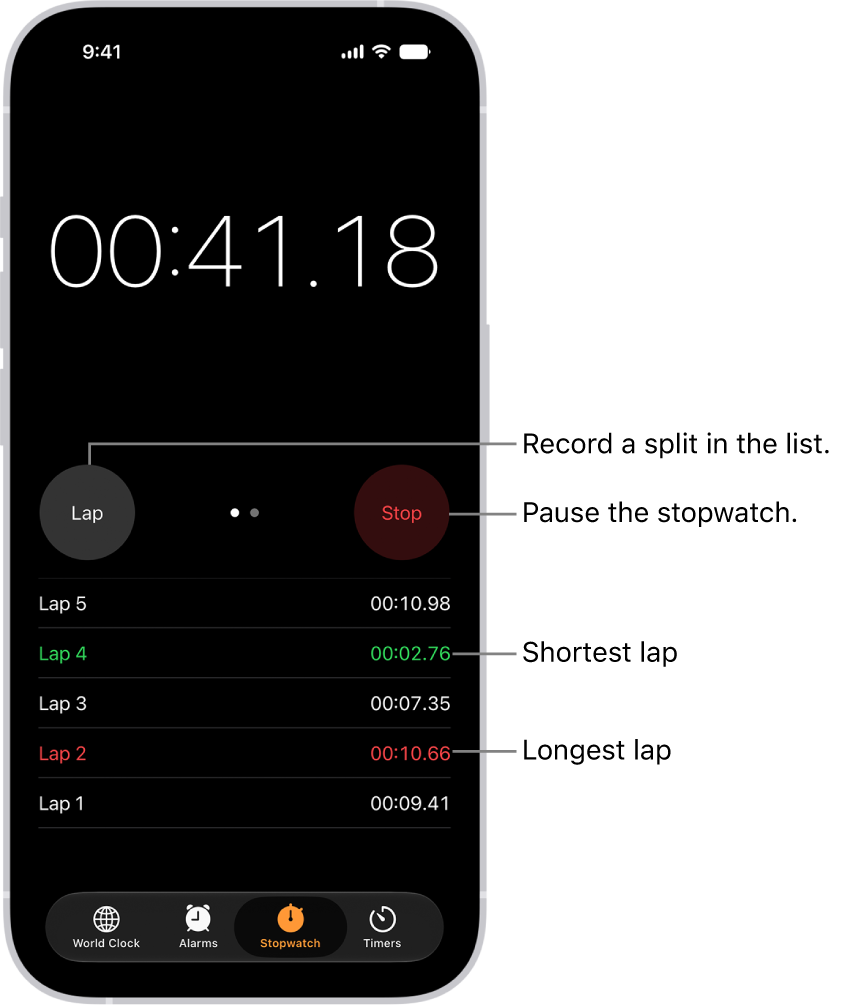
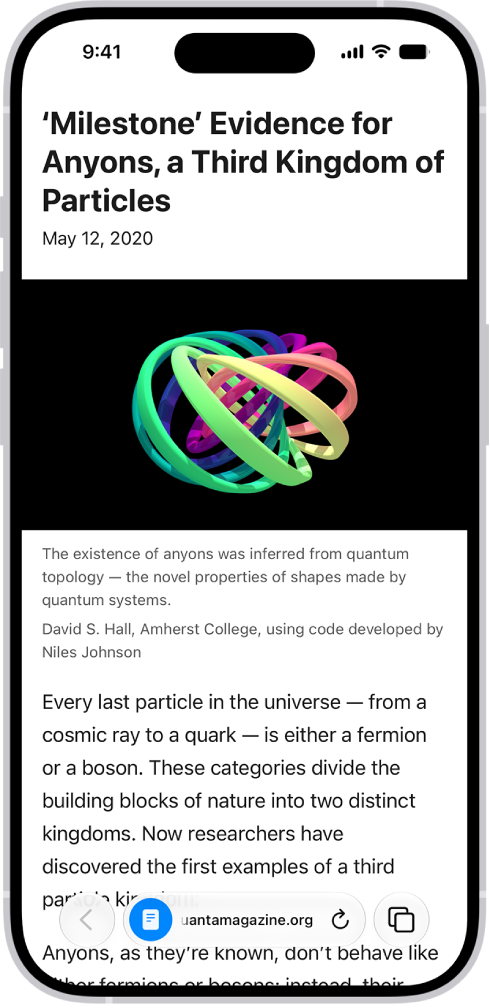
With Accessibility Reader on iPhone, you can read or listen to text in a full-screen view, and customize fonts, layouts, and background colors, and more. You can use Accessibility Reader with any app on your iPhone, too.
With Apple Intelligence, you can also format content for easier reading, summarize text, and translate it into one of your preferred languages. Accessibility Reader is built into the Magnifier app, too, so you can customize text around you, like in restaurant menus or books.
Note: Apple Intelligence on iOS 27 or later is available on an Apple Intelligence-enabled iPhone 15 Pro, iPhone 15 Pro Max, or iPhone 16 model or later. Apple Intelligence is not available in all languages or regions. Usage limits may apply.*
Turn on and use Accessibility Reader
- Start the Settings app on your iPhone.
- Tap Accessibility and tap Read & Speak.
- Tap Accessibility Reader and turn on Accessibility Reader.
- To customize Accessibility Reader, do any of the following:
- Set up autoplay: Turn on Autoplay in Accessibility Reader.
- Automatically format and structure content for readability with Apple Intelligence: Turn on Content Cleanup.
- To start using Accessibility Reader, do one of the following:
- Use the Accessibility Shortcut: Open an app, triple-click the side button on your iPhone, then tap Accessibility Reader.
- Use Control Center: Open an app, open Control Center, then tap Accessibility Reader.
- Use the share menu in any app to send content directly to Accessibility Reader: Tap the Share button, then select Accessibility Reader.
Use Apple Intelligence in Accessibility Reader
Apple Intelligence lets Accessibility Reader summarize long text, translate text into one of your preferred languages, and format content for easier reading.
Note: Apple Intelligence on iOS 27 or later is available on an Apple Intelligence-enabled iPhone 15 Pro, iPhone 15 Pro Max, or iPhone 16 model or later. Apple Intelligence is not available in all languages or regions. Usage limits may apply.*
-
Open any app on your iPhone, then open Accessibility Reader.
-
Do any of the following:
Customize text color, font, and spacing in apps
-
Open any app on your iPhone, then open Accessibility Reader.
-
Tap the More button and then tap the Customize Reader button.
-
Select a theme, then tap Edit.
-
Do any of the following:
Quick tip: If you rename a theme with your custom settings, you can easily find it and reuse it later.
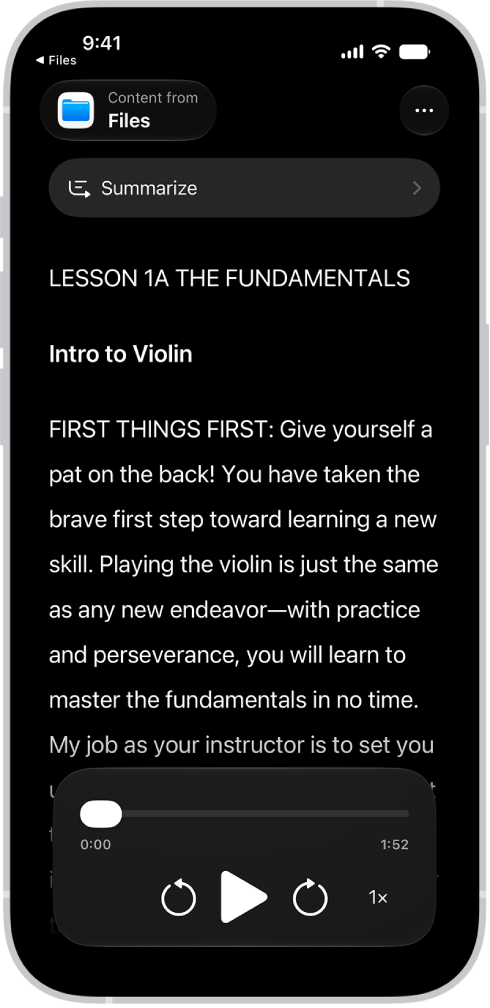
Listen to spoken text in apps
- Open any app on your iPhone, then open Accessibility Reader.
- Do any of the following:
- Listen to the text: Tap the Play button.
- Pause the text: Tap the Pause button.
- Skip backward or forward: Tap the Rewind button or the Forward button.
- Increase or decrease the speed: Tap the Speaking Rate One Times button. Then select a speed.
- Go to a specific time: Drag the slider left or right.
Note: Audio controls in Accessibility Reader can be hidden or shown. Tap the More button, then tap the Hide Audio Controls button.
*Apple Intelligence is available with Siri and device language set to Chinese (Simplified), Chinese (Traditional), Danish, Dutch, English, French, German, Italian, Japanese, Korean, Norwegian, Portuguese, Spanish, Swedish, Turkish, or Vietnamese. Some features may not be available in all regions or languages. Some devices may not be available in all regions. Siri AI is available in beta in iOS 27, iPadOS 27, macOS 27, watchOS 27, and visionOS 27 and requires an Apple Intelligence–enabled device set to a supported language. Available in English to start. Siri AI will not be initially available in the EU on iOS, iPadOS, and watchOS. Certain Apple Intelligence features that rely on server-side models are subject to daily usage limits, including but not limited to Siri AI, Intelligent Photo Editing Tools, Image Playground, and AFM 3 Cloud models in Shortcuts. Daily limits may vary by feature, request complexity, system demand, system policies, and other factors. Expanded access to such features will be available for a fee in the future. Use of these features is subject to the Apple Intelligence Terms and Conditions.