Got a tip for us?

iPhone

The iPhone is a smartphone from Apple that runs the iOS mobile operating system. Between its apps, communication features, the camera, mobile internet access, and other functionalities, the iPhone has quickly become an integral part of many peoples tech lives.

You can create and save passkeys to replace the passwords you use to sign in to supported websites and apps on your iPhone. Passkeys are more secure than passwords, because they’re uniquely generated for every account by your own device and are less vulnerable to phishing.

And they work on all your devices where you’re signed in to the same Apple Account. Websites and apps can even create passkeys for your account automatically, so you can use them the next time you sign in on your iPhone. Like passwords, passkeys are encrypted and stored in your iCloud Keychain, where they aren’t visible to anyone, including Apple. Before you use passkeys, you need iCloud Keychain and two-factor authentication turned on.

Note: Passkeys only work with iCloud Keychain and two-factor authentication turned on.

Create and save a passkey using your iPhone

You can create and save passkeys for websites and apps that support them. Note: The instructions for creating and saving a passkey can vary depending on the app, website, or browser, but they typically consist of steps similar to the ones below.

  1. Go to the sign-in screen for a supported website or app on your iPhone, and do one of the following:
    • If you’re setting up a new account: Tap the button or link for setting up new accounts, then follow the onscreen instructions.
    • If you already have an existing account: Sign in with your account name and password and then go to the account settings or management screen.
  2. When you see the option to save a passkey for the account, tap Continue.

Your passkey is saved. Note: If you don’t see a passkey option, it means the website or app doesn’t currently support passkeys. The passkeys you create are stored on your iPhone in the Passwords app. You can have a passkey and password for the same website or app, and find them both under the same account in the Passwords app. You can also save a passkey to a hardware security key. Tap “Other options,” “Save on another device,” or similar (if available), then follow the onscreen instructions for saving a passkey.

Use a passkey to sign in to a website or app on your iPhone

After you create and save a passkey for a website or app, you can use the passkey whenever you sign in. Note: The instructions for signing in with a passkey can vary depending on the app, website, or browser, but they typically consist of steps similar to the ones below.

  1. Go to a website or app on your iPhone, and tap the account name field on the sign-in screen.
  2. Tap the suggested account name that appears at the bottom of the screen or near the top of the keyboard. If the account name doesn’t appear, or you want to use a different one, enter it.
  3. Use Face ID or Touch ID to complete sign in. If you didn’t set up Face ID or Touch ID on your iPhone, enter your device passcode (the code you use to unlock your iPhone).

The passkey you saved completes the sign-in automatically.

Use a passkey saved on your iPhone to sign in on another device

If you’re using a device not associated with your Apple Account (such as a computer at a public library, an internet cafe, or a friend’s house) and you have your iPhone with you, you can sign in to websites or apps on that device using the passkeys you created for them. Note: The instructions for using a passkey on another device can vary depending on the app, website, or browser, but they typically consist of steps similar to the ones below.

  1. On the other device, go to the website or app and enter your user name in the account name field on the sign-in screen.
  2. Select “Other options,” “Passkey from nearby device,” or similar and then follow the onscreen instructions to display a QR code on the screen.
  3. Use your iPhone camera to scan the QR code.

The passkey that’s saved to iCloud Keychain completes the sign-in automatically.

Create a passkey on a device that’s not your own

If you have your iPhone with you, you can create a passkey while using a device not associated with your Apple Account (such as a computer at a public library, an internet cafe, or a friend’s house) and save it to iCloud Keychain instead of to the device you’re using to create the passkey. Note: The instructions for creating a passkey can vary depending on the app, website, or browser, but they typically consist of steps similar to the ones below.

  1. On the other device, go to the sign-in page for a supported website or app. Do one of the following:
    • If you’re setting up a new account: Tap the button or link for setting up new accounts. Enter a new username.
    • If you already have an account: Sign in with your account name and password and then go to the account settings or management screen.
  2. When you see the option to save a passkey for the account, select “Other options,” “Save on another device,” or similar (instead of Continue). Note: If you don’t see a passkey option, it means the website or app doesn’t currently support passkeys.
  3. Select Save a passkey on a device with a camera, or similar and then follow the onscreen instructions to display a QR code on the screen.
  4. Use your iPhone camera to scan the QR code.

The passkey is saved to your iPhone and iCloud Keychain.

Change a passkey

You might need to create a new passkey to replace the existing one (if, for example, you previously shared it with someone to whom you no longer want to give access). To change a passkey, follow the steps for an existing account in Create and save a passkey or Create a passkey on a device that’s not your own.

Delete a passkey

  1. Start the Passwords app on your iPhone.
  2. Tap Passkeys and then tap the account for the passkey you want to delete.
  3. Tap Edit.
  4. Tap Delete and tap Delete Passkey to confirm.

If you delete a passkey, you can create a new one at any time.
Tag: Safari

With an internet connection, you can make and receive calls in the FaceTime app, though you may need to set up FaceTime first.

There’s more than one way to start. You can make a FaceTime call from the app or start one from a Messages conversation, and you can view information when starting a FaceTime call. And if someone doesn’t answer, you can record a video message or leave a voicemail.

You can also make FaceTime calls over a cellular data connection. (Calling and data rates may apply.) To turn this feature off, go to the Settings app , tap Cellular, then turn off FaceTime below Cellular Data.

Note: FaceTime audio calls and Group FaceTime calls aren’t available in all countries or regions.

Make a FaceTime call

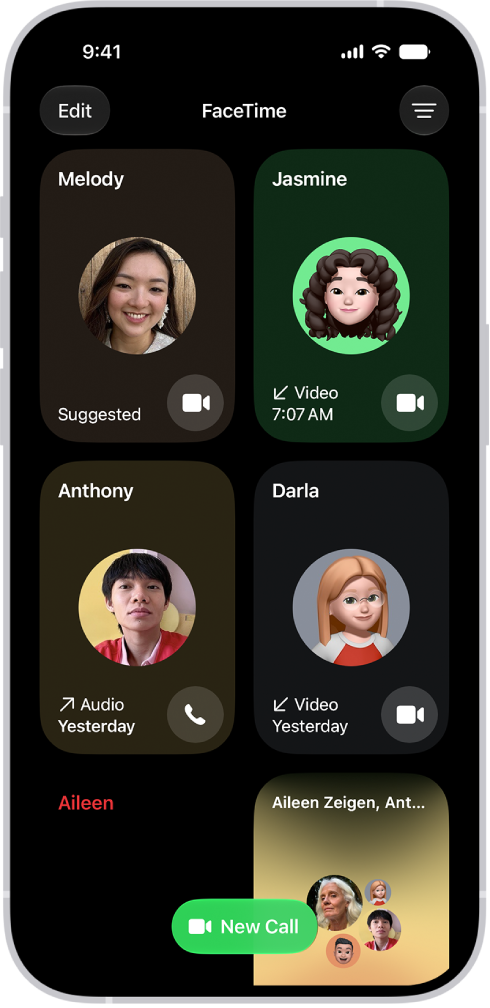
The screen for making a FaceTime call. The New Call button is at the bottom of the screen.

  1. Start the FaceTime app on your iPhone.
  2. Tap New Call.
  3. Enter the name, number, or email of the person you want to call. Alternatively, you can tap the Add Contact button to open Contacts and add people from there, or tap a suggested contact.
  4. Tap FaceTime to make a video call or the Audio Call button to make an audio call.

Quick tip: In some countries and regions, you can record a one-to-one FaceTime audio call and view the call transcript in Notes.

Siri: Ask Siri something like, “Call Eliza’s mobile.”

Quick tip: A FaceTime video call shows more when you rotate iPhone to landscape orientation.

View information when starting a FaceTime call

With Apple Intelligence, when you start a FaceTime call, a Call Context card with related information may appear. This can include an upcoming or recent birthday during a call to a contact, or it can include tickets, orders, or confirmation numbers during a call to certain businesses. Tap the card to view the information in the related app, such as Mail, Messages, or Wallet.

Note: Apple Intelligence on iOS 27 or later is available on an Apple Intelligence-enabled iPhone 15 Pro, iPhone 15 Pro Max, or iPhone 16 model or later. Apple Intelligence is not available in all languages or regions. Usage limits may apply.

Record a video message

If someone doesn’t answer your FaceTime video call, record a video message to get across exactly what you want to say.

  1. Tap Record Video, wait for the countdown (from 5 to 1). Record your message.

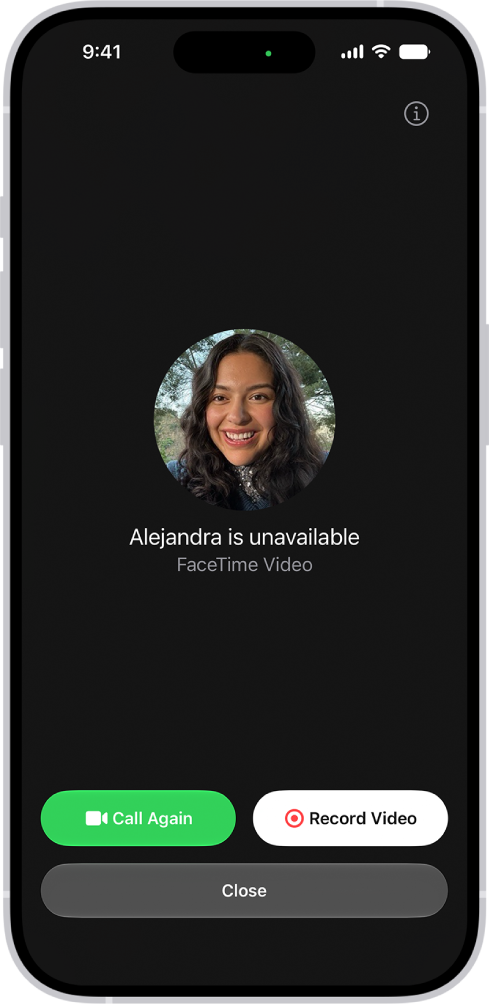
    The screen for recording a video message when the person you’re calling is unavailable. It includes a Call Again button and a Record Video button you can tap to record a video message.

  2. Tap the Stop button to stop recording.
  3. Tap the Send button to send your recorded message, or tap Retake to rerecord the message. You can also tap Save to save the video message to Photos.

The recipient is notified after you send your video message.

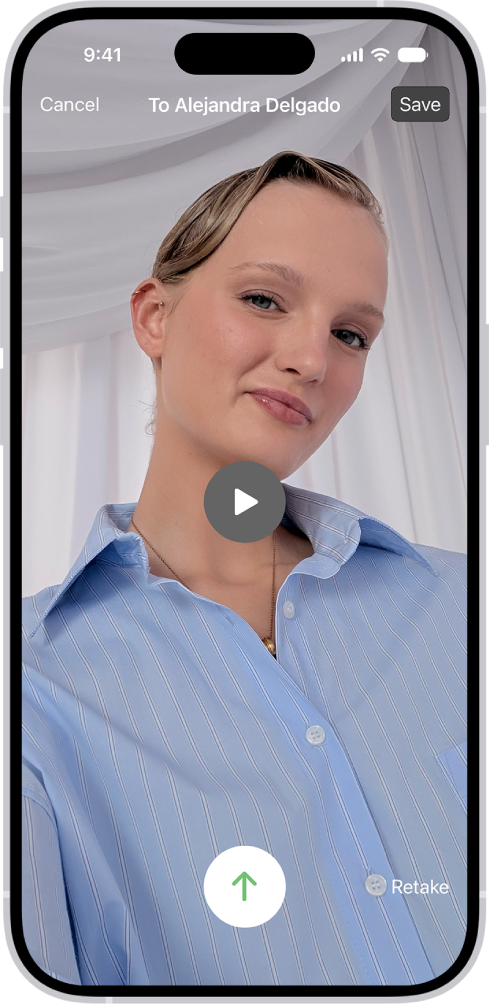
The screen for sending a recorded video message to the person who missed your call. At the top left is the Cancel button. At the top right is the Save button, which saves your video message to Photos. In the middle of the screen is the Play button, which allows you to preview the video message before sending. At the bottom is the Send button and the Retake button.

Note: Video messages only come from saved contacts, people you’ve called, and people suggested by Siri.

Note: Only saved contacts, people you’ve called, and people suggested by Siri can send you video messages.

Leave a voicemail

If someone doesn’t answer your FaceTime audio call, and the person you’re calling has Live Voicemail turned on in Settings > Apps > Phone, you’re prompted to leave a voicemail.

Leave a voicemail, and your message is transcribed on their screen as you speak. That lets them know what you’re calling about, and it gives them a chance to pick up your call.

Call again

To call someone back in FaceTime, do either of the following:

  • Tap Call Again on the Record Video screen.
  • In your call history, tap the name or number of the person (or group) you want to call again, then tap the Call or Video button.

Start a FaceTime call from a Messages conversation

While chatting with someone in an iMessage conversation, you can start a FaceTime call with them.

  1. Tap the FaceTime button at the top right of the iMessage conversation.
  2. Do any of the following:
    • Tap FaceTime Audio.
    • Tap FaceTime Video.

Important: If you remove the FaceTime app from your iPhone, or if you removed FaceTime in an earlier version of iOS, you won’t be able to make or receive FaceTime calls or use SharePlay on your iPhone unless you redownload the app. Cellular calls won’t be relayed from your iPhone to your iPad, Mac, or Apple Watch until FaceTime is reinstalled. Settings and contact cards won’t show FaceTime options. However, if your Apple Watch has its own SIM, it can still make calls through your service provider.

*Apple Intelligence is available with Siri and device language set to Chinese (Simplified), Chinese (Traditional), Danish, Dutch, English, French, German, Italian, Japanese, Korean, Norwegian, Portuguese, Spanish, Swedish, Turkish, or Vietnamese. Some features may not be available in all regions or languages. Some devices may not be available in all regions.

Siri AI is available in beta in iOS 27, iPadOS 27, macOS 27, watchOS 27, and visionOS 27 and requires an Apple Intelligence–enabled device set to a supported language. Available in English to start. Siri AI will not be initially available in the EU on iOS, iPadOS, and watchOS. Certain Apple Intelligence features that rely on server-side models are subject to daily usage limits, including but not limited to Siri AI, Intelligent Photo Editing Tools, Image Playground, and AFM 3 Cloud models in Shortcuts.

Daily limits may vary by feature, request complexity, system demand, system policies, and other factors. Expanded access to such features will be available for a fee in the future. Use of these features is subject to the Apple Intelligence Terms and Conditions.

You can let others know where you are, or find out where they are, by using location sharing.

Shared in a conversation, your location updates in real time, and you decide how long to share it. You can also send a pinned location, ask for someone else’s location, or meet up with a friend, and stop sharing your location at any time.

Here’s how to share your location in Messages on iPhone.

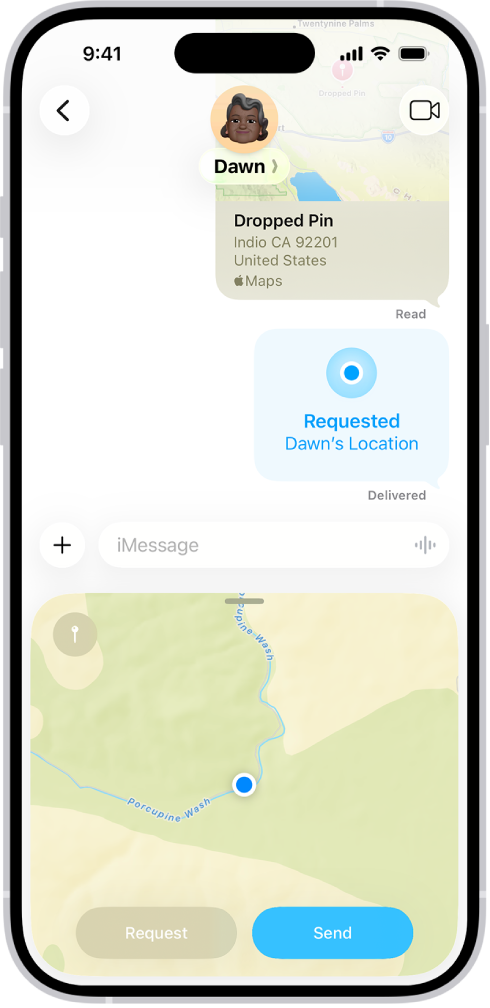
A Messages conversation with a dropped pin, a location request, and a location about to be sent.

Share and update your location automatically

Share your location in a Messages conversation, and it keeps updating in real time.

  1. Open the Messages app on your iPhone.
  2. In a conversation, tap the Add button.
  3. Tap Location and tap Share.
  4. Decide how long you want to share your location.

    Tap Indefinitely if you want to share your location until you manually stop sharing it.

  5. Tap the Send button to send your location. (Or tap the Remove App from Message button if you change your mind.)

Quick tip: If somebody asks where you are, you can share your location quickly by tapping Current Location (above the keyboard).

If you share your location to a group, then add other people to it, you can reshare your location so everyone can see where you are.

To share your location in an SMS conversation, use a pinned location instead.

Send a pinned location

  1. Open the Messages app on your iPhone.
  2. In a conversation, tap the Add button. Then tap Location.
  3. Tap the Map Pin button in the top left of the map and drag the map until the pin is in the right place.
  4. Tap Send Pin, then tap the Send button to send your pin.

Pinned locations don’t update as you move.

Ask for someone else’s location

  1. Open the Messages app on your iPhone.
  2. In a conversation with one other person, do one of the following:
    • Tap the Add button, tap Location, then tap Request.
    • Send a message that ends with the question, “Where are you?” then tap Request Location (above the keyboard).
  3. Tap the Send button to send your request.

After someone shares their location with you, their location appears below their name at the top of the conversation. Tap their name to see where they are on a map. Tap the map to enlarge it.

If you both use an iPhone 15 model or later and are near the person you’re looking for, you can use Find My to get precise directions to their location.

Meet up with a friend

Once you’re near one another, you and a friend can use Find My to get precise directions to their location, as long as you both have a supported model.

Stop sharing your location

  1. Open the Messages app on your iPhone.
  2. Open the conversation with someone you’re sharing your location with and then tap the contact icon at the top of the conversation.
  3. Tap Stop Sharing My Location.

A map no longer appears in the previous bubble in the conversation.

Note: Finding people with location sharing isn’t available in all countries or regions. If you set up location sharing and others still can’t see your location, make sure you’ve allowed access. Go to Settings > Privacy & Security > Location Services > Find My, then choose an option.

Print your photos directly from the Photos app on your iPhone with any AirPrint-enabled device. You can print a single photo, or you can print multiple photos at once from your library or an album, and you’ll find Print in the Share menu.

Print a photo

  1. Start the Photos app on your iPhone.
  2. Open a photo, then tap the Share button.
  3. Tap Print.

Print multiple photos at once

  1. Start the Photos app on your iPhone.
  2. Tap Library or open a collection, then tap Select.
  3. Select each photo you want to print. Then tap the Share button.
  4. Tap Print.
Tag: Photos

You can select alternative, third-party apps for email, messaging, calling, call filtering, web browsing, passwords, or keyboards as defaults to launch instead of the built-in Apple apps. Make sure the app you want to switch to supports this feature.

You can also choose a default app for translating text, for contactless payments, and for sending audio and video to compatible devices. All of these choices are in Default Apps, in the Apps section of Settings.

Note: You can’t set a different default for some app categories, like Maps, Camera, and Music, because they aren’t available in Default Apps.

Change your default apps

  1. Open the Settings app on your iPhone.
  2. Tap Apps, tap Default Apps, and tap any of the following:

    • Email: To change the default app for sending and receiving email.
    • Messaging: To change the default app for sending and receiving messages.
    • Calling: To change the default app for making and receiving calls.
    • Call Filtering: To turn on or off call blocking and identification options.
    • Browser App: To change the default app to open links on the web.
    • Translation: To change the default app used to translate text.
    • Passwords & Codes: This section allows you to turn on or off AutoFill Passwords and Passkeys for apps and websites, and password, passkey, and code-generation and verification apps.
    • Contactless App: To change the default app for using NFC for contactless payments.
    • Keyboards: To add or delete keyboards and third-party keyboard apps.
    • Media Sharing Extensions: To change the default app for sending audio and video to compatible devices.
  3. Select the app you want to use as the default.

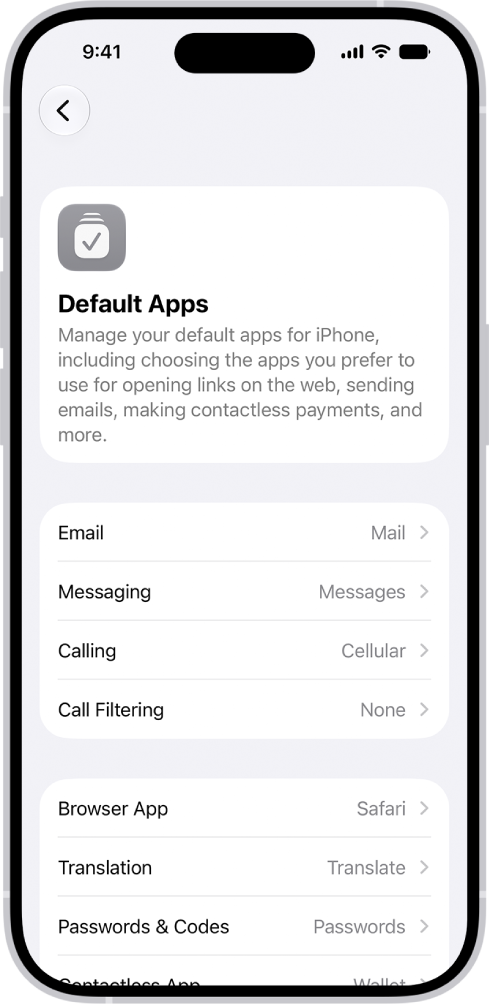
    The screen for changing your default apps for sending email, browsing the web, and more.

Tag: iPhone

In the Calendar app, you can add multiple accounts such as iCloud, Google, Microsoft Exchange, and Yahoo. You can change default settings to make it easier to create new events and to display your calendar in a way that works best for you. For example, you can choose the default calendar for new events, change the duration of new events, and more.

You can also add a CalDAV account by entering your server and account information.

Here’s how to change your Calendar settings on iPhone.

Set up iCloud, Google, Exchange, or Yahoo calendar accounts

  1. Start the Settings app on your iPhone.
  2. Tap Apps and then tap Calendar.
  3. Tap Calendar Accounts and then tap Add Account.
  4. Tap a service (iCloud, Microsoft Exchange, or Google, for example). Sign in.

Add a CalDAV account

  1. Start the Settings app on your iPhone.
  2. Tap Apps and then tap Calendar.
  3. Tap Calendar Accounts and then tap Add Account.
  4. Tap Add Other Account, then tap CalDAV account.
  5. Enter your server and account information.

Note: For an account that doesn’t support Push notifications, set a Fetch schedule to update your calendar from it. First, go to Settings > Apps > Calendar. Tap Calendar Accounts, and then tap Fetch New Data. Under Fetch, choose a schedule, or choose Automatically to download new data when your iPhone is charging and connected to Wi-Fi.

Choose a default calendar

With multiple calendars, you can choose a default one, and new events you create land in that calendar automatically.

  1. Start the Settings app on your iPhone.
  2. Tap Apps and then tap Calendar.
  3. Tap Default Calendar, then select the calendar you want to use as your default calendar.

Note: Even after you create an event, you can always move it to a different calendar.

Set default event settings

Calendar events have default settings you can change, too, such as the duration for new events or getting an alert when it’s time to leave for an upcoming event.

  1. Start the Settings app on your iPhone.
  2. Tap Apps and then tap Calendar.
  3. Do any of the following:
    • Choose when to get alerts for different types of events: Tap Default Alert Times, tap Birthdays, Events, or All-Day Events, and choose an option.
    • Choose whether to be alerted when it’s time to leave for an upcoming event: Tap Default Alert Times. Turn Time to Leave on or off.
    • Change the default duration for new events: Tap Duration for New Events. Choose a length of time.
    • Choose whether Calendar suggests a location when you create a new event: Turn Location Suggestions on or off.

Change how your calendar is displayed

To help highlight the information that’s most important to you, customize the way your calendar is displayed. You might choose which day to start the week with, for example, or display the Chinese, Hebrew, or Hijri calendar alongside the Gregorian calendar.

  1. Start the Settings app on your iPhone.
  2. Tap Apps and then tap Calendar.
  3. Do any of the following:
    • Display the Chinese, Hebrew, or Hijri calendar: Tap Alternate Calendars and choose a calendar.
    • Display the week number next to every week of the year: Turn on Week Numbers.
    • Show the current day as the first day in Week view: Turn on Week View Starts On Today.
    • Choose a different day to start the week: Tap Start Week On, then tap a day.

You can allow Siri to make suggestions across apps based on the way you use Calendar. Go to Settings > Apps > Calendar, tap Siri, then turn on Learn from this App. You can also allow suggestions and content from Calendar to appear in Search, widgets, and as notifications.

With its deep understanding of language, Apple Intelligence can help condense the information most important to you. Notifications are summarized so you can scan them for key details, such as when a group chat is particularly active.

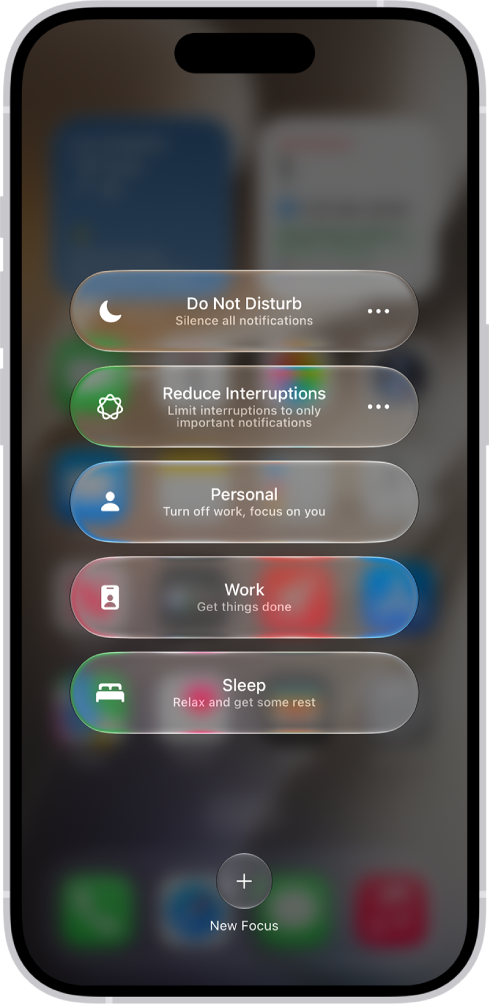
Your iPhone can also determine which notifications have priority over others. And the Reduce Interruptions Focus shows you only the notifications that might need immediate attention, like a text about an early pickup from daycare. You can customize notification summaries, or turn them off.

Note: Apple Intelligence on iOS 27 or later is available on an Apple Intelligence-enabled iPhone 15 Pro, iPhone 15 Pro Max, or iPhone 16 model or later. Apple Intelligence is not available in all languages or regions. Usage limits may apply.*

Customize notification summaries

To make long or stacked notifications easier to understand at a glance, your iPhone can summarize them.

  1. Start the Settings app on your iPhone.
  2. Tap Notifications.
  3. Tap Summarize Notifications, turn on Summarize Notifications, and then tap Choose Notifications to Summarize.
  4. Tap the notifications you want to summarize and tap Summarize Selected Notifications.

To change which notifications you want to summarize, tap the button next to an app.

Turn notification summaries on or off

  1. Start the Settings app on your iPhone.
  2. Tap Notifications.
  3. Tap Summarize Notifications. Turn Summarize Notifications on or off.

Turn priority notifications on

Your iPhone can work out which notifications have priority over others. Those priority notifications show up at the top of the stack, which helps you catch up on anything you may have missed.

  1. Start the Settings app on your iPhone.
  2. Tap Notifications.
  3. Tap Prioritize Notifications, then turn Prioritize Notifications on.

To turn off priority notifications, turn Prioritize Notifications off. To change which notifications you want to prioritize, tap the button next to an app. You can also change settings when you receive a priority notification on the Lock Screen. When a priority notification appears, do one of the following:

  • Turn off Priority Notifications for a specific app: Swipe left, tap Options, then tap Turn Off All [app] Notifications.
  • Turn off all Priority Notifications: Swipe left, tap Options, then tap Turn Off Prioritization.

Use the Reduce Interruptions Focus

The Reduce Interruptions Focus understands what’s in your notifications, so it shows you the most important ones and silences those that are less important.

You can customize a Reduced Interruptions Focus.

  1. Start the Settings app on your iPhone.
  2. Tap Focus.
  3. Tap the Add button at the top right. Then tap Reduce Interruptions.
  4. Tap Customize Focus and tap People or Apps.
  5. Choose the people and apps to allow notifications from.

Note: Notifications you’ve specifically allowed or silenced stay that way, even when you turn on Intelligent Breakthrough & Silencing for any Focus.

*Apple Intelligence is available with Siri and device language set to Chinese (Simplified), Chinese (Traditional), Danish, Dutch, English, French, German, Italian, Japanese, Korean, Norwegian, Portuguese, Spanish, Swedish, Turkish, or Vietnamese. Some features may not be available in all regions or languages. Some devices may not be available in all regions. Siri AI is available in beta in iOS 27, iPadOS 27, macOS 27, watchOS 27, and visionOS 27 and requires an Apple Intelligence–enabled device set to a supported language. Available in English to start. Siri AI will not be initially available in the EU on iOS, iPadOS, and watchOS. Certain Apple Intelligence features that rely on server-side models are subject to daily usage limits, including but not limited to Siri AI, Intelligent Photo Editing Tools, Image Playground, and AFM 3 Cloud models in Shortcuts. Daily limits may vary by feature, request complexity, system demand, system policies, and other factors. Expanded access to such features will be available for a fee in the future. Use of these features is subject to the Apple Intelligence Terms and Conditions.

After you pair AirPods with iPhone, you can use AirPods to listen to audio playing on iPhone, make and answer calls, listen and respond to messages, hear reminders when you need them, listen to conversations more easily in noisy environments, and more.

Pairing starts with Bluetooth turned on in Settings.

Pair AirPods with your iPhone

  1. On iPhone, open Settings and tap Bluetooth. Then turn on Bluetooth.
  2. Go to the Home Screen on your iPhone.
  3. Do one of the following:
    • AirPods (1, 2, 3, and 4) and AirPods Pro: Open the case with your AirPods inside. Then hold it next to your iPhone.
    • AirPods Max: Take your AirPods Max out of the Smart Case and then hold AirPods Max next to your iPhone.
  4. Follow the onscreen instructions, then tap Done.

Note: When the onscreen instructions for pairing your AirPods Max don’t appear, you can go to Settings > Bluetooth and select your AirPods Max. And if the status light on AirPods Max doesn’t flash white, press and hold the noise control button until it does.

With iOS 10, iPadOS 13, macOS 10.12, watchOS 3, or later, your AirPods pair automatically with all your supported devices signed in to your Apple Account.

Tag: AirPods

To use a Focus, you can turn it on directly in Control Center, or schedule it to turn on automatically. When you turn one on in Control Center, you can choose when it ends.

If another Focus is already on, it turns off when you turn on the new one. You can also turn a Focus on or off using Siri, and turn off or delete a Focus.

Here’s how to turn on or schedule a Focus on iPhone.

Turn on a Focus in Control Center

  1. Open Control Center, tap Focus, and then tap the Focus you want to turn on (for example, Do Not Disturb).

Note: If another Focus is already on, it turns off when you tap the new one.

Control Center showing the Focus options, with buttons for setting the duration of the Focus options.

  1. To choose an ending point for the Focus, tap the Do Not Disturb button and select an option (such as For 1 hour or Until I leave this location). Then tap the Do Not Disturb button again.

With a Focus on, its icon shows up in the status bar and on the Lock Screen (for Do Not Disturb, for example, that’s the Do Not Disturb button), and the Messages app automatically displays your status. Anyone who tries to send you a message sees that you’ve silenced notifications, though they can still notify you if something is urgent.

Note: Turning a Focus on or off also works from the Settings app, by tapping Focus, tapping the Focus, and then turning it on.

Schedule a Focus to turn on or off

You can schedule a Focus to turn on when you open a specific app, when you’re at a particular location, or at certain times.

  1. Open the Settings app on your iPhone.
  2. Tap Focus and then tap the Focus you want to schedule.

If a time appears below Set a Schedule, you can tap it to set a schedule for turning the Focus on and off.

  1. Tap Add Schedule and then set the times, a location, or an app you want to activate this Focus.

Note: A Sleep Focus follows the sleep schedule you set in the Health app once you set it up. Tap Open Sleep in Health to add or edit a sleep schedule, or to change your next bedtime and wake-up time.

Turn a Focus on or off using Siri

You can use Siri to turn a Focus on or off.

Siri: Ask Siri something like, “Turn on the Work Focus.”

Turn off a Focus

To allow notifications again once you’re finished using a Focus, you can turn it off quickly. Even after you turn it off, that Focus still appears in Control Center and can be reused.

  1. Do any of the following:
    • Touch and hold the Focus icon on the Lock Screen.
    • Open Control Center, then tap Focus.
  2. Tap the Focus that’s on to turn it off.

Delete a Focus

  1. Open the Settings app on your iPhone.
  2. Tap Focus, tap the Focus you no longer need, scroll to the bottom of the screen, and then tap Delete Focus.

If you delete a provided Focus, you need to set it up again by going to the Settings app, tapping Focus, then tapping the Add button.

Tag: Focus

In the Calendar app, you can share an iCloud calendar with other iCloud users. When you share a calendar, others can see it, and you can let them add or change events. You can also share a read-only version that anyone can view but not change.

You can change a person’s access to a shared calendar, and turn off notifications for shared calendars.

Here’s how to share iCloud calendars on iPhone.

Create an iCloud calendar

  1. Start the Calendar app on your iPhone.
  2. Tap the Calendars button.
  3. Tap Add Calendar.
  4. Tap Add Calendar, enter a name for the new calendar, and tap the Done button.

If iCloud isn’t your default calendar, tap Accounts, then tap iCloud.

Share an iCloud calendar

Share a calendar in iCloud with one or more people, and each person you invite receives an invitation to join it.

  1. Start the Calendar app on your iPhone.
  2. Tap the Calendars button.
  3. Tap the Info button next to the iCloud calendar you want to share.
  4. Tap Add Person and enter a name or email address, or tap the Add button to browse your contacts.

Note: To share an iCloud calendar with your contacts, they need an email address.

Tap the Done button.

Change a person’s access to a shared calendar

After you invite someone to share your calendar, you can turn their ability to edit the calendar on or off, or stop sharing the calendar with them entirely.

  1. Start the Calendar app on your iPhone.
  2. Tap the Calendars button and tap the Info button next to the shared calendar. Tap the person’s name.
  3. Do any of the following:
    • Turn Allow Editing on or off.
    • Tap Delete.

Turn off notifications for shared calendars

When someone modifies a calendar you’re sharing, you get notified of the change. You can turn off those notifications if you don’t want them.

  1. Start the Settings app on your iPhone.
  2. Tap Notifications and tap Calendar.
  3. Tap Customize Notifications, then turn off Shared Calendar Changes.

Share a read-only calendar with anyone

  1. Start the Calendar app on your iPhone.
  2. Tap the Calendars button then tap the Info button next to the iCloud calendar you want to share.
  3. Turn on Public Calendar. Then tap Share Link to copy or send the URL for your calendar.
  4. Choose a method for sending the URL—Messages, Mail, and so on.

Anyone you send the URL to can subscribe to the calendar in a compatible app, like Calendar for macOS.

Delete a calendar

  1. Start the Calendar app on your iPhone.
  2. Tap the Calendars button.
  3. Tap the Info button next to the iCloud calendar you want to delete.
  4. Tap Delete Calendar at the bottom of the list.