Got a tip for us?

Tips & Tricks

Tips and tricks for all things Apple! Whether you want to learn tips for a Mac, iPhone, iPad, Apple Watch, or much more, you will find many tricks, tips, tutorials, and excellent walkthroughs for Apple devices and software here.

Be warned that there are many fake Apple TV for sale and while clones or fakes are becoming increasingly more popular you can still tell the difference. The last thing you want is to buy an Apple TV clone. So if you are worried that you may buy a fake Apple TV or a Clone Apple TV then this comprehensive guide is for you. Here is the step-by-step guide which will help you to spot a fake Apple TV and distinguish it from the original.

How to identify a fake Apple TV

1. How to tell if your Apple TV is fake: check the Serial number

Serial Number makes it easier for Apple consumers to check the authenticity of their Apple products. Serial Numbers are unique to each model of the Apple products. Your Apple TV still have that unique Serial Number.

Apple runs a website that lets users check if their products are still under warranty. This is great for checking real products, of course, but it also has the added benefit of telling you when you’re using a fake product.

To use the site, you’ll just need your Apple TV’ serial number. You can find this number in various ways.

  • Check in Settings: For you to check the Serial Number of your Apple TV you should go to Settings > General > About.
  • Check the bottom of your Apple TV: Serial number of the Apple TV can also be found at the bottom of your TV. You can use light to check it out because the numbers are a bit reflective.
  • Find the Serial Number with your Apple ID: On your Apple Device that is signed in with your Apple ID, you can find the Serial Number of your Apple TV. If you have an iPad, iPhone or iPod touch, go to Settings > Your Name, then scroll down and tap your Apple TV to see the Serial Number. If you have a MacBook you can go to your Apple ID account page and find the Serial Number of your Apple TV.

Once you have the Apple TV’ serial number, head to the Check Coverage website and enter it into the field at the top, then fill out the CAPTCHA and click Continue.

If you’re brought to either a page that asks you to enter the purchase date, or one that tells you what warranty options you have available, your Apple TV is probably legit. But if you instead get an error message saying that Apple is “unable to check coverage for this serial number,” it’s almost definitely fake.

Quick tip: Systems like this are why you should always keep your serial numbers private. Leaking your number online makes it easier for companies to make fake Apple TV with real serial numbers, which makes it harder to detect fakes.

2. How to spot a fake Apple TV: Packaging

Apple has pretty high production standards, and fake Apple TV manufacturers rarely meet them. Minimalist, intelligent, and clean — these are the perfect words to describe the boxes that come with Apple products. Anyone who knows a thing or two about tech brands also knows how much Apple pays attention to the details, even when it comes to the packaging.

Because of this, counterfeit manufacturers seem to have a harder time producing high-quality packaging than the Apple TV itself.

Different counterfeit Apple TVs come from different manufacturers. This means that some manufacturers could have gotten parts of packaging right that other manufacturers haven’t.

The packaging of an original Apple TV is exquisite. It’s absolutely gorgeous and the colour is eye popping. The box has a unique “Apple TV 4K or Apple TV HD” word marked with a black colour. In the box you’ll find the Apple TV, the Siri Remote, a power cable, and Lightning cable, which is used to charge the remote.

If you look carefully, you can find signs that Apple TV is fake on the packaging:

  • Information: Although we don’t actually read the technical specs or any of the information on the packaging. It might actually be extremely useful when it comes to figuring out if you have fake Apple TV. Since the packaging is usually made in non-English speaking countries, there are bound to be a few spelling errors. In fact, if the text is in Chinese, then it’s a dead giveaway.
  • Color: Packaging for the Apple TV comes in a nice, clean white, while knock-off brands usually look off-white or yellowish.
  • Labeling: The Apple TV 4K and Apple TV HD both come with distinct labeling that is uniform everywhere in the world. If you find that your box doesn’t have the same labels as the original ones, then it’s most likely fake. For example, if you find weird stickers or labels that refer to giveaway, then you’re dealing with a fake.
  • Serial number: This is a huge one. If your packaging doesn’t have a serial number or if it’s been tampered with, then there is a good chance you’re dealing with fake Apple TV. So be sure to inspect it thoroughly. Use apple TV serial number check to know if it is fake or not. Note that some fake Apple TV with real serial numbers. So use the first tip on this guide to know how to check if Apple TV is real by serial number.

3. How to Spot Fake Apple TV: Pricing

Apple products are known worldwide for their high prices compared to any other products. Of course, we acknowledge the existence of deals and promos across the board that could have possibly let you buy an authentic Apple TV for dirt-cheap. So just because you got your Apple TV for $100 or less doesn’t necessarily mean it’s fake – although it’s likely.

You can get Apple TV 32GB for $179 or Apple TV 64GB for $199 from any Apple store.

If you got your pair brand-new for under $100 from a Black Friday sale or some other super-low discount price, then either you’re lucky, or your Apple TV, unfortunately, may not be authentic.

The same goes for new “Apple TV” that you got for under the $100 range. If you got a brand-new set for $50 or less, then you can probably already tell that it’s fake since you most likely won’t be getting the best build quality at $50 or less.

4. How to spot Apple TV: Operating system

Original Apple TV comes with tvOS installed. This is not something you’ll find on fake Apple TV. Usually, the installed operating system is free or open access such as Android rather than tvOS. This is a complete dead giveaway of a fake Apple TV.

5. How to Tell If Apple TV is Fake: Check it’s ability to connect with other Apple Devices

Apple TV connects with other Apple Devices well. You can connect your HomePod or HomePod Mini with your Apple TV for speakers. You can connect your Apple TV to be used as your HomeKit to control your Smart Home. AirPods can also be connected with Apple TV for Private listening. so if your Apple TV does not connect to your Apple Devices, just know that you are looking at a fake Apple TV.

6. How to Tell If Apple TV is Fake: Try to Use Siri

Another reliable way to tell if Apple TV is fake is by doing something only authentic Apple TV can do.

Siri is a virtual assistant that is part of the tvOS operating system. Siri is available in both Apple TV 4K and Apple TV HD.

Siri is one thing that counterfeit manufacturers have never been able to fake. Try asking Siri for things like movies, TV Shows or Apps. If Siri doesn’t respond to your commandds, we’re sorry to tell you, but your Apple TV is fake.

7. How to Spot Fake Apple TV: Build Quality

If you look at the physical hardware of fake Vs fake Apple TV, the differences are quite difficult to discern. You have to nitpick and look at the smallest details to identify the fake.

Apple’s tolerances on hardware are second-to-none. You shouldn’t see any seams in the plastic, the ports and connectors are tight and sturdy, and the color of Apple products (like MacApple TV) is clean and bright. If your Apple TV seem a little low quality, the pieces are loose, or the color isn’t perfect, you might have knock-off Apple TV.

If ever doubt, you should simply open up a schematic or an image of the authentic Apple TV on your computer and compare it to yours. 90% of the time the clone manufacturers tend to cut corners on the design.

8. Bring it to an authorised reseller

If you are not at ease of being in possession of a fake Apple TV, you can take it to your nearest Apple store. Apple stores have their own engineers and experts that can help you to identify if your Apple TV is original or fake. There is nothing you can do if they find out that your Apple TV is fake because you have purchased it from a fake agent. To avoid all the messes of buying a fake Apple TV, it’s advisable to buy from Apple Authorised Resellers. If you are buying Apple TV online through platforms such as Amazon, make sure that you are buying from their official Apple Store.

Spotting Apple TV Clone – Final Thoughts

At first glance, it is quite easy to mistake a clone for an original Apple TV, as the makers pay high attention, especially to the TV appearance. If you look closely using the methods below, you can spot a fake from a genuine Apple TV:

  • Serial number
  • Packaging
  • Build quality
  • Pricing
  • Features check

Let us know if you’ve spotted any fake Apple TV and be careful when buying or trading online with these distinct feature differences!
See also: Fake MacBook Pro: how to tell fake Vs real? Know Here

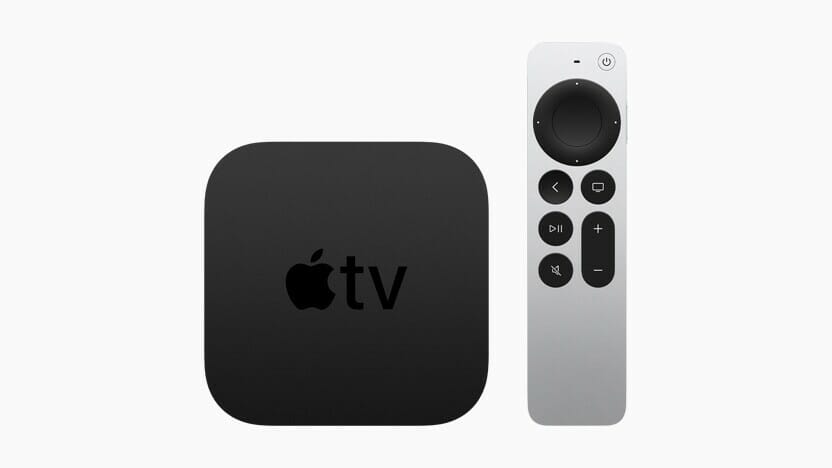
The New Apple TV 4K with Siri Remote

Apple TV has come a long way since it was first launched in March 2007. With more than a decade under its belt, and some major improvements over the years, now there’s definitely an argument for Apple users to buy an Apple TV.

There are also some great tips and tricks within Apple TV to help you get the most out of it.

From connecting Bluetooth devices to controlling smart home with Apple TV, we’ve got an assortment of Apple TV tips and tricks you probably didn’t know your tvOS device could do. These Apple TV Tips and Tricks will have you showing off your abilities to your friends and having them ask you where you learned it all – you can link them here and share the knowledge, of course!

Apple TV remote on a white surface

Without any further ado, here are the 16 best Apple TV tips and tricks you should try today.

Editor’s note: Some of the tips and tricks in this article were put together using Apple TV 4K (2nd generation), Apple TV 4K (1st generation), and Apple TV HD. Keep in mind some of these tricks might be different for you, depending on your hardware and software.

Best Apple TV tips and tricks

Here is a list of the Best Apple TV Tips and Tricks in 2022:

1. Connect Bluetooth devices to your Apple TV

You may need to connect your Bluetooth devices to your Apple TV to either reduce noise or to play games. These include: iPhone, iPad, MacBook, wireless keyboard, Sony playstation, Microsoft Xbox or any other compatible controller accessory.

If your Apple AirPods share the same Apple ID with your Apple TV, it will connect automatically

Steps to follow to connect your Bluetooth compatible accessory to Apple TV

  1. Open Settings on your Apple TV
  2. Go to Remote and Devices
  3. Select Bluetooth
  4. If you are connecting a game controller, select How to pair Game Controller and follow the onscreen instructions
  5. For the Bluetooth devices, select the device in the Other Device List

2. You can set the TV button

Pressing your Siri Remote at the TV button once, it will take you to Up Next in the Apple TV, and pressing it again will take you to the home screen. You can change the settings so that when you press the TV button once, it will take you directly to Home Screen

Steps to follow to change the TV button

  1. Open Settings on your Apple TV
  2. Go to Remote and Device
  3. Select TV Button
  4. Then select either Home screen or Apple TV.

3. Restart your Apple TV

If your Apple TV is not responding, you can restart it to clear the errors

Steps to follow to restart your Apple TV

  1. Press and hold the back and **TV/Control Center** buttons. Let go when the light on your device flashes
  2. Alternatively, open Settings on your Apple TV
  3. Go to System and select Restart
  4. If the Settings menu and your remote don’t restart your device, disconnect your Apple TV from the power outlet. Wait for about five seconds to reconnect your Apple TV back

4. Updating your Apple TV Software

After some time, your Apple TV will need to update its Software. You can either set up your Apple TV to update automatically or when an update is available you will see a message on your Apple TV

Steps to follow to check Software update on Apple TV

  1. Open Settings on your Apple TV
  2. Go to System
  3. Select Software update
  4. If an update is available, click Download and Install to start the download

If you need to set up your Apple TV to automatically update Software you can do so by setting it up.

Steps to follow to set automatic software update on Apple TV:

  1. Open Settings
  2. Go to System
  3. Select Software Update
  4. Then select Automatically Update

5. Use VoiceOver on Apple TV

Without seeing your screen, you can control your Apple TV with VoiceOver. On the Touch Surface of your Siri Remote, you can use a simple gesture to move around the screen, and listen as VoiceOver speaks each time you highlight.

VoiceOver has two modes that are Navigation and Exploration. Navigation, speaks selected items on the screen as you navigate them using the Siri Remote. While Exploration, holds the currently selected items so that you can browse the screen with the Siri Remote. This lets you hear items and text elsewhere on the screen before selecting them.

Steps to follow to turn on or off VoiceOver on Apple TV:

  1. Open Settings on your Apple TV
  2. Go to Accessibility
  3. Select VoiceOver
  4. Choose either VoiceOver on or VoiceOver off.

6. Input AirPlay security on Apple TV

This Apple TV trick lets you insert a password on your AirPlay to prevent unwanted guests from streaming their own videos on your TV.

Steps to follow to set AirPlay security on Apple TV:

  1. Open Settings
  2. Go to AirPlay
  3. Select Security
  4. Click Password and set your desired password.

7. Customise the Apple TV home screen

You can customise your Apple TV home screen in various ways. With this Apple TV trick, you can rearrange apps, create a folder for apps, delete apps from the app store that you no longer use, or change the background appearance of your Screen

Steps to follow to delete an App on Apple TV:

  1. Select the app you want to delete
  2. Press and hold the clickpad center of your remote
    until the App starts to jinggle
  3. Click the play or pause button for more options
  4. Choose Delete

Steps to follow to rearrange apps on Apple TV

  1. Select an App on your Apple TV
  2. Press and hold the clickpad center until the App starts to jingle
  3. Drag the App to a new location on the Home Screen
  4. Repeat the above process for the Apps you need to change
  5. Press the clickpad center to save the new arrangements

8. Add more Accounts to your Apple TV

You can add multiple Apple ID accounts to your Apple TV. This Apple TV trick will enable you and your family members or friends to switch between accounts smoothly.

Steps to follow to add apple account on Apple TV

  1. Open the Apple TV App on your device
  2. Go to Settings
  3. Select Account
  4. Click Add New Account
  5. Follow the instructions to either sign in using your iPhone, iPad, MacBook or you can sign in manually

9. Use Family sharing on Apple TV

You can either Start a family members group, join a family members group or invite family members to join your group. You can share with upto six family members. This Apple TV trick lets you share Pictures, movies, live TV shows, music, Podcasts and more with your family members.

For you to activate family sharing on Apple TV, you must set it on a Mac, iPhone or iPad because Apple TV does not support the activation directly.

Steps to follow when you want to set up family sharing on your iPhone, iPad or Mac

  1. Go to Settings
  2. Tap your name
  3. Select Family Sharing
  4. Click Add Member
  5. Follow the instructions to set up and invite your family members

10. Control your Smart Home with Apple TV

While you are away from your home, you need a HomeHub to control your HomeKit accessories. Apple TV being an Apple product, it works well to control your home when connected as a HomeHub.

Steps to follow to set up your Apple TV as a HomeHub:

  1. Go to Settings on your Apple TV
  2. Select Accounts ( make sure that your Apple TV is connected with the same Apple ID as your Apple devices)
  3. Once you have signed it will automatically connect with your Home Hub

11. Setting up parental control on your Apple TV

With a lot of live shows and many apps in Apple TV, it’s more likely you can find a show or an App that is not suitable for children who are under age. Thankfully, this Apple TV trick allows you to input passcode on such channels and Apps.

Steps to follow to set up parental control on Apple TV:

  1. Go to Settings
  2. Select General
  3. Press on Restrictions and input the password.

12. Activate Dark mode on Apple TV

You can be a movie lover and you watch either during the day or during the night. During the day it will be harder for you to notice the high contrast on your Apple TV than during the night. The high light during the night can damage your eyes. This Apple TV trick allows you to set your TV in Dark mode thus reducing the amount of light. You can also set both light and dark modes. When it’s day time it will show light mode and when darkness starts it will automatically change to Dark mode.

Steps to follow to set up Dark mode on Apple TV:

  1. Open Settings on your Apple TV
  2. Go to General
  3. Open Appearance
  4. Select Dark for dark mode ( also you can select Automatic to set up light mode during the day and Dark mode during the night)

13. Quick switch between the Apps on Apple TV

You don’t have to return to Home Screen to open the App that you had previously opened. With this Apple TV Trick, you just need to switch between different Apps to open the App that you need. This is like multitasking on an iPhone, iPad or Mac.

Steps to follow to switch between apps on Apple TV:between Apps

  1. On your Siri Remote, press the TV button twice quickly
  2. In App switcher view, navigate to a different App in the center of the screen
  3. If you want to leave the App, press the Back button

14. Change Apple TV remote sensitivity

Your Apple TV Remote can be a bit sensitive to unnecessary touch. Thankfully, this Apple TV trick lets you avoid that by letting you cuddle the clippad to match your particular control style.

Steps to follow to change Apple TV Remote sensitivity:

  1. Open Settings on your Apple TV
  2. Go to Remote and Devices
  3. Select Touch Surface Tracking
  4. Choose Fast to make smaller thumb movements faster on your Apple TV screen. Select Slow to reduce tracking sensitivity.

15. Control what’s playing on your Apple TV

When you are watching your favorite TV shows or music, this Apple TV trick lets you control what is playing like a pro. You can either pause, play forward or backward your video.

To play or pause or pause a TV show or a movie on Apple TV, you will need to press the clickpad center press the Play or Pause button on your Siri Remote. To rewind or fast forward a video or a movie, you can either, first skip backward or fast forward 10 seconds by pressing right or left on the clippad ring and pressing again to skip 10 seconds. Second you can continuously rewind or fast forward by pressing and holding left or right on your clippad ring then press right or left repeatedly to cycle through rewind or fast forward speed action . The press the clickpad centeror play or pause button to resume playback

16. Put your Apple TV to sleep

Your Apple TV after being inactive for some period, it will automatically go to sleep. You can still select Sleep Now in Settings or you can put your Apple TV to Sleep with your Siri Remote

Steps to follow to put your Apple TV to sleep:

  1. Press and hold the power button on your Siri Remote
  2. Press and hold control center for three seconds to bring up control center
  3. Then select Sleep and your Apple TV will go to sleep.

You need to wake your Apple TV, you can press the menu or control center on your remote and you are set to go.

Your Favorites Apple TV Tips and Tricks

So these were some of the best Apple TV tips and tricks you would love to try today. My favorite Apple TV tips and tricks include the ability to control smart home with Apple TV, ability to customize Apple TV screen and family sharing. There’s surely plenty more hidden Apple TV tips and tricks to discover, so I’ll keep tapping, swiping and noting anything I find. Did we miss out on something important that needs to be added to the list? Which are your favorite Apple TV tips and tricks? Let me know in the comments section below.

See also: Top 10 Advantages of Apple TV

Even though wireless charging is advantageous in many situations, it isn’t necessarily useful all the time. In this article, we’ll talk about the disadvantages of wireless charging for iPhone.

It’s been almost five years since Apple first announced wireless charging capabilities in its iPhones. Apple diehards were buzzing at the news. Apple wasn’t the first company to build Qi wireless charging into smartphones, but as the most iconic smartphone company in the world, they received a lot of attention about it. Although there are many advantages of getting a wireless charger for your iPhone, there are also many disadvantages. Compared with wired charging, iPhone wireless charging has the following disadvantages.

Disadvantages of wireless charging for iPhone

1. Can’t play with your iPhone while charging

“One thing, one thing, yes.” As far as the current commercial technology is concerned, when using wireless charging, the iPhone must be placed on a fixed wireless charging board. According to my observation, this is also the “main force” in the current complaints about wireless charging.

Most of the iPhone wireless chargers on the market are placed flat, and the iPhone must be close to the charger. In this charging position, you can barely use your phone while it is charging. You can’t pick it up, move it, or do anything besides use it while it remains flat on the charger. With a normal wire, you can use your iPhone for sustained periods while it’s charging. In my living room, I love having a long cable with a wired charger because it allows me to scroll Twitter while I watch TV. As long as you’re close enough to an outlet, a wired charger means you can keep using your iPhone even at the end of a long day. That’s especially true with long cables; a 10-foot Lightning cable should let you reach any outlet without having to be right next to the wall.

2. Wireless charging is not compatible with metal back cover

Metal phone cases will definitely disrupt the connection between your phone and a wireless charger. Aluminum phone cases are very durable and robust, keeping your phone safe, but they’re no good for wireless charging devices. This is why Apple’s new iPhone models no longer feature an aluminum shell. Instead, they offer a solid glass back that helps conduct the charge efficiently. In other words, it’s not just about aesthetics.

3. Wireless charging is slow

Qi wireless chargers are slower than wired chargers, full stop.

There’s a reason we normally plug devices in to charge them. It’s just faster and more efficient to transmit energy over a wire.

The fastest chargers we’ve measured in our testing recharged a fully drained iPhone 13 to only 50 percent battery capacity in an hour, around half as fast as a wired charger. But any wireless charger can still fully charge any phone overnight. That’s why I also use one on my bedside table. If I wake up in the middle of the night and want to check my phone (bad habit, I know), I don’t have to worry about waking up my partner when I’m fumbling to plug my phone back in.

One thing I didn’t realize about the MagSafe Charger is that it charges much slower than a lightning connection. I assumed that the magnetic alignment would make it charge super fast, but this is not exactly the case. The MagSafe Charger can only charge the iPhone at 15W, which takes about an hour to charge an iPhone 13 to 50% battery capacity. Considering a lightning-connected 20W adapter can charge an iPhone 13 to 50% in 28 minutes, that’s quite a bit slower.

If you value getting the most charge to your iPhone as fast as possible, like those precious few minutes between when you get home from work and when you have to run back out the door, stick with a wired charger.

See also: iPhone 13 Charging Slowly? How To Speed Up Your Charging

4. There is electromagnetic radiation

Wireless charging of mobile phones is carried out by electromagnetic induction, so the charger generates electromagnetic waves all the time. This electromagnetic wave is generally in the frequency range of tens to hundreds of MHz. Although it may not cause much harm to the human body, it is still much more harmful than wired charging.

5. It’s wasteful

While the normal person might not care, wireless charging is an inherently inefficient form of power transfer. (Take this as an exaggerated example: a wired charger will transfer, let’s say 80% of the power it gets at the wall to the phone. thus to charge a theoretical 1000ma battery, it will use 1,250ma. If a comparative wireless charger is able to transfer 40% of the energy to the phone, the same amount of charge will take 2,500 ma at the wall. This extra energy is wasted as heat.)This wastes energy, which is bad for the environment and our energy grid.

6. Not true wireless

When people hear the term wireless, they immediately think that they can move around pretty freely. Unfortunately, this isn’t the case with wireless charging. Wireless charging requires a charging pad. The charging pad must be plugged in. Already not so “wireless”. The iPhone must sit on top of the charging pad (perfectly) to receive a (trickled down) charge. Meaning, when you lift your iPhone off the charging pad to use it, it’s no longer receiving a charge.

True wireless charging would mean that beam-shaped power would be directed at the device from across the room. The power source finds all devices in the room and magically squirts microwave juice into them.

There are a number of patents about which describe this sort of true wireless power. But the stray microwave issue might be a source of concern. Your devices might magically recharge on your bedside, but no one wants to wake up with a half-cooked face.

Maybe the biggest disadvantage that is often overlooked by people is the need to pay closer attention to charging your phone. This is because, you have to get the iPhone centered just right, or buy a $50 plus pad with multiple coils. Then you STILL have to get the iPhone centered just right. And the charging pad still has a wire attached to it, so it won’t help wire clutter that much. So it’s a solution looking for a problem.

7. Wireless charging usually causes iPhone to overheat

There are many discussions around whether or not ” wireless charger heat harms your battery” amongst those who have started charging their iPhones wirelessly. Wireless charging usually generates a bit of waste heat and can even make the iPhone battery overheat compared to conventional cable charging. Some of that wasted power transform to heat, and the extra heat will cause more wear and tear on the battery, speeding up the aging of your battery every time your iPhone’s battery gets exposed to high temperatures.

See also: 11 Tips to Fix iPhone 13 Pro Overheating Issue in 2022

8. Wireless charging pads cost more than cable chargers

The charging pad is much more complex than a standard USB wall charger power supply and cord. That means they are more expensive.

Check the price for cables and wireless chargers on Amazon, and you will find that most of the cables are less than $10 while usually, a wireless charger costs $20 more or less. That’s quite a big difference.

For example, at my office I might need another charging pad. Do I really want to drag one charging pad around with me? No. Do I want to buy multiple, expensive charging pads or cradles? No. Plug-in cords are so much cheaper, and only represent about 3 seconds of extra effort to connect and disconnect versus placing a phone on a pad.

9. Wireless chargers are less portable

In addition to being more expensive, they are also less portable. They require a surface on which to rest, preferably flat and level. For example, there’s not a spot in my car that is either flat or level, so I can’t reliably use a charging pad in my car. I probably could get a cradle that holds the phone firmly, but the cradle wouldn’t be useful outside of my car.

10. Compatibility

Although the same charging stations can be used for different Apple devices, there are people who have witnessed an issue with the same. There are cases where people have reported to have faced problems with regards to charging varied Apple devices.

There have also been compatibility issues with some iPhones not being attracted to draw in power from the power station.

Conclusion

The dream of wireless charging is great, of course. If only we could have some sort of wireless power device in our home that would charge our iPhones as we use them without having to press them against it. If only our iPhones would charge automatically when we placed them down on a table at a restaurant. But we’re a ways from that.

Wireless charging is a new technology in the world of gadgets; hence it certainly will require some time for more development to be truly wireless and also to gain popularity with all.

With so many disadvantages of charging iPhone wirelessly, if I had to recommend a single charger, I’d still say go with a wired charger. It’s more versatile and almost always smaller, which makes it more convenient if you need to bring it along to work or school or when you’re traveling.

But it’s a luxury to have different charging options in different areas of the house. Think about how you use your phone in each spot — use wired where you want to keep your phone in hand or you need a faster charge, and choose wireless where you’ll get more out of the simplicity of dropping it and leaving it. Charging, both wired and wireless, is going to continue to get both faster and less expensive over the next few years, making it even easier to optimize your setup.

How to know if HomePod is fake original

Apple debuted the HomePod in 2018 and it wasn’t long before scammers flooded the market with cheap knockoffs. With a hefty price tag of $349, it’s no wonder fake HomePod became a hot counterfeit item so quickly.
Now, it’s harder than ever to know the difference. Without a bit of know-how and background info, it’s easy to get duped into a scam. We’re here to help make sure that doesn’t happen.

Below, we’ll walk you through everything you need to know about fake HomePod so that you can avoid scams and find good deals on authentic Apple’s smart speaker.

How to know if HomePod is fake original

HomePod delivers impressive sound, works seamlessly with iPhone, features the intelligence of Siri, and is the foundation for any smart home. Unfortunately, counterfeit HomePods and knock-offs have been profiting from this initiative as well. And, distinguishing the copycats from real ones has become noticeably harder.

Fake HomePod Manufacturers have become so clever — even nailing the software aspect of the HomePod. In fact, even actual HomePod owners have been scratching their heads when identifying the real ones from the fakes.

The burden of checking for authenticity falls on the buyer. And if that someone is you, then you’re lucky because we’ll show you five ways to spot fake HomePod.

How to know if HomePod is fake original

Without further ado, here’s your ultimate guide on how to tell if HomePod is fake.

How to Identify Fake HomePod or HomePod mini

1. How to Tell if HomePod is Fake via the Serial Number

The serial number is the fingerprint of a product. It is a combination of numbers and letters assigned only to a specific unit produced.

This allows Apple to track specific units during inventory. Aside from that, Apple also uses serial numbers to identify defective batches. For users, the serial number is proof that the product actually came from Apple and not any other manufacturer.

The serial number can also be used to identify stolen or lost HomePod. Every HomePod has a one-of-a-kind serial number so you can verify whether a unit is yours or not. For example, if you suspect that another person is using your lost HomePod, check the serial number.

If you’ve casually picked up your HomePod and looked for the serial number, you might not have noticed it, but Apple does print the numbers on each and every smart speaker.

Flip the HomePod upside down and take a closer look at the writing at the bottom. You’ll find that the serial number is stated along with the Designed by Apple in California writing that surrounds the Apple logo.

If you can’t read the serial number on the HomePod, you can also find it on the original packaging. The serial number is located next to a barcode on the sticker. Check each side of the packaging to find this sticker. Make sure you read the serial number and not the UPC, which is next to a different barcode.

Apple has a dedicated website to check the authenticity of its products. To check whether the HomePod mini is original or not, visit Apple’s official https://checkcoverage.apple.com page. Enter the serial number and check the validity of the purchase date along with other details.

Checking the serial numbers to identify fakes used to be a foolproof method. Unfortunately, that’s not the case nowadays. Manufacturers of fake HomePod have been taking serial numbers from real HomePods to use in batches of fakes
We also noticed that counterfeit HomePods have different serial numbers on the box and the smart speakers themselves.

2. Price Difference of Real vs. Fake HomePod

The price difference between fake and real HomePod is the most significant source of temptation for counterfeit buyers. After all, why spend almost a hundred bucks on authentic HomePod if you can buy a pair that looks like it for a third of the price?

Currently, the HomePod mini cost $99. We saw quite a few discounts on the ‌HomePod mini‌ over the 2021 holiday season, but right now there isn’t currently a notable deal on the speaker. In contrast, counterfeit HomePod mini only costs around $10-$40, depending on their quality.

Some high-quality counterfeit HomePods are sold at a higher price — closer to the original’s price range. Some sellers raise the prices of their counterfeit HomePods to make it seem like they’re the real deal.
The best way to ensure that you’re buying originals is to buy from Apple Stores of Apple Authorized Resellers. You can check Apple’s locate page to find the nearest legit sellers near you. If you’re buying through online platforms such as Amazon, make sure that you’re buying from their official Apple Store.

3. How to Spot Fake HomePod via the Packaging

Minimalist, intelligent, and clean — these are the perfect words to describe the boxes that come with Apple products. Anyone who knows a thing or two about tech brands also knows how much Apple pays attention to the details, even when it comes to the packaging.

Because of this, counterfeit manufacturers seem to have a harder time producing high-quality packaging than the smart speaker itself.

Different counterfeit HomePods come from different manufacturers. This means that some manufacturers could have gotten parts of packaging right that other manufacturers haven’t.

The packaging for an original HomePod minis is exquisite. Each of the real HomePod minis come in a matching box. They’re absolutely gorgeous and the colors are eye popping. Each box has a unique “mini” word mark with a different sound-related effect applied to it. The top of each box shows off the colors that appear on the top of the new HomePod minis as well.

Check for misspellings and wrong information. A company like Apple would not have typographical errors on the box itself and even on the manuals. These materials go through multiple rounds of proofreaders and copywriters before printing. If you spot any errors on your HomePod’s packaging, then you’re probably holding a counterfeit one.

You’ll also notice that the labels for original boxes are separated whereas fake ones simply have one whole strip of paper attached.

You can also authenticate your HomePod by checking what’s inside the box. Oftentimes, counterfeit HomePods would only have the manual. However, authentic HomePod would have two more items outside of the manual — the 20W power adapter and the warranty card.

Who knew that even the suction you feel when you open the box of an Apple product was intentionally put there?

Apple boxes are composed of two parts — an inner box that houses the box contents and an outer box that has the image of the product. To open the box, you need to raise the outer box and wait for the inner box to naturally release itself. This is something that most counterfeit products cannot fabricate.

To check this, get yourself another box from an authentic Apple product. Familiarize yourself with the drag and suction from that box and compare it to your HomePod’s box. If the sensation isn’t the same, then you probably have counterfeit HomePod.

4. Physical Checks To Help Identify Real vs. Fake HomePod

Now, onto the HomePod itself.

Apple really showed their detail-oriented side with the HomePod so counterfeit manufacturers tend to miss the little things.

Unlike the packaging, though, the physical differences between real and fake HomePod are a lot more subtle. To an untrained eye, high-quality counterfeits can easily pass as originals so below are the key areas you can use to authenticate.

Different manufacturers make counterfeit HomePods differently. Some manufacturers can get some areas of the HomePod right so it’s important to check out the smart speaker from all angles and spot the mishaps.

To identify HomePod clone, look carefully at the device. The ‌HomePod mini‌ has a compact spherical design, while the original ‌HomePod‌ has a bulkier capsule-like design.

Both devices are covered in Apple’s audio-conductive mesh material. The ‌HomePod‌ and ‌HomePod mini‌ also share the ‌Siri‌ waveform that appears on the top display to indicate when ‌Siri‌ is engaged, and integrated touch controls for volume.

The HomePod mini features a long, non-detachable fabric cable. The cable sports a USB-C connector,, which makes it fairly versatile on that end. HomePod mini clone will sometimes have a detachable cable instead.

Although technically not meant to be removed, the power cable on the original HomePod could be detached and reattached with a bit of force. In addition, the original HomePod model requires a direct connection to a power outlet via a plug, rather than a power adapter.

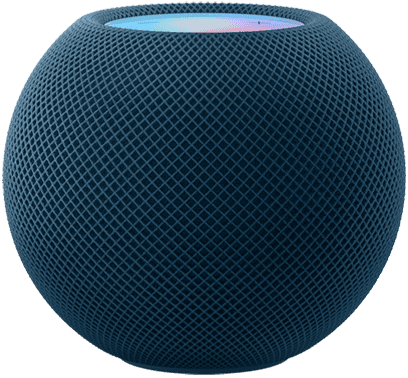
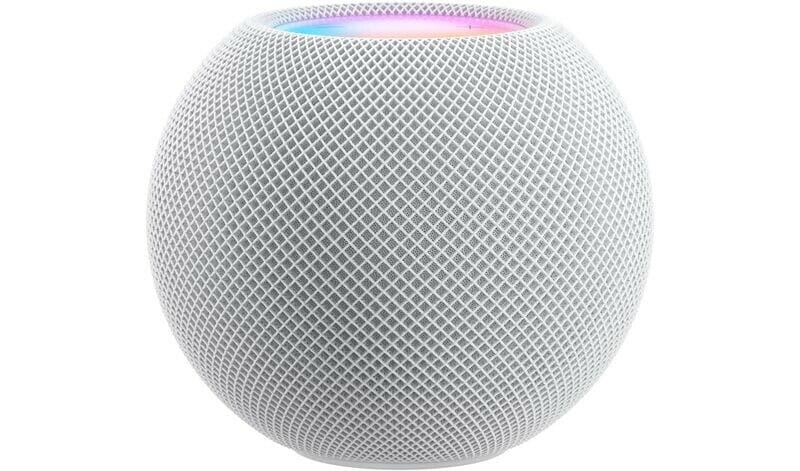
HomePod mini comes in 5 colors: orange, yellow, blue, white and space gray. If the HomePod mini doesn’t have either of these colors, that’s a bad sign.

On the bottom of the HomePod is a hard plastic base. This is where the Apple logo is located. If you don’t see Apple Logo on the bottom of the HomePod, it’s likely counterfeit.

Also in typical Apple fashion, HomePod has no buttons (no real physical buttons, at least). There’s just a glass touchscreen (more like touchpad) on the top. If you spot physical buttons on HomePod, you are dealing with counterfeit.

5. Check if it can connect to your iPhone

How to know if HomePod is fake original

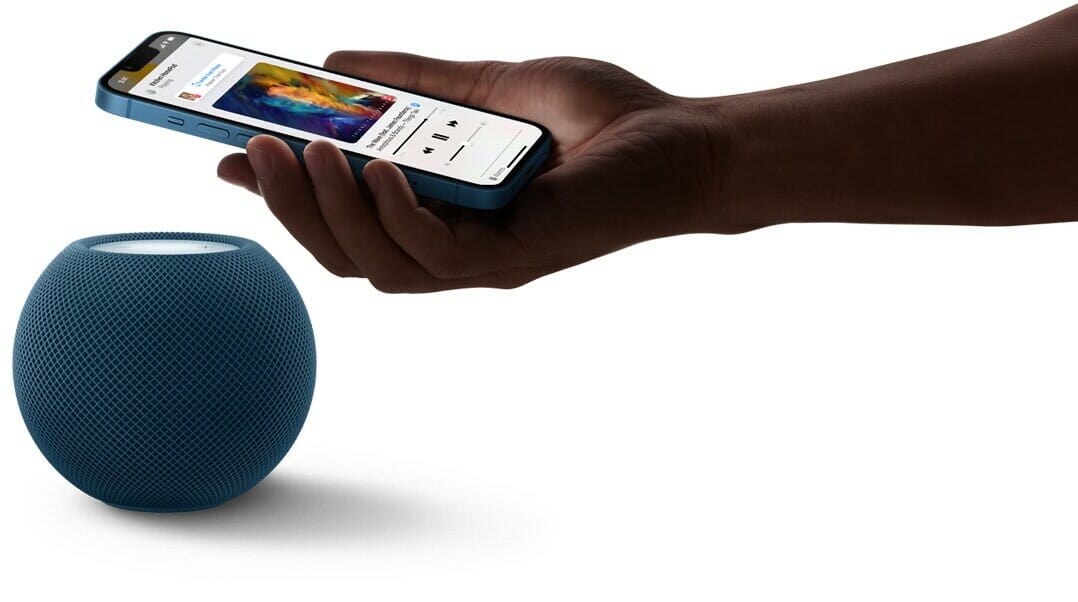
Image Credit: Apple

You can’t connect your iPhone to the HomePod Mini through Bluetooth. However, the whole setup process is pretty simple with an iPhone. The HomePod and your iPhone see each other, and the iPhone tells the HomePod everything it needs to know about your home network, and your iCloud ID. It’s quite similar to pairing AirPods.

To set up your HomePod, plug it into an outlet and wait until you hear a chime and a white light appears on top. Then hold your unlocked iPhone next to it and tap Set Up. Follow the on-screen instructions, center the HomePod into your iPhone’s viewfinder, then wait for it to finish setting up.

If the HomePod is suddenly not working, make sure you’ve gone through the troubleshooting process first before calling the smart speaker a counterfeit.

What to Do If You Purchase Fake HomePod?

Mistakes happen. If you accidentally purchased fake HomePod, not all is lost. Depending on when you bought the smart speaker and where you bought it from, there’s still a lot you can do to recoup your money and right the wrong. The processes differ depending on the platform you purchased the product:

  • Wish: Contact Wish’s customer service to take advantage of their 30-day return policy. Check their list of exceptions to make sure your purchase qualifies. Wish is notorious for selling fake products, so always be cautious buying on the platform.
  • Craigslist: Craigslist won’t be able to protect you from scammers and counterfeits. You’ll need to do your due diligence to avoid getting scammed. However, if you believe you’ve been scammed, Craigslist still appreciates you reporting the fraud so that they can protect future buyers.
  • Facebook Marketplace: Facebook Marketplace doesn’t provide protections for sellers and buyers.
  • Walmart Marketplace: Request a refund via the Walmart Marketplace Promise to recover your funds.
  • Amazon: Contact Amazon customer support to file an A-to-Z Guarantee to start your refund process.
  • eBay: Contact eBay to ask for their money-back guarantee.

Contact the FBI’s digital division to submit a fraud report. They’ll provide additional advice, and this information will hopefully help them catch the bad guys.

Where Are Fake HomePods Sold?

Scammers sell fake HomePods all across the internet and local listings. So unless you’re buying from Apple, Best Buy, or another credible tech store, you’ll have to deal with fake products to some extent.

Here are the most common places scammers are selling fake Apple HomePods:

  • Craigslist
  • Amazon
  • Wish
  • eBay
  • Facebook Marketplace
  • Walmart
  • Alibaba

Scammers operate on other e-commerce platforms, too, but these are often the most prevalent. And that’s because these sites sometimes have mind-blowingly low legitimate discounts on high-quality tech items.

Where to Buy original Apple HomePod

You can find authentic HomePod at various in-store and online retailers. Here’s a shortlist of the most reliable places you can buy real HomePod:

  • Apple
  • Best Buy
  • Walmart
  • Target
  • Verizon
  • Microsoft

You can find real HomePod on popular e-commerce sites like eBay and Amazon, but you’ll always run the slightest risk of getting scammed. That’s not the case with the authentic websites listed above.

Conclusion

Authenticating HomePod is as tricky as ever. With the things we discussed above, though, you should be properly armed to take on the challenge. Now, you won’t be easily fooled by those who want to take advantage of you. The only thing left for you to do is to go get that HomePod now!

What inspections worked for you? Do you have any other tricks under your sleeves? Tell us about it through the comments below!

See also: 30 Best HomePod mini Tips and Tricks to Try First

Grab your digital sign (or a TV) and grab your Apple TV box. Plug it all in, which is easier than it sounds because it is all plug-and-play. Then, add your Apple TV signage software, such as the Kitcast program, and you can start streaming your digital sign content to your screen. Not only that, but you can also scale up the process so that you are screening the same information to several screens, or you can rig a setup where you have different things streaming to different screens. Here is a quick review of how digital signage for Apple TV software works.

Downloading and Installing the Software

These days, downloading and installing your digital sign software is just as easy as downloading and installing Candy Crush or Angry Birds on your phone. If you wish to operate your digital sign using the Internet, then you will need to visit your dashboard online and register your new device.

This may seem like busy work, or perhaps even like some sort of Microsoft-inspired piracy protection, but it is actually for your protection. If you register your devices, then other people can’t put your content on their screens without your permission. It also means that if somebody steals your digital sign or Apple TV box, then you can deactivate it so that they cannot use or steal your digital sign content or settings.

The sign-up procedure is pretty simple. You link your device and name it. Choose your names very carefully because you may eventually have many digital signs. When you launch the Kitcast app on your Apple TV, you will be given a code that allows you to link your device to your Kitcast online account and/or your digital sign software.

Create Your Content

You may already have all the content you need for your digital sign, or maybe you are streaming live data, in which case it doesn’t matter if you create fancy content. You can choose between both when you use good digital sign software.

You can choose live feeds and all sorts of data-driven content by using various widgets on offer. For example, you can have a live feed of the weather in your area by adding a live weather widget and setting the surrounding area as its target location.

On the other hand, you can choose to make your own digital sign content. If you use a good piece of digital sign software, like that offered by Kitcast, then you can use smart templates. These are templates that allow you to drag-and-drop information and slot content into the template. These templates then run like well-made digital sign content. As far as anybody is concerned, a professional designer created your content to look as slick and smooth as a TV advert.

Getting Your Own Content Up There

If you are using your digital sign software over the Internet, which is the easiest way (especially if you have multiple screens), then uploading your own content is just like adding it to Facebook or YouTube. You can then arrange and schedule it using the Kitcast app or Kitcast dashboard.

Even if you created some content using the smart templates system, you can still schedule your content to run both the template stuff and your own videos. In fact, if you just want a slideshow of images, then you can do that too.

Getting Live Feed Information

As hinted at earlier, all you have to do is add a widget to get live feed information. Getting something like the weather up there is easy, especially when it comes to setting it up. But, you can also add a slew of other widgets. You can get live feeds for everything from news on current wars to bitcoin prices. If you were part of a bigger company, you could even have your own data streamed as part of your digital sign strategy. For example, many call centers have their sales quotas or waiting times fed into their digital signs so that their employees can see how much more is needed before they hit their targets or go over the call-waiting threshold.

If you were lucky enough to get a new iPhone SE 2022, we’ve got a series of useful tips and tricks for you that will help you get the most out of your new device. Here are the best iPhone SE 2022 tips and tricks that will help you to get the most out of your new device.

From checking your iPhone’s Warranty to using Siri offline, we’ve got an assortment of iPhone SE 3 tips and tricks you probably didn’t know your iOS device could do. These iPhone SE 2022 tips and tricks will have you showing off your abilities to your friends and having them ask you where you learned it all – you can link them here and share the knowledge, of course!

Without any further ado, here are the best iPhone SE 2022 tips and tricks you should try first.

Best iPhone SE 2022 tips and tricks

Here is a list of the Best iPhone SE 2022 Tips and Tricks:

1. Check Your iPhone Warranty

If you need a repair, want to pick up AppleCare for your new ‌iPhone‌, or just want to see your warranty status and what’s available to you, you can do it right on your device.

  1. Open up the Settings app.
  2. Tap on “General.”
  3. Tap on “Limited Warranty” or “‌AppleCare‌ ” to see your device

If you have ‌AppleCare‌ , the section will be labeled with ‌AppleCare‌ and will let you know your ‌AppleCare‌ expiration date. If you don’t, it will say “Limited Warranty” and it will let you know when it expires.

‌AppleCare‌ is good for two years or indefinitely if you renew it monthly or yearly, and it covers manufacturer issues and two incidents of accidental damage per year so long as you pay the deductible. It’s generally a good idea if you’re accident-prone and want to make sure you can get an affordable fix if you drop or otherwise damage your phone.

The Limited Warranty is Apple’s manufacturer warranty that lasts for a year after purchasing your ‌iPhone‌. It entitles you to hardware support for any manufacturing issues, and it allows for a year of chat and phone support.

With the Limited Warranty, once that year is up, your ‌iPhone‌ is considered out of warranty. If you didn’t purchase ‌AppleCare‌ when you bought your phone and want to get it, you have 60 days to do so.

2. Auto Schedule Low Power Mode to Save Battery

Using the Shortcuts app, you can create an automation that will cause Low Power Mode to come on automatically at a certain battery percentage, so you won’t need to turn it on manually.

  1. Open up the Shortcuts app.
  2. Tap on “Automation.”
  3. Tap on the ” ” button.
  4. Tap on “Create Personal Automation.”
  5. Scroll down to “Battery Level.” low power mode
  6. Tap on the parameter that you want. Options include “Equals x%,” “Rises Above x%,” and “Falls below x%.” You’ll want to use “Falls Below” or “Equals” for this Shortcut.
  7. Use the slider to select a specific percentage.
  8. Tap “Next.”
  9. Tap “Add Action.”
  10. Search for “Low Power Mode.”
  11. Tap on “Set Low Power Mode.”
  12. Tap on “Next.”
  13. If you want your ‌iPhone‌ to ask you before turning on Low Power Mode, leave the “Ask Before Running” toggle activated. If not, turn it off.
  14. Tap “Done.”

From there, your Shortcut will run any time your ‌iPhone‌ hits the threshold that you set for Low Power mode. You can adjust the setting in the Automation section of the Shortcuts app.

If you want to set Low Power Mode to come on at a certain time, follow the above steps but use “Time of Day” as the first parameter, choose a time, and then follow steps 8 through 14.

Low Power Mode is designed to cut down on background processes to preserve battery life when your ‌iPhone‌ is low on battery, and your ‌iPhone‌ will automatically present a Low Power Mode pop-up suggestion when the battery dips below 20 percent. Using the Shortcuts app to create the Low Power Mode automation is a useful way to get Low Power Mode to come on when your battery is at a higher percentage.

3. Customize Your Safari Start Page

You can change what’s displayed on your Safari start page, opting in to (or out of) sections like Frequently Visited, Shared With You, Siri Suggestions, and more, plus you can pick a custom wallpaper.

  1. Open up Safari.
  2. Open up a new blank page.
  3. Scroll all the way down to the bottom of the page.
  4. Tap on “Edit.”
  5. Toggle on the sections that you prefer.
  6. Toggle on “Background Image” if you want to pick a custom background for Safari. You can choose from the available Apple-designed backgrounds or use your own photo by tapping on the ” ” button.
  7. If you want the same Start Page on all devices where you’re signed into iCloud, toggle on “Use Start Page on All Devices” at the top of the page.
  8. When you’re all done customizing, tap on the “X” button in the upper right hand corner.

Options that you can toggle on or off include Favorites, Frequently Visited, Shared With You, Privacy Report, ‌Siri‌ Suggestions, Reading List, and ‌iCloud‌ Tabs.

4. Change Your Safari Design

Apple attempted to introduce an overhauled Safari design in ‌iOS 15‌ with floating tabs and an interface that merged the tab bar and the URL bar, but the changes were not well received and Apple ultimately reverted to the standard iOS 14 Safari design.

There are still remnants of that new Safari design, though, and you can elect to move your Safari Tab Bar to the bottom of the Safari interface, and you can chose to activate “Allow Website Tinting,” a feature that blends the background color of the website with the URL bar when it’s positioned at the top.

  1. Open up the Settings app.
  2. Scroll down to Safari.
  3. Under Tabs, select the “Tab Bar” option for a tab bar located at the bottom of the Safari window. Choose “Single Tab” for the top bar.
  4. Toggle on “Allow Website Tinting” if you want to have the color blending feature when using the top bar, and choose “Landscape Tab Bar” if you want to see your open tabs when the ‌iPhone‌ is held horizontally.

Note that “Allow Website Tinting” is a feature that shows up when using the top bar. It causes the URL bar to turn the background color of the website when you scroll down on a page for a more seamless look.

Tip: You can also swap between the top and bottom navigation bars in Safari itself. Just tap on the “Aa” icon in the URL bar and then choose “Show Bottom Tab Bar” or “Show Top Address Bar.”

5. Rearrange Your Home Screen Pages

If you want to rearrange your various Home Screen pages that house apps, you can do so quickly and easily.

  1. Press and hold in an empty space on the ‌Home Screen‌ to enter “jiggle mode,” where the app icons are wiggling slightly.
  2. Tap on the row of dots at the bottom of the page.
  3. Your ‌Home Screen‌ pages will be shown in a grid view. Put a finger on one page and drag it to move it to a new position relative to your other pages.
  4. Once you have your pages the way you want them, tap on “Done” in the upper right corner.

Tip: You can also delete ‌Home Screen‌ pages using this interface. At the grid view, tap on the checkmark under the page that you want to eliminate, and then tap on the minus (-) icon to delete it.

6. Store Two-Factor Authentication Codes in Passwords

It’s a good idea to set up two-factor authentication for any online account where the feature is available, and with ‌iOS 15‌, you no longer need a separate verification code app like Google Authenticator or Authy for storing one-time passwords. Two-factor authentication codes (or one-time passwords) are the secondary passcodes that you use when logging into a website, with these codes regenerated every 30 seconds, which makes it much more difficult for your accounts to be breached.

Apple now has a built-in feature for storing two-factor authentication codes right alongside your ‌iCloud‌ Keychain passwords. Here’s how to add a code:

  1. Open up the Settings app.
  2. Scroll down to “Passwords.”
  3. If you’re adding a two-factor code for a login and password already stored in ‌iCloud‌ Keychain, search for the entry that you’re looking for. Otherwise, tap the ” ” button to add a new login.
  4. After either accessing your login and password for the account you’re interested in or adding new details, tap on “Set Up Verification Code.”
  5. Initiate the two-factor authentication process for the website or account where you’re enabling two-factor verification.
  6. For many services, you’re provided with a QR code that you can scan to set up two-factor authentication, though this does require two devices. If you have a QR code to scan, tap on the “Scan QR Code” option. Alternatively, tap on “Enter Setup Key” and enter the number that you’re provided from the website.
  7. After the QR code is scanned or the Setup Key is entered, the login will automatically update with the verification key.
  8. Once set up, you can use the verification code found in the Passwords app whenever you need to verify your identity with a one-time passcode for that website or service. If you hold down on the verification code, you can copy it and then paste it into the site where it’s needed, and if you have ‌iCloud‌ Keychain enabled, it will autofill across your devices.

You will need to set this up individually for each website that uses two-factor authentication.

Tip: If you’re setting up two-factor authentication on a website on your ‌iPhone‌, when you see the QR code, long press on it with your finger. You’ll see an option to “Add Verification Code in Passwords,” and if you tap it, you can automatically add the two-factor verification to your site login without needing to scan a QR code.

7. Maximize Your Privacy With iCloud Relay and Hide My Email

‌iOS 15‌ makes web browsing and sending email more secure by cutting down on the ways that companies can track your online behavior. ‌iCloud‌ Private Relay, for example, obscures personal information like IP address and location, which can be used to track your browsing across different websites. ‌

Make sure you have ‌iCloud‌ Private Relay turned on by following these steps:

  1. Open up the Settings app. settings
  2. Tap on your name to open up your Apple ID and ‌iCloud‌ settings.
  3. Tap on “‌iCloud‌.”
  4. Tap on “Private Relay.” settings
  5. Make sure “Private Relay” is toggled on.

Hide My Email, which also requires a paid ‌iCloud‌ account, lets you create different email addresses for each site, so you can disable them if you start getting spam or other unwanted content from someone you’ve interacted with. Hide My Email temporary addresses all forward to your main Apple email address and can be easily managed.

You can use Hide My Email in two ways. If you have iOS 15.2 or later installed, it’s as simple as opening up the Mail app and composing an email. In the From field, tap and then choose “Hide My Email” to automatically generate a random address that will forward to your inbox.

Alternatively, follow these steps:

  1. Open up the Settings app.
  2. Tap on your name. settings
  3. Tap on “‌iCloud‌.”
  4. Tap on “Hide My Email.”
  5. Tap on the ” Create New Address” button.
  6. Choose a label for your Hide My Email address.
  7. Tap “Next,” then tap “Done” and your randomly generated email address is ready to use. settings

This Hide My Email interface in the Settings app is also where you can manage all of the temporary email addresses that you’ve created. You can deactivate any of the temporary email addresses at any time and the company or person that has that email address will no longer be able to contact you.

8. Share Content Using Siri

‌Siri‌ is smarter in ‌iOS 15‌ with improved contextual awareness, and the personal assistant can now recognize what’s on your screen and share it with someone else.

  1. Open up what you want to share, like an Apple Music song.
  2. Say “Hey ‌Siri‌” to activate ‌Siri‌.
  3. Say “Share this with [person’s name].”
  4. At that point, ‌Siri‌ will confirm your request and ask “Are you ready to send it?” Just reply with a “yes” to send the content along.

If you attempt to share something that isn’t naturally shareable, ‌Siri‌ will take a screenshot and send that instead. As an example, if you’re in the Weather app and ask ‌Siri‌ to share with someone, ‌Siri‌ will capture a screenshot and send that.

The ‌Siri‌ sharing feature works with ‌Apple Music‌, Podcasts, Apple News, Maps, web pages in Safari, the Photos app, Messages, and more.

9. Take a screenshot by tapping on the back of your iPhone SE 2022

This is an awesome iPhone trick that went viral on social media a few months back. Put simply, there’s a way to take a screenshot simply by tapping the back of your iPhone. It’s called Back Tap and it’s been around since iOS 14.

You can turn this on by opening up the Settings app. Next, open up the Accessibility preferences. Following that, scroll down to “Physical and Motor” and select “Touch.” You can now scroll down further and select the “Back Tap” option.

Once you do that, you can pick which type of action you’d like a Back Tap to trigger. Some options include taking a screenshot, adjusting the volume, and muting your device.

10. Locate a misplaced iPhone in the dark

If you misplaced your iPhone but know that it’s in your house, there’s a clever way to locate it. Simply turn off all the lights and use the Hey Siri command to turn on the iPhone flashlight. It may not be as useful during the afternoon, but it’s a nifty iPhone SE 2022 trick to keep in mind if it’s later in the day.

11. Use your iPhone as a level

This is another iPhone SE 2022 trick that novice users might be surprised to learn about. You can actually use your iPhone as a level. It can be used on both horizontal and upright surfaces. You can access it by opening the Measure app and then selecting Level.

12. Make sure your headphone volume is at a safe level

This iPhone SE 2022 trick first came about with the iOS 14. In short, there’s a way to gauge the decibel level of your headphones. This is a particularly handy feature if you’re prone to blasting your music and want to avoid causing any type of ear damage in the process.

To use this feature, open up the Settings app and select Control Center. Next, hit the green “plus” icon located next to the Hearing setting. Once you do this, you’ll see the Hearing icon in the Control Center every time you open it up. If audio is playing when you open up the Control Center, you’ll see a color-coded audio level. If it’s green, the decibel level is at an appropriate level and if it’s yellow, you’ll be encouraged to lower the volume.

For more information, you can actually tap the icon and you’ll see the exact decibel level of your headphones.

13. Measure someone’s height with this awesome iPhone SE 3 trick

This is a fun iPhone SE 2022 trick that leverages Apple’s AR technologies. Basically, you can use your iPhone to quickly and accurately measure someone’s height. All you have to do is open up the Measure app and make sure that the person you’re trying to measure is fully within the screen. If done correctly, you’ll see a line appear above the person’s head. This will reveal how tall they are.

If you need to save the photo for reference, you can conveniently tap the white shutter button to the right.

14. Scheduling trips with Apple Maps

This feature is new to iOS 15. Essentially, the latest iteration of Apple Maps lets users bring up travel directions while also specifying exact arrival or departure times. This iPhone SE 2022 trick won’t seem great to seasoned Google Maps users, but it’s nice to see Apple Maps finally add it.

15. Use snazzy effects when texting

Apple a few years ago added several visual effects to the Messages app. To access them, simply type your message and long press on the up arrow. Once you do that, you’ll be able to select from a handful of text effects that will add more pizzaz to your messages.

16. Push notifications for rain and snow

There are few things worse than stepping outside and getting caught in a torrential downpour or snowstorm. To prevent this from happening, iOS 15 includes a feature that lets users turn on push notifications for rain and snow. This can be turned on by going to Settings > Privacy > Location Services > Weather. Once there, allow the Weather app to always access your location.

Following that, simply open up the Weather app, tap the hamburger menu icon in the bottom right-hand corner and select the “Turn On Notifications” setting.

17. Set up a Legacy Contact

With all of the sensitive and personal information people store on their devices, it only makes sense to set up a Legacy Contact so that someone can access your device if you pass away. It’s a morbid feature, to be sure, but it’s nonetheless helpful to be aware of.

By setting up a Legacy Contact, Apple notes that this chosen person can “access your account and personal information in the event of your death.”

To do this, open up the Settings app and then tap on your Apple ID profile. Next, select Password and Security > Legacy Contact.

18. Keep unused apps out of sight

This iPhone SE 2022 trick is all about keeping rarely used apps out of sight. After all, sometimes there’s an app that you don’t want to delete because you do use it on very rare occasions.

To hide an unused app, long press on the app in question. Upon doing so, you’ll see a “Remove App” option at the bottom. Once you select that, you’ll see an option to “Move to App Library.” Select that. Following that, the app will be removed from its location. You can still access it by swiping to your last page of apps and then swiping to the left once more.

19. Quickly activate video mode

When you fire up the Camera app, it defaults to the Photo setting. Switching to the Video setting is easy and quick, but there’s an iPhone SE 2022 trick that speeds up the process ever so slightly. If you’re looking to start recording immediately — say your toddler is about to walk for the first time — there’s a solution worth mentioning. Simply open up the Camera app whereupon you’ll see the Photos view. Now, drag the shutter button to the right and it will automatically start recording in Video mode.

20. iPhone SE 2022 tips and tricks: Use your iPhone’s camera to scan any text

Have you ever wished you could point your iPhone’s camera at a sign or piece of paper and have it automatically identify then copy the text into an email or a document? That’s where Live Text comes in – this new iPhone SE 2022 trick lets you scan and copy text from photos and your iPhone camera, even if it’s handwritten. And once you’ve pulled the text, you can paste it into any text field. It’s great for quickly sharing addresses, phone numbers, and anything else you don’t want to type out manually.

To use the iPhone SE scan text feature, long-press inside a text field as if you are going to use the copy and paste prompt. Only, you’ll now see a Scan Text button. You may also see a button that uses just the scan icon, which looks like a piece of paper with brackets around it.

Tap the button, which will then replace your keyboard with your iPhone camera’s viewfinder. Point your camera at whatever you want to scan, and then follow the prompts on the screen. For instance, if you’re moving the camera too fast, you’ll see a “Slow Down” message flash on the screen.

As you’re lining up the camera and text just right, you’ll see a live preview of the text your iPhone is identifying and ready to place in your document. Tap the Insert button when you’re ready.

21. iPhone SE 2022 Tips and Tricks: Quick Take Videos

To capture a QuickTake video, just press and hold the Shutter button.. Release the button to stop recording. Swipe your finger to the right if you want to switch to video recording completely.

See also: 30 Best iPhone 13 and iPhone 13 Pro Tips and Tricks

Your Favorite iPhone SE 3 Tips and Tricks

So these were some of the best iPhone SE 2022 tips and tricks you would love to try today. My favorite iPhone SE 3 tips and tricks include sharing content using siri, rearranging home screen pages, and iCloud private Relay. There’s surely plenty more hidden iPhone SE 2022 tips and tricks to discover, so I’ll keep tapping, swiping and noting anything I find. Did we miss out on something important that needs to be added to the list? Which are your favorite iPhone SE 3 tips and tricks? Let me know in the comments section below.

Whether you are starting a new website or social media platform, accessible content will always be vital for success. The accessibility options make the content suitable for people with impairment, which is a huge chunk of the audience. And by not implementing the accessibility feature, you’ll be missing out on a lot of traffic on your website or page.

Consider this, in 2020 around 15 percent of the world’s population had some form of disability, which is one billion people! Furthermore, in 2021, around 75 percent of Americans with disabilities revealed that they use the internet daily. Do you see now how much traffic and audience you might end up losing if you don’t make the website accessible?

In a WebAIM study in 2021, it was revealed that on the home pages of the top 1,000,000 websites, there were over 51 million accessibility errors. These errors vary from low contrast text to missing alt text for the images on the website. It’s expected that websites with full Web Content Accessibility Guidelines (WCAG) Level 2 compliance will outperform their competitors by 50 percent in 2023.

To be successful in the years to come by, businesses must create accessible content as much as they can. Here are some useful tips and tricks to make better accessible content in 2022.

Use Relevant Link Texts

Always bear in mind that some percent of your audience relies on assistive devices like screen readers. This assistive software often jumps between links by generating a list of links on the page. Therefore generic hyperlink text like click here or also ready is pretty useless when it comes to accessibility. Ensure that the hyperlinks on your page clearly state what they are linked to and what they do.

Further, try to integrate link text into the content naturally and use meaningful keywords. Also, make sure that the link text reads well independently of the text on the page. Moreover, try to hyperlink links to meaningful words instead of inserting the entire raw link in the text, because screen readers will then read out the entire link to the user. This is inconvenient in case the links are too long.

Transcripts or Captions for Audio and Video content

There’s a huge section of the audience that either can’t hear well or speak another language. It’s important to include transcripts and captions for the audio and video content on your website or social media platforms.

There are several services free or paid, which let users convert speech to text using speech recognition technology. There are powerful apps that let creators insert closed captions to any video with just one click. With such technology available in 2022, it’s important to include them in all content you post on your website or page.

Always Add Alt Text for Images

If you are wondering what an Alt text is, it’s an alternate text added to the image attribute to describe what the image is about. This should be very crisp, clear, and helpful with the flow of text on-page.

In addition to making images accessible, the Alt text also makes them SEO optimized. Describe the image perfectly in the Alt text and if there’s some text on the image, write the same text in the Alt text. Lastly, if the image leads to a link, the URL must be added to the Alt text.

Clear and Structured Content

The main purpose of creating accessible content is to help assistive devices used by people. Therefore, it would be best to use content that has clear and simple sentences. If there are multiple acronyms in your content, try expanding them to make it easier for screen readers to pick up.

Additionally, to keep the content simple yet meaningful, use shorter paragraphs, use clear headings, and structure important points in bullets. This way, assistive devices will be able to read the content easily and move from section to section in a natural flow.

Lastly, ensure that your page titles are unique and concise while providing the most relevant information about the page. The page title can be accessed within the HTML structure of the webpage.

If you are a social media page, there are different accessibility options provided by major social media platforms. Twitter allows alternate description, Instagram allows alternate description as well as unlimited captions, Facebook and YouTube offers automatic close caption, and so on.

The accessible content will not only make your website or page easily accessible but also improve the search ranking. The best way to optimize your content for accessibility is to imagine how different audiences will perceive your content and figure out a solution.

Ever thought that there’s more to your iPhone 13 Pro Max than what Apple told you it should be? Well, you’re not mistaken! In this article, we will show you some iPhone 13 Pro Max hacks and tricks that will definitely blow your mind!

As an iPhone 13 Pro Max user, you might want to explore the endless possibilities for getting the maximum out of your iPhone 13 Pro Max. Following the same, we are here with the best iPhone 13 Pro Max hacks and tricks you should know right now. These iPhone 13 Pro Max hacks and tricks will not only make you smarter but also change the way how you interact with your smartphone.

List of Best iPhone 13 Pro Max Hacks & Tricks

Use your iPhone 13 Pro Max camera to scan text

Have you ever wished you could point your iPhone’s camera at a sign or piece of paper and have it automatically identify and then copy the text into an email or a document? With iPhone 13 Pro Max, it’s possible and incredibly cool.

To use the iPhone’s new “scan text” tool, long-press inside a text field as if you’re going to use the copy-and-paste prompt. Only, you’ll now see a Scan Text button. You may also see a button that uses just the scan icon, which looks like a piece of paper with brackets around it.

Tap the button, which will replace your keyboard with your iPhone 13 camera’s viewfinder. Point your camera at whatever you want to scan, and then follow the prompts on the screen. For instance, if you’re moving the camera too fast, you’ll see a “Slow Down” message flash on the screen.

As you’re lining up the camera and text just right, you’ll see a live preview of the text your iPhone is identifying and ready to place in your document. Tap the Insert button when you’re ready.

This is a neat and easy way to quickly scan an email address on a business card, a phone number on a sign.

Move Safari’s address bar back to the top of your screen

Apple has made a lot of changes to Safari for the iPhone and iPad. One of the major changes you’ll notice on your iPhone 13 Pro Max is that the address bar with all of its included functionality has been moved to the bottom of the screen.

The idea is that by moving the address bar to the bottom it’s easier to get around Safari and browse the web because all of the buttons are closer to your thumb, but the change won’t be ideal for everyone. And Apple is giving you a choice in the matter by allowing you to move the address bar back to the top of the screen.

When using Safari on your iPhone 13 Pro Max, tap the Aa button on the address bar (don’t long-press, a tap is fine). At the top of the menu that shows up, you’ll see a new option labeled Show Top Address Bar. Tap it to move the address bar up top.

Translate text from anywhere on your iPhone 13 Pro Max

Apple introduced the Translate app back with iOS 14, and while it can only translate to and from 11 languages (very limited, in my opinion), the feature has improved with the introduction of iOS 15.

If you don’t want to use the standalone Translate app, you can instead highlight any text on your iPhone and translate it that way. If you press down on the text to highlight it, you’ll see the editing tools you’re accustomed to seeing. However, if you tap the arrow on the right, you should see a Translate option.

A window will appear at the bottom of the screen, which you can swipe up, showing the word or words you’ve highlighted and the translation. You can choose which language to translate to including Chinese, French, German, Korean and Spanish. You can also listen to the translation, replace the highlighted word with the translation and copy the translation to your clipboard.

Send your iCloud data to someone else if you die

Your photos, messages, notes, passwords and other important information don’t have to be locked away forever if you die and no one has access to your iPhone. A new feature on iOS 15 — Legacy Contact — allows you to choose any contact saved on your phone and give them access to your iCloud data upon your death.

To set up your Legacy Contact, go to Settings > tap your name > select Password & Security > Legacy Contact. Next, tap Add Legacy Contact (twice), enter your credentials and choose someone from your contacts. Apple will generate an access key, which your contact will need in order to access your data.

Note: This feature is on iOS 15.2, which is currently only available to developers.

Get real-time precipitation alerts from the Weather app

When Apple bought the popular weather app Dark Sky, I immediately hoped that the official iPhone weather app would gain the real-time rain and snow alerts I had come to rely on to keep me dry. Those alerts are making their debut in iOS 15, often arriving a few minutes before Dark Sky’s — which is a-OK with me.

On iPhone 13, you can turn on the new precipitation alerts by opening the Weather app, then tapping the three-line icon in the bottom right corner of the screen. Next, tap the circle icon with the three dots in the top right corner of the screen followed by Notifications.

Slide the switch next to My Location to the On position and then tap Done. If you have more cities added to the Weather app, you can turn on alerts for each one.

The next time rain or snow is getting close to you, your iPhone will alert you a few minutes before it’s going to start. You’ll also receive another alert when the rain is almost finished.

Drag and drop between apps on the iPhone

The iPad has long let you drag-and-drop documents, text or pictures between apps. And now, it’s the iPhone’s turn. If you’re going back and forth between Messages and Photos to share pictures from a recent night out with friends, for example, you can now drag them from the Photos app to the Messages app.

To test out the new feature, open the Photos app and view your recent photos. Don’t tap on a picture to open it full-screen; instead, place a finger on the photo and start to drag your finger across the screen. Without lifting your finger when the thumbnail starts to float over the rest of the photos, switch back to the Messages app.

You’ll see a green circle with a plus sign in it show up on the thumbnail indicating that you can lift your finger and the photo will be placed in the text field, ready for you to send.

Pretty easy, right? You can use this same technique to attach a document from the Files app to an email.

More information is available about your photos

I’ve always had to use a third-party app if I wanted to view any of the finer details stored in the EXIF data about a photo I was sent or took myself. Now whenever you’re viewing a photo in the Photos app, you can swipe up on it to open an information view that will detail where you saved the photo from, as well as all of the EXIF information such as shutter speed, location and the camera used.

The added information is a welcome addition even if you don’t care about all of the finer details. At the very least, being able to see where you saved the picture from (including who sent it to you) is enough.

Change the size of text used in specific apps

Currently, you can change the systemwide font size to fit your preference. But with iOS 15, there’s a new tool that lets you change the size of the font on an app-by-app basis. That means for example that you can have the Mail app and Twitter be in different font sizes.

To use the new feature, open the Settings app, then go to Control Center and scroll down until you find the option labeled Text Size by tapping on the green plus sign.

The next time you’re in an app and you want to adjust the size of the text, open Control Center (swipe down from the top right corner of the screen on your iPhone, and tap the Text Size button. Slide the button at the bottom of the screen to the left side of the toggle to indicate that you only want your changes applied to the app you’re currently using, and then adjust the font size up or down.

So that was all for now. We will try to keep the article updated. Let us know in the comment section that how many of the iPhone 13 Pro Max hacks and tricks that we listed above you already knew. Also if you have some other iPhone 13 Pro Max tips and tricks in mind then we will love to include them in the article.

There’s no denying that Apple smartphones are one of the best in the market. From the release of the first iPhone to the latest iPhone 13 Pro Max, things have come a long way. However, if you want to get the best from your iPhone, you will have to take care of a few things.

No smartphone can deliver its best without some work done by the user’s side. If you have an iPhone and want to get the most out of it, you will have to follow the right tips. Keep reading this article as we will show the six tips that can improve your smartphone experience.

1. Never compromise on the accessories

The latest iPhone doesn’t get shipped with a charger brick or earphones either. If you have never had an iPhone before or have lost these accessories, you will have to buy them separately, and this is where people make the mistake of buying cheap accessories.

Remember that your iPhone will lose its zest if you keep using it with improper accessories. Make sure that you only buy the accessories that are trusted by iPhone users around the world for their performance.

2. Learn about data encryption

The iPhone is famous for its amazing data protection. Compared to the other smartphones available in the market, it’s considered to be the most secure in the market for its protection feature. But you can do something by yourself to make your iPhone even more secure.

Learning about Data encryption on your iPhone is something you must do. Make sure that you dig into the topic of data encryption on iOS to always stay one step ahead of the hackers.

3. Want to bring the home button back?

You might feel nostalgic about the “Home button” on the iPhones if you have ever used the older models of the iPhone lineup. Back in the day, the Home button was the distinct button that made the iPhone different from devices available in the market.

The home button was super useful and had a certain feel for the users as well. So if you miss the old home button on the iPhone, you can kind of bring it back by enabling the Assistive touch feature on your iPhone.

4. Pick a VPN for your iPhone

One of the happiest moments for many smartphone users is finding a Public WiFi connection. In today’s age of connectivity, everyone loves to stay updated with the latest news and everything that’s going around in the world. And that’s the reason why we love free WiFi networks.

However, the problem with such free internet connections is that they are not safe at all. Over an unsecured Public WiFi connection, hackers can easily get away with your data and important information. But the real trouble is that you can never be sure about your safety online, even if you are using a secured connection.

The only way you can secure yourself against hacking attacks is by using a VPN connection. Use a VPN so you can safely make transactions over the internet and stay connected with your loved ones without worrying about hackers.

5. Keep your device updated

Leading smartphone manufacturers, including Apple, release regular software and security updates. The reason why such updates are pushed is that they can help the users stay safe from hackers. Over time, hackers can find their way to devices even if a software version is free of any crucial bugs.

Make sure that you keep your iPhone updated with the latest software version.

6. Don’t ignore your Siri

Setting up your Siri is the best thing you can do if you want to get more done with your iPhone. Although Apple didn’t develop Siri itself, after taking over Siri, they’ve done a great job. The good thing about Siri is that it’s arguably the best virtual assistant available in the market.

It’s fairly easy to use Siri once you set it up the right way. Make sure to spend some time tinkering with Siri to find how you can use it.

HomePod mini
Here are the best HomePod mini tips and tricks to help you make the most of your smart speaker.
HomePod mini is tiny, but it pack a ton of innovation and can do several things that you may not be aware of. Thus to help you get the most out of them, I have compiled a list of the best HomePod mini tips and tricks to boost your experience. Some of these you may already know, while a few added in iOS 15 might be new. So take a look till the end.

Your HomePod mini can really do it all. Whether you want to read messages, read news, stream music, or control your smart home — your HomePod mini has you covered. With all of these neat tricks and the list of Siri commands ever-growing, it can be easy to overlook the basic — yet useful — things your Apple smart speaker can do for you. If you’re one of the many to have picked up an HomePod mini, but don’t know if you’re making the most of its functionality, or you’re simply wondering what to ask Siri next, here’s everything you’ll want to try.

The best HomePod mini tips and tricks

Here’s a list of the best 31 HomePod mini tips and tricks that will help you get the most from Apple’s new smart speaker. Have fun!

1. Pair Two HomePod mini for Stereo Sound

Adding a second ‌HomePod‌ mini to your setup enables stereo sound to create a wider soundstage for richer, more enveloping sound.

If you’re setting up a new HomePod mini, and you choose to add it to a room where a HomePod already lives, then you’ll see a pop-up asking you if you want to create a stereo pair, but be aware that you cannot pair a ‌‌HomePod mini‌‌ and an original ‌‌HomePod‌‌ together. You can only pair two original HomePods or two ‌‌HomePod‌‌ minis as stereo speakers. It’s also worth bearing in mind that when two ‌HomePod‌ mini speakers are joined, only one responds to Siri requests, plays alarms, and acts as a speakerphone.

2. Send and read messages through HomePod mini

Beyond music controls, the HomePod mini also has the ability to send, read, and reply to text messages. Try saying, “Hey Siri, send a message to [contact name]” or “Hey Siri, send a message to [phone number].” Don’t worry; Siri will read back the message so you can make sure it heard you correctly before sending.

You can even have Siri on HomePod mini read your latest text messages to you, but you’ll need to have set up Siri to handle Personal Requests. Head into the Home app, go into the settings for the home in which the HomePod lives. Tap on the icon with your name on it under People then select Personal Requests at the bottom. You’ll be able to ask Siri things like, ”Read the latest message from Monica”.

Note that below it there’s a second option for adding authentication. You can switch this on to stop other people sending messages and causing other havoc with your account.

3. Make calls on HomePod with Siri

This HomePod mini trick lets you ask Siri to make and take calls on the speaker. This is a recent feature so first of all, make sure your HomePod is up to date. First you’ll need to enable Personal Requests. Go to your HomePod mini settings and scroll down, you’ll find Personal Requests under Siri. Switch it on.

To make a call with HomePod mini, just say, “Hey Siri, call [contact name]” or “Hey Siri, call [phone number].” Your iPhone will handle the call using your regular number while routing audio through the HomePod mini.

You can also transfer calls in-progress from your phone to the HomePod and back. Just open the call menu from your iPhone, press the “audio” button, and select your HomePod from the source list.

When you’re finished with a call, say, “Hey Siri, hang up,” double-tap the top of the HomePod, or just hang up from your phone.

One more phone-related HomePod mini trick: If you miss a call and your phone isn’t in reach, try saying, “Hey Siri, who just called me?” Siri will read out your most recent caller and offer to call them back.

4. Use Siri as a HomePod translator

Wondering how to say something in another language? Wonder no more – Siri can translate English to French, German, Italian, Spanish and Mandarin.

Simply ask, ”Hey Siri, how do you say [word] in [language]?” to expand your vocabulary.

5. Change Siri’s voice on your HomePod mini

It’s well-known that Siri has a female voice by default in the USA. Some people may want to change this and use a male voice instead, whereas others may want to use a more familiar or fun accent. Regardless of what you want to change about Siri’s voice on your HomePod mini, you can make these changes within just seconds using the Home app.

Head into your iPhone or iPad’s Home app, long press or 3D Touch the HomePod’s tile and you get the options to switch up some of Apple’s personal assistant’s settings – language, default voice and the like. You can also choose to mute the Apple digital assistant, if you want.

6. Grow your music trivia knowledge

Siri’s musicologist skills aren’t limited to skipping tracks, rewinding and fast forwarding. Apple’s digital assistant is quite the music buff – it’s got all the knowledge (well, it’s got a direct link to Wikipedia, at least).

While listening to a song, you can ask things like, “Hey Siri, who plays the drums in this band?”… “What year was this album released?”… “Tell me something about this artist” and so on. Every day is a school day with Siri.

7. Automate your smart home with Siri

Siri can control your HomeKit enabled kit from your HomePod mini, that’s a given. But a much more natural, and cool, way of getting Siri working harder in your smart home is to create scenes that it can control.

For example, set up a bedtime routine in which Siri turns off all the lights, activates the alarm and locks the front door – where a simple, “Hey Siri, it’s bedtime,” gets the scene started. Any scenes created in the Home app can be activated using Siri on your HomePod mini.

8. Control your HomePod with your iPhone instead of Siri

One of the big selling points of HomePod mini is obviously voice control for music playback, however, not everyone likes to call out, “Hey Siri” when listening to music or podcasts on a speaker. Maybe you don’t want to have to ask Siri every time you want to know the name of the song your listening to, or maybe you feel silly asking Siri to turn up the volume. You can control playback of HomePod audio (even if you’re not AirPlaying from another device) from your iPhone or iPad. Here’s how.

From within the iOS Music app, choose the song you want, click the AirPlay logo and choose your HomePod. Or, from the lock screen, you’ll see the Music widget – again, just tap that AirPlay icon and do the same as above.

Finally, from the Control Center, either long-press or 3D Touch the music tile and you’ll get a screen with all your current music playbacks on your Apple devices. Again, just hit the AirPlay button to transfer a song over to your HomePod, or choose the HomePod section if something is already streaming on your smart speaker.

Remember, with AirPlay 2 you can pair two HomePods together easily from the AirPlay menu or even pair the HomePod with another AirPlay 2-supporting speaker.

9. Use HomePod mini as a TV speaker

TV speakers are crap – that’s a fact. And while a HomePod mini isn’t necessarily designed to be a TV speaker, it does a pretty good job of room-filling sound for your movies and TV shows.

Until now this has only been available with the Apple TV, but with AirPlay 2 landing on TVs from the likes of Samsung, LG, Vizio and Sony – the HomePod can be paired with third-party sets.

When watching something from your Apple TV, you can hold down the play/pause button on the Apple TV remote and choose the HomePod option. If you want it to be the default speaker permanently, go to your Apple TV settings, select the Video and Audio section, choose Audio Output and pick your HomePod.

It gets even better when using the Apple TV 4K though – As part of Apple’s new ‘Home Theater with Apple 4K’ the first-gen HomePod can be used to form an immersive surround sound experience, with virtual 2.1, 5.1, 7.1 and Dolby Atmos all on offer.

The caveat here is you only get that surround sound action when you’re watching stuff via your Apple TV 4K; you can’t just plug your HomePod directly into your TV and get Atmos action on everything.

However, with Apple TV now supporting pretty much all the major streaming services – Netflix, Prime, HBO, Disney , Hulu and more – it’s a pretty compelling argument to make that single HDMI input switch for your AV setup.

10. Get the headlines from your HomePod mini

Siri can also read news headlines to you from several sources, including CNN, NPR, or the BBC. Simply say, “Hey, Siri, what’s the news today?” for a personal broadcast. If you want sports, just ask Siri, ”what’s the sports news?” instead.

11. Get help with your spelling from Siri

Can’t remember how to spell a word? No problem. Siri, Apple’s personal digital assistant, can help. To ask for help on your HomePod mini, simply say, ”Hey Siri, how do you spell [word]?” and your smart speaker will tell you what’s what.

12. Find your iPhone using HomePod

Misplaced your iPhone in the morning rush? Your HomePod mini can help you find it. Just say, “Hey, Siri, where’s my iPhone?” Siri will then say, “Should I try to make it play a sound?” Say yes, and you’ll hear a ping from your phone if it’s nearby.

13. Block explicit content from being played on your HomePod mini

You can set whether you want to listen to music without explicit content or not on the HomePod mini. This is especially handy if you have kids.

Navigate to the Home app, then hold your finger down on the icon for the HomePod for a few seconds. Click Settings in the bottom right of the new menu that pops up. In the next menu, untoggle the setting that says Allow Explicit Content under the Music & Podcasts section. And you’re done.

14. Factory reset your Apple HomePod mini

Whether you are looking to sell your HomePod mini or give it away, you should reset it to factory settings first. This will delete all your personal information and data linked to the device. Resetting your HomePod mini can also fix most issues you are having with your device, such as WiFi connectivity problems.

You’ve got two methods for resetting your HomePod mini. Firstly, on the Home app, press and hold the HomePod tile, tap ’Details’, scroll to the bottom and select ’Remove Accessory’.

To reset your HomePod mini without a Mac or iOS device, unplug it and wait 10 seconds. Then plug it back in and wait for 5 seconds. Next, press and hold the middle button on top of the device until you hear three beeps. Finally, let go when Siri tells you that your device is about to reset. You will know your HomePod has been reset when you hear it sound a chime.

15. Add a song to a Apple Music playlist

When you’re listening to Apple Music or Beats Radio you can simply say, ”Hey Siri, add this song to [name of playlist]” and it’ll be added on to the end of that playlist.

16. Turn on a HomePod mini Siri tone

The Siri waveform animation is a visual indicator that Siri is listening to you and working to answer your questions or commands. The sound tone is an audio indicator that Siri has heard you. If you have your HomePod on a shelf above your eye level, the chances are you’ll struggle to notice that Siri has heard you. If that’s the case, the Siri tone may be useful.

To turn it on, head into the HomePod’s settings menu within the Home app on your iPhone and check the Sound When Using Siri option.

17. Stream sound from Mac to HomePod

The Spotify app itself doesn’t list AirPlay speakers in the devices list, and the Mac AirPlay option in the menu bar only lists Apple TVs. But you can play any sound from your Mac – Spotify and more – over AirPlay to your HomePod. Dive into your System Preferences. From there, choose Sound and select your HomePod as the device for sound output.

18. Control Your Smart Home

You can also use HomePod as a smart-home hub for Apple HomeKit devices. In fact, when you first set up your HomePod, it automatically becomes a hub for your home. From there, you can use voice commands to control all sorts of HomeKit-enabled devices.

To take control of your hub, launch the Home app, and then tap the “house” icon in the top-left corner. Here, you can invite people to your hub, so they can also control your smart home. This is great for family members and guests, but be careful to whom you give access.

You can also change the “Allow Speaker and TV Access” setting to lock down your HomePod in case of abuse. If you choose “Everyone,” anyone in your home (regardless of whether they’re on the same Wi-Fi network) can control it.

The “Allow Speaker and TV Access” menu in the Home app for iOS.

If you limit the setting to “Only People Sharing This Home,” you’ll need to manually add people to your Home hub before they can use the HomePod on their own devices.

19. Enable VoiceOver on HomePod mini

VoiceOver has long been a fine gesture-based screen reader. With this Accessibility feature, you can hear the description of what is currently going on on the device’s screen. What could be music to the ears of the blind and sight impaired is that they can enable and use VoiceOver on Apple’s smart speaker, HomePod as well?

To enable it, head into the HomePod settings, scroll down to Accessibility and select VoiceOver.

20. Reset the HomePod’s Sound Calibration

The HomePod mini can calibrate itself to sound its best, given the current conditions. This happens every time the HomePod is moved, so if you want to force a manual recalibration, simply pick up the speaker and put it down again.

21. Share your HomeKit access for HomePod

Having a HomePod is well and good, but you might want to make sure that other people in your home can take advantage of it, too.

If you’re using your HomePod as a smart home hub, you can also add other users in your ‘Home’ app, allowing them to control the smart speaker and all its paired devices just like you might. You’ll practically feel the responsibility slipping off your shoulders.

22. Prevent other HomePod users from affecting your Apple Music recommendations

If you’re concerned that other people in your household will skew your Apple Music recommendations by using HomePod to play songs that don’t align with your tastes, then there’s a setting you’ll want to disable as soon as possible. It’s called “Use Listening History”, and here’s how to find it.

Launch the Home app and long-press your HomePod. Tap the Settings button, and then tap the “Update Listening History” option to turn it off.

If it’s too late and your recommendations have already been impacted, launch Music on your iPhone. Next, long-press any artists, albums, or songs you don’t like, and then tap “Suggest Less Like This” from the context menu.

23. Teach Siri your tastes

Ask Siri to play some music you like and it’ll use your listening history to put together a setlist of tunes by bands or artists you’ve listened to before, or from genres you told it you liked when you initially set up your Apple Music account. You can help it get a better grip on your tastes just by saying: “Hey Siri, I like this,” when it plays something you’re into, or “Hey Siri, I don’t like this band,” if it ever plays something you don’t like. Siri will take your taste into account and adjust what music it plays for you based on your likes and dislikes.

24. Set up multiple users

The HomePod Mini can now recognize individual voices from up to six users, so you always get your own information – like calendars and playlists – when interacting with it.

You should actually get a prompt to set this up automatically, provided you’ve met certain criteria that Apple has set out here (updating your iPhone to the latest iOS, having Bluetooth and “Hey Siri” turned on, and so on).

To customize how your HomePod interacts with your personally, head to the Home app on your phone, and tap the Home icon, Home Settings, then your home setup and your user profile under People.

25. Rename your HomePod Mini

You can customize settings for an individual HomePod mini, including changing its name from the default “HomePod” to something more descriptive, by using the Home app on your iPhone.

To rename your HomePod mini – just long press on the device in the Home app, then tap on Settings, then tap on the current title.

26. Understanding HomePod mini touch gestures

Along with Siri voice control, you can use gestures to control your smart speaker.

If your HomePod is in reach you can use tap gestures to control it, too. HomePod supports tap and touch for Siri and music playback. Single tap to Play/Pause, double-tap to skip to the next Track, triple-tap to jump to the previous Track, touch and hold to activate Siri, tap or hold the plus symbol to increase the volume, tap or hold the minus symbol to lower the volume.

27. Find songs by their lyrics

Have you recently found yourself singing some song lyrics only to discover that you’re unable to remember the actual name of the song they belong to? With Siri on your HomePod mini, you can quickly search the entire ‌Apple Music‌ catalog using just a short lyric phrase, allowing you to find the song in question and add it to your library or your favorite playlist for safekeeping.

Say ”Hey Siri, what’s that song that goes…” followed by a line or two to get a match – you can then ask to hear the song straight away as well, if you like.

28. Use your HomePods in multiple rooms

If you have multiple HomePods, you can move with your music or podcast from room to room, play the same music on all speakers and generally control audio in multiple places with ease. Multiple HomePods let different members of your household enjoy different music on different devices.

Go to Control Center on your phone and long press on the music playing tile, and you’re able to configure the multiple room setup further.

29. Play Ambient Sounds on HomePod mini

To start streaming one of the sounds on your ‌HomePod‌, simply ask Siri.

  • “Hey Siri, play white noise sounds”
  • “Hey Siri, play rain sounds.””
  • “Hey Siri, play fireplace sounds.”
  • “Hey Siri, play forest sounds.”
  • “Hey Siri, play night sounds.”
  • “Hey Siri, play stream sounds.”

You can also get ‌HomePod‌ to play a random ambient sound by saying ”Hey Siri, play sounds.”

30. Update HomePod Mini

First things first, make sure to update iOS on your iPhone. Updates for the HomePod mini depend on the most recent version of iOS on your iPhone.

  1. Open the Home app and tap the Home tab at the bottom. If a software update is available, you’ll see this at the top of the Home screen. Tap Update Available.

Alternatively, tap the Home icon on the top left. You can do this from either the Home or Rooms tab at the bottom. Choose Home Settings.

Scroll down and select Software Update.

If you have more than one HomePod, you can view which will receive the update by tapping More. All HomePods in the list will receive the update at the same time.

Tap either Update All next to Update Available or Update next to the HomePod at the bottom and follow the onscreen instructions.

31. Turn off Hey Siri on HomePod mini

There’s isn’t a physical button on the HomePod to turn off Siri like the Echo, Sonos One, and Google Home, but you can still turn off the function if you are worried about Siri listening in on your conversation. To turn Siri off on the HomePod you have to do it via the Home app on your iPhone.

  1. Go to the Home app
  2. Select HomePod speaker in Favourite Accessories
  3. Long press on HomePod icon
  4. Tap Details
  5. Scroll down to Siri
  6. Toggle Listen for “Hey Siri”

Your Favorite HomePod mini Tips and Tricks

So these were some of the best HomePod mini tips and tricks you would love to try today. My favorite HomePod mini tips and tricks include the ability to grow my music trivia knowledge, send and read messages through HomePod, and the ability to automate my smart home with Siri. There’s surely plenty more hidden HomePod mini tips and tricks to discover, so I’ll keep tapping, swiping and noting anything I find. Did we miss out on something important that needs to be added to the list? Which are your favorite HomePod mini tips and tricks? Drop a comment and let us know!