Got a tip for us?

Depending on your iPad model, you can type with the onscreen keyboard either floating and movable on the screen, split at the bottom of the screen, or undocked in the middle of the screen.

A floating keyboard can move anywhere on the screen, and you can turn Split Keyboard on or off, too. You can put the split keyboard back together, move the keyboard up from the bottom of the screen, or return it to its original position.

Here’s how to move the iPad onscreen keyboard.

Use a floating keyboard

You can make the onscreen keyboard float and move it anywhere on the screen by dragging from the bottom of the screen.

  1. Tap in a text field to open the onscreen keyboard.
  2. Touch and hold the Hide Keyboard key, slide your finger to Floating and then release. A miniature version of the keyboard opens.
  3. To reposition the keyboard, touch and hold the More button, and drag the keyboard to a new place.
  4. Tap keys or type by sliding from one letter to the next without lifting your finger (not available for all languages).
  5. To return the keyboard to full width, pinch the floating version open. You can also tap the More button. Then tap Full.

Split or undock the keyboard

  1. To split the keyboard on supported models, do one of the following:
    • Go to Settings > General > Keyboard, then turn Split Keyboard on or off.
    • Touch and hold the Emoji button or the Switch Keyboard key, tap Keyboard Settings, then select Split Keyboard.
  2. While in a text field, do any of the following:
    • Split the keyboard: Touch and hold the Hide Keyboard key, slide your finger to Split and then release.
    • Put the split keyboard back together: Touch and hold the Hide Keyboard key, slide your finger to Merge. Then release.
    • Move the keyboard up from the bottom of the screen: Touch and hold the Hide Keyboard key, slide your finger to Undock. Release.
    • Return an undocked keyboard to its original position: Touch and hold the Hide Keyboard key, slide your finger to Dock. Release.

See also

You can use predictive text on iPad to complete words and phrases as you type. You can accept or reject inline text predictions, accept or reject suggested text and information, and turn suggestions and inline text predictions off or on. You can also accept and reject a correction.

Using predictive text, you can write and complete entire sentences with just a few taps. As you type on the iPad keyboard, you see choices for words, emoji, and information that you’d probably type. In Messages, for example, when you type something like:

  • “I’m at” followed by a space, your current location appears as an option
  • “My number is” followed by a space, your phone number appears as an option

Predictions that complete your word or phrase appear inline as you’re typing.

Note: Predictive typing and inline predictions may not be supported in your language.

Accept or reject inline text predictions

While you type, inline predictions in gray text complete the word or phrase you’re typing, and you can do one of the following:

  • Accept the prediction: Tap the Space bar.
  • Reject the prediction: Keep typing.
  • Change a prediction you accepted: Tap the Delete key, then tap the word you were in the process of typing.

Accept or reject suggested text and information

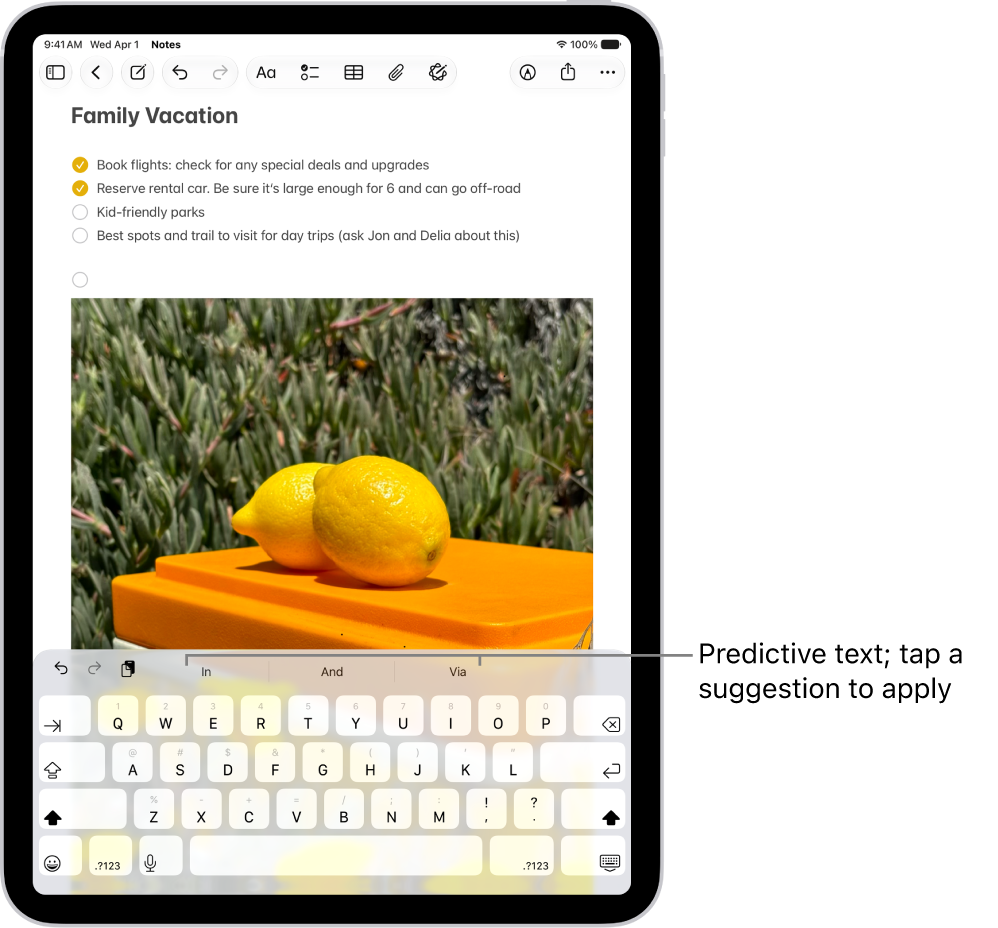
Suggested words, emoji, and information show up above the onscreen keyboard as you type, and you can do one of the following:

  • Accept a suggestion: Tap a suggestion to apply it.
  • Reject the suggestions: Tap your original word (shown as the option in quotation marks), or just continue to type.

The onscreen keyboard is open in the Notes app. Text is entered in the text field and above the keyboard are predictive text suggestions for the next word.

Turn suggestions and inline text predictions off or on

  1. Open the Settings app on your iPad.
  2. Tap General, then tap Keyboard.
  3. Do any of the following:

    • Stop (or start) seeing suggestions above the keyboard: Turn Predictive Text off (or on).

      Note: Turning off the Predictive Text setting turns off both predictive text and inline text predictions.

    • Stop (or start) seeing predicted text inline: Turn Show Predictions Inline off (or on).

Quick tip: Touch and hold the Emoji button or the Switch Keyboard key for quick access to Keyboard Settings while you use the onscreen keyboard.

Accept and reject a correction

If you turn off Predictive Text, you might still see corrections for misspelled words; just do one of the following:

  • Accept a correction: Enter a space or punctuation, or tap Return.
  • Reject a correction: Tap the “x.”

Reject the same suggestion a few times, and iPad stops suggesting it.

See also

When you set up a text replacement on iPad, you can enter long or complicated text by tapping just a few keys, like shorthand for your most frequently used words and phrases.

One shorthand for “On my way” is already set up for you, but you can add your own. You can also stop a word or phrase from being replaced, and create replacements for word and input pairs on certain Chinese or Japanese keyboards.

Create a text replacement

  1. While in a text field, do one of the following:
    • With an onscreen keyboard: Touch and hold the Emoji button or the Switch Keyboard key, tap Keyboard Settings, and tap Text Replacement.
    • With an external keyboard: Open Settings, tap General, tap Keyboard, and then tap Text Replacement.
  2. Tap the Add button at the top right.
  3. Type a phrase in the Phrase field and the text shortcut you want to use for it in the Shortcut field.

Don’t want to replace a word or phrase you use?

  1. Open the Settings app on your iPad.
  2. Tap General, tap Keyboard, and tap Text Replacement.
  3. Tap the Add button at the top right and enter your word or phrase in the Phrase field, but leave the Shortcut field blank.

Create a text replacement for word and input pairs

Certain Chinese or Japanese keyboards let you create a text replacement for word and input pairs, which gets added to your personal dictionary. After that, when you type the text shortcut for a word or input on a supported keyboard, the paired word or input replaces the shortcut.

Shortcuts work for these languages and input methods:

  • Simplified Chinese: Pinyin
  • Traditional Chinese: Pinyin and Zhuyin
  • Japanese: Romaji and Kana

To add these keyboards, see Add or remove a keyboard for another language.

Sync your personal dictionary across devices

iCloud keeps your personal dictionary up to date on your other devices.

  1. Open the Settings app on your iPad.
  2. Tap your name, then tap iCloud.
  3. Tap See All and tap iCloud Drive. Then turn on Sync this iPad.

Reset your personal dictionary

  1. Open the Settings app on your iPad.
  2. Tap General, then tap Transfer or Reset iPad.
  3. Tap Reset and tap Reset Keyboard Dictionary.
  4. Enter your passcode, then tap Reset.

    All custom words and shortcuts are deleted, and the keyboard dictionary returns to its default state.

See also

With Dictation on iPad, you can dictate text anywhere you can type it. You can use typing or handwriting with Dictation, and the keyboard or tools palette can stay open, so you can easily switch between speaking and typing or handwriting. You might select text with touch or Apple Pencil and replace it with your voice.

Dictation is processed on your device in many languages, and no internet connection is required. When you dictate in a search field, though, your dictated text may be sent to the search engine.

Note: Dictation may not be available in all languages or in all countries or regions, and features may vary. With Apple Intelligence in iPadOS 27, dictation uses an on-device model to improve spelling, punctuation, and capitalization. Available in English on iPad models with M4 or later, at least 12GB of unified memory. Apple Intelligence on iPadOS 27 or later is available on an Apple Intelligence-enabled iPad mini (A17 Pro) and iPad models with M1 or later. Apple Intelligence is not available in all languages or regions. Usage limits may apply.*

When using Dictation, cellular data charges may apply. See View or change cellular data settings.

Make dictation possible

  1. Start the Settings app on your iPad.
  2. Tap General, then tap Keyboard.
  3. Turn on Enable Dictation. If a prompt appears, tap Enable Dictation.

To learn more about how Apple protects your information and lets you choose what you share, tap About Dictation & Privacy below the dictation settings.

Using an external keyboard? Read our guide, Dictate text while using an Apple external keyboard.

Dictate text

Dictate text and use voice commands to edit and format content.

The onscreen keyboard is open in the Notes app. The Dictation button at the bottom of the keyboard is selected and the Dictation button appears below the insertion point in the text field.

  1. In a text field, tap to place the insertion point where you want to begin dictating text.
  2. Tap the Dictate button on the onscreen keyboard (or in any text field where it appears).

    If you don’t see the Dictate button, go to the Settings app, tap General, tap Keyboard, then turn on Enable Dictation. If a prompt appears, tap Enable Dictation.

  3. When the Dictate button appears near the insertion point in the text field, begin to dictate your text.
  4. Do any of the following:

    • Add emoji: Say the name of an emoji, like “heart emoji” or “smiley face emoji.”
    • Add punctuation: Say the name of the punctuation mark, such as “exclamation point.”

      Note: In supported languages, Dictation automatically inserts commas, periods, and question marks as you dictate. To turn off automatic punctuation, go to Settings > General > Keyboard, then turn off Auto-Punctuation.

    • Add a line break: Say “new line” or “new paragraph.”
    • Spell a word: Say something like “Let’s invite Steven S-T-E-P-H-E-N.”
    • Correct spelling: Say something like “Change tea to T-E-E.”
    • Edit text: Say “select” or “delete” followed by the phrase you want to change.
    • Undo or repeat a command: Say “undo” or “redo” if you change your mind or want to repeat a command.
  5. To stop dictating, do one of the following:

    • Tap the Dictate button.
    • Say “Stop dictation.”
    • Remain silent for 30 seconds. Dictation stops automatically.

For every command you can use while dictating, see our article, Commands for dictating text.

Dictation works in another language, too, when you use a keyboard for that language; check out our guide, Add or change keyboards.

Turn off Dictation

  1. Start the Settings app on your iPad.
  2. Tap General, then tap Keyboard.
  3. Turn off Enable Dictation.

*Apple Intelligence is available with Siri and device language set to Chinese (Simplified), Chinese (Traditional), Danish, Dutch, English, French, German, Italian, Japanese, Korean, Norwegian, Portuguese, Spanish, Swedish, Turkish, or Vietnamese. Some features may not be available in all regions or languages. Some devices may not be available in all regions. Siri AI is available in beta in iOS 27, iPadOS 27, macOS 27, watchOS 27, and visionOS 27 and requires an Apple Intelligence–enabled device set to a supported language. Available in English to start. Siri AI will not be initially available in the EU on iOS, iPadOS, and watchOS. Certain Apple Intelligence features that rely on server-side models are subject to daily usage limits, including but not limited to Siri AI, Intelligent Photo Editing Tools, Image Playground, and AFM 3 Cloud models in Shortcuts. Daily limits may vary by feature, request complexity, system demand, system policies, and other factors. Expanded access to such features will be available for a fee in the future. Use of these features is subject to the Apple Intelligence Terms and Conditions.

See also

You can add keyboards for writing or using Dictation in different languages on your iPad. You can also change the layout of your onscreen or external keyboard.

For some supported languages, you can type in two languages without having to switch between keyboards, since your keyboard automatically switches between the two languages you use most often. A bilingual keyboard is available for languages such as English (U.S.) and Spanish (Latin America), and you can remove a keyboard you no longer need.

Add or remove a keyboard for another language

  1. Open the Settings app on your iPad.
  2. Tap General, then tap Keyboard.
  3. Tap Keyboards and then do any of the following:
    • Add a keyboard: Tap Add New Keyboard and choose a keyboard from the list. Repeat to add more keyboards.
    • Use a bilingual keyboard: For languages such as English (U.S.) and Spanish (Latin America), tap Add New Keyboard. Tap Add to [language] Keyboard. (Available for select language pairs.)
    • Remove a keyboard: Swipe left on the keyboard and tap Delete.
    • Reorder your keyboard list: Tap Edit, drag the Reorder button next to a keyboard to a new place in the list, and then tap the Done button.

If you add a keyboard for a different language, the corresponding language is automatically added to the Preferred Languages list. To view this list and add languages to it directly, go to the Settings app, tap General, then tap Language & Region. To change how apps and websites display text, reorder the Preferred Languages list.

Switch to another keyboard

  1. While typing text, touch and hold the Emoji button or the Switch Keyboard key.
  2. Tap the keyboard you want to switch to.

To cycle between English, emoji, and other keyboards you add for another language on an external keyboard, press and hold Control, then press the Space bar. See Switch between keyboards.

Assign an alternative layout to a keyboard

  1. Open the Settings app on your iPad.
  2. Tap General, tap Keyboard, and tap Keyboards.
  3. Tap a language. Then select an alternative layout from the list.

See also

On iPad you can block specific callers and you can change your setting to automatically identify, screen, filter, and block unknown and spam calls.

Using information from Apple Business Connect, supported carriers, and supported caller ID apps, iPad can help identify incoming calls. With Business Call Identification, caller information comes from Apple Business Connect or your carrier. You can also screen or silence unknown numbers, and filter unknown and spam calls.

Here’s how to screen and block calls on iPad.

Turn on call identification

To help identify incoming calls, iPad uses information from supported carriers, Apple Business Connect, and supported call identification apps.

  1. Open the Settings app on your iPad.
  2. Tap Apps and tap Phone. Then tap Call Blocking & Identification.
  3. Turn on one or more of the following:
    • Business Call Identification: Caller information is identified by Apple Business Connect or your carrier.
    • Call Identification apps: Caller information is identified by supported caller ID apps.

Screen or silence unknown numbers

Without interrupting you, Call Screening automatically answers calls from unknown numbers. Your iPad rings only after the caller shares their name and reason for calling, and it passes along their response so you can decide whether to pick up. Another option is to silence calls from unknown callers and send them straight to voicemail.

  1. Open the Settings app on your iPad.
  2. Tap Apps, then tap Phone.
  3. Choose one of the following:
    • Never: Call Screening is turned off and your iPad will ring when you receive a call from an unsaved number.
    • Ask Reason for Calling: Calls from unknown numbers will be asked for more information before iPad rings.
    • Silence: Calls from unsaved numbers will be silenced, sent to voicemail, and appear in the Recents list.

Note: Siri speaks in your iPad’s default language when answering calls. To change it, see our article, Change the language and region.

Filter unknown and spam calls

  1. Open the Settings app on your iPad.
  2. Tap Apps, then tap Phone.
  3. Turn on the following:
    • Unknown Callers: Calls from unknown numbers are removed from your Recents list and sent to the Unknown Callers list.
    • Spam: Calls identified by your carrier as potential spam or fraud are silenced, sent to voicemail, and moved to the Spam list.

You can mark an unknown caller as known to prevent future calls from being sent to the Unknown Callers list. Go to the Phone app, tap the Filter button, tap Unknown Callers, tap Mark as Known next to the call, then tap Mark as Known.

To remove a number from your known callers, tap the Filter button, tap Calls, tap the number you want to remove, then tap Mark as Unknown at the bottom of the contact card on the right side of the screen.

Block or unblock calls from specific people or numbers

  1. Open the Phone app on your iPad.
  2. Tap the Filter button in the top left of your screen. Then tap Calls, Missed, Unknown Callers, or Spam.
  3. Tap the number or contact you want to block on the left side of your screen.
  4. On the right side of your screen, tap Block Contact or Unblock Contact.

View calls from unknown or spam callers

  1. Open the Phone app on your iPad.
  2. Tap the Filter button.
  3. Tap Unknown Callers or Spam.

See also

Tag: Phone

You choose the language and region of your iPad during setup. If you travel or move, you can change the language or region.

You can add or remove a language, and change regional settings like the calendar format, the temperature unit (Celsius or Fahrenheit), and the measurement system (metric, US, or UK). You can also set the first day of the week, the date format, and the number format, along with Live Text, the text you can select in images to copy or to take action on.

Add or remove a language

  1. Start the Settings app on your iPad.
  2. Tap General and tap Language & Region. Do any of the following:
    • Add a language: Tap Add Language, then select a language.
    • Remove a language: Tap Edit, tap the Delete button, and tap Delete. Tap the Done button when done.

Change the regional settings

  1. Start the Settings app on your iPad.
  2. Tap General and tap Language & Region. Set the following:
    • The region
    • The calendar format
    • The temperature unit (Celsius or Fahrenheit)
    • The measurement system (metric, US, or UK)
    • The first day of the week
    • The date format
    • The number format
    • Live Text (text you can select in images to copy or take action on)

See also

You can allow Apple Intelligence to work with ChatGPT from OpenAI, to help you get things done.

You control when ChatGPT is used, and you’re asked before any of your information is shared. You can choose whether to sign in with a ChatGPT account, and you need to be signed in for your requests to be saved to your ChatGPT chat history. You can also block access to the ChatGPT extension in Screen Time.

Note: Apple Intelligence on iPadOS 27 or later is available on an Apple Intelligence-enabled iPad mini (A17 Pro) and iPad models with M1 or later. Apple Intelligence is not available in all languages or regions. Usage limits may apply.* The ChatGPT extension is available only in regions where the ChatGPT app and service are available. **

Turn on ChatGPT

If the ChatGPT extension is off, you can turn it on in Settings.

Note: You must be at least 13 years old or the minimum age required in your country to consent to use ChatGPT.

  1. Start the Settings app on your iPad.
  2. Tap Siri.
  3. Tap ChatGPT, tap Set Up, and follow the onscreen instructions. If you’re using Siri AI (Beta), tap Set Up Extensions, tap ChatGPT, and turn on Use Extension.

    Note: Siri AI is available in beta on iPadOS 27 or later on an Apple Intelligence-enabled iPad mini (A17 Pro) or iPad model with M1 or later set to a supported language. Available in English to start. Siri AI will not initially be available in the EU on iPadOS. Usage limits may apply.

  4. Choose whether to sign in with a ChatGPT account. If you want your requests saved to your ChatGPT chat history, you must be signed in to a ChatGPT account.

Send requests to ChatGPT without confirming

ChatGPT only gets used when you allow it, and you’re asked before any of your information is shared. Siri can also send requests to ChatGPT automatically without asking, if you choose.

  1. Start the Settings app on your iPad.
  2. Tap Siri.
  3. Below Extensions, tap ChatGPT.
  4. Turn off Confirm Requests.

Note: This option isn’t available if you’re using Siri AI. You must first ask ChatGPT before a prompt, photos, or files are sent to ChatGPT.

Turn off ChatGPT

  1. Start the Settings app on your iPad.
  2. Tap Siri.
  3. Tap ChatGPT, then turn off Use ChatGPT. If you’re using Siri AI, tap Extensions, tap ChatGPT, and turn off Use Extension.

If you want to prevent Siri from suggesting ChatGPT when you make a request, turn off ChatGPT, then turn off Setup Prompts. (This option isn’t available if you’re using Siri AI.)

Screen Time settings let you block access to the ChatGPT extension. Read our guide, Block or allow Siri and Apple Intelligence features.

ChatGPT and privacy

When using the ChatGPT extension, you decide what content to send to ChatGPT. To answer your request and give you accurate and relevant results, ChatGPT gets your request and attachments, plus limited data associated with the request, like the feature being used when making the request, device type, country, language, and current time zone. ChatGPT doesn’t see your IP address, though ChatGPT does receive your general location for purposes such as helping ChatGPT prevent fraud and comply with applicable law.

If you access the ChatGPT extension without an account, only the information described above will be sent to ChatGPT. OpenAI does not receive any information tied to your Apple Account. According to Apple, OpenAI must process your data solely for the purpose of fulfilling your request, and not store your request or any responses it provides unless required under applicable laws. OpenAI also must not use your request to improve or train its models.

Signing in to a ChatGPT account means your ChatGPT account settings and OpenAI’s data privacy policies apply.

For more information, go to the Settings app on your iPad, then tap Siri. Tap ChatGPT, then tap About ChatGPT Extension & Privacy.

*Apple Intelligence is available with Siri and device language set to Chinese (Simplified), Chinese (Traditional), Danish, Dutch, English, French, German, Italian, Japanese, Korean, Norwegian, Portuguese, Spanish, Swedish, Turkish, or Vietnamese. Some features may not be available in all regions or languages. Some devices may not be available in all regions. Siri AI is available in beta in iOS 27, iPadOS 27, macOS 27, watchOS 27, and visionOS 27 and requires an Apple Intelligence–enabled device set to a supported language. Available in English to start. Siri AI will not be initially available in the EU on iOS, iPadOS, and watchOS. Certain Apple Intelligence features that rely on server-side models are subject to daily usage limits, including but not limited to Siri AI, Intelligent Photo Editing Tools, Image Playground, and AFM 3 Cloud models in Shortcuts. Daily limits may vary by feature, request complexity, system demand, system policies, and other factors. Expanded access to such features will be available for a fee in the future. Use of these features is subject to the Apple Intelligence Terms and Conditions.

**ChatGPT uses generative models and outputs may vary. Check important information for accuracy. When using the ChatGPT extension, you choose what content to send to ChatGPT. Your request and attachments, as well as limited data associated with the request, such as current time zone, country, device type, language, and feature being used when making the request, are sent to ChatGPT to answer your request and enable ChatGPT to provide you accurate and relevant results.

See also

With Siri AI (Beta), you can use Siri to compose, rewrite, proofread, and get feedback on what you’ve written. If you don’t have Siri AI, you can use Writing Tools instead.

You can compose a draft from scratch, like a day-by-day itinerary for a 3-day trip, or proofread and rewrite documents. Siri can also give you feedback and summarize text, like condensing meeting notes into key points, and you can refine your work with follow-up questions.

Siri AI is available in beta on iPadOS 27 or later on an Apple Intelligence-enabled iPad mini (A17 Pro) or iPad model with M1 or later set to a supported language. Available in English to start. Siri AI will not initially be available in the EU on iPadOS. Usage limits may apply.*

  1. On your iPad, do one of the following:

    • Select the text you want to refine, tap the Siri AI icon, then describe what you want or choose an option—Proofread or Rewrite, for example.

      Tip: When you choose Rewrite, tap the Compare button to review changes by comparing the original and current versions.

    • Activate Siri, then describe what you want.

      See the ideas below for requests you can make.

      • Compose a draft from scratch

        “Write a story for my four-year-old explaining the concept of evaporation.”

        “Write a day-by-day itinerary for a 3-day trip to New York.”

      • Proofread and rewrite documents

        “Proofread this.”

        “Tidy up the recipe I wrote down from my cooking class and format it step by step.”

      • Get feedback

        “How’s this sound?”

      • Summarize text

        “Condense these meeting notes to give me key points.”

  2. Swipe down on Siri’s answer to start a conversation, ask follow-up questions, or refine your work.

To choose the Siri features you can use and which content Siri can access, open Screen Time settings; check out our guide, Block features or content with Screen Time.

*Apple Intelligence is available with Siri and device language set to Chinese (Simplified), Chinese (Traditional), Danish, Dutch, English, French, German, Italian, Japanese, Korean, Norwegian, Portuguese, Spanish, Swedish, Turkish, or Vietnamese. Some features may not be available in all regions or languages. Some devices may not be available in all regions. Siri AI is available in beta in iOS 27, iPadOS 27, macOS 27, watchOS 27, and visionOS 27 and requires an Apple Intelligence–enabled device set to a supported language. Available in English to start. Siri AI will not be initially available in the EU on iOS, iPadOS, and watchOS. Certain Apple Intelligence features that rely on server-side models are subject to daily usage limits, including but not limited to Siri AI, Intelligent Photo Editing Tools, Image Playground, and AFM 3 Cloud models in Shortcuts. Daily limits may vary by feature, request complexity, system demand, system policies, and other factors. Expanded access to such features will be available for a fee in the future. Use of these features is subject to the Apple Intelligence Terms and Conditions.

See also

Tag: Siri AI

With Apple Intelligence, you can use Writing Tools to write text and rewrite selected text to find the right wording and tone. You can also proofread and summarize documents. Writing Tools are available in most places you write, including third-party apps and websites.

You can describe a change you want to make, or rewrite text in a Friendly, Professional, or Concise tone. Writing Tools can also summarize the key points of your text, and you can even compose text with ChatGPT.

If you’re using Siri AI (Beta), you can compose, rewrite, proofread, and get feedback on your writing. See Write with Siri for more information.

Note: Siri AI is available in beta on iPadOS 27 or later on an Apple Intelligence-enabled iPad mini (A17 Pro) or iPad model with M1 or later set to a supported language. Available in English to start. Siri AI will not initially be available in the EU on iPadOS. Usage limits may apply.

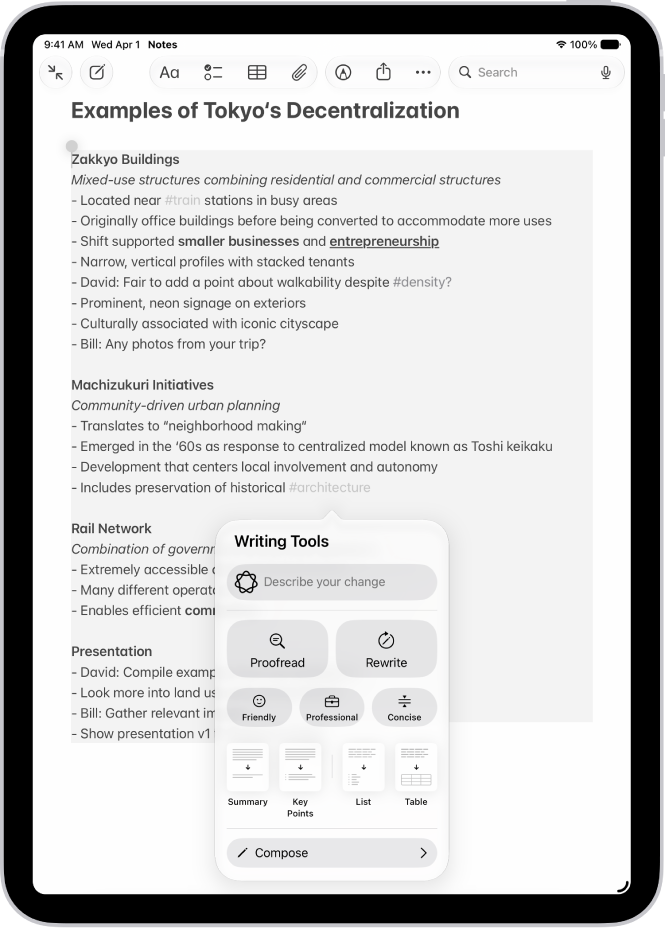
An iPad showing text in the Notes app. The Writing Tools window appears at the bottom of the screen.

Note: Apple Intelligence on iPadOS 27 or later is available on an Apple Intelligence-enabled iPad mini (A17 Pro) and iPad models with M1 or later. Apple Intelligence is not available in all languages or regions. Usage limits may apply.*

Proofread, rewrite, summarize, and organize text with Writing Tools

  1. While writing, select the text you want to refine. Then tap the Writing Tools button.
  2. Choose an option to refine or summarize your text. Here are some of the things you can do:
    • Tap “Describe a change” to describe the kind of change you want to make.
    • Tap Rewrite. To choose a particular tone, tap Friendly, Professional, or Concise.
    • Tap Proofread.
    • Tap Summarize or Key Points to only summarize the most important points of your text.
  3. When you’re finished, tap the Done button.

Compose text with ChatGPT in Writing Tools

  1. While typing, tap the text field and tap the Writing Tools button.
  2. Swipe up, then tap Compose.
  3. Describe what you want ChatGPT** to write—for example, “A bedtime story about a girl who visits a magical world where she befriends a caterpillar on its journey to becoming a butterfly”— choose Include All Text or Selected Text. Tap the Send button.
  4. If you’re asked for more details, tap a field and enter a response. Then tap the Send button—or tap Ignore to continue without adding details.

Once you’ve viewed the text, you can rewrite it, incorporate suggestions made by ChatGPT, or revert to the original version. For more on the ChatGPT extension, read our article, Use ChatGPT with Apple Intelligence.

*Apple Intelligence is available with Siri and device language set to Chinese (Simplified), Chinese (Traditional), Danish, Dutch, English, French, German, Italian, Japanese, Korean, Norwegian, Portuguese, Spanish, Swedish, Turkish, or Vietnamese. Some features may not be available in all regions or languages. Some devices may not be available in all regions. Siri AI is available in beta in iOS 27, iPadOS 27, macOS 27, watchOS 27, and visionOS 27 and requires an Apple Intelligence–enabled device set to a supported language. Available in English to start. Siri AI will not be initially available in the EU on iOS, iPadOS, and watchOS. Certain Apple Intelligence features that rely on server-side models are subject to daily usage limits, including but not limited to Siri AI, Intelligent Photo Editing Tools, Image Playground, and AFM 3 Cloud models in Shortcuts. Daily limits may vary by feature, request complexity, system demand, system policies, and other factors. Expanded access to such features will be available for a fee in the future. Use of these features is subject to the Apple Intelligence Terms and Conditions.

**ChatGPT uses generative models and outputs may vary. Check important information for accuracy. When using the ChatGPT extension, you choose what content to send to ChatGPT. Your request and attachments, as well as limited data associated with the request, such as current time zone, country, device type, language, and feature being used when making the request, are sent to ChatGPT to answer your request and enable ChatGPT to provide you accurate and relevant results.

See also