Got a tip for us?

iPad has an internal, lithium-ion rechargeable battery. Compared with traditional battery technology, lithium-ion batteries are lighter, charge faster, last longer, and have a higher power density for more battery life.

The battery icon in the status bar shows the battery level or charging status. If iPad is very low on power, you’ll see an image of a nearly depleted battery, and it may need to charge for up to 10 minutes before you’re able to use it. You can improve charging speed and learn how charging behaves, too.

About charging the battery

Battery icon with a lightning bolt indicates that the battery is charging.

To see the battery level or charging status, look at the battery icon at the top right of the status bar. It can take longer to charge while you’re syncing or using iPad.

When iPad is very low on power, it may show an image of a nearly depleted battery. That means iPad needs up to 10 minutes of charging before you can use it. And if it’s extremely low on power when you start charging, the display may stay blank for as long as 2 minutes before the low-battery image appears.

Charge the battery

There’s more than one way to charge your iPad battery:

  • Connect iPad to a power outlet using the included cable and power adapter. See Power adapter and charge cable.
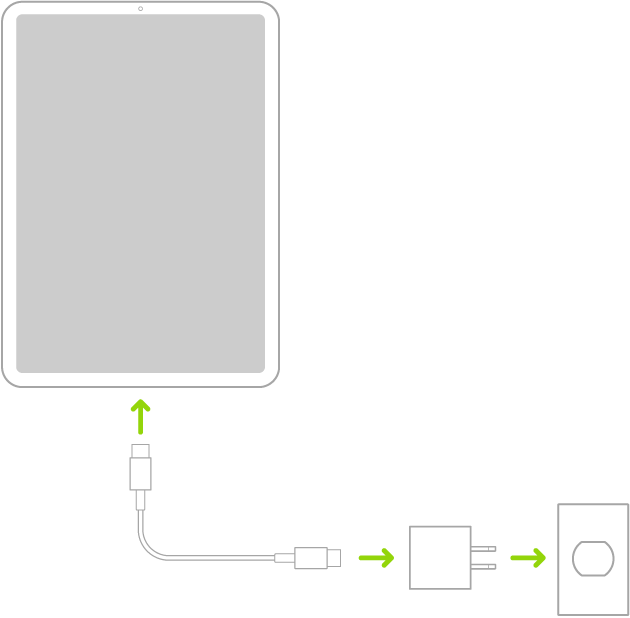
    iPad connected to the power adapter plugged into a power outlet.

  • Connect iPad and your computer with a cable.

    Make sure your computer is turned on—if iPad is connected to a computer that’s turned off, the battery may drain instead of charge. Look for the charging icon on the battery icon to make sure iPad is charging.

    If your Mac or Windows device doesn’t provide enough power to charge iPad, a Not Charging message appears in the status bar.

    Note: Don’t try to charge your iPad by connecting it to your keyboard, unless your keyboard has a high-power USB port.

  • When iPad is connected to a Magic Keyboard with USB-C, the keyboard can pass through power from an attached USB-C cable and power adapter.

An iCloud backup can start when you connect iPad to a power outlet. Read our guide, Back up iPad.

WARNING: If you suspect there may be liquid in the charging port of iPad, don’t plug the charging cable into it. For information about exposure to liquid, and other important safety information about the battery and charging iPad, see Important safety information for iPad.

Improve charging speed

If your iPad is charging slowly, you’ll see a Slow Charger message in the Settings app, then tap Battery. This message appears when your iPad supports fast charging but the connected charger isn’t capable of delivering optimal power.

With a wired charger that provides 7.5 watts or less, charging might take longer than expected.
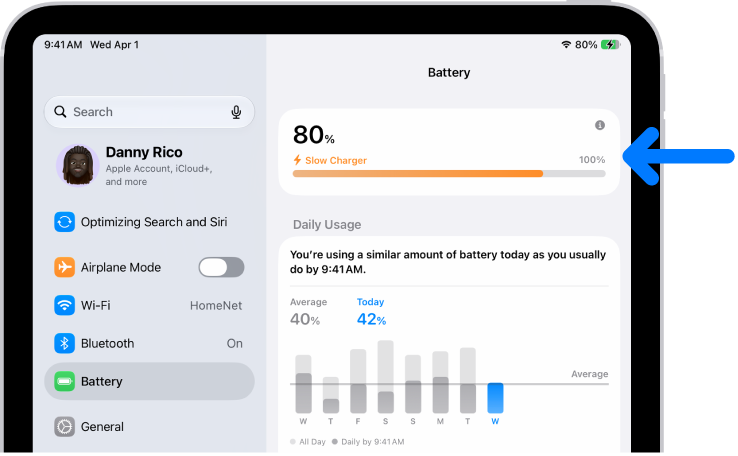
The charging information card in iPad Battery settings. The card shows the battery at 80% and indicates it’s connected to a “Slow Charger.”

Understand charging behavior

To help preserve long-term battery health, iPad manages how it charges. This is what happens when you charge:

  • Fast charging up to 80%: iPad charges quickly until the battery reaches about 80%.
  • Trickle charging after 80%: Charging slows to reduce battery stress and limit heat. This final stage helps maintain battery lifespan.
  • Temperature: Charging may pause temporarily while in extreme temperature conditions, and will resume once the battery’s temperature returns to its normal operating range.

These protections happen automatically and don’t require any changes to your settings.

About charge cycles and battery lifespan

The capacity of any type of battery will diminish after a certain amount of recharging. With lithium-ion batteries, the capacity diminishes slightly with each complete charge cycle. Apple lithium-ion batteries work in charge cycles and retain about 80% of its original capacity for a high number of charge cycles, depending on the product.

A charge cycle happens when you use a total of 100% of your battery’s capacity,* even if it’s not all at once. For example, you might use 75% of your battery’s capacity one day, then recharge it fully overnight. If you use 25% the next day, you will have discharged a total of 100%, and the two days will add up to one charge cycle.

Battery life and charge cycles vary with use and settings. The iPad battery should be serviced or recycled by Apple or an Apple Authorized Service Provider.

*A complete charge cycle is normalized between 80% and 100% of original capacity to account for expected diminishing battery capacity over time.

See also
Tag: Battery

You can see how much charge remains in your iPad battery in the status bar. You can also add a widget to the Home Screen to monitor the battery levels of your iPad and connected accessories, including AirPods and Apple Pencil.

By default, iPad shows a battery icon without a percentage, though you can display the number alongside the icon. Control Center shows the current percentage, too, even if that setting is off.

Show the iPad battery percentage in the status bar

iPad shows a battery icon without a percentage by default, but turning on Battery Percentage displays the number alongside the icon.

  1. Start the Settings app on your iPad.
  2. Tap Battery and then turn on Battery Percentage.

Check the battery percentage in Control Center

Even with Battery Percentage turned off in Settings, Control Center shows the current battery percentage.

Add a Batteries widget to your Home Screen

See Add a widget to your Home Screen and Create a custom Lock Screen.

See also

Tag: Battery

When you subscribe to Apple Music, you can browse new and noteworthy music, music videos, playlists, and more.

You can explore featured songs and videos, browse playlists created by music experts, and explore new releases. You can also see upcoming concerts and what’s hot, listen to the top songs from around the world, and even discover your most-played music of the year.

Here’s how to find new music with Apple Music on iPad.

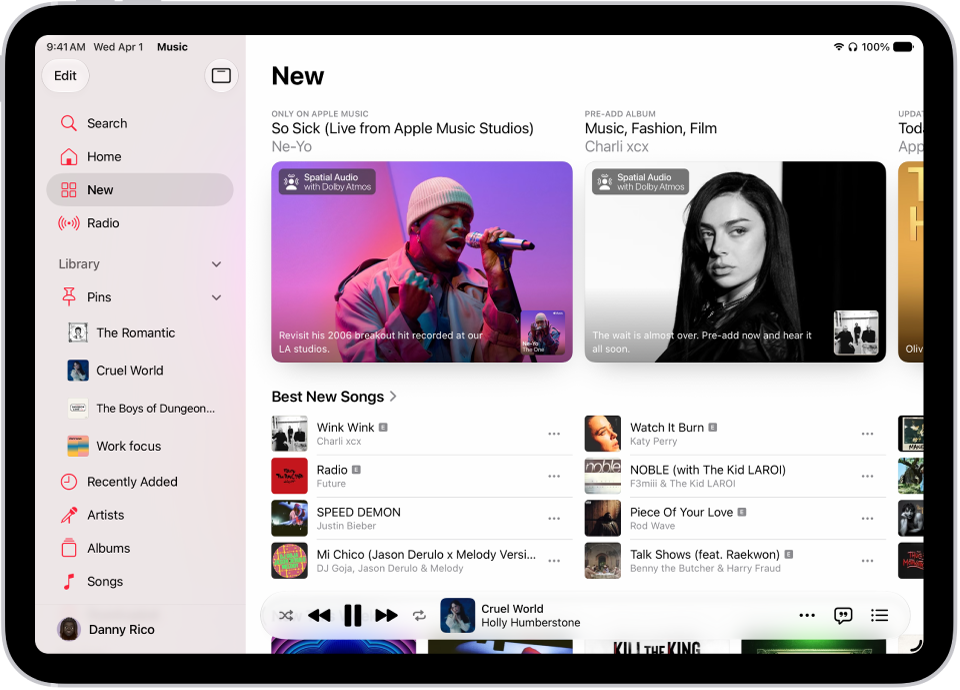
The New tab showing the sidebar on the left and the New section at the right. The New tab shows featured music at the top. Swipe left to see more featured music and videos. The Best New Songs section appears below. The MiniPlayer is at the bottom.

Discover new releases, featured music, and more

  1. Open the Music app on your iPad.
  2. Tap New to find new music and then do any of the following:

    • Explore featured music: Swipe through featured songs and videos at the top of the screen.
    • Browse playlists created by music experts: Tap one of the many playlists created by music experts.
    • Explore new music: Tap a song below the Latest Songs heading or swipe through the albums listed below New Releases.
    • See upcoming concerts: Go to any Artist page to see upcoming concerts. Scroll down to see details under All Upcoming Concerts. To view all upcoming concerts and update your location in the Concerts Hub, tap the Search tab and then tap Concerts.

      Note: Concerts isn’t available in China.

    • See what’s hot: Tap a song below the Trending Songs heading. Swipe left to see more songs.
    • Listen to the top songs from around the world: Tap one of the Daily Top 100 playlists. These playlists reflect the day’s most popular songs in countries across the globe.
    • Listen to songs from upcoming albums: Tap an album below Coming Soon and tap an available song to play it.
    • Watch music videos: Tap Music Videos and then tap a featured music video or playlist of music videos.
    • Play the day’s most popular songs: Tap Charts and tap a song, playlist, album, or music video to play it. Tap All Genres at the top of the screen to see the top songs and music videos in a genre you choose.
    • Browse your favorite genres: Tap Browse by Genre, choose a genre, and then tap a featured playlist, song, album, artist, or radio station to enjoy music handpicked by music experts.
    • Play music that matches your mood: Tap Moods and Activities and tap a playlist such as Feel Good, Romance, or Party.

Note: Swipe left on the album art to see more music, and if you want all the music in a section, such as New Releases, tap the Forward button next to the section’s name.

Discover your most-played music of the year

For every year you’ve been subscribed to Apple Music (and listened to enough music to become eligible), Apple Music builds a Replay personal chart ranking the songs you’ve played the most.

  1. Open the Music app on your iPad.
  2. Tap Home, swipe down to Replay: Your Top Music, and tap an option (for example, a year).

You can also see all your insights throughout the year on your iPad or at the Apple Music Replay website.

Discover music you’ve never played before

Using your listening history and taste profile, Apple Music recommends music you may like that you’ve never played before.

Siri: Ask Siri something like, “Play my Discovery Station.” Learn how to use Siri.

  1. Open the Music app on your iPad.
  2. Tap Home in the sidebar. Then swipe down to Stations for You.
  3. Tap Discovery Station.

Turn on or off new music notifications

  1. Open the Music app on your iPad.
  2. Tap the Show Sidebar button. Then tap your name at the bottom of the sidebar.
  3. Tap Notifications, then turn on (or off) New Music.
Tag: Music

Low Power Mode reduces the amount of power that your iPad uses when the battery gets low. It optimizes performance for essential tasks like making and receiving calls, sending and receiving email and messages, accessing the internet, and more. On iPad models with ProMotion display technology, Low Power Mode limits the display refresh rate to 60 frames per second.

It turns off on its own when your iPad charges to 80 percent or higher, so you don’t need to switch it off yourself.

Note: When iPad is in Low Power Mode, it might perform some tasks more slowly.

Turn Low Power Mode on or off

To turn Low Power Mode on or off, use any of these methods:

  • In Settings: Go to the Settings app, tap Battery, then tap Low Power Mode.
  • In Control Center: Add the Low Power Mode button to Control Center, then tap the Low Power Mode button.

Low Power Mode turns off automatically when iPad charges to 80 percent or higher.

See also

Tag: Battery

You can use the Contacts app to create, find, share, and delete contacts.

Siri can even suggest new contacts based on what you do in Mail and Calendar. You can also search your contacts using Spotlight, and quickly reach a contact with a call, message, or email. And you can change the default phone number or email address for a contact.

Here’s how to add and use contact information on iPad.

Siri: Siri can update information about a contact. Say something like, “Sarah Milos is my sister.” Learn how to use Siri.

Create a contact

  1. Start the Contacts app on your iPad.
  2. Tap the Add button.
  3. Enter details for the contact such as name and phone number and tap the Done button.

Siri suggests new contacts based on your activity in other apps, such as Mail and Calendar. Siri also suggests adding contact information in other apps based on how you use Contacts. To turn off either feature, go to the Settings app, tap Apps, then tap Contacts. Tap Siri (or Apple Intelligence & Siri), then turn off Show Contact Suggestions or Learn from this App.

Find a contact

Tap the search field at the top of the contacts list, then enter a name, address, phone number, or other contact information.

You can also search your contacts with Search (see our guide, Search with Spotlight).

Share a contact

  1. Start the Contacts app on your iPad.
  2. Tap a contact and tap Share Contact. Then choose the fields you want to share.
  3. Tap the Done button then choose a sharing option, such as Messages or Mail.

Quickly reach a contact

  1. Start the Contacts app on your iPad.
  2. Tap a contact.
  3. Tap a button below the contact’s name to do any of the following: start a message, make a phone call or a FaceTime call; or compose an email.

To change the default phone number or email address for a contact method, touch and hold the button for that method below the contact’s name, then tap a selection in the list.

Delete a contact

  1. Start the Contacts app on your iPad.
  2. Go to the contact’s card and tap Edit.
  3. Scroll down, tap Delete Contact, and then tap Delete Contact again to confirm your edit.

See also

With Apple Intelligence, Siri can tap into ChatGPT. After you set up the extension, Siri can use it to get the information you’re looking for. You can ask ChatGPT to compose a haiku, suggest ideas for a free afternoon, or summarize a document. You can even ask about a photo open in the Photos app or a document open in the Files app, and iPad may ask you to confirm before your request is sent.

Note: Apple Intelligence on iPadOS 27 or later is available on an Apple Intelligence-enabled iPad mini (A17 Pro) and iPad models with M1 or later. Apple Intelligence is not available in all languages or regions. Usage limits may apply.* The ChatGPT extension is available with Apple Intelligence in regions where the ChatGPT app and service are available. **

Siri: On your iPad, activate Siri, then ask a question. For example, say something like:

  • “Hey Siri, ask ChatGPT to compose a haiku about dragons.”
  • “Hey Siri, ask ChatGPT for some ideas of how to spend a free afternoon in Malibu if I don’t feel like hitting the beach.”
  • “Ask ChatGPT what kind of recipes can I make with this?” with a photo of fruit open in the Photos app.
  • “Hey Siri, ask ChatGPT to summarize this document for me,” with a document—like a PDF of a home inspection report—open in the Files app.

Quick tip: iPad may ask you to confirm before sending your request to ChatGPT. If you want to have Siri send a request without confirming, you can turn off Confirm Requests in the Settings app.

*Apple Intelligence is available with Siri and device language set to Chinese (Simplified), Chinese (Traditional), Danish, Dutch, English, French, German, Italian, Japanese, Korean, Norwegian, Portuguese, Spanish, Swedish, Turkish, or Vietnamese. Some features may not be available in all regions or languages. Some devices may not be available in all regions. Siri AI is available in beta in iOS 27, iPadOS 27, macOS 27, watchOS 27, and visionOS 27 and requires an Apple Intelligence–enabled device set to a supported language. Available in English to start. Siri AI will not be initially available in the EU on iOS, iPadOS, and watchOS. Certain Apple Intelligence features that rely on server-side models are subject to daily usage limits, including but not limited to Siri AI, Intelligent Photo Editing Tools, Image Playground, and AFM 3 Cloud models in Shortcuts. Daily limits may vary by feature, request complexity, system demand, system policies, and other factors. Expanded access to such features will be available for a fee in the future. Use of these features is subject to the Apple Intelligence Terms and Conditions.

**ChatGPT uses generative models and outputs may vary. Check important information for accuracy. When using the ChatGPT extension, you choose what content to send to ChatGPT. Your request and attachments, as well as limited data associated with the request, such as current time zone, country, device type, language, and feature being used when making the request, are sent to ChatGPT to answer your request and enable ChatGPT to provide you accurate and relevant results.

See also

Tag: Siri

With Siri AI (Beta), you have a dedicated Siri app that brings all your conversations together in one place. You can ask a question on your iPad and pick up where you left off on your other Apple devices when you’re signed in to the same Apple Account.

You can type or speak your request, add a picture, photos, or files to the conversation, and ask follow-up questions. You can also pin conversations for easy access, search them, or start a new one, and your conversation history syncs across platforms.

Siri AI is available in beta on iPadOS 27 or later on an Apple Intelligence-enabled iPad mini (A17 Pro) or iPad model with M1 or later set to a supported language. Available in English to start. Siri AI will not initially be available in the EU on iPadOS. Usage limits may apply.*

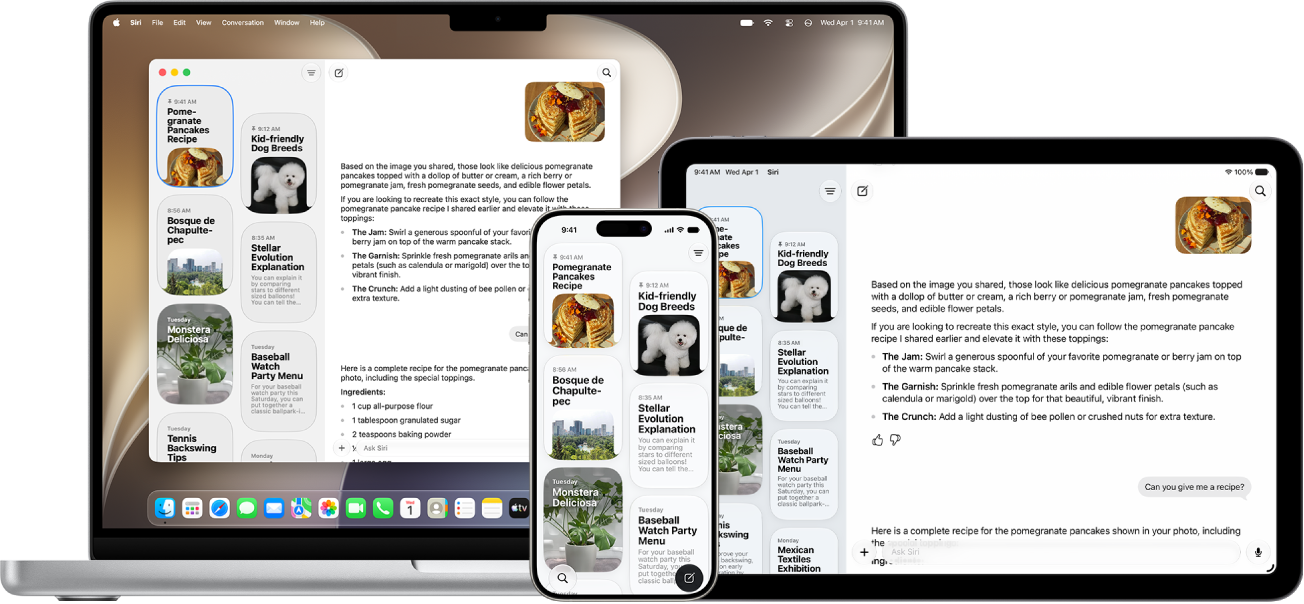
The Siri app on iPhone, iPad, and Mac.

Start or continue a conversation

  1. Start the Siri app on your iPad.
  2. Tap the new conversation button to start a new conversation, or tap a conversation you want to continue.
  3. Do one of the following to enter your request:
    • Type your request: Enter your request using the keyboard and tap the Ask Siri button.
    • Speak your request: Tap the Microphone button, then speak your request. Tap the Keyboard button to type to Siri.
  4. Do any of the following:
    • Take a picture: Tap the Add button, tap Camera, and then take a picture using your iPad.
    • Add photos: Tap the Add button, tap Photos, and select a photo to add to the conversation.
    • Add files: Tap the Add button and tap Files. Then select a file to add to the conversation.
    • Ask follow-up questions: Enter follow-up questions.

View your conversation history

You can view your conversation history, which stays in sync across platforms when you’re signed in to the same Apple Account.

  1. Start the Siri app on your iPad.
  2. If the Siri app opens to a new conversation, tap the Close button to see your conversation history.
  3. To change how your conversation history is displayed, tap the Options button in the top-right corner and then tap Grid or List.

Search and pin conversations

  1. Start the Siri app on your iPad.
  2. If the Siri app opens to a new conversation, tap the Close button to see your conversation history.
  3. Do any of the following:
    • Search a conversation: Tap the Search button and enter what you’re searching for. Then tap the Search button on the keyboard.
    • Pin conversations: Touch and hold the conversation you want to pin and tap Pin.

Rename conversations

  1. Start the Siri app on your iPad.
  2. If the Siri app opens to a new conversation, tap the Close button to see your conversation history.
  3. Touch and hold a conversation, then tap Rename.
  4. Enter the new name for the conversation and tap OK.

Delete Siri conversations

  1. Start the Siri app on your iPad.
  2. Do one of the following:
    • Delete one Siri conversation: Touch and hold the conversation you want to delete, tap Delete, and then tap Delete to confirm.
    • Delete multiple Siri conversations: Tap the Options button in the top-right corner and tap Select. Then select the conversations you want to delete. Tap the Trash button, then tap Delete to confirm.

Change Siri app settings

In Siri settings, decide how long to hold on to conversations and what appears when you open the Siri app.

  1. Start the Settings app on your iPad.
  2. Tap Siri.
  3. Do any of the following:

    • Choose what appears when you open the Siri app: Tap Opens To and choose Recent Conversations or A New Conversation.
    • Choose how long to keep conversations: Tap Keep Conversations, then choose an option.

      Note: If you choose 30 days or 1 year, older conversations are permanently deleted.

    • Choose a conversation preview length: Tap Preview, then choose an option.

In Screen Time settings, you can choose which Siri features are available to you and which content Siri can access. Read our guide, Block features or content with Screen Time.

*Apple Intelligence is available with Siri and device language set to Chinese (Simplified), Chinese (Traditional), Danish, Dutch, English, French, German, Italian, Japanese, Korean, Norwegian, Portuguese, Spanish, Swedish, Turkish, or Vietnamese. Some features may not be available in all regions or languages. Some devices may not be available in all regions. Siri AI is available in beta in iOS 27, iPadOS 27, macOS 27, watchOS 27, and visionOS 27 and requires an Apple Intelligence–enabled device set to a supported language. Available in English to start. Siri AI will not be initially available in the EU on iOS, iPadOS, and watchOS. Certain Apple Intelligence features that rely on server-side models are subject to daily usage limits, including but not limited to Siri AI, Intelligent Photo Editing Tools, Image Playground, and AFM 3 Cloud models in Shortcuts. Daily limits may vary by feature, request complexity, system demand, system policies, and other factors. Expanded access to such features will be available for a fee in the future. Use of these features is subject to the Apple Intelligence Terms and Conditions.

See also

Tag: Siri AI

You can customize how you activate Siri, change Siri’s language and voice, change how Siri responds, and more in Siri settings on iPad.

You might say “Siri” or “Hey Siri,” or use the side button or type instead, and on supported models, you can say just “Siri” in some languages and regions. iPad can listen for “Siri,” “Hey Siri,” or both, depending on your choice. You can also tell Siri about yourself and retrain Siri with your voice.

For information about how to set up and use Siri, see Turn on and activate Siri.

Customize how you activate Siri

You can change how you activate Siri. For example, you can say “Siri” or “Hey Siri,” click the side button on your iPad, or type to Siri.

Note: The option to say just “Siri” is available on supported iPad models in some languages and regions.

  1. Start the Settings app on your iPad.
  2. Tap Siri.
  3. Tap Requests and then do any of the following:

    • Turn on “Siri” or “Hey Siri”: Tap Siri or Hey Siri (or Hey Siri) and then follow the instructions to set it up.

      Depending on your choice, iPad listens for “Siri,” “Hey Siri,” or both to activate Siri. To retrain Siri with your voice, turn off “Siri” or “Hey Siri,” turn it back on again, then follow the onscreen instructions.

      Tip: To prevent iPad from responding to “Siri” or “Hey Siri” when you don’t want it to, place your iPad face down.

    • Turn off “Siri” or “Hey Siri”: Tap Off. iPad doesn’t listen for “Siri” or “Hey Siri” to activate Siri.
    • Activate Siri using the side button on your iPad: Turn on Press Side Button for Siri.
    • Type to Siri: Turn on Type to Siri. When Siri AI (Beta) is on, you can always type to Siri.

      Note: Siri AI is available in beta on iPadOS 27 or later on an Apple Intelligence-enabled iPad mini (A17 Pro) or iPad model with M1 or later set to a supported language. Available in English to start. Siri AI will not initially be available in the EU on iPadOS. Usage limits may apply.*

Change Siri’s language

  1. Start the Settings app on your iPad.
  2. Tap Siri.
  3. Tap Language, then select a language from the list.

    The language you choose is used for Siri, Maps, turn-by-turn directions, and Listen to Page in Safari.

Change Siri’s voice

You can change the way Siri sounds by changing the variation and voice Siri uses.

  1. Start the Settings app on your iPad.
  2. Tap Siri.
  3. Do any of the following:

    • Change the variation: Tap Voice and select an option below Variations.
    • Change the voice: Tap Voice, then select an option below Voices.
    • Use Siri Expressive Voices** (Siri AI only): Tap Voice and then adjust Voice, Pace, and Expressivity settings until they sound just right to you.

      Note: Pace and Expressivity adjustments are currently available for American and British voices.

Change how Siri responds

Siri can always respond silently or speak back when you provide voice input; it’s your choice. You can also have messages sent automatically without Siri asking you to confirm, and Siri can read your messages in a different language.

Note: The options you see vary with the version of Siri you’re using.

  1. Start the Settings app on your iPad.
  2. Tap Siri.
  3. Tap Responses and then do any of the following:

    • Have Siri respond aloud: Choose Prefer Spoken Responses or Speak Back for Voice Input. If Siri AI is turned on, choose Spoken Response.
    • Have Siri respond silently: Choose Prefer Silent Responses or Always Silent. If Siri AI is turned on, choose Silent Response.
    • See what Siri says onscreen: Turn on Always Show Siri Captions.
    • See your request onscreen: Turn on Always Show Request.
    • Have Siri send messages without confirming: Turn on Automatically Send Messages.
    • Have Siri read messages in a different language: Tap Add Language and select a language from the list.

      Tip: After languages download, you can choose the variety and voice Siri uses to read messages. Tap the language below Read Messages, then select from the options below Variety and Voice.

Tell Siri about yourself

For a more personalized experience, you can give Siri information like your name, your home and work addresses, and even your relationships. Then you can say things like “Give me driving directions home” and “FaceTime Mom.” Siri learns about you from your contact card (called My Card) in the Contacts app.

  1. Start the Settings app on your iPad.
  2. Tap Siri.
  3. Tap Your Information, then tap your name.
  4. Go to the Contacts app to do any of the following:
    • Change or edit the information: Tap My Card at the top and tap Edit. Then edit your information. For more information, see Add or edit your contact info and photo.
    • Tell Siri how to pronounce your name: Tap My Card at the top and then tap Edit. Scroll down and then tap “add field.” Select a pronunciation name field, then type how to say your name. You can also add pronunciations for other contacts.

Siri can learn who other people are in relation to you. Try saying something like “Sarah Milos is my sister” or “Hey Siri, Ashley Kamin is my mom.”

Your personal information, which is encrypted and remains private, stays current on every device where you use the same Apple Account. When Siri learns about you on one device, your Siri experience gets better on your other devices, too. Turning off Siri in iCloud settings keeps Siri personalization from updating across your devices.

Change Visual Intelligence settings

If you have Apple Intelligence, Visual Intelligence can search for items similar to those around you, and you can choose to have highlighted objects sent automatically to third parties to provide results.

  1. Start the Settings app on your iPad.
  2. Tap Siri and then do any of the following:
    • Turn on Highlight to Search (Siri AI only). This setting automatically searches the web when you highlight content in screenshots.
    • Turn on Automatic Visual Look Up. This setting automatically identifies objects and places that appear in screenshots.

Customize apps Siri has access to

Give Siri access to an app or App Clips, and it can find information and suggest what you might want to do next, even before you ask. Get an invitation in Mail, for example, and you’re asked whether to add it to your calendar. Suggestions are on by default, though you can change which apps Siri has access to at any time.

Note: Siri and Apple Intelligence are designed to protect your privacy and keep you in control of your personal data by giving you control over what you share.

  1. Start the Settings app on your iPad.
  2. Tap Siri.
  3. Do any of the following:

    • Allow Siri to learn how you use an app to make suggestions: Tap App Access and select an app from the list. Then turn on Learn from this App.
    • Choose how Suggestions appear: Tap App Access, select an app from the list, and then turn on Show on Home Screen, Suggest App, or Suggestion Notifications.

      Note: The options you see may be different depending on the app you select and which version of Siri you’re using.

    • Allow Siri to learn from App Clips to make suggestions: Tap App Clips and then turn on Learn From App Clips.
    • Allow Search and Shortcuts to show App Clips: Tap App Clips and turn on Show in Search or Suggest App Clips.

Customize where suggestions appear

Where suggestions appear is up to you. You might show them in an app, for example, but not on the Home Screen or as notifications.

  1. Start the Settings app on your iPad.
  2. Tap Siri.
  3. Tap Suggestions and then do any of the following:
    • Allow suggested apps to appear in search: Turn on Suggest Apps Before Searching.
    • Allow suggestions to appear in notifications: Turn on Allow Notifications.
    • Allow suggestions to appear in App Library: Turn on Show in App Library.
    • Allow suggestions to appear when sharing: Turn on Show When Sharing.
    • Allow suggestions to appear when you might want to listen to music: Turn on Show Listening Suggestions.

To change Siri accessibility settings, check out our guide, Change Siri accessibility settings.

*Apple Intelligence is available with Siri and device language set to Chinese (Simplified), Chinese (Traditional), Danish, Dutch, English, French, German, Italian, Japanese, Korean, Norwegian, Portuguese, Spanish, Swedish, Turkish, or Vietnamese. Some features may not be available in all regions or languages. Some devices may not be available in all regions. Siri AI is available in beta in iOS 27, iPadOS 27, macOS 27, watchOS 27, and visionOS 27 and requires an Apple Intelligence–enabled device set to a supported language. Available in English to start. Siri AI will not be initially available in the EU on iOS, iPadOS, and watchOS. Certain Apple Intelligence features that rely on server-side models are subject to daily usage limits, including but not limited to Siri AI, Intelligent Photo Editing Tools, Image Playground, and AFM 3 Cloud models in Shortcuts. Daily limits may vary by feature, request complexity, system demand, system policies, and other factors. Expanded access to such features will be available for a fee in the future. Use of these features is subject to the Apple Intelligence Terms and Conditions.

**Siri Expressive Voices are available with Siri AI on iPad models with M4 or later with at least 12GB of unified memory.

See also

Tag: Siri

Siri is an intelligent assistant that’s built into your iPad to help you get answers, find what you need, and get things done.

Before you can use Siri, you need to turn it on. To ask a question or make a request, you then activate it with your voice or the buttons on iPad, and Siri needs an internet connection. There’s also Siri AI (Beta), the new version of Siri powered by Apple Intelligence, to try.

Note: Siri is designed to protect your information and to let you choose what you share.

Turn on Siri

Siri needs to be turned on before you can use it. If you didn’t set up Siri when you first set up your iPad, do the following:

  1. Start the Settings app on your iPad.
  2. Tap Siri.
  3. Tap Turn On Siri and then follow the onscreen instructions.

    Tip: Tap Try Siri AI (Beta)* to get Siri AI, the new version of Siri powered by Apple Intelligence on iPadOS 27 or later. See Get started with Siri AI.

Activate Siri and make requests

After you turn on Siri, activate it before you ask a question or make a request.

Note: You must be connected to the internet to use Siri.

  1. Activate Siri by doing one of the following:

    • Use your voice: Say “Siri” or “Hey Siri.” This option is only available if “Siri” or “Hey Siri” is turned on. See Customize how you activate Siri.
    • Use the buttons on iPad: Press and hold the top button on an iPad with Touch ID, or press and hold the Home button on an iPad with a Home button.

      When you activate Siri with a button and iPad is muted, Siri responds silently. When you activate Siri with your voice, Siri responds out loud. To change this behavior, see Change how Siri responds.

    • Use headphones connected to your iPad: Press and hold the center or call button on your EarPods.

    If you have Siri AI, you can also activate Siri by doing one of the following:

    • Use the Dynamic Island on iPad: Swipe down from the top of the screen.
    • Use the shortcut menus on iPad: Touch and hold something on your iPad screen—a file or a photo, for example—then choose Ask Siri or the Ask Siri button from the pop-up menu.
    • Take a screenshot on iPad: Quickly press and release the side button and the volume up button at the same time to take a screenshot. Tap the Ask button to ask a question, the Search button to search, or an action that appears in the middle. See Siri AI: Learn about what’s on your iPad screen.
  2. Ask Siri a question or make a request.

    See Get started with Siri AI and Use Siri to find information and get things done for ideas on how you can use Siri.

Turn off Siri

  1. Start the Settings app on your iPad.
  2. Tap Siri.
  3. Tap Turn Off Siri at the bottom and then tap Turn Off Siri.
  4. If you have Siri AI, but want to use the previous version of Siri, tap Turn On Siri. Then select Use Siri Classic.

*Apple Intelligence is available with Siri and device language set to Chinese (Simplified), Chinese (Traditional), Danish, Dutch, English, French, German, Italian, Japanese, Korean, Norwegian, Portuguese, Spanish, Swedish, Turkish, or Vietnamese. Some features may not be available in all regions or languages. Some devices may not be available in all regions. Siri AI is available in beta in iOS 27, iPadOS 27, macOS 27, watchOS 27, and visionOS 27 and requires an Apple Intelligence–enabled device set to a supported language. Available in English to start. Siri AI will not be initially available in the EU on iOS, iPadOS, and watchOS. Certain Apple Intelligence features that rely on server-side models are subject to daily usage limits, including but not limited to Siri AI, Intelligent Photo Editing Tools, Image Playground, and AFM 3 Cloud models in Shortcuts. Daily limits may vary by feature, request complexity, system demand, system policies, and other factors. Expanded access to such features will be available for a fee in the future. Use of these features is subject to the Apple Intelligence Terms and Conditions.

See also

Tag: Siri

In apps on iPad, you can use gestures and the keyboard to select and edit text in text fields. You can also use built-in proofreading tools.

You can select a word, a paragraph, or a block of text, and then cut, copy, or paste the text you want to revise. You can also fix mistakes, undo or redo the last edit, place the insertion point, and move text without cutting or copying it.

Select, cut, copy, and paste text

  1. To select text, do any of the following:

    • Select a word: Double-tap with one finger.
    • Select a paragraph: Triple-tap with one finger.
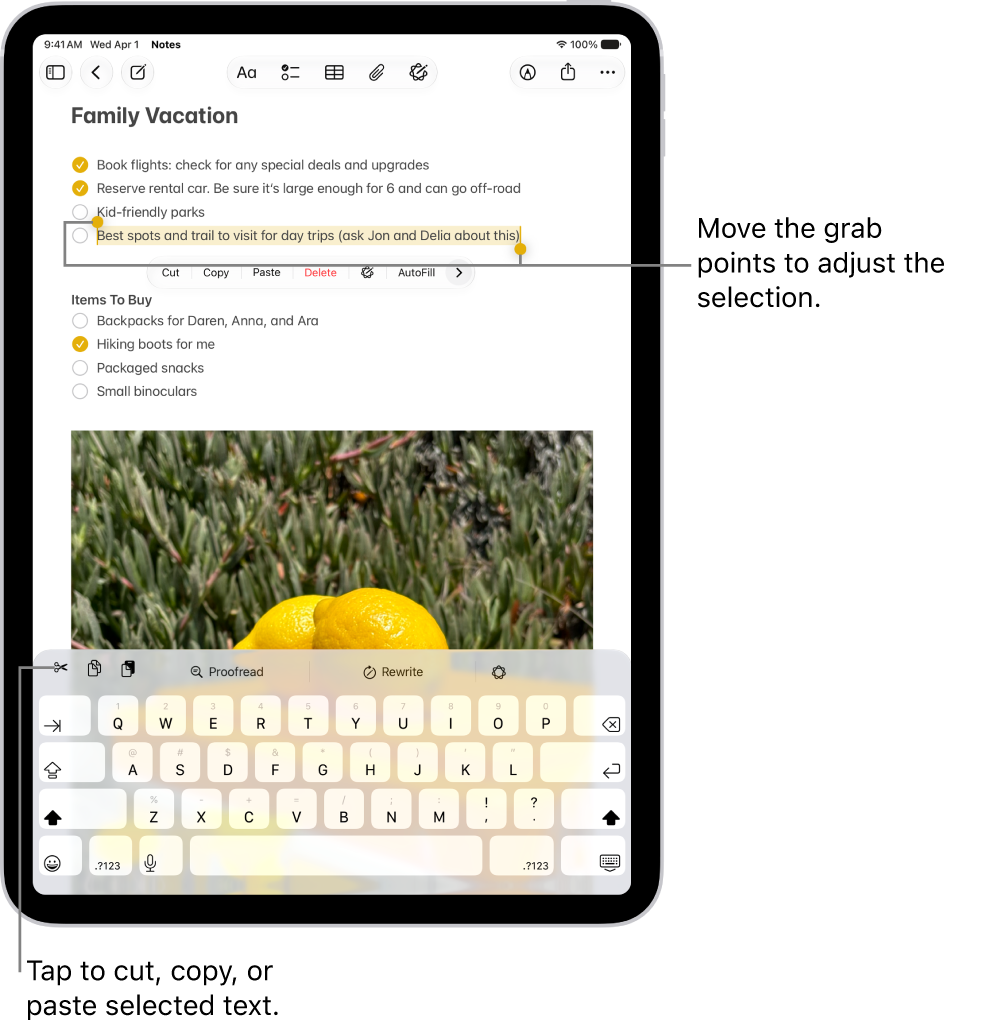
    • Select a block of text: Double-tap and hold the first word in the block. Drag the grab points.

      Text is selected in a note in the Notes app. Above the selected text is a menu of buttons including Cut, Copy, and Paste. The selected text is highlighted, with grab points to adjust the selection at either end.

  2. After selecting the text you want to revise, tap the selection. Tap an editing option. You can also use these gestures:

    • Cut: Pinch closed with three fingers two times.
    • Copy: Pinch closed with three fingers.
    • Paste: Pinch open with three fingers.

Fix mistakes

When you notice an error while entering text, do any of the following:

  • Undo the last edit: Swipe left with three fingers, then tap the Undo button or Undo at the top of the screen.
  • Redo the last edit: Swipe right with three fingers, then tap the Redo button or Redo at the top of the screen.
  • Correct spelling and grammar: Tap a misspelled or misused word (underlined in red), then either tap a suggestion to replace the word, or type the correction.
  • Undo autocorrect: As you enter text, misspelled words are automatically corrected and temporarily underlined so you know what was changed. To revert the autocorrection to what you entered, tap the underlined word, then tap your spelling (the first one listed and marked with the Undo button).

Turn on or off proofreading features

  1. Open the Settings app on your iPad.
  2. Tap General, then tap Keyboard.
  3. Turn on or off any of the following:
    • Auto-Capitalization
    • Auto-Correction
    • Check Spelling and Grammar

Place the insertion point

  1. Do any of the following:

    • Tap where you want to add or edit text.
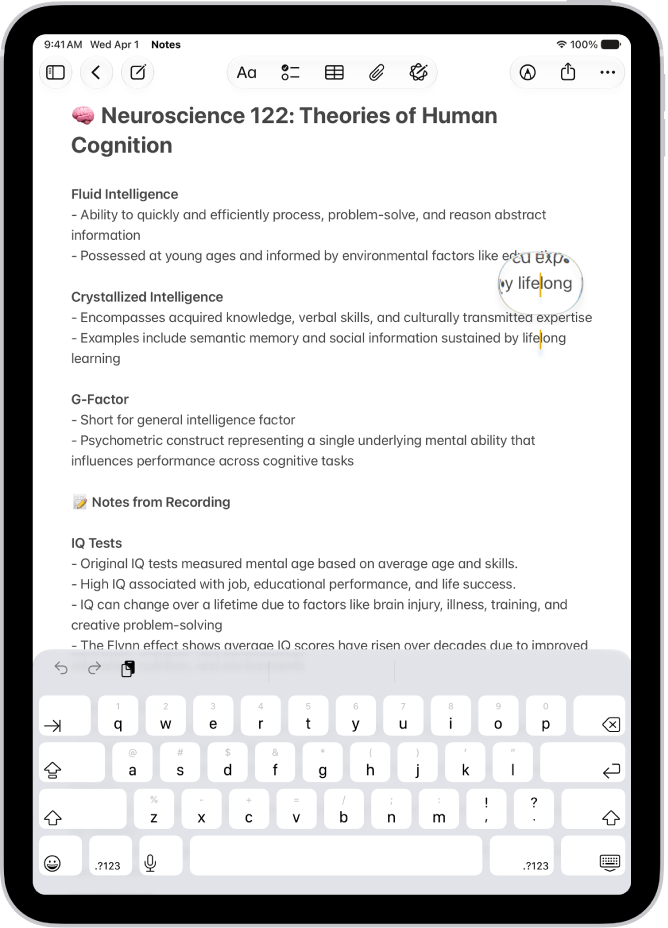
    • Touch and hold to magnify the insertion point, then drag it.

      A note showing the insertion point positioned where text will be inserted or edited. The surrounding text is magnified to make it easier to place the insertion point.

    Note: To navigate a long document, touch and hold the right edge of the document, then drag the scroller to locate the text you want to revise.

  2. Enter the text you want to add.

    Tip: To easily move the insertion point, touch and hold the Space bar of the onscreen keyboard until the characters on the keys disappear, then drag your finger around the keyboard to move the insertion point elsewhere. To select text, tap the keyboard with a second finger, then drag your first finger to select text.

Move text without cutting or copying

  1. Select the text you want to move.
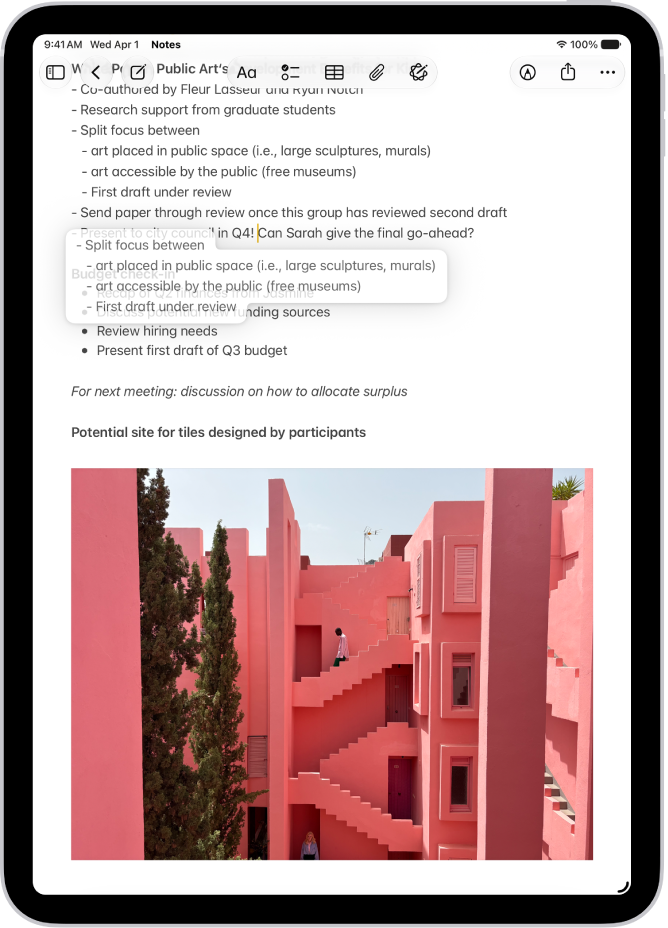
  2. Touch and hold the selected text until it lifts up and drag it to another location within the app.

    A document is open in the Notes app. Selected text is lifted within the document to be moved to a new location.

If you change your mind while moving the text, lift your finger before dragging, or drag the text off the screen.

Quick tip: With Universal Clipboard, you can cut or copy something on another Apple device, then paste it on iPad. Read our guide, Copy and paste between iPad and other Apple devices.

See also