Got a tip for us?

With Live Text on supported models, you can use your iPad camera to copy, share, look up, and translate text that appears within the camera frame. Camera also provides quick actions to easily call phone numbers, visit websites, convert currencies, and more, based on the text that appears in the frame.

You can select specific text or all of it, and you’re able to search the web for it or share it using AirDrop, Messages, Mail, or other available options.

  1. Open Camera on your iPad.
  2. Position your iPad so the text appears within the camera frame.
  3. After the yellow frame appears around detected text, tap the Live Text button.
  4. Touch and hold the text. Use the grab points to select specific text and perform any of the actions below:

    • Copy: Copy text to paste into another app such as Notes or Messages.
    • Select All: Select all the text within the frame.
    • Look Up: Show personalized web suggestions.
    • Translate: Translate text.
    • Search Web: Look up the selected text on the web.
    • Share: Share text using AirDrop, Messages, Mail, or other available options.

      Tip: Depending on the content, you can tap a quick action at the bottom of the screen to do things like make a phone call, visit a website, start an email, convert currencies, and more.

  5. Tap the Live Text On button to return to Camera.

To turn off Live Text on your iPad camera, go to Settings > Camera, then turn off Show Detected Text.

Note: Live Text isn’t available in all regions or languages.

See also

Tag: camera

You can select alternative, third-party apps—for email, messaging, calling, call filtering, web browsing, passwords, or keyboards—as defaults to launch instead of the built-in Apple apps.

Make sure the app you want to switch to supports this feature, and if you aren’t sure, contact the app developer. You can also change the default app used to translate text, or the app that opens links on the web. Some app categories, like Maps, Camera, and Music, can’t be changed.

Note: Some app categories, like Maps, Camera, and Music, aren’t in Default Apps, so they can’t be set to a different default.

Change your default apps

  1. Open the Settings app on your iPad.

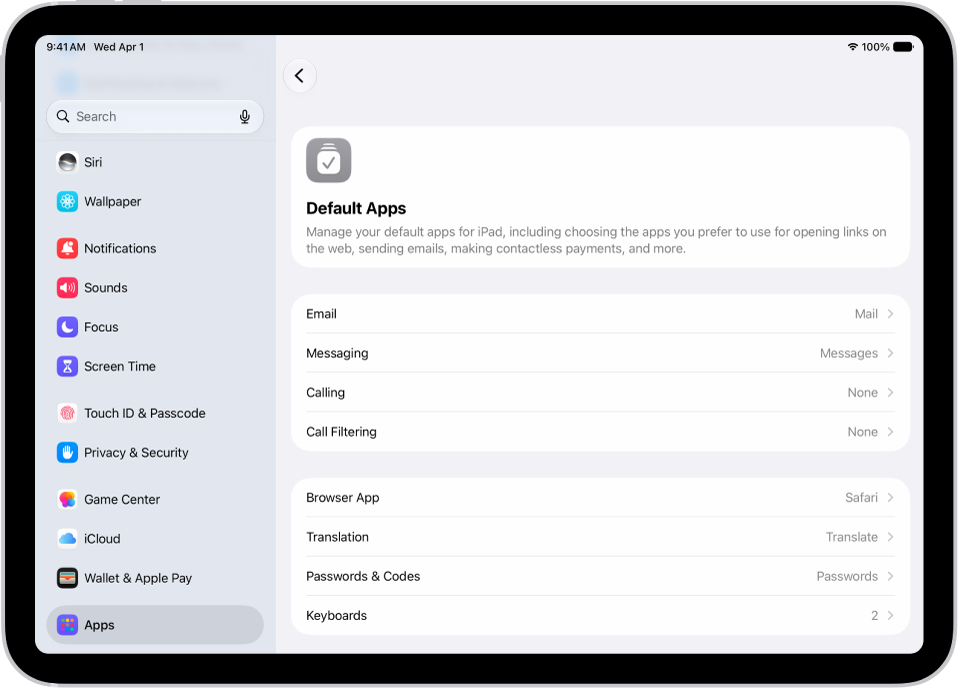
    The screen for changing your default apps for sending email, browsing the web, and more.

  2. Tap Apps, tap Default App, and tap any of the following:

    • Email: To change the default app for sending and receiving email.
    • Messaging: To change the default app for sending and receiving messages.
    • Calling: To change the default app for making and receiving calls.
    • Call Filtering: To turn on or off call blocking and identification options.
    • Browser App: To change the default app to open links on the web.
    • Translation: To change the default app used to translate text.
    • Passwords & Codes: This section allows you to turn on or off AutoFill Passwords and Passkeys for apps and websites, and password, passkey, and code-generation and verification apps.
    • Keyboards: To add or delete keyboards and third-party keyboard apps.
    • Media Sharing Extension: To change the default app for sending audio and video to compatible devices.
  3. Select the app you want to use as the default.

To change the default search engine Safari and Spotlight use, read our guide, Change your default search engine.

See also

Spotlight on iPad finds apps and contacts, content in apps like Mail and Messages, and even text in your photos using Live Text. It’s also where you’ll check stock and currency information, and open webpages, apps, and images from your photo library.

When you search for an app, shortcuts for your most likely next action appear in the Top Hit. If you search for Photos, for example, you’ll get a shortcut to the Favorites album. You can even take quick action right from your search, like starting a timer, turning on a Focus, or finding the name of a song with Shazam.

When you turn on Siri AI (Beta)* on supported iPad models, Spotlight becomes where you start a conversation with Siri: ask for personal context, get broad world knowledge, or take actions across your app, all from the same place. See Get started with Siri AI on iPad.

Note: Siri AI is available in beta on iPadOS 27 or later on an Apple Intelligence-enabled iPad mini (A17 Pro) or iPad model with M1 or later set to a supported language. Available in English to start. Siri AI will not initially be available in the EU on iPadOS. Usage limits may apply.

Search with iPad

  1. Go to the Home Screen or the Lock Screen.
  2. Swipe down from the middle of the screen.
  3. Enter what you’re looking for in the search field.
  4. Do any of the following:
    • Initiate your search: Tap Go or Search.
    • Open a suggested app: Tap the app.
    • Take quick action: Start a timer, turn on a Focus, find the name of a song with Shazam, run any shortcut, and more. Search for an app’s name to see shortcuts available for the app, or create your own using the Shortcuts app.
    • Check a suggested website: Tap it.
    • Get more information about a search suggestion: Tap it. Tap one of the results to open it.
    • Start a new search: Tap the Clear Text button in the search field.

Note: Third-party app content appears in search results only if the app supports Spotlight indexing. When something you’re looking for doesn’t appear, the app might not support Spotlight search.

Choose which apps and content to include in Search

  1. Start the Settings app on your iPad.
  2. Tap Search and scroll down. Tap an app.
  3. Turn Show App in Search or Show Content in Search on or off.

Turn off Location-Based Suggestions

Spotlight may use your location to refine suggestions when Location Services is on, though you can turn off Location-Based Suggestions.

  1. Start the Settings app on your iPad.
  2. Tap Privacy & Security and then tap Location Services.
  3. Tap System Services, then turn off Suggestions & Search.

Search in apps

To help you find something within the app, many apps include a search field or a search button. In the Maps app, for example, you can search for a specific location.

  1. In an app, tap the search field or the Search button (if there is one).

    If you don’t see a search field or button, swipe down from the top.

  2. Type your search and then tap Search.

Add a dictionary

If you add dictionaries on iPad, they can be used in searches.

  1. Start the Settings app on your iPad.
  2. Tap General and tap Dictionary. Select a dictionary.

*Apple Intelligence is available with Siri and device language set to Chinese (Simplified), Chinese (Traditional), Danish, Dutch, English, French, German, Italian, Japanese, Korean, Norwegian, Portuguese, Spanish, Swedish, Turkish, or Vietnamese. Some features may not be available in all regions or languages. Some devices may not be available in all regions. Siri AI is available in beta in iOS 27, iPadOS 27, macOS 27, watchOS 27, and visionOS 27 and requires an Apple Intelligence–enabled device set to a supported language. Available in English to start. Siri AI will not be initially available in the EU on iOS, iPadOS, and watchOS. Certain Apple Intelligence features that rely on server-side models are subject to daily usage limits, including but not limited to Siri AI, Intelligent Photo Editing Tools, Image Playground, and AFM 3 Cloud models in Shortcuts. Daily limits may vary by feature, request complexity, system demand, system policies, and other factors. Expanded access to such features will be available for a fee in the future. Use of these features is subject to the Apple Intelligence Terms and Conditions.

See also

Tag: iPadOS

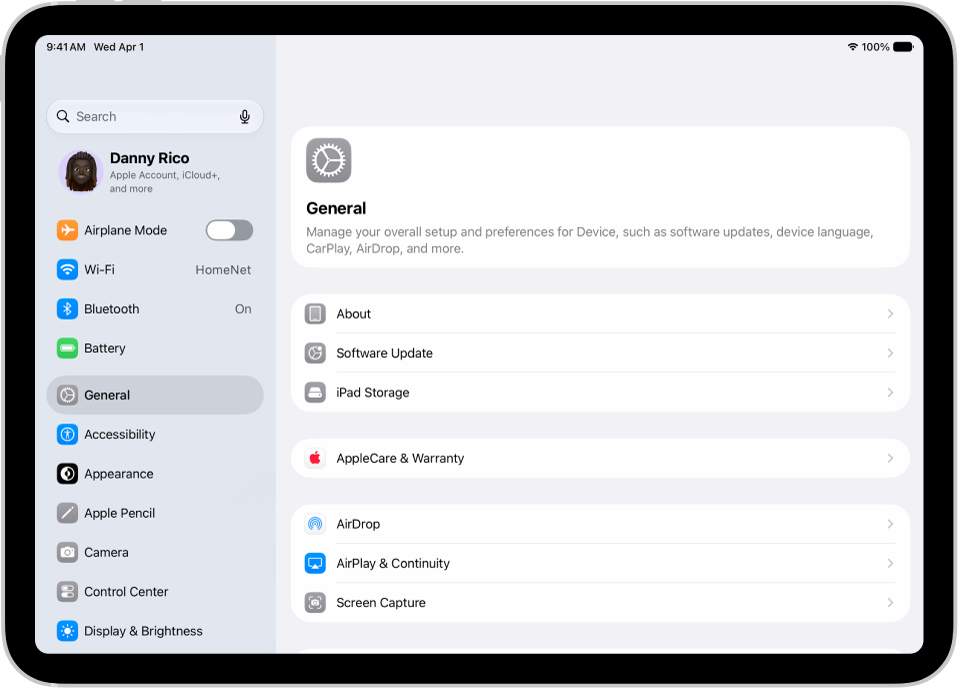
In the Settings app, you can search for iPad settings you want to change, such as your passcode, notification sounds, and more. Each section covers a different area of iPad, and depending on your iPad model, you may see different sections. Settings can even be searched from the Home Screen or Lock Screen.

Search for a setting

  1. Start the Settings app on your iPad.

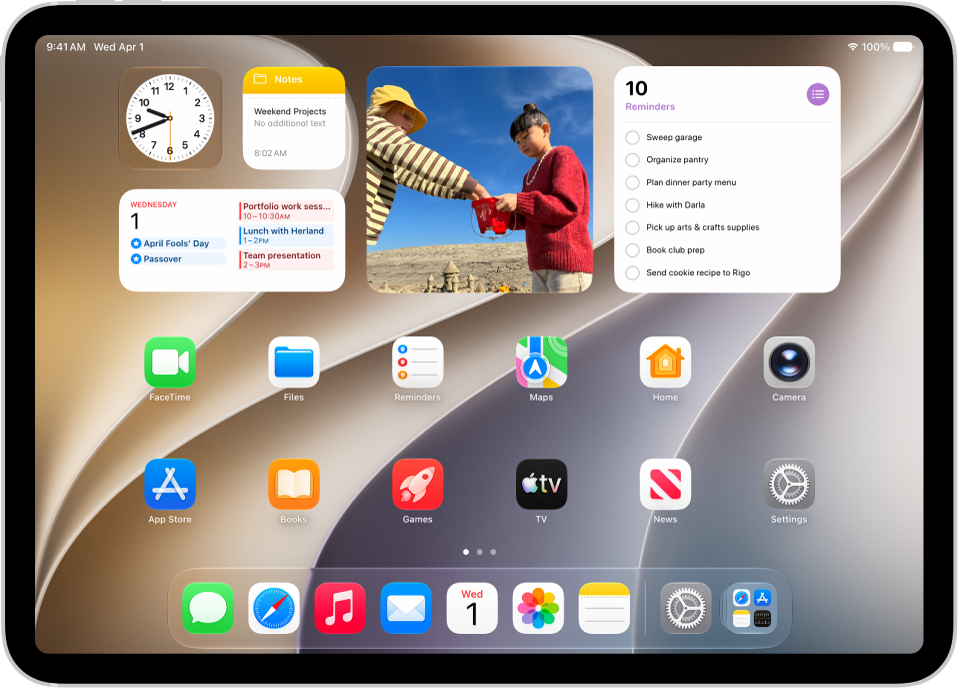
    The iPad Home Screen with several app icons, including the Settings app icon, which you can tap to change your iPad sound volume, screen brightness, and more.

  2. Tap the search field (at the top left), enter a term—”volume,” for example—then tap a setting on the left side of the screen.

    The iPad Home Screen with several app icons, including the Settings app icon, which you can tap to change your iPad sound volume, screen brightness, and more.

Quick tip: From the Home Screen or Lock Screen, you can also search for settings.

What’s in Settings

Settings is organized into sections. Each covers a different area of iPad, and the sections you see may vary depending on your iPad model.

Section Description
Your name Apple Account, iCloud storage and sync, subscriptions, Find My
Airplane Mode Turn Airplane Mode on or off
Wi-Fi Join and manage Wi-Fi networks, password sharing, Connectivity Assist
Bluetooth Connect and manage Bluetooth devices
Cellular On supported models, turn cellular data on or off, roaming, per-app data usage
Personal Hotspot Share your internet connection with other devices
Battery Battery percentage, battery usage by app, Low Power Mode, and Charge Limit on supported models
General Software update, date and time, language and region, keyboard, VPN, device management, transfer or reset iPad, and more
Accessibility Vision, physical and motor, hearing, speech, and accessibility features including VoiceOver, Zoom, and AssistiveTouch
Appearance Light or Dark Mode, text size, display appearance, and Liquid Glass settings
Apple Pencil Draw with Apple Pencil, Scribble, and Pencil Gestures
Camera Photo and video format, resolution, grid, and other camera options
Control Center Access Control Center within apps and reset Control Center
Display & Brightness Screen brightness, Night Shift, Auto-Lock
Home Screen & App Library Choose where newly downloaded apps are added, show Search on the Home Screen, notification badges in App Library
Multitasking & Gestures Stage Manager, Slide Over, Split View, and gesture settings
Search Spotlight search suggestions and which apps appear in search results
Siri Configure voice, language, and app suggestions
Wallpaper Change your Lock Screen and Home Screen wallpaper
Notifications Choose which apps can send notifications, notification sounds, scheduled summary
Sounds Ringtone, text tone, volume, vibration, lock sound, keyboard sound, headphone safety, and personalized audio
Focus Set up Do Not Disturb and Focus modes to reduce distractions
Screen Time App limits, downtime, content restrictions, parental controls
Face ID & Passcode or Touch ID & Passcode Set up Face ID or Touch ID, change passcode, allow access when locked
Privacy & Security App permissions, location services, and tracking
Game Center Game Center account, friends, and nearby players
iCloud iCloud storage, sync settings, and connected apps
Wallet & Apple Pay Payment cards, passes, and Apple Pay settings
Apps Settings for individual apps—Mail, Safari, Messages, Photos, and more

See also

After you set up iCloud Drive, you can share individual files and folders with friends and colleagues. When you change a shared file or folder, others see your changes automatically, and if you let people edit, their changes show up for you, too.

You can share a file or folder so only the people you choose can open it, or anyone with the link. And you can let them make changes, or restrict them to viewing only.

These are important characteristics of files and folders shared in iCloud Drive:

  • If you collaborate on a folder, all items added to that folder by you or other participants are automatically shared.
  • The link to a shared file includes its name. If the name or content is confidential, be sure to ask recipients not to forward the link to anyone else.
  • If you move a shared file to another folder or location, the link no longer works, and people lose access to the item.
  • Depending on the app, users might need to reopen a file or tap the original link to see the latest changes.

Share or collaborate on a file or folder

You can invite others to view or collaborate on the contents of a file or folder you own in iCloud Drive.

A file or folder can be shared so it opens only for people you choose, or for anyone with the link.

The contents of a file or folder can be open to changes, or you can restrict access so they’re view-only.

  1. Go to the Files app on your iPad.
  2. Go to a location and then touch and hold the file or folder you want to share.
  3. Tap the Share button, tap the menu under the item’s title, and tap Share a Link.
  4. To change who can access the file or folder and whether they can edit or just view and download, tap People you choose can edit and then do any of the following:

    • Only allow people you invite or approve to access the file or folder: Tap People you choose.

      Note: When you select “People you choose,” you can turn on Access Requests, which lets other people with the link ask you to approve their access.

    • Allow anyone with the link to access the file or folder: Tap Anyone with the link.
  5. Under New Participants Can, choose whether participants can edit or view and download only.
  6. Choose how you want to send your invitation.

Send a copy of a file or folder

  1. Start the Files app on your iPad.
  2. Go to a location and then touch and hold the file or folder you want to share.
  3. Tap the Share button and tap the menu under the item’s title. Then tap Send a Copy.
  4. Choose how you want to send your copy.

Invite more people to collaborate on a folder or file

If its access is set to “People you choose,” you can share a folder or file you’ve already shared with more people.

  1. Start the Files app on your iPad.
  2. Tap Shared at the top of the screen.
  3. Touch and hold the folder or file you want to share.
  4. Tap Manage Shared Folder or Manage Shared File.
  5. Tap Add Participant and choose a method for sending the link.
  6. Enter any other requested information. Send or post the invitation.

Share a folder or file with more people using a link

With access to a shared folder or file set to “Anyone with the link,” anyone who has the link can share it with others.

  1. Start the Files app on your iPad.
  2. Tap Shared at the top of the screen.
  3. Touch and hold the folder or file you want to share.
  4. Tap Manage Shared Folder or Manage Shared File. Then tap Copy Link.
  5. Choose a method for sending the link, enter any other requested information, and send or post the invitation.

Change access and permission settings for everyone

You can change the access of a shared folder or file you own at any time, and the change affects everyone you’ve shared the link with.

  1. Start the Files app on your iPad.
  2. Touch and hold the folder or file whose permissions you want to change.
  3. Tap Manage Shared Folder or Manage Shared File, then tap Sharing Options.
  4. Change either or both of the options.
    • Access option: When you change the access option from Anyone with the link to People you choose, the original link no longer works for anyone, and only people who receive a new invitation from you can open the folder or file.
    • Permission option: When you change the permission option, everyone who has the file open when you change the permission sees an alert. New settings take effect when the alert is dismissed.

Change access and permission settings for one person

For a shared folder or file you own with access set to “People you choose,” one person’s permission can change without affecting others’ permissions, and you can also remove the person’s access.

  1. Start the Files app on your iPad.
  2. Touch and hold the folder or file whose permissions you want to change.
  3. Tap Manage Shared Folder or Manage Shared File.
  4. Tap the person’s name, then select an option.

Stop sharing a folder or file

If you’re the owner of a shared folder or file, you can stop sharing it.

  1. Start the Files app on your iPad.
  2. Open the location of the folder or file you want to stop sharing.
  3. Touch and hold the folder or file. Tap Manage Shared Folder or Manage Shared File.
  4. Tap Stop Sharing.

When you stop sharing a file, anyone who has it open sees an alert. Dismissing the alert closes the item, removes the file from the person’s iCloud Drive, and stops the link from working. If you later share the item again with access set to “Anyone with the link,” the original link works. With “People you choose,” the original link works again, but only for the people you reinvite to share the item.

See also

Tags: Files, iCloud

You can access iCloud Drive and store files, create folders, and share documents with friends and family. Your content is on all your devices signed in to the same Apple Account, including a Mac, where iCloud Drive is in the Finder.

iCloud Drive is built into the Files app, and you can also use it on Windows devices with iCloud for Windows, or online at iCloud.com. Storage limits depend on your iCloud storage plan. You can also pick the apps that can store and edit content there.

Turn on iCloud Drive

  1. Open Settings, tap [your name], and then tap iCloud.
  2. Tap Drive, then turn on Sync this iPad.

Browse iCloud Drive

  1. Open the Files app on your iPad.
  2. Tap the Sidebar button at the top of the screen.
  3. Tap iCloud Drive below Locations.

    If you don’t see Locations, tap the Sidebar button again. If you don’t see iCloud Drive below Locations, tap Locations.

  4. To open a folder, tap it.

    See Modify files, folders, and view downloads.

Choose which apps use iCloud Drive

You decide which apps can store and edit content on iCloud Drive.

  1. Open Settings, tap [your name], and then tap iCloud.
  2. Tap See All next to Saved to iCloud.
  3. Turn on each app you want saved to iCloud, and turn off each one you don’t want saved.

See also

Tags: Files, iCloud

In the Files app, you can search for and view your documents, images, and other files.

You can focus your search on Recents or a location or tag, and start a new search at any time, too. You can also select an app to open a file, and choose a default app for a type of file.

Here’s how to find and view files and folders in Files on iPad.

Find a specific file or folder

  1. Open the Files app on your iPad.
  2. Tap the Search button and enter a filename, folder name, or document type in the search field.

    When you search, you have these options:

    • Focus the scope of your search: Below the search field, tap Recents or the name of the location or tag.
    • Hide the keyboard and see more results on the screen: Tap the search key on the keyboard.
    • Start a new search: Tap the Clear Text button in the search field.
    • Open a result: Tap it.

Select an app to open a file

When opening a file, you can specify the app you want to open it with.

  1. Open the Files app on your iPad.
  2. Touch and hold the file you want to open.
  3. Choose Open With from the menu. Choose an option.

Choose a default app to always open a file

  1. Open the Files app on your iPad.
  2. Touch and hold the file, then choose Get Info.
  3. Below the Preview, tap the pop-up menu next to Always Open With. Then select an app.

    When you select a new default app to open the file, a prompt appears to verify if you want to change the default app for that file or file type.

Open a file in Quick Look

You can preview an image file or a PDF in Quick Look.

  1. Open the Files app on your iPad.
  2. Touch and hold the file, then tap Quick Look.

    Tip: To open a specific type of file in Quick Look, touch and hold the file, tap Open With, then tap Preview with Quick Look.

Browse files and folders

  1. Open the Files app on your iPad.
  2. Tap Browse at the top of the screen. Then tap a document on the Browse screen.

    If you don’t see the Browse screen, tap Browse again.

  3. To view recently opened files, tap Recents at the top of the screen.
  4. To open a file, location, or folder, tap it.

    Note: If you haven’t installed the app that created a file, a preview of the file opens in Quick Look.

To mark folders as favorites or add tags, read our article, Tag a file or folder.

Change how files and folders are sorted

  1. Open the Files app on your iPad.
  2. From an open location or folder, tap the More button in portrait orientation or the Icons button in landscape orientation.
  3. Choose an option: Name, Kind, Date, Size, or Tags.

See also

Tag: Files

In the Files app, you can organize documents, images, and other files in folders.

You can create a folder, copy or compress a file, and make other changes to a file or a folder, or rename it. You can also modify multiple files or folders at the same time. Depending on the item, some options may not be available, and New Folder only appears where you’re allowed to create one.

Create a folder

  1. Open the Files app on your iPad.
  2. Open a location or an existing folder.
  3. Tap the New Folder button.

    Note: If you don’t see New Folder, you can’t create a folder in that location.

Copy, compress, and make other changes to a file or a folder

  1. Open the Files app on your iPad.
  2. Open a location or an existing folder.
  3. Touch and hold the file or folder. Choose an option: Copy, Move, Share, Compress, Duplicate, or Delete.

The item you select determines which options are available. An app library, which is a folder labeled with the app name, can’t be deleted or moved, for example.

To modify multiple files or folders at the same time, tap Select, tap to select the files or folders you want to modify, then tap an option at the top of the screen (Share, Duplicate, Move, Delete, and so on).

Rename a file or folder

  1. Open the Files app on your iPad.
  2. Open a location or an existing folder.
  3. Touch and hold the file or folder and choose Rename.

With Apple Intelligence, Files recommends a name above the keyboard when you rename a file.

Note: Apple Intelligence on iPadOS 27 or later is available on an Apple Intelligence-enabled iPad mini (A17 Pro) and iPad models with M1 or later. Apple Intelligence is not available in all languages or regions. Usage limits may apply.*

Zip or unzip a file or folder

To save storage space on your iPad, you can zip a file or folder to compress it, and you can unzip a compressed file or folder as well.

  1. Open the Files app on your iPad.
  2. Touch and hold the file or folder you want to zip. Then tap Compress.

To unzip a compressed file or folder, touch and hold it, then tap Uncompress.

Tag a file or folder

  1. Open the Files app on your iPad.
  2. Open a location or an existing folder.
  3. Touch and hold the file or folder, tap Tags, and then tap one or more tags.
  4. Tap Done.

In the sidebar, tagged items appear below Tags.

To remove a tag, tap it again.

Mark a folder as a favorite

  1. Open the Files app on your iPad.
  2. Open a location or an existing folder, touch and hold the folder, and tap Favorite.

*Apple Intelligence is available with Siri and device language set to Chinese (Simplified), Chinese (Traditional), Danish, Dutch, English, French, German, Italian, Japanese, Korean, Norwegian, Portuguese, Spanish, Swedish, Turkish, or Vietnamese. Some features may not be available in all regions or languages. Some devices may not be available in all regions. Siri AI is available in beta in iOS 27, iPadOS 27, macOS 27, watchOS 27, and visionOS 27 and requires an Apple Intelligence–enabled device set to a supported language. Available in English to start. Siri AI will not be initially available in the EU on iOS, iPadOS, and watchOS. Certain Apple Intelligence features that rely on server-side models are subject to daily usage limits, including but not limited to Siri AI, Intelligent Photo Editing Tools, Image Playground, and AFM 3 Cloud models in Shortcuts. Daily limits may vary by feature, request complexity, system demand, system policies, and other factors. Expanded access to such features will be available for a fee in the future. Use of these features is subject to the Apple Intelligence Terms and Conditions.

See also

Tag: Files

In the Files app, you can locate and view your files, organize and rearrange them in folders, compress, rename, and share them with friends, and transfer them to and from iCloud Drive and other locations. Downloads, iCloud Drive, and Recents are all in the sidebar.

  1. Open the Files app on your iPad.
  2. Do any of the following:

    • View files downloaded from email or the internet: Tap the Sidebar button at the top of the screen and tap Downloads in the sidebar. See Find your downloaded files.

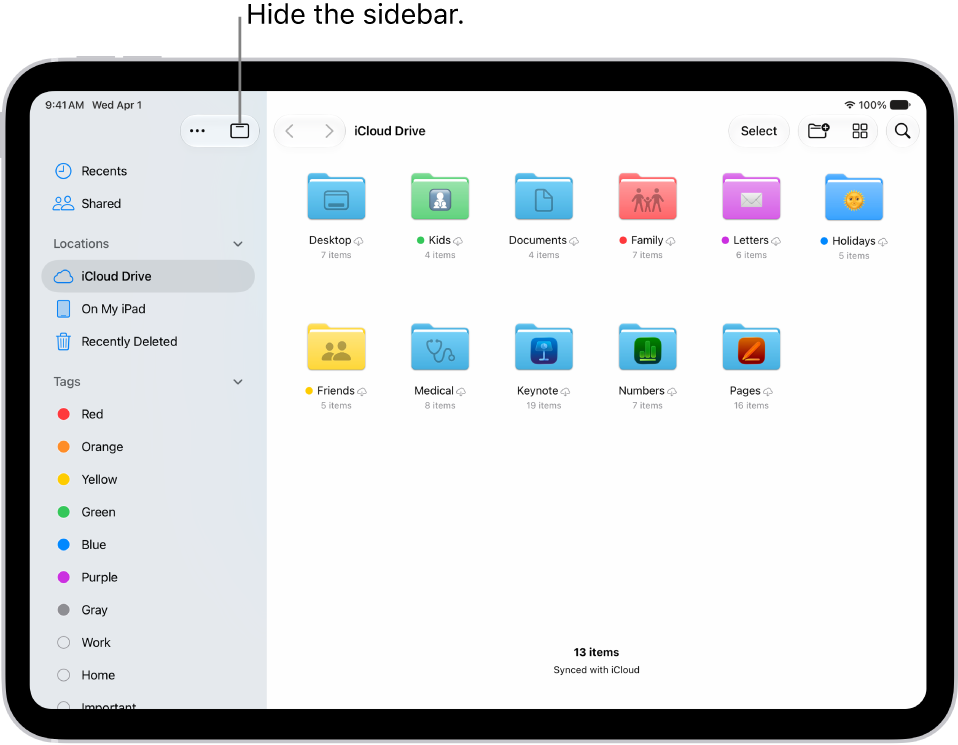
      Note: If you don’t see the Sidebar button, tap the Hide Sidebar button.

    • Browse your files on iCloud Drive: Tap the Sidebar button at the top of the screen. See Browse iCloud Drive.
    • View files you opened recently: Tap the Sidebar button at the top of the screen and then tap Recents at the top of the sidebar.
    • View shared files: Tap the Sidebar button at the top of the screen and then tap Shared in the sidebar.
    • Copy, move, share, or delete a file or folder: Locate the file or folder, touch and hold it and then tap Copy, Move, Share, or Delete. See Modify files and folders in Files.
Tag: Files

You can copy, move, customize, share, and delete your documents, images, folders, and other files on iPad.

You can add colors and icons to your folders to make them easier to spot, and change your view of the files in a location or folder to icons, a list, or columns. You can also move a file or folder to a new place.

Here’s how to modify files and folders in Files on iPad.

The Files app displaying multiple folders and locations named Downloads, Letters, Family, and so on. At the bottom of the screen are buttons for Recent files, Shared files, and the Browse tab.

Customize the appearance of your folders

Color and icons make your folders easier to spot.

  1. Go to the Files app on your iPad.
  2. Touch and hold the folder you want to customize, then choose Customize Folder & Tags.
  3. Tap Tags, choose a color, and then tap the Back button.
  4. Select an icon or tap Emoji to add an emoji to the folder.

To remove the icon from the folder, tap Clear below the icons.

Change to icon, list, or column view

In an open location or folder on iPad, you can change your view of the files.

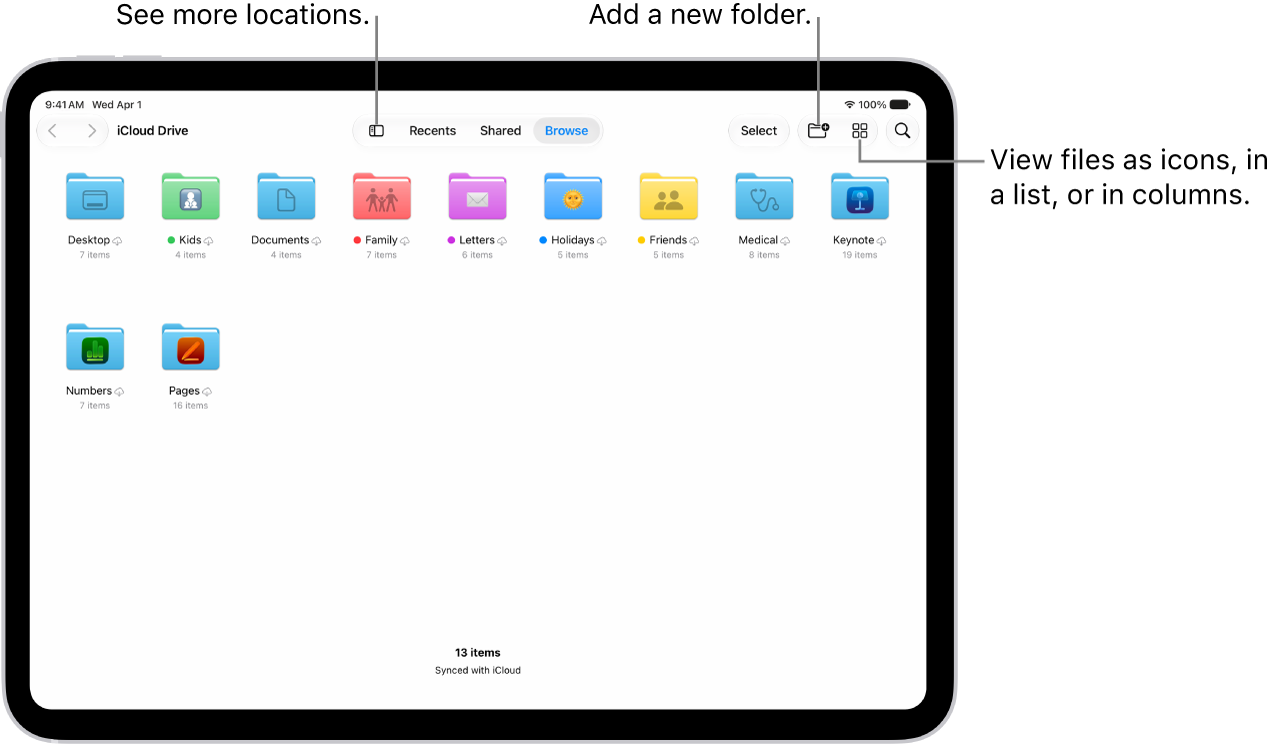
The Files app showing the files and folders in your iCloud Drive. At the top of the screen are buttons for selecting items, creating a new folder, changing the view (List, Icons, Columns), and Search.

  1. Start the Files app on your iPad.
  2. Tap a location at the top of the screen—Recents, Shared, or Browse— or tap the Sidebar button. Tap a location in the sidebar.
  3. Tap the List button, the Icons button, or the ColumnView button and choose how to view the files.

    To look deeper into a file hierarchy in List view, tap the Forward button next to a folder to expand it.

    To look deeper into a folder hierarchy in the Column view, tap an item in the rightmost column. To see a preview of a file along with its metadata (such as its kind, size, and creation date), tap the file in Column view. (If the preview doesn’t appear in the rightmost column, swipe left.) To view the file and perform various actions on it without leaving Files, tap Open below the file preview.

Move a folder to the Dock for easy access

To make a folder you access frequently easy to find and open, move it to the Dock.

  1. Start the Files app on your iPad.
  2. Touch and hold the folder you want to move until a menu opens.
  3. Choose Add To in the menu and tap Dock.

You can tap the folder in the Dock to expand it and see the files in it. To open a file from a folder in an app, drag the file to the app in the Dock or, if the app is already open, directly into the app’s window. For example, if you have Messages open, you can drag a file from a folder directly into a conversation you’ve pulled up.

Rearrange the sidebar

  1. Start the Files app on your iPad.
  2. Tap the Sidebar button to show the sidebar.
  3. Tap the More button at the top of the sidebar, tap Edit Sidebar, and then do any of the following:
    • Hide a location: Turn the location off.
    • Delete a tag and remove it from all items: Tap the Remove button next to the tag. (See Tag a file or folder.)
    • Remove an item from the Favorites list: Tap the Remove button next to the item. (See Mark a folder as a favorite.)
    • Change the order of an item: Touch and hold the Reorder button and then drag it to a new position.

Delete a file or folder

  1. Start the Files app on your iPad.
  2. Locate the file or folder you want to delete.
  3. Touch and hold the item and tap Delete.

See also

Tag: Files