Got a tip for us?

Your heart rate is an important way to monitor how your body is doing. You can check your heart rate during a workout; see your resting, walking, workout, and post-workout heart rates, and your heart rate during a Breathe session; or take a new reading at any time.

Heart rate data is on by default, and it feeds the Heart Rate app, workouts, and Breathe and Reflect sessions. You can see graphs of your data, too.

Here’s how to check your heart rate on Apple Watch.

Note: Make sure that your wrist and your Apple Watch are clean and dry. Water and sweat can cause a poor recording.

Turn on heart rate data

Your Apple Watch monitors your heart rate by default for workouts, the Heart Rate app, and Breathe and Reflect sessions. Turning heart rate data back on is always an option if you’ve switched it off.

  1. Open the Settings app on your Apple Watch.
  2. Tap Privacy & Security and tap Health.
  3. Tap Heart Rate, then turn on Heart Rate.

You can also open the Apple Watch app on your iPhone, tap My Watch, tap Privacy, then turn on Heart Rate.

See your heart rate

Go to the Heart Rate app on your Apple Watch to view your current heart rate.
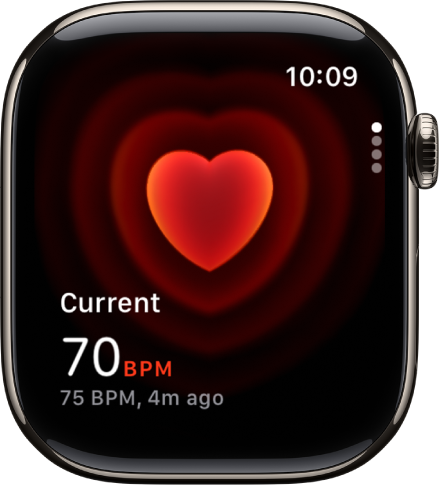
A Heart Rate screen, with your current heart rate showing in the bottom left, and your last reading in smaller type below that.

As long as you’re wearing it, your Apple Watch keeps measuring your heart rate.

On Apple Watch Series 12 and Apple Watch Ultra 4, you can view a chart of your heart rate measurements as it updates in real time. To turn off these measurements, go to the Apple Watch app on your iPhone, tap Apps, tap Heart, then turn off Continuous Measurements.
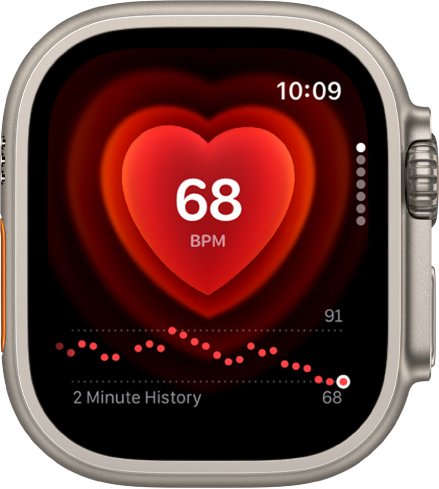
The Heart Rate app showing a heart rate reading. A graph of heart rate data appears at the bottom of the screen.

See a graph of your heart rate data

  1. Open the Heart Rate app on your Apple Watch.
  2. Turn the Digital Crown to Range, Resting Rate, or Walking Average to show your heart rate throughout the day.
  3. To learn more about your heart rate data, tap the Info button.

To see your heart rate data over a longer period of time, go to the Health app on your iPhone, tap Browse, tap Heart, then tap an entry. You can show heart data for the last hour, day, week, month, or year.

View your recovery heart rate variability

Apple Watch Series 12 and Apple Watch Ultra 4 can show your recovery heart rate variability, or HRV, which measures the overall variation in time between heart beats.

  1. Open the Heart Rate app on your Apple Watch.
  2. Turn the Digital Crown to Heart Rate Variability to view your data.
  3. To learn more, tap the Info button.

Note: The back of your Apple Watch needs skin contact for features like wrist detection, haptic notifications, blood oxygen level measurements, and the heart rate sensor. Wearing your Apple Watch with the right fit—not too tight, not too loose, and with room for your skin to breathe—keeps you comfortable and lets the sensors do their job.

See also

Tag: Health

Apple Watch has an electrical heart rate sensor that, along with the ECG app, allows you to take an electrocardiogram (or ECG). It’s quick.

To use the ECG app, update your iPhone 11 or later or iPhone SE (2nd generation or later) to the latest version of iOS and Apple Watch to the latest version of watchOS. Then you set it up in the Health app and record from your wrist, and at the end of the recording, you receive a classification.

Note: The ECG app isn’t available on Apple Watch SE 3 or in all countries or regions.

  1. Open the Health app on your iPhone and then follow the onscreen steps to set up ECG.

    If you don’t see a prompt to set up, tap Browse at the bottom-right, tap Heart, then tap Electrocardiogram (ECG).

  2. Open the ECG app on your Apple Watch.
  3. Rest your arm on a table or in your lap.
  4. With the hand opposite your watch, hold your finger on the Digital Crown. Wait while Apple Watch records the ECG.

    You don’t need to press the Digital Crown during the session.

At the end of the recording, you receive a classification. You can then tap Add Symptoms and choose your symptoms. Tap Save to note any symptoms, then tap Done. To view your results on iPhone, go to the Health app on iPhone, tap Browse at the bottom-right, tap Heart, then tap Electrocardiograms (ECG).

Important: To ensure the best reading after swimming, showering, heavy perspiration, or washing your hands, clean and dry your Apple Watch. It may take 1 hour or more for Apple Watch to completely dry. ECG is designed to function between 32 and 95 °F (0 and 35 °C).

See also

Tag: Health

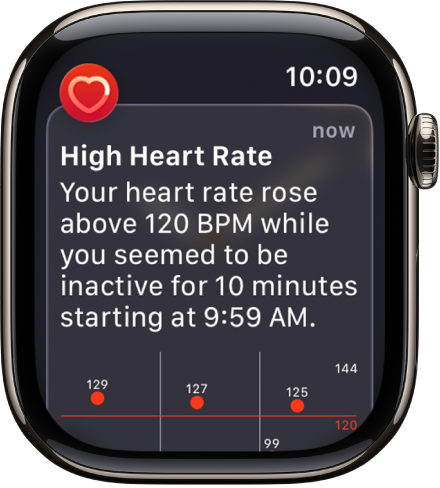
Your Apple Watch can tune in to your heart and send notifications when something out of the ordinary occurs. For example, it can notify you if your heart rate remains above or below a chosen threshold after you’ve been inactive for at least 10 minutes. You can turn on heart rate notifications when you first open the Heart Rate app, or at any time later.

Your watch can also notify you of an irregular heart rhythm that appears to be atrial fibrillation (AFib). If you have already been diagnosed with AFib, your Apple Watch can help you understand how frequently your heart is in this arrhythmia, and you can track lifestyle factors that may influence your condition.

Receive high or low heart rate notifications

A Heart Rate alert, indicating a high heart rate.

  1. Open the Settings app on your Apple Watch and then tap Heart.
  2. Tap High Heart Rate Notifications or Low Heart Rate Notifications. Set a heart rate threshold.

You can also open the Apple Watch app on your iPhone, tap My Watch, then tap Heart. Tap High Heart Rate or Low Heart Rate, then set a threshold.

Set up irregular heart rhythm notifications (not available in all countries or regions)

You can receive a notification if Apple Watch has identified an irregular heart rhythm that appears to be atrial fibrillation (AFib).

  1. Open the Apple Watch app on your iPhone.
  2. Tap My Watch, tap Apps, tap Heart, and then tap Set Up Irregular Rhythm Notifications in Health.
  3. In the Health app, tap Set Up and then follow the onscreen instructions.

Show AFib history (not available in all countries or regions)

If you’ve been diagnosed with AFib, do the following:

  1. Open the Health app on your iPhone.
  2. Tap Browse, tap Heart, tap AFib History, tap Set Up, and follow the onscreen instructions.
  3. To show your AFib history, open the Health app, tap Browse and tap Heart. Then tap AFib History.

Every Monday, if you’ve worn your watch for at least 5 of 7 days (12 hours a day), you may receive a notification with an estimate of the time you spent in AFib during the previous calendar week.

Set up low cardio fitness notifications

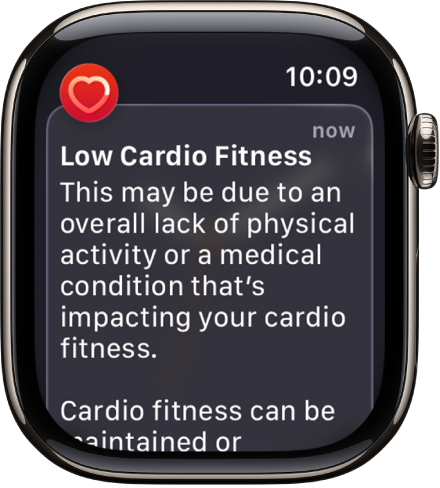
During an outdoor walk, run, or hike, Apple Watch can measure how hard your heart and lungs are working to provide cardio fitness estimates, and it can notify you when your cardio fitness level is low. Your cardio fitness falls into one of four ranges based on your age and sex: Low, Below Average, Above Average, or High. A cardio fitness level in the Low range brings a notification on your Apple Watch, and if it stays low, you’ll get another notification every 4 months.

A Heart Rate alert, indicating low cardio fitness.

  1. Open the Apple Watch app on your iPhone.
  2. Tap My Watch, tap Apps and tap Heart. Then turn on Cardio Fitness Notifications.

Look in the Cardio Fitness section of the Health app to see your cardio fitness measurements and the range they fall into. Tap Show All Cardio Fitness Levels for more information.

See also

Tag: Health

You can wear Apple Watch to analyze your heart data, which can be used to detect signs of possible hypertension (available on supported models; not available in all countries or regions).

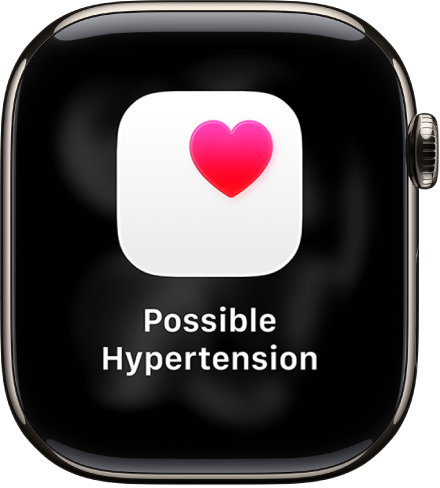
If your Apple Watch detects patterns of hypertension, you receive a notification to discuss with your healthcare provider. You’re also prompted to use a third-party blood pressure cuff to take measurements over a 7-day period, and you can set up reminders for the morning and evening. Then you can log your blood pressure in the Health app.

A Heart Rate notification, indicating possible hypertension.

Important: Your Apple Watch is not a medical device and is not intended to replace talking with your doctor for diagnosis, treatment, or monitoring of hypertension. Apple Watch cannot detect a heart attack or identify every instance of hypertension. Hypertension notifications are not intended for use if you have diagnosed hypertension, or are under 22 years old. Hypertension notifications should also not be used during pregnancy.

Set up hypertension notifications

  1. Open the Health app on your iPhone.
  2. Tap your picture or initials at the top right.
  3. Tap Health Checklist, tap Set Up below Hypertension Notifications, and follow the onscreen instructions.

Set up a Blood Pressure Log

When you receive a hypertension notification, you’re prompted to get a blood pressure cuff and log your blood pressure twice a day for 7 days.

  1. Open the Health app on your iPhone.
  2. Tap Browse, tap Heart, and then tap Blood Pressure.
  3. Tap Blood Pressure, tap Get Started below Blood Pressure Log, and follow the onscreen instructions.

    You’re asked to schedule reminders to log your blood pressure after you wake up and right before bedtime.

Log your blood pressure

To measure your blood pressure, put the cuff on your arm, then follow the instructions. After you measure your blood pressure, you can log it in the Health app on your iPhone.

  1. Open the Health app on your iPhone.
  2. Tap Browse, tap Heart, and then tap Blood Pressure.
  3. Tap Blood Pressure and tap Add a Measurement below Blood Pressure Log.
  4. Do the following:
    • Change the date and time: Tap the date and time and then make a change.
    • Enter systolic and diastolic values: Tap the text field next to Systolic and Diastolic and then enter a value.
  5. When you’re finished, tap the Done button.

Turn off hypertension notifications

  1. Open the Health app on your iPhone.
  2. Tap your picture or initials at the top right.
  3. Tap Health Checklist, tap Hypertension Notifications, and turn Hypertension Notifications off.

See also

Tag: Health

With the Camera Remote app, you can use your Apple Watch as a viewfinder for your iPhone camera and take photos and videos from a distance. You can even control the flash, set a shutter timer, and review your shots right on Apple Watch.

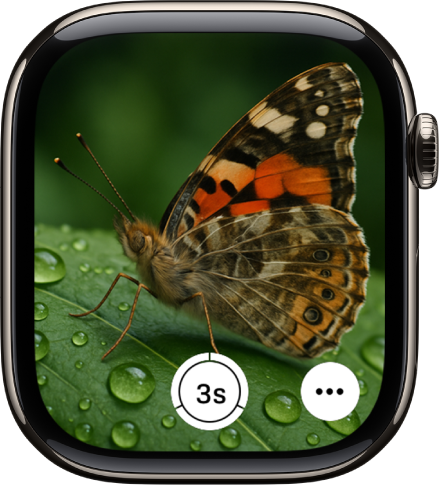
To work as a camera remote, your Apple Watch needs to be within normal Bluetooth range of your iPhone, about 33 feet or 10 meters. By default, each shot is taken with a 3-second timer, and the photo is saved in the Photos app on your iPhone.

Quick tip: For the best results, keep your iPhone steady during remote shooting by placing it on a stable surface or using a tripod. Opening your iPhone camera brings up a hint at the bottom of your Apple Watch face; tap it to open the Smart Stack, and then tap Camera Remote.

The Apple Watch screen showing what’s in the iPhone camera’s view. The shutter button is at the bottom center. The More Options button is at the bottom right.

Take a photo using your iPhone camera

  1. Open the Camera Remote app on your Apple Watch.
  2. Do any of the following:

    • Frame the shot: Use your Apple Watch as a viewfinder.
    • Zoom: Turn the Digital Crown.
    • Adjust exposure: Tap the key area of the shot in the preview image.
    • Take the photo: Tap the Shutter button.

      By default, the shot is taken with a 3-second timer. Tap the More Options button to turn off the timer or change other settings.

The Camera Remote app lets you review the photo, and it’s saved in the Photos app on your iPhone.

Record video using your iPhone camera

With the Camera Remote app on Apple Watch, you can record video using your iPhone.

  1. Open the Camera Remote app on your Apple Watch.
  2. Position your iPhone to frame the shot using your Apple Watch as a viewfinder.

    To zoom, turn the Digital Crown.

  3. Touch and hold the Shutter button until the recording begins.
  4. Tap the Stop button to end the recording.

Review the video in the Camera Remote app afterward. It’s saved in the Photos app on your iPhone.

Review your shots

  1. Open the Camera Remote app on your Apple Watch.
  2. Tap the thumbnail at the bottom left.
  3. Do any of the following:
    • View more shots: Swipe left or right.
    • Zoom: Turn the Digital Crown.
    • Pan: Drag a zoomed photo.
    • Fill the screen: Double-tap the photo.
    • Show or hide the controls: Tap the screen.
  4. When you’re finished, tap the Close button.

Switch the camera and adjust settings

  1. Open the Camera Remote app on your Apple Watch.
  2. Tap the More Options button. Then set any of the following:
    • Timer: Turn the 3-second timer on or off.
    • Camera: Choose Front or Rear.
    • Flash: Choose Auto, On, or Off.
    • Live Photo: Choose Auto, On, or Off.

See also

Tag: camera

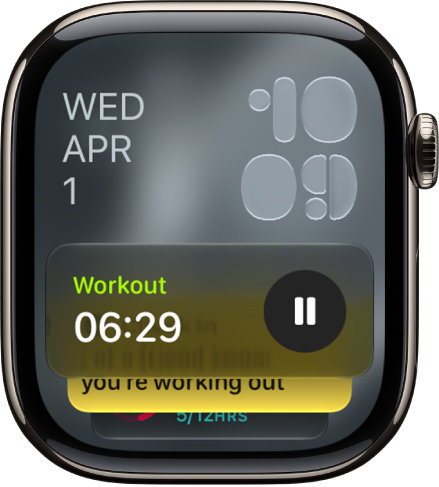
The Smart Stack suggests helpful information or actions that you can take depending on your context—like the time of day, your location, or recent activity. The Smart Stack also shows Live Activities for real-time updates on workouts, timers, and more.

When the Smart Stack has an immediately useful suggestion, Apple Watch gently taps your wrist with a hint. You can open the hint right away, or mute it for 24 hours.

The Smart Stack on Apple Watch showing Live Activities and widgets.

Use tap gestures to access widgets in the Smart Stack

  1. From the watch face, open the Smart Stack with the double tap gesture.
  2. Scroll through the widgets with the double tap gesture.
  3. Open a widget with the single tap gesture.
  4. Select a button in the widget—such as play or pause music—with the single tap gesture.
  5. To close the Smart Stack and return to the watch face, perform a wrist flick.

Open the Smart Stack

  1. From the watch face, turn the Digital Crown upward or swipe up from the bottom of the screen.
  2. Scroll to the widget you want to use. Tap it to open the associated app.

    Tip: To access Music, Workouts, or Messages, scroll to the bottom of the Smart Stack.

Use Smart Stack hints

Using on-device data and trends from your daily routine, Apple Watch gently taps your wrist with a hint when the Smart Stack has a suggestion that’s immediately useful for you. A small icon appears at the bottom of the watch face.

When a hint appears, do one of the following:

  • Open the hint: Tap the Smart Stack hint at the bottom of the watch face to open the Smart Stack.

    The Apple Watch face with a Smart Stack hint at the bottom center.

  • Mute the hint for 24 hours: Swipe down on the Smart Stack hint.

Note: For suggestions like workouts, Apple Watch needs some time to learn your routine.

Customize the Smart Stack

The widgets in the Smart Stack are yours to add, remove, and rearrange. Some apps offer more than one widget, and you can customize some widgets to see what’s most important for you, like choosing a frequently used home accessory in the Home widget.

  1. Open the Smart Stack.
  2. Scroll to the bottom and tap Edit. Do any of the following:
    • Add a widget: Tap the Add Widget button, then choose a widget. With certain widgets, you can tap the Expand button for customization options.
    • Remove a widget: Tap the Delete button.
    • Pin widgets: Tap the Pin button on the right side of each widget you want to stay in a fixed position.
    • Reorder pinned widgets: Touch and hold a widget you want to move and drag it to a new position.
  3. When you’re finished, tap the Done button.

See also

Live Activities—app activities in progress such as a workout, a timer, or music—appear on the Apple Watch face and at the top of the Smart Stack.

You can see them at a glance, and choose when and how Live Activities appear.

Here’s how to view Live Activities on Apple Watch.

See Live Activities

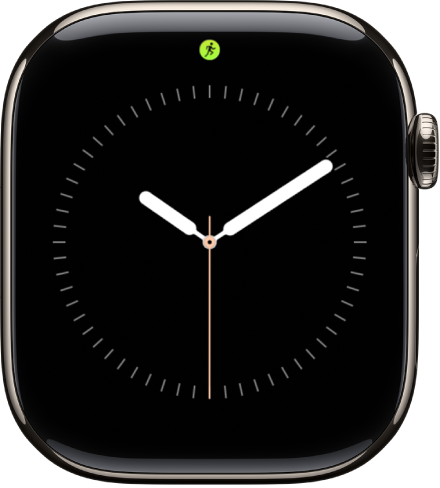
  1. Tap the Live Activity at the top of the watch face.

    The Apple Watch face with a Live Activity dot at the top center.

  2. To return to the watch face, press the Digital Crown.

Choose when and how Live Activities appear

  1. Start the Settings app on your Apple Watch.
  2. Tap Smart Stack and tap Live Activities. Then set any of the options.

See also

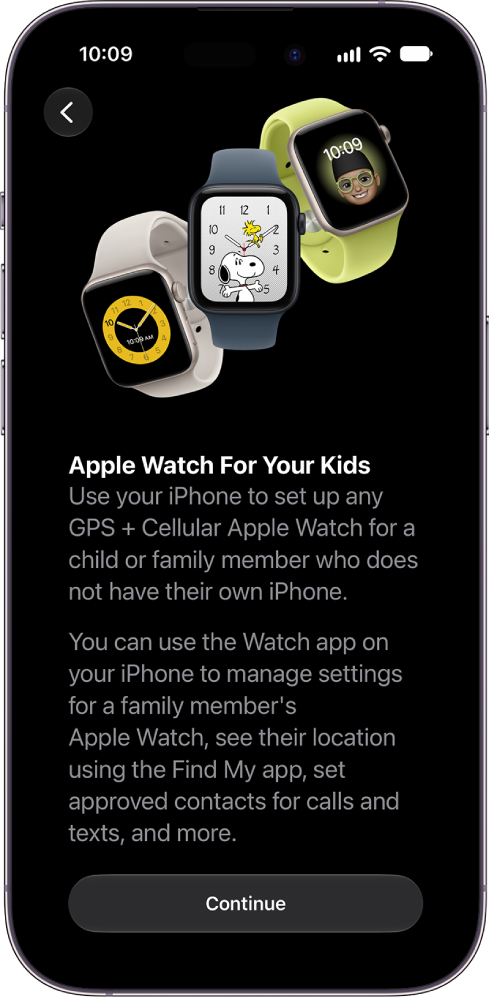
You can set up any Apple Watch with cellular for your child or family member, even if they don’t have their own iPhone. To do so, you must be the family organizer or parent/guardian in your Family Sharing group.

On watchOS 27, your child or family member must be part of your Family Sharing group and have a cellular-capable Apple Watch SE 3 or Apple Watch Series 9 or later. Their watch doesn’t have to use the same cellular carrier as the iPhone you manage it with, but the iPhone you use to pair and set up the watch must be within normal Bluetooth range (about 33 feet or 10 meters) of it to manage settings and update the software.

An iPhone showing setup details for Apple Watch For Your Kids.

Apple Watch For Your Kids is not available in all countries or regions.

Refer to the following resources to get more iPad-related software, service, and support information. They cover the latest information about iPad, getting personalized support, managing your Apple Account, using iCloud, finding your iPad serial number or IMEI, obtaining warranty service, and viewing iPad regulatory information.

To learn about Do this
iPad service and support, tips, forums, and Apple software downloads See the iPad Support website.
The latest information about iPad See the iPad website.
Getting personalized support (not available in all countries or regions) See the Apple Support website.
Managing your Apple Account Sign in to your Apple Account.
Using iCloud See the iCloud User Guide.
Using iTunes for Windows See the iTunes User Guide for Windows.
Manage app billing and subscriptions See the Billing and Subscriptions website.
Finding your iPad serial number or IMEI You can find your iPad serial number or International Mobile Equipment Identity (IMEI) on the iPad packaging. Or, on iPad, go to Settings > General > About.
Obtaining warranty service First follow the advice in this guide, then see the iPad Support website.
Viewing iPad regulatory information On iPad, go to Settings > General > Legal & Regulatory.
Battery service See the Battery Service and Recycling website.
Learn about iPad compliance with power management requirements See the Environmental regulatory information website.
Using iPad in an enterprise environment See the Apple at Work website.
Using iPad in education See the Education website.