Got a tip for us?

By default, iCloud encrypts your information in transit, stores it in an encrypted format, and secures your encryption keys in Apple data centers. Many Apple services also use end-to-end encryption, with keys derived from your devices and your device passcode, which only you know.

With Advanced Data Protection, your protected data can be decrypted only on your trusted devices, protecting your information even in the case of a data breach in the cloud. Not even Apple can access your information.

For the highest level of cloud data security, you can turn on Advanced Data Protection (iPadOS 16.2 or later required). It uses end-to-end encryption on more data categories such as the following:

  • Device backup
  • Messages backup
  • iCloud Drive
  • Notes
  • Photos
  • Reminders
  • Safari bookmarks
  • Siri Shortcuts
  • Voice Memos
  • Wallet passes

Turn on Advanced Data Protection

  1. Open Settings, tap [your name], tap iCloud, and tap Advanced Data Protection.
  2. Tap Turn On Advanced Data Protection.
  3. If you haven’t set up a Recovery Contact or Recovery Key, tap Account Recovery, tap Set Up Account Recovery, and then follow the onscreen instructions.

    WARNING: If you use Advanced Data Protection, you’re responsible for your data recovery. Because Apple won’t have the keys required to recover your data, you’ll need to have a Recovery Contact or Recovery Key set up on your account. You can use these additional recovery methods to regain access to your data if you ever forget your password or lose access to your account.

Should you turn off Advanced Data Protection later, your iCloud data returns to the standard level of security.

Tag: iCloud

Used in conjunction with Apple Watch, Apple Fitness+ is a subscription service with a catalog of workouts, led by expert trainers, that you can choose from. While you follow a workout on your iPad, in-session metrics like heart rate and calories burned appear on your screen.

Those metrics are captured by your watch, which needs watchOS 7.2 or later. Apple Watch is sold separately, though, so you’ll need one to use Fitness+ on your iPad. And Apple Fitness+ availability varies by country or region.

You control how Apple delivers advertising. Ads delivered by Apple may appear in the App Store, Apple News, and Stocks, and these ads don’t access data from any other apps.

In the App Store and Apple News, your search and download history may be used to serve you relevant search ads. In Apple News and Stocks, ads are served based partly on what you read or follow, including publishers you’ve turned on notifications for and the type of publishing subscription you have. What you read is linked to a random identifier rather than to your Apple Account, and it isn’t used to target ads outside these apps. Your personal data isn’t provided to other parties, either.

Review the information Apple uses to deliver ads

Go to Settings > Privacy & Security > Apple Advertising > View Ad Targeting Information.

The information is used by Apple to deliver more relevant ads in the App Store, Apple News, and Stocks. Your personal data isn’t provided to other parties, Apple says.

Turn personalized ads on or off

Go to Settings > Privacy & Security > Apple Advertising, then turn Personalized Ads on or off.

Note: Turning off personalized ads limits Apple’s ability to deliver relevant ads to you. It may not reduce the number of ads you receive.

Learn more about privacy and Apple’s advertising platform

Go to Settings > Privacy & Security > Apple Advertising > About Advertising & Privacy.

See also

Impersonation Risk Detection can help protect you from scams by detecting suspicious activity in real time. When it’s on and suspicious activity is detected in a third-party app, you may see a warning message or be asked to verify your identity before you continue. You can turn it on or off at any time.

Note: This feature is only available in third-party apps that support Impersonation Risk Detection.

Turn Impersonation Risk Detection on or off

  1. Open the Settings app on your iPad.
  2. Tap Privacy & Security, then tap Impersonation Risk Detection. (You may need to scroll down.)
  3. Turn Share with App Developers on or off.

HDR (High Dynamic Range) helps you take great photos in high-contrast situations. The iPad camera takes several photos in rapid succession at different exposures and blends them together, so the resulting photo has better detail in the bright and mid-tone areas.

By default, iPad uses HDR automatically when it’s most effective, but you can control it yourself instead. The HDR version of a photo is saved in Photos, and on some models, you can keep the normal version, too.

Turn off automatic HDR

iPad uses HDR automatically by default, whenever it’s most effective. If you’d rather control HDR manually instead, do the following:

  • On models that support manual HDR in Settings, go to Settings > Camera, then turn off Smart HDR. On the camera screen, tap HDR to manually turn it on or off.
  • On earlier iPad models, tap the HDR off button on the camera screen to manually turn it on or off.

By default, the HDR version of a photo is saved in Photos. On some iPad models, you can also save the non-HDR version; go to Settings > Camera, then turn on Keep Normal Photo.

Tag: camera

You can customize your gaming experience on iPhone by changing settings for the Apple Games app and Game Center. These settings let you control notifications, friend requests, multiplayer gaming, and content restrictions.

In Game Center, you can choose who sees your profile, achievement progress, and recently played games: Everyone, Friends Only, or Only You. You can also let nearby players in the same game invite you to a multiplayer game over Wi-Fi or Bluetooth®.

Change Apple Games app settings

  1. Start the Settings app on your iPhone.
  2. Tap Apps and tap Games. Then do any of the following:
    • Show or hide relevant content by combining your gaming activity: Turn on Combine Gaming Activity.
    • Reset the identifier used to report Games usage statistics to Apple: Tap Reset Identifier.

Change Game Center settings

  1. Start the Settings app on your iPhone.
  2. Tap Game Center, then do any of the following:
    • View friends: Tap All Friends.
    • Accept or decline friend requests: Tap Friend Requests.
    • Allow or disallow apps to access your list of Game Center friends: Tap Share Friends List, then turn Share Friends List on or off.
    • Allow Game Center friends to find you with the email and phone number associated with your Apple Account: Turn on Help Friends Find You.
    • Manage activity sharing: Choose Everyone, Friends Only, or Only You to specify who can see your profile, achievement progress, leaderboard updates, and recently played games.
    • Allow invitations from nearby players: Turn on Nearby Players to allow nearby Game Center players in the same game to invite you to a multiplayer game over Wi-Fi or Bluetooth®.
    • Sign out of Game Center: Tap Sign Out.

Change Game Center restrictions

Game Center restrictions can limit features like in-app purchases, multiplayer games, and friend requests, for a safer, more controlled gaming experience.

  1. Start the Settings app on your iPhone.
  2. Tap Screen Time, tap Content & Privacy Restrictions, and turn on Content & Privacy Restrictions.
  3. Tap App Store, Media, Web & Games, scroll down to Game Center, and then set any of the following restrictions:
    • Multiplayer Games
    • Adding Friends
    • Connect with Friends
    • Screen Recording
    • Nearby Multiplayer
    • Private Messaging
    • Profile Privacy Changes
    • Avatar & Nickname Changes

You can flag important email messages, create flagged mailboxes, and flag messages from VIPs. You can also block messages from specified senders.

A message you flag stays in your Inbox and is easier to find later. You can flag a Primary message, flag all Transactions, Updates, or Promotions messages from a single sender, or flag just one of them, and change or remove a flag later.

Here’s how to flag or block emails in Mail on iPhone.

Flag an email

Flagging an important email message makes it easier to find later.

Messages you flag stay in your Inbox and also appear in the Flagged mailbox.

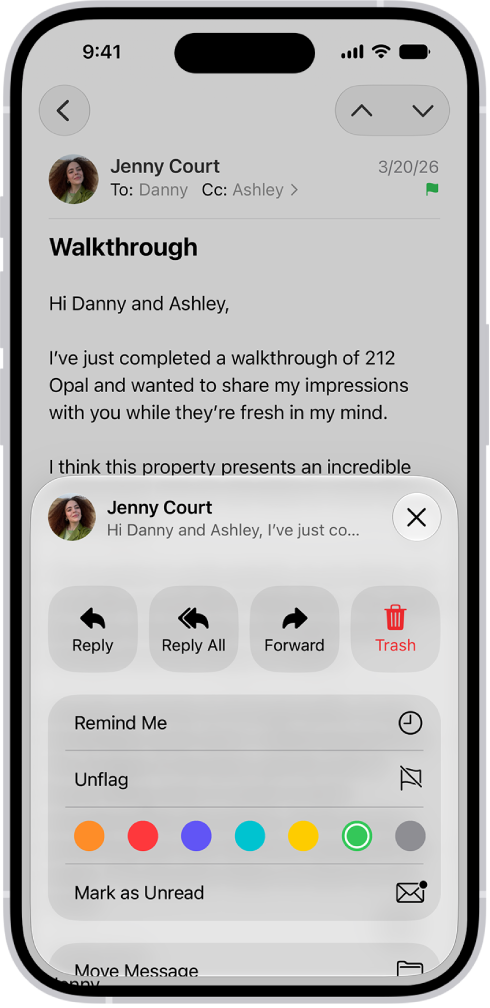
A message showing reply options in the bottom half of the screen, including the Unflag button and color choices for flags.

  1. Start the Mail app on your iPhone.

    Do any of the following: Flag a Primary message: Swipe left on the Primary message, then choose Flag.

    Flag all Transactions, Updates, or Promotions messages from a single sender: Swipe left on a message in the Transactions, Updates, or Promotions message list, then choose Flag.

    Flag a single Transactions, Updates, or Promotions message: Tap a message to open the sender’s digest view, swipe left on the message, then tap the Flag Message button.

  2. To change or remove a flag, open the message, tap the Reply Actions button, tap Flag, and then select another color, or tap Unflag.

    Note: Flags you add to a message appear on that message in Mail on all your Apple devices where you’re signed in to the same Apple Account.

Create a Flagged mailbox

Adding a Flagged mailbox puts all your flagged email messages in one location, where they’re easily accessible.

  1. Start the Mail app on your iPhone.
  2. Tap the Mailboxes button in the upper-left corner until you see Mailboxes.
  3. Tap Edit, then select Flagged.

Flag emails from your VIPs

  1. Add important people to your VIP list, so their email messages appear with a VIP flag and in the VIP mailbox.

Block email from specified senders

To prevent a particular sender from emailing you in the future, you can block their email address.

  1. Start the Mail app on your iPhone.
  2. Tap a message from the sender you want to block.
  3. Tap their email address, tap View Contact Card, and tap Block this Contact.
Tag: Mail

You can use MFi hearing aids or sound processors with iPhone and adjust their settings. It’s not limited to one device, either. You can use your hearing devices with more than one device, and turn on Hearing Aid Compatibility.

If you have AirPods Pro 2 or AirPods Pro 3, you can use your iPhone to take a hearing test, and if you have perceived mild to moderate hearing loss, you can get hearing assistance with the Hearing Aid feature.

Pair hearing devices with iPhone

If your hearing devices aren’t listed in Settings > Accessibility > Hearing Devices, you need to pair them with iPhone.

If your hearing devices are already paired to another nearby device, such as a Mac or iPad, make sure Bluetooth® is turned off on those devices. (When you finish pairing your hearing devices to your iPhone, you can turn Bluetooth on again on those devices.)

  1. Open the Settings app on your iPhone.
  2. Tap Accessibility and tap Hearing Devices. Tap Pair MFi Hearing Device
  3. Follow the onscreen instructions to setup your hearing aids or sound processors.

You only need to pair your devices once (and your audiologist might do it for you). Then your hearing devices reconnect to iPhone automatically each time they turn on.

Adjust the settings and view the status of your hearing devices

  • In Settings: Go to Settings > Accessibility > Hearing Devices > MFi Hearing Devices.
  • By triple-clicking the side or Home button: Use the Accessibility Shortcut if you’ve set it up.
  • In Control Center: Tap the Hearing Devices button. (If you don’t see the Hearing Devices button, add it to Control Center.)
  • On the Lock Screen: Go to Settings > Accessibility > Hearing Devices > MFi Hearing Devices, then turn on Control on Lock Screen. From the Lock Screen, you can do the following:
    • Check battery status.
    • Adjust ambient microphone volume and equalization.
    • Choose which hearing device (left, right, or both) receives streaming audio.
    • Control Live Listen.
    • Choose whether phone and media audio are routed to the hearing device.
    • Choose to play ringtones through the hearing device.

Use your hearing devices with more than one device

Pair your hearing devices with more than one device, like both iPhone and iPad, and the connection for your hearing devices switches automatically from one to the other. That happens when you receive a phone call on iPhone, or when you do something on the other device that generates audio.

When you change hearing device settings on one device, those changes sync automatically with your other devices.

  1. Sign in to your Apple Account on all the devices.
  2. Connect all the devices to the same Wi-Fi network.

Turn on Hearing Aid Compatibility

With some hearing aid models, Hearing Aid Compatibility may reduce interference and improve audio quality.

  1. Open Settings, tap Accessibility, and then tap Hearing Devices.
  2. Turn on Hearing Aid Compatibility.

Hearing aid compatibility ratings aren’t a guarantee that a particular hearing aid works well with a particular phone. Some hearing aids might work well with phones that do not meet the FCC requirements for hearing aid compatibility. To ensure that a particular hearing aid works well with a particular phone, use them together before purchasing.

Stream audio to your hearing devices

You can stream audio from phone calls, music, movies, podcasts, Siri, and more.

  1. Tap the Playback Destination button in Control Center, on the Lock Screen, or in the Now Playing controls for the app you’re listening to.
  2. Choose your hearing device.

You can also automatically route audio calls to a hearing device.

After you create an Apple Music profile, you can share music with your friends. You can allow anyone to follow you or just those you choose, and block others.

Your followers see the playlists you create unless you choose otherwise, and you can hide music from your followers. You can also share your profile, respond to follow requests, and turn on or off notifications about your friends’ activity in Apple Music.

Choose music to share with your followers

By default, the playlists you create are visible to your followers, but you can choose not to share some playlists.

  1. Open the Music app on your iPhone.
  2. Tap the My Account button or your profile picture.
  3. Tap Music Profile, tap Edit, and then turn Shared Playlists on or off.

To share playlists with people who don’t follow you, touch and hold a playlist, then tap Share Playlist.

Note: Your followers’ devices reflect any changes you make to music you share, like when you edit or stop sharing a playlist.

Hide music from your followers

  1. Open the Music app on your iPhone.
  2. Tap the My Account button or your profile picture.
  3. Tap Music Profile and touch and hold the playlist or album (below Listening To).
  4. Tap Hide from Profile.

The listening history for this item won’t appear in your profile or be visible to the people who follow you. If you don’t want your followers to see any of the music you listen to, tap Edit on the profile screen, then turn off Listening To at the bottom of the screen.

Note: Music you hide might stay visible to your followers for up to 10 minutes.

Share your profile

You can share your profile using email, Messages, or another app you choose.

  1. Open the Music app on your iPhone.
  2. Tap the My Account button or your profile picture.
  3. Tap Music Profile, tap the More button, tap Share, and choose a sharing option.

You can also share the profile of anyone you follow, or who follows you.

Choose who you share music with

  1. Open the Music app on your iPhone.
  2. Tap the My Account button or your profile picture.
  3. Tap Music Profile, tap Edit, and tap People You Approve to be followed only by people you choose. (Everyone includes all Apple Music subscribers who have a profile.)

Respond to follow requests

When someone asks to follow you, you can accept or decline the request. You’ll only get requests if you’ve selected People You Approve in your profile.

  1. Open the Music app on your iPhone.
  2. Tap the My Account button or your profile picture.
  3. Tap Follow Requests, then accept or decline the requests.

You may receive follow requests in other ways—as a link in an email or a text message, for example. To accept, tap the link.

Turn on or off notifications about your friends’ activity

  1. Open the Music app on your iPhone.
  2. Tap the My Account button or your profile picture.
  3. Tap Notifications and turn on (or off) Friend Activity.

With the option turned on, you get a notification when friends follow you and add your playlists.

Prevent users from following you

  1. Open the Music app on your iPhone.
  2. Tap the My Account button or your profile picture.
  3. Tap Music Profile and touch and hold a profile picture. Then choose Block.

People you block won’t see your music, and they can’t find your profile. They’ll still be able to play your shared playlists if they added them to their library.

Report a concern

If you have a concern about a follower, touch and hold their profile picture, then tap Report a Concern.


Tag: Music

With your eligible cards stored in the Wallet app, you can use Apple Pay at contactless payment terminals, in stores, online, and in apps. Using Apple Pay can be simpler and safer than using a physical card. Your actual card number is never shared with merchants, and each transaction uses a unique security code.

You can also use Apple Pay in third-party browsers and on other devices, view preauthorized payments, and set your default card.

Note: Apple Pay and its features aren’t available in all countries or regions.

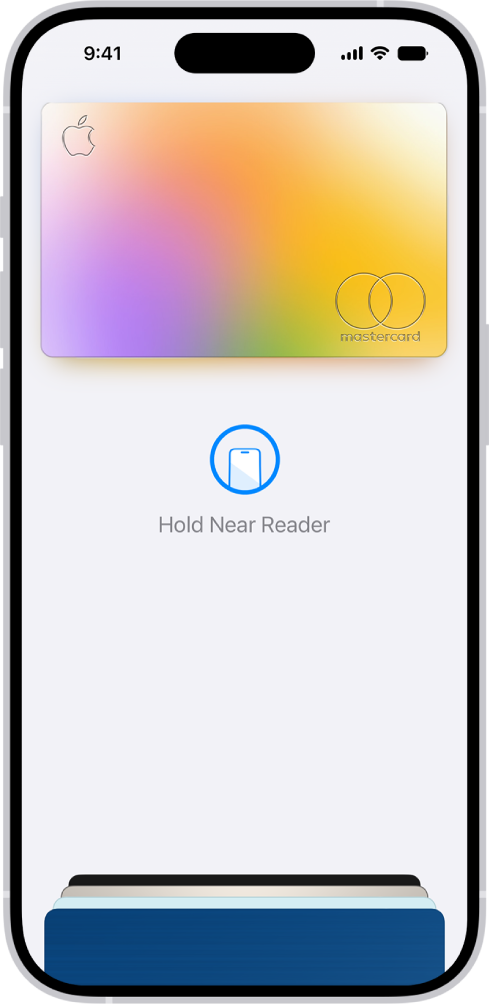
A credit card in Wallet is ready to make a contactless payment.

Make contactless payments in stores

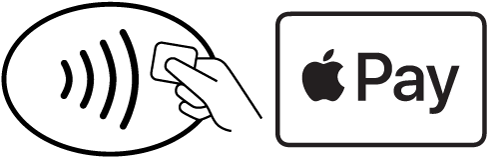
At payment terminals, look for contactless payment symbols such as the following:

Symbols on contactless readers.

Note: In addition to accepting Apple Pay, the merchant must accept your payment card and payment network. In other countries and regions, you may see different contactless payment symbols.

  1. Do one of the following:

    • On an iPhone with Face ID: Double-click the side button.
    • On an iPhone with Touch ID: Double-click the Home button.
  2. When your default card appears, authenticate with Face ID, Touch ID, or your passcode.
  3. To switch to a different card, tap the cards at the bottom of the screen. Choose another card.

    Tip: With a connected account such as Apple Card, you can quickly check the account balance and remaining credit by tapping the card. Tap the card again when you’re ready to pay.

  4. Hold the top of your iPhone near the contactless reader until Done or a checkmark appears on the screen.

    Note: If you have Location Services turned on, the location of your iPhone at the time you make a payment may be sent to Apple and the card issuer to help prevent fraud.

Use Apple Pay for purchases online and in apps

Wherever you see the Apple Pay button, you can make purchases in supported apps, App Clips, and websites.

  1. At checkout, tap the Apple Pay button.
  2. Review the payment information and set any of the following:

    • Payment method

      You can choose a different payment card and pay with rewards or installments (available on cards from participating banks and card providers in certain markets; subject to eligibility and approval).

    • Billing and shipping addresses
    • Contact information

    Tip: If you subscribe to iCloud+, you can use Hide My Email to keep your real email address private.

  3. Authenticate with Face ID, Touch ID, or your passcode to complete the payment.

Use Apple Pay in third-party browsers and other devices

When you shop in a third-party web browser on a supported website, you can complete the purchase using Apple Pay on your iPhone. (Not available in all countries or regions.)

  1. At checkout, click Apple Pay. Then scan the code using your iPhone camera.
  2. On your iPhone, review the payment information and set any of the following:
    • Payment method
    • Billing and shipping addresses
    • Contact information
  3. Authenticate with Face ID, Touch ID, or your passcode to complete the payment.

View preauthorized payments

See preauthorized payments made with Apple Pay for future and recurring charges such as subscriptions.

  1. Open the Wallet app on your iPhone.
  2. Tap the More button, then tap Preauthorized Payments.
  3. Tap a payment to see the details.
  4. To cancel your service or manage the payment methods, contact the merchant directly. (For participating merchants, tap Manage.)
  5. To prevent the merchant from automatically charging your card, tap Revoke Payment Authorization.

Note: Revoking the payment authorization doesn’t cancel your service.

Set your default card, address, and preferences for Apple Pay

  1. Open the Settings app on your iPhone.
  2. Tap Wallet & Apple Pay and tap Apple Pay Defaults.
  3. Set any of the following:
    • Transaction defaults: Set the default card, your shipping address, email, and phone number.
    • Available payment options: Turn on or off Pay Later, Rewards, Offers, and Other Pay Later Options.
    • Allow Payments on Mac: Use Apple Pay on your iPhone to confirm payments on your nearby Mac.