Got a tip for us?

You can import passwords that you’ve exported to a CSV file from another password manager, and you can import a CSV or ZIP file. The file itself might not be encrypted, though, so anyone who can access it could see your passwords.

WARNING: Your imported passwords might not be encrypted and could be visible to anyone who can access the file.

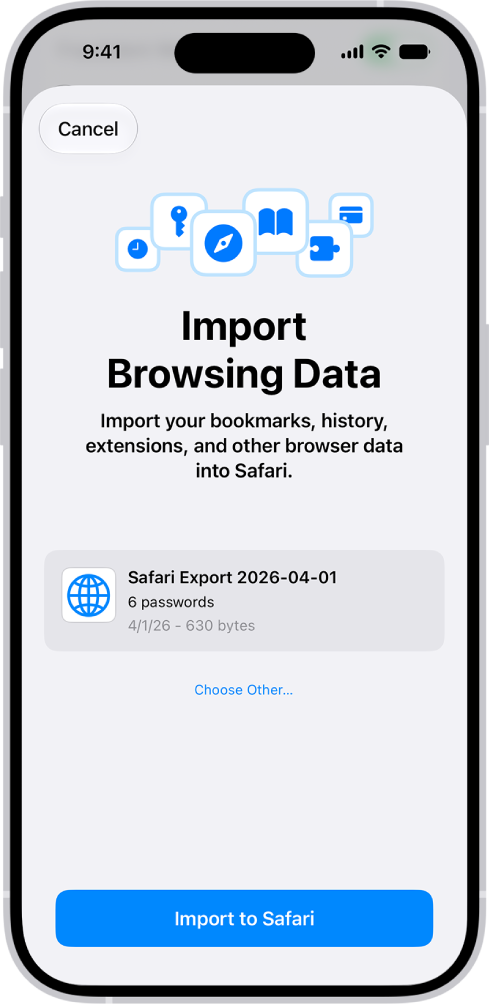
The Import Browsing Data screen, showing the CSV file of passwords from another password manager to be imported.

  1. Open the Settings app on your iPhone.
  2. Tap Apps, then tap Safari.
  3. Below History and Website Data, tap Import.
  4. Tap Choose File. Then choose the CSV file (or ZIP file) you exported from your other password manager.
  5. Tap Import to Safari.
  6. Tap Done.

WARNING: For security, delete the file you imported from.

Listen to songs from your iPhone music library with the Music app. Stream music from the Apple Music catalog when you subscribe to Apple Music, and access all your music on all your devices when you sign in to the same Apple Account.

Subscribing to Apple Music lets you choose from millions of songs to stream or download, and select artists as favorites to receive notifications about them. After you become an Apple Music subscriber, you can also view song lyrics.

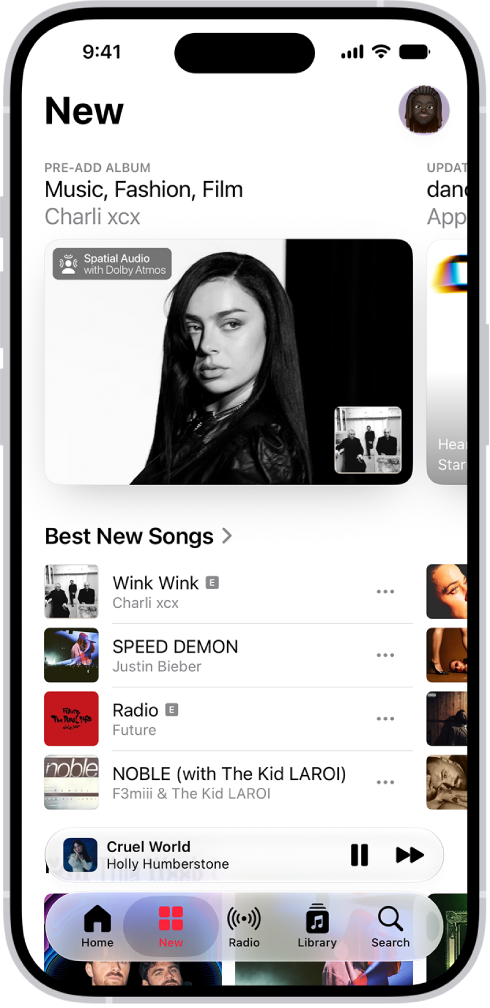
The New tab showing a new album at the top. You can swipe left to see more featured music and videos. The Best New Songs section appears below. You can swipe up on the screen to explore new and recommended music.

Subscribe to Apple Music

Subscribe to Apple Music to get the most from the Music app, with millions of songs to stream or download.

Go to Settings > Apps > Music, then tap Join Apple Music.

As an Apple Music subscriber, you can view song lyrics, select artists as favorites and receive notifications about them, and more.

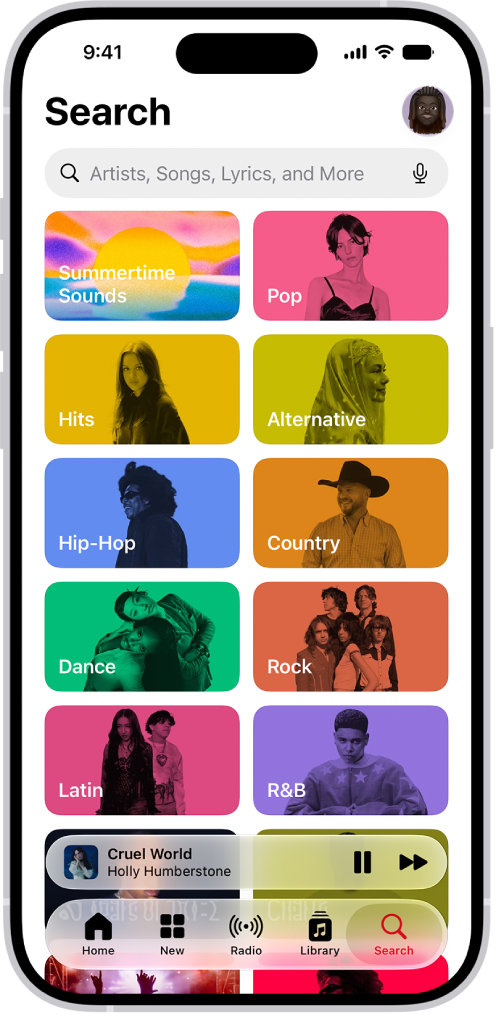
The Search tab showing a search field at the top. Multiple categories of music appear below, such as Hits and Pop.

Find music

Use the Search feature to quickly find music. Tap Search to browse music by category or enter an artist, lyric, or other keyword in the field to find songs, albums, and playlists.

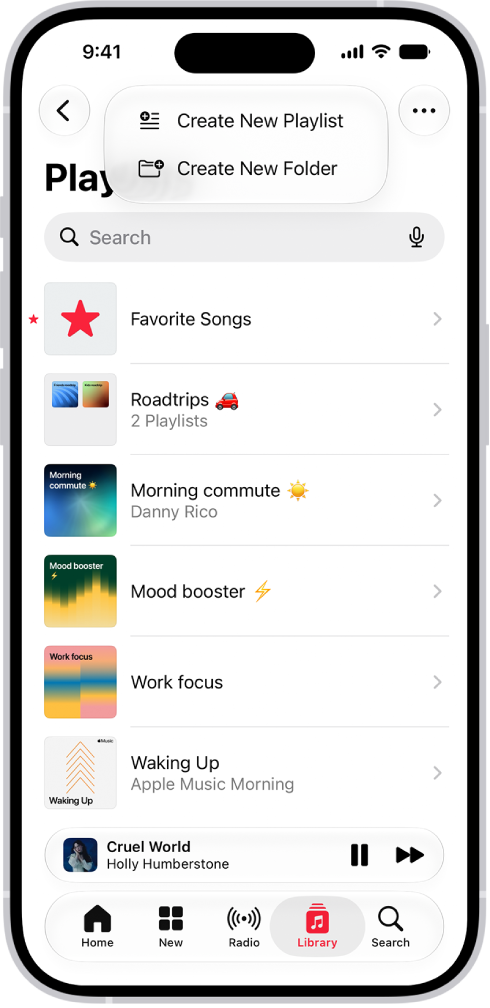
The Library tab showing the list of playlists. At the top are buttons to create a new playlist or create a new folder.

Create a playlist

With a playlist, you can organize songs for a specific theme, mood, or occasion.

Tap Library , tap Playlists, tap the New Playlist button, then tap Create New Playlist.

To add a song to the playlist, tap the More button next to a song, then tap Add to a Playlist.

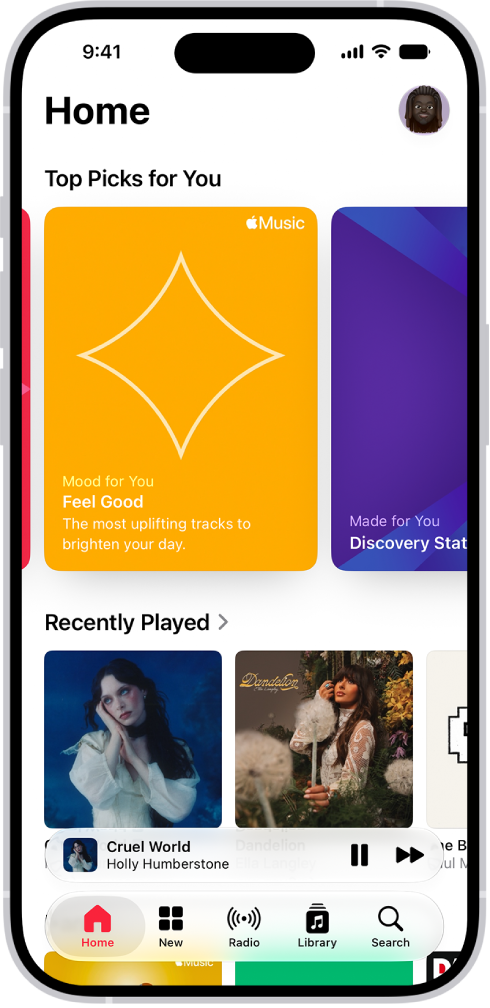
The Home tab in the Music app showing Top Picks at the top. You can swipe left or right to view more music chosen just for you. Recently Played appears below.

Build your library

You can add music to your library in a variety of ways. For example, subscribe to Apple Music or buy your favorite albums from the iTunes Store. If you’re already using a Mac, go to Settings > Apps > Music, then tap Sync Library—your entire music library is then available on your iPhone.

Tag: Music

You can view the tabs that are open on your other Apple devices and keep tabs and Tab Groups updated across them. You must be signed in to iCloud with the same Apple Account on all your devices to manage Safari tabs on those devices.

You can even close a tab on another Apple device. To see tabs open on your Mac, too, Safari needs to be on in iCloud on your Mac, with two-factor authentication.

View tabs that are open on your other Apple devices

  1. Start the Safari app on your iPhone.
  2. Tap the Tabs button.
  3. Tap the Add button. Scroll to see the tabs open on your other devices at the bottom of the start page.

To close a tab on another Apple device, touch and hold the link, then choose Close. Note: To view tabs open on your other devices, you must have iCloud Tabs turned on for your start page.

Keep tabs and Tab Groups updated across your devices

  1. Start the Settings app on your iPhone.
  2. Tap your name, then tap iCloud.
  3. Tap See All and then make sure Safari is turned on.

Note: Tabs open on your Mac show up here too, as long as Safari is turned on in iCloud settings on your Mac, you’re signed in to the same Apple Account, and you use two-factor authentication.

Tags: iCloud, Safari

You can show user names, passwords, and verification codes in large text on your iPhone. It’s built into the Passwords app, where Show in Large Type makes the user name, password, or verification code for an account bigger and easier to read.

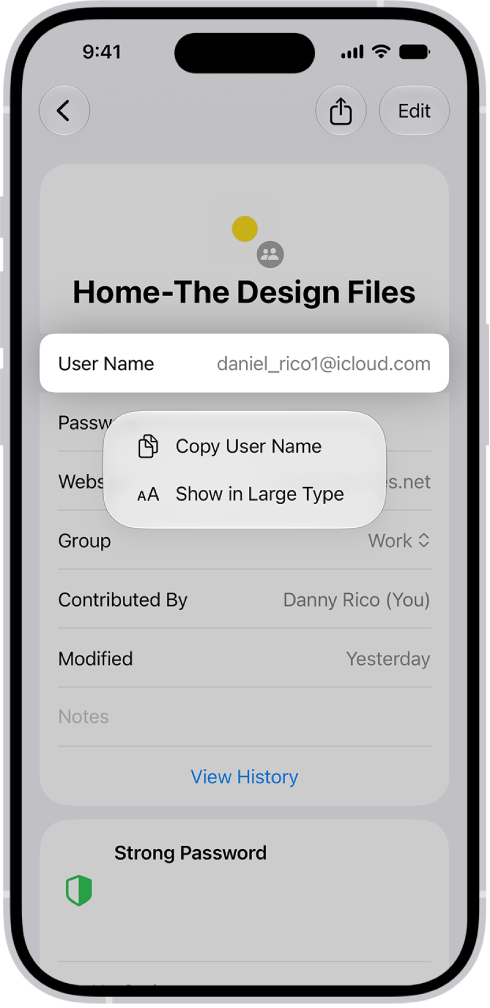
An account screen showing the user name highlighted, with options to Copy User Name and Show in Large Type.

  1. Start the Passwords app on your iPhone.
  2. Tap All, then tap an account.
  3. Touch and hold your user name, password, or verification code. Then tap Show in Large Type.

You can use the Home app to make your smart home more secure by allowing a compatible router to control which services your Apple Home accessories can communicate with on your home Wi-Fi network and on the internet. Apple Home-enabled routers require that you have an Apple TV 4K or HomePod set up as a home hub.

For each accessory, you choose how much it can connect to. Restrict to Home lets the accessory connect only to your home hub, though that may prevent firmware updates or other services.

Configure your router’s settings

  1. Open the Home app on your iPhone.
  2. Set up the router with the manufacturer’s app on an iPhone or iPad.
  3. On the Home tab, tap the More button and then tap Home Settings.
  4. Tap Wi-Fi Network & Routers.
  5. Turn on Apple Home Accessory Security and tap an accessory. Choose one of these settings:
    • Restrict to Home: The router only allows the accessory to connect to your home hub. This option may prevent firmware updates or other services.
    • Automatic: The router allows the accessory to connect to an automatically updated list of manufacturer-approved internet services and local devices.
    • No Restriction: The router allows the accessory to connect to any internet service or local device. This provides the lowest level of security.
Tag: Maps

Use CarPlay to have Siri automatically read your incoming text messages. It’s one setting on your iPhone, Announce Notifications, and you can also enable or disable Announce Messages directly in CarPlay when Siri reads an incoming text message out loud.

  • On your iPhone, go to Settings > Announce Messages, then turn on Announce Notifications.

Note: When Siri reads an incoming text message in CarPlay, tapping Announce enables or disables Announce Messages right there.

Tag: carplay

With Apple Intelligence, Siri can tap into ChatGPT. After you set up the extension, Siri can use it to get the information you’re looking for. You can ask ChatGPT to compose a haiku, suggest ideas for a free afternoon, or summarize a document. You can even ask about a photo open in the Photos app or a document open in the Files app, and iPhone may ask you to confirm before your request is sent.

Note: Apple Intelligence on iOS 27 or later is available on an Apple Intelligence-enabled iPhone 15 Pro, iPhone 15 Pro Max, or iPhone 16 model or later. Apple Intelligence is not available in all languages or regions. Usage limits may apply.* The ChatGPT extension is available only in regions where the ChatGPT app and service are available.**

Siri: On your iPhone, activate Siri, then ask a question. For example, say something like:

  • “Hey Siri, ask ChatGPT to compose a haiku about dragons.”
  • “Hey Siri, ask ChatGPT for some ideas of how to spend a free afternoon in Malibu if I don’t feel like hitting the beach.”
  • “Ask ChatGPT what kind of recipes can I make with this?” with a photo of fruit open in the Photos app.
  • “Hey Siri, ask ChatGPT to summarize this document for me,” with a document—like a PDF of a home inspection report—open in the Files app.

Quick tip: iPhone may ask you to confirm before sending your request to ChatGPT. If you want to have Siri send a request without confirming, you can turn off Confirm Requests in the Settings app .

*Apple Intelligence is available with Siri and device language set to Chinese (Simplified), Chinese (Traditional), Danish, Dutch, English, French, German, Italian, Japanese, Korean, Norwegian, Portuguese, Spanish, Swedish, Turkish, or Vietnamese. Some features may not be available in all regions or languages. Some devices may not be available in all regions. Siri AI is available in beta in iOS 27, iPadOS 27, macOS 27, watchOS 27, and visionOS 27 and requires an Apple Intelligence–enabled device set to a supported language. Available in English to start. Siri AI will not be initially available in the EU on iOS, iPadOS, and watchOS. Certain Apple Intelligence features that rely on server-side models are subject to daily usage limits, including but not limited to Siri AI, Intelligent Photo Editing Tools, Image Playground, and AFM 3 Cloud models in Shortcuts. Daily limits may vary by feature, request complexity, system demand, system policies, and other factors. Expanded access to such features will be available for a fee in the future. Use of these features is subject to the Apple Intelligence Terms and Conditions.

**ChatGPT uses generative models and outputs may vary. Check important information for accuracy. When using the ChatGPT extension, you choose what content to send to ChatGPT. Your request and attachments, as well as limited data associated with the request, such as current time zone, country, device type, language, and feature being used when making the request, are sent to ChatGPT to answer your request and enable ChatGPT to provide you accurate and relevant results.

Tag: Siri

You can use iPhone as a portable recording device to record personal notes, classroom lectures, musical ideas, and more, using the built-in microphone, a supported headset, or an external microphone. You can fine-tune your recordings with editing tools like trim, replace, and resume.

When Voice Memos is turned on in iCloud settings, your recordings appear and update automatically on your iPhone, iPad, and Mac signed in to the same Apple Account. You can also filter out background sounds and record in stereo or mono.
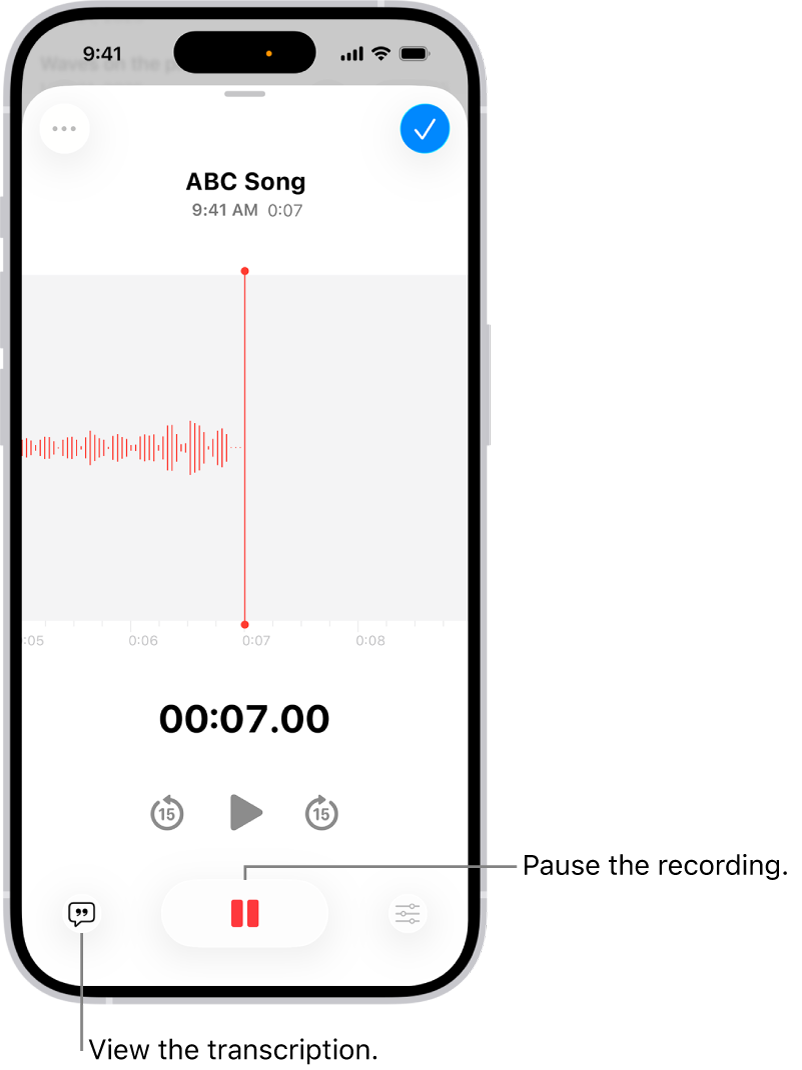
A Voice Memos recording, showing a waveform of the recording that’s in progress, along with a time indicator and a button to pause the recording.

Make a basic recording

  1. Start the Voice Memos app (in the Utilities folder) on your iPhone.

    Note: To make it easier to find and open the Voice Memos app, you can move it from the Utilities folder to the Home Screen.

  2. Tap the Record button to begin recording.

    To adjust the recording level, move the microphone closer to or farther from what you’re recording.

  3. Tap the Stop button to stop recording.

    Your recording is saved with the name New Recording or the name of your location, if Location Services is turned on in Settings > Privacy & Security. To change the name, tap the recording, then tap the name and type a new one.

Note: For your privacy, when you use Voice Memos to make recordings, an orange dot appears to indicate your microphone is in use.

Filter out background sounds

Your recording can include or exclude background sounds.

  1. Start the Voice Memos app (in the Utilities folder) on your iPhone.
  2. Open Control Center.
  3. Tap Voice Memos at the top of Control Center.
  4. To filter out background sounds in your recording, select Voice Isolation.
  5. To include the background sounds, select Wide Spectrum.

Note: Wide Spectrum isn’t available on all iPhone models.

Record stereo, mono, or Spatial Audio

How the recording sounds when it’s played depends on the recording mode you select.

  1. Start the Settings app on your iPhone.
  2. Tap Apps and tap Voice Memos.
  3. Tap Recording Mode, then choose one of the following:
    • Mono: Audio playback is the same in both ears.
    • Stereo: Separates audio playback between the left and right ears.
    • Spatial Audio: Audio playback is immersive—it seems to play from all directions.

Note: Spatial Audio isn’t available on all iPhone models.

With Stereo or Spatial Audio selected, Voice Memos uses multiple microphones on your iPhone and records with right and left audio channels. Listen through headphones, and you’ll hear different sounds from different microphones, though the waveform display still looks the same.

Use the advanced recording features

To make a recording in parts, pause and resume as you record.

  1. Start the Voice Memos app (in the Utilities folder) on your iPhone.
  2. Tap the Record button to begin a recording.

    To adjust the recording level, move the microphone closer to or farther away from what you’re recording.

    To see more details while you’re recording, swipe up from the top of the waveform.

  3. Tap the Pause button to stop recording; tap Resume to continue.
  4. To review your recording, tap the Play button.

    To change where playback begins, drag the waveform left or right across the playhead before you tap the Play button.

  5. To save the recording, tap Done.

    Your recording is saved with the name New Recording or the name of your location, if Location Services is turned on in Settings > Privacy & Security. To change the name, tap the recording, tap the name, then type a new name.

Mute the start and stop tones

To mute the start and stop tones, turn on Silent mode.

Open Control Center, then tap the Silent Mode Off button to turn on Silent mode.

Use another app while recording

During a recording, you can use another app if it doesn’t play audio on your iPhone.

  1. Start the Voice Memos app (in the Utilities folder) on your iPhone.
  2. Tap the Record button to begin recording.
  3. While you’re recording, go to the Home Screen. Then open another app.

Voice Memos stops recording if the other app starts playing audio.

On supported models, you can see your recording in progress in the Dynamic Island on the Home Screen and in other apps. Tap the Dynamic Island to expand it, or navigate back to Voice Memos.
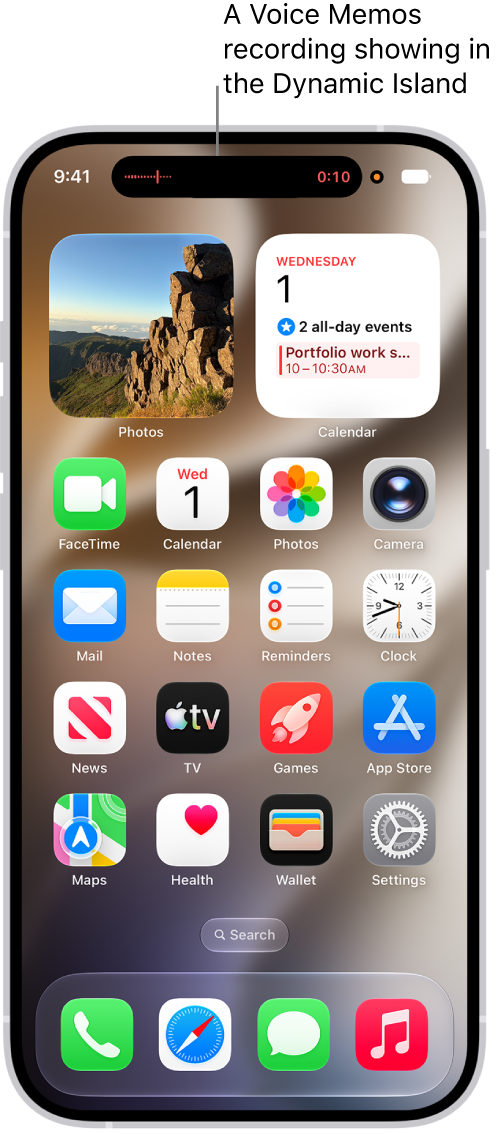
The iPhone Home Screen, showing a Voice Memos recording in the Dynamic Island.

When you turn on Voice Memos in iCloud settings or iCloud preferences, iCloud saves your recording. It then appears automatically on your Mac, iPad, and iPhone where you’re signed in to the same Apple Account.

Supported iPhones record in Spatial Audio automatically when you use the built-in microphone. Earlier iPhone models record in Mono instead, unless you turn on Stereo Recording in Settings, and you can also record in Stereo with an external stereo microphone or audio interface that works with iPhone. Accessories with the Apple “Made for iPhone” or “Works with iPhone” logo are the ones to look for.


When you subscribe to iCloud+, you can use Hide My Email to keep your personal email address private. With Hide My Email, you can generate unique, random email addresses that forward to your personal email account, so you don’t have to share your real email address when filling out forms on the web or signing up for newsletters.

If you don’t like the suggested address, you can get a new one, and you can delete a Hide My Email address at any time.

  1. Open the Safari app on your iPhone.
  2. When you’re asked for your email address on a website, tap the email field.
  3. Tap Hide My Email above the keyboard.

    The Hide My Email screen suggests a new, randomly generated Hide My Email address.

  4. If you don’t want to use the suggested address, tap the Refresh button to get a new randomly generated email address.
  5. Tap Continue.

You can delete the Hide My Email address at any time.

Tag: Mail

You control how Apple delivers advertising. Ads delivered by Apple may appear in the App Store, Apple News, and Stocks, and these ads don’t access data from any other apps.

In the App Store and Apple News, your search and download history may be used to serve you relevant search ads. In Apple News and Stocks, ads are served based partly on what you read or follow, including publishers you’ve enabled notifications for and the type of publishing subscription you have. The articles you read are not used to serve targeted ads to you outside these apps, and information collected about what you read is linked to a random identifier rather than to your Apple Account.

Here’s how to control how Apple delivers advertising to you on iPhone.

Review the information Apple uses to deliver ads

Go to Settings > Privacy & Security > Apple Advertising > View Ad Targeting Information.

The information is used by Apple to deliver more relevant ads in the App Store, Apple News, and Stocks. Your personal data, Apple says, isn’t provided to other parties.

Turn personalized ads on or off

Go to Settings > Privacy & Security > Apple Advertising, then turn Personalized Ads on or off.

Note: Turning off personalized ads limits Apple’s ability to deliver relevant ads to you. It may not reduce the number of ads you receive.

Learn more about privacy and Apple’s advertising platform

Go to Settings > Privacy & Security > Apple Advertising > About Advertising & Privacy.