Got a tip for us?

You can delete the password you use to sign in to a website or app on your iPhone. You just find the account for the password you want to delete in the Passwords app and delete it. That doesn’t remove your password from the website or app where you created it, though.

A list of all accounts with passwords that are stored in the Passwords app.

  1. Open the Passwords app on your iPhone.
  2. Tap All, then tap the account for the password you want to delete.
  3. Tap Edit.
  4. Tap Delete and then tap Delete Password to confirm.

Note: The website or app where you created the password still has it.

With VoiceOver, a gesture-based screen reader, you can use iPhone even if you can’t see the screen. VoiceOver gives audible descriptions of what’s on your screen, for example, the battery level, who’s calling, or what item your finger is on. You can also customize the VoiceOver speaking voice to suit your needs.

When you touch the screen or drag your finger over it, VoiceOver speaks the name of the item your finger is on, including icons and text. To interact with the item, such as a button or link, or to move to another item, use VoiceOver gestures.

When you go to a new screen, VoiceOver plays a sound, then selects and speaks the name of the first item on the screen, typically in the top-left corner. It also tells you when the screen changes orientation, when the screen becomes dimmed or locked, and what’s active on the Lock Screen when you wake iPhone.

Turn VoiceOver on or off

Important: VoiceOver changes the gestures you use to control iPhone. When VoiceOver is on, you must use VoiceOver gestures to operate iPhone.

To turn VoiceOver on or off, use any of the following:

  • Go to Settings > Accessibility > VoiceOver, then turn VoiceOver on or off.
  • Use Control Center if you’ve added VoiceOver there.
  • Use the Accessibility Shortcut if you’ve set it up to turn on VoiceOver.

Siri: Ask Siri something like, “Turn on VoiceOver.” Learn how to use Siri.

Siri knows when VoiceOver is on and often reads more information back to you than appears on the screen. You can also use VoiceOver to read what Siri shows on the screen.

Use an interactive tutorial to learn VoiceOver

The interactive VoiceOver Tutorial is where you can learn VoiceOver basics and practice essential gestures.

With VoiceOver turned on, go to Settings > Accessibility > VoiceOver, then tap VoiceOver Tutorial to get started.

Practice VoiceOver gestures

To safely try out VoiceOver gestures and hear what they do, use the VoiceOver Practice area, where they won’t perform any action or otherwise affect iPhone.

Try different techniques to discover which works best for you. If a gesture doesn’t work, try a quicker movement, especially for a double tap or swipe gesture. To swipe, try brushing the screen quickly with your finger or fingers. For best results using multifinger gestures, touch the screen with some space between your fingers.

  1. Open Settings, tap Accessibility, and then tap VoiceOver.
  2. Turn on VoiceOver, tap VoiceOver Practice, and then double-tap to start.
  3. Practice the following gestures with one, two, three, and four fingers:
    • Tap
    • Double tap
    • Triple tap
    • Swipe left, right, up, or down
  4. When you finish practicing, tap Done. Then double-tap to exit.

There are special features you and your family can use to share purchases, stay connected, and protect your data. If you have children, you can also set up parental controls to manage how your children use their Apple devices.

With Family Sharing, everyone uses their own device and Apple Account. You can also share locations with Find My, set up emergency contacts, and start a family photo library. Family members and other trusted people can be recovery contacts, too, just in case.

Set up Family Sharing

Family members can share eligible purchases and subscriptions with each other. Each person keeps their own device and Apple Account, while iCloud storage, subscriptions (to services like Apple Arcade and Apple Music), and other content get shared.

To get started, go to the Settings app tap your name, then tap Family.
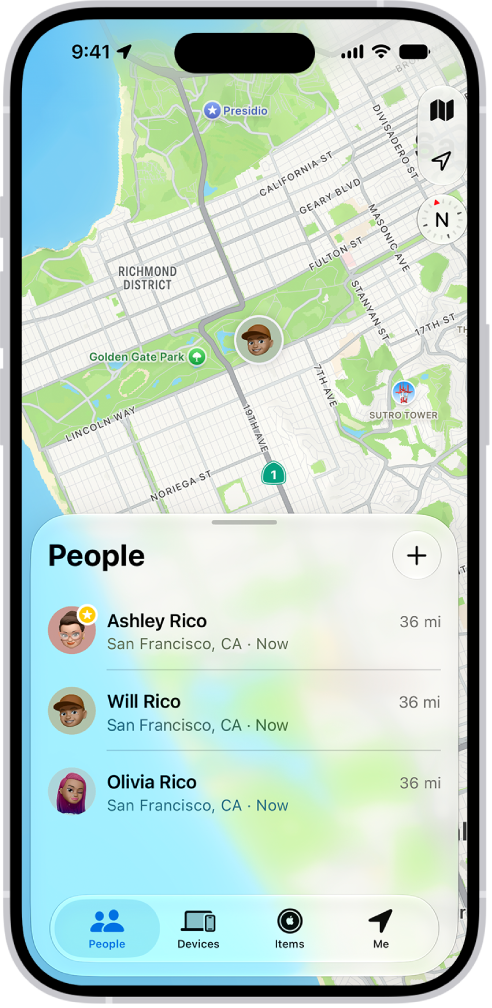
The Find My screen showing the People list and their locations on a map.

Share locations with Find My

When you and your family share locations, you can all help each other find missing devices in the Find My app. You can share the location of AirTags, too, if you use them to track important items like backpacks or house keys.

To set up location sharing, go to the Settings app , tap your name, tap Family, then tap Location Sharing. Turn on sharing for your family members. After you share your location with family members, they can also see the location of your devices in Find My.
The Sharing screen in the Health app.

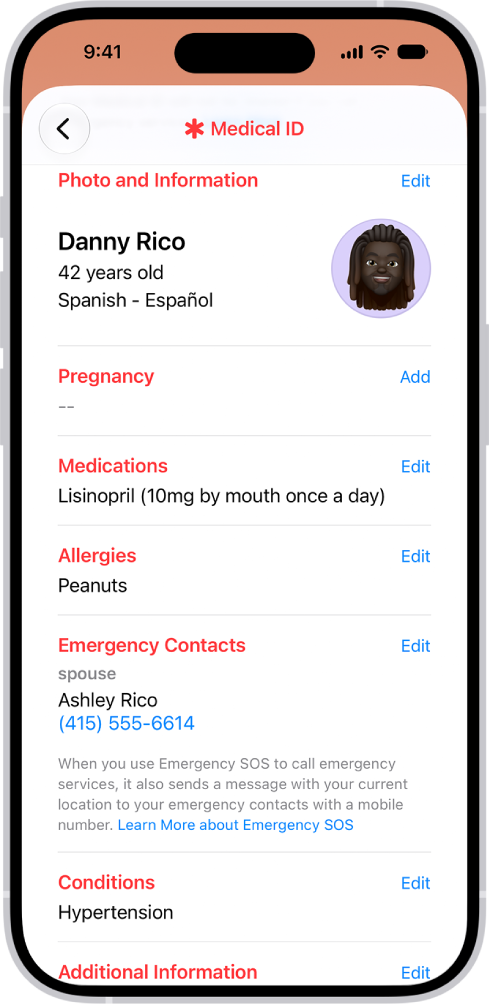
Set up emergency contacts

Once an emergency call ends, your iPhone can automatically send your emergency contacts a text message with your current location. And if your location changes, they get updated location information.

Emergency contacts are saved in your Medical ID. To set up a Medical ID, open the Health app , tap your account, tap Medical ID, then tap Get Started.
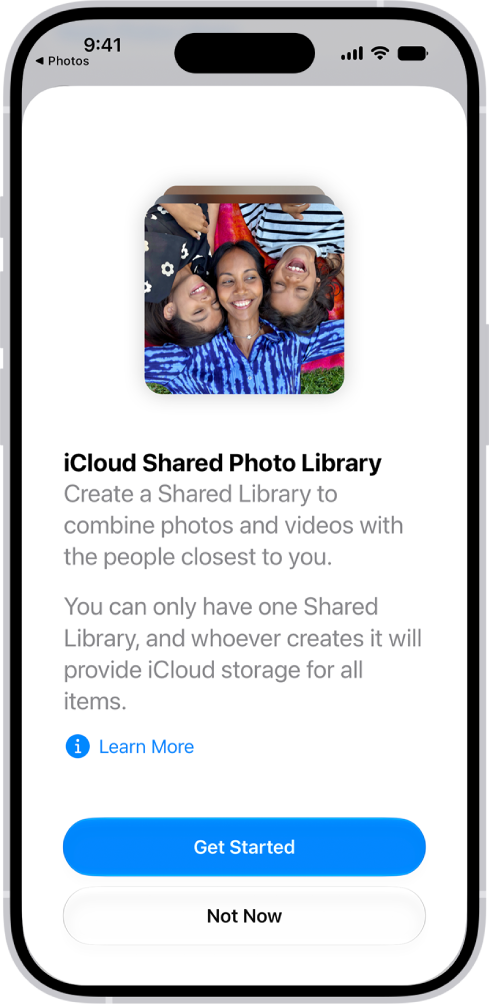
Creating a Shared Library in the Photos app.

Start a family photo library

With iCloud Shared Photo Library, you and up to five other family members can share photos and videos. Everyone can add, edit, and caption photos, and the shared photos show up in each person’s memories, featured photos, and Photos widget.

To get started, go to the Settings app , tap your name, then tap iCloud. Tap Photos, turn on Sync this iPhone, then tap Shared Library.
The Add Recovery Contact screen showing suggested contacts to select as a recovery contact, and the option to choose someone else.

Just in case

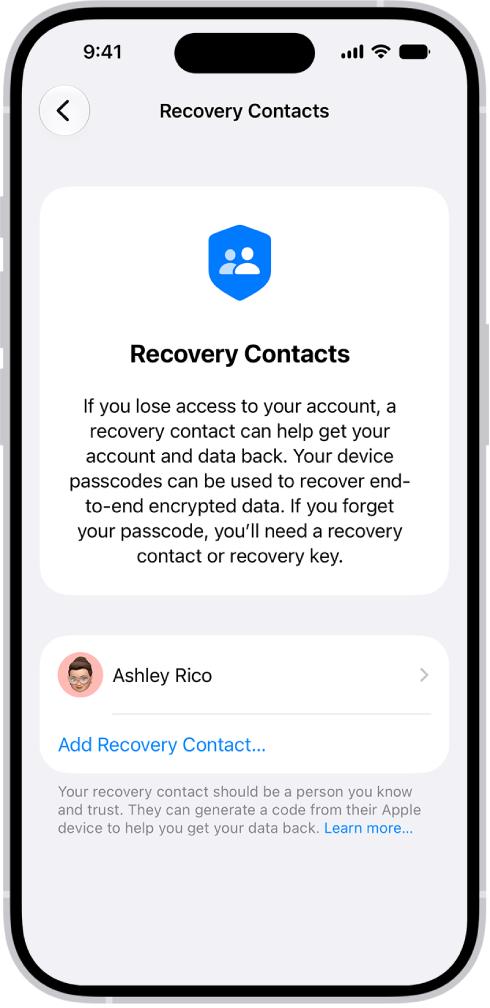
Family members and other trusted people can be your recovery contacts, helping you get back into your account if you ever get locked out. And you can choose someone as a legacy contact who can access the data stored in your account if you die.

To add these contacts, go to the Settings app , tap your name, tap Sign-In & Security, then tap Recovery Contacts or Legacy Contact.

For more on sharing with your family, start with these guides:

Not all features are available in all countries or regions, according to Apple.

Tags: iCloud, iPhone

A playlist is a custom mix of songs and music videos that you put together yourself or, with Apple Music, that others create. It might be for a dinner party, a wedding, or your morning workout, or something to share with others. Here’s why you might want to create a playlist:

  • Suit a specific mood or occasion. For example, you could create a playlist for a dinner party, a wedding, or your morning workout.
  • Select certain songs to share with others on your local network or to sync with your Mac or Windows device.
  • Organize your music library.

When you subscribe to Apple Music, you get a few other types of playlists:

  • Favorite Songs playlist
  • Playlists created by any Apple Music contributor
  • Playlists created by other subscribers that you follow
  • Special playlists (like Replay)
  • Collaborative playlists

Changes you make to your music library (creating playlists or playlist folders, for example) are updated across all your devices when Sync Library is turned on (go to Settings > Apps > Music, then turn on Sync Library). If you’re not an Apple Music subscriber, the changes appear in your library the next time you sync with your computer.

Siri: Ask Siri something like, “Add this song to my Workout playlist” while playing a song or album.

Tag: Music

You can present passes, cards, and keys, items saved in Wallet, in several different ways.

You can present a barcode or QR code to a scanner, or present a pass, card, or key to a contactless reader. And with Automatic Selection turned on, iPhone can select the right pass, card, or key for you. Some items can even appear automatically based on your time or location.

Here’s how to use passes, cards, and keys in Wallet on iPhone.

Present a barcode or QR code to a scanner

  1. Access the Wallet item on your iPhone in any of the following ways:
    • On the Lock Screen, tap the notification. If prompted, authenticate with Face ID, Touch ID, or your passcode.
    • If Automatic Selection is turned on, double-click the side button (on an iPhone with Face ID) or double-click the Home button (on iPhone SE). If prompted, authenticate with Face ID, Touch ID, or your passcode.
    • Go to the Wallet app, then tap the item.
  2. Present the code to the reader.

Present a pass, card, or key to a contactless reader

  1. Access the Wallet item on your iPhone in any of the following ways:
    • On the Lock Screen, tap the notification. If prompted, authenticate with Face ID, Touch ID, or your passcode.
    • If Automatic Selection is turned on, double-click the side button (on an iPhone with Face ID) or double-click the Home button (on iPhone SE). If prompted, authenticate with Face ID, Touch ID, or your passcode.
    • Go to the Wallet app, then tap the item.
  2. Hold the top of your iPhone near the reader until Done or a checkmark appears on the screen.

Automatically select and use a pass, card, or key

You can have certain Wallet items appear automatically based on your time or location.

  1. Open the Wallet app on your iPhone.
  2. Tap an item, tap the More button or the Info button, and tap Details.
  3. Turn on any of the following (if available for the item):
    • Express Mode: The item is automatically selected when needed—for example, a transit card at the metro station—without waking or unlocking your iPhone. You may even be able to use the item when iPhone needs to be charged.
    • Automatic Selection: The item is automatically selected when requested by the reader.
    • Suggest on Lock Screen: The item automatically appears on the Lock Screen based on your time or location—for example, a boarding pass near your departure time.
Tag: Wallet

When a friend shares music with you in the Messages app, you can easily find it in Shared with You in the Music app. From there, you can listen to a song, or reply to the person, people, or group that shared it using Messages.

Note: Make sure Music is turned on in Settings > Apps > Messages > Shared with You, and that your friend is in your contacts list in Contacts.

  1. Open the Music app on your iPhone.
  2. Tap Home and swipe up to Shared with You. Do any of the following:
    • Tap a song to listen to it.
    • Tap the name of the person, people, or group that shared the song to reply to them using Messages.
    • Touch and hold the song to take other actions—for example, add it to your library, create a station, reply to the sender, or remove it.
Tag: Music

You can provide ratings and photos of places you visit to help other Maps users. Your ratings and photos appear everywhere you’re signed in to the same Apple Account.

You can add photos for a place, share your photos publicly, and edit them later. And if you’d rather not be asked, you can stop getting ratings and photos suggestions.

Here’s how to rate places and add photos in Maps on iPhone.

Note: The Apple Ratings and Photos feature isn’t available in all countries or regions.

Rate a place

  1. Start the Maps app on your iPhone.
  2. Tap a place on the map or a search result, then tap the Like button.

    Note: If you don’t see ratings categories or the Rate button, you can’t rate the location.

  3. Tap the Like button or the Dislike button for the available categories. Then tap the Done button.

If you change your mind, you can edit your ratings later.

Add photos for a place

  1. Start the Maps app on your iPhone.
  2. Tap a place on the map or a search result, then tap the More button.
  3. Tap Add Your Photos and then follow the onscreen instructions.
  4. To upload your photos to Apple, you need to have an Apple Account.

Note: If ratings categories or the Rate button don’t appear, you can’t add a photo.

To credit yourself for the photos you contribute, tap Photo Credit, then turn on Show Credit.

Whichever photo credit option you choose applies to all photos you’ve submitted and continue to submit.

Share your photos publicly

Companies can use the photos you add to Maps in their own products and services if you allow it.

  1. Start the Settings app on your iPhone.
  2. Tap Apps, then tap Maps.
  3. Turn on Allow Photo Providers to Use Your Photos.

Apple says photos you share include location data, but not your identity.

If you turn this setting off, photo providers may no longer use your photos. (It may take a few days to take effect.)

Edit your photos for a place

Besides adding and removing photos, you can add or remove your photo credit and provide a nickname for it.

  1. Start the Maps app on your iPhone.
  2. Tap Places.
  3. Tap the place whose photos you want to edit. Then tap Your Photos.
  4. Do one of the following:
    • Submit another photo: Tap Add Photo.
    • Remove a photo: Tap the More Options button. Tap Delete Your Photo.
    • Change your photo credit: Tap the More Options button. Tap Change Photo Credit.

All photos you previously submitted, and those you continue to submit, get the photo credit option you choose.

Stop getting ratings and photos suggestions

Maps may suggest you submit a rating or photo if you’ve recently visited a point of interest or taken a photo of it.

These suggestions use on-device processing and can’t be read by Apple.

If you don’t want to receive these suggestions, turn them off.

  1. Start the Settings app on your iPhone.
  2. Tap Apps, then tap Maps.
  3. Turn off Show Ratings and Photos Suggestions.
Tag: Maps

You can listen to Apple News Today, an audio briefing of the day’s top stories hosted by Apple News editors. With an Apple News+ subscription, you can also listen to audio versions of select Apple News+ stories in the News app and in the Podcasts app.

If you’re not a subscriber, there’s still a taste: a preview of an Apple News+ audio story plays after the briefing ends. You can also get Apple News Today show notes notifications.

Note: Apple News and Apple News+ aren’t available in all countries or regions.

Play Apple News Today

  1. Start the News app on your iPhone.
  2. Tap Audio and then tap Apple News Today below Apple News Podcasts.
  3. Tap an episode, then tap the Play button to start listening.

Not an Apple News+ subscriber? When the briefing concludes, a preview of an Apple News+ audio story plays.

Get Apple News Today show notes notifications

  1. Start the News app on your iPhone.
  2. Tap Following and swipe to the bottom of the screen. Then tap Notifications & Email below Manage.
  3. Turn on notifications for Apple News Today.
Tag: News

With Apple Intelligence, you can use Live Translation to see incoming texts in other languages, automatically translated to your preferred language in the Messages app. It’s private, too. Live Translation relies on Apple-built models that run entirely on device, so your personal conversations stay private. It works with the languages you download, and Apple Intelligence is available on iPhone 15 Pro, iPhone 15 Pro Max, and iPhone 16 models or later.

Note: Apple Intelligence on iOS 27 or later is available on an Apple Intelligence-enabled iPhone 15 Pro, iPhone 15 Pro Max, or iPhone 16 model or later. Apple Intelligence is not available in all languages or regions. Usage limits may apply.*

  1. Download the languages you want to translate.
  2. Start the Messages app on your iPhone.
  3. When you receive a message in a different language, do any of the following:
    • Choose a different language: Tap the contact or group icon at the top of the conversation, scroll down, and then tap Translate From or Translate To.
    • View the original text: At the bottom of the conversation, tap Translating [language] and then choose to see the original text in addition to the translated text.
    • Turn off Live Translation for the conversation: At the bottom of the conversation, tap Translating [language] and tap Stop Translation.

*Apple Intelligence is available with Siri and device language set to Chinese (Simplified), Chinese (Traditional), Danish, Dutch, English, French, German, Italian, Japanese, Korean, Norwegian, Portuguese, Spanish, Swedish, Turkish, or Vietnamese. Some features may not be available in all regions or languages. Some devices may not be available in all regions.

Siri AI is available in beta in iOS 27, iPadOS 27, macOS 27, watchOS 27, and visionOS 27 and requires an Apple Intelligence–enabled device set to a supported language. Available in English to start. Siri AI will not be initially available in the EU on iOS, iPadOS, and watchOS. Certain Apple Intelligence features that rely on server-side models are subject to daily usage limits, including but not limited to Siri AI, Intelligent Photo Editing Tools, Image Playground, and AFM 3 Cloud models in Shortcuts.

Daily limits may vary by feature, request complexity, system demand, system policies, and other factors. Expanded access to such features will be available for a fee in the future. Use of these features is subject to the Apple Intelligence Terms and Conditions.

You can get detailed cycling directions including routes on bike paths, bike lanes, and bike-friendly roads. You can preview the elevation for your ride, check how busy a road is, and choose a route that best avoids hills.

In fact, you can choose to avoid hills or busy roads before you go. And Siri can help, too, with something like “Give me cycling directions home.”

Here’s how to get cycling directions in Maps on iPhone.

Note: Cycling directions and turn-by-turn spoken directions aren’t available in all countries or regions.

Get cycling directions

  1. Start the Maps app on your iPhone.
  2. Touch and hold anywhere on the map or enter an address in the search field and then tap the directions button.
  3. Tap Go or Steps for the route you want to take.

Siri: You can also ask Siri something like, “Give me cycling directions home.”

Avoid hills or busy roads

  1. Start the Maps app on your iPhone.
  2. Touch and hold anywhere on the map or enter an address in the search field and then tap the directions button.
  3. Tap Options (below Directions), make your choices (below Avoid) and then tap the Done button.
Tag: Maps