Got a tip for us?

You can delete or archive emails you no longer need. If you change your mind, you can recover deleted emails.

There are multiple ways to delete email messages, and selecting a Transactions, Updates, or Promotions message selects all the messages in that category from the sender. You can also archive instead of delete, and decide how long to keep deleted messages.

Here’s how to delete and recover emails in Mail on iPhone.
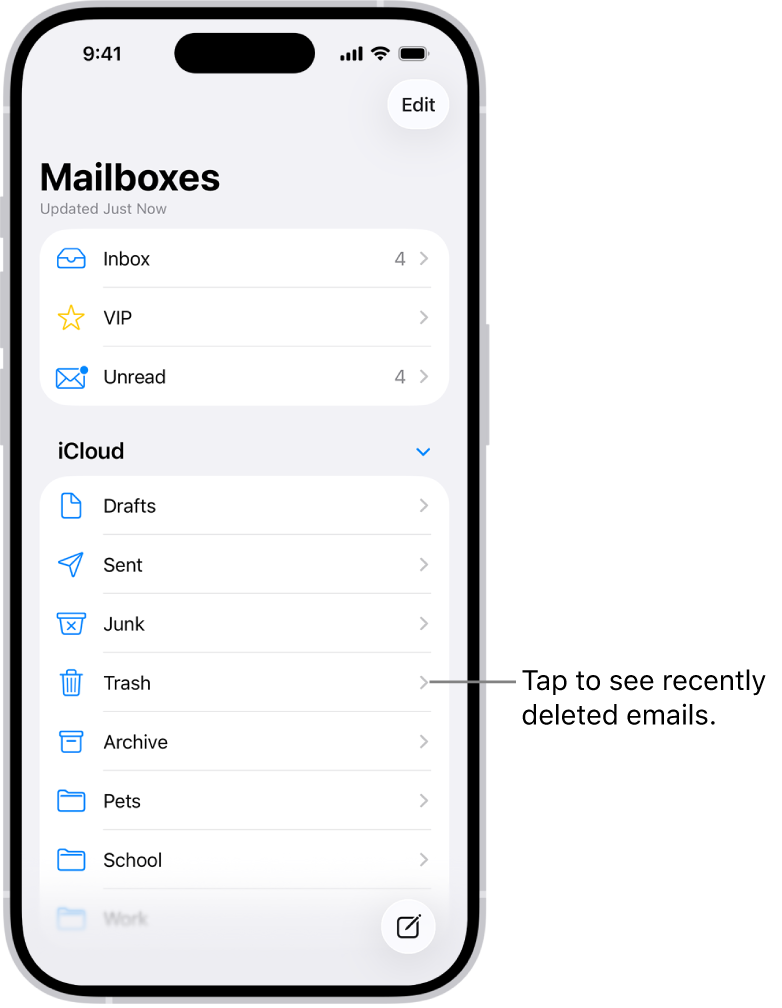
The Mailboxes screen. Below iCloud, mailboxes are listed from top to bottom, including the Trash mailbox. Tap it to see recently deleted messages.

Delete emails

  1. Start the Mail app on your iPhone.

    Do any of the following: While viewing a Primary message: Tap the Delete button.

  2. While viewing a message list: Tap Select and then select the messages you want to delete by tapping their checkboxes.
  3. Tap the Delete button at the bottom of the message list.

    Important: When you select a Transactions, Updates, or Promotions message, you’re selecting all the messages in that category from the sender.

  4. While viewing a sender’s digest view: Swipe left on a message, then tap the Reply Actions button.
  5. To turn off the deletion confirmation, open Settings, tap Apps, tap Mail, and then turn off Ask Before Deleting (below Messages).

Recover a deleted email

  1. Start the Mail app on your iPhone.
  2. Tap the Mailboxes button until you see Mailboxes.
  3. Tap Trash, then tap the message you want to recover.
  4. Tap the Mailbox button, then choose another mailbox.

    Tip: To easily see all deleted messages, you can add a mailbox with deleted messages across all your accounts.

  5. Tap the Mailboxes button until you see Mailboxes and tap Edit. Select the All Trash mailbox.

Archive instead of delete

Rather than deleting email messages, you can archive them in the Archive mailbox.

  1. Start the Settings app on your iPhone.
  2. Tap Apps and then tap Mail.
  3. Tap Mail Accounts. Do one of the following: If you’re using an iCloud email account: Tap iCloud, then tap Mailbox Behaviors.

    • If you’re using another email account: Tap an email account, tap Account Settings, and then tap Advanced.
  4. Select Archive Mailbox (below Move Discarded Messages Into).

    When this option is turned on, to delete a message instead of archiving it, touch and hold the Archive button, then tap Trash Message.

Decide how long to keep deleted emails

Some email clients let you set how long deleted messages stay in the Trash mailbox.

  1. Start the Settings app on your iPhone.
  2. Tap Apps and then tap Mail.
  3. Tap Mail Accounts. Do one of the following: If you’re using an iCloud email account: Tap iCloud, then tap Mailbox Behaviors.

    • If you’re using another email account: Tap an email account, tap Account Settings, and then tap Advanced.
  4. Tap Remove, then select a time interval.

    Note: Some email services might override your selection; for example, iCloud doesn’t keep deleted messages longer than 30 days, even if you select Never.
Tag: Mail

To help protect your privacy, your iPhone uses a unique private network address, called a media access control (MAC) address, on each Wi-Fi network it joins.

If a network can’t use a private address, like to provide parental controls or to identify your iPhone as authorized to join, you can stop using one for that network. Keeping a private address on helps limit how your iPhone is tracked across different Wi-Fi networks, though.

Turn a private address off for a network

  1. Open Settings and tap Wi-Fi. Then tap the Settings button for a network.
  2. Turn Private Address off.

Important: For better privacy, leave Private Address turned on for all networks that support it. Using a private address helps reduce tracking of your iPhone across different Wi-Fi networks.

Tag: Wi-Fi

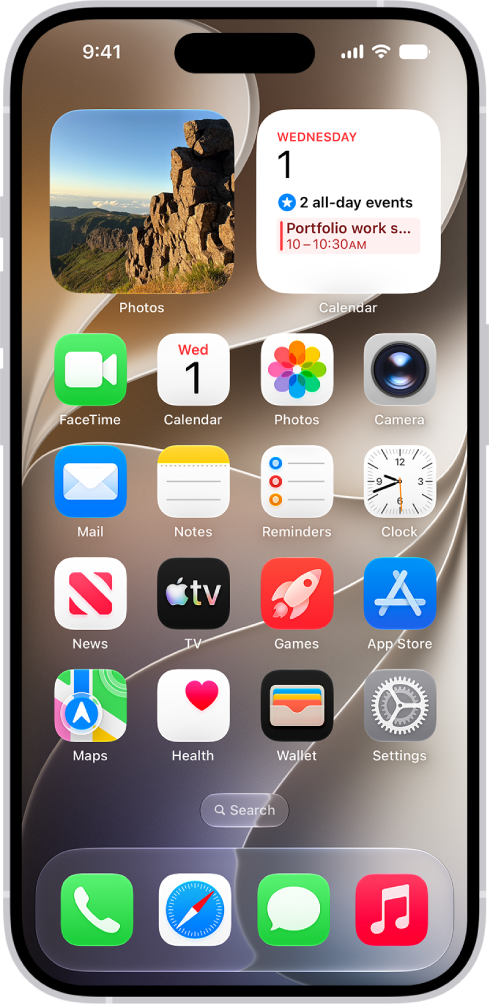
You can quickly open apps from one of your Home Screen pages or your App Library. App Library is past all your Home Screen pages. It’s where your apps are organized by category, and you can browse apps on other Home Screen pages, too, then return to App Library whenever you like.

A screenshot showing an example of the default Home Screen.

  1. To go to the Home Screen, swipe up from the bottom edge of the screen (on an iPhone with Face ID) or press the Home button (on an iPhone with a Home button).
  2. Swipe left to browse apps on other Home Screen pages.
  3. Swipe left past all your Home Screen pages to see App Library, where your apps are organized by category.
  4. To open an app, tap its icon.
  5. To return to App Library, swipe up from the bottom edge of the screen (on an iPhone with Face ID) or press the Home button (on an iPhone with a Home button).

You can log menstrual cycle information to get period and fertile window predictions.

When you set up cycle tracking, entering the requested information helps improve those predictions. You can log the days of a period and track symptoms, spotting, basal body temperature, and more, and you can edit your log and manage cycle factors. You can also log multiple period days at once, and log the flow level for a day.

Here’s how to log menstrual cycle information in Health on iPhone.

Siri: On supported models, ask Siri something like, “Log that my period started today” (not available in all languages or regions). Learn how to use Siri.

Set up cycle tracking

  1. Start the Health app on your iPhone.
  2. Tap Browse, then tap Cycle Tracking.
  3. Tap Get Started, then follow the onscreen instructions.

Entering the requested information helps improve predictions for your period and fertile windows.

Log your cycle information

Besides logging the days of a period, you can track information like basal body temperature, spotting, symptoms, and more.

  1. Start the Health app on your iPhone.
  2. Tap Browse, then tap Cycle Tracking.
  3. Do any of the following:

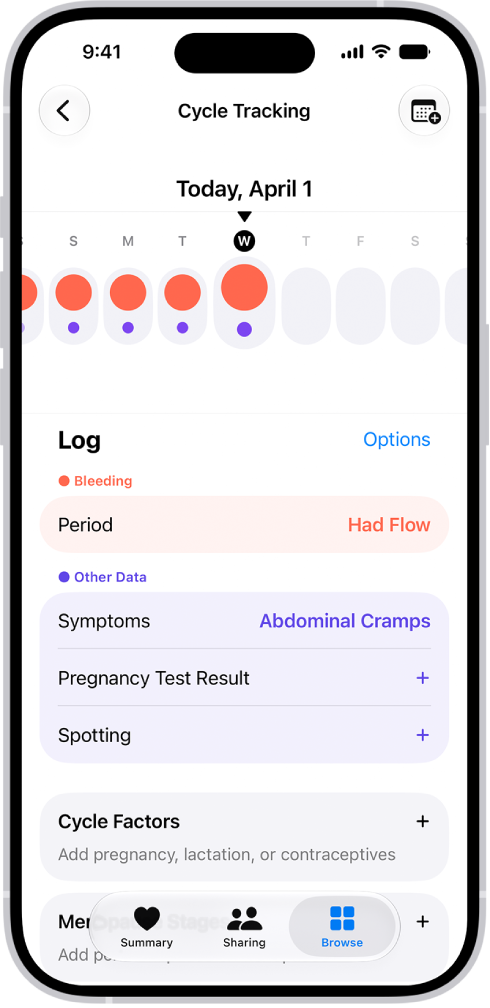
    The Cycle Tracking screen showing the timeline for a week at the top of the screen. Solid red circles and purple dots mark the first 5 days on the timeline. Below the timeline are options to add information about periods, symptoms, and more.

    • Log a period day: Tap a day in the timeline.
    • Log multiple period days: Tap the Add Period button, select days from the monthly calendar, and then tap the Done button.
    • Log the flow level for a day: Swipe the timeline to select a day, tap Period (below Bleeding), choose an option, and tap Done.
    • Log symptoms, spotting, or other information: Swipe the timeline to select a day, tap a category (below Other Data), supply the information, and then tap Done.

To add categories to the data logging screen, tap Options next to Log, then choose from the categories below Log.

Note: Apple Watch can help log your cycle information, too.

Edit your log

Your logged information appears in the timeline, where a solid red circle represents a day you logged a period and a purple dot represents a day you logged with additional information. Data for the day selected in the timeline appears in the Cycle Log (below the timeline). To change your logged information, do the following:

  1. Start the Health app on your iPhone.
  2. Tap Browse, then tap Cycle Tracking.
  3. Swipe the timeline to select a day.
  4. Tap a category of data (such as Menstruation or Symptoms), make your changes. Then tap Done.

To unmark a period day, tap its solid red circle in the timeline.

Manage cycle factors

Information you enter about pregnancy, lactation, and contraceptive use helps manage your cycle predictions.

  1. Start the Health app on your iPhone.
  2. Tap Browse, then tap Cycle Tracking.
  3. Tap Factors, then do any of the following:
    • Add a factor: Tap the Add button, select a factor, tap Started if you need to change the start date, and then tap the Done button.
    • Change the end date for a current factor: Tap the factor, tap Ended, select a date, and tap the Done button.
    • Delete a current factor: Tap the factor, then tap Delete Factor From Health.

About your health data and privacy

The information you add about yourself in Health is yours to use and share. You can decide what information is stored in Health as well as who can access your data.

When your iPhone is locked with Face ID, Touch ID, or a passcode, all of your health and fitness data in Health, other than your Medical ID, is encrypted, according to Apple. Any health data synced to iCloud is encrypted both in transit and on Apple servers. And if you have a version of iOS, iPadOS, and watchOS (if you’re using iPad and Apple Watch for cycle tracking) with default two-factor authentication and a passcode, your health and activity data is stored in a way that Apple can’t read it.

This means that when you use the Cycle Tracking feature and two-factor authentication, your health data synced to iCloud is encrypted end-to-end, and Apple doesn’t have the key to decrypt the data and therefore cannot read it.

Tag: Health

Apple Intelligence makes it easy to get more done in your daily routine. Create custom extensions in Safari; create new shortcuts, calendar events, and reminders with a description; and more.

You can also use Apple Intelligence to get summaries of your emails, conversations, audio recordings, phone calls, and more. It works with plain descriptions. Change a lunch meeting to a coffee chat, for example, and the event details are updated in Calendar.

Note: Apple Intelligence on iOS 27 or later is available on an Apple Intelligence-enabled iPhone 15 Pro, iPhone 15 Pro Max, or iPhone 16 model or later. Apple Intelligence is not available in all languages or regions. Usage limits may apply.*

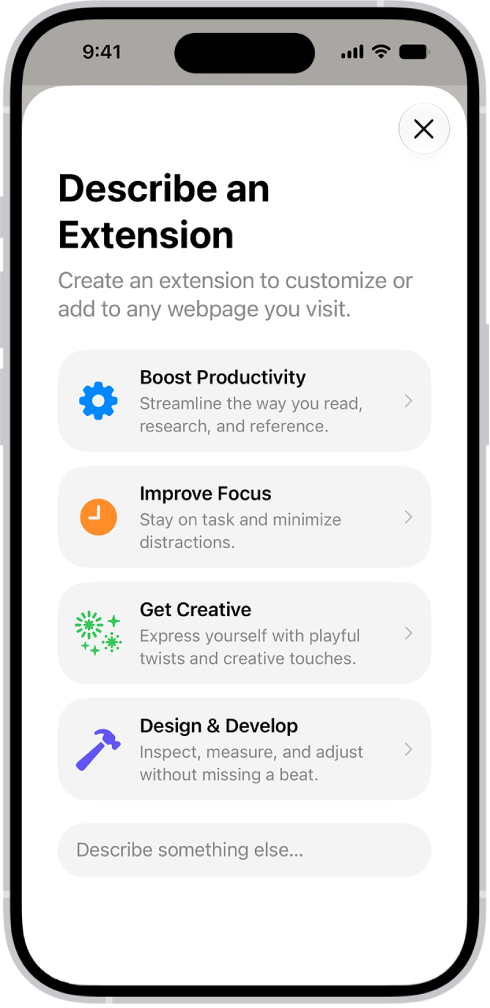
Safari window showing Describe an Extension options.

Customize how you browse in Safari

To automatically organize your tabs by topic, tap the Tabs button, tap the Organize button, then tap Organize Tabs.

Custom extensions you create can personalize website content or automate common actions. And Notify Me can alert you when a webpage has been updated, like when there’s a price change or a restock.

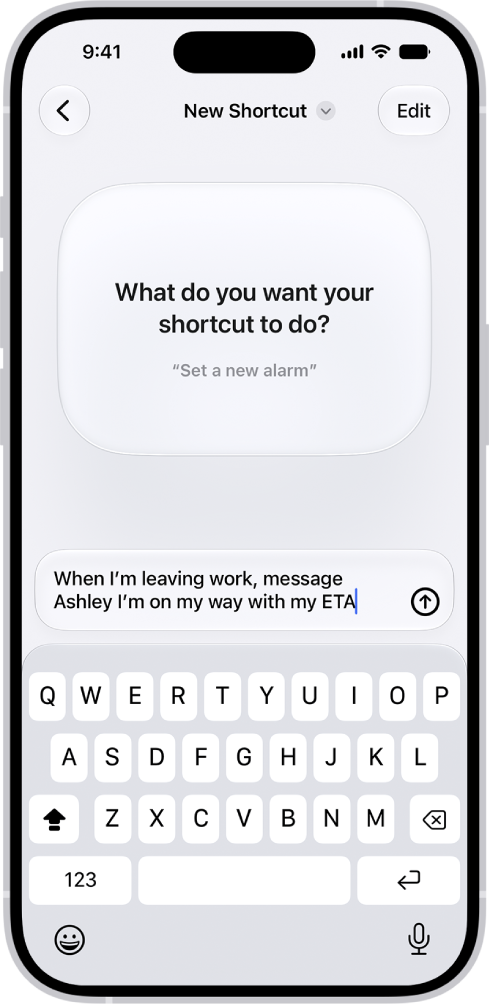
A shortcut created with a description.

Use Apple Intelligence in Shortcuts

Open the Shortcuts app, tap the Add button, then describe what you want the shortcut to do. For example, you can try something like, “When I’m leaving work message Ashley I’m on my way with my ETA.”

You can also summarize text, create images, and tap directly into Apple Intelligence models.

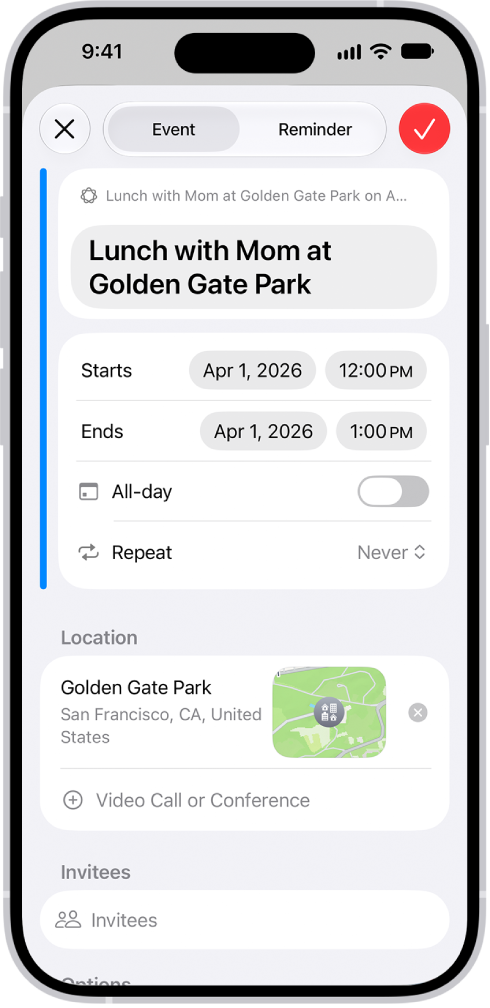
A calendar event created with a description.

Describe a calendar event

A description is all it takes to add and edit calendar events. If you change a lunch meeting to a coffee chat, for example, Calendar updates the event details.

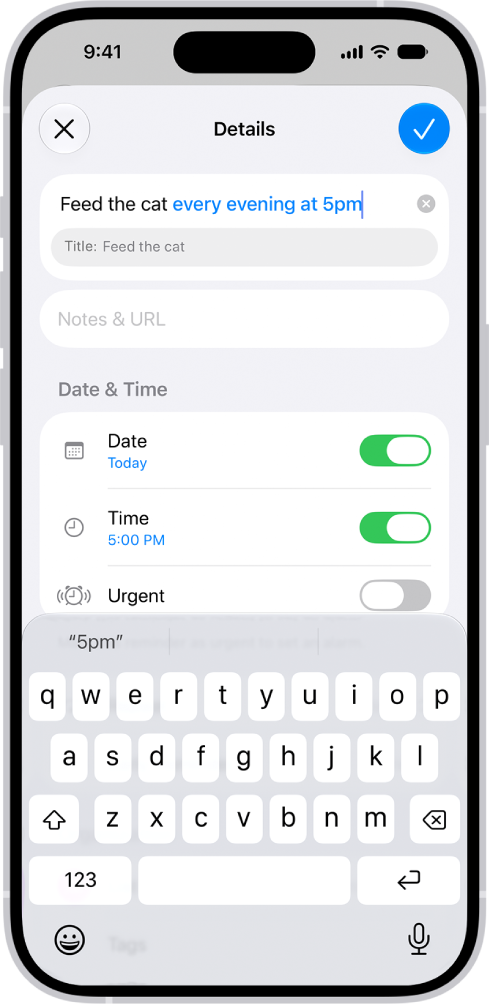
A reminder created with a description.

Describe a reminder

You can enter your reminders as a description, like “Feed the cat every evening at 5pm” or “Buy art supplies on Saturday.” Suggestions for the dates, times, frequency, and more then show up in the reminder details.

Other ways to get things done with Apple Intelligence

Get summaries from your apps

  • Mail

    Get summaries of your emails.

  • Messages

    Get summaries of unread conversations.

  • Notes

    Get summaries of audio you record in Notes—like a class lecture or an important meeting.

  • Phone

    Generate a summary of a phone call you record, and view voicemail summaries.

  • Notifications

    Get summaries of your notifications and prioritize what’s most important to you.

  • Safari

    Use Apple Intelligence to generate a summary of articles in the Safari app.

Even more productivity features

  • Search for photos and videos

    Search for specific images by describing what you want to find. You can also search video clips for key moments. Search for photos and videos

  • Prioritize your emails

    Use Priority Messages to quickly view your most urgent emails, like a same-day dinner invitation or boarding pass. View Priority Messages in your inbox

  • Organize your reminders

    Get suggested reminders, and automatically categorize related reminders into sections within a list. Get suggested reminders

*Apple Intelligence is available with Siri and device language set to Chinese (Simplified), Chinese (Traditional), Danish, Dutch, English, French, German, Italian, Japanese, Korean, Norwegian, Portuguese, Spanish, Swedish, Turkish, or Vietnamese. Some features may not be available in all regions or languages. Some devices may not be available in all regions. Siri AI is available in beta in iOS 27, iPadOS 27, macOS 27, watchOS 27, and visionOS 27 and requires an Apple Intelligence–enabled device set to a supported language. Available in English to start. Siri AI will not be initially available in the EU on iOS, iPadOS, and watchOS. Certain Apple Intelligence features that rely on server-side models are subject to daily usage limits, including but not limited to Siri AI, Intelligent Photo Editing Tools, Image Playground, and AFM 3 Cloud models in Shortcuts. Daily limits may vary by feature, request complexity, system demand, system policies, and other factors. Expanded access to such features will be available for a fee in the future. Use of these features is subject to the Apple Intelligence Terms and Conditions.

You can create folders for your playlists to keep them organized.

You can add or remove items from a playlist folder, rename a folder, and even put a playlist or folder inside another folder. A playlist can go back to the main Playlists list, too, and when Sync Library is turned on, changes to your playlist folders update across all your devices.

Here’s how to organize playlists in folders in Music on iPhone.

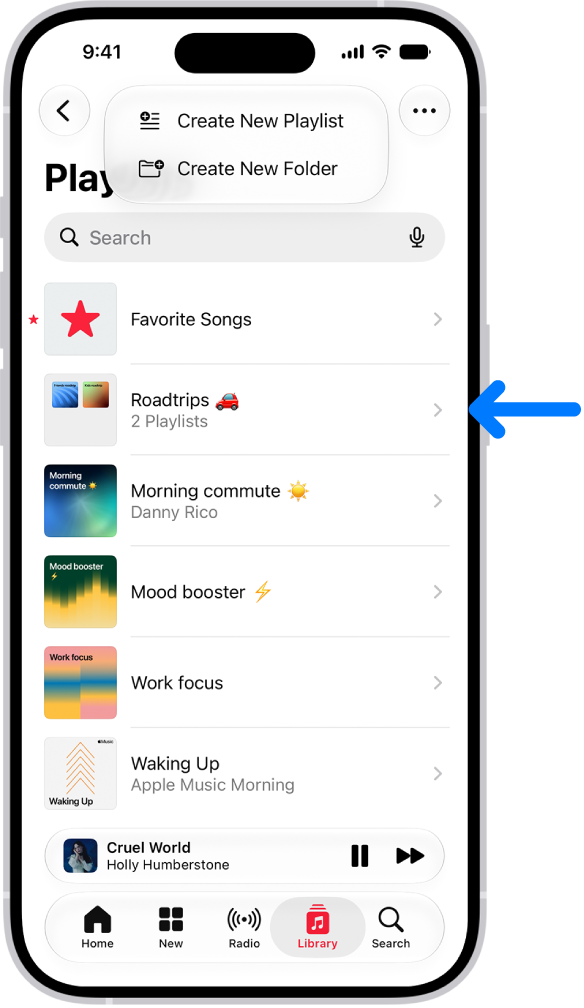
The Library tab showing the list of playlists. At the top are buttons to create a new playlist or create a new folder. A blue arrow is pointing to a playlist folder named Roadtrips.

Create a new playlist folder

  1. Open the Music app on your iPhone.
  2. Tap Library, then tap Playlists.
  3. Tap the New Playlist button. Tap Create New Folder.
  4. Type a name for the folder, then tap Create.

To rename a folder, tap the More button, tap Rename, then type the new name.

Add or remove items from a playlist folder

  1. Open the Music app on your iPhone.
  2. Tap Library, then tap Playlists.
  3. Touch and hold a playlist or folder and tap Move to Folder.

    Tip: You can also drag a playlist or folder into another folder.

  4. Tap the folder and then tap the Done button.

If a playlist is already in a folder and you want to move it back to the main Playlists list, don’t select a folder—just tap Move.

Quick tip: To put a playlist in a new folder, touch and hold the playlist in your library, tap “Move to,” then tap New Folder.

Changes you make to your playlist folders are updated across all your devices when Sync Library is turned on (go to Settings > Apps > Music, then turn on Sync Library). If you’re not an Apple Music subscriber, the changes appear in your music library the next time you sync with your computer.

Tag: Music

To make it easier to see what’s on your iPhone screen, you can invert and filter colors or make transparent items solid.

Smart Invert reverses colors everywhere except images, while Classic Invert reverses all the colors onscreen. You can also apply a filter for grayscale or color vision deficiencies. A dark background makes text stand out, especially in apps that don’t support Dark Mode.

Here’s how to change display colors on iPhone to make it easier to see what’s onscreen.

Quick tip: Quickly set brightness with the slider in Control Center.

Invert colors

A dark background helps text and content stand out, which is especially useful in apps and websites that don’t support Dark Mode.

  1. Open Settings, tap Accessibility, and then tap Display & Text Size.
  2. Turn on one of the following:
    • Smart Invert: Reverse colors everywhere except images.
    • Classic Invert: Reverse all the colors onscreen.

Differentiate or tone down colors

A filter can tint the screen a color of your choosing, adjust colors for color vision deficiencies, or show the entire screen in grayscale.

  1. Open Settings, tap Accessibility, and then tap Display & Text Size.
  2. Tap Color Filters, turn on Color Filters, and then tap a color filter to apply it.

You can drag any slider that appears to adjust the intensity or hue. The pencils reflect how the filter affects a range of colors.

Note: Color filters can change the look of images and videos.

To tone down the intensity of bright colors, turn on Reduce White Point.

Night Shift makes screen colors warmer as it gets dark out. It automatically removes inverted colors and color filter effects, except grayscale.

The Magnifier app can also capture an image of nearby objects or text, then apply a color filter to it.

Make transparent items solid

By default, some backgrounds appear transparent or blurred. Giving them a solid color makes these transparent backgrounds opaque, which simplifies those parts of your screen and makes them easier to see.

  1. Open Settings, tap Accessibility, and then tap Display & Text Size.
  2. Turn on Reduce Transparency.

Differentiate without color

When screen items rely on color to convey information, you can replace that with alternative ways to tell them apart, like text or shapes.

  1. Open Settings, tap Accessibility, and then tap Display & Text Size.
  2. Turn on Differentiate Without Color.

Use symbols for on/off switches

When switches are on, they turn green. They can also show a vertical line when they’re on and a circle when they’re off.

  1. Open Settings, tap Accessibility, and then tap Display & Text Size.
  2. Turn on On/Off Labels.

Increase contrast between colors

You can also increase the contrast between different elements on your iPhone, such as apps and background colors.

  1. Open the Settings app on your iPhone.
  2. Tap Accessibility, tap Display & Text Size, turn on Increase Contrast.

You can use iCloud Photos to keep your photos and videos securely stored in iCloud. If you turn on iCloud Photos on all your devices, you can see the photos and videos you took on iPhone on any device.

When iCloud Photos is turned on, the photos and videos you take are uploaded automatically and stored in their original format at full resolution. Any changes you make to your photo collection on one device are reflected on your other devices, too. You can check whether your photos are syncing right from the Photos app.

Here’s how to back up and sync your photos and videos with iCloud.

Note: Make sure that you’re signed in to the same Apple Account on all your devices, and that your devices meet these minimum system requirements: iOS 8.3, iPadOS 13.1, macOS 10.10.3, or later, or a Windows device with iCloud for Windows 7.x or later.

Turn on iCloud Photos

  1. Open the Settings app on your iPhone.
  2. Tap your name, then tap iCloud.
  3. Tap Photos and turn on Sync this iPhone.

When you take a photo or video, iCloud automatically uploads it, so your photos stay backed up and in sync. You can access your library from any device, anytime.

Check if your photos and videos are backed up to iCloud

To make sure you have copies if something happens to your iPhone, check that iCloud Photos is syncing your photos to iCloud.

  1. Open the Photos app on your iPhone.
  2. Tap Collections.
  3. In the top-right corner of the screen, you can see a preview of your syncing status. You may see any of the following:
    • Yellow badge: iCloud syncing is paused. Tap your account icon to see the details.
    • Yellow warning icon: Your iCloud storage is almost full. Tap your account icon to see the details.
    • Red exclamation mark: Your iCloud storage is full.
    • Blue badge: You have notifications from a shared library or shared album. Tap your account icon to see the details.
    • Partially filled blue circle around your account icon: Photos are actively uploading to iCloud. Tap your account icon to see the details.
    • Partially filled gray outline around your account icon: Uploads are paused. Tap your account icon to see the details.
  4. Tap your account to see more details. The last time your iPhone synced with iCloud appears below the account profile.

Note: If iCloud sync is in progress or paused, a notification also appears in the upper-left corner of the library.

Sync iCloud Photos immediately

Once you turn on Sync Immediately, iCloud Photos prioritizes syncing items added to your library after that.

  1. Open the Photos app on your iPhone.
  2. Tap Collections. Tap your iCloud account profile at the top of the screen.
  3. Tap Sync Immediately, then tap For Today.

To turn off syncing, tap Off. Sync Immediately automatically turns off after one day.

Note: Sync Immediately may affect battery and cellular usage and will pause if Low Power Mode or Low Data Mode is turned on.

Turn off Optimize Storage on your iPhone

To make the most of the storage space on your iPhone, iCloud Photos offers Optimize iPhone Storage. When it’s on, iCloud stores all your full‑resolution photos and videos in their original formats, and your iPhone keeps storage-saving versions. Optimize iPhone Storage is on by default, but you can turn it off.

  1. Open the Settings app on your iPhone.
  2. Tap your name, then tap iCloud.
  3. Tap Photos, tap iPhone Storage, and then tap Download and Keep Originals.

Get more iCloud storage

You can upgrade to iCloud+ for more storage and additional features if your uploaded photos and videos exceed your storage plan.

Tags: iCloud, Photos

After you set up or join an iCloud Shared Photo Library, you can share photos and videos with friends and family in the Photos app. You and up to five other participants can add photos and videos to the library, and any edits, comments, or other adjustments made to them are seen by everyone in real time.

Content in a shared library is also added to everyone’s memories, featured photos, and the Photos widget. And because shared photos and videos are separate from your personal library, you can switch between viewing the shared library, your personal library, or both. When you view both, content that’s part of the shared library has a badge on its thumbnail.

Switch between viewing your iCloud Shared Photo Library and personal library

  1. Start the Photos app on your iPhone.
  2. Make sure Library is selected.
  3. Tap the Sort and Filter button and select the following:
    • View your Photos content and iCloud Shared Photo Library content: Tap Both Libraries.
    • View only your personal Photos content: Tap Personal Library.
    • View only iCloud Shared Photo Library content: Tap Shared Library.

Viewing both your personal and shared library? Anything that’s part of the shared library shows a badge in the top-right corner of its thumbnail.

Make edits and changes to content in an iCloud Shared Photo Library

All participants see these changes when you make them to photos and videos in an iCloud Shared Photo Library:

  • Edits.
  • Favorites, captions, keywords, or date and time adjustments.
  • Deleted content.

Note: If someone deletes content you added to the shared library, you get a notification. To turn off these notifications, in Photos tap your account in the top-right corner of the screen, tap Shared Library, and then turn off Deletion Notifications. You can also move deleted content you added from Recently Deleted back to your personal library within 30 days.

Move shared content from an iCloud Shared Photo Library to your personal library

Photos stored in your shared library carry a badge in their top-right corner. If you contributed photos and videos to the shared library, you can move them back to your personal library.

  1. Start the Photos app on your iPhone.
  2. Open a photo or video in your shared library.
  3. Tap the More button at the top of the screen. Tap Move to Personal Library.

Add storage space to your iCloud Shared Photo Library

All participants can access the content in an iCloud Shared Photo Library, but the iCloud storage it uses counts against the library organizer’s storage space.

When the shared library content goes beyond the organizer’s available storage space, the organizer can upgrade to iCloud+ or add more storage to their existing iCloud+ subscription.

Tags: iCloud, Photos

In the Calendar app, reply to meeting and event invitations you’ve received.

You can respond with Accept, Maybe, or Decline. If you add comments to your response, the organizer can see them, but other attendees can’t. You can even suggest a different meeting time.

Reply to an event invitation

  1. To respond to an event notification, tap it.

    Or, in Calendar, tap the Inbox button, then tap an invitation.

  2. Tap your response—Accept, Maybe, or Decline.

To respond to an invitation you receive by email, tap the underlined text in the email, then tap Show in Calendar.

If you add comments to your response, your comments can be seen by the organizer but not by other attendees (comments may not be available for all calendars). To see events you declined, tap the Calendars button, then turn on Show Declined Events.

Suggest a different meeting time

If you’ve received a meeting invitation, you can suggest a different time for it.

  1. Start the Calendar app on your iPhone.
  2. Tap the meeting, then tap Propose New Time.
  3. Tap the time, then enter a new one.
  4. Tap the Done button, then tap Send.

The organizer gets either a counter-proposal or an email with your suggestion, depending on what your calendar server can do.