Got a tip for us?

Some website and app sign-in screens require you to pass CAPTCHA challenges, such as recognizing letters in unusual shapes. iCloud allows you to bypass many challenges by automatically and privately verifying your iPhone and account. It’s called Automatic Verification, and you can turn this bypass on or off.

  1. Start the Settings app on your iPhone.
  2. Tap your name and tap Sign-In & Security.
  3. Turn Automatic Verification on or off.
Tags: iCloud, iPhone

With Screen Time, you can allow or block communication with certain contacts in iCloud—including phone calls, FaceTime calls, and messages. It can apply at all times or only during certain periods, like when your device use is paused, and you can choose Contacts Only, Contacts & Groups with at Least One Contact, or Everyone.

Choose who you can communicate with at certain times

You can allow or block communication from certain contacts in iCloud, including incoming and outgoing phone calls, FaceTime calls, and messages, either at all times or during certain periods, such as when your device use is paused.

If you haven’t already turned on Contacts in iCloud, go to Settings > [your name] > iCloud, tap See All next to Saved to iCloud, then turn on Contacts.

Note: Every one of your devices needs iOS 27, iPadOS 27, macOS 27, watchOS 27, or visionOS 27 or later to use all the latest Screen Time features. And if you’re setting up these features in a Family Sharing group, each device in the group needs iOS 27, iPadOS 27, macOS 27, watchOS 27, or visionOS 27 or later.

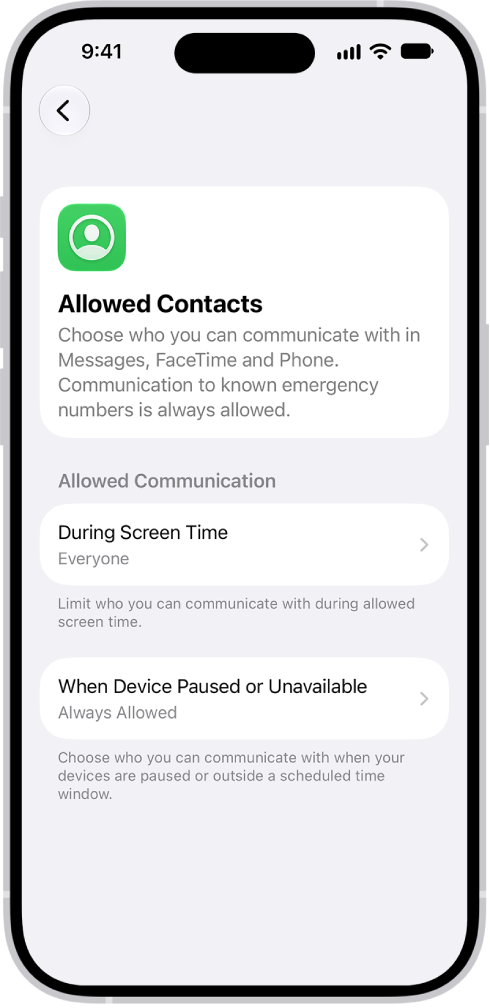
The Allowed Contacts screen in Screen Time showing communication allowed during Screen Time and when devices are paused.

  1. Open the Settings app on your iPhone.
  2. Tap Screen Time, tap Communication Limits, and tap During Screen Time.
  3. Do any of the following:
    • Manage who you can communicate with during screen time hours: Tap During Screen Time and then select Contacts Only, Contacts & Groups with at Least One Contact, or Everyone.
    • Manage who you can communicate with when your devices are paused: Tap When Device Paused or Unavailable and select Always Allowed or Everyone.

Calls and messages from someone who’s currently blocked by your Communication Limit settings won’t go through.

Try to call or message someone who’s currently blocked by your Communication Limit settings, and your list of recent calls or messages shows their name or number in red. Once the communication limit changes, you can communicate with them.

To communicate again with contacts who are blocked by your Communication Limit settings, use the steps above to change those settings.

You can get detailed driving directions to your destination. When you drive in select cities, you see enhanced details for crosswalks, bike lanes, and buildings, plus a street-level perspective that helps you find the right lane at complex intersections (supported models).

You can also estimate travel time for a future departure or arrival, and avoid tolls. You can get directions from anywhere on the map, or from an address you search for.

Here’s how to get driving directions in Maps on iPhone.

Note: Turn-by-turn spoken directions and the preferred route option aren’t available in all countries or regions.

Get driving directions

  1. Start the Maps app on your iPhone.

    Do either of the following: Touch and hold anywhere on the map.

  2. Enter an address in the search field.
  3. Tap the directions button and then tap Go or Steps for the route you want to take.

If your preferred travel mode is Walking , Transit , or Cycling , tap the Driving button.

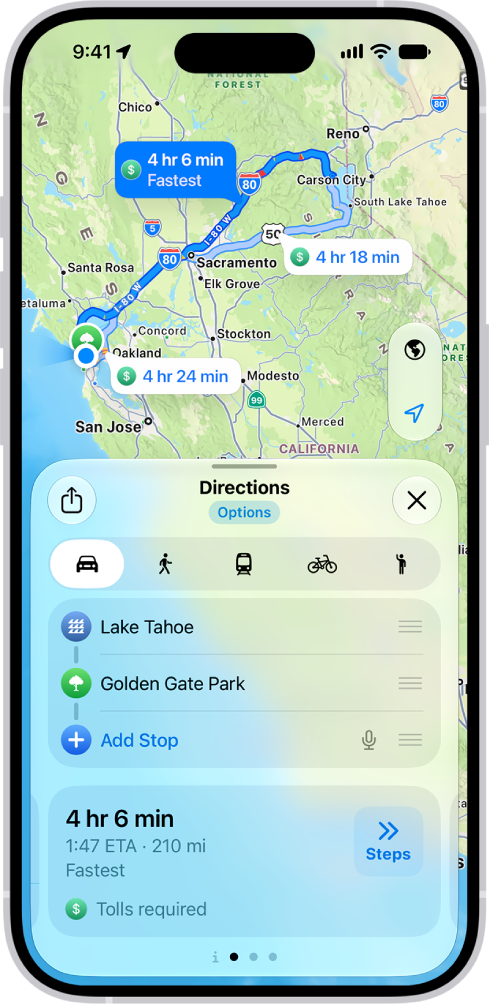
An iPhone showing a map with several driving route options to the same destination. Each route shows the estimated time and distance, and a Go button to start turn-by-turn directions. Color coding on each route indicates traffic conditions.

Siri: You can also ask Siri something like, “Give me driving directions home.” If you regularly drive the same route—such as between home and work—Maps may show it as “Your route,” making it easier to start navigation.

Based on your driving patterns and destinations, this preferred route option appears, and it may alert you to delays before you even leave.

  1. To turn off the option, open the Settings app, tap Apps, tap Maps and tap Location. Turn off Preferred Routes & Predicted Destinations.

Maps stays onscreen and keeps speaking directions when Driving Focus is on or iPhone locks automatically.

Even if you open another app, you continue to receive turn-by-turn directions. (To return to Maps from another app, tap the directions banner at the top of the screen or the navigation indicator in the status bar.)

Estimate travel time for a future departure or arrival

  1. Start the Maps app on your iPhone.

Get driving directions, as above.

  1. Tap Options (below Directions), tap Leave at or Arrive by, select a time and date, and then tap the Done button.

Predicted traffic may change the estimated travel time.

Avoid tolls or highways

  1. Start the Maps app on your iPhone.

Get driving directions, as above.

  1. Tap Options (below Directions), make your choices (below Avoid) and then tap the Done button.

Show or hide the compass or the speed limit

  1. Start the Settings app on your iPhone.
  2. Tap Apps, then tap Maps.

Below Directions, tap Driving, then turn on or off Compass and Speed Limit.

Tag: Maps

On supported models, you can record a vocal layer on top of an instrumental recording without using headphones. This allows you to capture a musical inspiration: add vocals or a voiceover to an existing instrumental recording, try out lyrics, harmonize with instrumental music, and more.

After recording the second layer, you can mix the two layers or separate them to edit and play each one on its own. You can only create a layered recording on supported models, but you can play one on any device.

Here’s how to add a second layer to a Voice Memos recording on iPhone.

Add a second layer

  1. Start the Voice Memos app (in the Utilities folder) on your iPhone.
  2. In the list of recordings, tap the recording you want to add a vocal layer to and then tap the Edit Recording button to view the waveform.
  3. Tap the Add a Vocal Layer button.

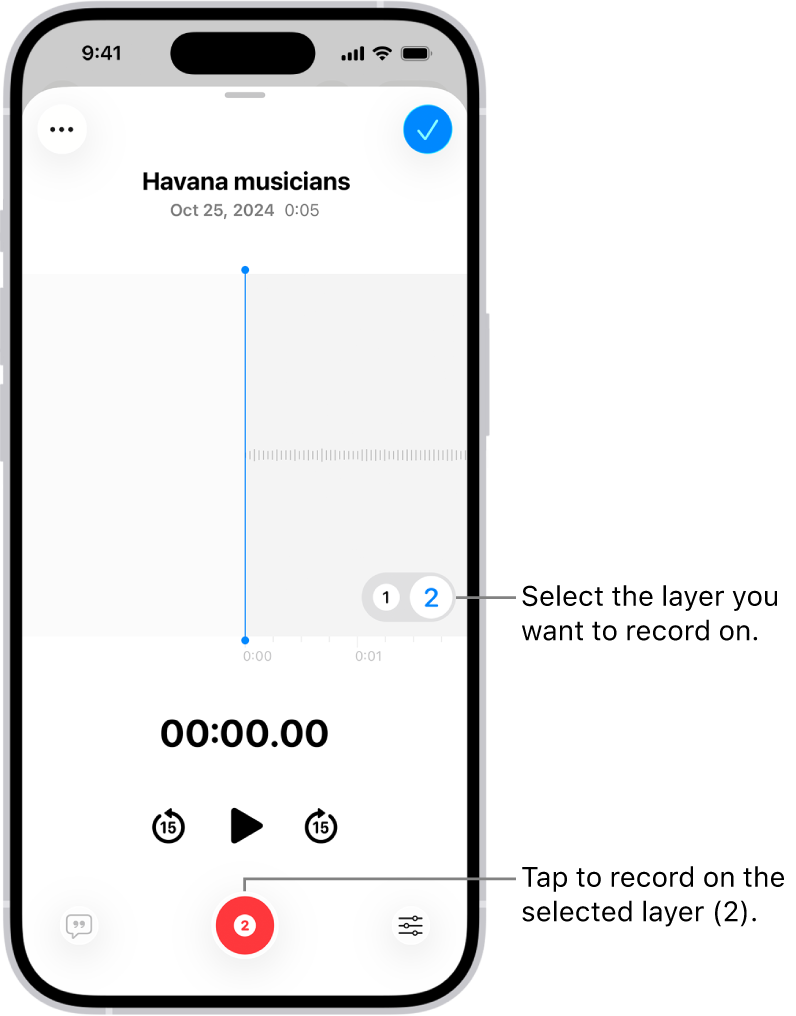
    The screen for recording a second layer in Voice Memos.

  4. Tap the Record button and then record your second layer.

Layered recordings show the Layers button in the list of recordings.

A layered recording can play on any device, although you can only create one on supported models.

Note: Layered recordings use QTA (QuickTime Audio) format, so they won’t appear on devices running iOS 18.1, iPadOS 18.1, macOS Sequoia 15.1, and earlier. Separate the layers, though, and you get each layer in .m4a format, which shows up on devices with iOS 18.1, iPadOS 18.1, or macOS Sequoia 15.1 and earlier.

Transcription and recording in stereo or Spatial Audio work only on the first layer. Unless you separate them, you edit both layers of a layered recording together.

Mix the layers

When you’ve recorded the second layer, you can mix the two layers.

  1. Start the Voice Memos app (in the Utilities folder) on your iPhone.
  2. Tap the layered recording you want to mix.
  3. Tap the Edit Recording button to view the waveform and then tap the playback options button.
  4. Drag the Layer Mix slider to mix the layers.

Separate the layers

With the second layer recorded, you can separate the two layers to edit them or play them separately.

  1. Start the Voice Memos app (in the Utilities folder) on your iPhone.
  2. While viewing the waveform, tap the More button, then tap Separate Layers.
  3. Tap Done to return to the list of recordings.

In the list, the two layers then appear as separate recordings that you can select, edit, and play separately.

Import layered recordings into Logic Pro

If Voice Memos is on in iCloud settings, an iPad that’s signed in to the same Apple Account can open a layered recording from your iPhone. Export the recording to Files there, and you can import it into Logic Pro for iPad for editing. In Logic Pro 11.1.1 or later, the two layers open automatically as two distinct tracks.


You can organize your apps into folders to make them easier to find on your Home Screen pages.

A folder can hold more than one screen’s worth, too: it can contain multiple pages of apps. You can create, rename, or delete a folder, or move an app from a folder back to the Home Screen. Organizing your apps on the Home Screen doesn’t affect App Library, either.

Here’s how to organize your apps in folders on iPhone.

Create a folder

  1. Go to the Home Screen.
  2. Touch and hold the Home Screen background until the apps begin to jiggle.
  3. To create a folder, drag an app onto another app and then drag other apps into the folder.

    A folder can contain multiple pages of apps.

  4. To rename the folder, touch and hold it, tap Rename, and then enter a new name.

    If the apps begin to jiggle, tap the Home Screen background and try again.

  5. When you’re finished, tap Done.

Note: If you organize your apps on the Home Screen, it doesn’t affect the organization of apps in App Library.

Delete a folder from your Home Screen

  1. Go to the Home Screen.
  2. Touch and hold the Home Screen background until the apps begin to jiggle.
  3. Tap the folder to open it. Then drag all the apps out of it onto the Home Screen.

    When the folder is empty, it’s deleted automatically.

Move an app from a folder to the Home Screen

Moving an app from a folder to the Home Screen makes it easier to locate and open.

  1. Go to the Home Screen.
  2. Locate the folder that contains the app. Tap the folder to open it.
  3. Touch and hold the app until the apps begin to jiggle.
  4. Drag the app from the folder to the Home Screen.

Use the Stocks app to track market activity and view the performance of stocks you follow. For any stock, you can see its most recent price, daily percentage change, market capitalization value, and more.

The list you see first is called the My Symbols watchlist. You don’t have to stick with it, though: you can add or remove symbols, create your own watchlists, and view charts, details, and news for each stock.

Siri: Ask Siri something like, “How are the markets doing?”

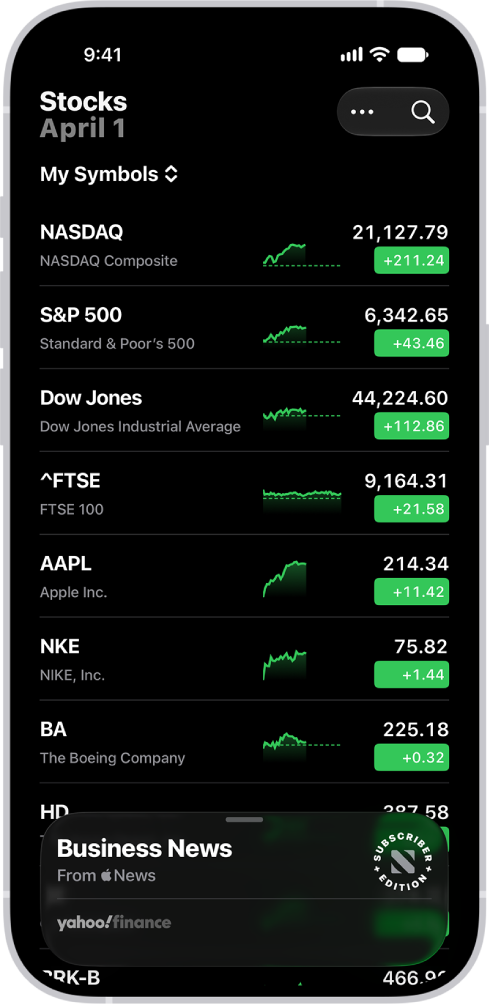
A watchlist in the Stocks app showing a list of different stocks. Each stock in the list displays, from left to right, the stock symbol and name, a performance chart, the stock price, and price change. At the top right is the search button. At the bottom of the screen is Business News.

Check stocks

You can see a stock’s market capitalization value, daily percentage change, most recent price, and more.

  1. Start the Stocks app on your iPhone.
  2. Tap a ticker symbol in your watchlist, or tap the Search button to search for a symbol. Tap the symbol in the search results.

Manage symbols in the My Symbols watchlist

The My Symbols watchlist is the list of ticker symbols that appears on the screen when you first open the Stocks app. Besides updating and managing it, you can create your own watchlists.

  1. Start the Stocks app on your iPhone.
  2. Do any of the following:

    • Add a symbol: Tap the Search button. In the search field, enter a ticker symbol, company name, fund name, or index. In the search results, tap the Add button, then tap the Close button.
    • Delete a symbol: Swipe left on the symbol in your watchlist and then tap Remove.

      Note: If you delete a symbol from the My Symbols watchlist, that symbol is also deleted from your other watchlists.

    • Reorder symbols: Tap the More button, tap Edit Watchlist and touch and hold the Reorder button. Drag the symbol to a new position.
    • Share a symbol: Swipe left on a symbol in your watchlist, tap Share, and choose a sharing option, such as Messages or Mail.

View charts, details, and news

For the ticker symbols in your watchlist and any symbols you search for, you can view interactive charts, performance details, and related news stories.

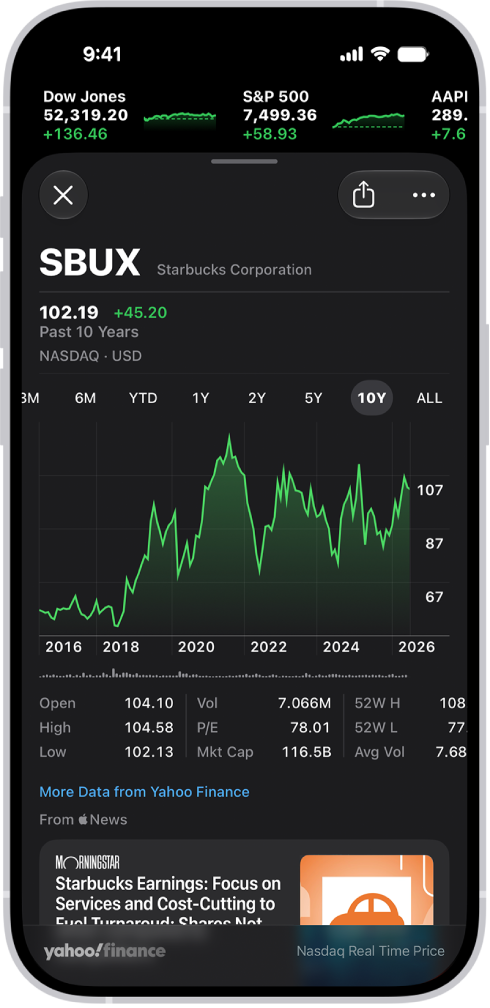
In the middle of the screen, a chart shows the performance for a stock over the course of 10 years. Above the chart are buttons to display the stock performance over 6 months, 1 year, 2 years, 5 years, or 10 years. Below the chart are stock details such as opening price, high, low, and market cap.

  1. Start the Stocks app on your iPhone.
  2. Tap a symbol you want to see more details about and then do any of the following:
    • View the performance over time: Tap an option from the time range selections at the top of the chart.
    • View the value for a specific date or time: Touch and hold the chart with one finger.
    • View the difference in value over time: Touch and hold the chart with two fingers.
    • View more details: Swipe the data below the chart to see additional details like 52-week high and low, Beta, EPS, and average trading volume.
    • Read news: Swipe up to see additional news stories and tap a story.
  3. To return to your watchlist, tap the Dismiss Overlay button.

Quick tip: For a quick view of a symbol’s performance, touch and hold it in your watchlist.

Tag: Stocks

The Lock Screen appears when you turn on or wake iPhone. From the Lock Screen, you can see notifications, open Camera and Control Center, get information from your favorite apps at a glance, control media playback, and more.

You can also follow Live Activities there, like directions from Maps or order updates from food delivery apps. And you can personalize your Lock Screen by choosing a wallpaper, showcasing a favorite photo, changing the font of the time, adding widgets, and more.

Here’s how to access features from the iPhone Lock Screen.

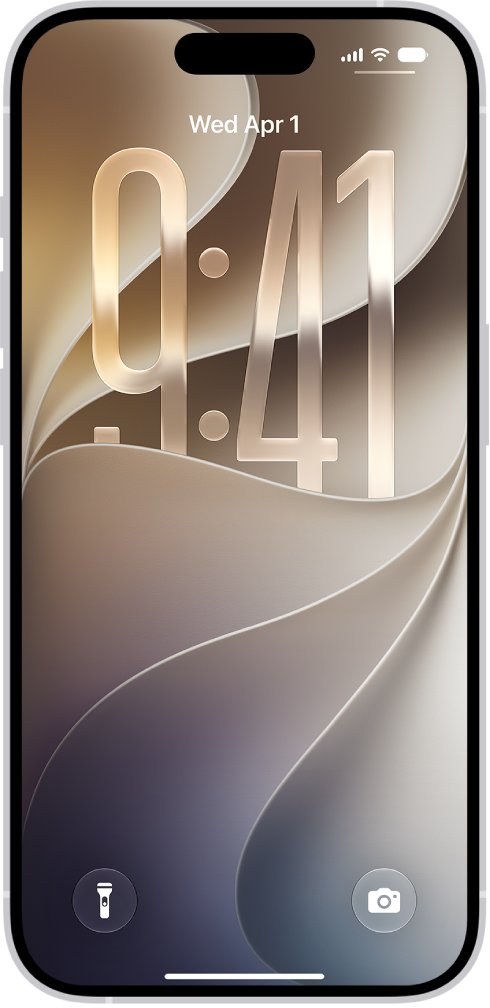
The iPhone Lock Screen showing the time and date near the top and icons for the Flashlight and Camera near the bottom.

Access features and information from the Lock Screen

Even while iPhone is locked, the Lock Screen gives you quick access to useful features and information.

Go to the Lock Screen, then do any of the following:

  • Open Camera: Swipe left. On supported models, you can touch and hold the Camera button, then lift your finger.
  • Open Control Center: Swipe down from the top-right corner (on an iPhone with Face ID) or swipe up from the bottom edge of the screen (on other iPhone models).
  • See earlier notifications: Swipe up from the center.
  • View more widgets: Swipe right. You can interact with widgets on the Lock Screen and the Home Screen to perform tasks—for example, tap an item in the Reminders widget to check it off, or tap the Play button in the Podcasts widget to play an episode.
  • Control media playback: Use the playback controls (Now Playing) on the Lock Screen to play, pause, rewind, or fast-forward media playing on your iPhone.

Show notification previews on the Lock Screen

  1. Start the Settings app on your iPhone.
  2. Tap Notifications, then tap Show Previews.
  3. Choose one of the following:
    • Always: Previews appear on the Lock Screen, even when iPhone is locked.
    • When Unlocked: Previews appear only after iPhone is unlocked.
    • Never: Previews never appear on the Lock Screen.

Details about Calendar invitations, lines from Mail messages, and text from Messages can all show up in notification previews.

View and control Live Activities on the Lock Screen

With Live Activities, you can follow the progress of app activities right on your Lock Screen. That includes directions from Maps, order updates from food delivery apps, live sports updates from the Apple TV app, and more.

Music, a movie, or other media you play on your iPhone also becomes one of these Live Activities, with playback controls on your Lock Screen to pause, play, fast-forward, or rewind. You can even control playback on a remote device like your Apple TV 4K or HomePod from your iPhone Lock Screen.

To change your Live Activity settings, go to Settings, tap Apps, tap the app with the settings you want to change, then tap Live Activities.

Note: Not all apps have a Live Activities setting.

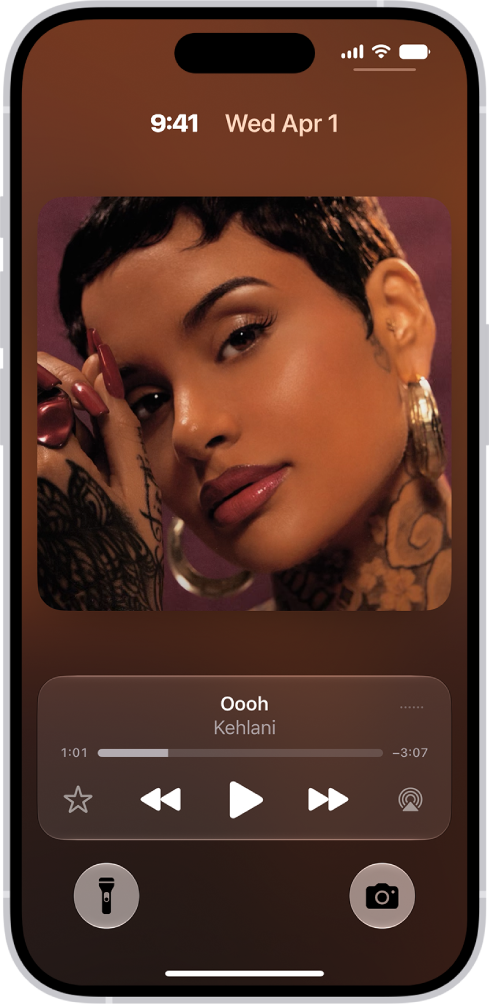
The Lock Screen showing an album cover and below it the controls for music playing on a remote device.

In the Stocks app, you can read business news that’s driving the market. In countries where Apple News is available, you also see stories selected by the Apple News editors and stories from Apple News+.

You can browse Business News and Top Stories, or see stories related to a symbol in your watchlist. You can also listen to a story, and clear recommendations.

Here’s how to read business news in Stocks on iPhone.

Note: Apple News and Apple News+ aren’t available in all countries or regions.

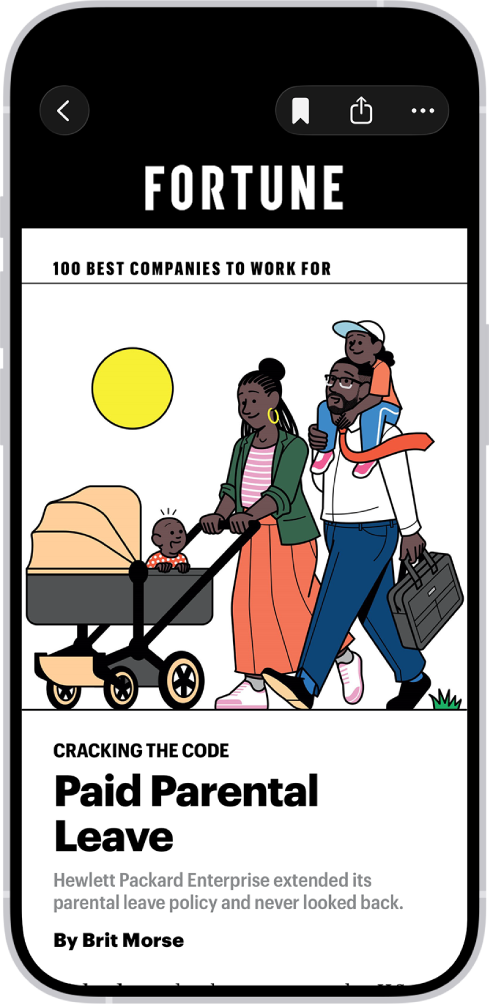
An article from Apple News. At the top-left corner of the screen is the Back button to return to business-related news. In the top-right corner are the Save, Share, and More buttons.

Read a story

  1. Start the Stocks app on your iPhone.
  2. Swipe up on Business News or Top Stories to view stories, or tap a symbol in your watchlist to browse related stories.
  3. Tap a story to read it. While viewing a story, do any of the following:

    • Return to your newsfeed in Stocks: Tap the Back button or Done.
    • See more stories from the publication in Apple News: Tap the publisher logo at the top of the screen.
    • Save the story to Apple News: Tap the Bookmark button.

      Note: In order to save stories to Apple News, make sure you’re signed in to your Apple Account, then go to Settings > [your name] > iCloud, tap See All next to Saved to iCloud, then turn on News.

    • Change the text size: Tap the More Actions button, tap Text Size, and tap the smaller or larger letter to change the text size in the story.
    • Share the story: Tap the Share button, then choose a sharing option, such as Messages or Mail.

The newsfeed doesn’t show stories from publications you’ve blocked in Apple News.

Listen to a story

Some news stories include an audio version that you can listen to in the News app. Tap the Play button to listen.

Clear recommendations

The Stocks app recommends stories based on what you’ve read in the past, but you can clear this information.

  1. Start the Stocks app on your iPhone.
  2. Tap the More button and tap Clear Recommendations Data.
Tag: Stocks

With Magic Keyboard, you can switch between the language keyboard for your region, an emoji keyboard, other language keyboards that you add, and the onscreen keyboard. A keyboard shortcut cycles between them, and you can show or hide the onscreen keyboard, too.

Switch between language keyboards and the onscreen emoji keyboard

  1. On Magic Keyboard, press and hold the Control key.
  2. Press the Space bar to cycle between the language keyboard for your region, the emoji keyboard, and any keyboards you added for typing in different languages.

Show or hide the onscreen keyboard

To show the onscreen keyboard, press the Eject key on Magic Keyboard. To hide the onscreen keyboard, press the Eject key again.

You can customize your preferences for the Reminders app in Settings. Choose the default list for new items, adjust notifications, and more.

You can add or remove accounts, allow content from Reminders to appear in Search and widgets, and change the sound for reminder alerts. Siri can make suggestions based on how you use Reminders, and you can choose your preferred languages when you’ve added more than one.

Here’s how to change your Reminders settings on iPhone.

Customize your Reminders settings

  1. Start the Settings app on your iPhone.
  2. Tap Apps and tap Reminders.
  3. Adjust any of the following:
    • Accounts: Add or remove accounts in Reminders.
    • Location: Control the location information you share.
    • Siri: Allow Siri to make suggestions across apps based on the way you use Reminders.
    • Search: Allow suggestions and content from Reminders to appear in Search and widgets.
    • Notifications: Change notification settings.
    • Language: Choose your preferred languages (option appears when multiple languages are added).
    • Default List: Choose the list for new reminders you create outside of a specific list, such as reminders you create using Siri.
    • Today Notification: Set a time to see notifications for all-day reminders that have been assigned a date without a time.
    • Show as Overdue: The scheduled date turns red for overdue all-day reminders.
    • Time Zone: Set the time zone used to display and create reminders.
    • Include Due Today: The badge count includes overdue items and items due today.
    • Mute Notifications: Turn off notifications for assigned reminders.
    • Show Suggestions: If you type text that matches a previously completed reminder, that reminder appears as a suggestion.
    • Add Language: Set an additional language that Reminders uses to automatically place grocery items into categories.
    • Reset Categories: Clears the categorization that was learned as you manually moved items in grocery or auto-categorized lists. This applies to new items you add on any of your devices, including in lists you’ve shared. Existing items and lists shared with you won’t be affected.

Change the sound for reminder alerts

  1. Start the Settings app on your iPhone.
  2. Tap Sounds & Haptics, then tap Reminder Alerts.
  3. Choose a sound from the list.

If you’d rather not hear a sound when you receive a reminder alert, choose None.