Got a tip for us?

You can find nearby attractions, services, and more in the Maps app. You can search by a category like Grocery Stores or Restaurants, or enter something like “playgrounds” or “parks,” and Siri can help, too. In select U.S. cities, you can even see Local Lists, with suggestions based on what people view, share, and interact with most.

Note: Nearby suggestions aren’t available in all countries or regions.

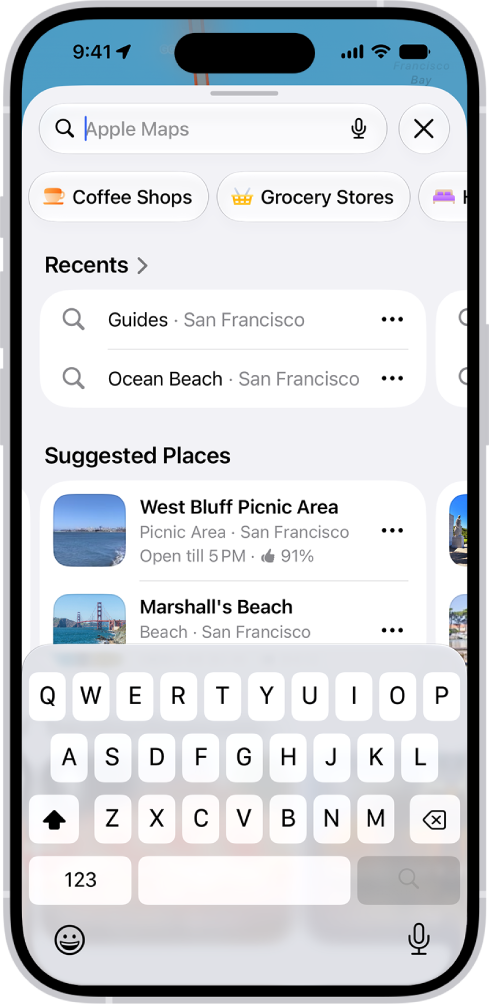
The Maps app showing the search field, categories for nearby services, and city guides. In the bottom part of the screen is the iPhone onscreen keyboard.

Find a nearby attraction, restaurant, or service

Siri: Ask Siri something like, “Find coffee near me.”

Or without using Siri:

  1. Start the Maps app on your iPhone.
  2. Tap the search field and then do one of the following:

    • Tap a category like Grocery Stores or Restaurants below Find Nearby.
    • Enter something like “playgrounds” or “parks” in the search field, then tap the Search Nearby result.
    • In select U.S. cities, enter “Local Lists” in the search field, tap Guides, then tap a collection, such as restaurants or kid-friendly spots.

      Suggestions are based on what people view, share, and interact with most on Apple Maps.

Quick tip: For a shortcut, touch and hold the Maps app icon on the Home Screen and tap Search Nearby.

Depending on what you’re looking for, you may be able to apply more search criteria, tap a suggestion to get additional information, and more.

  1. To change the nearby area, drag the map.
Tag: Maps

iPhone offers power-saving features that help extend battery life based on your needs. Use Adaptive Power to let iPhone automatically adjust performance based on your usage patterns, or turn on Low Power Mode to manually reduce power consumption when your battery gets low.

Adaptive Power, on iPhone 15 Pro or later, runs in the background on its own, and it’s meant for days when your usage is higher than usual.

Turn on Adaptive Power

Adaptive Power, available on iPhone 15 Pro or later, helps extend your iPhone’s battery life on days when your usage is higher than usual. Once on, it works automatically in the background, with nothing for you to manage. Based on your recent usage patterns, it predicts when you’ll need extra battery power with on-device intelligence, then adjusts performance to help your battery last longer.

Note: On supported models, Adaptive Power is on by default.

Adaptive Power can lower screen brightness, limit background activity, and adjust performance to conserve power throughout the day when it’s turned on. It can also turn on Low Power Mode automatically once your battery reaches 20%.

  1. Start the Settings app on your iPhone.
  2. Tap Battery and tap Power Mode. Then turn Adaptive Power on or off.

You’re notified the first time Adaptive Power turns on. After that, you’re notified only on days when your battery is draining faster than usual. To turn notifications on or off, go to the Settings app, tap Battery, tap Power Mode, then turn Adaptive Power Notifications on or off. If you turn off notifications, Adaptive Power continues to help extend your battery life.

Manage Low Power Mode

When the battery gets low, Low Power Mode reduces the amount of power your iPhone uses. It optimizes performance for essential tasks like accessing the internet, sending and receiving email and messages, making and receiving calls, and more. And on iPhone models with ProMotion display technology, it limits the display refresh rate to 60 frames per second.

Note: In Low Power Mode, iPhone might perform some tasks more slowly.

To switch Low Power Mode on or off, do any of the following:

  • iPhone 14 or earlier: Go to the Settings app, then tap Battery. Tap Low Power Mode.
  • iPhone 15 or later: Go to the Settings app, then tap Battery. Tap Power Mode, then tap Low Power Mode.
  • In Control Center: Add the Low Power Mode button to Control Center, then tap the Low Power Mode button.

Once iPhone charges to 80% or higher, Low Power Mode turns off automatically.

Tag: Battery

In many apps, you can zoom in or out on specific items. For example, you can look closer in Photos or expand webpage columns in Safari. You can also use the Zoom feature to magnify the screen no matter what you’re doing.

You can magnify the entire screen (Full Screen Zoom) or magnify only part of the screen with a resizable lens (Window Zoom). Zoom can also follow your selections, the text insertion point, and your typing. And you can use Zoom together with VoiceOver.

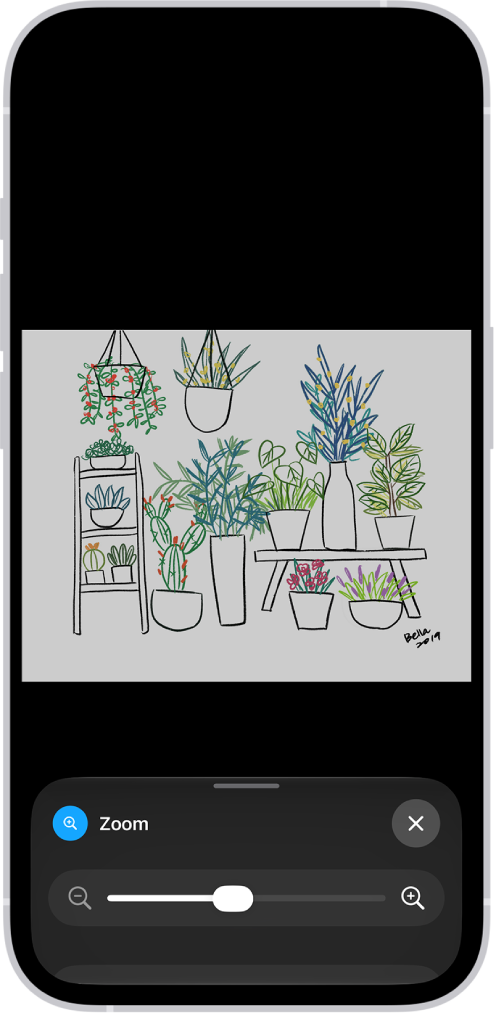
An iPhone showing a zoomed in illustration of plants.

Set up Zoom

  1. Open Settings, tap Accessibility, tap Zoom, and turn on Zoom.
  2. Adjust any of the following:
    • Follow Focus: Track your selections, the text insertion point, and your typing.
    • Smart Typing: Switch to Window Zoom when a keyboard appears.
    • Keyboard Shortcuts: Control Zoom using shortcuts on an external keyboard.
    • Zoom Controller: Turn the controller on, set controller actions, and adjust the color and opacity.
    • Zoom Region: Choose Full Screen Zoom or Window Zoom.
    • Zoom Filter: Choose None, Inverted, Grayscale, Grayscale Inverted, or Low Light.
    • Maximum Zoom Level: Drag the slider to adjust the level.
  3. If you use iPhone with a pointer device, you can also set the following below Pointer Control:
    • Zoom Pan: Choose Continuous, Centered, or Edges to set how the screen image moves with the pointer.
    • Adjust Size with Zoom: Allow the pointer to scale with zoom.
  4. To add Zoom to Accessibility Shortcut, open Settings, tap Accessibility and tap Accessibility Shortcut. Tap Zoom.

Use Zoom

  1. Double-tap the screen with three fingers or use Accessibility Shortcut to turn on Zoom.
  2. To see more of the screen, do any of the following:
    • Adjust the magnification: Double-tap the screen with three fingers (without lifting your fingers after the second tap). Then drag up or down. Or triple-tap with three fingers. Then drag the Zoom Level slider.
    • Move the Zoom lens: (Window Zoom) Drag the handle at the bottom of the Zoom lens.
    • Pan to another area: (Full Screen Zoom) Drag the screen with three fingers.
  3. To adjust the settings with the Zoom menu, triple-tap with three fingers and then adjust any of the following:
    • Choose Region: Choose Full Screen Zoom or Window Zoom.
    • Resize Lens: (Window Zoom) Tap Resize Lens and then drag any of the round handles that appear.
    • Choose Filter: Choose Inverted, Grayscale, Grayscale Inverted, or Low Light.
    • Show Controller: Show the Zoom Controller.
  4. To use the Zoom Controller, do any of the following:
    • Show the Zoom menu: Tap the controller.
    • Zoom in or out: Double-tap the controller.
    • Pan: When zoomed in, drag the controller.

When you use Zoom with Magic Keyboard, the Zoom region follows the insertion point and keeps it in the center of the screen.

To turn off Zoom, double-tap the screen with three fingers or use Accessibility Shortcut.

With Apple Intelligence, you can use intelligent photo editing tools, create original images and Genmoji, create custom memory movies with a description, and more to power your creativity. Clean Up, Extend, and Reframe let you keep working on a photo after you take it, and Image Playground produces fun, original images in moments.

Note: Apple Intelligence on iOS 27 or later is available on an Apple Intelligence-enabled iPhone 15 Pro, iPhone 15 Pro Max, or iPhone 16 model or later. Apple Intelligence is not available in all languages or regions. Usage limits may apply.*

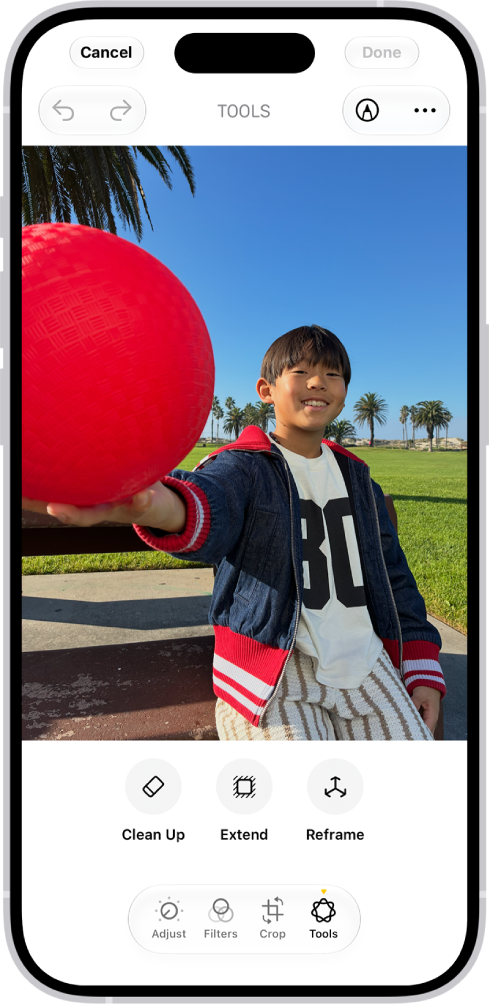
The buttons for Clean Up, Extend, and Reframe are displayed below a photo.

Make your photos frame-worthy

You can remove distracting objects, extend a photo beyond its original frame, and adjust its perspective. With Clean Up, Extend, and Reframe, a photo doesn’t have to be finished once you take it. Open a photo in the Photos app, then tap the Edit button to get started.

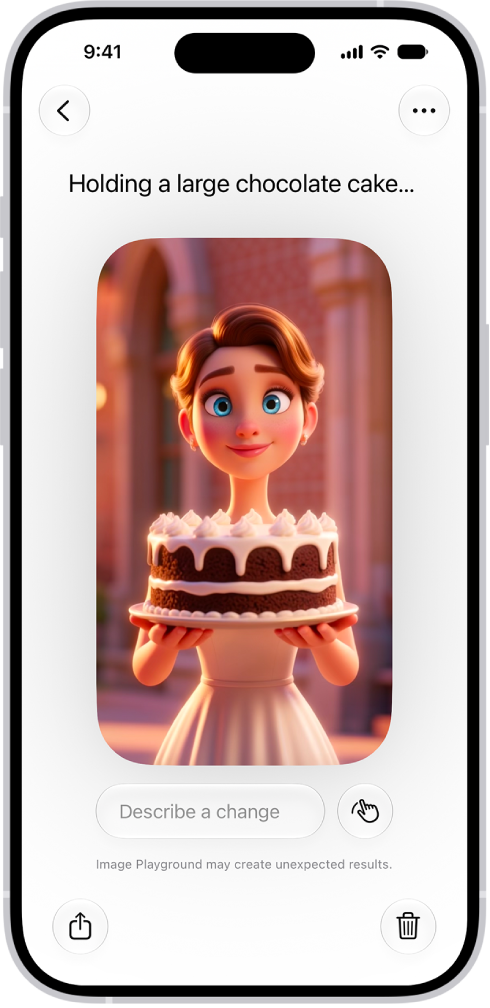
The Image Playground app window showing a created image of a woman holding a cake.

Create one-of-a-kind images with Image Playground

Produce fun, original images in moments with Image Playground. Open the Playground app, tap the Add button, then describe an image. Or choose a photo and apply an image style, like Animation or Sketch.

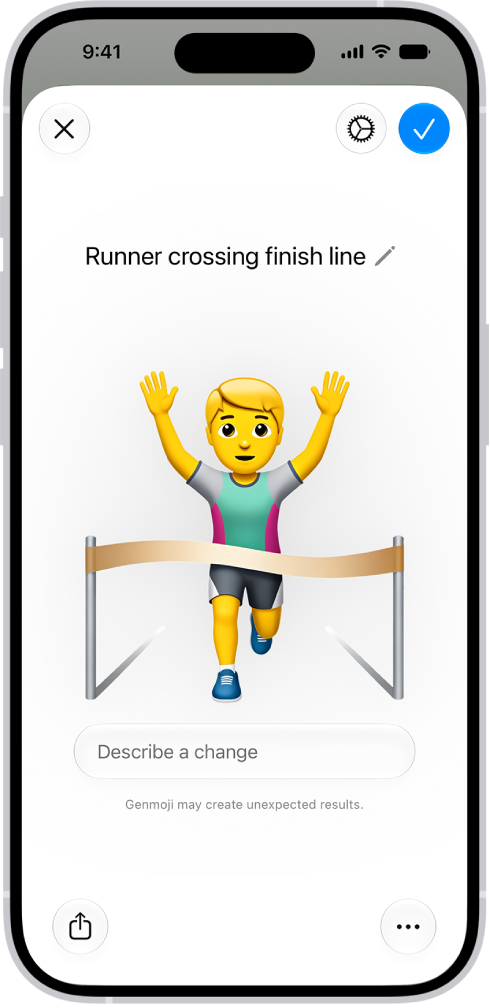
The Genmoji window showing a created Genmoji of a man running across a finish line.

Make your own emoji with Genmoji

You can also make custom emoji from simple text descriptions with Genmoji. To get started tap the Emoji button or the Next Keyboard key on your keyboard, then tap Genmoji.

Even more creativity features

  • Create memory movies

    You can create a custom memory movie of a story you want to see with a description.

  • Transform rough sketches into images

    Use Image Wand in the Notes app to create images based on rough sketches you create. You can also create an image based on words and images from the surrounding area.

  • Create original images in Messages

    You can create images with Image Playground directly in the Messages app.

  • Create backgrounds with Image Playground

    Use Image Playground to create one-of-a-kind images for the backgrounds of your conversations.

  • Create original images in Freeform

    Use Image Playground to create one-of-a-kind images directly in the Freeform app. Create original images in Freeform

*Apple Intelligence is available with Siri and device language set to Chinese (Simplified), Chinese (Traditional), Danish, Dutch, English, French, German, Italian, Japanese, Korean, Norwegian, Portuguese, Spanish, Swedish, Turkish, or Vietnamese. Some features may not be available in all regions or languages. Some devices may not be available in all regions. Siri AI is available in beta in iOS 27, iPadOS 27, macOS 27, watchOS 27, and visionOS 27 and requires an Apple Intelligence–enabled device set to a supported language. Available in English to start. Siri AI will not be initially available in the EU on iOS, iPadOS, and watchOS. Certain Apple Intelligence features that rely on server-side models are subject to daily usage limits, including but not limited to Siri AI, Intelligent Photo Editing Tools, Image Playground, and AFM 3 Cloud models in Shortcuts. Daily limits may vary by feature, request complexity, system demand, system policies, and other factors. Expanded access to such features will be available for a fee in the future. Use of these features is subject to the Apple Intelligence Terms and Conditions.

In the Preview app, you can save a PDF or image, rename the file, copy the PDF or image to the Clipboard, create a duplicate, or move the file. When you leave a file, it’s saved, and you return to the main menu.

  1. Open the Preview app on your iPhone.
  2. Open a PDF or image.
  3. Do any of the following:
    • Save the file and return to the main menu: Tap the Back button.
    • Rename the file: Tap the Actions Menu button next to the filename. Then tap Rename. Enter a new filename. Then tap Done on the onscreen keyboard.
    • Copy the PDF or image to the Clipboard: Tap the Share button, then tap Copy.
    • Create a duplicate: Tap the Actions Menu button next to the filename. Tap Duplicate.
    • Move the file: Tap the Actions Menu button next to the filename and tap Move. Tap the Actions Menu button next to Preview and select a new location.
Tag: Preview

When you subscribe to iCloud+, Hide My Email lets you send and receive email messages that forward to your real email account, to keep your real email address private.

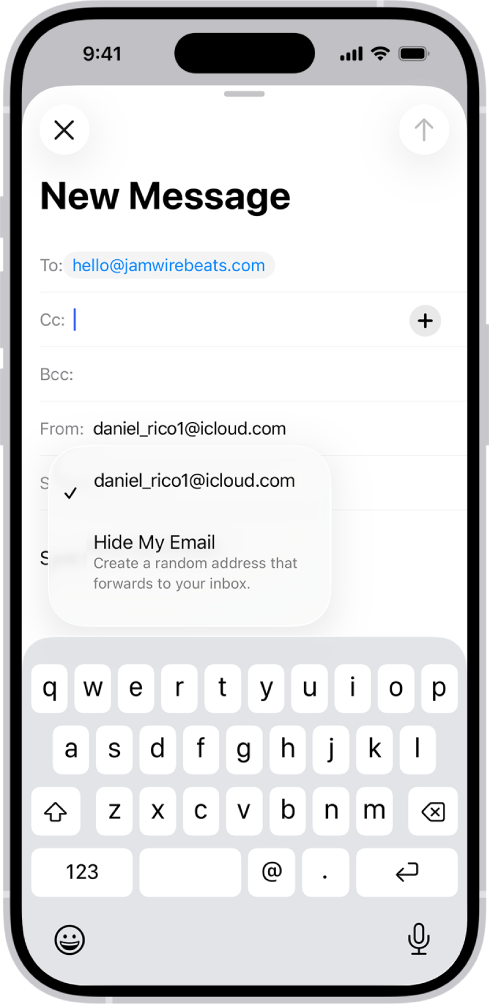
You can also generate unique email addresses on demand in the Mail app, reply to an email using Hide My Email, and manage the addresses it generates. When you write a message, it’s in the From field.

Here’s how to use Hide My Email in Mail on iPhone.

A draft email being composed. The From field is selected with two options listed below it—a personal email address and Hide My Email.

Send an email with Hide My Email

  1. Start the Mail app on your iPhone.
  2. Tap the Compose button.
  3. Add a recipient and subject for your message.

    Note: You can only send a message using Hide My Email to one recipient at a time.

  4. Tap the From field, tap it again, and tap Hide My Email.

    A new, unique email address appears in the From field.

    Tip: When the recipient replies to a message you sent with Hide My Email, their reply forwards to your real email address.

Reply to an email using Hide My Email

When an email message reaches one of your unique, random addresses, you can reply from that same address.

That way, you can continue the conversation and keep your real email address private.

To reply, do the following: Go to the Mail app on your iPhone.

  1. Tap the message, tap the Reply button, and tap Reply.

    Type your response.

    You can tap the From field to view the email address the recipient sees.

Manage the addresses generated by Hide My Email

You can create random addresses with Hide My Email, then deactivate, reactivate, and manage them.

Tag: Mail

You can leave a call in the FaceTime app at any time, or continue your conversation in Messages. Mid-call, you can jump to one Messages thread with everyone who’s on the call.

Here’s how to leave a FaceTime call or switch to Messages on iPhone.

Leave a FaceTime call

  1. During a call in the FaceTime app on your iPhone, tap the screen to show the FaceTime controls (if they aren’t visible).
  2. Tap the End button.

Switch to a Messages conversation

While on a call, you can switch to a Messages thread that includes everyone in it.

  1. During a call in the FaceTime app on your iPhone, tap the screen to show the FaceTime controls (if they aren’t visible).
  2. Tap the contact information or people count at the top of the screen and tap the Message button.

You can use VoiceOver Recognition on iPhone to scan your surroundings and get live descriptions of the scenes detected in the camera view. With Apple Intelligence,* you can also get information and ask questions about onscreen images and interface elements, even in apps and on webpages that don’t provide accessibility information.

With Live Recognition, you can get descriptions and ask questions about your surroundings. It works while VoiceOver is on, and you can start it with a VoiceOver gesture.

Important: VoiceOver Recognition should not be relied upon in circumstances where you could be harmed or injured, in high-risk situations, for navigation, or for the diagnosis or treatment of any medical condition.
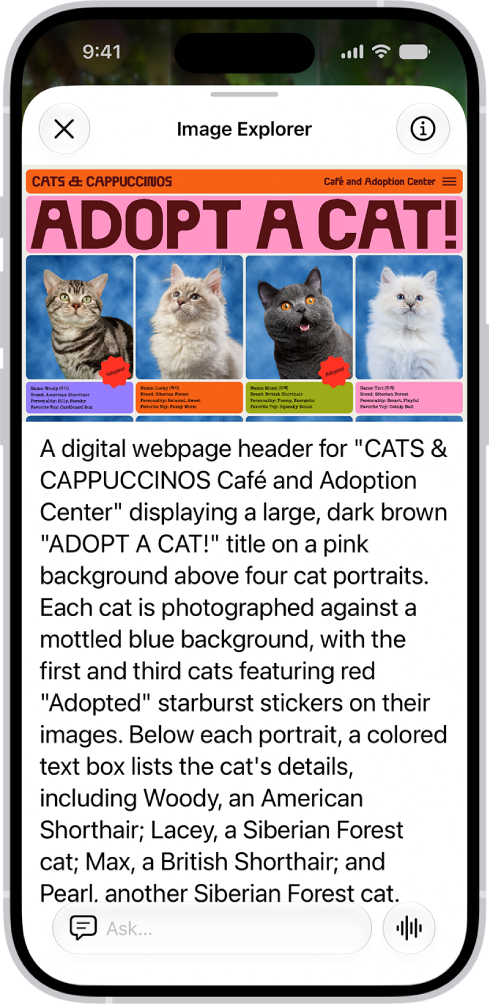
An Image Explorer screen giving a description of a cat adoption flyer.

Get descriptions and ask questions about your surroundings with Live Recognition

  1. With VoiceOver on, triple-tap the screen with four fingers to start Live Recognition.
  2. Do any of the following:

    • Ask questions and get information about your surroundings: Double-tap when you hear Ask to turn it on or off. The default question “What is this?” is asked automatically unless you Customize Live Recognition settings.
    • Get descriptions about your surroundings: Choose the kinds of visual information you want VoiceOver to describe, like scenes, people, doors, furniture, or text. Select a category and then double-tap to turn it on or off. If you turn on Point and Speak, you can point your finger at text and have VoiceOver read it aloud.

      Note: Detection of people, doors, and furniture is available only on supported iPhone models.

    • Get information about a document: Double-tap when you hear Document Capture to turn it on or off. Position iPhone so the rear camera can detect what’s around you. VoiceOver describes what the camera detects. To interrupt VoiceOver speech and move to the next detected item, tap the screen with two fingers.
  3. To turn off Live Recognition, triple-tap the screen with four fingers. Or if the VoiceOver cursor is focused on an interface element for Live Recognition, do a two-finger scrub (move two fingers back and forth three times quickly, making a “z”).

Quick tip: For faster access, set up a shortcut to quickly start and stop Live Recognition.

To detect and describe scenes, people, and more, you can also use Detection Mode in the Magnifier app.

To quickly access VoiceOver and the Magnifier app, you can customize the Action button. And you can set the Action Button to ask a question in Live Recognition.

Customize Live Recognition settings

  1. Open the Settings app on your iPhone.
  2. Tap Accessibility, then tap Live Recognition.
  3. Do any of the following:

    • Set a default question that’s asked automatically: Turn on Default Question which is “What is this?” by default. You can also enter your own default question.
    • Choose whether to speak or type by default: Tap Speak or Type.
    • Use the volume buttons to take a picture: Turn on Use Volume Buttons to Recapture.
    • Select what options appear in the rotor: Tap Live Recognition Rotor. Tap an option, like People, Doors, Scenes, or Ask. You can also drag each option up or down to rearrange the order in the rotor.

      Note: Detection of people, doors, and furniture is available only on supported iPhone models.

    • Create a custom activity that you can quickly turn on: Tap Activities, tap the Add button, and then enter an activity name. Select the detection modes that are on by default in the activity. You can also turn on Speech, Braille, Sounds, and Haptics for different detection modes.

Get descriptions and ask questions about images

Even in apps and on webpages that don’t provide accessibility information, VoiceOver Recognition can describe the people, objects, and text in images. Apple Intelligence adds enhanced descriptions, and you can ask questions about images, too.

Note: Apple Intelligence on iOS 27 or later is available on an Apple Intelligence-enabled iPhone 15 Pro, iPhone 15 Pro Max, or iPhone 16 model or later. Apple Intelligence is not available in all languages or regions. Usage limits may apply.*

  1. Open the Settings app on your iPhone.
  2. Tap Accessibility, tap VoiceOver and tap VoiceOver Recognition. Do any of the following:
    • Explore content in an image, get descriptions, and ask questions: Turn on Explore Image.
    • Ask questions and get information about images: Turn on Ask About Image.
    • Get detailed descriptions of images: Turn on Intelligent Image Description.
    • To get descriptions of text found in images, turn on Text Recognition.
  3. Go to an app such as Photos or Safari and select an image.
  4. Swipe down to hear more options and then double-tap when you hear Intelligent Image Description, Explore Image, or Ask About Image.
  5. Move your finger around the image to find out the position of each object.

Note: Image descriptions aren’t available in all languages.

Get information and ask questions about content on your screen

When VoiceOver is focused on the Dynamic Island, Apple Intelligence can help you explore what’s on your screen in detail, and you can ask follow-up questions about what’s displayed. And you can choose which custom actions appear while VoiceOver is focused on the Dynamic Island.

Note: Apple Intelligence on iOS 27 or later is available on an Apple Intelligence-enabled iPhone 15 Pro, iPhone 15 Pro Max, or iPhone 16 model or later. Apple Intelligence is not available in all languages or regions. Usage limits may apply.*

Only iPhone models with a Dynamic Island have this feature.

  1. Open the Settings app on your iPhone.
  2. Tap Accessibility, tap VoiceOver, tap VoiceOver Recognition, and tap Image Descriptions.
  3. Do any of the following:
    • Get detailed descriptions of what’s on your screen: Turn on Explore Screen.
    • Ask questions and get information about what’s on your screen: Turn on Ask About Screen.
  4. With VoiceOver focused on the Dynamic Island, swipe up to hear more options and then double-tap when you hear Explore Screen or Ask About Screen.

Add custom descriptions of images in Photos

  1. Open the Photos app on your iPhone.
  2. Double-tap the image you want to add a custom description to.
  3. Double-tap the Edit button, then double-tap the Markup button.
  4. Double-tap the Add button and then double-tap Image Description.
  5. Enter your custom description.
  6. Double-tap the Done button, then double-tap the Done button again.

After you add a custom description to a photo in the Photos app, you’ll hear the description when you select the photo in the photo picker, and when you double-tap it.

Get descriptions of interface elements

VoiceOver Recognition can also describe interface elements when apps and webpages don’t provide accessibility information.

  1. Open the Settings app on your iPhone.
  2. Tap Accessibility, tap VoiceOver, and then tap VoiceOver Recognition.
  3. Tap Screen Recognition and turn on Screen Recognition.
  4. Tap Apply to Apps and select an app from the list to improve the accessibility of a specific app.

*Apple Intelligence is available with Siri and device language set to Chinese (Simplified), Chinese (Traditional), Danish, Dutch, English, French, German, Italian, Japanese, Korean, Norwegian, Portuguese, Spanish, Swedish, Turkish, or Vietnamese. Some features may not be available in all regions or languages. Some devices may not be available in all regions. Siri AI is available in beta in iOS 27, iPadOS 27, macOS 27, watchOS 27, and visionOS 27 and requires an Apple Intelligence–enabled device set to a supported language. Available in English to start. Siri AI will not be initially available in the EU on iOS, iPadOS, and watchOS. Certain Apple Intelligence features that rely on server-side models are subject to daily usage limits, including but not limited to Siri AI, Intelligent Photo Editing Tools, Image Playground, and AFM 3 Cloud models in Shortcuts. Daily limits may vary by feature, request complexity, system demand, system policies, and other factors. Expanded access to such features will be available for a fee in the future. Use of these features is subject to the Apple Intelligence Terms and Conditions.


You can block pop-ups in Safari on iPhone. That way, pop-up windows don’t open while you’re browsing websites. Block Pop-ups is just one setting in the Settings app on your iPhone, which you can switch off again later if you change your mind.

  1. Start the Settings app on your iPhone.
  2. Tap Apps, then tap Safari.
  3. Turn on Block Pop-ups.
Tag: Safari

You can capture photos and videos directly in the Messages app. You can also modify the photos and videos before you send them by editing the image, marking it up, or adding effects.

You can take a photo, take a video, or add an existing photo or video, then crop it, add filters, and more. Markup lets you add stickers, labels, and shapes to your photo. Smaller-sized previews of images can go out first, too, so your recipients get them right away.

Note: Attachments may have size limits set by your carrier, and iPhone may compress photo and video attachments when necessary.

Send a photo or video

  1. Start the Messages app on your iPhone.
  2. In a conversation, tap the Add button.
  3. Do one of the following:

    • Take a photo: Tap Camera, then tap the Take Picture button to take a picture.

      To change the camera mode, tap Photo, then tap an option.

      To crop the photo, add filters, and more, tap Edit, then use the editing tools.

    • Take a video: Tap Camera, tap Video, tap the Record Video button to begin recording, and then tap the Stop Recording Video button to stop.

      To trim or crop the video, add filters, and more, tap Edit, then use the editing tools.

    • Add an existing photo or video: Tap Photos and swipe up to search, browse through all photos, or change albums. Then tap the images you want to send.

      To crop, add filters, or make other adjustments, tap the image in the message bubble, tap Edit, then use the editing tools.

  4. To add stickers, labels, and shapes to your photo, tap Markup, then use Markup. When you’re done, tap Save.
  5. Tap Done to add the photo or video to the message bubble, add a comment (optional) and then tap the Send button to send your message.

Note: On models with Dual SIM, you need to set up Dual SIM before you can send SMS, MMS, or RCS attachments.

You can also record a video message in the FaceTime app or send a photo or video with a Digital Touch effect.

Note: You can have your (or a family member’s) iPhone receive warnings about sensitive content and warn you before it’s sent or received.

With Apple Intelligence*, you can create original images using Image Playground, or create custom emoji—called Genmoji—in Messages.

Send photos faster

To get images to your recipients right away, you can send smaller-sized previews first, before the full-resolution images arrive.

  1. Start the Settings app on your iPhone.
  2. Tap Apps, then tap Messages.
  3. Turn on Send Low Quality Photo Previews.

When Low Data Mode is on, only the preview is sent.

To remove a photo or video from the message bubble before sending it, tap the Cancel button.

Note: Attachments you send over iMessage (such as photos or videos) may be uploaded to Apple and encrypted so that no one but the sender and receiver can access them. To improve performance, your iPhone may automatically upload attachments to Apple while you’re composing a message. If you decide not to send your message, the attachments are deleted from the server after several days.

*Apple Intelligence is available with Siri and device language set to Chinese (Simplified), Chinese (Traditional), Danish, Dutch, English, French, German, Italian, Japanese, Korean, Norwegian, Portuguese, Spanish, Swedish, Turkish, or Vietnamese. Some features may not be available in all regions or languages. Some devices may not be available in all regions. Siri AI is available in beta in iOS 27, iPadOS 27, macOS 27, watchOS 27, and visionOS 27 and requires an Apple Intelligence–enabled device set to a supported language. Available in English to start. Siri AI will not be initially available in the EU on iOS, iPadOS, and watchOS. Certain Apple Intelligence features that rely on server-side models are subject to daily usage limits, including but not limited to Siri AI, Intelligent Photo Editing Tools, Image Playground, and AFM 3 Cloud models in Shortcuts. Daily limits may vary by feature, request complexity, system demand, system policies, and other factors. Expanded access to such features will be available for a fee in the future. Use of these features is subject to the Apple Intelligence Terms and Conditions.