Got a tip for us?

In the Notes app, you can add links to webpages or sections in a note. You can also link to related notes, like a trip itinerary and a list of recommended restaurants.

When you add street and email addresses, phone numbers, and dates, they automatically become underlined text that you can act on. There’s even a quick typing shortcut for linking to another note by its title, right in the note body.

Link to a webpage

  1. Open the Notes app on your iPhone.
  2. In the note where you want to insert a link, select the text or tap to place the insertion point.
  3. Tap the Forward button and tap Add Link. Enter the URL to specify the link destination.
  4. Optionally, you can add a name for the link.
  5. Tap the Done button.

Link to a note or section of a note

First, organize a note with sections if you want to link to a section of it.

  1. Open the Notes app on your iPhone.
  2. In the note where you want to add a link, select the text or tap to place the insertion point.
  3. Tap the Forward button and tap Add Link. Do any of the following:
    • Link to a section in the same note: Tap Link to Section, then select a section. To customize the link name, turn on Use Section Title or enter a custom link name. Note: If the title of a linked note or section changes, any link that uses the note or section title as its name is updated automatically.
    • Link to another note: Start typing the title of the target note and then select it. To customize the link name, turn on Use Note Title or enter a custom link name. Tip: To quickly link to another note, type “>>” in the note body, then enter the title of the target note. You can then link to a section in that note by typing “/,” then selecting a section.
    • Link to a section in another note: Link to another note, tap Link to Section. Then select a section.
  4. Tap the Done button. To edit or remove the link, touch and hold the link. Choose an action.

Take action on addresses, phone numbers, dates, and more

In your notes, an underline appears below text that’s recognized as a street or email address, phone number, date, or other data. Tap the underlined text to take action on it. For example, you can see a street address in Maps, compose an email, call a phone number, add a calendar event, or convert units and currency. Note: Data detection is available when the system language of your iPhone is set to a supported language in Settings > General > Language & Region.
Tag: Notes

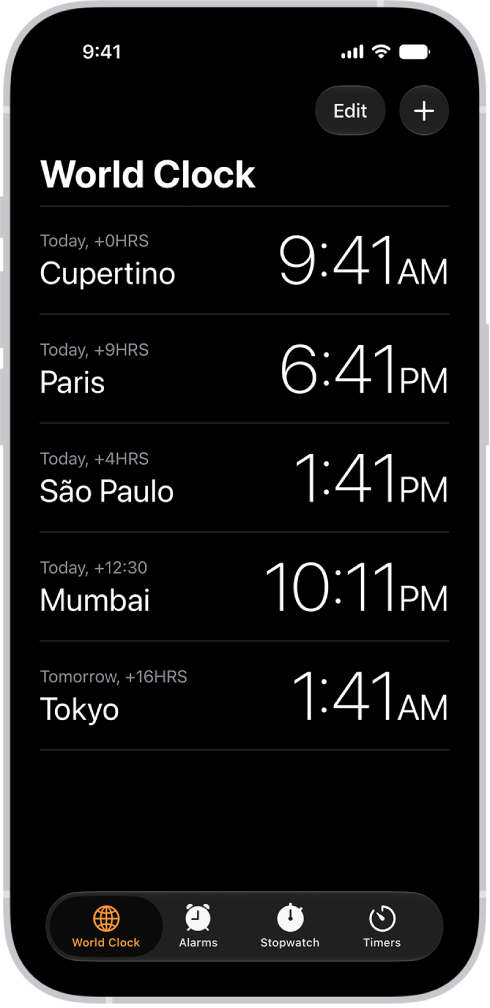
You can see the local time in time zones around the world. In the Clock app on your iPhone, World Clock lets you manage your list of cities, so you can add a city, delete a city, or reorder the cities whenever it’s useful.

Siri: Ask Siri something like: “What time is it?” or “What time is it in London?”

The World Clock tab, showing the time in various cities. The Edit button near the upper-left corner lets you reorder or delete clocks. The Add button near the upper-right corner lets you add more clocks. World Clock, Alarm, Stopwatch, and Timers buttons are along the bottom.

  1. Start the Clock app on your iPhone.
  2. Tap World Clock.
  3. To manage your list of cities, do any of the following:

    • Add a city: Tap the Add button and choose a city.
    • Delete a city: Swipe left on the city. Then tap the Trash button.
    • Reorder the cities: Tap Edit, then drag the Reorder button up or down.

      When you’re finished, tap the Done button.

Tag: Clock

You can add keyboards for writing or using Dictation in different languages on your iPhone. You can also change the layout of your onscreen or external keyboard. Adding a keyboard for a different language also adds that language to your Preferred Languages list automatically.

For some supported languages, you can type in two languages without having to switch between keyboards. Your keyboard automatically switches between the two languages you use most often. Here’s how to add or change keyboards on iPhone.

Add or remove a keyboard for another language

  1. Start the Settings app on your iPhone.
  2. Tap General, then tap Keyboard.
  3. Tap Keyboards and then do any of the following:
    • Add a keyboard: Tap Add New Keyboard and choose a keyboard from the list. Repeat to add more keyboards.
    • Use a bilingual keyboard: For languages such as English (U.S.) and Spanish (Latin America), tap Add New Keyboard. Tap Add to [language] Keyboard. (Available for select language pairs.)
    • Remove a keyboard: Swipe left on the keyboard and tap Delete.
    • Reorder your keyboard list: Tap Edit, drag the Reorder button next to a keyboard to a new place in the list, and then tap the Done button.

If you add a keyboard for a different language, the corresponding language is automatically added to the Preferred Languages list. To view this list and add languages to it directly, go to the Settings app, tap General, then tap Language & Region. To change how apps and websites display text, reorder the Preferred Languages list.

Switch to another keyboard

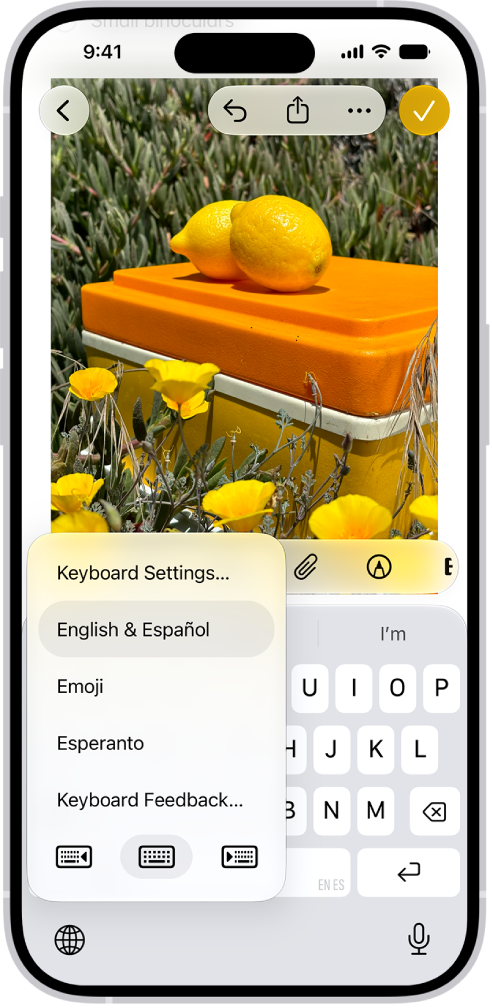
  1. While typing text, touch and hold the Emoji button or the Switch Keyboard key.

    The Keyboard Settings menu is open, and shows multiple keyboard options: English & Spanish, Emoji, and Keyboard Feedback.

  2. Tap the keyboard you want to switch to.

You can also switch between Magic Keyboard and other keyboards.

Assign an alternative layout to a keyboard

  1. Start the Settings app on your iPhone.
  2. Tap General, tap Keyboard, and tap Keyboards.
  3. Tap a language. Then select an alternative layout from the list.

In supported apps such as Notes and Photos, you can use the Markup tools to draw and sketch in your documents and images. You can also use the Markup tools to annotate screenshots, PDFs, and more.

You can draw or handwrite with the pen, marker, or pencil tool, and change the line weight as you go. You can pick a color, draw straight lines with the ruler, and show or hide the Markup toolbar whenever you need it.

Note: When the Markup toolbar is missing in a supported app, tap the Markup button or Markup. A minimized toolbar opens again when you tap its minimized version.

Show and hide the Markup toolbar

To show the Markup toolbar in a supported app, tap the Show Handwriting Tools button or Markup.

To hide the toolbar, tap the Show Handwriting Tools button or the Done button.

Draw or handwrite

  1. In the Markup toolbar, tap the pen, marker, or pencil tool. Then draw or handwrite with your finger.
  2. Do any of the following in the toolbar:
    • Change the line weight: Tap the selected drawing tool, then tap an option.
    • Change the opacity: Tap the selected drawing tool and drag the slider.
    • Change the color: Tap the Color Picker button, tap Grid, Spectrum, or Sliders, and then choose a color.

Draw straight lines

  1. In the Markup toolbar, tap the Ruler tool. Do any of the following:
    • Move the ruler: Drag the ruler with one finger.
    • Change the angle: Touch and hold the ruler with two fingers. Then rotate your fingers.
  2. Draw a line along the edge of the ruler.
  3. To hide the ruler, tap the Ruler tool in the toolbar again.

Edit or move a drawing

  1. In the Markup toolbar, tap the Lasso tool (between the eraser and ruler).
  2. Touch and hold a group of strokes or circle multiple drawings and then do any of the following in the formatting tools that appear near the selection:
    • Change the color: Tap the Set Fill button.
    • See editing options: Tap the More button. Then tap Cut, Copy, Duplicate, and more.
  3. To move the drawing, touch and hold it until it lifts up and drag it to a new location.

Erase part or all of your drawing

  1. In the Markup toolbar, tap the eraser tool.
  2. Do any of the following:
    • Erase pixels: Scrub over what you want to remove with your finger.
    • Erase a group of strokes: Tap the eraser tool, tap Object Eraser, and touch the grouped strokes with your finger.
  3. To switch between the erasers, tap the eraser tool again and choose Pixel Eraser or Object Eraser.
Tag: Markup

You can shuffle all the songs and albums in your library, which plays them in random order, or shuffle just a playlist or album. You can also repeat individual songs, playlists, or albums, or the entire queue.

When multiple songs are repeating, you can see how many will be repeated at the bottom of the queue. You can repeat a single song, too, and turn shuffle off again whenever you want.

  1. Open the Music app on your iPhone.
  2. While a song is playing, tap the MiniPlayer to open the Now Playing screen.
  3. Tap the Playing Next button and then do any of the following:

    • Play your songs in random order (shuffle): Tap the Shuffle button. Tap again to turn off shuffle.
    • Repeat an album, playlist, or the entire queue: Tap the Repeat button.

      Note: When multiple songs are repeating, you can view how many songs will be repeated—just scroll to the bottom of the queue.

    • Repeat a single song: Double-tap the Repeat button.
Tag: Music

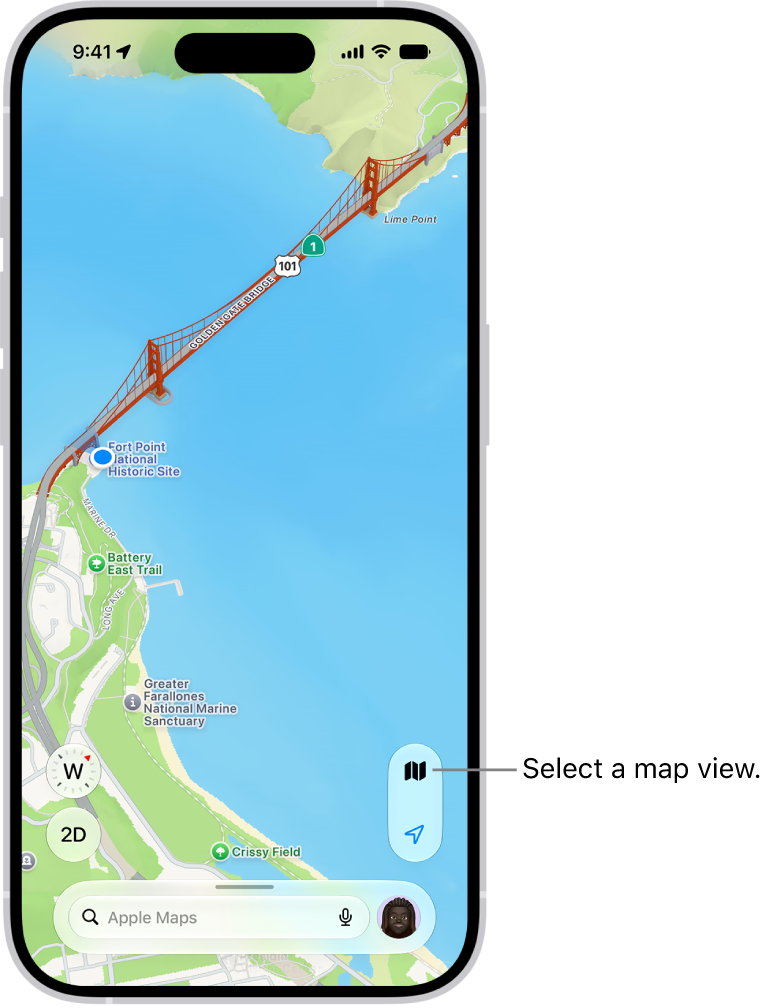
In the Maps app, you can find your location on a map and switch to different map views for different details. You can choose from Explore, Driving, Transit, and Satellite views, and in select cities, Maps provides enhanced detail for elevation, roads, trees, buildings, landmarks, and more.

There’s one thing to do first, though. You need to allow Maps to use your location.

Here’s how to set up Maps on iPhone.

Note: Not all features are available in all regions or countries.

A 3D map showing points of interests.

WARNING: For important information about navigation and avoiding distractions that could lead to dangerous situations, see Important safety information.

Allow Maps to use your location

If Maps alerts you that Location Services or Precise Location is off, the onscreen instructions show you how to turn it on.

You can also turn these on in Settings.

  1. Start the Settings app on your iPhone.
  2. Tap Privacy & Security and then tap Location Services.
  3. Turn on Location Services.
  4. Scroll down and tap Maps. Then do any of the following: Find your location and provide accurate directions: Turn on Precise Location. iPhone must also be connected to the internet.
    • Get info related to places you visit throughout the day: Turn on Visited Places (not available in all countries or regions).
    • Get alerts of delays and other warnings based on your driving patterns and destinations: Turn on Preferred Routes & Predicted Destinations.

If you regularly drive the same route—such as between home and work—Maps may show it as “Your route,” making it easier to start navigation.

  1. To get useful location-related information in Maps, tap the Back button, tap System Services, tap Significant Locations & Routes, and turn on Significant Locations & Routes.

Show your current location

  1. Start the Maps app on your iPhone.
  2. Tap the Tracking Off button.

The middle of the map marks your position.

The top of the map is north.

Do any of the following: Show your heading instead of north at the top: Tap the Tracking On button.

  • Resume showing north at the top: Tap the Tracking On With Heading button or the Compass button.

Switch to a different map view

The button at the right of a map indicates if the current map is for exploring , driving , riding transit , or in satellite view .

Change the map type at any time.

  1. Start the Maps app on your iPhone.
  2. Tap the Map Modes button (the Exploring Map Mode button, the Driving Map Mode button, the Transit Map Mode button, the Satellite Map Mode button).
  3. Choose another map type, then tap the Close button.

In Maps, you can get traffic and weather info or driving, cycling, walking, and transit directions.

Note: Apple is committed to keeping personal information about your location safe and private.

Read more about Apple’s commitment: go to the Settings app , tap Apps, tap Maps, then tap About Apple Maps & Privacy.

You can also delete recent directions or clear your location history.

Tag: Maps

You can change how your notes appear in the Notes app. Add lines or grids to your notes, view your notes as a list or a gallery, and see all the attachments in one place.

You can show lines or grids in an existing note, or in all new notes, in the style you choose. And from the notes list, you can switch between list and gallery views whenever you like.

Show lines or grids in notes

  • In an existing note: Tap the Note Actions button, tap Lines & Grids, then choose a style.
  • In all new notes: Go to the Settings app , tap Apps, then tap Notes. Tap Lines & Grids, then choose a style.

View notes as a list or gallery

In the notes list, tap the Folder Actions button, then tap View as List or View as Gallery.

View all attachments

In the notes list, tap the Folder Actions button, then tap View Attachments.

Tag: Notes

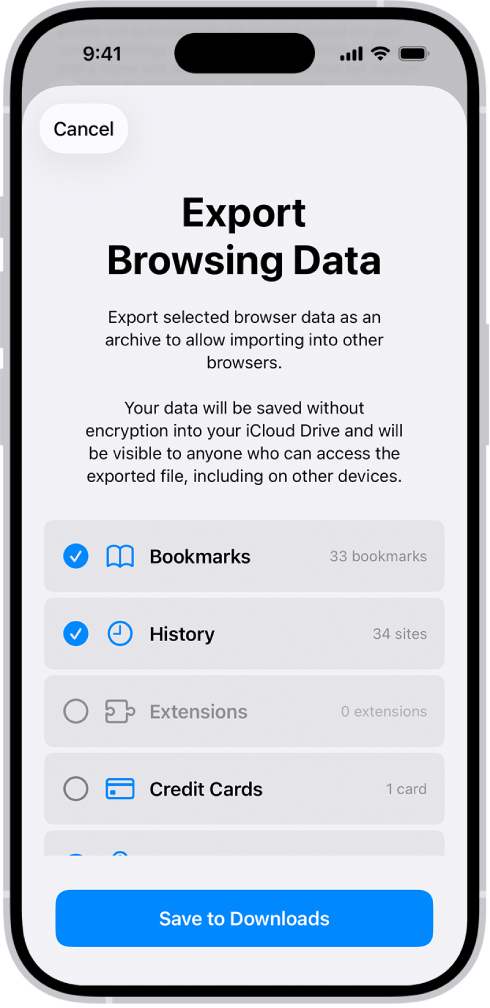
You can export selected data from Safari, and then import that data into another browser. Below History and Website Data in Safari’s settings, you select the data to export. And if you use Safari profiles, you can choose the profile you want to export data from.

From Safari, you can export these kinds of data:

  • Bookmarks
  • History
  • Extensions
  • Credit cards
  • Passwords

WARNING: Your exported data is not encrypted and is visible to anyone who can access the file. After you import the data into another browser, delete the file you exported.

The Export Browsing Data screen, showing the data you can export from Safari to another browser.

  1. Open the Settings app on your iPhone.
  2. Tap Apps, then tap Safari.
  3. Below History and Website Data, tap Export.
  4. Select the data to export.

    If you created profiles for your browsing in Safari, choose the profile you want to export data from, or choose All Profiles. Each profile has its own history and extensions data. The data for bookmarks, credit cards, and passwords is the same across all profiles.

  5. Tap Save to Downloads.
  6. Tap Done.

You’ll find the exported data in your Downloads folder, saved as a .zip file.

Tag: Safari

In the Calendar app, the Holidays calendar displays holidays based on the region set on your iPhone.

You can show or hide holidays, and add a holiday calendar from a different region. Since the Holidays calendar is a subscription calendar, though, you can’t add or delete holidays, because it can be modified only by the calendar provider.

Note: Because the Holidays calendar is a subscription calendar, only the calendar provider can modify it, so you can’t add or delete holidays.

Show or hide holidays

  1. Start the Calendar app on your iPhone.
  2. Tap the Calendars button.
  3. Select or deselect US Holidays (or the holiday calendar for your country or region).

Add a holiday calendar from a different region

  1. Start the Calendar app on your iPhone.
  2. Tap the Calendars button.
  3. Tap Add Calendar, then tap Add Holiday Calendar.
  4. Tap the holiday calendar you want to subscribe to and then tap the Done button.

If you delete a password from your iPhone, you have 30 days to recover the password before it’s permanently deleted. Deleted passwords wait in the Deleted section of the Passwords app, and if you shared the password with a group, you can choose whether to resume sharing it.

  1. Open the Passwords app on your iPhone.
  2. Tap Deleted.
  3. Locate the account for the deleted password and tap the account.
  4. Tap Recover.

If you previously shared the password with a group, choose one of the following:

  • Recover to Group: Resume sharing the password with the group.
  • Recover and Stop Sharing: Stop sharing the password with the group.

Your password returns to your iPhone and iCloud Keychain.