Got a tip for us?

You can access your books and audiobooks in the Books app on your other Apple devices such as your iPad, Mac, and Apple Vision Pro. You can also sync your reading position, highlights, notes, library collections, and more.

All it takes is signing in to the same Apple Account on each device and turning on a few settings. On a Mac, where those settings live depends on which version of macOS you’re running.

Note: Apple Books isn’t available in all countries or regions.

Access your books on your other devices

Sign in to the same Apple Account on each device so your Books content and information stay updated across your other Apple devices. Then do any of the following:

  • Automatically download purchases made on other devices: Go to Settings > Apps > Books, then turn on Purchases from Other Devices.
  • Sync reading position, bookmarks, notes, and highlights: Go to Settings > [your name] > iCloud, tap See All next to Saved to iCloud, then turn on Books.
  • Sync Home, Library, and collections: Go to Settings > Apps > Books, then below Syncing, turn on Home and iCloud Drive.

Access your books on your Mac

If you want your books, audiobooks, and PDFs on your Mac too, do one of the following:

  • macOS 15 or later: Choose Apple menu > System Settings, click your name at the top of the sidebar, then click iCloud. Click iCloud Drive, click Apps Syncing to iCloud Drive, then turn on Books.
  • macOS 13–14.5: Choose Apple menu > System Settings, click your name at the top of the sidebar, then click iCloud. Click iCloud Drive, click Apps syncing to iCloud Drive, then select Books. Click Back, then click Done.
  • macOS 10.15–12.5: Choose Apple menu > System Preferences, then click Apple ID. Click iCloud in the sidebar, then select iCloud Drive. Click Options, then select Books.
  • macOS 10.14 or earlier: Choose Apple menu > System Preferences, then click iCloud. Select iCloud Drive, click Options, then select Books.

For your collections, bookmarks, notes, and highlights on your Mac, open Books and do one of the following:

  • macOS 13 or later: Choose Books > Settings, click General, then select “Collections, bookmarks, and highlights.”
  • macOS 12.5 or earlier: Choose Books > Preferences, click General, then select “Collections, bookmarks, and highlights.”

You can print a grocery list, checklist, to-do items, project tasks, and more. It works right from the Reminders app on your iPhone, so any list you’ve made there, from a grocery list to your project tasks, can end up on paper.

  1. Start the Reminders app on your iPhone.
  2. View the list you want to print.
  3. Tap the More button and tap Print.

In a Reminders list, you can check off items to hide them, or you can permanently delete items. With the Reminders widget, you can complete items from the iPhone Home Screen or Lock Screen.

Completed items are hidden on your list, but you can unhide them or clear them to delete them. The widget lets you complete items without opening the Reminders app.

Here’s how to complete items in Reminders on iPhone.

Mark an item as completed

  1. Start the Reminders app on your iPhone.
  2. While viewing a list, tap the empty circle next to an item to mark the item as completed.

Completed items are hidden on your list. To unhide completed items, tap the More button, then tap Show Completed. To delete the completed items, tap Clear.

Use the Reminders widget

Without opening the Reminders app, you can complete items from the Home Screen using the Reminders widget.

  1. On the iPhone Home Screen, add the Reminders widget.
  2. To change the list shown in the widget, touch and hold the widget and tap Edit Widget. Then choose a list.
  3. To complete an item, tap the item in the widget.

Your photos and videos are organized into curated collections such as Memories, Trips, People & Pets, and more. Some collections are also organized by category such as Live Photos, Selfies, Recently Saved, and Recently Viewed.

You can change how collections look, with larger or smaller image tiles or no images at all, and change the order they appear on the screen. The ones you view most often can be pinned at the top, so they’re easy to find. Here’s how to browse your photo collections on iPhone.

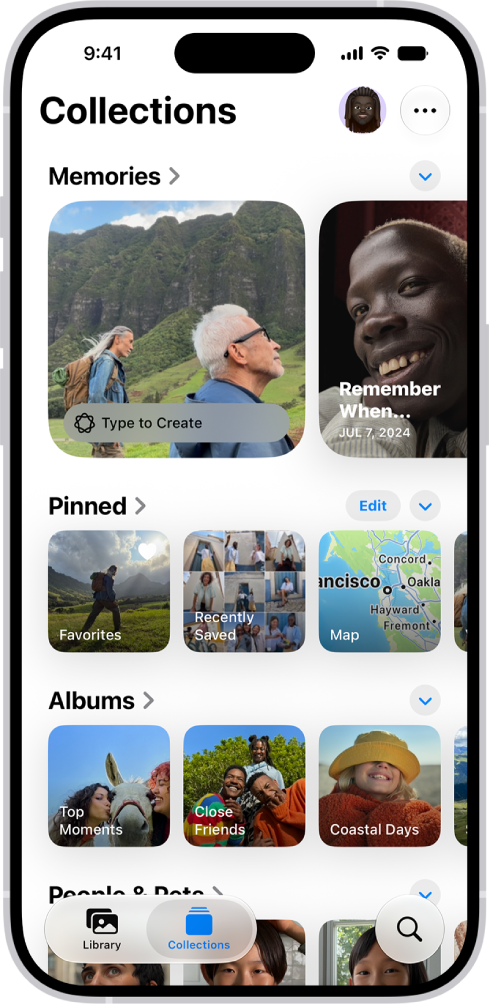
The Photos app is open and the Collections button is selected at the bottom of the screen. On the screen from top to bottom are the following Collections: Memories, Pinned, Albums, and Recent Days.

View your collections

  1. Open the Photos app on your iPhone.
  2. Tap Collections.
  3. Swipe up to view the collections. Under each collection heading, swipe left or right to see different collections. Or tap the heading to see all the collections in that category.
  4. Tap a collection to open it.

Change the collections display

Collections can show larger or smaller image tiles, or no images at all, and you can change the order they appear in on the screen.

  1. Open the Photos app on your iPhone.
  2. Tap Collections.
  3. Tap the Layout and Reorder button at the top of the screen and then do any of the following:
    • Enlarge the size of the collection tiles: Tap the Large Grid button.
    • Reduce the size of the collection tiles: Tap the Small Grid button.
    • Show the default display: Tap the Mixed Grid button.
    • Hide the collection tiles: Tap Collapse All.
    • Reorder collections: Tap Reorder and touch and drag a collection into a new position. Tap the Done button.
    • Choose which library to include in collections (if you’re part of an iCloud Shared Photo Library): Tap Both Libraries, Personal Library, or Shared Library.

Quick tip: Tap the Forward button to hide the image tiles for a single collection, and tap it again to stop hiding them.

By default, videos and Live Photos automatically play when you tap Collections. To turn autoplay off, tap your account in the top-right corner, then turn off Auto-Play Motion and Loop Videos.

Reorder collections

You can change the order of collections so the ones you go to most frequently appear first. For example, if you frequently view your Shared Albums, you can move them above other collections.

  1. Open the Photos app on your iPhone.
  2. Tap Collections.
  3. Scroll to the bottom of the screen and tap Reorder. Then drag a collection into a new position.
  4. Tap Done.

You can also tap the Layout and Reorder button, then tap Reorder.

Pin collections and albums

To keep the collections you view most often easy to find, choose what goes in the Pinned collection at the top of the screen.

  1. Open the Photos app on your iPhone.
  2. Tap Collections.
  3. Tap Edit (to the right of the Pinned heading), then do any of the following:

    • Remove a pinned collection: Tap the Remove button and tap Delete.
    • Pin a collection: Tap the suggested collection you want to add, or scroll down and tap Any Collection or Album to see more options.
    • Reorder pinned collections: Touch and hold a pinned collection. Then drag it to a new position.

    Note: Collections with the Remove button next to them are currently in your pinned collections. Collections with the Add button next to them are not yet pinned.

  4. When you’re done, tap the Close button.

Quick tip: Pinning a collection is quick: touch and hold it, then tap Pin. To remove it from Pinned, touch and hold it again and tap Unpin.

Filter and sort items in a collection

You can filter items in a collection by category, like Captured by Me, Edited, or Rating, and sort them to display oldest first or newest first.

  1. Open the Photos app on your iPhone.
  2. Tap Collections, then tap a collection to open it.
  3. Tap the Sort and Filter button and then do either of the following:
    • Filter items: Tap the filter you want to apply.
    • Sort items: Tap Sort By. Tap Newest First or Oldest First.
Tag: Photos

It’s easy to create reminders on your iPhone. You can add them in the Reminders and Calendar apps, or create one instantly without leaving the app you’re currently in.

With Apple Intelligence, you can create a reminder from a description, or get suggested reminders like shopping lists and action items based on text from other apps. A reminder can include a title, date, time, and any other information you want.

Here’s how to create reminders on iPhone.

Siri: Ask Siri something like, “Add artichokes to my groceries list.” Learn how to use Siri.

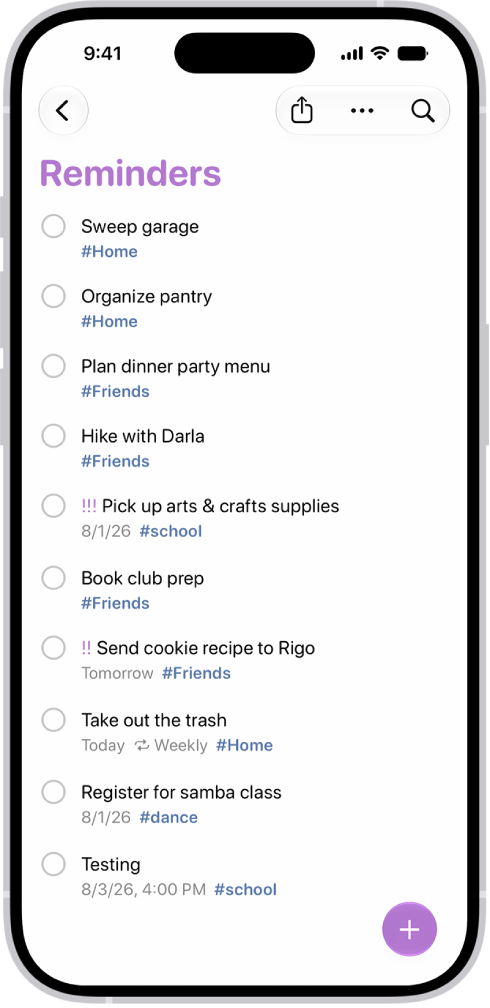
A new task is being added in the Reminders list.

When you use updated reminders in iCloud, all Reminders features described in this guide are available, though some features aren’t available with other accounts.

Create a reminder

  1. Start the Reminders app on your iPhone.
  2. Tap the New Reminder button. Enter the title, date, time, and any other information you want for the reminder.

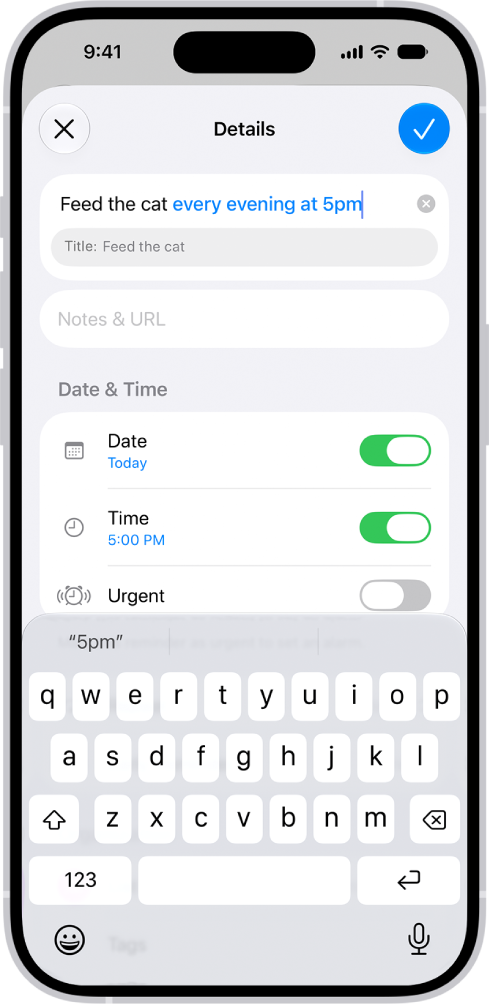
    A new "Feed the cat every evening at 5pm" reminder is being created, with Apple Intelligence automatically setting it to appear daily at 5pm.

    Tip: With Apple Intelligence, you can also type a description of the reminder—for example “Feed the cat every evening at 5pm”—and Reminders automatically fills in the details and timing based on what you typed.

  3. Tap the Done button.

    Note: Apple Intelligence on iOS 27 or later is available on an Apple Intelligence-enabled iPhone 15 Pro, iPhone 15 Pro Max, or iPhone 16 model or later. Apple Intelligence is not available in all languages or regions. Usage limits may apply.*

Create a reminder without switching apps

To create a reminder from any app or screen, do either of the following:

  • Add the Reminders button to Control Center, then tap the Reminders button in Control Center.
  • On supported models, assign Reminders to the Action button, then press and hold the Action button.

Create a reminder in Calendar

See Use Reminders in Calendar.

Get suggested reminders

Apple Intelligence can suggest reminders from text in other apps, such as action items from an email in Mail, or a list of grocery items from an online recipe in Safari.

Note: Apple Intelligence on iOS 27 or later is available on an Apple Intelligence-enabled iPhone 15 Pro, iPhone 15 Pro Max, or iPhone 16 model or later. Apple Intelligence is not available in all languages or regions. Usage limits may apply.*

  1. Open the information you want added to a list, like a recipe in Safari or meeting notes in Notes.
  2. Tap the Share button, then tap Reminders.

    Tip: You can also select specific text or bullets you want Apple Intelligence to review. Select text, tap Share, then tap Reminders.

    Suggested reminders may appear below the text you selected.

  3. To change which list the reminders are added to, tap the pop-up menu at the top of the screen and then choose a list.
  4. Tap the Add button next to a suggestion to add it to your list, or tap Include All to add all suggestions.
  5. Tap the Done button.

Your reminders are added to the list you chose. *Apple Intelligence is available with Siri and device language set to Chinese (Simplified), Chinese (Traditional), Danish, Dutch, English, French, German, Italian, Japanese, Korean, Norwegian, Portuguese, Spanish, Swedish, Turkish, or Vietnamese. Some features may not be available in all regions or languages. Some devices may not be available in all regions. Siri AI is available in beta in iOS 27, iPadOS 27, macOS 27, watchOS 27, and visionOS 27 and requires an Apple Intelligence–enabled device set to a supported language. Available in English to start. Siri AI will not be initially available in the EU on iOS, iPadOS, and watchOS. Certain Apple Intelligence features that rely on server-side models are subject to daily usage limits, including but not limited to Siri AI, Intelligent Photo Editing Tools, Image Playground, and AFM 3 Cloud models in Shortcuts. Daily limits may vary by feature, request complexity, system demand, system policies, and other factors. Expanded access to such features will be available for a fee in the future. Use of these features is subject to the Apple Intelligence Terms and Conditions.

To set up Switch Control, you need to connect and add one or more switches, then assign an action to each switch. You can choose a scanning style and fine-tune other settings to suit your needs. You can use only one switch, or multiple switches for different actions, like selecting an item or moving the cursor to the next item.

After you turn it on, you may need to change the assigned actions or readjust the settings. If you have difficulty with these steps, you can get personalized help at your nearest Apple Store.

Step 1: Connect an external switch (optional)

To use a joystick, game controller, adaptive accessory, or MFi device for Switch Control, first connect it to iPhone by following the manufacturer’s instructions. And if the switch connects using Bluetooth®, you’ll need to pair it with iPhone.

You can add nonexternal switches as well, like sounds or AirPod Gestures.

  1. Turn on the switch.
  2. Open Settings, tap Bluetooth, turn on Bluetooth, tap the name of the switch, and then follow the onscreen instructions.

Step 2: Add switches, recipes, and switch sets

Use a single switch, or several to accommodate different actions, with each one performing an assigned action, such as moving the cursor to the next item or selecting an item.

  1. Start the Settings app on your iPhone.
  2. Tap Accessibility and tap Switch Control. Then tap Switches.
  3. Tap Add New Switch. Choose External, Screen, Camera, Back Tap, Sound, or AirPod Gestures.

    If you’re trying to add an external switch but it isn’t shown in the list, make sure it’s connected to your iPhone as described above in Step 1: Connect an external switch (optional).

  4. Assign an action to the switch.

    The action for the switch depends on the number of switches you have and the scanning style you choose in Step 3: Choose a scanning style, below. If you don’t know which action to assign, choose Select Item, which is compatible with Auto Scanning (the default scanning style). You can return to this setting later to change the assigned action.

Quick tip: Your iPhone can double as a game controller using gestures you’ve already set up, such as the switch (or alternative input method) you navigate and control your iPhone with. You could also reuse your Back Tap gestures instead.

You can also assign recipes—a set of temporary, specialized actions—to your switches. Use recipes for repetitive, complex actions in apps such as turning pages in the Books app. To create a recipe, go to Settings > Accessibility > Switch Control > Recipes.

If you have multiple sets of switches or recipes that you switch between, you can create a Switch Set for your settings. To create a profile, go to Settings > Accessibility > Switch Control > Switch Sets > Add New Switch Set.

Step 3: Choose a scanning style

The cursor moves from one item to the next automatically after a specified duration by default, but if you’d rather move it manually, you can choose a different scanning style.

Go to Settings > Accessibility > Switch Control > Scanning Style, then choose one of the following:

  • Auto Scanning: The cursor automatically moves to the next item after a specified duration. This is the default scanning style.

    If you use Auto Scanning with just one switch, make sure the Select Item action is assigned to the switch.

  • Manual Scanning: When you activate your Move to Next Item switch, the cursor moves to the next item.

    Manual Scanning requires at least two switches. Make sure the Move to Next Item action is assigned to one switch, and the Select Item action is assigned to another switch.

  • Single Switch Step Scanning: When you activate the Move to Next Item switch, the cursor moves to the next item; if no action is taken within a specified duration, the current item is automatically selected.

    This scanning style requires only one switch. Make sure the Move to Next Item action is assigned to the switch.

Step 4: Fine-tune Switch Control settings

To suit your specific needs and style, you can adjust how Switch Control behaves in a variety of ways. You might change the scanning speed, for example, or have iPhone speak the highlighted items.

Go to Settings > Accessibility > Switch Control, then adjust any of the following:

  • Auto Scanning Time: Adjust the item scanning speed.
  • Pause on First Item: Set scanning to pause on the first item in a group.
  • Loops: Choose how many times to cycle through the screen before hiding Switch Control.
  • Move Repeat: Set the delay before moving to the previous or next item while a switch is pressed.
  • Long Press: Set whether a different action occurs when you press and hold a switch, and how long to wait before performing that action.
  • Tap Behavior: Choose a tap behavior and set the interval for performing a second switch action to show the Scanner menu.
  • Focused Item After Tap: Choose whether Switch Control resumes scanning at an item you tap or from the beginning.
  • Scan Same Key After Tap: Turn on scanning the same key after tapping.
  • Always Tap Keyboard Keys: Turn on always tapping keyboard keys.
  • Extended Predictions: Turn on extended predictions.
  • Hold Duration: Specify how long you need to press and hold a switch before it’s accepted as a switch action.
  • Ignore Repeat: Ignore accidental repeated switch triggers.
  • Sound Effects: Turn on sound effects.
  • Speech: Speak items as they’re scanned.
  • Menu Items: Choose the actions shown in the Scanner menu and the order in which they appear.
  • Group Items: Group items for faster navigation.
  • Large Cursor: Make the highlight more prominent.
  • Cursor Color: Choose a different highlight color.
  • Saved Gestures: Create a custom gesture.
  • Confirm with Switch Control: Turn on Confirm with Switch Control to confirm payments with your passcode or any time double-clicking the side button is required.

Step 5: Turn on Switch Control

Important: When Switch Control is turned on, you can’t use the standard gestures on the touchscreen to exit Switch Control.

Go to Settings > Accessibility > Switch Control, then turn on Switch Control.

Quick tip: You can add Switch Control to Accessibility Shortcut, then quickly turn it on or off, just by triple-clicking the side button (on iPhone models with Face ID) or the Home button (on other iPhone models).


In the Books app, you can find today’s bestsellers, view top charts, explore series, and browse lists curated by Apple Books editors. After you select a book or audiobook, you can read or listen to it right in the Books app.

Before you buy, you can read a sample, listen to a preview, or mark a title as Want to Read. Free titles download right away. For the rest, you pay with the payment method on your Apple Account.

Note: Apple Books isn’t available in all countries or regions.

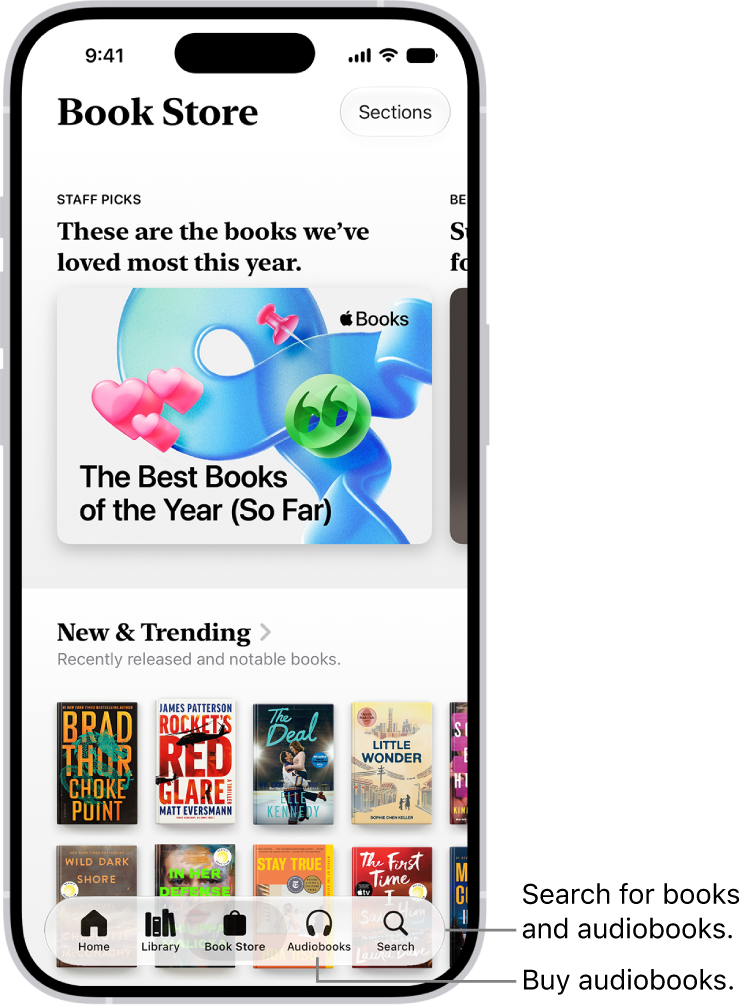
The Book Store screen in the Books app. At the bottom of the screen are, from left to right, the Home, Library, Book Store, Audiobooks, and Search tabs. The Book Store tab is selected.

  1. Start the Books app on your iPhone.
  2. Tap Book Store or Audiobooks to browse titles, or tap Search to look for a specific title, author, series, or genre.

    Tip: Tap Sections at the top of the screen to view titles in categories like Top Charts and Book Clubs, or genres like Biographies & Memoirs and Young Adults.

  3. Tap a book cover to see more details, read a sample, listen to a preview, or mark as Want to Read.
  4. Tap Buy to purchase a title, or tap Get to download a free title.

You pay for all purchases with the payment method associated with your Apple Account.

You can allow books and audiobooks to download automatically over your cellular network when you aren’t connected to Wi-Fi. Go to Settings > Apps > Books, then turn on Automatic Downloads. Tap Downloads, then choose Always Allow, Ask If Over 200 MB, or Always Ask.

When you purchase access to movies, TV shows, music, music videos, ebooks, audiobooks, or ringtones from Apple, you also have the option to permanently download these items to a compatible iPhone, iPad, Mac, or PC. Apple cannot revoke your downloaded content, and you can always access your downloaded content without an internet connection.

In the Notes app, you can lock notes to protect your sensitive information. You can access your locked notes using your device passcode or a custom password. If you have multiple Notes accounts, you choose the locking method for each account, for example, for your iCloud account.

The device passcode is the simpler option. You don’t have to create and remember a separate password, and you can use Face ID or Touch ID to open your locked notes.

Lock notes with your device passcode

With your device passcode, there’s no separate password to create and remember, so you’re less likely to lose access to your locked notes, and Face ID or Touch ID works, too. On each device where you’re signed in to the same Apple Account, you unlock notes with that device’s passcode, or the login password on a Mac. Notes locked with a device passcode require iOS 16, iPadOS 16, macOS 13, or later, and you won’t be able to access them on devices with an earlier version of the OS.

  1. Open the Settings app on your iPhone.
  2. Tap Apps, then tap Notes.
  3. Tap Password.
  4. If you have multiple accounts, choose the account you want to set a password for.
  5. Tap Use Device Passcode.
  6. For added convenience, you can also turn on Face ID or Touch ID.

Lock notes with a custom password

A custom password for locked notes can provide additional security, but you may lose access to your locked notes if you forget it. Your custom password works on every device where you’re signed in to the same Apple Account. With multiple iCloud accounts or an “On My iPhone” account, each one can have a different custom password. Notes locked with a custom password require iOS 9.3 or later, iPadOS 13 or later, or OS X 10.11.4 or later, and you won’t see them on devices with an earlier version of the OS.

  1. Open the Settings app on your iPhone.
  2. Tap Apps, then tap Notes.
  3. Tap Password.
  4. If you have multiple accounts, choose the account you want to set a password for.
  5. Tap Use Custom Password.
  6. For added convenience, you can also turn on Face ID or Touch ID. Don’t rely on Face ID or Touch ID as the only means of unlocking your notes. If you update your Face ID or Touch ID settings, or want to change your Notes password, you have to reenter your Notes password. Important: If you forget your custom password, and you can’t use Face ID or Touch ID to access your locked notes, Apple can’t help you regain access to those notes. You can reset your custom password, but this doesn’t give you access to previously locked notes. The new custom password applies to all notes you lock from now on. Go to the Settings app, tap Apps, tap Notes, tap Password, then tap Reset Password.

Change the locking method

You can switch from a custom password to your device passcode. Once you change your locking method, notes you accessed with the previous method start using the new one.

  1. Open the Settings app on your iPhone.
  2. Tap Apps, then tap Notes.
  3. Tap Password, choose an account (if you have more than one), and then choose a password method.

Lock a note

You can lock only notes on your device and notes in iCloud. Notes with video, audio, PDF, or file attachments, notes with tags, and notes that use features from a newer version of Notes can’t be locked. The same goes for Quick Notes, notes that sync with other accounts, and notes shared in iCloud.

  1. Open the Notes app on your iPhone.
  2. Open the note and tap the Note Actions button.
  3. Tap Lock. When a note is locked, the title remains visible in the notes list. To remove a lock from a note, tap the Note Actions button, then tap Remove.

Open your locked notes

When you open one locked note, all your locked notes in the same account open for several minutes, so it’s easy to copy and paste information from other apps or jump into another note.

  1. Open the Notes app on your iPhone.
  2. Tap the locked note and tap the Lock button or View Note.
  3. To open the note, use Face ID, Touch ID, your device passcode, or your Notes password. To lock your notes again, do any of the following: Tap the Unlock button. Tap Lock Now at the top of the notes list.
Tag: Notes

Even if VoiceOver is turned off, you can have iPhone read text on the screen out loud. Have iPhone read the entire screen or a specific selection, or hear what you type spoken out loud, character by character or word by word.

Accessibility Reader lets you read or listen to text in a full-screen view, with your own fonts, layouts, and background colors, and you can change how spoken content sounds.

Here’s how to hear iPhone speak the screen, selected text, and typing feedback.

Have iPhone speak onscreen text

  1. Start the Settings app on your iPhone.
  2. Tap Accessibility and tap Read & Speak.
  3. Turn on and customize any of the following:

    • Accessibility Reader: Turn on Accessibility Reader to read or listen to text in a full-screen view, and customize fonts, layouts, and background colors. Turn on Autoplay if you want Accessibility Reader to automatically read text aloud.
    • Speak Screen: Tap Speak Screen and then turn on Speak Screen to have iPhone read all text on the screen, then do any of the following:
      • Highlighting: Customize the highlight style, color, and selection for in-app text that is spoken aloud.
      • Show Controller: Turn on Show Controller to keep the Speak Screen controls on the screen.
      • Controller Actions: Choose what happens when you long press or double-tap the screen. You can also reduce the size of the speech controller when you’re not using it.
    • Speak Selection: Turn on Speak Selection to have iPhone speak the text you select. Customize the highlight style, color, and selection for in-app text that is spoken aloud.
  4. Do any of the following:

    • Hear selected text (if you turned on Speak Selection): Select the text you want spoken, then tap Speak.
    • Hear all text on the screen (if you turned on Speak Screen): Swipe down with two fingers from the top of the screen.

      Use the controls that appear to pause speaking, adjust the rate, navigate forward or back to the content you want to hear, or use Speak on Touch (tap the text you want iPhone to read).

    Siri: Ask Siri something like, “Speak screen.”

Change how spoken content sounds

  1. Start the Settings app on your iPhone.
  2. Tap Accessibility and tap Read & Speak.
  3. Adjust any of the following:
    • Voices: Choose a voice and dialect.
    • Default Language: Choose a default language that iPhone will speak.
    • Detect Languages: Turn on Detect Languages to have iPhone automatically detect and speak multiple languages.
    • Speaking Rate: Drag the slider.
    • Pronunciations: Dictate or spell out how you want certain phrases to be spoken.

You can use the Find My app to remove a device from your Devices list or turn off Activation Lock on a device you already sold or gave away. When you remove Activation Lock, someone else can activate the device and connect it to their Apple Account.

If you still have the device, it’s simpler. You can turn off Activation Lock and remove the device from your account by turning off the Find My [device] setting on the device itself.

Remove a device from your Devices list

Not planning on using a device? Remove it from your Devices list, though it may need to be offline first. When it comes online again, it reappears in your Devices list if it’s an iPhone, iPad, iPod touch, Mac, or Apple Watch that still has Activation Lock turned on, or AirPods or Beats headphones still paired with your iOS or iPadOS device.

  1. Do one of the following:
    • For an iPhone, iPad, iPod touch, Mac, or Apple Watch: Turn off the device.
    • For AirPods: Put AirPods in their case and close the lid or turn the AirPods off.
    • For Beats headphones: Turn off the headphones.
  2. Start the Find My app on your iPhone.
  3. Tap Devices and tap the name of the offline device. Then tap the More button.
  4. Tap Remove.

Remove an iPhone Wallet with MagSafe

If you don’t want an iPhone Wallet with MagSafe and Find My support to appear in the Find My app, you can remove it from your Devices list. Once it’s removed from Find My, someone else can connect it to their Apple Account.

  1. Start the Find My app on your iPhone.
  2. Tap Devices, tap the name of your iPhone Wallet with MagSafe, and tap the More button.
  3. Tap Remove and then follow the onscreen instructions.

Turn off Activation Lock on a device you have

Remove Activation Lock before you sell, give away, or trade in a device, so it’s no longer associated with your Apple Account.

Turn off Activation Lock on a device you no longer have

Forgot to turn off Find My [device] after you sold or gave away your Mac, Apple Watch, iPhone, iPad, or iPod touch? You can still remove Activation Lock using the Find My app.

  1. Start the Find My app on your iPhone.
  2. Tap Devices, tap the name of the device you want to remove, and then tap the More button.
  3. Erase the device. Because the device isn’t lost, don’t enter a phone number or message.

    If the device is offline, the remote erase begins the next time it connects to a Wi-Fi or cellular network. You receive an email when the device is erased.

  4. When the device is erased, tap Remove This Device and then tap Remove.

Your content is all erased and Activation Lock turns off, so someone else can now activate the device.

You can remove a device online using iCloud.com, too.

Tag: Find My