Got a tip for us?

In the App Store app, you can review and download purchases made by you or other family members. You can also set restrictions and customize your preferences for the App Store in the Settings app.

You can allow the App Store to use your location, let Siri make suggestions based on how you use it, and set content restrictions to prevent in-app purchases.

Here’s how to change settings and restrictions in the App Store on iPhone.

Change your App Store settings

  1. Start the Settings app on your iPhone.
  2. Tap Apps, tap App Store, and then adjust any of the following settings:
    • Location: Allow App Store to use your location and show apps and ads relevant to you.
    • Siri: Allow Siri to make suggestions across apps based on the way you use the App Store.
    • Search: Allow content from the App Store to appear in Search.
    • Cellular Data: To allow App Store to use cellular, turn on Cellular Data. Adjust other settings for cellular data such as automatic downloads.
    • App Downloads: Automatically install apps you purchased on your other devices.
    • App Updates: Automatically download and install app updates.
    • In-App Content: Automatically download in-app content in the background before the first time you open the app.
    • Video Autoplay: Automatically play app preview videos.
    • In-App Ratings & Reviews: Let apps ask for your feedback.
    • Offload Unused Apps: Automatically remove unused apps. You can reinstall an app at any time if it’s still available in the App Store.

Set content restrictions and prevent in-app purchases

After you turn on content and privacy restrictions, do the following:

  1. Start the Settings app on your iPhone.
  2. Tap Screen Time and then tap Content & Privacy Restrictions.
  3. Turn on Content & Privacy Restrictions.
  4. Tap iTunes & App Store Purchases and choose restrictions for installing or deleting apps and in-app purchases.
  5. Tap App Store, Media, Web & Games and choose age-appropriate restrictions such as the following:
    • Apps: Restrict apps by age ratings.
    • App Clips: Prevent App Clips from opening.

Set Screen Time limits and App Store restrictions for kids

With Family Sharing, the organizer—or another adult designated as parent/guardian—can set up the following parental controls for children or other members in the Family Sharing group:

  • Set restrictions for installing and deleting apps and in-app purchases.
  • Allow your child to access only age-appropriate apps.
  • Review your child’s requests to purchase and download apps.

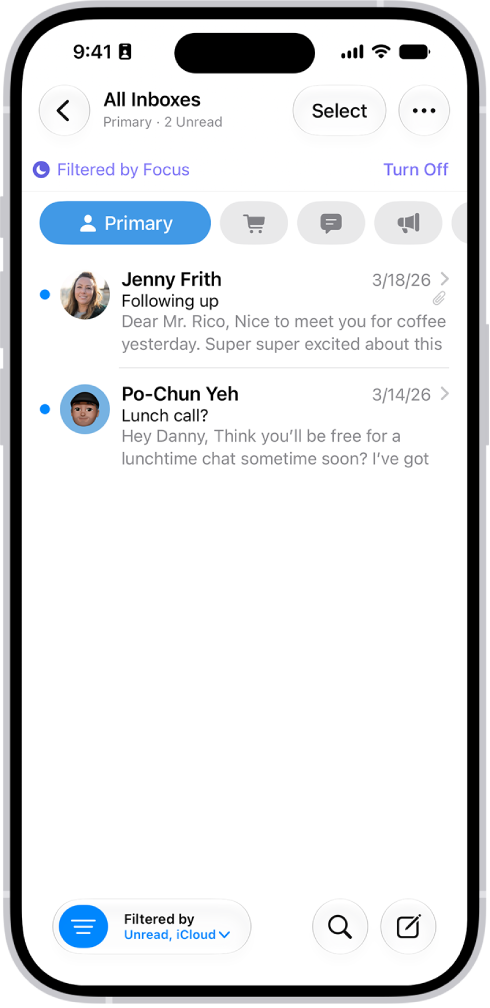
You can use filters to show messages that meet criteria you choose, control which accounts appear during a Focus, or let Apple Intelligence surface priority emails at the top of your inbox.

You can turn off all filters, or just one specific filter. Your work email account and its notifications, for example, can show up only when your Work Focus is on. And during a Focus, you can choose which email accounts you receive notifications from.

Here’s how to filter emails in Mail on iPhone.

Note: Apple Intelligence on iOS 27 or later is available on an Apple Intelligence-enabled iPhone 15 Pro, iPhone 15 Pro Max, or iPhone 16 model or later.

Apple Intelligence is not available in all languages or regions, Apple notes.

Usage limits may apply.*

Filter emails

  1. Start the Mail app on your iPhone.
  2. Tap the Toggle Filtering button in a mailbox list.
  3. Tap Filtered by and then select or turn on the criteria for messages you want to view.
  4. To turn off all filters, tap the Toggle Filtering button.
  5. To turn off a specific filter, tap Filtered by and then deselect it.

Match a mail account to a Focus

When a Focus is on, you can choose which email accounts to receive notifications from.

You could set a filter, for example, so only your work email account and its notifications show up while your Work Focus is on.

The Inbox, showing a list of messages. Above the list of messages is the label Filtered by Focus, and to the right of that it says Turn Off.

  1. Open Settings and tap Focus. Then tap a Focus.

    If you don’t see the Focus option you want, tap the Add Focus button.

  2. Tap Add Filter below Focus Filters and then tap Mail.
  3. Select the accounts you want to see in your inbox during that Focus.

View Priority Messages in your inbox

  1. Start the Mail app on your iPhone.
  2. Tap your inbox, tap the More button, and then tap Show Priority.

    Time-sensitive messages appear at the top of your inbox in the Primary category or in List View.

    Note: Apple Intelligence on iOS 27 or later is available on an Apple Intelligence-enabled iPhone 15 Pro, iPhone 15 Pro Max, or iPhone 16 model or later.

    Apple Intelligence is not available in all languages or regions.

    Usage limits may apply.* *Apple Intelligence is available with Siri and device language set to Chinese (Simplified), Chinese (Traditional), Danish, Dutch, English, French, German, Italian, Japanese, Korean, Norwegian, Portuguese, Spanish, Swedish, Turkish, or Vietnamese.

    Some features may not be available in all regions or languages.

    Some devices may not be available in all regions.

    Siri AI is available in beta in iOS 27, iPadOS 27, macOS 27, watchOS 27, and visionOS 27 and requires an Apple Intelligence–enabled device set to a supported language.

    Available in English to start.

    Siri AI will not be initially available in the EU on iOS, iPadOS, and watchOS.

    Certain Apple Intelligence features that rely on server-side models are subject to daily usage limits, including but not limited to Siri AI, Intelligent Photo Editing Tools, Image Playground, and AFM 3 Cloud models in Shortcuts.

    Daily limits may vary by feature, request complexity, system demand, system policies, and other factors.

    Expanded access to such features will be available for a fee in the future.

  3. Use of these features is subject to the Apple Intelligence Terms and Conditions.
Tag: Mail

You can view app activities on CarPlay Dashboard so you can easily follow their progress, for example, directions in the Maps app, live sports updates, food delivery estimates, and more. These are the same Live Activity settings you see on iPhone, but you can adjust them app by app. That way, you can keep the updates you want in view while you drive, and turn off the ones you don’t need.

  1. Go to the Settings app on iPhone.
  2. Tap Apps and tap the app whose settings you want to change. Tap Live Activities.
Tag: carplay

Use a widget to check stocks at a glance on your iPhone Home Screen. You can choose the size of the widget and the amount of information the widget displays.

There are two widget types, Watchlist and Symbol, and you can change the widget display whenever you like. You can add one to your Home Screen like any other widget.

Here’s how to use a Stocks widget on your iPhone.

Add a Stocks widget to your Home Screen

  1. Touch and hold the Home Screen until the apps begin to jiggle.
  2. Tap the Edit button, then tap Add Widget.
  3. Tap Stocks. Swipe left or right to view the different widget types (Watchlist and Symbol) and sizes.
  4. When you see the option you want, tap Add Widget and then tap the Done button.

To move the widget on your Home Screen, touch and hold the Home Screen until the apps begin to jiggle. Touch and hold the widget, drag it to a new location, then tap the Done button.

Change the widget display

You can change the appearance of a Stocks widget, and the information it displays, after you add it to your Home Screen.

  1. Touch and hold the Stocks widget on your Home Screen.
  2. Tap Edit Widget. Then depending on the type of widget (Watchlist or Symbol) do any of the following:
    • Change the widget symbol: Tap the current symbol and then tap the new symbol you want from the watchlist. Or use the search field to search for a new symbol.
    • Change the widget watchlist: Tap the name of the current watchlist and then tap the watchlist you want to display.
    • Change when news stories appear: Tap In Off Hours, Always, or Never. Choose an option.
    • Show the watchlist name: Turn on Show Watchlist Name.
    • Show more symbols or additional symbol information: Turn on Show More Details or Show More Symbols.

Quick tip: Put more than one Stocks widget on your Home Screen, choose a different size for each one, and you’ll quickly see updates for different symbols or watchlists.

Stocks widgets are also available for the iPhone Lock Screen.

Tag: Stocks

To get the most out of Apple News+, follow your favorite publications and browse through current and back issues.

Stories and issues from Apple News+ appear in the Today feed, the Best of News+ feed, and channel feeds, while entire issues live in the News+ tab. There you can see content chosen just for you, browse the full catalog of publications, or jump to new and recent issues in My Magazines.

Here’s how to browse and read Apple News+ stories and issues on iPhone.

Note: Apple News and Apple News+ aren’t available in all countries or regions.

Follow and unfollow publications

To follow an Apple News+ publication, follow its channel.

  1. Open the News app on your iPhone.
  2. Do any of the following:
    • Tap Today or News+ , tap a story or issue from an Apple News+ publication, tap the publication’s name at the top of the screen, then tap the Follow button.
    • Tap the Search tab, enter the publication’s name in the search field, then tap the Follow button.
    • Tap News+ , swipe left on the categories near the top of the screen, tap Newspapers or Catalog, then tap Follow below the publication’s cover.

To unfollow a publication, tap Following, swipe left on the publication, then tap Unfollow.

Browse Apple News+ issues and stories

  1. Open the News app on your iPhone.

    Stories and issues from Apple News+ appear in the Today feed, Best of News+ feed, and channel feeds. Stories (but not issues) can also be found in topic feeds and search results.

  2. To access entire issues, tap News+, where you can do any of the following:

    • View News+ content chosen just for you: Near the top of the screen, tap Best of News+.
    • View all available publications: Swipe left on the options near the top of the screen and then tap Catalog.
    • View a specific content category: Swipe left on the options near the top of the screen, tap Catalog, tap Featured, and tap a category such as Money & Business, Entertainment, or Sports.
    • View new and recent issues: Tap My Magazines. By default, new issues appear near the top of the screen. The issue you most recently read appears first. If you recently downloaded an issue, it appears next. To choose a different sorting option, tap the More button. Then tap Sort by Name or Sort by Date.

Note: Blocking an Apple News+ publication also removes its issues from My Magazines.

Open a story or issue

  1. Open the News app on your iPhone.
  2. Do any of the following:
    • Tap an issue cover in News+ or the Today feed.
    • Tap the Search tab, enter the name of the Apple News+ channel in the search field, tap the channel, then tap the issue.
    • Follow a link to a story or issue that someone shared with you.

Access back issues

  1. Open the News app on your iPhone.
  2. Do any of the following:
    • Tap News+ , tap My Magazines, tap the More button below the issue cover (or touch and hold the cover), then tap Browse Back Catalog.
    • Tap a channel you follow, or search for a channel, then tap it. Below Recent Issues, swipe to the issue you want to read, then tap to open it. You can also tap Sections near the top of the screen, then tap Issues to browse all available issues.

Read Apple News+ issues

  1. Open the News app on your iPhone.
  2. Open the issue, where you can do any of the following:
    • Page through an issue: Swipe left to go to the next story, or swipe right to go to the previous story.
    • View the table of contents: When you’re reading a story, tap the More button. Then tap Go to Issue.
    • Change the text size: Tap the More button, tap Text Size, and then tap the smaller or larger letter to change the text size in the story and all other stories in the channel. If the issue is a PDF, pinch to zoom.

If you sign out in Settings > [your name] > Media & Purchases, you can only access free stories—you must sign back in to access stories and download issues that require an Apple News+ subscription.

Tag: News

On supported models, you can save a list of all the measurements you take in a single session, complete with screenshots, so you can easily share and access them whenever you need them. They’re behind the History button in the Measure app.

  1. Open the Measure app (in the Utilities folder) on your iPhone.
  2. Tap the History button to see a list of your recent measurements.

    Swipe up from the top of the list to see more measurements.

  3. To save the measurements, tap Copy, open another app (for example, Notes), tap in a document, and then tap Paste.

Note: Height measurements aren’t included in this list.

Tag: Measure

Guides are available to help you discover great places around the world to eat, shop, and explore. Guides are automatically updated when new places are added, so you always have the latest recommendations.

You can browse guides by city, by interest, or by publisher. In select U.S. cities, you can also see suggestions about what’s trending in the area.

Here’s how to explore places with guides in Maps on iPhone.

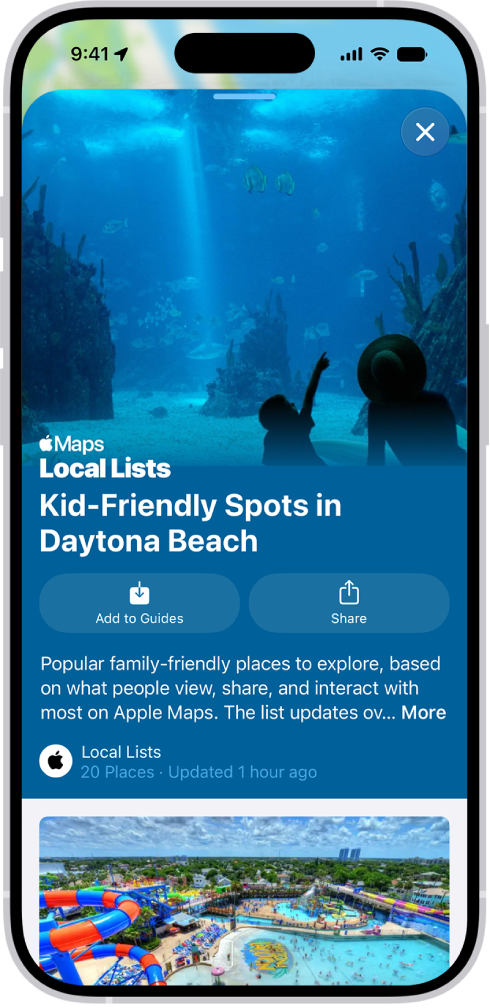
The Maps app showing a guide about underwater locations.

Explore the world with guides

  1. Start the Maps app on your iPhone.
  2. Scroll down and tap Guides We Love.
  3. Browse by any of the following:

    • City: Tap the Go Down button near the top of the screen. Tap a city.

      You can also scroll down to the Cities category.

    • Interest: Tap an interest, then tap to browse guides in that group.
    • Publisher: Scroll down to the Browse by Publisher category and then tap a Publisher.

Suggestions about what’s trending in the area are available in select U.S. cities.

Enter “Local Lists” in the search field, tap Guides, then tap a collection, such as restaurants or kid-friendly spots.

View, share, and save a guide

  1. Start the Maps app on your iPhone.
  2. To open a guide, tap its cover.

    To view its contents, scroll down.

You can also do the following:

  • Share the guide: Tap Share , then choose an option.
  • Save the guide: Tap Add to Guides.
  • See saved guides: Tap Places, then tap Guides.
  • Close the guide: Tap the Close button.

Quick tip: Look for App Clips buttons.

With these, you can do things like reserve a table directly from a guide.

Tag: Maps

In the Home app, you can control your accessories even when you’re away from home. To do so, you need a home hub, a device such as Apple TV 4K or HomePod. In fact, if you’re signed in to the same Apple Account on it, it’s set up automatically as a home hub.

Go to Settings > [your name] > iCloud, tap See All, then turn on Home.

You must be signed in to the same Apple Account on your home hub device and your iPhone.

If you have an Apple TV 4K or HomePod, and you’re signed in to the same Apple Account as your iPhone, it’s set up automatically as a home hub.

Tag: Home

In the Calendar app, events appear according to the time zone of your current location. However, you can schedule an event in a different time zone from the one currently shown in Calendar.

And if you travel, you can set your calendar to always display a specific time zone, even when you’re in a different location.

Here’s how to schedule or display events in a different time zone in Calendar on iPhone.

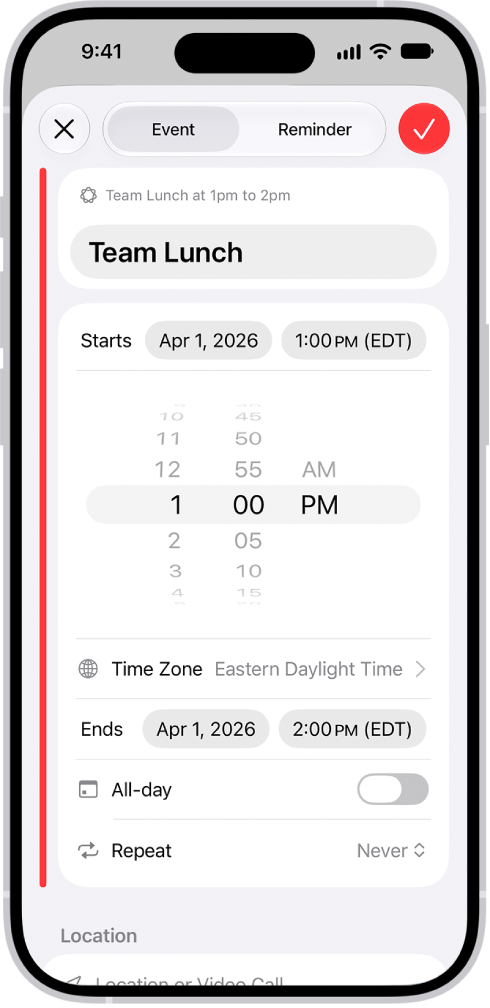
A calendar event showing settings for the time and time zone of the event.

Change the time zone for a new event

Even if it’s different from the time zone you’re currently in, you can change the time zone of an event when you create and edit events in Calendar. Living in New York, for example, you could schedule an event you create or edit according to the time zone in Chicago.

  1. Start the Calendar app on your iPhone.
  2. Tap the Add button.
  3. Add the event details (title, location, travel time, attachments, and so on).
  4. Tap the start and end times for the event. Then tap Time Zone.
  5. Search for a location, tap it. Then tap the Done button.

Note: Need to change the time zone? You can edit it for the event later.

Always display your calendar in a specific time zone

To display Calendar in the time zone of your choice, override the default time zone setting. That can help when working remotely and keeping track of the time to schedule meetings with colleagues in a different time zone. If you live in San Francisco but your job is based in Boston, for example, you can override your current location’s time zone and see your calendar events according to Boston’s time zone.

  1. Start the Settings app on your iPhone.
  2. Tap Apps and then tap Calendar.
  3. Tap Time Zone Override. Turn on Time Zone Override.
  4. Tap Time Zone, search for a location (like Boston, for example) and tap the location.

Events you created before turning on Time Zone Override appear in the new time zone, along with the original time zone used when they were created.

Note: Time Zone Override affects only the time zone shown in the Calendar app.

Use the Phone app to listen to, delete, read, share, or get a summary of your voicemail messages. You can also check your voicemail messages when Visual Voicemail isn’t available.

You can also share a message, or recover a deleted one. A transcription of each voicemail appears in the bottom half of the screen. Your messages stay until you delete them, unless your carrier erases them first when they aren’t stored in iCloud.

Play, share, or delete a voicemail message

Siri: Ask Siri something like, “Play the voicemail from Eliza.” Or without using Siri:

  1. Open the Phone app on your iPhone.
  2. Do one of the following, depending on which Phone app layout you’re using:
    • Unified layout: Tap Calls and tap a message in the Recents list. To view just your voicemail messages, tap the Filter button and tap Voicemails.
    • Classic layout: Tap Voicemail, then tap a message.
  3. Do any of the following:
    • Play the message: Tap the Play button. Messages are saved until you delete them (or until your carrier erases them, if they’re not stored in iCloud).
    • Share the message: Tap the Share button.
    • Read a transcript of the message: A transcription of the voicemail appears in the bottom half of the screen.
    • Delete the message: Tap the Delete button.

Important: In some countries or regions, deleted messages may be permanently erased by your carrier. Your voice messages may also be deleted if you change your SIM card. To recover a deleted message, tap Deleted Messages, tap the message, then tap the Undelete button.

Quick tip: With Apple Intelligence, you can see Siri suggested actions based on the transcript — like adding a reminder, or creating a calendar event. To choose whether these suggestions appear, go to Settings > Apps > Phone, then turn Suggestions in Voicemail on or off. Siri suggested actions are available in English. Apple Intelligence on iOS 27 or later is available on an Apple Intelligence-enabled iPhone 15 Pro, iPhone 15 Pro Max, or iPhone 16 model or later. Apple Intelligence is not available in all languages or regions. Usage limits may apply.*

Check your messages when Visual Voicemail isn’t available

  • On your iPhone: Tap Voicemail, then follow the instructions.
  • On another phone: Dial your own mobile number, press * or # (depending on your carrier) to bypass your greeting, then enter your voicemail password.

*Apple Intelligence is available with Siri and device language set to Chinese (Simplified), Chinese (Traditional), Danish, Dutch, English, French, German, Italian, Japanese, Korean, Norwegian, Portuguese, Spanish, Swedish, Turkish, or Vietnamese. Some features may not be available in all regions or languages. Some devices may not be available in all regions. Siri AI is available in beta in iOS 27, iPadOS 27, macOS 27, watchOS 27, and visionOS 27 and requires an Apple Intelligence–enabled device set to a supported language. Available in English to start. Siri AI will not be initially available in the EU on iOS, iPadOS, and watchOS. Certain Apple Intelligence features that rely on server-side models are subject to daily usage limits, including but not limited to Siri AI, Intelligent Photo Editing Tools, Image Playground, and AFM 3 Cloud models in Shortcuts. Daily limits may vary by feature, request complexity, system demand, system policies, and other factors. Expanded access to such features will be available for a fee in the future. Use of these features is subject to the Apple Intelligence Terms and Conditions.

Tag: Mail