Got a tip for us?

Your iMessage texts appear in blue bubbles, while SMS, MMS, or RCS messages appear in green bubbles. It’s an easy way to tell them apart. Before you start texting, you can turn on iMessage, sync messages on all your Apple devices, choose other devices for SMS, MMS, or RCS messaging, and share your name and photo.

The Messages app gives you several different ways to send text messages:

  • Over Wi-Fi or cellular service, using iMessage with others who also use iMessage. Your iMessage texts appear in blue bubbles.
  • Over cellular service with SMS, MMS, or RCS messages, which appear in green bubbles. (RCS messages aren’t supported by all carriers or in all countries or regions.)
  • Over satellite when you’re outside of cellular and Wi-Fi coverage, using iMessage or SMS on supported iPhone models and certain carriers (U.S., Canada, and Mexico only).

Turn on iMessage

  1. Open the Settings app on your iPhone.
  2. Tap Apps, then tap Messages.
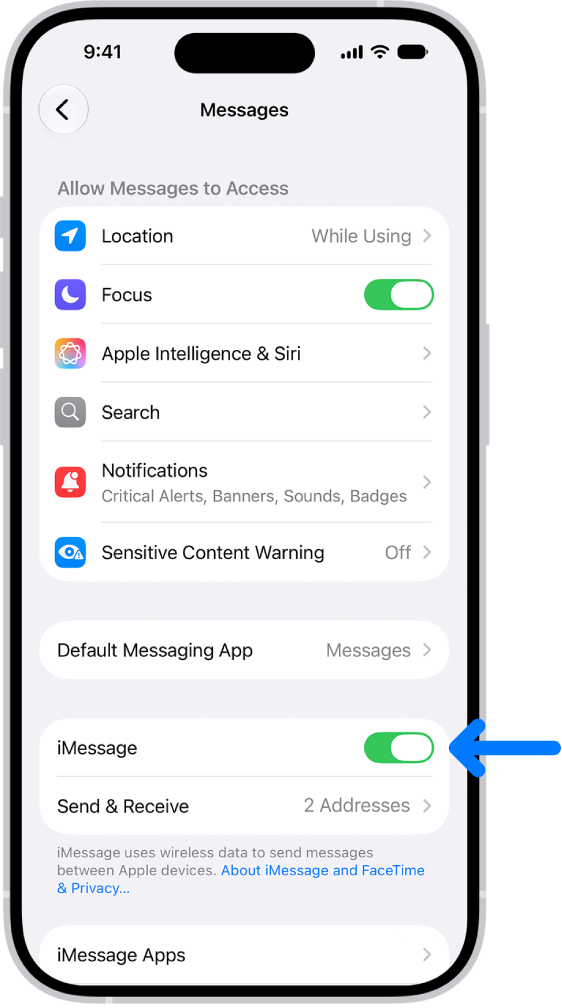
  3. Turn on iMessage.

    The Messages settings pane with iMessage turned on.

  4. To select which of your phone numbers and email addresses you want to use with iMessage, tap Send & Receive and choose from the available options below You can receive iMessages to and reply from.

Sync messages on all your Apple devices

Turn on Messages in iCloud, and iCloud saves the messages you send and receive on your iPhone. Once another device is signed in to the same Apple Account with Messages in iCloud turned on, your conversations show up and sync there as well. Your entire message history stays current on those devices, even on a new device you set up, including messages sent or received with SMS, MMS, RCS, or iMessage.

  1. Make sure that your iPhone is turned on and connected to a Wi-Fi or cellular network, and that you sign in to the same Apple Account on each device.
  2. Open the Settings app on your iPhone.
  3. Tap your name and tap iCloud. Tap Messages.

    If Messages doesn’t appear, tap See All in the Saved to iCloud section.

  4. Turn on Use on this iPhone (if it’s not already turned on).
  5. To confirm which devices receive any SMS, MMS, or RCS text messages you get on your iPhone, go to Settings, tap Apps, and then tap Messages. Tap Text Message Forwarding and turn on your other devices.

Once Messages in iCloud is on, deleting messages or attachments from iPhone also deletes them from your other Apple devices where Messages in iCloud is turned on (visionOS 1, watchOS 1, macOS 10.13.5, iPadOS 13, iOS 11.4, or later).

Note: Messages in iCloud uses iCloud storage.

Choose other devices for SMS, MMS, or RCS messaging

With text message forwarding set up on your iPhone, your other Apple devices show messages you send or receive, without needing Messages in iCloud.

Note: Availability varies by region and carrier.

  1. Open the Settings app on your iPhone.
  2. Tap Apps, then tap Messages.
  3. Tap Text Message Forwarding, then turn on any devices you want to include.

    If your iPhone is set up with Dual SIM, turn on each line.

Note: If you’re not using two-factor authentication, you’ll have to enter the six-digit activation code shown on the other device.

Share your name and photo

In Messages, you can share your name and photo** with others. You decide whether to share it whenever you send or receive a message from someone new.
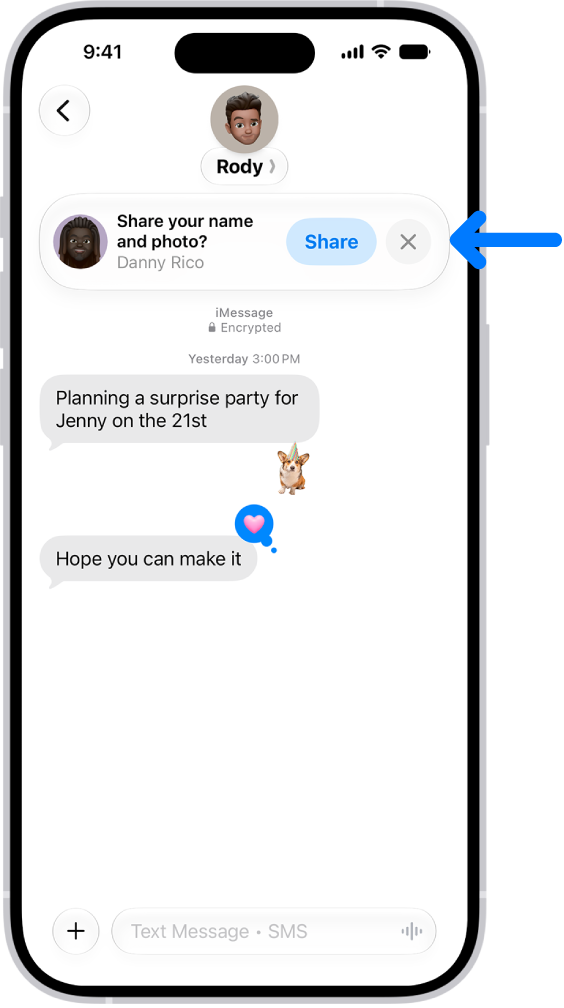
A conversation in Messages. A notification appears at the top asking whether the user’s name and photo should be shared with the other person in the conversation.

  1. Open the Messages app on your iPhone.
  2. Do one of the following:
    • At the top of the conversation list, tap Edit, then tap Set Up Name & Photo.
    • Swipe up to the top of the conversation list, then tap Share Your Name & Photo.
  3. Choose how you want to be represented, scroll down, and then turn on Name and Photo Sharing.
  4. Tap Share Automatically and then choose one of the following:
    • Contacts Only: Anyone who is a saved contact receives the option of using the name and image you chose when they communicate with you.
    • Always Ask: You decide to share your name and photo as you communicate with each contact.
  5. Tap the Done button to save your changes.

To change these settings after you set them up, tap Edit, then tap Name & Photo.

Note: Recipients using non-Apple devices may not see your name and photo as expected.

**Availability varies by region.
Song credits and lyrics come with Apple Music. When you subscribe to Apple Music, you can show song credits and view and share lyrics.

Credits cover the performing artists, composition and lyrics, and production and engineering roles, plus available audio quality. You can view song credits while a song is playing, show or hide time-synced lyrics, share lyrics, and report a concern.

Here’s how to show song credits and lyrics on iPhone.

Show song credits

You can view song credits covering available audio quality, production and engineering roles, composition and lyrics, and performing artists.

  1. Open the Music app on your iPhone.
  2. Do one of the following:
    • While a song is playing, tap the MiniPlayer to open the Now Playing screen, tap the More button, then tap View Credits.
    • Tap the More button next to a song in a list, then tap View Credits.

Show and hide time-synced lyrics

Many songs in Apple Music show time-synced lyrics.

  1. Open the Music app on your iPhone.
  2. While a song is playing, tap the MiniPlayer to open the Now Playing screen. Tap the Lyrics button.

    Note: If you’re offline, you can view lyrics as long as the songs are downloaded to your device.

  3. Do any of the following:

    • Jump to a certain verse: Tap a specific lyric—the first line of the chorus, for example—to go to that part of the song.
    • Get help pronouncing or translating the lyrics: Tap the Translation and Pronunciation button and choose Show Pronunciation or Show Translation.

      The Translation and Pronunciation button only appears when a translation or pronunciation is available that matches your iPhone device’s Preferred Languages list. (You can view this list and add languages directly to it in Settings > General > Language & Region.) Not available in all languages.

      Tip: You can have either the lyrics or the pronunciation appear in larger text. Go to Settings > Apps > Music > Larger Text.

    • See all of a song’s lyrics: Tap the More button, tap View Credits, and then tap View Lyrics.
  4. To hide the lyrics, tap the Lyrics button.

Share lyrics

When time-synced lyrics are available, you can share up to 150 characters of a song’s lyrics.

  1. Open the Music app on your iPhone.
  2. While a song is playing, tap the MiniPlayer to open the Now Playing screen.
  3. Tap the More button, then tap Share Lyrics.

    You can also touch and hold a lyrics line to open the sharing screen.

  4. Tap the first and last lyrics you want to share. Then choose a sharing option.

Report a concern

To report a concern about time-synced lyrics, tap the More button, then tap Report a Concern.

Tag: Music

You can download attachments that are sent to you in email messages or easily search for messages with attachments in your mailboxes.

An image can go straight to the Photos app, and other attachments can be saved in the Files app or opened with another app. You can even use AutoFill to quickly fill out forms you receive in Mail.

Here’s how to download email attachments in Mail on iPhone.

Download an attachment sent to you

  1. Open the Mail app on your iPhone.
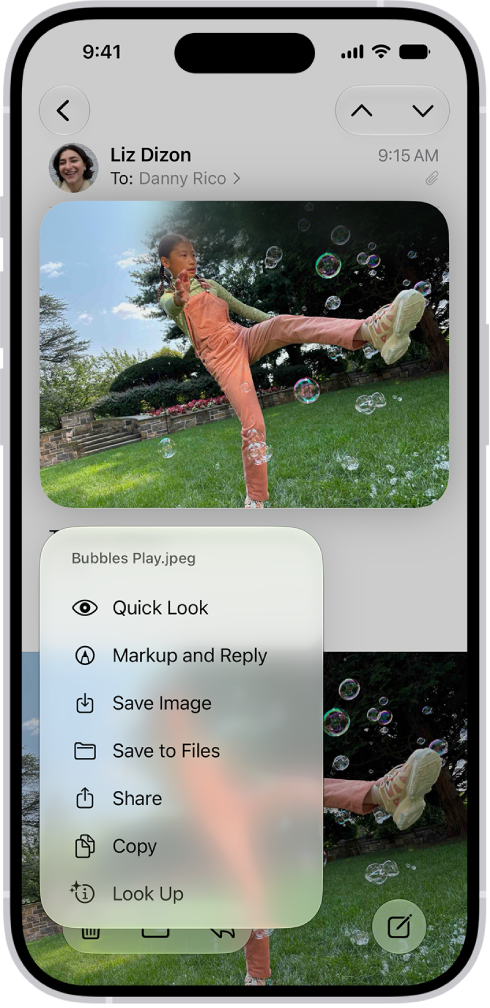
  2. In a message, touch and hold the attachment and then do one of the following: Save it in the Photos app: Choose Save Image.

    • Save it in the Files app: Choose Save to Files.
    • Open it with another app: Tap Share, then choose the app.

    An email attachment is selected with possible actions listed.

    Tip: You can identify and learn more about objects in photos you receive.

  3. Touch and hold the photo and then choose Look Up.

Quickly fill out forms you receive in Mail

Using AutoFill, you can quickly fill out forms you receive in the Mail app, then send each one back to the original sender without leaving Mail.

  1. Open the Mail app on your iPhone.
  2. In the message, tap the attachment to open the document.
  3. Tap the AutoFill button and then tap Form Filling.
  4. Tap a blank field to enter text using the onscreen keyboard.

    To fill out another line, tap it, then enter text.

  5. Tap the Done button and then tap Reply to [name].

Find emails with attachments

Having trouble finding an attachment someone sent you? Filter your email messages to show only those with attachments.

  1. Open the Mail app on your iPhone.

    In a mailbox, tap the Toggle Filtering button to turn on filtering.

  2. Tap Filtered by and then turn on Only Mail with Attachments.

    Tip: You can also show emails messages with attachments from all accounts in one mailbox.

  3. To set up the attachment mailbox, tap the Mailboxes button, tap Edit, and then select Attachments.

    The attachments mailbox appears in the mailboxes list with your other mailboxes.

Tag: Mail

If you have difficulty seeing or following the pointer when you use a mouse or trackpad with iPhone, you can change its size and color so it’s easier to locate on the screen. It’s all in Pointer Control, in Accessibility settings.

Go to Settings > Accessibility > Pointer Control, then adjust any of the following:

  • Increase Contrast
  • Automatically Hide Pointer
  • Color
  • Pointer Size
  • Scrolling Speed

To customize the buttons of the pointing device, go to Settings > Accessibility > Touch > AssistiveTouch > Devices.

You can find pins, places, guides, and routes in one place: your Places in the Maps app. You can also add personal notes to saved places, or pin your most frequently visited places for easier access in Maps and CarPlay. Those notes are visible only to you.

You can save dropped pins and home, work, or school addresses to Places, too. Just be careful when you clean up. Removing a place from your Places deletes any personal notes you’ve added to it.

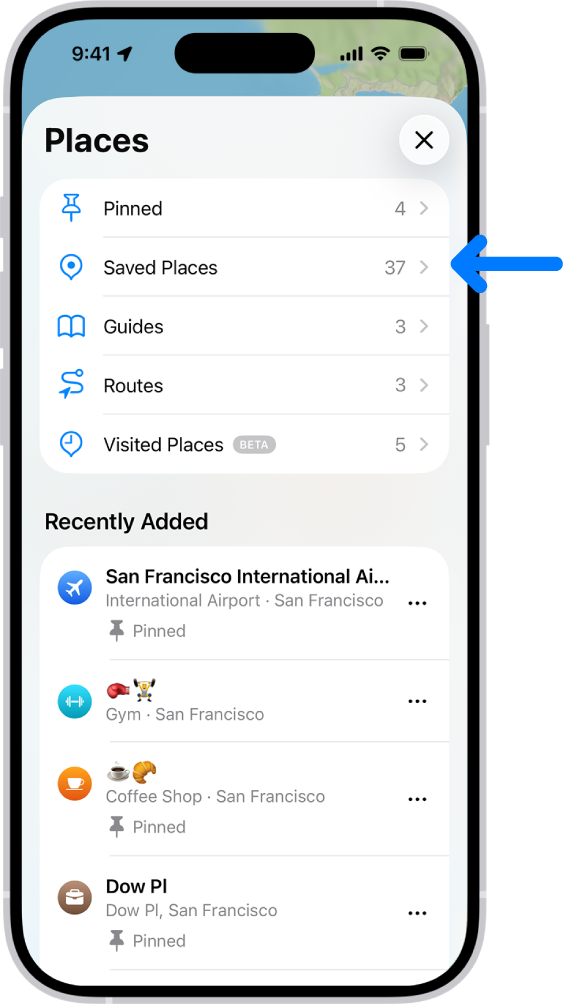
The Places screen in Maps, which shows a list of place categories like Pinned, Saved Places, and Guides. Below this, a Recently Added section lists viewed locations.

Save a place

For easier access in Maps and CarPlay, pin frequently visited places.

They appear under Pinned and as icons in your Places.

  1. Start the Maps app on your iPhone.
  2. Do one of the following:
    • Tap the Add button (you may need to swipe left), search for a location or tap a suggestion, then tap the Done button.
    • While looking at a place card, tap the Add button near the bottom of the screen (it turns to the Added button), tap the More button, then tap Add to Places.

Places can also hold dropped pins and your home, work, or school addresses.

Add notes to a place

If you add notes to a place, you can read them at any time.

Your note appears as text with the shared link when you share a place. It doesn’t save to the other person’s notes for that place, though.

  1. Start the Maps app on your iPhone.
  2. While looking at a place card, tap the More button. Then tap Add a Note.
  3. Write something and tap the Done button.

Adding a note to a place also saves it to your Places.

Remove a place from your Places

  1. Start the Maps app on your iPhone.
  2. Do one of the following:
    • Tap Places, touch and hold the More button, tap Delete from Places, then tap Delete.
    • If you’re in the place card, tap the Added button, tap to deselect Places, then tap the Done button.

Removing a place from your Places also deletes any personal notes on it.

Tag: Maps

You can automatically direct the audio of phone or FaceTime calls to the iPhone speaker, a Bluetooth® headset, or your hearing device. iPhone can also automatically answer calls after a length of time you set.

During a call, the audio switches from your hearing aid to the iPhone speaker when you remove the hearing aid from your ear.

  1. Open Settings, tap Accessibility, tap Touch, tap Call Audio Routing, and then choose an audio destination.
  2. Tap Auto-Answer Calls, turn on Auto-Answer Calls, and set the duration of time before the call is answered by tapping the Decrement button or the Increment button.

Removing your hearing aid from your ear during a call switches the audio routing to the iPhone speaker.

Tag: Maps

On iPhone, you control which of your contacts an app can access. The first time an app wants to access your contacts, you receive a request from the app, along with an explanation. For example, a messaging app may ask to access your contacts in order to find friends who are using the same app.

After you grant or deny the app’s request, choose which contacts the app can access, all of them or just a few, with Limited Access. You can always change the access you granted later.

  1. Open Settings and then tap Privacy & Security.
  2. Tap Contacts, then tap the app.
  3. Choose how much access to your contacts you’re giving the app (below Contacts Access).
  4. If you’re giving Limited Access, tap Edit Selected Contacts to choose individuals.

    Select or deselect individual contacts, then tap Done.

You can add photos and videos to and delete them from the albums you create in the Photos app. You can also search within an album to quickly find specific photos and videos.

You can work with several items at once, and search by location, date, keyword, and more. Your albums can be sorted and filtered, too.

Here’s how to add, delete, and find photos and videos in albums on iPhone.

Add photos and videos to an album

  1. Open the Photos app on your iPhone.
  2. Tap Collections and tap Albums.
  3. Tap an album to open it.
  4. Tap the More button and then tap Add Photos.
  5. Select the photos or videos you want to add to the album and then tap the Done button.

Quick tip: Tap the Search button to look for photos by location, date, keyword, and more.

Add photos and videos to an album from your library

  1. Open the Photos app on your iPhone.
  2. Tap Library. Then tap a photo or video to view it in full screen.

    To add multiple photos or videos at the same time, tap Select, then tap the items you want to add.

  3. Tap the More button, tap Add To, and then tap Album, Shared Album, or create a new one.
  4. Tap the album you want to add to.

Quick tip: To sort and filter your albums, tap the More button at the bottom of the screen. Looking for a specific album? Use the Search button.

Remove photos and videos from an album

  1. Open the Photos app on your iPhone.
  2. Tap Collections and tap Albums.
  3. Tap an album to open it.
  4. Touch and hold the photo you want to remove. Tap Remove from Album.

Search for photos in an album

  1. Open the Photos app on your iPhone.
  2. Tap Collections.
  3. Tap Albums. Tap the album you want to search in.
  4. Tap the Search button and enter the person, object, or place you’re looking for. Tap the Search button.
  5. Tap the Close button to close the search results.
Tag: Photos

With built-in accessibility features for mobility, you can navigate and interact with iPhone using just your eyes, spoken commands, assistive devices, an external keyboard, and more. You can also set options so it’s easier to use gestures and press iPhone buttons.

Some of these features let you skip touching the screen entirely. Eye Tracking, Head Tracking, and Voice Control can all be used to navigate your iPhone hands-free. Others, like Slow Keys, Sticky Keys, and Touch Accommodations, adjust the sensitivity of your input.

To explore accessibility features for mobility, go to Settings > Accessibility, then scroll down to the Physical and Motor section.

Action Related features and settings
Navigate your iPhone hands-free Eye Tracking
Head Tracking
Voice Control
Siri
Shortcuts
Call audio routing
Use simple sounds to perform gestures
Let iPhone type for you Dictation
Predictive text
Connect other inputs Switch Control
Keyboards
Bluetooth accessories
Head tracking
Control other devices Apple Watch Mirroring
Apple TV 4K remote
Control nearby devices
Platform Switching
Customize gestures AssistiveTouch
Back tap
Reachability
AirPods
Pointer scrolling speed
Side or Home button
Face ID and attention
Adjust the sensitivity of your input Slow Keys and Sticky Keys
Siri Pause Time
Touch accommodations
Turn off vibration Vibration

Quick tip: You can control your go-to accessibility features and settings from Control Center or with the click of a button.

In the App Store app, you can review and download purchases made by you or other family members. You can also set restrictions and customize your preferences for the App Store in the Settings app.

You can allow the App Store to use your location, let Siri make suggestions based on how you use it, and set content restrictions to prevent in-app purchases.

Here’s how to change settings and restrictions in the App Store on iPhone.

Change your App Store settings

  1. Start the Settings app on your iPhone.
  2. Tap Apps, tap App Store, and then adjust any of the following settings:
    • Location: Allow App Store to use your location and show apps and ads relevant to you.
    • Siri: Allow Siri to make suggestions across apps based on the way you use the App Store.
    • Search: Allow content from the App Store to appear in Search.
    • Cellular Data: To allow App Store to use cellular, turn on Cellular Data. Adjust other settings for cellular data such as automatic downloads.
    • App Downloads: Automatically install apps you purchased on your other devices.
    • App Updates: Automatically download and install app updates.
    • In-App Content: Automatically download in-app content in the background before the first time you open the app.
    • Video Autoplay: Automatically play app preview videos.
    • In-App Ratings & Reviews: Let apps ask for your feedback.
    • Offload Unused Apps: Automatically remove unused apps. You can reinstall an app at any time if it’s still available in the App Store.

Set content restrictions and prevent in-app purchases

After you turn on content and privacy restrictions, do the following:

  1. Start the Settings app on your iPhone.
  2. Tap Screen Time and then tap Content & Privacy Restrictions.
  3. Turn on Content & Privacy Restrictions.
  4. Tap iTunes & App Store Purchases and choose restrictions for installing or deleting apps and in-app purchases.
  5. Tap App Store, Media, Web & Games and choose age-appropriate restrictions such as the following:
    • Apps: Restrict apps by age ratings.
    • App Clips: Prevent App Clips from opening.

Set Screen Time limits and App Store restrictions for kids

With Family Sharing, the organizer—or another adult designated as parent/guardian—can set up the following parental controls for children or other members in the Family Sharing group:

  • Set restrictions for installing and deleting apps and in-app purchases.
  • Allow your child to access only age-appropriate apps.
  • Review your child’s requests to purchase and download apps.