Got a tip for us?

The Home app provides a secure way to control your smart home accessories—such as lights, locks, smart TVs, thermostats, window shades, and smart plugs. You can also use the intercom and watch video streams from your HomeKit Secure Video cameras.

The available controls depend on the type of accessory, and a scene lets you control multiple accessories at once. And with more than one home set up, you can pick which one to view.

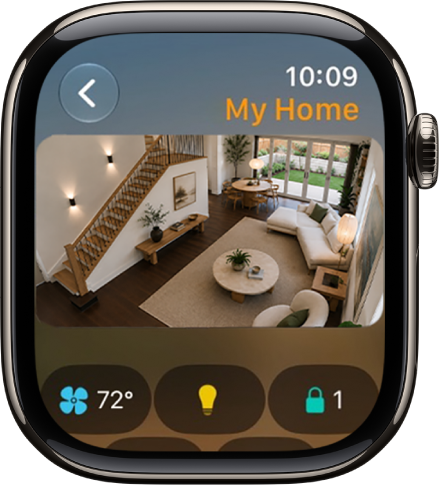
The Home app screen showing four camera views. Along the bottom are buttons for climate controls, lighting accessories, and locks.

Note: Before you can control your home from Apple Watch, you need to set it up in the Home app.

View and control accessories and scenes

  1. Start the Home app on your Apple Watch.
  2. Scroll to see video streams from your cameras, categories (Climate, Lights, Security, Speakers and TV, or Energy), scenes, and accessories.
  3. Do any of the following:

    • Control an accessory: Tap the accessory.

      The available controls depend on the type of accessory. For example, with some lightbulbs, you can adjust the brightness.

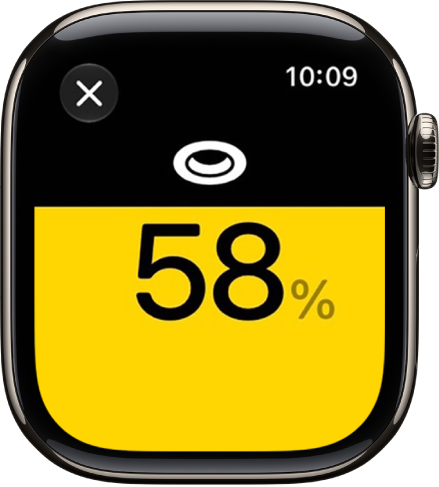
      A control for a lighting accessory with the brightness set to 58%.

    • Control multiple accessories at once: Tap a scene.
    • View the Grid Forecast: Tap the Energy category.

Send and receive intercom messages

  1. Start the Home app on your Apple Watch.
  2. Swipe down and tap the Intercom button.
  3. Say something like, “Who ate the last piece of pizza?”
  4. Tap Done.

View a different home

With more than one home set up, you choose which one to view on your Apple Watch.

  1. Start the Home app on your Apple Watch.
  2. Tap the Back button to see the list of homes and tap a home.

See also

Tag: Home

You can quickly switch from one open app to another on your iPhone. When you switch back, you can pick up right where you left off. The App Switcher shows all your open apps, and on an iPhone with Face ID, there’s an even quicker way to switch between open apps.

Use the App Switcher

  1. To see all your open apps, do one of the following:
    • On an iPhone with Face ID: Swipe up from the bottom of the screen, pause in the center of the screen and then lift your finger.
    • On an iPhone with a Home button: Double-click the Home button.
  2. To browse the open apps, swipe right and tap the app you want to use.

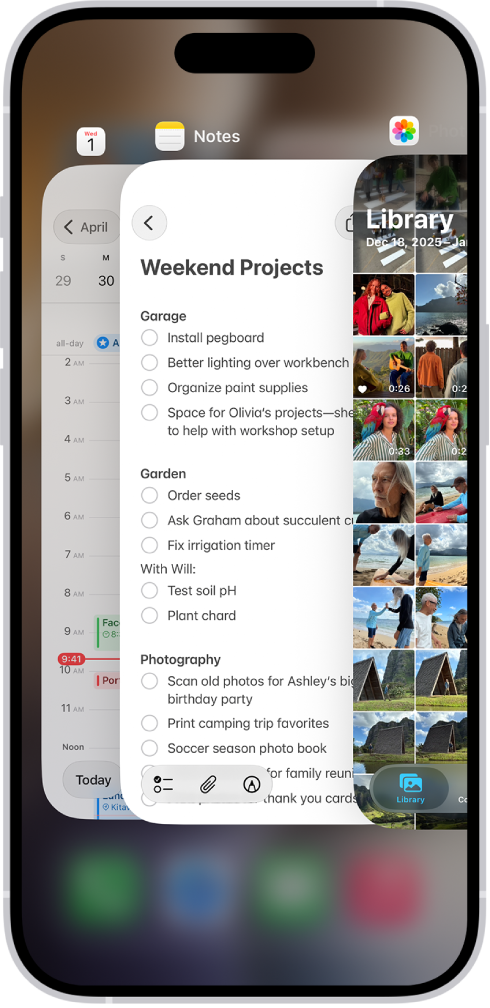
The App Switcher. Icons for the open apps appear at the top, and the current screen for each open app appears below its icon.

Switch between open apps

To quickly switch between open apps on an iPhone with Face ID, swipe right along the bottom edge of the screen.

On iPhone 18 Pro models, you can use Apple Reference Image to save and share additional data to verify the authenticity of a photo. Use Reference mode to take a photo and also capture the original data from the sensor in the Main camera.

You only have to turn on Reference mode once, in the Settings app. After that, it’s a camera mode like any other, and iPhone captures the original, signed sensor data with each photo.

Note: Apple Reference Image is not available in all countries or regions.

Before you begin

It’s a one-time step: turn on Reference mode in the Settings app.

  1. Open the Settings app on your iPhone.
  2. Tap Camera, then tap Reference Image.
  3. Tap Add Reference Mode, then follow the onscreen instructions.

Take a photo with a reference image

  1. Open Camera on your iPhone.
  2. Swipe to select Reference mode.
  3. Tap the Shutter button, or click the Camera Control (on supported models), to take the photo.

iPhone also captures the original, signed data from the Main camera’s sensor, so you can develop and view a reference image in Photos.

Tag: Photos

In the Apple TV app, you can stream TV shows, movies, sports, and more, like Friday Night Baseball and Major League Soccer with an Apple TV subscription in some countries and regions. You can also download movies and episodes, or even a full season of a TV show.

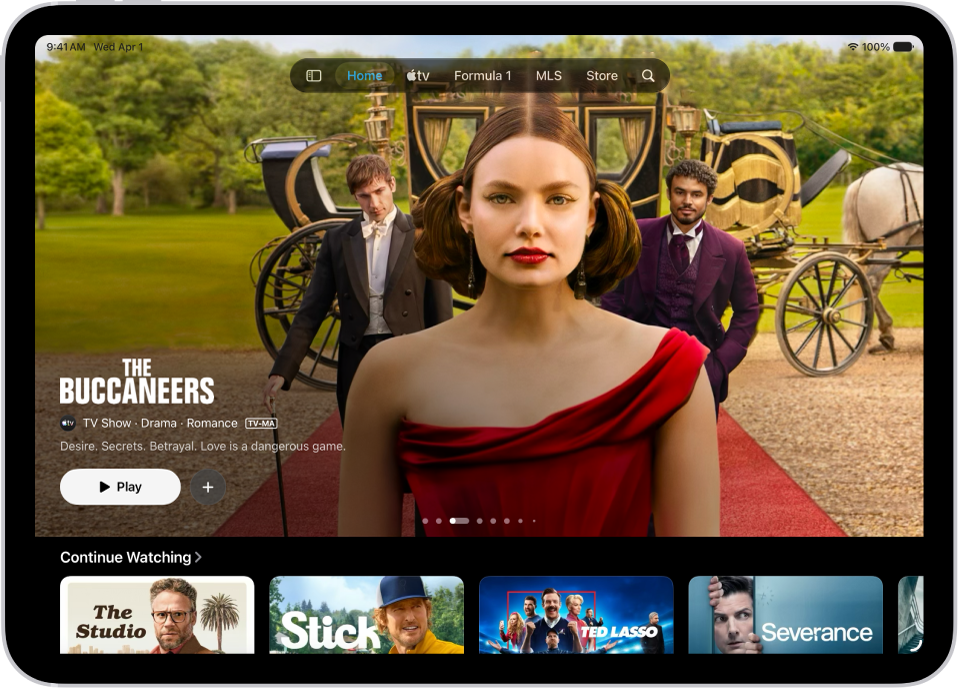
The Home tab showing a featured Apple Original in the center, above the Continue Watching row. At the top of the screen, from left to right, are the Home, Apple TV, MLS, Store, Recent Purchases, and Search tabs.

Subscription required for Apple TV, which in some countries and regions may include some or all of the following: Friday Night Baseball, Major League Soccer (MLS), and Formula 1. Not all features and content are available in all countries or regions, Apple notes. Apple TV subscription does not include third-party branded subscription services or content available for rental or purchase in the Apple TV app.

You control whether third-party apps have access to information in Contacts, Photos, Calendar, and other apps. The first time an app wants information from another app, it has to ask you and explain why, and you can change access later. You can also review how apps use the permissions you grant them.

Review or change access to information in apps

When an app first wants to use information from another app, you’ll get a request explaining why. A messaging app, for example, may request access to your contacts to find friends who use the same app. Whether you grant or deny access, you can change it later.

  1. Open Settings and then tap Privacy & Security.
  2. Tap a category of information, such as Calendars, Reminders, or Motion & Fitness.

    A list appears showing the apps that requested access. You can turn access on or off for any app on the list.

Review how apps are using the permissions you grant them

Go to Settings > Privacy & Security, then tap App Privacy Report.

To see how apps are using the permissions you granted them, and their network activity, check the App Privacy Report.

To turn off the report and delete its data, go to Settings > Privacy & Security > App Privacy Report, then tap Turn Off App Privacy Report. You can return to this Settings screen to turn the report on again.

You can add and delete photos and videos that you added to a shared album. You can also save photos and videos from a shared album to your photo library.

The people you share the album with are notified automatically when you add new photos. Everyone in the album can also react to content with emoji and comments that all participants can see.

Here’s how to contribute to a shared album on iPhone.

Add photos and videos to a shared album

  1. Open the Photos app on your iPhone.
  2. Tap Collections.
  3. Tap Shared Albums and tap an album.
  4. Tap the More button and then tap Add Photos.
  5. Select photos and videos and then tap the Done button.

Whenever you add new photos, the people you share the album with get notified automatically.

Note: Seeing Items Not Shared after adding content to the album usually means the organizer is short on iCloud storage. Ask them to make sure they have enough for new content.

Comment and react to shared album content

In a shared album, you can react to content with emoji and comments, and all participants can see them.

  1. Open the Photos app on your iPhone.
  2. Tap Collections.
  3. Tap Shared Albums and tap an album.
  4. Tap a photo or video and then tap the Reactions button to react with an emoji, or tap the Comment Lines button to enter a comment.

To delete a comment, touch and hold it, then tap Delete. You can only delete your own comments, unless you’re the album organizer, who can delete any comment.

View shared album activity

  1. Open the Photos app on your iPhone.
  2. Tap Collections.
  3. Tap Shared Albums and tap Activity.
  4. The latest contributions to your shared albums are shown here.

Tap the Updates button to see a detailed feed of all activity in your shared albums. Tap the Reactions button or the Comment Lines button below a contribution to leave a reaction or comment. Tap the More button to save content someone else contributed or to delete content that you contributed.

To view activity for a specific shared album, tap the album, then tap the Conversation button.

Filter shared album content

  1. Open the Photos app on your iPhone.
  2. Tap Collections.
  3. Tap Shared Albums and tap an album.
  4. Tap the Sort and Filter button, tap Media Types or Shared By, and tap a filter option.

To remove the filter, tap the Sort and Filter button, then tap Remove Filter.

Delete photos, videos, and comments from a shared album

In a shared album, organizers can delete any photos, videos, or comments, but participants can only delete content they personally added. Whatever’s deleted is removed from the shared album automatically, both on all your devices and on the devices of every participant.

  1. Open the Photos app on your iPhone.
  2. Tap Collections.
  3. Tap Shared Albums and tap an album.
  4. Do either of the following:
    • Delete multiple items: Tap Select, tap the items to delete and tap the Delete button. Then tap Delete from All Devices.
    • Delete a single item: Tap the photo or video, tap the Delete button, and then tap Delete from All Devices.

To delete a comment, touch and hold it, then tap Delete. You can only delete your own comments unless you’re the album organizer, who can delete any comment.

Save photos and videos from a shared album to your library

  1. Open the Photos app on your iPhone.
  2. Tap Collections.
  3. Tap Shared Albums and tap an album.
  4. Tap the More button. Then tap Save All Shared Items or Save Remaining Items.

To save a single photo or video, tap the image to open it, then tap the Save button.

Tag: Photos

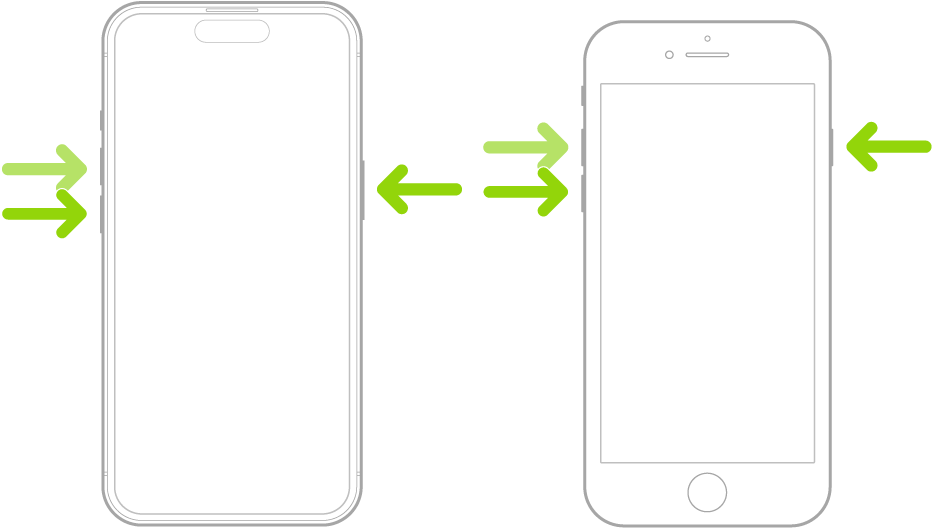
If iPhone isn’t responding, and you can’t turn it off then back on, try forcing it to restart. A force restart uses the volume up button, the volume down button, and the side button on your iPhone. When the Apple logo appears, you’ll know it’s restarting.

  1. Press and quickly release the volume up button.
  2. Press and quickly release the volume down button.
  3. Press and hold the side button.
  4. When the Apple logo appears, release the side button.

Two iPhone models, one with a Home button and one without, screens facing up. The volume buttons of each are on the left, and the side button is on the right.

Tag: iPhone

You can import photos and videos directly to the Photos app from a digital camera, an SD memory card, or another iPad or iPhone that has a camera. You can also export unmodified versions of your photos and videos directly to an external drive, memory card, or other storage device that’s connected to your iPhone.

To import from a camera, you connect it with an adapter and make sure it’s in transfer mode.

Import photos and videos to your iPhone

From another device, such as a digital camera or an external drive, you can import saved photos and videos to the Photos app on your iPhone.

  1. Insert the camera adapter or card reader into the Lightning or USB-C connector, or connect the device directly to your iPhone.
  2. Do one of the following:
    • Connect a camera: Connect the adapter to the camera and then turn on the camera and make sure it’s in transfer mode.
    • Connect an external storage device or insert an SD memory card into the card reader: Don’t force the card into the slot on the reader; it fits only one way.
    • Connect an iPhone or iPad: Use the Lightning adapter or the USB-C cable that came with the device to connect it to the camera adapter. Turn on and unlock the device.
  3. Start the Photos app on your iPhone.
  4. Tap Import.
  5. Select the photos and videos you want to import. Select your import destination.
    • Import all items: Tap Import All.
    • Import selected items: Tap the items you want to import (a checkmark appears for each), tap Import, and then tap Import Selected.
  6. After the photos and videos have been imported, keep or delete them on the camera, card, iPhone, or iPad.
  7. Disconnect the camera adapter or card reader.

Export photos and videos to an external storage device

You can export photos and videos you took on your iPhone straight to a memory card, an external drive, or another storage device.

Note: For edited photos and videos, the export is the unmodified original version.

  1. Connect your iPhone to the storage device using the Lightning or USB-C connector, or connect the device directly to your iPhone.
  2. Start the Photos app on your iPhone.
  3. Select the photos and videos you want to export.
  4. Tap the Share button and then tap Export Unmodified Original.
  5. Tap your storage device (below Locations) and tap Save.

Photos and videos in the Hidden album won’t be transferred if the album is locked. To unlock the Hidden album, go to Settings > Apps > Photos, then turn off Use Face ID, Use Touch ID, or Use Passcode.

Tag: Photos

You can move apps and widgets anywhere on the Home Screen to create the ideal layout: frame your wallpaper photo, align apps and widgets along the side or bottom, or move them to other Home Screen pages. If you have multiple Home Screen pages, each one can have a unique layout.

You can also temporarily hide Home Screen pages and change where new apps get downloaded. And if you change your mind, you can reset the Home Screen and apps to their original layout.

Quick tip: One Home Screen page can hold all your apps and widgets for a particular Focus, such as your Work Focus, and you can make that page accessible during that Focus.

Move apps and widgets on your Home Screen

  1. Go to the Home Screen.
  2. Touch and hold the Home Screen background until the items begin to jiggle.
  3. Drag the app or widget to one of the following locations:

    • Another location on the same page—including the top, bottom, or side of the screen
    • Another Home Screen page

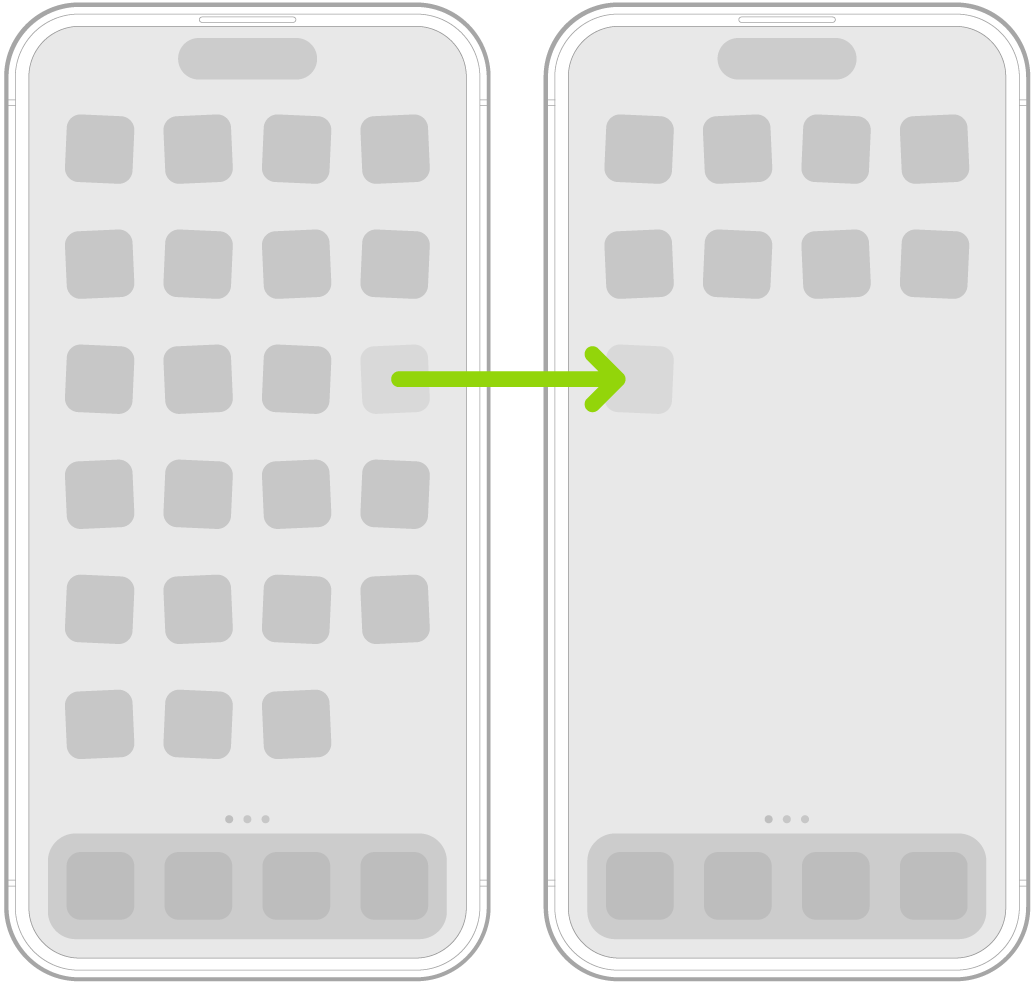
      Drag the app or widget to the right edge of the screen. You might need to wait a moment for the new page to appear. The dots show how many pages you have and which one you’re viewing.

    Jiggling apps on the Home Screen with an arrow showing one app being dragged to the next page.

  4. When you’re finished, press the Home button (on an iPhone with a Home button) or tap the Home Screen background (on other iPhone models).

Reset the Home Screen and apps to their original layout

  1. Open the Settings app on your iPhone.
  2. Tap General, then tap Transfer or Reset iPhone.
  3. Tap Reset and tap Reset Home Screen Layout. Then tap Reset Home Screen.

Apps you downloaded are arranged alphabetically after the apps that came with your iPhone, and any folders you created are removed.

Most of what has been written about iOS 27 describes Siri AI. These are the iOS 27 tips that are easy to miss. Settings buried two panes deep, a gesture Apple removed quietly, and features with a catch worth knowing first.

Every tip here is new in iOS 27 release, and comes from my own testing rather than from Apple’s feature list.

1. Where Siri went

You can bring up Siri (by default), as in previous releases, by saying “Siri” or “Hey Siri,” or by pressing and holding the side button. However, the change introduced in iOS 26 that let you double-tap the bottom of the screen is gone. In iOS 27, you can swipe down on a Home screen to reveal the new combination of Spotlight and Siri: a field labeled Search or Ask. You can type into that field, or tap the Dictation icon and talk to Siri that way.

2. Set the Liquid Glass level

When you upgrade to iOS 27 or iPadOS 27, the last stages of the installation present a new screen that lets you choose to adjust Liquid Glass using a slider. If you don’t make the adjustment at that moment, you can do so later, or change your initial choice. Go to Settings > Appearance > Liquid Glass.

This new screen offers a slider you can drag from the left edge, which Apple describes as “More Clear” (most Liquid Glass effect) across a range to the right: “More Tinted” (most opaque). Apple makes it easy to visualize by providing a scrollable preview that shows Liquid Glass elements overlaid on a webpage with images and text.

3. Flatten Liquid Glass completely

Go to Settings > Accessibility > Display & Text Size and enable Reduce Transparency. This flattens Liquid Glass, removing transparency and providing an almost identical look to iOS 18/iPadOS 18. The level of Liquid Glass you have enabled doesn’t have an effect.

Use Settings > Accessibility > Display & Text Size > Increase Contrast to bump up the difference in tones. In iOS 27/iPadOS 27, the difference appears slight, where it was sharply distinct in the previous releases.

4. Why the slider is locked

You can’t change the Liquid Glass intensity when either of those two options is enabled. When you attempt to change the Liquid Glass setting, you’re told that Reduce Transparency and Increase Contrast must be disabled. You can tap Turn Off.

5. Give alarms their own volume

It took this long for Apple to let you set the volume of alarms and timers hitting zero seconds separately from your ringtone volume. Go to Settings > Sounds & Haptics and, under Alarms and Timers, disable Match Ringtone Volume.

6. Stop clinging to dead Wi-Fi

In iOS 27, Apple rebranded the Wi-Fi Assist feature as Connectivity Assist, and if you had Wi-Fi Assist enabled—it was by default—you’ll find the new feature already turned on in Settings > Wi-Fi.

7. Use both FaceTime cameras

After many, many years of FaceTime supporting a single camera view on iPhone, you can now use the front and back cameras simultaneously. The proviso? You need an iPhone 17, iPhone 17 Pro, iPhone 17 Pro Max, or iPhone Air and iOS 27. The other person or people can see your dual-camera feed only if they have iOS 27, iPadOS 27, or macOS 27. (This builds off the dual-capture mode in the Camera app on those models introduced in iOS 26.)

To use the dual-camera mode, in an active FaceTime session (or before someone has joined), tap the Flip Camera button in the inset selfie view. This shows both cameras by default.

8. Share location for any period

Previously, you could share your location for an hour, until the end of the day, or indefinitely. Now you can set a custom period of time.

9. Hide your location silently

If you’re sharing your location with someone, you can hide your location from your end until the next morning (at 4 a.m.), and they’re not notified. They’re also not told when you resume sharing, or “unhide” your location. They simply see you with a “location unavailable” label.

10. Photo keywords, at last

It took many years, but you can finally apply keywords to media in the Photos app on an iPhone and iPad. Huzzah? (Keywords are a useful way to link images for searching and organization.) However, you can still only apply keywords to items one at a time, as opposed to singly or in selections of two or more on a Mac. To add keywords, tap the info button, then tap Add Keywords.

11. See only what you selected

When you make a selection by tapping the Select button in the upper-right corner of any multiple-item view in Photos, a new Show Selected button appears at the bottom. Tap it, and it reveals just the items you chose. You can adjust the selection or view the images and videos in a carousel. Tap Deselect All to remove the current selection.

12. Two albums appear by themselves

Apple adds two new albums in Collections > Utilities. Captured by Me contains images or videos you created using any iPhone or iPad, such as via the Camera app or by taking a screenshot. The Identity Documents album uses machine learning (not Apple Intelligence) to collect scans or photos of personally identifying documents. (Identity Documents hasn’t yet appeared for me in iOS.)

13. Upgrade a Shared Album first

In iOS 27/iPadOS 27 (and on macOS 27 and at iCloud.com), you have access to several new features. However, you must first upgrade an album: select the album in Collections > Shared Albums, tap the More button, then tap Upgrade Shared Album. This may take some time—minutes or longer—depending on the size of the items in the library and your internet connection.

After upgrading, you have access to the following:

  • Full-resolution photos and videos are now supported across all common formats.
  • You can filter by photos or videos. Tap the Filter button, then tap Media Types.
  • There’s a Create Shared Album option for any existing album. Tap the More button, then tap Create Shared Album.
  • Albums can be set to expire after 30 days, but only when created. After creating a Shared Album from an existing album or by tapping the Add button in the Collections > Shared Albums view, enable Make Album Temporary.
  • You can create an upload link that allows anyone—not just people with access to the album—to upload images. With the album selected, tap the Share button, tap “Only invited people can join,” and choose Anyone with the Link. (This is similar to other kinds of sharing across iOS 27/iPadOS 27.)
  • A recent activity log lets you see changes made to the album, including emoji reactions. (This doesn’t yet appear to be in place.)

14. Save a video still

You can extract a frame from a paused video to save as an image. Tap the More button and choose Save Video Frame.

15. Make Photos sync now

Photos often decides to pause syncing to iCloud to avoid draining the battery, even when the battery is quite full. You can now go to Settings > Apps > Photos > Sync Immediately and choose For Today. This prioritizes syncing instead of preserving battery life for the remainder of the calendar day. If Low Power Mode or Low Data Mode are enabled, Photos will still pause until those modes are turned off, such as by recharging the phone for the former.

16. Slideshows without Memories

Slideshows can now be built from any album or even a selection of media, rather than relying on memories.

17. Search a podcast’s episode notes

If you navigate to a podcast’s view of all of its episodes by tapping the podcast and then tapping Episodes, you can now search against the title and show notes of all listed episodes.

This doesn’t search transcripts, which Podcasts generates for some shows. It searches only the per-episode notes published in the podcast feed.

18. Watch a page for changes

On any page, tap the Page Info button and choose Notify Me. Here’s the interesting part: You write in plain language what you want Safari to check for, then tap Next. Safari will check daily by default. You can tap Edit while creating the notification or afterward to switch to hourly, weekly, or monthly, and set the time of day.

19. Scan a card into Wallet

You can create entries for cards, membership cards, and other kinds of barcode/QR code-related proofs of entry or membership from scratch, a task formerly available only for third-party apps and websites.

Tap the Add button in Wallet, then tap Create a Pass. You’re guided through a few steps, one of which lets you scan the existing card, so that Wallet can pull in its number, barcode, or QR code. You can fill out details that aren’t present on the card or captured by Wallet.

20. Share details at the till

Entirely new is Tap to Share with merchants at the point of sale, such as in a store or at a fair. This makes in-person Apple Pay more akin to Apple Pay in Safari. Tap to Share lets an entire set of interactions occur before you pay. You start by approving a connection with a merchant’s iPhone that has a supported payment app. (Ostensibly, this may encompass not just companies like Square and Stripe, but in-house developer apps for retailers like Old Navy or Lowe’s.)

Once you begin, you can choose what you share with the business—like contact details, a shipping address, or your email. This also means you don’t have to state this information aloud or rely on the merchant typing it in correctly! A merchant can offer to sign you up for a membership or loyalty program. You can use a pass from the merchant, or they can issue one, related to discounts, credits, or other transaction-related purposes. Finally, you see the full cart as a digital receipt before completing payment with Apple Pay.

21. Read anything in Accessibility Reader

Accessibility Reader used to require a shortcut trigger. Now, you can use the share menu in any app to open content in the reader.

22. Captions for any video

Your iPhone and iPad now generate captions from any uncaptioned video you’re watching in Photos and other supported apps. (This isn’t related to tvOS or TV app captioning.) If captions already exist, you can have them automatically translated between supported languages.

23. iPad tips: the menu bar

In iPadOS 26, the menu bar had to be triggered either by swiping down from the top of the display or by hovering with a pointing device, at which point it would appear. It then hid, after a short delay, when it wasn’t in use or being hovered over.

In iPadOS 27, the default behavior appears similar, but there are two significant changes:

  • The app name always appears on the far-left side of the menu bar, at the upper-left corner of the screen.
  • To unfurl the menu bar, tap or drag over the app name.

Along with that new behavior, you can also opt to have the menu bar remain in place, persistent at all times. Go to Settings > Multitasking & Gestures, then disable Automatically Show and Hide Menu Bar.

24. React to a keyboard connecting

Apple previously didn’t offer a way to trigger an automation when a keyboard was connected to or removed from an iPad. This frustrated some users, who interact with their iPad differently when a keyboard is connected—such as in a dock-style environment—and when they are using only the touch screen or an Apple Pencil.

Now, you can use Shortcuts to create automations based on whether a keyboard was connected, disconnected, or the keyboard connection state changed. This includes the “Set multitasking mode to” item. You might want to switch between Full Screen Apps and Windowed Apps when using your iPad without a keyboard. You’d have to set up two shortcuts: one would trigger when the keyboard was attached; the other when detached.

For more iOS 27 tips and tricks, see the complete guide to every iOS 27 feature. There are also 36 changes that owe nothing to AI that I recommend you to check out.