Got a tip for us?

iPad

The iPad is a tablet computer from Apple that runs the iOS mobile operating system. Similar in functionality to the iPhone, the iPads purpose is often quite different, sometimes even serving as a general desktop computer replacement.

In the Journal app, you can print and export individual entries or your entire journal.

You can print a single journal entry or multiple entries, choosing all entries or a date range. You can also export a single journal entry or multiple entries as PDF files, and share them with an app such as Notes, Files, or Messages on your iPad.

Here’s how to print and export entries in Journal on iPad.

Print a single journal entry

  1. Start the Journal app on your iPad.
  2. Choose a journal or tap All Entries.
  3. Scroll to the entry you want to print. Tap the More Options button below the entry.
  4. Tap Print.

Print multiple journal entries

  1. Start the Journal app on your iPad.
  2. Choose a journal or tap All Entries.
  3. Tap the More button at the top right of the screen and then tap Print.
  4. Choose All Entries or select a date range and then tap Print.

Export a single journal entry as a PDF file

  1. Start the Journal app on your iPad.
  2. Choose a journal or tap All Entries.
  3. Scroll to the entry you want to export. Tap the More Options button below the entry.
  4. Tap Print and tap the Share button.

    Choose an app such as Notes, Files, or Messages or tap Save to Files.

Export multiple journal entries as PDF files

  1. Start the Journal app on your iPad.
  2. Choose a journal or tap All Entries.
  3. Tap the More button at the top right of the screen.
  4. Tap Export and choose Export.
  5. In the sidebar, choose a location and tap Save.

See also

Tag: Journal

Your iPad protects its battery by limiting charging in hot or cold conditions. Charging your iPad in very hot or cold environments can temporarily affect performance, and when your iPad becomes too warm or too cold, iPadOS may automatically slow down or pause charging. This helps preserve your battery’s long-term health and ensures safe operation.

Charging resumes on its own when the battery is back in a safe temperature range. These protections work automatically and can’t be turned off, and charging works best between 32° and 95° F (0° and 35° C).

You might see a message on the Lock Screen such as “Charging On Hold. Charging will resume when iPad returns to normal temperature.”

What to expect

  • If your iPad gets too warm, charging may slow or stop until the temperature lowers.
  • In very cold environments, charging may be slower or temporarily disabled until your device warms up.
  • Charging resumes automatically when the battery returns to a safe temperature range.

Tips to maintain charging performance in extreme temperatures

Here’s how to help your iPad charge efficiently:

  • Charge your iPad in environments between 32° and 95° F (0° and 35° C).
  • Avoid placing your iPad in direct sunlight or leaving it in hot spaces (like a car on a sunny day).
  • If you’re in a cold climate, try charging indoors or warming your iPad gradually before plugging it in.
  • Remove your case if your iPad tends to heat up while charging.

Note: These temperature-based protections work automatically and can’t be turned off. They are available on iPad using iPadOS 18 or later.

See also

Tag: Battery

After you connect your iPad to a Bluetooth accessory, you can play and control the audio from your iPad on the accessory. The playback destination returns to your iPad when you move the accessory out of range, and you can improve the sound of third-party accessories by specifying the device type.

Play audio from your iPad on a Bluetooth audio accessory

  1. Open an audio app such as Music or Podcasts on your iPad and play an item.
  2. Tap the Playback Destination button. Then tap your Bluetooth accessory.

    While audio is playing, you can change the playback destination on the Lock Screen or in Control Center.

When the Bluetooth accessory moves out of range, the playback destination returns to your iPad.

Note: For information about protecting your hearing from loud volume while listening to headphones with iPad, see Use headphone audio-level features on iPad.

Improve the audio accuracy of third-party Bluetooth accessories and devices

To improve the sound of third-party Bluetooth accessories and devices, specify the device type on your iPad, such as headphone, speaker, or hearing aid.

  1. Open Settings and tap Bluetooth. Then tap the Actions Available button next to the name of the accessory or device.
  2. Tap Device Type and choose the type of device.

See also

You can share a PDF or image from the Preview app on your iPad. You can collaborate on the file, send a copy, or copy it to the Clipboard to paste it into another app. When you collaborate, you can allow only invitees to view and edit the contents, or allow anyone with the link to view the contents.

  1. Go to the Preview app on your iPad.
  2. Open a PDF or image.
  3. Tap the Share button. Then choose whether to collaborate on the file, send a copy of it, or copy it to the Clipboard. When you copy a file to the Clipboard, you can paste it into another app.
  4. If you choose Collaborate, tap the Forward button next to Only invited people can edit and then do one of the following:

    • Allow only invitees to view and edit the contents: Tap Only invited people and then tap Can make changes.

      Turn off “Allow others to invite” if you don’t want people you share the file with to invite others to view and edit it.

    • Allow only invitees to view the contents: Tap Only invited people and then tap View only.
    • Allow anyone with the link to view and edit the contents: Tap Anyone with the link and then tap Can make changes.
    • Allow anyone with the link to view the contents: Tap Anyone with the link and then tap View only.
  5. If you choose Collaborate, tap the Done button.
  6. Choose a sharing method, such as Mail or Messages.

See also

Tag: Preview

You can view your call history on your iPad and delete all your recent calls or just specific calls. You can also get more details about your call history with a caller, and to recover a deleted call history, you can restore your iPad from a backup you made before.

Delete your call history

  1. Start the Phone app on your iPad.
  2. Tap the Filter button and tap Calls, Missed, or Spam.
  3. Do one of the following:
    • Delete calls one at a time: Swipe a call all the way to the left.
    • Delete multiple calls: Tap Edit, tap Select, tap the calls you want to delete, and tap Delete.

Recovering a deleted call history means you’ll have to restore your iPad from a backup made before the data was deleted.

Get more details about your call history

  1. Start the Phone app on your iPad.
  2. Tap the Filter button, then tap Calls or Missed.
  3. Tap a name or number in your call history to view information about the caller, and your call history with the caller.

Note: More information about deleted calls or older call histories may be available from your carrier.

See also

Tag: Phone

You can create your own watchlists to organize the stocks you follow. For example, you could organize them according to categories such as entertainment or sustainability.

You can switch between watchlists, and view them on your other devices. Symbols you add to a watchlist also go into the My Symbols watchlist, and you’ll be able to add or remove symbols, rename a watchlist, or delete one.

Here’s how to manage watchlists in Stocks on iPad.
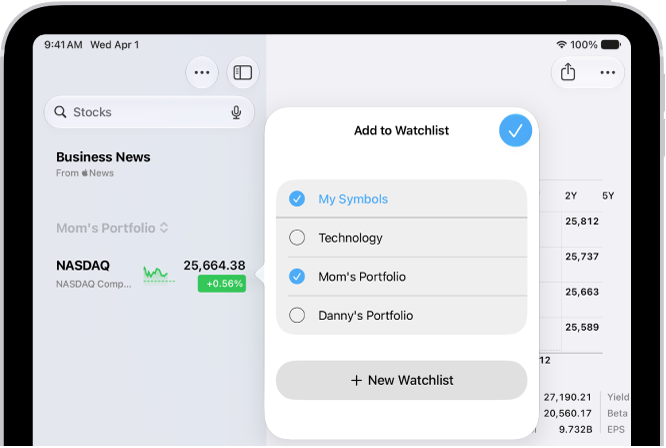
A list of customized watchlists in the Stocks app: My Symbols, Mom’s Portfolio, Sustainability, and Entertainment.

Create a new watchlist

  1. Open the Stocks app on your iPad.
  2. Tap the More button, then tap New Watchlist.
  3. Name the watchlist, then tap Save.

To switch between watchlists, tap the Watchlist menu next to the name of the current watchlist you’re viewing, then tap the name of the watchlist you want to see.

Add symbols to a watchlist

  1. Open the Stocks app on your iPad.
  2. In any watchlist, enter the name of a ticker symbol, company, fund, or index in the search field.
  3. Tap the Add button next to the symbol in the search results.
  4. Tap the Close button.

Quick tip: It’s possible to add a symbol to another watchlist, too. Swipe left on the symbol and tap Lists, then choose the watchlist you want to add it to and tap the Done button.

Any symbol you add to a watchlist also goes into the My Symbols watchlist.

Remove symbols from a watchlist

  1. Open the Stocks app on your iPad.
  2. In any watchlist, swipe left on the symbol and tap Remove.

    Note: When you remove a symbol from a watchlist you created, that symbol remains in the My Symbols watchlist. If you remove a symbol from the My Symbols watchlist, that symbol is also removed from your other watchlists.

Rearrange or sort symbols in a watchlist

How the symbols in your watchlists are sorted is up to you.

  1. Open the Stocks app on your iPad.
  2. In the watchlist you want to sort, do any of the following:

    • Rearrange a watchlist manually: Touch and hold a symbol. Then drag to place it elsewhere in the list.
    • Sort a watchlist automatically: Tap the More button, tap Sort Watchlist By, and tap how you want to sort the list. To return to manual order after automatically sorting, tap Manual.

      To reverse the order of the symbols in an automatically sorted watchlist, tap the More button, tap Sort Watchlist By, then tap Ascending or Descending.

Change the value displayed in a watchlist

You decide which value appears below each symbol’s price in a watchlist.

  1. Open the Stocks app on your iPad.
  2. In any watchlist, tap the More button.
  3. Tap Watchlist Shows and then tap one of the following options:
    • Price Change
    • Percentage Change
    • Market Cap

Tap Currency to show or hide the currency for each symbol in the watchlist.

Note: If you make changes to the currency display, they’ll apply everywhere in the app.

Reorder, rename, or remove watchlists

  1. Open the Stocks app on your iPad.
  2. Tap the Menu button next to the name of the watchlist and tap Manage Watchlists. Then do any of the following:
    • Reorder your watchlists: Touch and hold the Reorder button and then drag the watchlist to a new position.
    • Rename a watchlist: Tap the Pencil button, type a new name and tap Save.
    • Remove a watchlist: Tap the Delete button, tap Delete Watchlist, and then tap Delete Watchlist to confirm.
  3. Tap the Done button.

View your watchlists on all your devices

Your watchlists follow you to any iPhone, iPad, or Mac that’s signed in to the same Apple Account.

  • On your iPhone or iPad: Go to Settings > [your name] > iCloud, tap See All (next to Saved to iCloud), then turn on Stocks.
  • On a Mac with macOS 13 or later: Choose Apple menu > System Settings, click your name at the top of the sidebar, click iCloud, then turn on Stocks.

See also

Tags: iCloud, Stocks

Use the Stocks app to track market activity and view the performance of stocks you follow. For each stock, you can see the most recent price, daily percentage change, market capitalization value, and more. When you first open Stocks, you see your My Symbols watchlist.

Siri: Ask Siri something like, “How are the markets doing?” Learn how to use Siri.

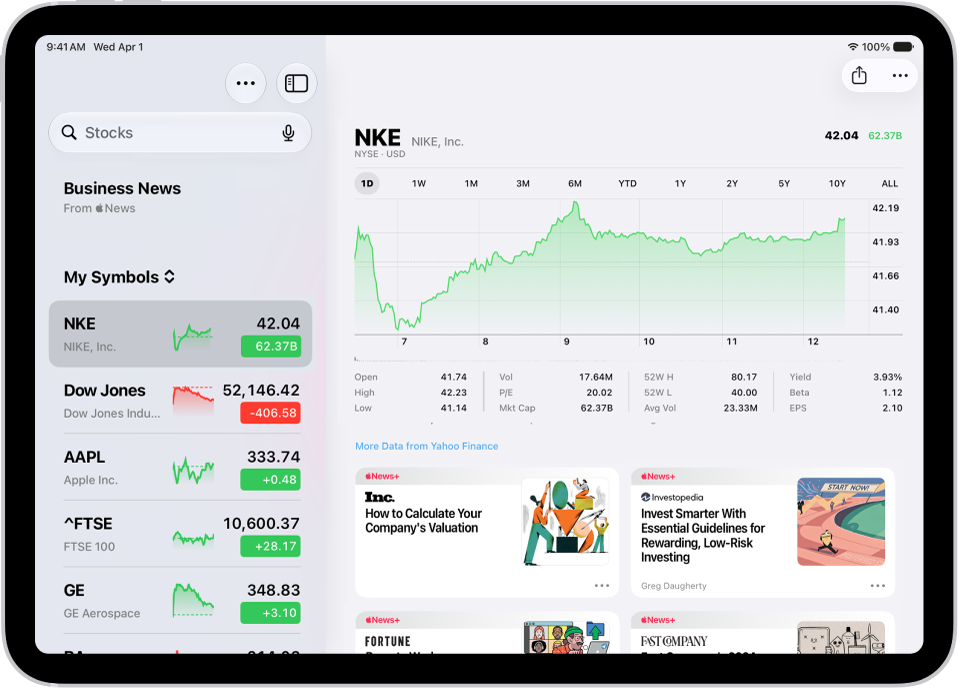
The Stocks screen on iPad includes a chart showing the performance for a stock over the course of a morning. On the left are a list of ticker symbols. Above the chart are buttons to display the stock performance over a week or larger increments of months and years, up to 10 years. Below the chart are stock details such as opening price, high, low, and market cap, and links to business-related news.

Check stocks

A stock’s daily percentage change, most recent price, market capitalization value, and more are all there to see.

  1. Start the Stocks app on your iPad.
  2. Tap a ticker symbol in your watchlist, or use the search field at the top to search for a symbol and tap the symbol in the search results.

More details are in View charts, details, and news, below.

Manage symbols in the My Symbols watchlist

The first time you open the Stocks app, you see a list of ticker symbols called the My Symbols watchlist. You can update and manage it, and create your own watchlists, too.

  1. Start the Stocks app on your iPad.
  2. Do any of the following:

    • Add a symbol: In the search field, enter a ticker symbol, company name, fund name, or index. In the search results, tap the Add button. Then tap the Clear text button.
    • Delete a symbol: Swipe left on the symbol in your watchlist and then tap Remove.

      Note: If you delete a symbol from the My Symbols watchlist, that symbol is also deleted from your other watchlists (see Manage multiple watchlists).

    • Reorder symbols: Tap the More button, tap Edit Watchlist and touch and hold the Reorder button. Drag the symbol to a new position.
    • Share a symbol: Swipe left on a symbol in your watchlist, tap Share, and choose a sharing option, such as Messages or Mail.

View charts, details, and news

Interactive charts, performance details, and related news stories are available for the ticker symbols in your watchlist, plus any symbols you search for.

  1. Start the Stocks app on your iPad.
  2. Tap a symbol you want to see more details about and then do any of the following:
    • View the performance over time: Tap an option from the time range selections at the top of the chart.
    • View the value for a specific date or time: Touch and hold the chart with one finger.
    • View the difference in value over time: Touch and hold the chart with two fingers.
    • View more details: Below the chart, view additional stock details like 52-week high and low, Beta, EPS, and average trading volume.
    • Read news: Swipe up to see additional news stories related to the symbol or tap Business News in the sidebar and tap a story.

Quick tip: Touch and hold a symbol in your watchlist, and you get a quick view of its performance.

See also

Tag: Stocks

In the Stocks app, you can read business news that’s driving the market. In countries where Apple News is available, you also see stories selected by the Apple News editors and stories from Apple News+.

You can listen to a story, save it to Apple News, and clear your recommendations. You can also see more stories from a publication in Apple News, and change the text size. To save stories to Apple News, you need to be signed in to your Apple Account.

To learn more about Apple News+, see Subscribe to Apple News+.

Note: Apple News and Apple News+ aren’t available in all countries or regions.

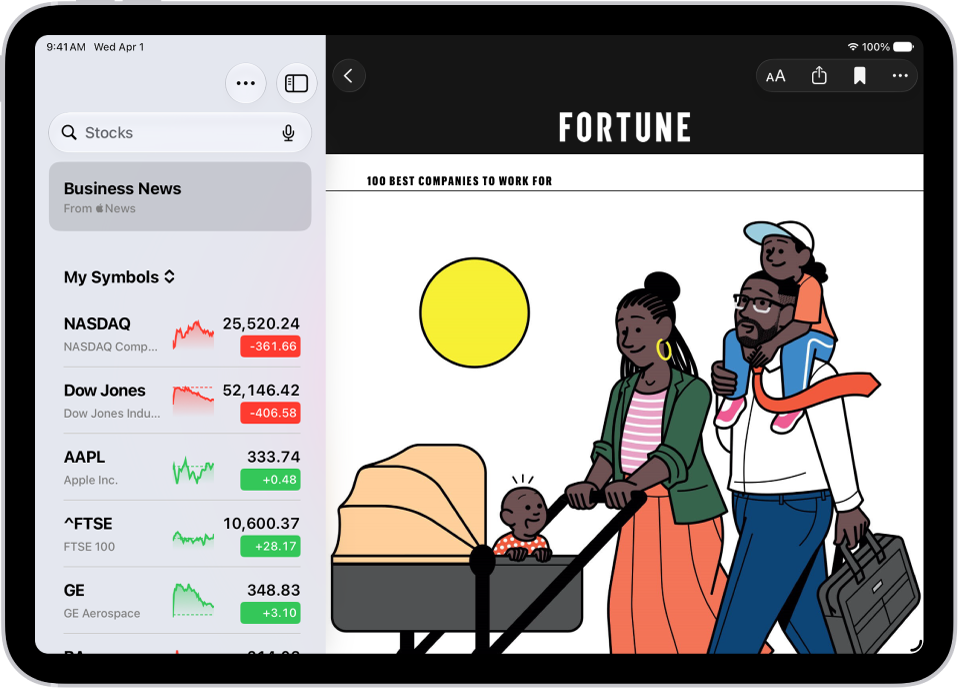
A business-related article from Apple News in the Stocks app. At the top-left corner of the article is the Back button to return to the other suggested stories. At the top-right corner are the Text Size, Share, Save, and More Actions buttons.

Read a story

  1. Open the Stocks app on your iPad.
  2. Tap Business News in the sidebar or tap a symbol in your watchlist to browse related stories. See Manage symbols in the My Symbols watchlist.
  3. While viewing a story, do any of the following:

    • Return to your newsfeed in Stocks: Tap the Back button or Done in the top-left corner.
    • See more stories from the publication in Apple News: Tap the publisher logo at the top of the screen.
    • Save the story to Apple News: Tap the Bookmark button.

      Note: In order to save stories to Apple News, make sure you’re signed in to your Apple Account, then go to Settings > [your name] > iCloud, tap See All next to Saved to iCloud, then turn on News.

    • Change the text size: Tap the Text Size button. Then tap the smaller or larger letter to change the text size in the story. If you don’t see the Text Size button, tap the More Actions button. Then tap Text Size.
    • Share the story: Tap the Share button, then choose a sharing option, such as Messages or Mail.

    Stories from publications you have blocked in Apple News don’t appear in the newsfeed. See news stories chosen just for you.

Listen to a story

Some news stories include an audio version that you can listen to in the News app. Tap the Play button to listen.

Clear recommendations

The Stocks app uses what you read in the past to recommend stories, though you can clear this information.

  1. Open the Stocks app on your iPad.
  2. Tap the More button and tap Clear Recommendations Data.

See also

Tag: Stocks

You can have supported webpages read aloud in the Safari app. You just open the page you want to listen to and choose Listen to Page, and you can pause listening and start listening again. You can also search for websites using Safari, and use Siri to find information.

Listen to a webpage

  1. Start the Safari app on your iPad.
  2. Open the page you want to listen to.
  3. Tap the Page Menu button. Then tap Listen to Page.

Pause listening

While listening to a webpage, tap the Page Menu button, then tap the Pause button.

To start listening again, tap the Page Menu button, then tap the Play button.

See also

Tag: Safari

The iTunes Store app lets you choose a different genre, browse by category, and see what’s popular on iTunes in Top Charts. Sharing an item, adding it to your wish list, and buying and downloading content all happen there, too. With the iTunes Store app, you can do any of the following:

Note: You need an internet connection to use the iTunes Store. The availability of the iTunes Store and its features varies by country or region.

Find music

  1. Start the iTunes Store app on your iPad.
  2. Tap Music in the tab bar at the top, then do any of the following:
    • Browse by category: Scroll to see various categories.
    • Choose a different genre: Tap Genres at the top left of the screen. Then select one to refine your browsing.
    • See what’s popular on iTunes: Tap Top Charts in the tab bar at the top.
    • Search: Tap Search and enter what you’re looking for. Then tap Search on the keyboard.
  3. Tap an item to see more information about it.
  4. To share an item or add it to your wish list, tap the Share button and then do any of the following:
    • Share a link to the item: Choose a sharing option.
    • Give the item as a gift: Tap Gift.
    • Add the item to your wish list: Tap Add to Wish List.

Share an item or add it to your wish list

  1. Start the iTunes Store app on your iPad.
  2. Tap Music, tap the Share button, and do any of the following:

    • Share a link to the item: Choose a sharing option.
    • Give the item as a gift: Tap Gift.
    • Add the item to your wish list: Tap Add to Wish List.

      To view your wish list, rotate iPad to landscape orientation, tap Music in the tab bar at the top, tap the Item List button, then tap Wish List.

Buy and download content

  1. Start the iTunes Store app on your iPad.
  2. To buy an item, tap the price. If the item is free, tap Get.

    If you see the Download button instead of a price, you already purchased the item, and you can download it again without a charge.

  3. If necessary, authenticate your Apple Account with Face ID, Touch ID, or your passcode to complete the purchase.
  4. To see the progress of a download, tap Downloads.

Redeem or send an App Store & iTunes Gift Card

  1. Start the iTunes Store app on your iPad.
  2. Tap Music in the tab bar at the top, then scroll to the bottom.
  3. Tap Redeem or Send Gift.

When you purchase access to movies, TV shows, music, music videos, ebooks, audiobooks, or ringtones from Apple, you also have the option to permanently download these items to a compatible iPhone, iPad, Mac, or PC. Apple cannot revoke your downloaded content, and you can always access your downloaded content without an internet connection.

Tag: Music