Got a tip for us?

When you create and store your own passwords for websites and apps, iPhone automatically identifies common weaknesses (for example, if they’re easily guessed or used multiple times). iPhone can also securely monitor your passwords and alert you if any of them appear in known data leaks.

For an account with a weak or compromised password, you’ll see a message that explains the problem. You can hide a security recommendation, too. And if a website allows it, you can switch to a passkey instead.

Change a weak or compromised password

  1. Open the Passwords app on your iPhone.
  2. Tap Security. If an account has a weak or compromised password, a message explains the problem.
  3. Tap an account.
  4. Tap the Password field. Tap Copy Password, so you can paste it where it’s requested—for example, when you create a new password and you’re asked to enter your old password.
  5. Tap Change Password. Change your password on the website or in the app.

If the website or app allows you to use a passkey or to upgrade to Sign in with Apple, you can take advantage of the security and convenience of those features. If you aren’t given the upgrade option when you change your password, many accounts allow iPhone to automatically create a strong password that you don’t have to remember. Note: If iPhone warns you about a password for a website or app that’s no longer available, you can remove its account from your iPhone and iCloud Keychain. Go to the Passwords app on your iPhone, tap All, then swipe left on the account.

Hide a security recommendation

If you’re unable to address a security recommendation, you can hide it so you don’t have to keep reviewing it.

  1. Open the Passwords app on your iPhone.
  2. Tap Security.
  3. Tap an account, then tap Hide.

To show a security recommendation you’ve hidden, tap Security, tap the Show Hidden Recommendations button, tap an account, then tap Unhide.

Turn detection of compromised passwords on or off

By monitoring your passwords, iPhone can alert you if they appear in known data leaks.

  1. Open the Settings app on your iPhone.
  2. Tap Apps and tap Passwords.
  3. Turn Detect Compromised Passwords on or off.
You can fine-tune your recordings using the editing tools. Remove parts, record over parts, or replace an entire recording.

You can trim a recording to keep or delete a section, and save the edited version as a new recording, so the original stays as it was. You can also delete a recording, and recover or erase a deleted one later.

Here’s how to edit or delete a recording in Voice Memos on iPhone.

Edit a voice recording

  1. Open the Voice Memos app (in the Utilities folder) on your iPhone.
  2. In the list of recordings, tap the recording you want to edit and tap the More button. Then tap the Trim button.
  3. Drag the yellow trim handles to enclose the section you want to keep or delete.

    You can pinch open to zoom in on the waveform for more precise editing.

    To check your selection, tap the Play button.

  4. To keep the selection (and delete the rest of the recording), tap Trim, or to delete the selection, tap Delete.
  5. Tap Apply and then tap Done.
  6. Tap Save Recording to overwrite the original recording, or tap Save as New Recording to save the edited version as a new recording (leaving the original as it was).

Replace a recording

  1. Open the Voice Memos app (in the Utilities folder) on your iPhone.
  2. In the list of recordings, tap the recording you want to replace and tap the More Actions button. Tap Edit Recording.
  3. Drag the waveform to position the playhead where you want to start recording new audio.

    You can pinch open to zoom in on the waveform for more precise placement.

  4. Tap Replace to begin recording (the waveform turns red as you record).

    Tap the Pause button to pause; tap Resume to continue.

  5. To check your recording, tap the Play button.
  6. Tap Done and tap Save Recording to replace the original recording, or tap Save as New Recording to save the changes as a new recording (leaving the original as it was).

Delete a recording

  1. Open the Voice Memos app (in the Utilities folder) on your iPhone.
  2. Do any of the following:
    • In the list of recordings, tap the recording you want to delete, then tap the Delete button.
    • Tap Edit above the list of recordings, select one or more recordings, then tap the Delete button.

Deleted recordings move to the Recently Deleted folder, where they’re kept for 30 days by default. To change how long deleted recordings are kept, go to Settings > Apps > Voice Memos > Clear Deleted, then select an option.

Recover or erase a deleted recording

  1. Open the Voice Memos app (in the Utilities folder) on your iPhone.
  2. Tap the Recently Deleted folder. Then tap the recording you want to recover or erase.

    If you don’t see the Recently Deleted folder, tap the Back button.

  3. Do any of the following:

    • Recover the selected recording: Tap Recover.
    • Delete the selected recording: Tap Delete.
    • Recover everything in the Recently Deleted folder: Tap Edit above the Recently Deleted list, then tap Recover All.
    • Delete everything in the Recently Deleted folder: Tap Edit above the Recently Deleted list. Tap Delete All.

In the Files app, you can locate and view your files, organize and rearrange them in folders, compress, rename, and share them with friends, transfer them to and from iCloud Drive and other devices, and more. You can browse iCloud Drive, view files you opened recently in Recents, or see shared files in Shared.

  1. Open the Files app on your iPhone.
  2. Do any of the following:
Tag: Files

You can fill out forms and sign documents that you receive on your iPhone. After you complete a form, you can add your signature and share it with others.

You can also use AutoFill to quickly fill out forms with information you saved in the Contacts app and other sources. And in supported apps, Markup lets you add your signature to a document or create multiple signatures, which you sign with your finger. You can also enter info from another contact, such as a parent or spouse.

Fill out forms and add signatures

  1. Open the form or document on your iPhone.

    If prompted, open the document in the Files app, then tap Save.

  2. Tap the AutoFill button, tap a blank field, and then enter text using the onscreen keyboard. Continue to tap and enter text in blank fields.
  3. If a prompt appears, you may be able to fill several related fields all at once instead of one at a time. Review the suggested info, tap any field to change it and tap Fill to complete the form.

    Tip: If you complete your My Card in the Contacts app, AutoFill quickly completes supported forms and documents. You can also tap “Choose other” to enter info from another contact, such as a parent, spouse, or caregiver.

  4. To add beyond existing blank fields, tap the Add button and then do one of the following:

    • Add your signature: Tap Add Signature, sign your name with your finger and then tap Done. Drag your signature where you want it to appear on the document.
    • Add new text: Tap Add Text Form Box and drag the text box where you want it on the form. Then enter text using the onscreen keyboard. Use the formatting tools to change the color and font.
  5. When you’re done, tap the Menu button. Tap Export, Print, or the Share button to share the completed document. Tap the Back button to save it.

AutoFill suggestions appear above the keyboard as you type in iOS 27 and later.

Add your signature with Markup

The Markup tools let you add your signature to images and documents in supported apps such as Notes and Photos.

  1. In a supported app on your iPhone, tap the Markup button or Markup.
  2. In the Markup toolbar, tap the Add button and then tap Add Signature.
  3. Tap an existing signature, or add a new one, as below.
  4. With the signature selected, do any of the following:
    • Move the signature: Drag it.
    • Resize the signature: Drag any blue dot along its bounding box.

Add a signature

Once you create a signature, iPhone saves it for the next time you add a signature with Markup. You can also create multiple signatures, like a nickname or initials, and delete signatures.

  1. In a supported app on your iPhone, tap the Markup button or Markup.
  2. In the Markup toolbar, tap the Add button and then tap Add Signature.

    If you already have a signature, tap Add or Remove Signature, then tap the Add button.

  3. Use your finger to sign.

    To redo your signature, tap Clear, then sign your name again.

    Tip: Rotate your iPhone to have more space to sign.

  4. To label your signature, tap the Menu button next to New Signature at the top of the screen and select a label, such as given name, nickname, or initials.
  5. To save and place your signature, tap the Done button.

Delete a signature

  1. In a supported app on your iPhone, tap the Markup button or Markup.
  2. In the Markup toolbar, tap the Add button and then tap Add Signature.
  3. Tap Add or Remove Signature. Tap the Delete button next to the signature you want to delete.
  4. To save and place your signature, tap the Done button.
Tag: Markup

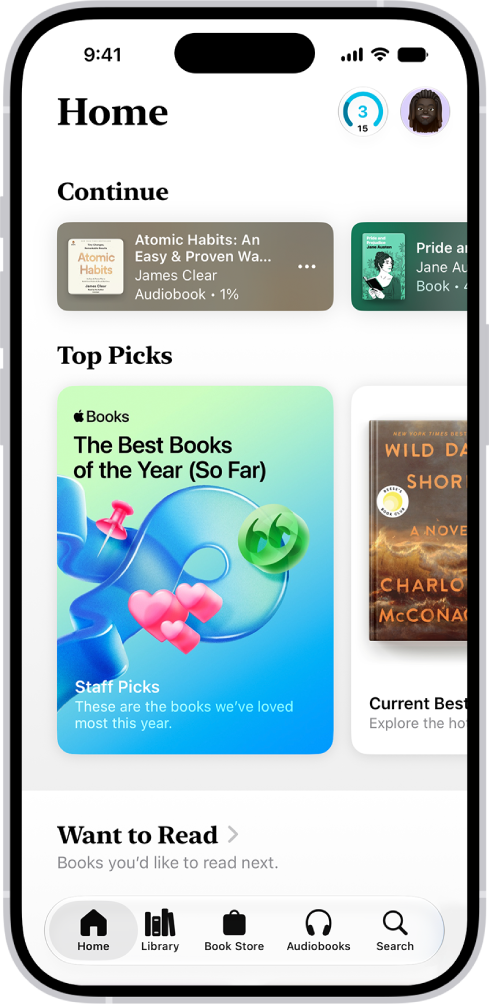
In the Books app, you can view the books you’re currently reading, want to read, book collections, and more.

While you read, you can change text and page appearance, bookmark a page, share a text selection or book link, and turn on Line Guide. When Line Guide is on, the rest of the page dims so you can focus on individual lines of text as you read. You can also set daily reading goals.

  • Home : Tap to access the books, audiobooks, and PDFs you’re currently reading, get personalized suggestions for your next read, find books you’ve marked as want to read, and more. You can also set daily reading goals and keep track of the books you finish throughout the year.
  • Library : Tap to see all of the books, audiobooks, series, samples, and PDFs you either got from the Book Store or manually added to Books. Tap the Collections button to see your library sorted into collections, such as Want to Read, My Samples, Audiobooks, Finished, or custom collections you created.

The Home screen in the Books app. At the bottom of the screen are, from left to right, the Home, Library, Book Store, Audiobooks, and Search tabs. The Home tab is selected.

Note: Apple Books isn’t available in all countries or regions.

Read a book

  1. Open the Books app on your iPhone.
  2. Go to a book and tap the cover to open it. Then do any of the following:

    • Turn the page: Tap the right margin or swipe right to left.

      To allow either the left or right margin to turn the page, go to Settings > Apps > Books, then turn on Both Margins Advance.

    • Go back to the previous page: Tap the left margin or swipe left to right.
    • Go back to previous reading location: Tap the page. Tap the rounded arrow in the top-left corner of the page. Tap the rounded arrow again, but in the top-right corner, to go back to your current location.
    • Go to a specific page or location: Tap the page, tap the Menu button, and then tap Search Book. Enter a word, phrase, or page number and then tap a result.
    • Use the table of contents: Tap the page, tap the Menu button, and tap Contents.

      Tip: To quickly move through a book, touch and hold Contents, then drag your finger left or right; release your finger to go directly to that location in the book.

    • Lock screen orientation: Tap the page, tap the Menu button, and tap the Orientation Lock button to lock the screen in horizontal or vertical orientation.
    • Close a book: Tap the page, then tap the Close button. Or swipe down from the top of the page (not available if vertical scrolling is on).

Change text and page appearance

  1. Open the Books app on your iPhone.
  2. Open a book. Then tap the Menu button at the bottom of the page.

    You may need to tap the page for the Menu button to appear.

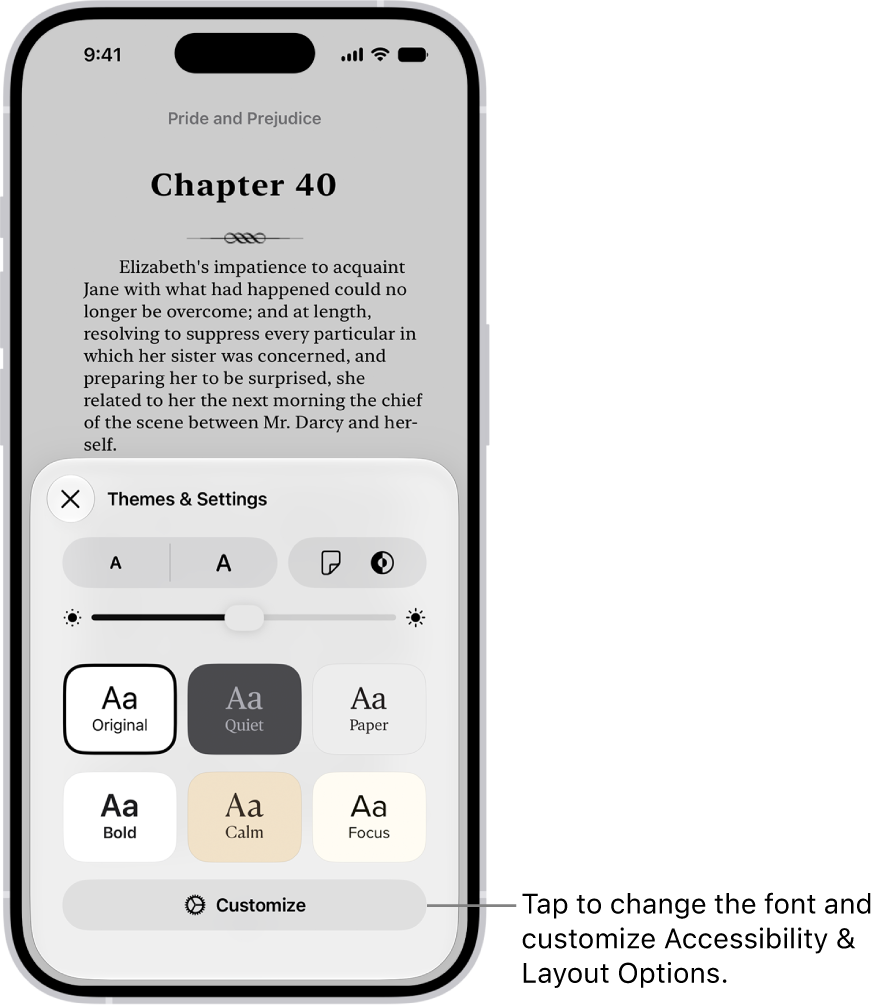
  3. Tap Themes & Settings and then do any of the following:

    • Change the font size: Tap the large A to increase the font size or tap the small A to decrease it.
    • Turn on vertical scrolling or change the page turn style: Tap the Page Turn button and tap Curl, Fast Fade, or Scroll.

      To turn on vertical scrolling when viewing a PDF, manga, or other fixed layout document, tap the Appearance button, then turn on Vertical Scrolling.

    • Adjust the background mode: Tap the Appearance Options Light button, then tap an option.
    • Adjust the display brightness: Touch the brightness bar. Then drag your finger in either direction.
    • Change the page theme: Tap a page theme such as Quiet or Bold.
    • Change the font: Tap Customize, then tap Font. Swipe up to view the font options. Tap a font name, such as Original or Palatino. Tap the Done button to apply the font.
    • Make the font bold: Tap Customize, turn on Bold Text, and tap the Done button.
    • Customize spacing and justification: Tap Customize and then below Accessibility & Layout Options, turn on Customize. Drag the sliders left or right to adjust line spacing, character spacing, word spacing, and margins. You can also turn Justify Text on or off. Tap the Done button to apply your changes.
  4. Tap the Close button to close the Themes & Settings menu.

    A page of a book in the Books app. The Themes & Settings options show controls for font size, scrolling view, page turn style, brightness, and font styles.

Note: The Menu button can appear on either side of the screen. Go to Settings > Apps > Books and choose Left or Right below Reading Menu Position.

To undo text and layout customizations, tap the Menu button, tap Customize, then tap Reset Theme.

Bookmark a page

Closing a book saves your place automatically, so you don’t need to add a bookmark. You can still add bookmarks to pages you want to return to again.

  1. Open the Books app on your iPhone.
  2. Tap a book cover to open it. Tap the page you want to bookmark.
  3. Tap the Menu button at the bottom of the page.
  4. Tap the Bookmark Ribbon to add a bookmark; tap it again to remove the bookmark.

To access all your bookmarks, tap the Menu button, tap Bookmarks & Highlights, then tap Bookmarks.

Share a text selection or book link

You can send text selections using AirDrop, Mail, or Messages, or you can add the selection to Notes. If the book is from the Book Store, a link to the book is included with the selection. (Sharing may not be available in all countries or regions.)

  1. Open the Books app on your iPhone.
  2. Tap a book cover to open it.
  3. Touch and hold a word and then move the grab points to adjust the selection.
  4. Tap the Forward button on the menu items. Then tap Share.
  5. Tap Mail, Messages, or another app or service to share the selection.

You can also share a link to view the book in the Book Store. Tap the Menu button, tap the Share button, then tap how you want to share the link.

Turn on Line Guide

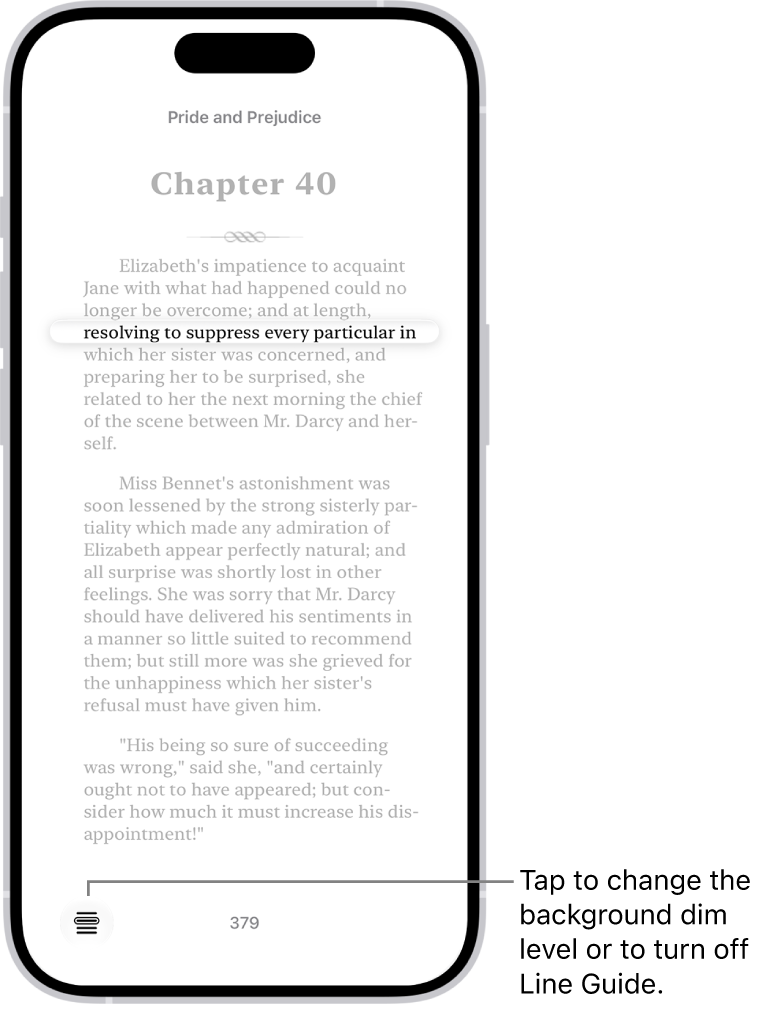
To focus on individual lines of text as you read, use Line Guide. It dims the rest of the page so the line you’re reading becomes more visible.

A page of a book in the Books app. A single line of text is highlighted and the rest of the text is dimmed. In the bottom-left corner of the screen is the Line Guide Menu button.

  1. Open the Books app on your iPhone.
  2. Tap a book cover to open it and tap a page.
  3. Tap the Menu button at the bottom of the page.
  4. Tap the Line Guide Menu button to turn on Line Guide and then do any of the following:
    • Tap the page above or below the line guide to move it up or down.
    • Tap the left or right page margin to move the line guide up or down (not available if vertical scrolling is on).
    • Touch and hold the line guide, then drag it to a new line on the page.
  5. Tap the Line Guide Menu button in the page to adjust the background dim level or turn off Line Guide.

Use the Notes app to draw a sketch or jot a handwritten note with your finger. Choose from a variety of Markup tools and colors, and draw straight lines with the ruler.

Your handwriting isn’t just a picture, either. You can search it in supported languages, select it, and even paste it as typed text in another note or app, and iPhone can straighten your writing and suggest spelling corrections.

Use drawing and handwriting tools

  1. Start the Notes app on your iPhone.
  2. In a note, tap the Handwriting Tools button. Then draw or write with your finger.
  3. Do any of the following:

    • Change color or tools: Use the Markup tools.
    • Adjust the handwriting area: Drag the resize handle (on the left) up or down.

    Tip: You can search handwritten text (in supported languages) in Notes. If the note doesn’t have a title, the first line of handwritten text becomes the suggested title. To edit the title, scroll to the top of the note, then tap Edit.

Select and edit drawings and handwriting

With Smart Selection, you can select drawings and handwriting. You can move, copy, or delete the selection within the note. You can even paste it as typed text in another note or app. Note: Smart Selection and handwriting transcription work if the system language of your iPhone is set to a supported language in Settings > General > Language & Region > iPhone Language.

  1. Start the Notes app on your iPhone.
  2. In a note, select drawings and handwriting with your finger using any of the following methods:
    • With the Lasso tool: Tap the Handwriting Tools button and tap the Lasso tool. Then use your finger to outline the objects you want to select.
    • With gestures:
      • Touch and hold, then drag to expand the selection.
      • Double-tap to select a word.
      • Triple-tap to select a sentence.
      • Drag the handles to adjust the selection as needed.
  3. Tap the selection and choose an option.

Work with handwritten text

iPhone can also straighten your handwriting and suggest spelling corrections.

  1. Start the Notes app on your iPhone.
  2. In a note, select the handwriting.
  3. Do any of the following:
    • Make your writing more level: Tap Straighten.
    • Correct spelling: Tap an underlined word and choose how you want to correct it. The fix appears in your own writing style.
    • Move handwriting: Touch and hold the selected text and then drag it to a new position.
  4. To erase text, scratch out the writing and then hold down your finger on iPhone. (Supported when using a markup tool such as Pen, Mono line, or Marker.)

Drag images from other apps

You can drag images from other apps to a note and combine them with handwritten and drawn content. After you add an image to the drawing area, you can reposition and resize the image.

Use Image Wand

If Apple Intelligence is turned on, you can use Image Wand in Notes to generate images based on rough sketches you create. You can also select empty space to create an image based on words and images from the surrounding area. Note: Apple Intelligence on iOS 27 or later is available on an Apple Intelligence-enabled iPhone 15 Pro, iPhone 15 Pro Max, or iPhone 16 model or later. Apple Intelligence is not available in all languages or regions. Usage limits may apply.* *Apple Intelligence is available with Siri and device language set to Chinese (Simplified), Chinese (Traditional), Danish, Dutch, English, French, German, Italian, Japanese, Korean, Norwegian, Portuguese, Spanish, Swedish, Turkish, or Vietnamese. Some features may not be available in all regions or languages. Some devices may not be available in all regions. Siri AI is available in beta in iOS 27, iPadOS 27, macOS 27, watchOS 27, and visionOS 27 and requires an Apple Intelligence–enabled device set to a supported language. Available in English to start. Siri AI will not be initially available in the EU on iOS, iPadOS, and watchOS. Certain Apple Intelligence features that rely on server-side models are subject to daily usage limits, including but not limited to Siri AI, Intelligent Photo Editing Tools, Image Playground, and AFM 3 Cloud models in Shortcuts. Daily limits may vary by feature, request complexity, system demand, system policies, and other factors. Expanded access to such features will be available for a fee in the future. Use of these features is subject to the Apple Intelligence Terms and Conditions.

Tag: Notes

When you set up a text replacement on iPhone, you can enter long or complicated text by typing just a few characters, like shorthand for your most frequently used words and phrases.

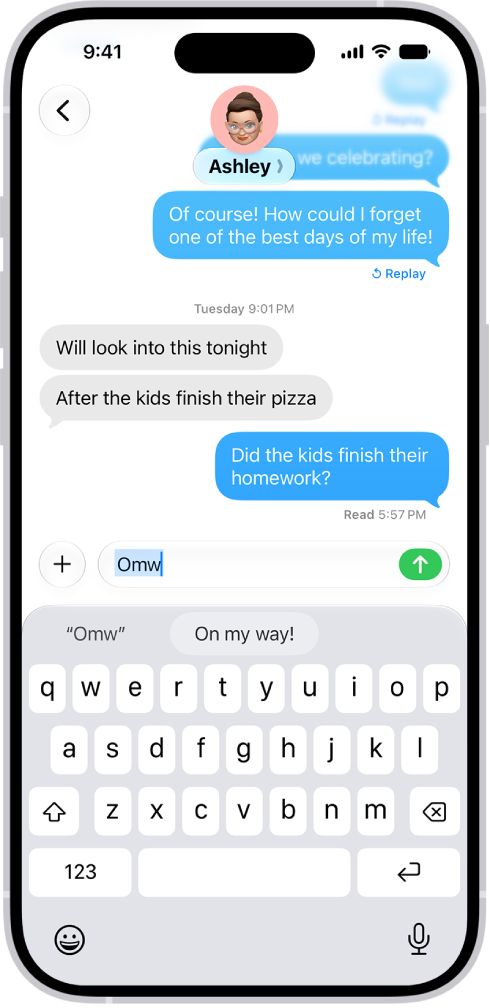
One shorthand for “On my way” is already set up for you, but you can add your own. You can also stop a word or phrase from being replaced, and create replacements for word and input pairs on certain Chinese or Japanese keyboards.

A message with the text shortcut “Omw” typed and the phrase “On my way!” suggested below as replacement text.

Create a text replacement

  1. While in a text field, touch and hold the Emoji button or the Switch Keyboard key.
  2. Tap Keyboard Settings and tap Text Replacement.
  3. Tap the Add button.
  4. Type a phrase in the Phrase field and the text shortcut you want to use for it in the Shortcut field.

Don’t want to replace a word or phrase you use?

  1. Open the Settings app on your iPhone.
  2. Tap General, tap Keyboard, and tap Text Replacement.
  3. Tap the Add button and enter your word or phrase in the Phrase field, but leave the Shortcut field blank.

Create a text replacement for word and input pairs

Using certain Chinese or Japanese keyboards, you can set up text replacements for word and input pairs, and each one goes into your personal dictionary. Then, when you type the text shortcut for a word or input on a supported keyboard, the paired word or input replaces the shortcut you typed.

You can use shortcuts with these languages:

  • Simplified Chinese: Pinyin
  • Traditional Chinese: Pinyin and Zhuyin
  • Japanese: Romaji and Kana

Sync your personal dictionary across devices

Your personal dictionary can stay current on your other devices with iCloud.

  1. Open the Settings app on your iPhone.
  2. Tap your name, then tap iCloud.
  3. Tap See All, tap iCloud Drive, and then turn on Sync this iPhone.

Reset your personal dictionary

  1. Open the Settings app on your iPhone.
  2. Tap General, then tap Transfer or Reset iPhone.
  3. Tap Reset and tap Reset Keyboard Dictionary.
  4. Enter your passcode, then tap Reset Dictionary.

This deletes all custom words and shortcuts and returns the keyboard dictionary to its default state.

Tags: iCloud, iPhone

It’s possible to share your Accessibility settings with another iPhone or iPad for a while. Say you’re borrowing a friend’s iPhone or using a public iPad: You can use your settings on that device, then remove them when you’re done. Here are some settings you can share with another device:

  • Zoom
  • Hover Text and Hover Typing
  • Display & Text
  • VoiceOver
  • Touch Accommodations
  • Read & Speak
  • Full Keyboard Access
  • Live Speech
  • Music Haptics
  • Audio & Visual
  • Side Button

Note: During the sharing session, the other device only gets your Accessibility settings.

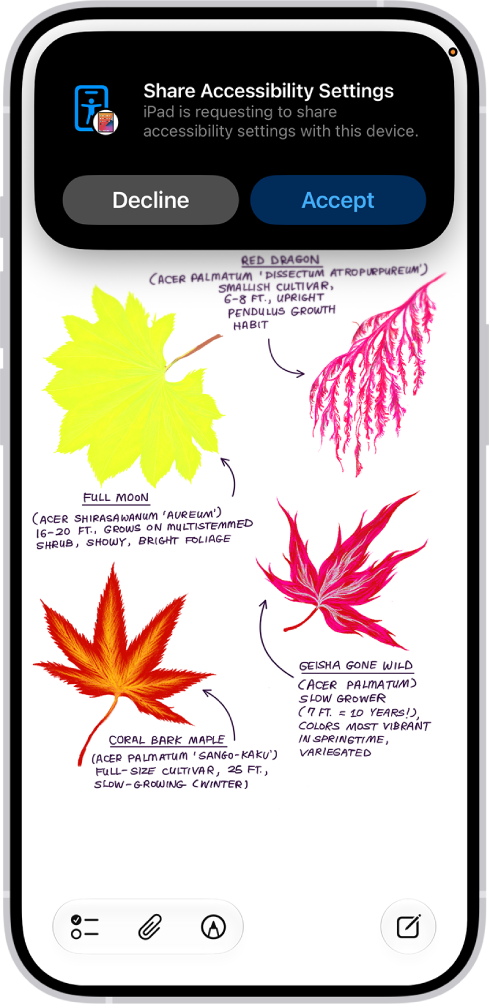
An iPhone showing a notification that Danny’s iPhone is requesting to share accessibility settings.

Share your Accessibility settings with another device

  1. Open the Settings app on your iPhone.
  2. Tap Accessibility, then tap Share Accessibility Settings. (You may need to scroll down.)
  3. Tap Share Accessibility Settings, then tap Continue.
  4. Make sure both devices have Bluetooth and Wi-Fi turned on and then do one of the following:
    • Select a device: Tap a device in your contacts or a device signed in to your iCloud account.
    • Bring your iPhone to another iPhone: Hold the top of your iPhone near the top of another iPhone.
    • Bring your iPhone to an iPad: Tap Search People Nearby and tap and hold the screen on the other device with three fingers to create a six-digit code. Enter the code on your device and select the name of the device.

Note: To hear the six-digit code spoken aloud, continue to tap and hold the screen on the other device with three fingers.

  1. Do either of the following on the other device to accept your request to share your accessibility settings:
    • Tap Accept.
    • Tap and hold the screen on the other device with three fingers.
  2. Start using the other device with your Accessibility settings.
  3. When you’re finished using the device, do any of the following:
    • iPhone models with a Dynamic Island: Tap the Accessibility button at the top of the screen and then tap Stop Sharing.
    • iPhone models without a Dynamic Island: Tap the Share Accessibility Settings button in the Status Bar. Then tap Stop Sharing.
    • All iOS models:
      • Lock your device and let it go to sleep.
      • Triple-click the side or home button.

Note: If you move more than 30 feet away from the device that has your Accessibility settings, the session ends automatically.

If you add Share Accessibility settings to your Control Center, you can start sharing directly from there.

Sync your Share Accessibility Settings to iCloud

Using different Accessibility settings on different devices? Sync your preferences to iCloud, and they’ll be available when you share Accessibility settings between devices. Say you sync your iPhone settings, then later share from your iPad to another iPhone: Your iPhone accessibility preferences can be used.

  1. Open the Settings app on your iPhone.
  2. Tap Accessibility, then tap Share Accessibility Settings. (You may need to scroll down.)
  3. Turn Sync to iCloud on or off.

With Apple CarPlay or Siri Eyes Free, available in select cars, you can use Siri without looking at your iPhone. You can also use your car’s built-in controls to control CarPlay.

On the road, Siri can even report traffic incidents for you, along with the status of incidents in select countries or regions, and share your ETA. Cars without CarPlay might support Siri Eyes Free over Bluetooth® instead.

Here’s how to use Siri in your car on iPhone.

Use Siri on CarPlay

On the road, Siri can share your estimated time of arrival (ETA), report traffic incidents for you, report the status of incidents in select countries or regions, and more.

  1. Do one of the following until Siri beeps:
    • Press and hold the voice command button on the steering wheel.
    • Touch and hold the Dashboard button or the Home button on the CarPlay Home Screen.
    • You can also say “Hey Siri” to activate Siri in supported vehicles.
  2. Ask Siri a question or make a request, like “Get directions to the nearest coffee shop,” “Share my ETA,” or “Report an accident.”

Quick tip: You don’t have to wait for Siri to notice that you’ve stopped talking. Press and hold the voice command button on the steering wheel as you speak, then let go when you’re done.

Siri also makes suggestions in CarPlay about what you might want to do next, such as operate the garage door when you arrive home or drive to your next meeting.

Use Siri Eyes Free

If your car doesn’t have CarPlay, Siri Eyes Free might be available instead. It uses Bluetooth® to connect Siri to your car.

To connect iPhone to your car, use Bluetooth (refer to the user guide that came with your car if you need to). To activate Siri, press and hold the voice command button on your steering wheel until you hear the Siri tone, then make a request.

Tag: Siri

On iPhone 12 or later, speech in your audio recordings can be transcribed to text in Voice Memos. You can view the transcription while you’re recording or after.

Recordings made in iOS 17 or earlier are transcribed automatically when you open them, as long as they include speech. It’s built in, and you can also copy transcribed text after recording, and search for text in titles and transcriptions to find a recording.

Note: Audio transcription is available on iPhone 12 or later in English (all variants), Spanish, Portuguese, Italian, French, German, Japanese, Korean, Simplified Chinese, and Traditional Chinese. It’s not available in all countries or regions.

When you open an older recording from Voice Memos (iOS 17 or earlier), Voice Memos transcribes it automatically if it includes recorded speech.

View a transcription while recording

  1. Open the Voice Memos app (in the Utilities folder) on your iPhone.
  2. Tap the Record button to begin recording.
  3. Swipe up from the top of the waveform. Tap the Transcription button to watch the transcription live.

    The waveform disappears temporarily, and the transcription appears, with the current word highlighted. To return to the waveform view, tap the Transcription button.

  4. Tap the Pause button to pause recording; tap Resume to continue.
  5. To save the recording, tap the Done button.

View or copy transcribed text after recording

  1. Open the Voice Memos app (in the Utilities folder) on your iPhone.
  2. Tap the recording with the transcript you want to view.
  3. Tap the More button, then do one of the following:
    • Copy part of the transcript: Choose View Transcript, select the text you want to copy, and then tap Copy.
    • Copy the entire transcript: Choose Copy Transcript.

From there, you can paste the text into another document, like a Mail message or a text file.

With Apple Intelligence, you can use Writing Tools to summarize transcripts with a tap, proofread your work, and find just the right wording and tone.

Note: Apple Intelligence on iOS 27 or later is available on an Apple Intelligence-enabled iPhone 15 Pro, iPhone 15 Pro Max, or iPhone 16 model or later. Apple Intelligence is not available in all languages or regions. Usage limits may apply.*

Search for text in titles and transcriptions

  1. Open the Voice Memos app (in the Utilities folder) on your iPhone.
  2. Tap the Search button.
  3. In the search field, enter the text you want to find.

Only recordings with that text show up in the list, whether it’s in the title or the audio transcription.

When you select a term in the transcription, the playhead appears at that location in the audio waveform. To return to the waveform, tap the Transcription button.

*Apple Intelligence is available with Siri and device language set to Chinese (Simplified), Chinese (Traditional), Danish, Dutch, English, French, German, Italian, Japanese, Korean, Norwegian, Portuguese, Spanish, Swedish, Turkish, or Vietnamese. Some features may not be available in all regions or languages. Some devices may not be available in all regions. Siri AI is available in beta in iOS 27, iPadOS 27, macOS 27, watchOS 27, and visionOS 27 and requires an Apple Intelligence–enabled device set to a supported language. Available in English to start. Siri AI will not be initially available in the EU on iOS, iPadOS, and watchOS. Certain Apple Intelligence features that rely on server-side models are subject to daily usage limits, including but not limited to Siri AI, Intelligent Photo Editing Tools, Image Playground, and AFM 3 Cloud models in Shortcuts. Daily limits may vary by feature, request complexity, system demand, system policies, and other factors. Expanded access to such features will be available for a fee in the future. Use of these features is subject to the Apple Intelligence Terms and Conditions.