Got a tip for us?

Check the weather for your current location. View the upcoming hourly and 10-day forecast, see severe weather information, and more.

Weather uses Location Services to get your current location’s forecast, and you can turn on Precise Location for better accuracy. The details for your current location are shown first, and you can learn what the weather icons mean. You can look at different times in the hourly forecast, customize the weather units, and send a report about the weather where you are.
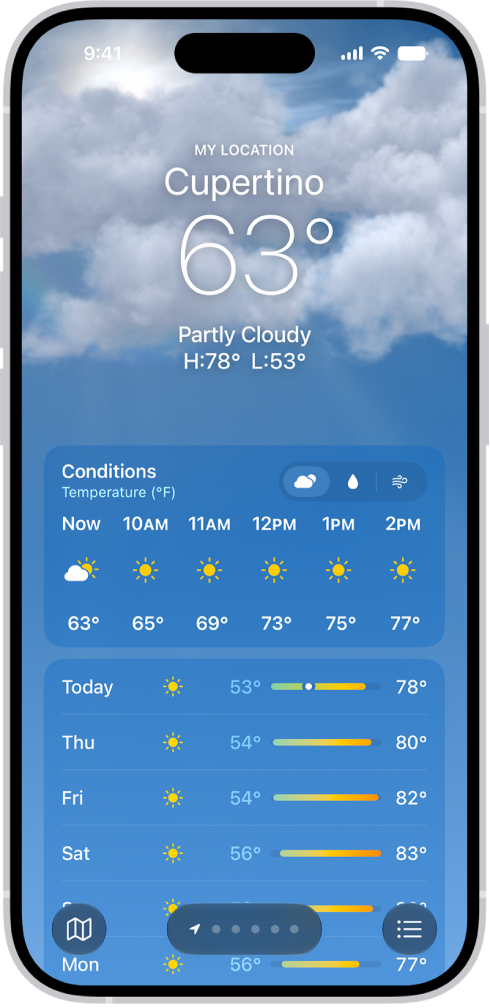
The Weather app showing, from top to bottom: the location, current temperature, the high and low temperatures for the day, hourly forecast, and the first few days of a 10-day forecast. A row of dots at the bottom center represent other locations in the location list. At the bottom-right corner is the Location List button and at the bottom-left corner is the Show Map button.

Note: Some Weather app features—such as severe weather alerts, air quality, next-hour precipitation, and news—aren’t available in all countries and regions.

Before you begin

To get the forecast for your current location, Weather relies on Location Services. Turning on Precise Location increases the forecast’s accuracy.

  1. Open Settings, tap Privacy & Security, tap Location Services, and then tap Weather.
  2. Turn on Precise Location.

Check the local forecast and conditions

  1. Start the Weather app on your iPhone.

    The details for your current location are shown.

    If you don’t see the details for the location you want to know about, tap the Location List button, then tap My Location or another location.

  2. Do any of the following:

    • Look at different times in the hourly forecast: Swipe the hourly display left or right.

      Note: The air quality scale appears above the hourly forecast when air quality reaches a particular level for that location. For some locations, the air quality scale always appears above the hourly forecast.

    • Change the hourly and ten-day forecast display: Tap a symbol above the hourly forecast to switch between Conditions, Precipitation, and Wind.
    • See the upcoming forecast and information for different conditions: Tap the hourly forecast and tap the Chart Condition button to change the displayed weather condition.
    • See more weather details: Each location’s weather page includes detailed information, including potential severe weather alerts, weather-related news, air quality, UV index, wind, visibility, moon phases, and more.

Quick tip: The Averages weather detail shows how today’s temperature or precipitation compares to the historical average, and you can tap it to see more information.
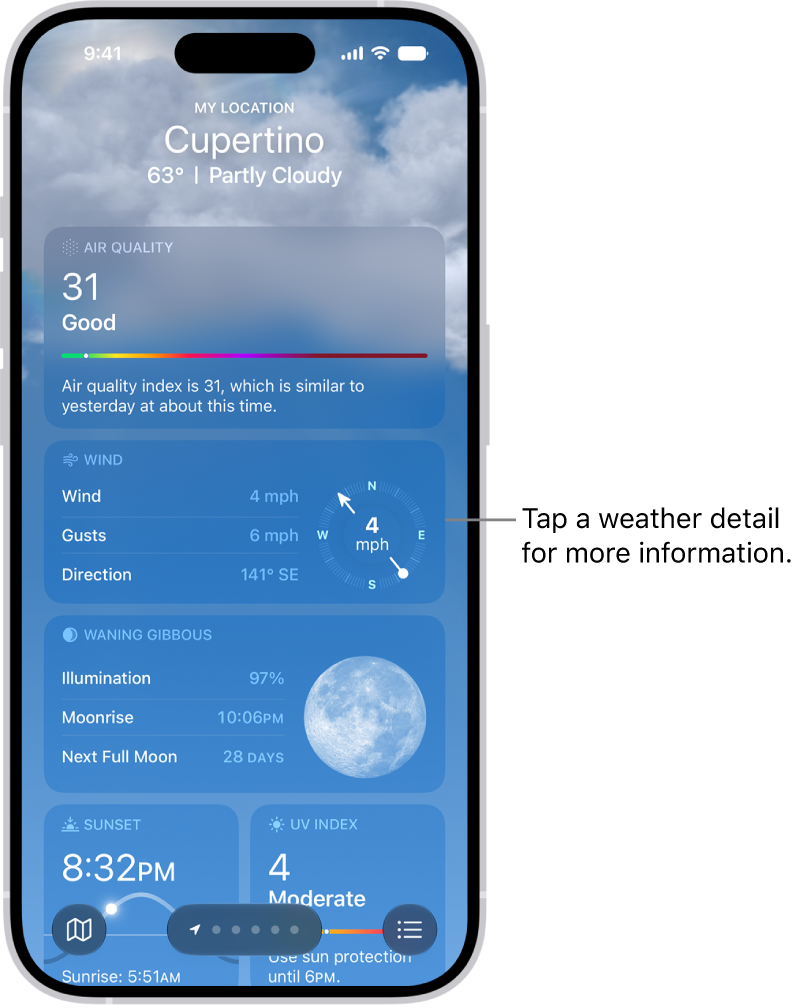
The Weather app showing weather details for a location.

Customize the weather units

Weather data can use different units. For temperature, choose Fahrenheit or Celsius, and for wind, there’s miles per hour, kilometers per hour, knots, or Beaufort.

  1. Start the Weather app on your iPhone.
  2. Tap the Location List button.
  3. Tap the More button, tap Units, and then do any of the following:
    • Change temperature units: Tap Fahrenheit, Celsius, or Use system setting.
    • Change wind, precipitation, pressure, or distance units: Tap the Action Button menu next to the current measurement unit and then choose an option.

Send a report about the weather

If the weather in your location doesn’t match what’s shown in the Weather app, you can report it.

  1. Start the Weather app on your iPhone.
  2. Tap the Location List button, tap the More button, and then tap Report an Issue.
  3. Tap the options that best describe the weather conditions in your location and tap Submit.

What you share with Apple isn’t associated with your Apple Account.
Tag: Weather

In the Reminders app, you can use tags as a fast and flexible way to categorize and organize your reminders. You can add one or more tags to a reminder, such as #shopping and #work, and easily search and filter your reminders across lists using the Tag Browser or Smart Lists.

You can also rename or delete a tag whenever you want.

Here’s how to tag items in Reminders on iPhone.

Note: When you use updated reminders, every Reminders feature described in this guide is available, but some aren’t with other accounts.

Add tags

  1. Open the Reminders app on your iPhone.
  2. When you create or edit an item in a list, tap the Tag button and type a tag.

A tag can be only one word, but you can combine words using dashes and underscores. An item can have multiple tags.

View items with tags

  1. Open the Reminders app on your iPhone.
  2. Below Tags at the bottom of the screen, do any of the following:

    • View items with specific tags: Tap one or more tags. Then choose to view items matching any or all of the selected tags.

      Tip: To save this list as a Smart List, tap the More button, then tap Create Smart List.

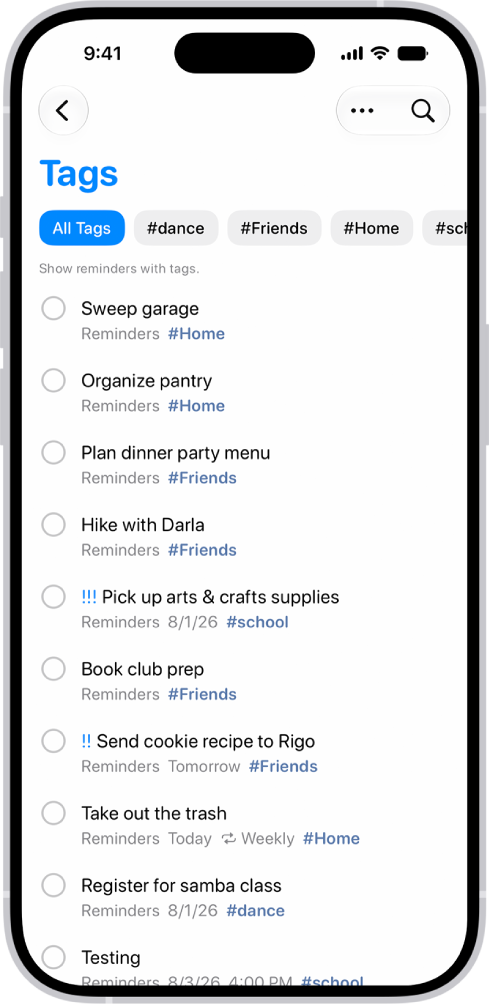
    • View all items with tags: Tap All Tags.

A list of tagged reminders in the Reminders app. Buttons along the top show additional tags that you can apply.

Rename or delete a tag

  1. Open the Reminders app on your iPhone.
  2. Below Tags at the bottom of the screen, touch and hold a tag. Then tap Rename Tag or Delete Tag.

When you delete a tag, it’s also removed from all Smart Lists that use it.

Tapbacks give you a quick and easy way to respond to a message, such as a heart, a thumbs-up or thumbs-down, laughter, exclamation points, a question mark, and any sticker, Memoji, or emoji.

A Tapback is attached to a specific message, and everyone in the conversation can see it. If a message has more than one, they appear in a stack, and you can see who added each one. You can edit or remove only the Tapbacks you added, too.

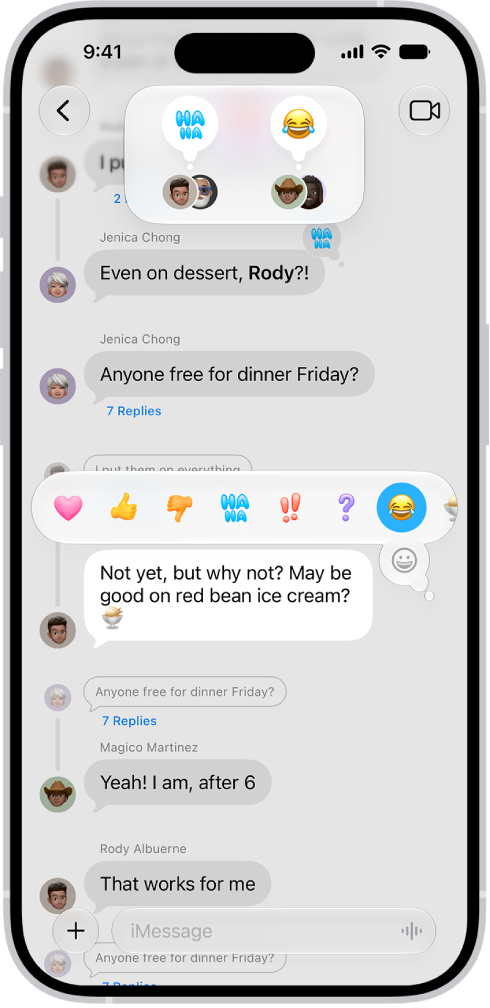
A Messages conversation with Tapbacks attributions visible near the top of the screen, and the Tapbacks menu visible above a message.

React with a Tapback

  1. Start the Messages app on your iPhone.
  2. Open a conversation.
  3. Double-tap (or touch and hold) a message.
  4. Swipe left to see suggested emoji and stickers, or tap the Emoji button. Then tap to choose any of the following kinds of Tapbacks:
    • Other emoji: Tap the Emoji button (jump to other emoji categories with icons to the right of the Emoji button).
    • Stickers: Tap the Live Stickers button.

Everyone who’s part of the conversation can see the Tapback, which is attached to a specific message in it.

Find out who sent a Tapback

When a message has more than one Tapback, they stack up, and you can find out who added each one.

  1. Start the Messages app on your iPhone.
  2. Open a conversation with Tapbacks.
  3. Tap a stack of Tapbacks.

Near the top of the screen, you’ll see senders and their tapbacks.

Edit or remove your Tapback

You can edit or remove only the Tapbacks you added, not ones other people added.

  1. Start the Messages app on your iPhone.
  2. Open a conversation.
  3. Tap your Tapback and then do one of the following:
    • Use a different Tapback: Tap a different emoji, Memoji, or sticker.
    • Remove the Tapback: Tap the same Tapback you used (so it’s not highlighted).

You can add only one Tapback per message.

View and customize widgets in CarPlay to allow quick access to your most important information at a glance.

You do it when you’re not driving, from the Settings app on your iPhone. You can add widgets, rearrange them in the order you want, remove them, or turn on Smart Rotate or Widget Suggestions. How many widget stacks you see depends on your vehicle’s CarPlay screen.

Here’s how to customize widgets in CarPlay.

Add a widget for CarPlay

  1. When you’re not driving, open the Settings app on your iPhone.
  2. Tap General and tap CarPlay. Tap your car.
  3. Tap Widgets and tap Add Widgets.
  4. Follow the onscreen instructions to add a widget.

Note: Your vehicle’s CarPlay screen decides the number of widget stacks you see.

Rearrange or remove CarPlay widgets

  1. When you’re not driving, open the Settings app on your iPhone.
  2. Tap CarPlay and then tap your car.
  3. Tap Widgets and drag the Reorder button to rearrange a widget, or tap the Remove button to remove it.

Turn on Smart Rotate or Widget Suggestions

  1. When you’re not driving, open the Settings app on your iPhone.
  2. Tap CarPlay and then tap your car.
  3. Tap Widgets and turn on Smart Rotate or Widget Suggestions.
Tag: carplay

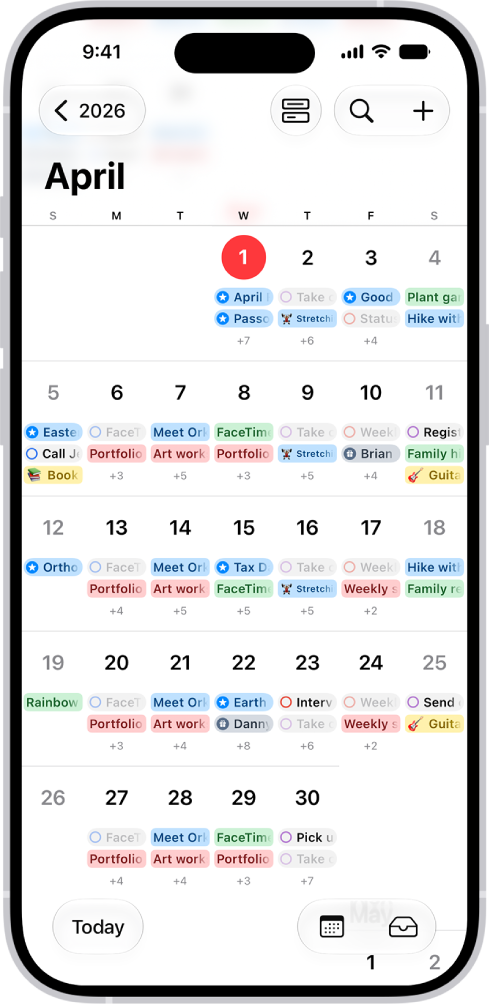
You can view events across the span of a month, week, or multiple days, or view a list of upcoming events. In Month view, there’s a choice of a single bar indicator for the events on each day, a bar indicator for each event, or event titles.

A calendar in Month view showing events and reminders.

See events in Month view

Your Month view can show either event indicators or details.

  1. Start the Calendar app on your iPhone.
  2. In Month view, tap the Month view icon and then do one of the following:
    • Show a single bar indicator for the events on each day: Tap Compact.
    • Show a bar indicator for each event: Tap Stacked.
    • Show event titles: Tap Details.

View events across multiple days

  1. Start the Calendar app on your iPhone.
  2. Do any of the following:
    • View multiple days: In Day view, tap the Day view icon and choose Multi Day.
    • View a weekly calendar: In Month or Day view, rotate iPhone sideways.

View events in a list

  1. Start the Calendar app on your iPhone.
  2. Do any of the following:
    • View a list of events for each day: In Month view, tap the Month view icon and choose List. Tap each day to see a list of events.
    • View a complete list of upcoming events: In Day view, tap the Day view icon and choose List.

Your iPhone can generate a password to use on a website or app. In the Passwords app, you enter details about the website or app and a user name, and a strong password is suggested for you. You can also create one when you sign up for services on websites and in apps.

  1. Start the Passwords app on your iPhone.
  2. Tap All and then tap the New Password button.
  3. Enter details about the website or app, and a user name for your account.
  4. Tap password. A strong password is suggested for you.
  5. Tap the suggested password (or enter one).
  6. Tap the Save button.
Tag: Safari

You can set your home, work, or school address for quick access to real-time traffic updates, directions, and notifications, making your travel more efficient.

The address in Maps can be different from the one on your contact card in the Contacts app. You can sync it to My Card in Contacts if you like, and you can change a set address or remove it.

Here’s how to set your home, work, or school address in Maps on iPhone.

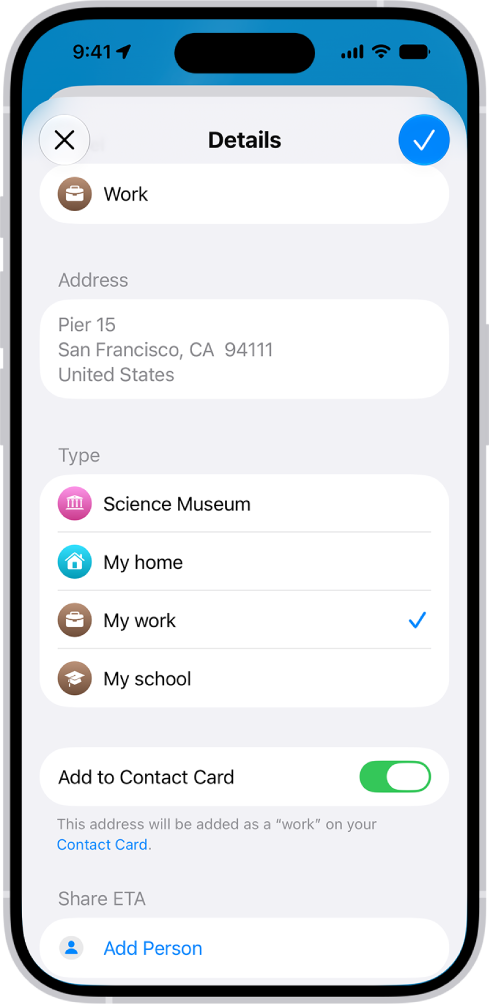
The Maps app showing the Details screen with options to set an address as home, work, or school.

Set your home, work, or school address

Your home or work address in Maps can be different from the one on your contact card in the Contacts app.

  1. Start the Maps app on your iPhone.
  2. Below Places, tap the Add button (you may need to swipe left).
  3. Tap the search field and then enter the address you’re looking for.
  4. Tap the address. Then assign it to a type: My home, My work, or My school.
  5. To sync to My Card in Contacts, turn on Add to Contact Card.
  6. Tap the Done button.

Note: You may need to update your address in Contacts if your home, work, or school address changes after you’re asked to sync Maps to My Card.

Change a set address

You can update the details of your home, work, or school address if it changes.

  1. Start the Maps app on your iPhone.
  2. Below Places, touch and hold the address you want to change.
  3. Tap Edit Details. Do any of the following: Rename the pin: Enter a new name in the Label field.
    • Assign the address to your home, work, or school: Choose an option below Type.
    • Move the location of the pin: Tap Refine Location on the Map. Drag the map.
  4. Tap the Done button.

Remove a set address

  1. Start the Maps app on your iPhone.
  2. Below Places, touch and hold the address you want to remove.
  3. Tap Unpin.
Tag: Maps

You can use the Find My app to locate a missing AirTag or third-party item that you’ve registered to your Apple Account. If you have an iPhone 15 or later model, you can also find their exact location.

If an item can’t be located, you still see where and when it was last located, and you can turn on Notify When Found. You can also play a sound on the item or get directions to it.

Here’s how to locate an AirTag or other item in Find My on iPhone.

See the location of an item

Tap Items , then tap the item you want to locate.

  • If the item can be located: It appears on the map so you can see where it is. The location and timestamp appear below the item’s name. The item’s location is updated when it connects to the Find My network.
  • If the item can’t be located: You see where and when it was last located. Below Notifications, turn on Notify When Found. You receive a notification once it’s located again.

Important: Make sure you allow notifications for the Find My app.

Play a sound

When the item is nearby, playing a sound on it can help you find it.

Note: You won’t see the Play Sound button for an item that can’t play a sound.

  1. Start the Find My app on your iPhone.
  2. Tap Items and tap the item you want to play a sound on.
  3. Tap Play.

To stop playing the sound before it ends automatically, tap Stop Sound.

Get directions to an item

The Maps app can also give you directions to an item’s current or last known location.

  1. Start the Find My app on your iPhone.
  2. Tap Items and tap the item you want to get directions to.
  3. Tap Directions to open Maps.

Find the precise location of an AirTag

With a supported iPhone, you can find the precise location of your AirTag when you’re near it.

  1. Start the Find My app on your iPhone.
  2. Tap Items, then tap the nearby AirTag.
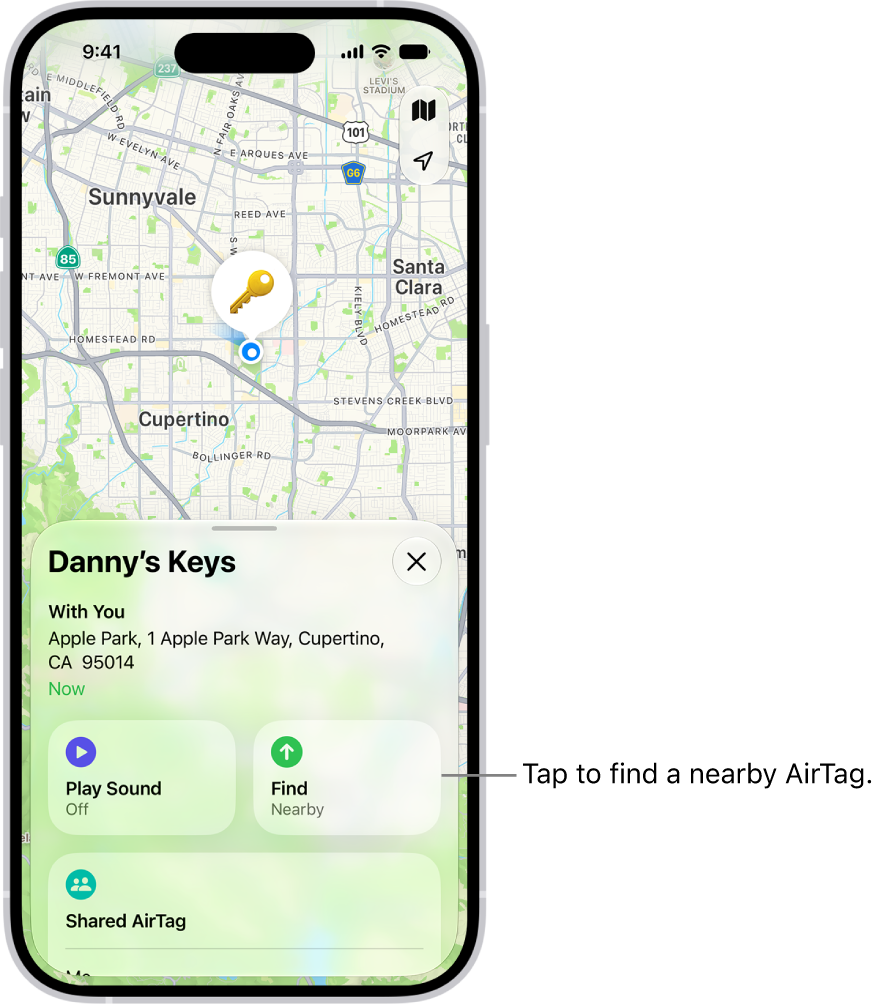
  3. Tap Find.

    The Find My app open, showing Danny’s keys in Golden Gate Park. Tap the Find button to locate a nearby AirTag.

  4. Do any of the following:

    • Move closer to the AirTag: Start moving around to locate the AirTag and follow the onscreen instructions. You may see an arrow pointing in the direction of the AirTag, an approximate distance telling you how far away it is, and a note if it’s located on a different floor.
    • Play a sound: Tap the Play Sound button to play a sound on the AirTag.
  5. When you locate the AirTag, tap the Close button.
Tag: Find My

If you lose an AirTag or third-party item registered to your Apple Account, you can use the Find My app to mark it as lost.

You can add a message saying that the item is lost, along with your phone number or email address. Anyone who finds it can see that message on a website, using a supported device.

Here’s how to mark an AirTag or other item as lost in Find My on iPhone.

What happens when you mark an item as lost?

  • You can add a message saying that the item is lost and include your phone number or email address.
  • If someone else finds your item, they can use a supported device to see a website with the Lost Mode message.

Turn on Show Contact Info for a lost item

To Turn on Show Contact Info for a lost item, do the following:

  1. Open the Find My app on your iPhone.
  2. Tap Items, tap the name of the lost item, and tap the More button
  3. Below Lost AirTag, tap Show Contact Info.
  4. Follow the onscreen instructions to enter a phone number where you can be reached. To enter an email address instead, tap “Use an email address.”

    Important: Make sure you allow notifications for the Find My app.

  5. Tap the Done button.

Change the contact information in the Lost Mode message

  1. Open the Find My app on your iPhone.
  2. Tap Items, tap the name of the lost item, and then tap the more button.
  3. Below Lost AirTag, tap Show Contact Info.
  4. Edit the phone number or message. Then tap the Done button.

Turn off Show Contact Info for a lost item

Once you find your lost item, turn off Show Contact Info.

  1. Open the Find My app on your iPhone.
  2. Tap Items, tap the name of the item, and tap the more button.
  3. Below Lost AirTag, tap Show Contact Info.
  4. Tap Stop Showing Information.
Tag: Find My

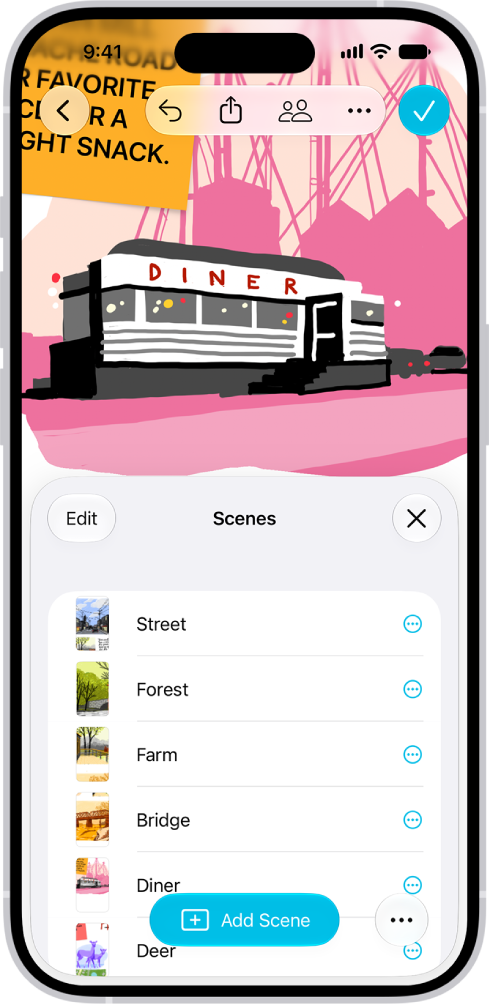
You can set up scenes, saved views of your board, to organize your boards into sections, then quickly navigate and present those parts of your board to others. You can also use scenes to identify the parts of your board you want to print or export as a PDF.

Scenes are easy to change, too. You can edit them and rearrange the order in which you present or print them.

Here’s how to navigate and present scenes in your Freeform boards on iPhone.

A Freeform board with the Scene Navigator open and several saved scenes.

Set up different parts of your board as scenes

With scenes, you can identify and label content, then present or print parts of your board section by section, and change the order you present or print them in.

  1. Open the Freeform app on your iPhone.
  2. Open a board with content.
  3. Zoom and scroll until you frame the part of your board you want on the screen for your first scene.
  4. Tap the More button and tap Add Scene.

The Scene Navigator opens at the bottom of your board.

  1. Repeat these steps until you capture all the scenes you want: Frame your next scene, tap the Scene Navigator button in the Scene Navigator or tap the More button. Then tap Add Scene.

Quick tip: Don’t stress about saving scenes in order, because you can edit their sequence after you capture them.

Navigate scenes

  1. Open the Freeform app on your iPhone.
  2. Open a board with saved scenes.
  3. Tap the More button, tap Scene Navigator, and then do any of the following:
    • Tap the Scene Navigator button, then tap the scene you want to go to.
    • Tap the Back button and the Forward button to move between scenes.

Note: Scenes can look different depending on your device or view. If someone captured a scene on a Mac, for example, it may be framed differently when you view it in portrait orientation on an iPhone.

Edit scenes

  1. Open the Freeform app on your iPhone.
  2. Open a board with saved scenes.
  3. Tap the More button and then tap Scene Navigator.
  4. Tap the Show Scene List button. Do any of the following:
    • Change the name of a scene: Touch and hold the scene whose name you want to change, tap Rename Scene, enter a new name, and then tap the Done button.
    • Reframe a scene: Move to another part of the board, touch and hold the scene you want to reframe, and then tap Replace Scene.
    • Rearrange the view order: Tap Edit, touch and hold the Reorder button, and then drag the scene up or down.
    • Delete a scene: Swipe left on the scene, then tap Delete.
  5. Tap the Close button, then tap the Done button.

Print or export scenes

  1. Open the Freeform app on your iPhone.
  2. Open a board with saved scenes.
  3. Tap the More button, then do one of the following:
    • Print all scenes: Tap Print and tap Scenes. Then tap Print.
    • Export all scenes: Tap Export as PDF, tap Scenes, and then choose how you want to share the file or tap Save to Files.

To see Print or Export as PDF, you may have to scroll down.

Printed and exported scenes default to the size of the device you’re on. To print the scenes as they were originally framed, tap Freeform Options, then select Capturing Device.

Quick tip: Touch and hold a scene’s name in the Scene Navigator, then choose an option to print or export that single scene.

All participants can access any scenes saved in a board.