Got a tip for us?

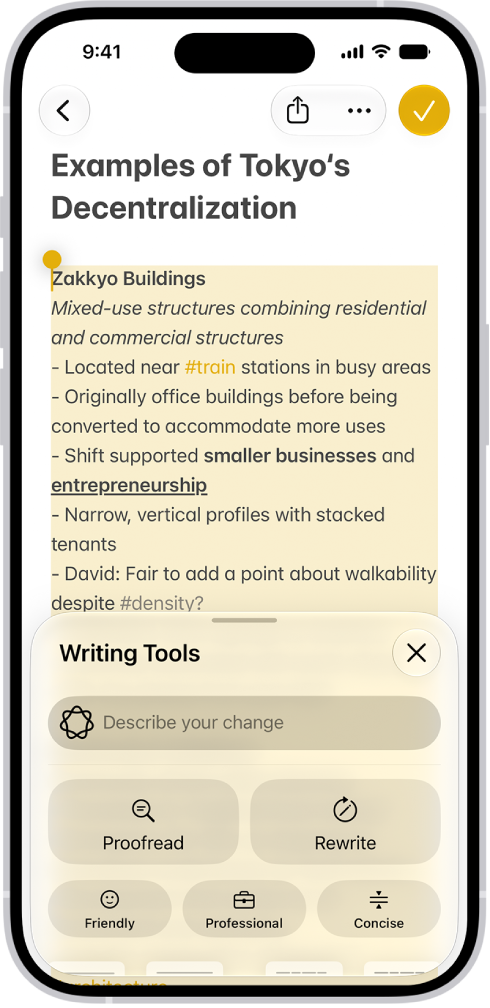
With Apple Intelligence, you can use Writing Tools to write text and rewrite selected text to find the right wording and tone. You can also proofread and summarize documents. Writing Tools are available in most places you write, including third-party apps and websites.

You can describe a change you want to make, or rewrite text in a Friendly, Professional, or Concise tone. Writing Tools can also summarize the key points of your text, and you can even compose text with ChatGPT.

Note: Siri AI is available in beta on iOS 27 or later on an Apple Intelligence-enabled iPhone 15 Pro, iPhone 15 Pro Max, or iPhone 16 model or later with Siri and device language set to a supported language. Available in English to start. Siri AI will not initially be available in the EU on iOS. Usage limits may apply.
An iPhone showing a story being written in the Notes app. At the bottom of the screen is the Compose with Writing Tools dialog that includes options to refine with ChatGPT, rewrite, choose ChatGPT suggestions, and more.

Note: Apple Intelligence on iOS 27 or later is available on an Apple Intelligence-enabled iPhone 15 Pro, iPhone 15 Pro Max, or iPhone 16 model or later. Apple Intelligence is not available in all languages or regions. Usage limits may apply.*

Proofread, rewrite, summarize, and organize text with Writing Tools

  1. While writing, select the text you want to refine. Then tap the Writing Tools button.
  2. Choose an option to refine or summarize your text. Here are some of the things you can do:
    • Tap “Describe a change” to describe the kind of change you want to make.
    • Tap Rewrite. To choose a particular tone, tap Friendly, Professional, or Concise.
    • Tap Proofread.
    • Tap Summarize or Key Points to only summarize the most important points of your text.
  3. When you’re finished, tap the Done button.

Compose text with ChatGPT in Writing Tools

  1. While typing, tap the text field and tap the Writing Tools button.
  2. Swipe up, then tap Compose.
  3. Describe what you want ChatGPT** to write—for example, “A bedtime story about a girl who visits a magical world where she befriends a caterpillar on its journey to becoming a butterfly”— choose Include All Text or Selected Text. Tap the Send button.
  4. If you’re asked for more details, tap a field and enter a response. Then tap the Send button—or tap Ignore to continue without adding details.

After you view the text, you can rewrite text, incorporate ChatGPT’s suggestions, and revert to the original version of your text.

*Apple Intelligence is available with Siri and device language set to Chinese (Simplified), Chinese (Traditional), Danish, Dutch, English, French, German, Italian, Japanese, Korean, Norwegian, Portuguese, Spanish, Swedish, Turkish, or Vietnamese. Some features may not be available in all regions or languages. Some devices may not be available in all regions. Siri AI is available in beta in iOS 27, iPadOS 27, macOS 27, watchOS 27, and visionOS 27 and requires an Apple Intelligence–enabled device set to a supported language. Available in English to start. Siri AI will not be initially available in the EU on iOS, iPadOS, and watchOS. Certain Apple Intelligence features that rely on server-side models are subject to daily usage limits, including but not limited to Siri AI, Intelligent Photo Editing Tools, Image Playground, and AFM 3 Cloud models in Shortcuts. Daily limits may vary by feature, request complexity, system demand, system policies, and other factors. Expanded access to such features will be available for a fee in the future. Use of these features is subject to the Apple Intelligence Terms and Conditions.

**ChatGPT uses generative models and outputs may vary. Check important information for accuracy. When using the ChatGPT extension, you choose what content to send to ChatGPT. Your request and attachments, as well as limited data associated with the request, such as current time zone, country, device type, language, and feature being used when making the request, are sent to ChatGPT to answer your request and enable ChatGPT to provide you accurate and relevant results.
You can save a frame from a video as a photo. In the Photos app, you pause a video on the frame you want, and Save Video Frame as Photo adds it to your library. If your library is sorted by Captured, the new photo appears next to the original video.

  1. Open the Photos app on your iPhone.
  2. Open a video, then play it.
  3. Pause the video on the frame you want to save.
  4. Tap the More button and tap Save Video Frame as Photo.

You’ll find the new photo in your photo library, at the bottom if your library is sorted by Added. When sorted by Captured, the photo appears next to the original video.

Tag: Photos

Apple Watch Mirroring allows you to see and control your Apple Watch screen from your paired iPhone. You can use touch or assistive features like Voice Control, Switch Control, and more on your iPhone to interact with Apple Watch.

There’s one requirement, though: Apple Watch Mirroring is available on Apple Watch Series 6 and later. And once you set up Accessibility Shortcut, you can turn it on right from your iPhone.

To turn on Apple Watch Mirroring, use either of the following:

  • Go to Settings > Accessibility > Apple Watch Mirroring.
  • You can triple-click a button if you set up Accessibility Shortcut.

To turn off Apple Watch Mirroring, tap the Close button.

In supported apps, such as Notes and Photos, you can use the Markup tools to add text, shapes, stickers, and image descriptions to your images and documents.

You can move or resize a shape, and adjust its border color, border width, fill color, and opacity. You can even draw geometrically perfect shapes, like lines and arcs, and VoiceOver reads the custom image descriptions you add.

Here’s how to add text, shapes, stickers, and more with Markup on iPhone.

Note: Tap the Markup button or Markup if the Markup toolbar doesn’t appear in a supported app. And if the toolbar is minimized, tap the minimized version.

Add text

  1. In the Markup toolbar, tap the Add button. Tap Add Text.
  2. Tap the text box. Then use the keyboard to enter text.
  3. To adjust the text’s font, size, justification, style, or color, tap the tools.
  4. To cut, copy, duplicate, or delete the text box, tap the More button.
  5. When you’re done, tap outside the text box.
  6. To close the Markup toolbar, tap the Markup button or Done.

Add a shape

  1. In the Markup toolbar, tap the Add button. Tap Add Shape.
  2. Tap the shape you want to add. Then do any of the following:
    • Move the shape: Drag it.
    • Resize the shape: Drag any dot along the shape’s outline.
    • Adjust the shape’s direction or dimension: Drag any green dot along the shape’s outline.
    • Adjust the shape’s border color, border width, fill color, and opacity: Tap an option in the Markup toolbar.
    • Cut, copy, duplicate, share, or delete: Tap the More button next to the shape. Then tap an option.
  3. When you’re done adjusting the shape, tap the screen.
  4. To close the Markup toolbar, tap the Markup button or Done.

Quick tip: To adjust shapes up close, pinch the screen open and zoom in on the document. Drag two fingers to pan while you’re zoomed in, and pinch closed when you want to zoom back out.

Draw a shape

If you need geometrically perfect shapes for diagrams and sketches, Markup can draw lines, arcs, and more.

  1. In the Markup toolbar, tap a drawing tool.
  2. Draw a shape in one stroke with your finger. Pause.

A perfect version of the shape snaps into place, replacing the drawing. (If you prefer to keep the freehand shape, tap the Undo button.)

You can draw squares, circles, rectangles, triangles, and pentagons, plus straight lines, arrows, arcs, and continuous lines with 90-degree turns. Chat bubbles, hearts, stars, and clouds are available, too.

Add a sticker with Markup

To add stickers from your sticker collection to documents and images, use Markup.

  1. In the Markup toolbar, tap the Add button and tap Add Sticker.
  2. Touch a sticker and then drag it onto your document or photo.
  3. Tap to select the sticker and then do any of the following:
    • Adjust its angle: Use two fingers to rotate it.
    • Adjust its size: Drag a blue dot on the bounding box of the sticker.

Sticker packs are available to download from the App Store. You can also make stickers in any supported app, or create Live Stickers by lifting subjects from your photos or in the Messages app.

Add custom image descriptions

Markup can add descriptions to images in supported apps, such as Photos, and VoiceOver reads those custom descriptions when you use the Image Explorer.

  1. In the Markup toolbar, tap the Add button, then tap Image Description.
  2. Enter your description, then tap the Done button.
Tag: Markup

You can access iCloud Drive and store files, create folders, and share documents with friends and family. You can access your content from all your devices where you’re signed in to the same Apple Account, including on a Mac, where iCloud Drive is located in the Finder.

iCloud Drive is built into the Files app on devices with iOS 11, iPadOS 13, or later. You can also use it on Mac computers (OS X 10.10 or later), Windows devices (iCloud for Windows 7 or later), or online at iCloud.com. Just know that storage limits depend on your iCloud storage plan.

Turn on iCloud Drive

  1. Open Settings, tap [your name], and then tap iCloud.
  2. Tap Drive and then turn on Sync this iPhone.

Browse iCloud Drive

  1. Start the Files app on your iPhone.
  2. Tap Browse.
  3. Tap iCloud Drive below Locations.
  4. If you don’t see Locations, tap Browse again. If you don’t see iCloud Drive below Locations, tap Locations.
  5. To open a folder, tap it.

Choose which apps use iCloud Drive

It’s up to you which apps can store and edit content on iCloud Drive.

  1. Open Settings, tap [your name], and then tap iCloud.
  2. Tap See All next to Saved to iCloud.
  3. Turn on each app you want saved to iCloud, and turn off each one you don’t want saved.
Tag: iCloud

You can securely erase your personal information, content, and settings (such as privacy and network settings) from your iPhone. When you erase your iPhone, it’s restored to factory settings.

Back up your iPhone first, so you can restore your data later on a different device. And if you have an eSIM, you get to choose whether to erase it or keep it, since erasing it means contacting your carrier to reactivate your cellular plan.

Here’s how to erase iPhone.

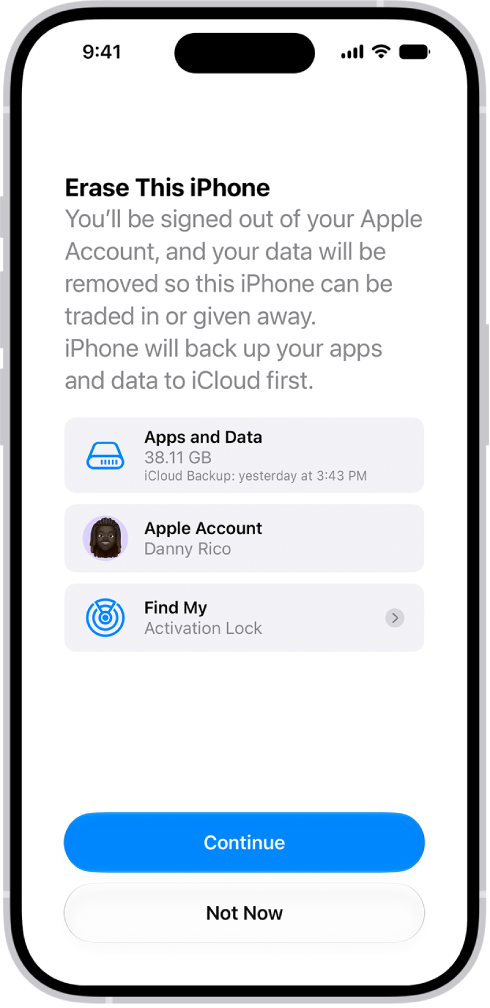
The Erase This iPhone screen.

Before you begin

To be able to restore your data later on a different device, back up your iPhone.

Erase iPhone using Settings

  1. Start the Settings app on your iPhone.
  2. Tap General, then tap Transfer or Reset iPhone.
  3. Tap Erase All Content and Settings.
  4. If asked, enter your iPhone passcode or Apple Account password.
  5. Tap Continue to confirm.

With an eSIM, you can choose to erase it or keep it, but if you erase it, you’ll need to contact your carrier to reactivate your cellular plan.

Erase iPhone using your Mac or Windows device

  1. Connect your iPhone to your computer with a USB or USB-C cable.
  2. On your Mac, click the Finder icon to open a Finder window, or open the Apple Devices app on your Windows device.

    If your Mac is using macOS 10.14 or earlier, or your Windows device doesn’t have the Apple Devices app, open iTunes instead.

  3. Click the iPhone icon in the Finder sidebar (below Locations) and then click General at the top of the window.
  4. Click Restore iPhone and click Restore to confirm.

    Note: If you’re signed in to Find My, you need to sign out before you can click Restore.

Tag: iPhone

Choose when and how notifications appear, which apps can send them, and what sounds they make. You can also set up location-based alerts, allow government alerts, and more.

Many notification settings apply to all app notifications, while others can be customized for individual apps. For a single app, you can turn notifications off entirely, choose whether they appear on the Lock Screen, in Notification Center, or as banners, and show a badge on its icon.

Here’s how to change notification settings on iPhone.

Customize notifications for an app

  1. Start the Settings app on your iPhone.
  2. Tap Notifications, then tap an app below Notification Style.
  3. Do any of the following:
    • Turn off notifications for the app: Turn off Allow Notifications.
    • Allow time-sensitive notifications: If the app supports it, turn on Time Sensitive Notifications.
    • Choose where notifications appear: Under Alerts, choose whether notifications appear on the Lock Screen, in Notification Center, or as banners.
    • Choose a notification sound: If the app supports it, tap Sounds and then select a sound.
    • Show a badge on the app icon: Turn on Badges.
    • Customize Lock Screen appearance: Under Lock Screen Appearance, set how previews appear and how notifications are grouped.
    • Prioritize notifications from the app: If you use Priority Notifications, turn Prioritize Notifications on or off under Lock Screen Appearance.
    • Choose when notifications are delivered: If you use Scheduled Summary, under Notification Delivery choose Immediate Delivery or Scheduled Summary.
    • Customize notification types: If the app supports it, tap Customize Notifications to choose which types of notifications to receive from the app.
    • Change notification settings in the app: For some apps, tap App Name Notification Settings at the bottom of the screen to open the app’s own notification settings.

Change the appearance of notifications

  1. Start the Settings app on your iPhone.
  2. Tap Notifications and choose how you want notifications displayed on the Lock Screen:
    • View just the number of notifications: Tap Count.
    • View the notifications grouped into stacks by app: Tap Stack.
    • View the notifications in a list: Tap List.

Pinching the notifications on the Lock Screen changes their layout when they arrive.

Change the frequency of notifications

Schedule a notification summary with notifications for several apps at once to minimize interruptions throughout the day.

  1. Start the Settings app on your iPhone.
  2. Tap Notifications, then tap Scheduled Summary.
  3. Turn on Scheduled Summary and then tap Continue (if it appears).
  4. Schedule times for the notification summary.
  5. Tap A to Z, turn on the apps to include in your notification summary, and then tap the Back button.
  6. To choose when you want notification previews to appear, tap Show Previews, select an option, and then tap the Back button.

Things like text from Messages and Mail, or invitation details from Calendar, can appear in previews. For individual apps, you can override this setting.

To prevent interruptions, Focus delays the delivery of notifications on iPhone when you use it. You can pick a time to receive a summary of the ones you missed.

Prevent notification previews from appearing on the Lock Screen

You can choose when notification previews appear on your Lock Screen, for a single app or for all apps.

Note: Not all apps support notification previews.

  1. Start the Settings app on your iPhone.
  2. Tap Notifications.

    To turn off notification previews for a specific app, tap the app below Notification Style.

  3. Tap Show Previews (if it appears). Then select one of the following:

    • Always
    • When Unlocked
    • Never

Show or hide notifications during screen sharing

Notifications are allowed by default when you share your screen using SharePlay or Screen Mirroring. You can turn them off if you don’t want them showing up during a session.

  1. Start the Settings app on your iPhone.
  2. Tap Notifications, then tap Screen Sharing.
  3. Turn Allow Notifications on or off.

Use Apple Intelligence to summarize notifications and prioritize time-sensitive ones

Apple Intelligence can summarize long or stacked notifications so they’re easier to understand at a glance. It can also prioritize time-sensitive notifications, helping you catch up on what you may have missed.

Note: Apple Intelligence on iOS 27 or later is available on an Apple Intelligence-enabled iPhone 15 Pro, iPhone 15 Pro Max, or iPhone 16 model or later. Apple Intelligence is not available in all languages or regions. Usage limits may apply.*

Turn off location-based alerts

Based on where you are, some apps use your location to send you relevant alerts. The Weather app, for example, might send you alerts based on your location.

Don’t want to see these types of alerts? Turn them off.

  1. Start the Settings app on your iPhone.
  2. Tap Privacy & Security and tap Location Services. Turn on Location Services.
  3. Tap an app (if any appear in the list) and choose whether you want to share your location while using that app.

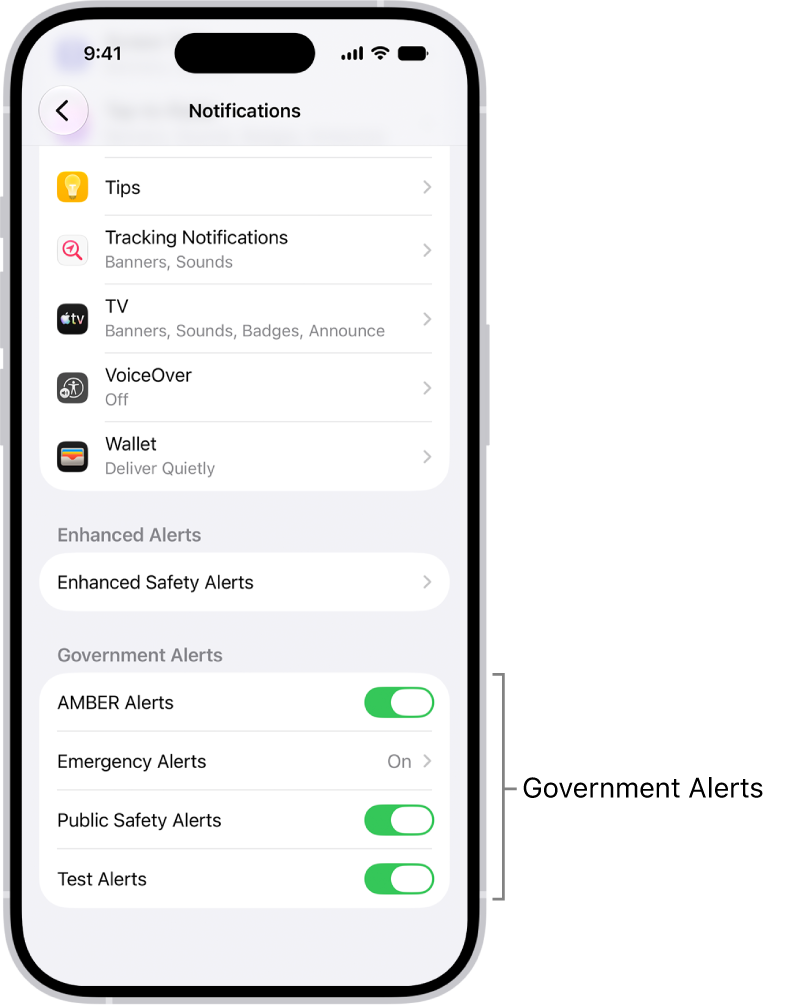
Turn government alerts on or off

In some countries or regions, you can turn on alerts in the Government Alerts list. For example, on iPhone in the United States, you can receive National Alerts, and you can turn AMBER, Public Safety, and Emergency Alerts (which include both Severe and Extreme Imminent Threat Alerts) on or off (they’re on by default). On iPhone in Japan, you can receive Emergency Earthquake Alerts from the Japan Meteorological Agency.

  1. Start the Settings app on your iPhone.
  2. Tap Notifications, scroll down to the Government Alerts section, and turn on the alerts you want to receive.

    The Notifications screen, showing the Government Alerts you can turn on to receive government alerts.

  3. Tap Emergency Alerts if you want to turn on Emergency Alerts and Local Awareness.

Note: In some regions, Local Awareness may improve the timeliness, accuracy, and reliability of certain Emergency Alerts. For example, Earthquake Alerts received on iPhone in California, Oregon, and Washington (including bordering regions) may be more timely or delivered with increased accuracy when Local Awareness is turned on.

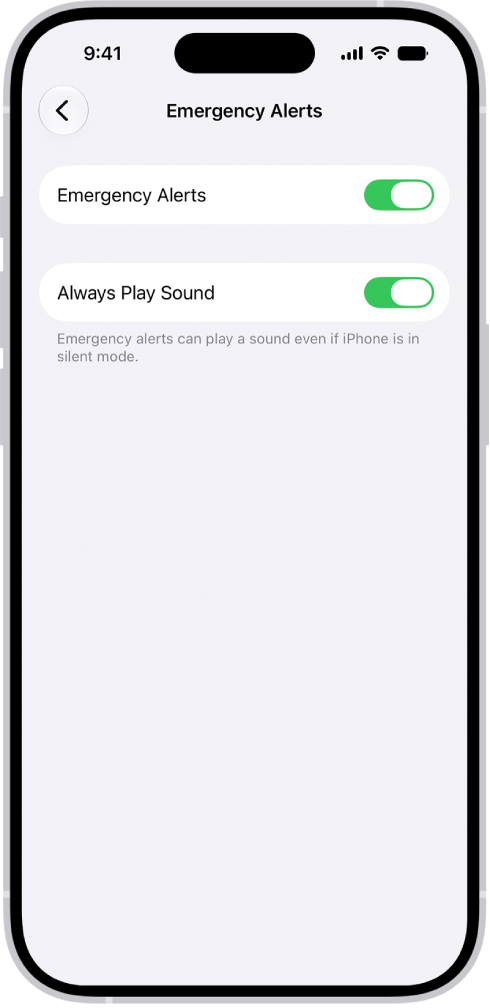
The Emergency Alerts screen, with Emergency Alerts, Local Awareness, and Always Play Sound turned on.

Turn on Always Play Sound to have Emergency Alerts play a sound even if iPhone is in Silent mode.

Government alerts vary by carrier and iPhone model, and may not work under all conditions.

*Apple Intelligence is available with Siri and device language set to Chinese (Simplified), Chinese (Traditional), Danish, Dutch, English, French, German, Italian, Japanese, Korean, Norwegian, Portuguese, Spanish, Swedish, Turkish, or Vietnamese. Some features may not be available in all regions or languages. Some devices may not be available in all regions. Siri AI is available in beta in iOS 27, iPadOS 27, macOS 27, watchOS 27, and visionOS 27 and requires an Apple Intelligence–enabled device set to a supported language. Available in English to start. Siri AI will not be initially available in the EU on iOS, iPadOS, and watchOS. Certain Apple Intelligence features that rely on server-side models are subject to daily usage limits, including but not limited to Siri AI, Intelligent Photo Editing Tools, Image Playground, and AFM 3 Cloud models in Shortcuts. Daily limits may vary by feature, request complexity, system demand, system policies, and other factors. Expanded access to such features will be available for a fee in the future. Use of these features is subject to the Apple Intelligence Terms and Conditions.

If you have difficulties with hand tremors, dexterity, or fine motor control, you can adjust how the iPhone touchscreen responds to tap, swipe, and touch-and-hold gestures. You can have iPhone recognize faster or slower touches and ignore multiple touches.

You can also prevent iPhone from waking when you touch the screen, or turn off Shake to Undo if you unintentionally shake iPhone. Many of these settings come from Touch Accommodations, which gives you a personalized list of options like Hold Duration or Tap Assistance after a short setup.

Here’s how to adjust how iPhone responds to your touch.

Set up and adjust Touch Accommodations

  1. Start the Settings app on your iPhone.
  2. Tap Accessibility and tap Touch. Then tap Touch Accommodations.
  3. Tap Set Up Touch Accommodations and then follow the onscreen instructions.

    After you complete setup, you’ll see a personalized list of Touch Accommodations—like Hold Duration or Tap Assistance—that you can turn on.

  4. You can adjust any of your Touch Accommodations after setup. Tap Settings and then change any of the following:

    • Respond to longer or shorter touches: Turn on Hold Duration. Then tap the Decrement button or the Increment button to adjust the duration.

      Note: When you turn on Hold Duration, taps and swipes within the duration are ignored. You can turn on Swipe Gestures to make swiping easier when Hold Duration is on.

    • Make swiping easier while Hold Duration is on: Turn on Hold Duration, then tap Swipe Gestures. Turn on Swipe Gestures, then choose the required movement before a swipe gesture begins.
    • Treat multiple touches as a single touch: Turn on Ignore Repeat. Then tap the Decrement button or the Increment button to adjust the amount of time allowed between multiple touches.
    • Respond to the first or last place you touch: Under Tap Assistance, choose either Use Initial Touch Location or Use Final Touch Location.

      If you choose Use Initial Touch Location, iPhone uses the location of your first tap—when you tap an app on the Home Screen, for example.

      If you choose Use Final Touch Location, iPhone registers the tap where you lift your finger. iPhone responds to a tap when you lift your finger within a certain period of time. Tap the Decrement button or the Increment button under Tap Assistance Gesture Delay to adjust the timing. Your iPhone can respond to other gestures, such as a drag gesture, if you wait longer than the gesture delay.

      Note: When you turn on Tap Assistance, taps and swipes within the duration are ignored. You can turn on Swipe Gestures to make swiping easier when Hold Duration is on.

    • Make swiping easier while Tap Assistance is on: Choose either Use Initial Touch Location or Use Final Touch Location. Then tap Swipe Gestures. Turn on Swipe Gestures. Then choose the required movement needed before a swipe gesture begins.

At any time, you can recalibrate or reset Touch Accommodations.

Adjust settings for touch-and-hold gestures

You can use the touch-and-hold gesture to see additional options or actions you can perform, or to get a preview of content. If you have trouble performing this gesture, do the following:

  1. Start the Settings app on your iPhone.
  2. Tap Accessibility and tap Touch. Then tap Haptic Touch.
  3. Choose the touch duration—Fast or Slow.
  4. Test your new settings on the image at the bottom of the screen.

Recalibrate or reset Touch Accommodations

  1. Start the Settings app on your iPhone.
  2. Tap Accessibility and tap Touch. Then tap Touch Accommodations.
  3. Do either of the following:
    • Recalibrate your Touch Accommodations: Tap Recalibrate Touch Accommodations.
    • Reset your Touch Accommodations: Tap Reset Touch Accommodations.

Turn off Tap to Wake

If you have a supported iPhone model, you can stop touches on the screen from waking iPhone.

  1. Start the Settings app on your iPhone.
  2. Tap Accessibility, tap Touch, and then turn off Tap to Wake.

Turn off Shake to Undo

Turning off Shake to Undo helps if you tend to unintentionally shake iPhone.

  1. Start the Settings app on your iPhone.
  2. Tap Accessibility and tap Touch. Then turn off Shake to Undo.

Quick tip: To undo text edits, swipe left with three fingers.

If you’re blind or have low vision, you can use the Magnifier app to aim your iPhone camera at nearby text and have it spoken out loud. You can even point your finger at the specific text you want spoken.

It all happens in Detection Mode, which you can add to the Magnifier app on your iPhone if you don’t see its button. Text Detection and Point & Speak aren’t available in all languages, though.

Important: Detection Mode should not be relied on in high-risk or emergency situations, in circumstances where you may be harmed or injured, or for navigation.

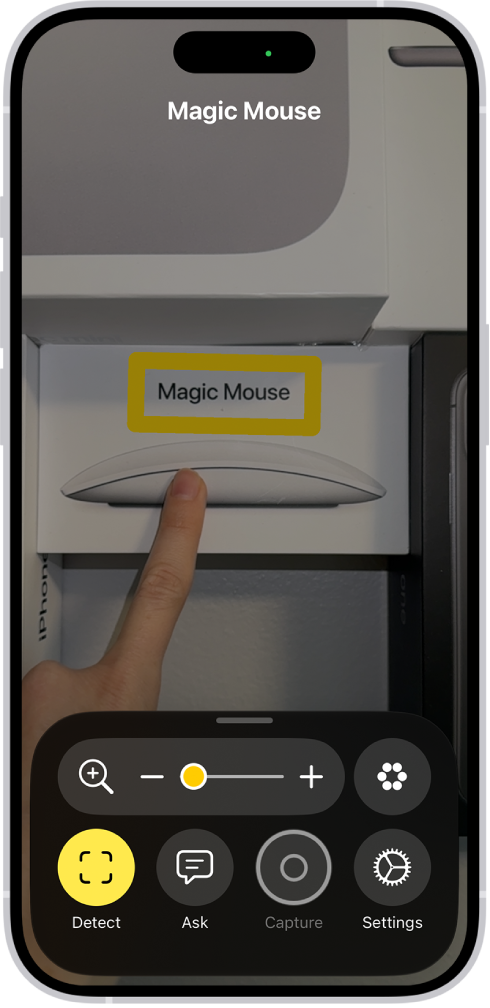
The Magnifier app detecting a finger pointing at text on a wall.

Detect text in the camera frame and have it read out loud

The Magnifier app can detect text in the field of view of your iPhone camera, then have it read out loud.

  1. Start the Magnifier app on your iPhone.
  2. Tap the Detection Mode button to start Detection Mode.

    If you don’t see the Detection Mode button, you can add it.

  3. Touch and hold the Detection Mode button and then make sure Text is selected.
  4. Position iPhone so the rear camera can detect text around you.

    If you don’t hear speech feedback, make sure Silent mode isn’t on.

  5. To temporarily pause detection, double-tap the screen with two fingers.

    Double-tap again with two fingers to resume detection.

  6. To stop Detection Mode, tap the Detection Mode button.

Point your finger at text to have it spoken

When you point your finger at text near you, the Magnifier app can have your iPhone speak it out loud.

It’s especially useful for interacting with objects that have text labels, like dials, buttons, or keypads on ATMs or household appliances, or a digital screen at a grocery store self-checkout.

  1. Start the Magnifier app on your iPhone.
  2. Tap the Detection Mode button to start Detection Mode.

    If you don’t see the Detection Mode button, you can add it.

  3. Touch and hold the Detection Mode button. Make sure Point & Speak is selected.
  4. Position iPhone so the rear camera can detect the text and then point your finger to identify which text to read.

    If you don’t hear sound or speech feedback, make sure Silent mode isn’t on.

  5. To temporarily pause detection, double-tap the screen with two fingers.

    Double-tap again with two fingers to resume detection.

  6. To stop Detection Mode, tap the Detection Mode button.

Customize settings for Text Detection or Point & Speak

  1. Start the Magnifier app on your iPhone.
  2. Tap the Settings button and then tap Detect.

    To detect text in other languages, turn on Detect Languages.

  3. Tap Text or Point & Speak and then customize any of the following: Detection Feedback: Turn on any combination of Labels and Speech.

    For Point & Speak, you can also turn on Sound and Haptic feedback.

    Location: For Point & Speak, tap Under (to read text under your fingertip) or Above (to read text directly above your finger).

    Automatic Flashlight: When your environment is too dark to detect text, have Magnifier turn the flashlight on for 10 seconds.

    Border and Color: For Point & Speak, outline the text you’re pointing to in a color of your choice.

  4. To return to the live Magnifier lens, tap the Back button, tap it again, and then tap the Done button.

    Text Detection and Point & Speak work with VoiceOver.

You can turn cellular data on or off, manage roaming and network options, and control which apps and services use cellular data.

With cellular data off, email, web browsing, notifications, and other data services use Wi-Fi only. If you’re traveling internationally, you can adjust roaming and network settings. You can also see how much data each app has used, and turn off cellular data for individual apps.

Here’s how to view or change cellular data settings on iPhone.

Note: For help with cellular network services, voicemail, and billing, contact your wireless service provider.

Turn cellular data on or off

With cellular data turned off, every data service, including email, web browsing, and notifications, sticks to Wi-Fi. Leave cellular data on, and carrier charges may apply. Features and services that transfer data, like Siri and Messages, could add charges to your data plan, for example.

  1. Open the Settings app on your iPhone.
  2. Tap Cellular and turn Cellular Data on or off.

Manage roaming and network options

You can adjust roaming and network settings when you’re traveling internationally or want more control over how iPhone uses your carrier’s network.

  1. Open the Settings app on your iPhone.
  2. Tap Cellular and tap Cellular Data Options.
  3. Do any of the following:
    • Avoid roaming charges: Turn off Data Roaming. When you’re in a region not covered by your carrier’s network, Data Roaming permits internet access over a cellular data network. When you’re traveling, turn off Data Roaming to avoid roaming charges. To stay connected while traveling, contact your carrier about international plans, or add a travel eSIM.
    • Reduce cellular usage: Tap Data Mode, then choose Low Data Mode. This mode pauses automatic updates and background tasks when iPhone isn’t connected to Wi-Fi.

Depending on your iPhone model, carrier, and region, the following options may be available:

  • Turn Voice Roaming on or off: (CDMA) Turn Voice Roaming off to avoid charges from using other carrier’s networks. When your carrier’s network isn’t available, iPhone won’t have cellular (data or voice) service.
  • Enable or disable 4G/LTE: Using 4G or LTE loads internet data faster in some cases but may decrease battery performance. There may be options for turning off 4G/LTE or for selecting Voice & Data (VoLTE) or Data Only.

With a 5G data plan on iPhone 12 models and later, you can do the following:

  • Enable Smart Data mode to optimize battery life: Tap Voice & Data, then choose 5G Auto. In this mode, your iPhone automatically switches to LTE when 5G speeds don’t provide noticeably better performance.
  • Use higher-quality video and FaceTime HD on 5G networks: Tap Data Mode, then choose Allow More Data on 5G.
  • Turn off 5G: Tap Voice & Data, then choose LTE.

View and manage cellular data usage

For each app, you can see how much data it has used, and turn off cellular data for individual apps if you’d like.

  1. Open the Settings app on your iPhone.
  2. Tap Cellular, then do any of the following.
    • Turn cellular data on or off for an app or service: Scroll down to the list of apps and services and turn an app or service on or off. When cellular data is off for an app, iPhone uses only Wi-Fi for that service.
    • See how much data each app is using: Scroll down to your list of apps and tap Show All. The amount of cellular data used appears below each app. If you’re using Dual SIM, you can see how much data you’ve used with your selected cellular data number.
    • See data used by system services: Scroll down to System Services (above the list of apps). Cellular data can’t be turned on or off for individual system services.
    • Reset usage statistics: Scroll to the bottom, then tap Reset Statistics.

Note: Your carrier can give you the most accurate cellular data usage from a current period.