Got a tip for us?

Before apps use the camera or microphone on your iPhone, they’re required to request your permission and explain why they’re asking. For example, a social networking app may ask to use your camera so that you can take and upload pictures to that app.

Apps are similarly required to request your permission to use various other hardware features, including Bluetooth® connectivity, motion and fitness sensors, and devices on your local network. You can review which apps have requested access to these hardware features, and you can change their access at your discretion.

Here’s how to control access to hardware features on iPhone.

Review or change access to the camera, microphone, and other hardware features

  1. Open Settings and then tap Privacy & Security.
  2. Tap a hardware feature, such as Camera, Bluetooth, Local Network, or Microphone.

    The list shows the apps that requested access. You can turn access on or off for any app on the list.

Note: Whenever an app uses the camera (including when the camera and microphone are used together), a green indicator appears. An orange indicator appears whenever an app uses the microphone without the camera. Also, a message appears at the top of Control Center to inform you when an app has recently used either.

In FaceTime, you can create a link to a FaceTime call and send the link to a friend or a group (using Mail or Messages). They can use the link to join or start a call, and you can even put a FaceTime link in a Calendar event to schedule a video meeting.

You can even invite people who don’t have an Apple device, as long as they’re using the latest version of Chrome or Edge, and they don’t need to log in.

  1. Open the FaceTime app on your iPhone.
  2. Tap New Call and then tap the Create Link button.
  3. Choose an option for sending the link (for example, Messages or Mail).

To schedule a remote video meeting in Calendar, insert a FaceTime link as the location of the meeting.

Note: People without an Apple device can join you in a FaceTime call, too, as long as their browser supports WebRTC, like the latest version of Google Chrome or Microsoft Edge. They don’t need to log in, and they can join one-to-one and Group FaceTime calls right from their browser. To send video, the browser needs H.264 video encoding support.

A Medical ID provides information about you that may be important in an emergency, like allergies, medical conditions, and your emergency contacts. Your iPhone and Apple Watch can automatically share your Medical ID during an emergency call (U.S. and Canada only) and in person to first responders.

You set it up in the Health app, and you choose whether emergency services and first responders can access it.

Here’s how to set up and view your Medical ID.

Create your Medical ID

Set up a Medical ID in the Health app.

  1. Start the Health app on your iPhone.
  2. Tap your picture, then tap Medical ID.
  3. Tap Get Started or Edit, then enter your information.
  4. Below Emergency Contacts, tap Add Emergency Contact, then add your contacts. After an emergency call ends, your iPhone alerts your emergency contacts with a text message, unless you choose to cancel. Your iPhone sends your current location (if available) and—for a period of time after you enter SOS mode—your emergency contacts receive updates when your location changes.
  5. Tap Done.

Quick tip: To view your Medical ID from the Home Screen, touch and hold the Health app icon, then choose Medical ID.

Allow emergency services and first responders to access your Medical ID

The information in your Medical ID can be shared automatically during an emergency call (U.S. and Canada only), and also appears on the Lock Screen of your iPhone and Apple Watch.

  1. Start the Health app on your iPhone.
  2. Tap your picture, then tap Medical ID.
  3. Tap Edit, scroll to the bottom, and turn on Show When Locked and Emergency Call.

Note: A first responder views your Medical ID from the Lock Screen by swiping up or pressing the Home button (depending on your iPhone model), tapping Emergency on the passcode screen, then tapping Medical ID.

Tag: Health

With Voice Control on your iPhone, you can speak commands to interact with what’s on the screen, perform gestures and button presses, dictate and edit text, and more. And with Apple Intelligence, you can describe onscreen elements in your own words instead of using exact labels—refer to an item by its name, what it does, its color, or where it appears on the screen.

You can pause or resume Voice Control, see what commands you can use, label onscreen items, and show a numbered grid on the screen.

Note: When Voice Control is on, you use Voice Control to dictate text; standard iOS Dictation isn’t available. Voice Control isn’t available in all languages.

Note: Apple Intelligence on iOS 27 or later is available on an Apple Intelligence-enabled iPhone 15 Pro, iPhone 15 Pro Max, or iPhone 16 model or later. Apple Intelligence is not available in all languages or regions. Usage limits may apply.* To use Apple Intelligence with Voice Control, you must have your system language and Voice Control language set to English.

Set up Voice Control

Before you turn on Voice Control for the first time, iPhone needs to be connected to the internet over a Wi-Fi network. Once iPhone finishes a one-time file download from Apple, Voice Control works without an internet connection.

  1. Start the Settings app on your iPhone.
  2. Tap Accessibility, tap Voice Control, tap Set Up Voice Control, and follow the onscreen instructions.

    When the download is complete, the Voice Control icon appears in the status bar to indicate that Voice Control is turned on.

  3. Set options such as the following:

    • Language: Set the language and download languages for offline use.
    • Commands: View the available commands and create new commands.
    • Vocabulary: Teach Voice Control to recognize new words and phrases. You can enter a word or phrase and teach Voice Control how you pronounce it, or import a vocabulary list.

      Note: Not all Voice Control languages support a custom vocabulary.

    • Show Confirmation: When Voice Control recognizes a command, a visual confirmation appears at the top of the screen.
    • Play Sound: When Voice Control recognizes a command, a sound plays.
    • Show Hints: See command suggestions and hints.
    • Flexible Item Names: With Apple Intelligence, you can refer to onscreen items in your own words instead of using their exact labels. This is turned on by default and can be turned off to use exact labels.
    • Continuous Overlay: Display numbers, names, or a grid over screen elements.
    • Attention Aware: On an iPhone with Face ID, Voice Control wakes up when you look at your iPhone and goes to sleep when you look away.
    • Prefer Bluetooth Headset: Use AirPods or Bluetooth® headsets when connected instead of the iPhone microphone.

    Note: Using Voice Control with AirPods and third-party headsets impacts audio quality and audio features like Siri announcements and Share Audio with AirPods.

Turn Voice Control on or off

With Voice Control set up, any of the following turns it on or off quickly:

  • Use Control Center if you’ve added Voice Control there.
  • Use Accessibility Shortcut if you’ve set it up to turn on Voice Control.

Siri: Ask Siri something like, “Turn on Voice Control.”

Start using commands

You just say a command to use Voice Control on your iPhone. And Apple Intelligence lets you describe the item you want to act on rather than use its exact label.

Voice Control: Say, for example, “Open Control Center,” “Go home,” “Tap item name,” or “Turn up volume.” Or with Apple Intelligence, say “Tap the button that sends the message” or “Tap the button at the bottom right.”

Quick tip: The interactive Voice Control Tutorial helps you get familiar with Voice Control and practice essential commands. To open it, go to Settings > Accessibility > Voice Control and tap Open Voice Control Tutorial.

Pause or resume Voice Control

Pausing Voice Control keeps the words you say from being interpreted as commands or dictation. Resume it when you’re ready for Voice Control to listen for commands and dictation again.

Voice Control: Say “Stop listening” or “Start listening.”

See what commands you can use

The list shows the available commands, which change based on the app you’re working in and what you’re doing. While writing a document, for example, you’ll see text formatting commands. Apple Intelligence also means you can describe an item in your own words rather than use its exact label.

Note: Voice Control: Say “Show commands.”

To browse the full list of supported commands and see examples of how to use them, go to Settings > Accessibility > Voice Control > Commands.

Label onscreen items

Not sure what to call something? Show a name or number next to each item on the screen, then use that name or number to interact with the item. With Apple Intelligence, you’re also free to describe an item in your own words, without its name or number.

Voice Control: Say “Show names,” “Show numbers,” or “Show text numbers.” Or with Apple Intelligence, say “Tap the blue button at the bottom.”

To interact with an item, say its name or number, or say a command—such as “Long press”—followed by the item’s name or number. The item names or numbers disappear after you say the command.

Show a numbered grid on the screen

Superimposing a grid makes it easier to interact with a precise area of the screen.

Voice Control: Say “Show grid.”

  • Interact with a location on the grid: If a number is at the location you want to interact with, say any command—such as “Tap”—followed by the grid number. The grid disappears after you say the command.
  • Drill down on an area of the grid: If you need to further refine the location, say a grid number to show a more detailed grid in that area.

Say “Hide names,” “Hide numbers,” or “Hide grid” to turn the overlay off.

Enter text

In a text input area, you can dictate character by character (with Spelling mode) or word by word (with Dictation mode). And so you don’t mistakenly enter a Voice Control command as text, you can have Voice Control respond only to commands (with Command mode).

When you’re in a text input area and label onscreen items with numbers, numbers are shown next to each line of text. Select a line or another section of the text to display a number for each word in the selection; select a single word to show a number for each character in the word. To interact with a text item (such as a line or a word), say a command followed by the item’s name or number. For example, you can say “Delete [item number]” or “Uppercase [item number].”

Command Description
Voice Control: Say “Dictation mode.” Dictate word by word. Any words you say that aren’t Voice Control commands are entered as text. Dictation mode is on by default. In some Voice Control languages, if several words phonetically match what you say, they appear onscreen. Tap to choose the one you want.
Voice Control: Say “Spelling mode.” Dictate character by character. Spelling mode is helpful when you need to enter a password, a web address, or another sequence of characters that wouldn’t be recognized as a word in Dictation mode. When Spelling mode is on, the Spelling Mode icon appears in the text input area. To increase accuracy when entering letters, you can use the letter’s phonetic alphabet code word (for example, say “Alfa Bravo Charlie” to enter “abc”). Note: Spelling mode isn’t available in all Voice Control languages.
Voice Control: Say “Command mode.” Voice Control responds only to commands. Words and characters that aren’t commands are ignored and aren’t entered as text. Command mode is helpful when you need to say a series of commands and don’t want them inadvertently entered in a text input area. When Command mode is on, the Command Mode icon appears in the text input area to indicate you can’t dictate to enter text.

Apple Intelligence is available with Siri and device language set to Chinese (Simplified), Chinese (Traditional), Danish, Dutch, English, French, German, Italian, Japanese, Korean, Norwegian, Portuguese, Spanish, Swedish, Turkish, or Vietnamese. Some features may not be available in all regions or languages, Apple says. Some devices may not be available in all regions.

Siri AI is available in beta in iOS 27, iPadOS 27, macOS 27, watchOS 27, and visionOS 27 and requires an Apple Intelligence–enabled device set to a supported language. Available in English to start. Siri AI will not be initially available in the EU on iOS, iPadOS, and watchOS. Certain Apple Intelligence features that rely on server-side models are subject to daily usage limits, including but not limited to Siri AI, Intelligent Photo Editing Tools, Image Playground, and AFM 3 Cloud models in Shortcuts.

Daily limits may vary by feature, request complexity, system demand, system policies, and other factors. Expanded access to such features will be available for a fee in the future. Use of these features is subject to the Apple Intelligence Terms and Conditions.


Use Camera to take Live Photos with your iPhone. A Live Photo captures what happens just before and after you take a photo, including the audio. You take a Live Photo just like you do a normal photo.

In Photo mode, Live Photo is on by default, and you can turn Live Photos off and on whenever you like. And you can play one back to see the moment move.

Here’s how to take Live Photos with your iPhone camera.

Take a Live Photo

  1. Open Camera on your iPhone.
  2. Make sure Camera is set to Photo mode.

    Note: Live Photo is on by default.

  3. Tap the Shutter button or click the Camera Control to take a Live Photo.
  4. To play the Live Photo, tap the photo thumbnail at the bottom of the screen. Touch and hold the screen.

Your Live Photos save automatically to your photo library in the Photos app.

Turn Live Photos off and on

  1. Open Camera on your iPhone.
  2. Make sure Camera is set to Photo mode.
  3. Tap the Camera Controls button or swipe up from Photo mode at the bottom of the screen.
  4. Tap Live. Tap one of the three options: Auto, On, or Off.
  5. Tap the screen to close.

Quick tip: Keep the Live Photo button on the camera screen at all times: Go to Settings > Camera > Indicators, then turn on Live Photo.

Note: With ProRAW or HEIF Max turned on, Live Photos aren’t available.

Tag: Photos

In the FaceTime app, on a device that meets the minimum system requirements, you can share your screen to bring apps, webpages, and more into the conversation.

You can also ask someone to share their screen with you.

Here’s how to share your screen in a FaceTime call on iPhone.

Note: FaceTime, FaceTime audio, Group FaceTime, some FaceTime features, and other Apple features or services may not be available in all countries or regions.

Share your screen

  1. During a call in the FaceTime app on your iPhone, tap the screen to show the FaceTime controls (if they aren’t visible). Tap the More button.
  2. Tap Screen Sharing, then tap Share My Screen.

Screen sharing begins after a countdown from 3 to 1 at the bottom of the screen.

Quick tip: On a one-to-one FaceTime call, the other participant can tap, draw, or write on your screen from an iPhone or iPad to call your attention to a specific area, and whatever they add disappears after a few seconds. For more help, allow the other participant to control your screen.

To stop sharing your screen, tap the More button, then tap Stop next to Screen Sharing. Ending a FaceTime call also ends screen sharing.

Ask someone to share their screen

  1. During a call in the FaceTime app on your iPhone, tap the screen to show the FaceTime controls (if they aren’t visible). Tap the More button.
  2. Tap Screen Sharing and then tap Ask to Share Screen.

Some elements on the screen let you customize how they move. Turn Reduce Motion off, and you get more motion, like the fluid morphing effects of Liquid Glass. You can also set Vehicle Motion Cues to turn on automatically when you’re moving in a vehicle, and customize how the cues look. Here are the elements you can customize:

  • Motion effects for wallpaper, apps, and alerts
  • Screen transitions
  • Siri animations
  • Typing autocompletion
  • Animated full-screen and bubble effects in the Messages app
  • Animated images on the web and in apps

Customize onscreen motion

  1. Start the Settings app on your iPhone.
  2. Tap Accessibility, then tap Motion.
  3. Do any of the following:
    • Reduce Motion: Turn on. (When off, you’ll see more motion, like the fluid morphing effects of Liquid Glass.)
    • Vehicle Motion Cues: Turn on, off, or set to automatically turn on when you’re moving in a vehicle. You can also customize the appearance of the cues including the pattern, color, and visibility. (When on, dots appear and move on the screen to reduce or stop onscreen motion.)
    • Auto-Play Animated Images: Turn off. (When on, rapid animated images and moving elements such as GIFs in Messages and Safari play automatically.)
    • Auto-Play Video Previews: Turn off. (When on, it allows apps such as the App Store to automatically play video previews.)
    • Auto-Play Message Effects: Turn off. (When on, the Messages app automatically plays full-screen effects. If you turn this setting off, you can still manually play effects by tapping Replay below the message bubble.)
    • Prefer Non-Blinking Cursor: Turn on. (Stop the blinking of the vertical bar that appears at the insertion point where you’re typing. If you use a braille display with iPhone, the cursor indicator on the display also stops blinking.)
    • Limit Frame Rate: Turn on. (On models with ProMotion display technology, this limits the maximum frame rate of the display to 60 frames per second.)

Reduce flashing and strobing lights in videos

  1. Start the Settings app on your iPhone.
  2. Tap Accessibility, then tap Display & Text Size.
  3. Turn on Dim Flashing Lights.

Reduce bright effects of onscreen elements

Highlighting and flashing effects may appear when you interact with certain onscreen elements, like the keyboard, but you can reduce them.

  1. Start the Settings app on your iPhone.
  2. Tap Accessibility, then tap Display & Text Size.
  3. Turn on Reduce Bright Effects.

Smooth display dimming

To control brightness, your iPhone uses a technique called pulse width modulation (PWM), which can make the display appear to flicker for some people when it’s dim. On supported models, turning on Display Pulse Smoothing creates a smoother dimming experience at low brightness levels.

Note: Under certain conditions, turning off PWM may affect display performance at low brightness.

  1. Start the Settings app on your iPhone.
  2. Tap Accessibility, then tap Display & Text Size.
  3. Turn on Display Pulse Smoothing (PWM).

Important: Your iPhone uses an on-device algorithm to detect flashing or strobing lights included in supported media and automatically dims them on your iPhone in real time. Motion settings should not be relied upon in high-risk situations, or for the treatment of any medical condition.

When you subscribe to iCloud+, you can use Hide My Email to keep your personal email address private. It generates unique, random email addresses that forward to your personal email account, so you don’t have to share your real address when you fill out forms, sign up for newsletters, or send email.

You can create a new address, deactivate one so it stops forwarding emails to you, choose which personal email address it forwards to, and copy a forwarding address to use elsewhere. You can also generate addresses in Safari and Mail wherever an email address is required.

You can create and manage Hide My Email addresses in Settings . Go to Settings > [your name] > iCloud > Hide My Email, then do any of the following:

  • Create a Hide My Email address: Tap Create New Address, then follow the onscreen instructions.
  • Deactivate a Hide My Email address: Tap an address (below Create New Address), then tap Deactivate Email Address. After you deactivate the address, it no longer forwards emails to you.
  • Change which personal email address you forward to: Tap Forward To, then choose an email address. Options consist of addresses that are available with your Apple Account.
  • Copy a forwarding address to use elsewhere: Tap an address (below Create New Address), touch and hold the Hide My Email section, then tap Copy. To immediately use that address elsewhere, touch and hold in a text field, then tap Paste.

You can also generate Hide My Email addresses in Safari and Mail wherever email addresses are required. In supporting apps, you can also generate a Hide My Email address when an email address is required by tapping the email address field, then tapping Hide My Email above the keyboard.

Tag: Mail

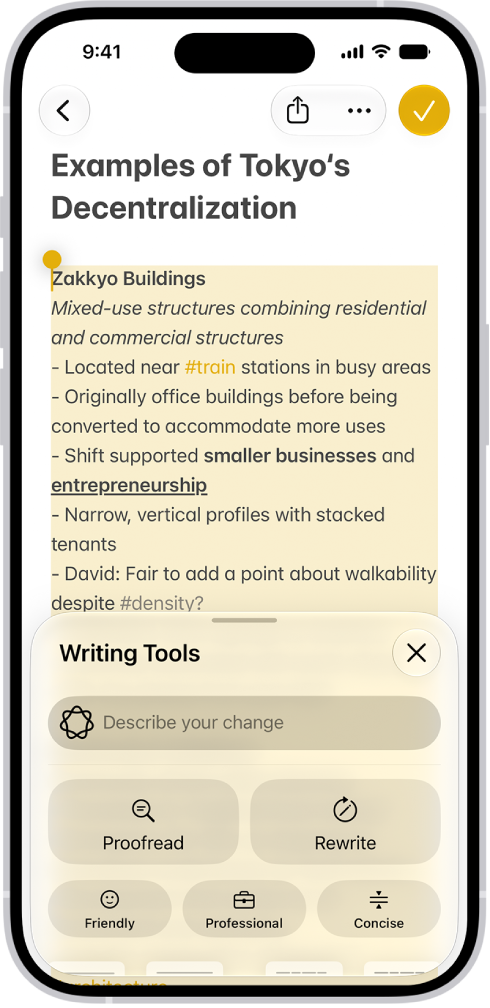
With Apple Intelligence, you can use Writing Tools to write text and rewrite selected text to find the right wording and tone. You can also proofread and summarize documents. Writing Tools are available in most places you write, including third-party apps and websites.

You can describe a change you want to make, or rewrite text in a Friendly, Professional, or Concise tone. Writing Tools can also summarize the key points of your text, and you can even compose text with ChatGPT.

Note: Siri AI is available in beta on iOS 27 or later on an Apple Intelligence-enabled iPhone 15 Pro, iPhone 15 Pro Max, or iPhone 16 model or later with Siri and device language set to a supported language. Available in English to start. Siri AI will not initially be available in the EU on iOS. Usage limits may apply.

An iPhone showing a story being written in the Notes app. At the bottom of the screen is the Compose with Writing Tools dialog that includes options to refine with ChatGPT, rewrite, choose ChatGPT suggestions, and more.

Note: Apple Intelligence on iOS 27 or later is available on an Apple Intelligence-enabled iPhone 15 Pro, iPhone 15 Pro Max, or iPhone 16 model or later. Apple Intelligence is not available in all languages or regions. Usage limits may apply.*

Proofread, rewrite, summarize, and organize text with Writing Tools

  1. While writing, select the text you want to refine. Then tap the Writing Tools button.
  2. Choose an option to refine or summarize your text. Here are some of the things you can do:
    • Tap “Describe a change” to describe the kind of change you want to make.
    • Tap Rewrite. To choose a particular tone, tap Friendly, Professional, or Concise.
    • Tap Proofread.
    • Tap Summarize or Key Points to only summarize the most important points of your text.
  3. When you’re finished, tap the Done button.

Compose text with ChatGPT in Writing Tools

  1. While typing, tap the text field and tap the Writing Tools button.
  2. Swipe up, then tap Compose.
  3. Describe what you want ChatGPT** to write—for example, “A bedtime story about a girl who visits a magical world where she befriends a caterpillar on its journey to becoming a butterfly”— choose Include All Text or Selected Text. Tap the Send button.
  4. If you’re asked for more details, tap a field and enter a response. Then tap the Send button—or tap Ignore to continue without adding details.

After you view the text, you can rewrite text, incorporate ChatGPT’s suggestions, and revert to the original version of your text.

*Apple Intelligence is available with Siri and device language set to Chinese (Simplified), Chinese (Traditional), Danish, Dutch, English, French, German, Italian, Japanese, Korean, Norwegian, Portuguese, Spanish, Swedish, Turkish, or Vietnamese. Some features may not be available in all regions or languages. Some devices may not be available in all regions. Siri AI is available in beta in iOS 27, iPadOS 27, macOS 27, watchOS 27, and visionOS 27 and requires an Apple Intelligence–enabled device set to a supported language. Available in English to start. Siri AI will not be initially available in the EU on iOS, iPadOS, and watchOS. Certain Apple Intelligence features that rely on server-side models are subject to daily usage limits, including but not limited to Siri AI, Intelligent Photo Editing Tools, Image Playground, and AFM 3 Cloud models in Shortcuts. Daily limits may vary by feature, request complexity, system demand, system policies, and other factors. Expanded access to such features will be available for a fee in the future. Use of these features is subject to the Apple Intelligence Terms and Conditions.

**ChatGPT uses generative models and outputs may vary. Check important information for accuracy. When using the ChatGPT extension, you choose what content to send to ChatGPT. Your request and attachments, as well as limited data associated with the request, such as current time zone, country, device type, language, and feature being used when making the request, are sent to ChatGPT to answer your request and enable ChatGPT to provide you accurate and relevant results.

You can save a frame from a video as a photo. In the Photos app, you pause a video on the frame you want, and Save Video Frame as Photo adds it to your library. If your library is sorted by Captured, the new photo appears next to the original video.

  1. Open the Photos app on your iPhone.
  2. Open a video, then play it.
  3. Pause the video on the frame you want to save.
  4. Tap the More button and tap Save Video Frame as Photo.

You’ll find the new photo in your photo library, at the bottom if your library is sorted by Added. When sorted by Captured, the photo appears next to the original video.

Tag: Photos