Got a tip for us?

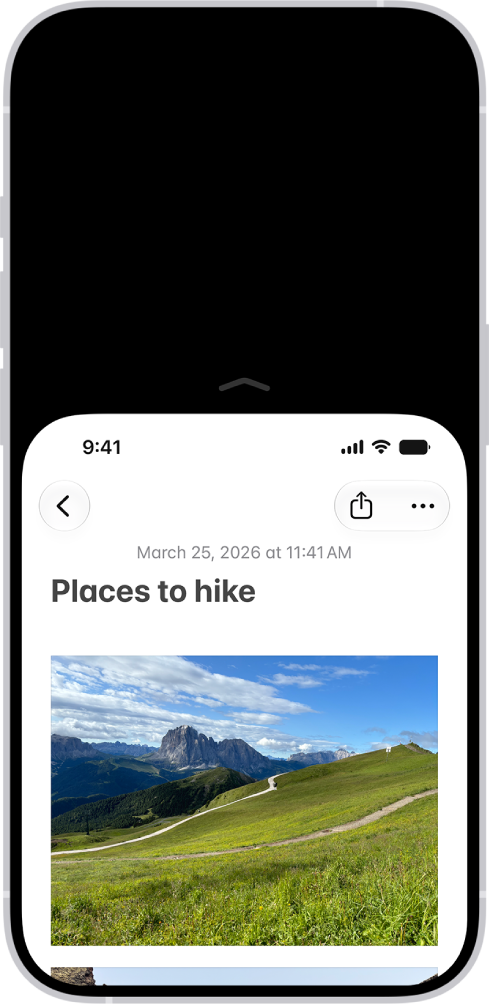
When you use iPhone with one hand in portrait orientation, you can use Reachability to lower the top half of the screen so it’s within easy reach of your thumb. It works on iPhone models with Face ID and with a Home button, and you turn it on in Accessibility settings.

The iPhone screen with Reachability activated. The top of the screen has moved down so it’s within easy reach of your thumb.

  1. Open Settings, tap Accessibility, tap Touch, and turn on Reachability.
  2. To lower the top half of the screen, do one the following:
    • On an iPhone with Face ID: Swipe down on the bottom edge of the screen.
    • On an iPhone with a Home button: Lightly double-tap the Home button.
    • While VoiceOver is on: Swipe up from the bottom of the screen with one finger, then, without lifting your finger, swipe down.
  3. To return to the full screen, tap the upper half of the screen.

There’s a set of accessibility settings for the side or Home button. You can choose the speed required to double-click or triple-click it, and whether Siri responds when you press and hold the button, and on an iPhone with Touch ID, you can even choose how it feels when you press it.

  1. Open Settings, tap Accessibility, and tap Side Button (on an iPhone with Face ID) or Home Button (on an iPhone with Touch ID).
  2. Set any of the following:
    • Click Speed: Choose the speed required to double-click or triple-click the button—Default, Slow, or Slowest.
    • Press and Hold to Speak: Choose whether Siri responds when you press and hold the button.
    • Rest Finger to Open: On an iPhone with Touch ID, you can unlock and open iPhone by resting your finger on Touch ID.
    • Home Button Haptic: On an iPhone with Touch ID, you can choose how it feels when you press it. Tap Home Button Haptic, tap an option, and then press the Home button to try it out. Tap Done when the option you like best is selected.
    • Side Button Confirmation: Choose AssistiveTouch or Switch Control to confirm payments with Face ID or anytime double-clicking the side button is required.

Instead of double-clicking the side button, you can also confirm payments with Face ID using AssistiveTouch or Switch Control on an iPhone with Face ID.

With Screen Time, you can allow or block content that’s labeled sensitive or explicit in the Music app, Apple TV app, Books app, and more. You can also allow or block built-in apps and features like AirDrop, Camera, and more.

It goes beyond apps. Screen Time can also control Siri and Apple Intelligence features, though the settings you see there may vary depending on your Siri version. All of these restrictions are in Content & Privacy Restrictions, inside Screen Time in the Settings app.

Note: You’ll need iOS 27, iPadOS 27, macOS 27, watchOS 27, or visionOS 27 or later on all your Apple devices for the latest Screen Time features. In a Family Sharing group, all devices have to be upgraded to iOS 27, iPadOS 27, macOS 27, watchOS 27, or visionOS 27 or later before you set these features up.

Set content restrictions in the Music app, Apple TV app, Books app, and more

  1. Open the Settings app on your iPhone.
  2. Tap Screen Time, tap Content & Privacy Restrictions, and allow or block any of the settings shown under Content Restrictions, like Books, Movies, TV Shows, and Music.

Block or allow built-in apps or features

  1. Open the Settings app on your iPhone.
  2. Tap Screen Time, tap Content & Privacy Restrictions and tap Other Features. Allow or block any of the settings shown, like AirDrop, Camera, and more.

Block or allow Siri and Apple Intelligence features

Note: The settings that appear here may vary depending on your Siri version. Siri AI is available in beta on iOS 27 or later on an Apple Intelligence-enabled iPhone 15 Pro, iPhone 15 Pro Max, or iPhone 16 model or later with Siri and device language set to a supported language. Available in English to start. Siri AI will not initially be available in the EU on iOS. Usage limits may apply.

Apple Intelligence on iOS 27 or later is available on an Apple Intelligence-enabled iPhone 15 Pro, iPhone 15 Pro Max, or iPhone 16 model or later. Apple Intelligence is not available in all languages or regions. Usage limits may apply.

  1. Open the Settings app on your iPhone.
  2. Tap Screen Time, tap Content & Privacy Restrictions, tap Siri, and do any of the following:
    • Block Siri: Tap Don’t Allow Siri.
    • Allow use of Siri without AI capabilities: Tap Siri (Classic Version).
    • Allow use of Siri with AI capabilities: Tap Siri AI (Beta).*
    • Allow or block specific capabilities: Select Allow or Block under any of the Siri AI capabilities, such as Image Creation, Sensitive Topics, or Explicit Language.

*Apple Intelligence is available with Siri and device language set to Chinese (Simplified), Chinese (Traditional), Danish, Dutch, English, French, German, Italian, Japanese, Korean, Norwegian, Portuguese, Spanish, Swedish, Turkish, or Vietnamese. Some features may not be available in all regions or languages. Some devices may not be available in all regions.

Siri AI is available in beta in iOS 27, iPadOS 27, macOS 27, watchOS 27, and visionOS 27 and requires an Apple Intelligence–enabled device set to a supported language. Available in English to start. Siri AI will not be initially available in the EU on iOS, iPadOS, and watchOS.

Certain Apple Intelligence features that rely on server-side models are subject to daily usage limits, including but not limited to Siri AI, Intelligent Photo Editing Tools, Image Playground, and AFM 3 Cloud models in Shortcuts. Daily limits may vary by feature, request complexity, system demand, system policies, and other factors. Expanded access to such features will be available for a fee in the future. Use of these features is subject to the Apple Intelligence Terms and Conditions.


You can use the Contacts app to create, find, share, and delete contacts.

Siri can even suggest new contacts based on what you do in Mail and Calendar. You can also search your contacts using Spotlight, and quickly reach a contact with a call, message, or email. And you can change the default phone number or email address for a contact.

Here’s how to add and use contact information on iPhone.

Siri: Siri can update information about a contact. Say something like, “Sarah Milos is my sister.”

Create a contact

  1. Open the Contacts app on your iPhone.
  2. Tap the Add button.
  3. Enter details for the contact such as name and phone number and tap the Done button.

Siri suggests new contacts based on your activity in other apps, such as Mail and Calendar. Siri also suggests adding contact information in other apps based on how you use Contacts. To turn off either feature, go to the Settings app , tap Apps, then tap Contacts. Tap Siri (or Apple Intelligence & Siri), then turn off Show Contact Suggestions or Learn from this App.

Find a contact

  1. Open the Contacts app on your iPhone.
  2. Tap the search field at the bottom of the contacts list and enter a name, address, phone number, or other contact information.

Search can also find your contacts.

Share a contact

  1. Open the Contacts app on your iPhone.
  2. Tap a contact and tap Share Contact. Then choose the fields you want to share.
  3. Tap the Done button then choose a sharing option, such as Messages or Mail.

Quickly reach a contact

  1. Open the Contacts app on your iPhone.
  2. Tap a contact.
  3. Tap a button below the contact’s name to do any of the following: start a message, make a phone call or a FaceTime call; or compose an email.

To change the default phone number or email address for a contact method, touch and hold the button for that method below the contact’s name, then tap a selection in the list.

Delete a contact

  1. Open the Contacts app on your iPhone.
  2. Go to the contact’s card and tap Edit.
  3. Scroll down, tap Delete Contact, and then tap Delete Contact again to confirm your edit.

All apps are required to ask your permission before tracking you or your iPhone across websites or apps owned by other companies for advertising or to share your information with data brokers. After you grant or deny permission to an app, you can change permission later.

You can also stop all apps from requesting permission, so they can’t even ask. The list in Tracking settings shows every app that has requested permission to track you.

Review or change an app’s permission to track you

  1. Open Settings, tap Privacy & Security, and then tap Tracking.

    The list shows the apps that requested permission to track you. You can turn permission on or off for any app on the list.

  2. To stop all apps from asking permission to track you, turn off Allow Apps to Request to Track (at the top of the screen).

For more information about app tracking, tap “Learn more” near the top of the screen.

Use CarPlay to play the podcasts that are on your iPhone. You can use your vehicle’s built-in controls to open Podcasts and select a podcast to play. And to control playback, you can use the controls on your vehicle’s steering wheel and the buttons on the Now Playing screen.

Note: If you’re viewing CarPlay Dashboard, tap the Home button. All of your CarPlay apps appear on its pages, including Podcasts.

The buttons on the Now Playing screen, CarPlay Dashboard, and the controls on your vehicle’s steering wheel can all control podcast playback, too.

Button Description
Play
Pause
Jump back 15 seconds
Jump forward 30 seconds
Choose a faster or slower playback speed
Tag: carplay

With the iCloud Shared Photo Library feature, you can set up or join a shared library to share photos and videos with up to five friends or family members. You and those close to you can collaborate on the photo collection and enjoy more complete memories, all in one place. You can belong to one shared library at a time.

When you join a shared library, the photos and videos that you contribute move from your personal library to the shared library, and all members can view, edit, and delete them. Shared library photos and videos appear in the Photos app alongside your personal content, and a filter lets you quickly switch between your personal and shared libraries.

Note: The minimum system requirements for iCloud Shared Photo Library are iOS 16.1, iPadOS 16.1, macOS 13, or later. On devices with earlier versions of the software, photos and videos added to a shared library aren’t available.

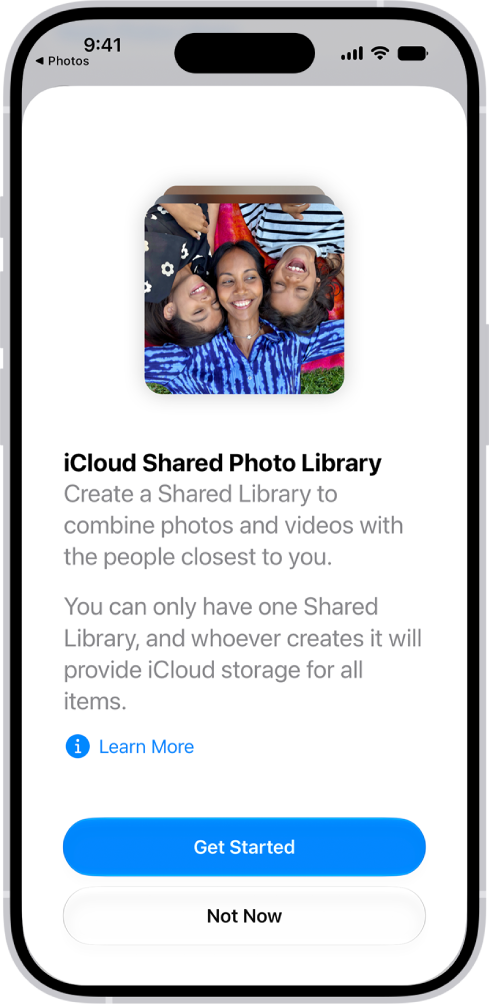
An iPhone showing the Get Started Screen for creating an iCloud Shared Photo Library.

Before you begin

Make sure iCloud Photos is turned on before you set up or join an iCloud Shared Photo Library.

  1. Start the Settings app on your iPhone.
  2. Tap your name, then tap iCloud.
  3. Tap Photos and then make sure Sync this iPhone is on.

Note: To set up a shared library, you don’t need Family Sharing turned on.

Set up an iCloud Shared Photo Library

Whoever sets up a shared library is its organizer.

  1. Start the Photos app on your iPhone.
  2. Tap Collections.
  3. Tap your account in the top-right corner.
  4. Tap Shared Library and then follow the onscreen instructions to add participants and move photos and videos into the shared library.

Note: Your personal library doesn’t show the photos and videos you add to the shared library.

Before you invite participants using Messages or a web link, you can preview and change the photos and videos you add to the shared library.

Join an iCloud Shared Photo Library

To join an iCloud Shared Photo Library, tap the invitation sent from the organizer, tap Get Started, then follow the onscreen instructions. During setup, you can add photos and videos to the shared library the same way as the organizer.

Once you’ve joined a shared library, you can add photos and videos to it in several ways and access the same content as the organizer and other participants.

Add participants to an iCloud Shared Photo Library

The organizer, the person who sets up an iCloud Shared Photo Library, can add new participants.

  1. Start the Photos app on your iPhone.
  2. Tap Collections.
  3. Tap your account in the top-right corner.
  4. Tap Manage, then tap Add Participants.

Note: Up to six participants, organizer included, can share a library, and you can only belong to one shared library at a time.

Delete or leave an iCloud Shared Photo Library

Organizers of an iCloud Shared Photo Library can delete it, while anyone who isn’t the organizer can leave the shared library.

  1. Start the Photos app on your iPhone.
  2. Tap Collections.
  3. Tap your account in the top-right corner.
  4. Tap Manage, then tap one of the following:
    • Delete Shared Library: When a shared library is deleted, participants who have been members of the shared library for more than 7 days can copy everything from the shared library into their own libraries. Participants who have been members for less than 7 days can copy only the content they contributed.
    • Leave Shared Library: When you leave a shared library, you can copy everything from the shared library into your own library, or just the content you contributed.

Everything added to a shared library counts toward the library organizer’s iCloud storage space.

Tags: iCloud, Photos

Widgets show you current information from your favorite apps at a glance. On iPhone, you can add a Mail widget and choose which mailbox it shows on your Home Screen, from recent unread emails to new emails from your VIPs or any other mailbox.

Add a Mail widget to your Home Screen

  1. Go to the Home Screen and then find the Home Screen page where you want to add the widget.
  2. Touch and hold the background until the apps begin to jiggle, tap the Edit button, and then tap Add Widget.
  3. Scroll or search to find Mail, tap it, and then swipe through the size and style options.
  4. When you see the size you want, tap Add Widget.
  5. While the apps are still jiggling, move the widget where you want it. Then tap the Done button.

Choose which mailbox the Mail widget shows

You can tap the mailbox shown in the widget, then choose a different mailbox so the messages in that mailbox are displayed in the widget. You can also change it from the widget’s options:

  1. Touch and hold the widget.
  2. Tap Edit Widget and then choose options.
  3. Tap Done.

You can save the last camera mode, filter, lighting, depth, and Live Photo settings you used, so they’re not reset the next time Camera opens. Preserve Settings lets you choose which settings to keep, like the last camera mode you used, such as Portrait or Pano.

  1. Open Settings, tap Camera, and then tap Preserve Settings.
  2. Turn on any of the following:
    • Camera Mode: Save the last camera mode you used, such as Portrait or Pano.
    • Photographic Style: Save the last used Photographic Style (on supported models).
    • Creative Controls: Save the last settings you used for a light setting.
    • Depth Control: Save the last depth control setting you used in Photo, Portrait, and Cinematic modes.
    • Macro Control: Preserve the Auto Macro setting rather than automatically using the Ultra Wide camera to capture macro photos and videos (on supported models).
    • Exposure Adjustment: Save the exposure control setting (on iPhone 11 and later).
    • Lens Aperture: Save the last aperture setting you used (on iPhone 18 Pro models).
    • Night Mode: Save the Night mode setting rather than reset to Auto (on supported models).
    • Portrait Zoom: Save the Portrait mode zoom rather than reset to the default lens (this setting is on by default on supported models).
    • Action Mode: Keep the Action Mode setting turned on rather than reset to off (on supported models).
    • ProRAW & Resolution Control: Save the Apple ProRAW setting (on supported models).
    • Apple ProRes: Save the Apple ProRes setting (on supported models).
    • Live Photo: Save the Live Photo setting. This setting is on by default.
Tag: camera

Before apps use the camera or microphone on your iPhone, they’re required to request your permission and explain why they’re asking. For example, a social networking app may ask to use your camera so that you can take and upload pictures to that app.

Apps are similarly required to request your permission to use various other hardware features, including Bluetooth® connectivity, motion and fitness sensors, and devices on your local network. You can review which apps have requested access to these hardware features, and you can change their access at your discretion.

Here’s how to control access to hardware features on iPhone.

Review or change access to the camera, microphone, and other hardware features

  1. Open Settings and then tap Privacy & Security.
  2. Tap a hardware feature, such as Camera, Bluetooth, Local Network, or Microphone.

    The list shows the apps that requested access. You can turn access on or off for any app on the list.

Note: Whenever an app uses the camera (including when the camera and microphone are used together), a green indicator appears. An orange indicator appears whenever an app uses the microphone without the camera. Also, a message appears at the top of Control Center to inform you when an app has recently used either.