Got a tip for us?

To keep tabs organized and make them easier to find again later, you can have Safari organize tabs into related topics, or create your own Tab Groups.

With Apple Intelligence, Safari can sort your tabs into suggested topics on its own, based on your browsing history. You can also reorder tabs, pin a tab at the top of a Tab Group, or move a tab to another Tab Group.

Here’s how to organize your tabs in Safari on iPhone.
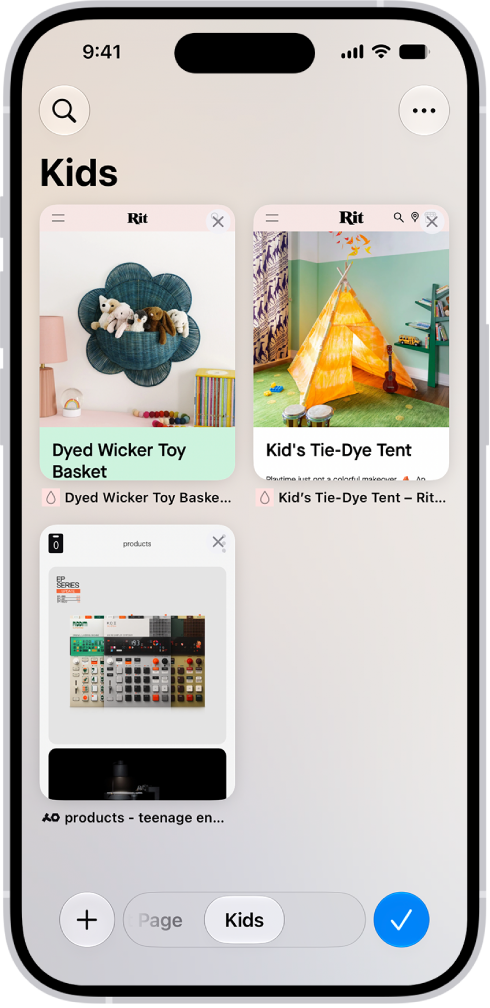
Previews of three open tabs in a Tab Group called Kids are visible on the screen.

Use Apple Intelligence to organize tabs into topics

Apple Intelligence can automatically organize your tabs into suggested topics based on your browsing history.

Note: Apple Intelligence on iOS 27 or later is available on an Apple Intelligence-enabled iPhone 15 Pro, iPhone 15 Pro Max, or iPhone 16 model or later. Apple Intelligence is not available in all languages or regions. Usage limits may apply.*

  1. Open the Safari app on your iPhone.
  2. To set whether Safari automatically organizes tabs, tap the Tabs button and tap the Organize button. Tap Automatically Create Topics.
  3. On the Tab screen, tap the New Tab button to open new tabs as you browse multiple websites. When you have two or more tabs that can be organized together by topic (for example, news), a suggested topic appears on the Tab screen with related tabs grouped together into thumbnails.
  4. Do any of the following:
    • Preview tabs in a topic: Tap a topic to see thumbnails of each tab. Tap a thumbnail to open it.
    • Open or close all tabs in a topic: Tap a topic to view all tabs within the topic. Tap the Back button to close the topic.
    • See more options: Tap a topic to view all its tabs and tap the More button. Do any of the following:
      • Copy links: Tap Copy Links.
      • Move tabs to a Tab Group: Tap Move Tabs, then select a Tab Group to move them to.
      • Close all tabs in this topic: Tap Close Tabs.
      • Provide feedback on the suggested topic: Tap Looks Good or Something Isn’t Right.

To turn this feature off, tap the Organize button on the Tab screen, then tap Never.

Reorder tabs

  1. Open the Safari app on your iPhone.
  2. Tap the Tabs button.
  3. Tap the More button, tap Arrange Tabs By, and choose an option.

Or touch and hold the tab, then drag it to a new position.

Create a new Tab Group

  1. Open the Safari app on your iPhone.
  2. Tap the Tabs button.
  3. Touch and hold a tab, tap Move Tab, and then tap New Tab Group.
  4. Enter a name, then tap the Done button.

Quick tip: Switching between your Tab Groups is easy: Tap the tab groups in the bottom center of the screen.

Rename a Tab Group

  1. Open the Safari app on your iPhone.
  2. Tap the Tabs button.
  3. Tap the More button and then tap Rename Tab Group.
  4. Enter a name, then tap the Done button.

Pin a tab at the top of a Tab Group

Your Tab Groups can have pinned tabs in each group, and a pinned tab stays at the top of the Tab Group.

  1. Open the Safari app on your iPhone.
  2. Tap the Tabs button.
  3. Touch and hold the tab you want to pin, then tap Pin Tab.

Move a tab to another Tab Group

  1. Open the Safari app on your iPhone.
  2. Tap the Tabs button.
  3. Touch and hold a tab and then tap Move Tab.
  4. Choose one of the Tab Groups you created previously, or create a new group.

*Apple Intelligence is available with Siri and device language set to Chinese (Simplified), Chinese (Traditional), Danish, Dutch, English, French, German, Italian, Japanese, Korean, Norwegian, Portuguese, Spanish, Swedish, Turkish, or Vietnamese. Some features may not be available in all regions or languages. Some devices may not be available in all regions. Siri AI is available in beta in iOS 27, iPadOS 27, macOS 27, watchOS 27, and visionOS 27 and requires an Apple Intelligence–enabled device set to a supported language. Available in English to start. Siri AI will not be initially available in the EU on iOS, iPadOS, and watchOS. Certain Apple Intelligence features that rely on server-side models are subject to daily usage limits, including but not limited to Siri AI, Intelligent Photo Editing Tools, Image Playground, and AFM 3 Cloud models in Shortcuts. Daily limits may vary by feature, request complexity, system demand, system policies, and other factors. Expanded access to such features will be available for a fee in the future. Use of these features is subject to the Apple Intelligence Terms and Conditions.
Tag: Safari

In the Reminders app, you can easily filter items across all your lists using Smart Lists. You can create custom Smart Lists to automatically include items filtered by tags, dates, times, locations, flags, and priority, and you can choose more than one tag and combine them with other filters.

There are default Smart Lists, too, and you can convert a list to a Smart List.

Here’s how to use Smart Lists in Reminders on iPhone.

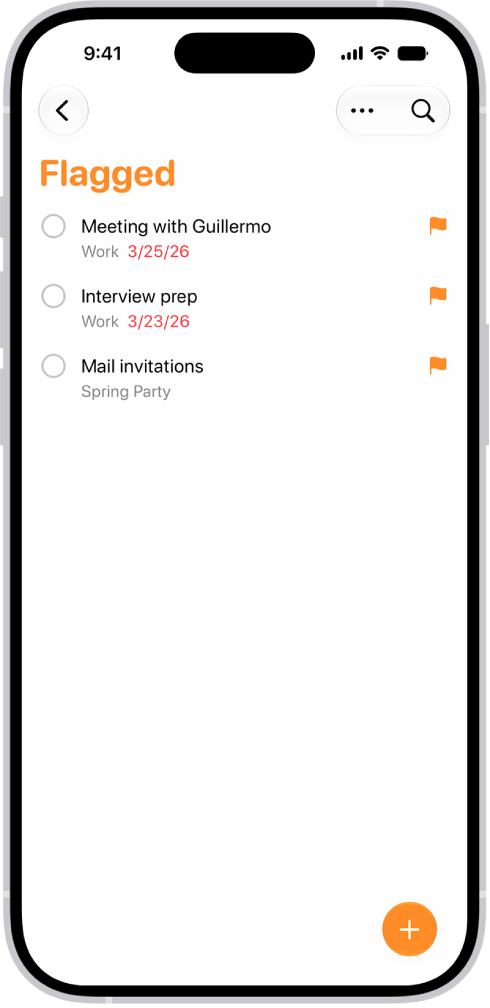
The Flagged Smart List in the Reminders app, which automatically collects all reminders marked with a flag into a single, consolidated list.

Note: Updated reminders in iCloud give you all the Reminders features described in this guide. Some aren’t available when using other accounts.

Automatically organize items using the default Smart Lists

  1. Start the Reminders app on your iPhone.
  2. Tap the More button and then tap Edit Lists.
  3. Turn on or off the following Smart Lists:
    • Today: Items scheduled for today and overdue items
    • Scheduled: Items scheduled by date or time
    • All: All items across all your lists
    • Flagged: Items with a flag
    • Completed: Items with a checkmark
    • Assigned to Me: Items assigned to you in shared lists
    • Groceries: Grocery items
    • Siri Suggestions: Suggested items detected in Mail

Make a custom Smart List

  1. Start the Reminders app on your iPhone.
  2. Tap the Add List button.
  3. Enter a name for the list, tap List Type, and then choose Smart List.
  4. Tap Edit Filters, choose one or more filters, and choose to include items matching any or all of the selected filters. You can filter by tags, dates, locations, and more. Tap the Done button.
  5. Choose a color and symbol for the list (optional).
  6. Tap the Done button.

Convert a list to a Smart List

Converting a list moves its items to the top level of the default list and tags them with the name of the Smart List.

Note: You can’t convert a shared list.

  1. Start the Reminders app on your iPhone.
  2. View the list you want to convert.
  3. Tap the More button, tap Show List Info and scroll to the bottom. Tap Convert to Smart List.

You can design your own personalized Memoji: choose skin tone, glasses, body, and more. You can create multiple Memoji to use in different contexts, and each one automatically generates a range of poses and expressions.

On supported models, you can send animated Memoji messages that record your voice and mirror your facial expressions. And if you want a new Memoji that’s only slightly different from one you already have, you can duplicate it and edit the copy.

Create Memoji

  1. Start the Messages app on your iPhone.
  2. In a conversation, tap the Add button.
  3. Tap Memoji. (You may have to swipe up.)
  4. Tap the Add Memoji button.

    Tip: To make a new Memoji whose outfit or appearance differs slightly from one you already have, tap to select it, tap the Edit button, then tap Duplicate.

  5. Tap each feature (Skin, Hairstyle, and others to the right) and choose the options you want.
  6. Tap the Done button to save the Memoji to your collection.

Send animated Memoji or Memoji recordings

If you have a supported model, you can send Memoji messages that mirror your facial expressions and record your voice.

  1. Start the Messages app on your iPhone.
  2. In a conversation, tap the Add button.
  3. Tap Memoji, then swipe and tap to choose a Memoji.
  4. Tap the Record button to record your facial expressions and voice and tap the Stop button to stop.

    Tap Replay to review your message.

  5. Tap the Send Recording button to send your message or the Discard Recording button to cancel.

Memoji can also capture your movements, facial expressions, and voice when you use video effects in a video call.

You can change your voicemail greeting, password, and alert sounds.

How you change your voicemail greeting depends on which Phone app layout you’re using, Unified or Classic, and recording a custom one is not supported by all carriers or in all countries and regions. You can also change your voicemail password, and change your voicemail alert sound to a new alert sound from the list, or one you purchase from the Tone Store.

Change your voicemail greeting

  1. Open the Phone app on your iPhone.
  2. Do one of the following, depending on which Phone app layout you’re using:
    • Unified layout: Tap Calls, tap Edit, and tap Edit Voicemail Greeting.
    • Classic layout: Tap Voicemail, then tap Greeting.
  3. Tap Custom and tap Record (not supported by all carriers or in all countries and regions).

Change your voicemail password

  1. Open the Settings app on your iPhone.
  2. Tap Apps, then tap Phone.
  3. Tap Change Voicemail Password, then enter the new password.

Change your voicemail alert sound

  1. Open the Settings app on your iPhone.
  2. Tap Sounds & Haptics and then tap New Voicemail.
  3. Tap a new alert sound from the list, or tap Tone Store to purchase one.
Tag: Mail

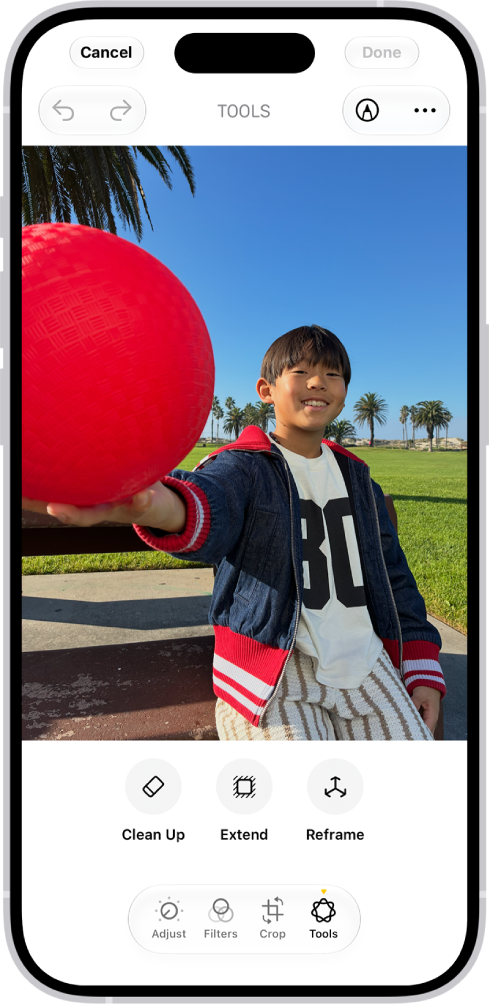
With Apple Intelligence, you can remove distracting objects, extend a photo beyond its original frame, and adjust its perspective.

The Clean Up tool removes distracting objects from a photo, and it may even highlight some items for you to remove. You can also extend the background or reframe the perspective, though Clean Up isn’t available in all languages or regions.

Here’s how to clean up, extend, and reframe photos on iPhone.

Note: Apple Intelligence on iOS 27 or later is available on an Apple Intelligence-enabled iPhone 15 Pro, iPhone 15 Pro Max, or iPhone 16 model or later. Apple Intelligence is not available in all languages or regions. Usage limits may apply.*

The buttons for Clean Up, Extend, and Reframe are displayed below a photo.

Clean up distractions

To remove distracting objects from a photo, use the Clean Up tool.

Note: Clean Up is not available in all languages or regions.

  1. Start the Photos app on your iPhone.
  2. Open a photo and then tap the Edit button.
  3. Tap Tools, then tap Clean Up.
  4. Tap, brush, or circle what you want to remove.
    • Some items may be highlighted automatically so you can quickly tap to remove them.
    • You can use two fingers to pinch, zoom, or pan the image.
    • Tap the Undo button if you want to restore something you removed
  5. Tap Clean Up (if you’re using High Quality processing).
  6. Tap the Done button. Then tap Done to close the photo.

To undo Clean Up changes after saving, follow steps 1 through 3 above, then tap Reset.

You can choose the processing type Photos uses for Clean Up—Auto, Fast, or High Quality. Tap Auto during the Clean Up process, then choose an option.

Extend the background

To expand the edges of the original photo frame, use the Extend tool.

  1. Start the Photos app on your iPhone.
  2. Open a photo and then tap the Edit button.
  3. Tap Tools, then tap Extend.
  4. Pinch or drag the photo to extend the background; drag the edge of the frame to crop.
  5. Tap Extend.
  6. Tap the Done button. Then tap Done to close the photo.

After you save, you can undo the changes you made with the Extend tool. Follow steps 1 through 3 above, then tap Reset.

Reframe the perspective

After you take a photo, the Reframe tool changes its point of capture.

  1. Start the Photos app on your iPhone.
  2. Open a photo and then tap the Edit button.
  3. Tap Tools, then tap Reframe.
  4. Touch and drag the photo to adjust the perspective or use two fingers to pan, zoom, and rotate.
  5. Tap Reframe.

    Tap the photo to compare the reframed version to the original.

  6. Tap the Done button. Then tap Done to close the photo.

After you save, you can undo the changes you made with the Reframe tool. Follow steps 1 through 3 above, then tap Reset.

*Apple Intelligence is available with Siri and device language set to Chinese (Simplified), Chinese (Traditional), Danish, Dutch, English, French, German, Italian, Japanese, Korean, Norwegian, Portuguese, Spanish, Swedish, Turkish, or Vietnamese. Some features may not be available in all regions or languages. Some devices may not be available in all regions. Siri AI is available in beta in iOS 27, iPadOS 27, macOS 27, watchOS 27, and visionOS 27 and requires an Apple Intelligence–enabled device set to a supported language. Available in English to start. Siri AI will not be initially available in the EU on iOS, iPadOS, and watchOS. Certain Apple Intelligence features that rely on server-side models are subject to daily usage limits, including but not limited to Siri AI, Intelligent Photo Editing Tools, Image Playground, and AFM 3 Cloud models in Shortcuts. Daily limits may vary by feature, request complexity, system demand, system policies, and other factors. Expanded access to such features will be available for a fee in the future. Use of these features is subject to the Apple Intelligence Terms and Conditions.

In the Photos app, you can browse your photos, view Live Photos, and share your favorite shots.

You can browse memories, Featured Photos, and albums you’ve synced to your Apple Watch, and even see an entire photo album at once.

Here’s how to view photos and Memories on Apple Watch.

The Photos app on Apple Watch showing an album called Favorites, with several photos displayed in a grid.

Browse photos in the Photos app on Apple Watch

Go to the Photos app on your Apple Watch and use these actions to browse your photos.

  1. Tap a memory, Featured Photos, or an album you’ve synced to your Apple Watch.
  2. Tap a photo to view it.
  3. Swipe left or right to see other photos.
    • Turn the Digital Crown to zoom, or drag to pan a photo.
    • Double-tap to fill the screen or see the entire image.
    • Zoom all the way out to see the entire photo album.

While viewing a photo, turn the Digital Crown to zoom, drag to pan, or double-tap to switch between viewing all of the photo and filling the screen. Swipe left or right to see the next photo. A Share button is on the bottom right.

View a Live Photo on Apple Watch

Look for the Live Photo symbol in the bottom-left corner of a photo, then touch and hold the photo.

Share a photo

While viewing a photo in the Photos app on your Apple Watch, tap the Action button, then choose a sharing option.

You can choose a different photo album; read our article, Choose a photo album and manage storage.

See also

Tag: Photos

In the Podcasts app, you can view and search episode transcripts. You’ll find them in an episode’s information or on the Now Playing screen. When you view a transcript while watching a video podcast, the transcript view replaces the video, and audio continues to play while you read. You can also play or share from any point, copy text, or jump to that point in the podcast. Transcript availability may vary by language, and by country or region.

Note: Transcript availability may vary by language, and by country or region.

View transcripts

  1. Open the Podcasts app on your iPhone.
  2. Do any of the following:
    • While viewing episode information: Scroll down to the Transcripts section. You can also tap the More button and tap View Transcript.
    • From the Now Playing screen: Tap the View Transcript button below the volume slider. You can also tap the More button and tap View Transcript.

To hide the transcript from the Now Playing screen, swipe down, then tap the Hide Transcript button below the volume slider. When you view a transcript while watching a video podcast, the video is replaced by the transcript view. Audio continues to play while you read the transcript. To watch with subtitles, tap the video to open it in full screen, tap the More button, then tap Subtitles.

Interact with transcripts

  1. Open the Podcasts app on your iPhone.
  2. While viewing a transcript, do any of the following:
    • From the Now Playing screen: Touch and hold text. Choose to play from that point, share from that point, or select text. You can also tap a paragraph to jump to that point in the podcast.
    • From episode details: Select text and choose to play from that point, copy text, or share from that point. Tap the Right arrow for additional options such as Look Up or Translate.

Search transcripts

  1. Open the Podcasts app on your iPhone.
  2. While viewing a transcript, do one of the following:
    • From the Now Playing screen: Swipe up on the transcript and then tap Search.
    • From episode details: Tap the Search Transcript button.
  3. Optionally, tap the Search Options button in the search field to specify whether the whole word or the capitalization needs to match in the search results.

You can express yourself in the messages you send by formatting and animating text, or by adding effects to message bubbles or the entire screen. You can also search #images to find trending GIFs to send, and save GIFs others send to you (not available in all countries or regions).

Bold, italics, and underlining can format your text, and playful effects like explode or shake can go on a single word, emoji, sentence, or your entire message. Bubble and screen effects play when your recipient gets your message.

Note: You and your recipients must use iMessage to send and receive messages with formatting or effects. To see text formatting and text effects, recipients also need a device with iOS 18, iPadOS 18, macOS 15, watchOS 11, or visionOS 2 or later. If they don’t have one, your messages appear in plain text.

Format and animate words

In texts you send using iMessage, you can format the text in your messages with bold, italics, and underlining. You can also add playful effects like explode or shake to any sentence, word, or letter, and even to emoji.

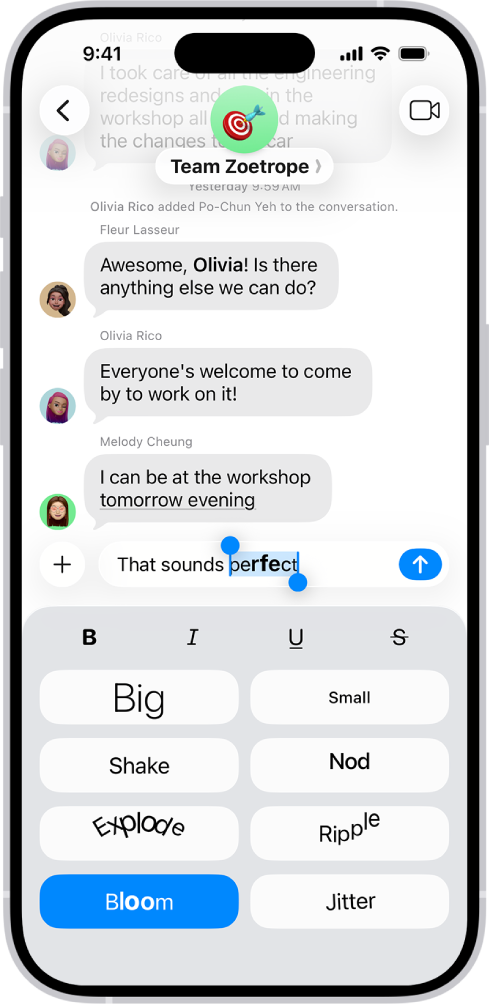
A Messages conversation with a new message selected in the text field, and formatting and effects options shown below it. The selected text appears with a preview of the effect.

  1. Open the Messages app on your iPhone.
  2. In a conversation, enter a message and then select the text you want to format or animate.
  3. Tap the Text Format button above the keyboard and then select your preferred formatting (bold, italic, underline, or strikethrough) or text effect (big, small, shake, nod, explode, ripple, bloom, or jitter).
  4. Tap the Send button.

You can format or apply effects to a single word, emoji, single word, sentence, or your entire message. Tap the Text Format button before entering the text you want to format or apply effects to.

Add effects to the message bubble or the full screen

Add special effects that play when your recipient gets your message, such as these:

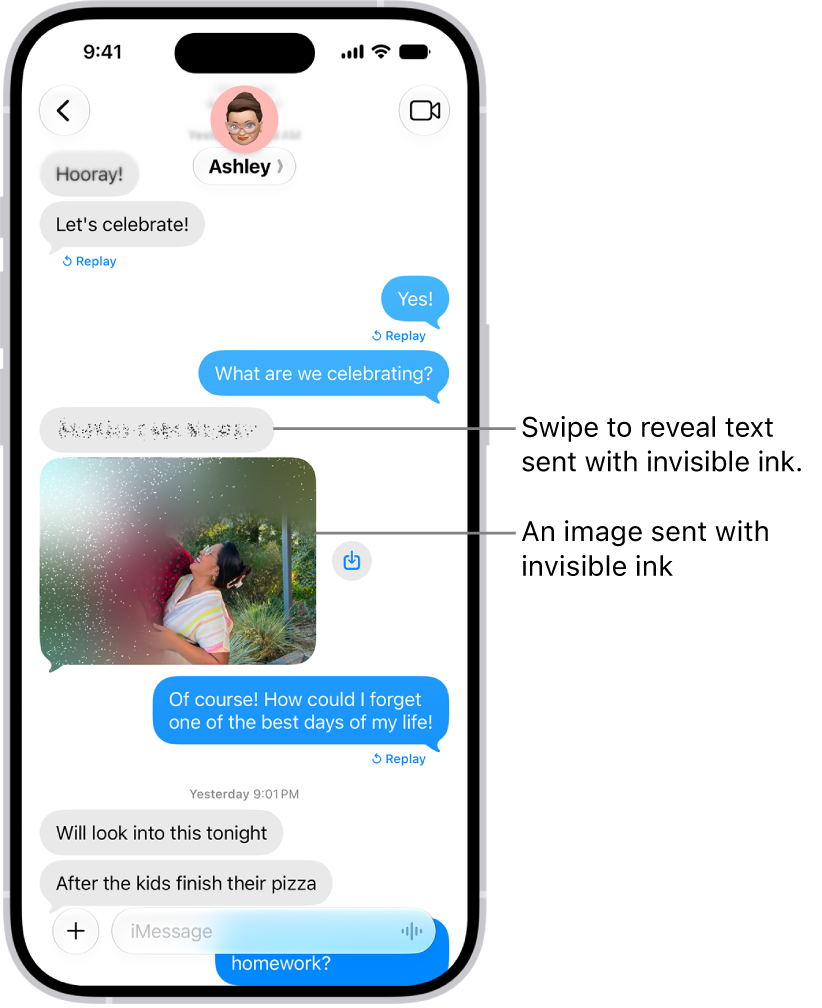
  • Bubble effects that change how the message appears—Slam or Loud make it pop out, Gentle makes it arrive softly, and Invisible Ink blurs the bubble until your recipient swipes to reveal it
  • Full-screen animations like fireworks, balloons, confetti, lively lasers, a moving spotlight, or the echo effect, which fills the conversation with copies of your message bubble

A conversation in Messages including a text message and a photo sent with the Invisible Ink effect.

  1. Open the Messages app on your iPhone.
  2. In a conversation, enter a message or insert an image or link.
  3. Touch and hold the Send button and then do one of the following:
    • Tap a gray dot to preview a bubble effect.
    • Tap Screen, then swipe left to preview different screen effects.
  4. Tap the Send button to send the message with the effect or the Close button to cancel the effect and return to your message.

Messages automatically uses the following screen effects for specific text strings:

  • Balloons for “Happy birthday”
  • Confetti for “Congratulations”
  • Fireworks for “Happy New Year”

Add an animated GIF

  1. Open the Messages app on your iPhone.
  2. In a conversation, tap the Add button and then tap #images. (You may have to swipe up.)
  3. To search for a specific GIF, tap “Find images,” enter a keyword (like “birthday”). Then tap a suggestion or tap the Search key on the keyboard.
  4. Tap a GIF to add it to your message. Then tap the Send button.

To save a GIF that you receive in a message to the Photos app so you can use it again later, touch and hold the GIF, then tap Save.

Note: Only the Messages app on Apple devices animates GIFs from #images.

The Shortcuts app lets you automate tasks you do often with just a tap or by asking Siri. You can create shortcuts to get directions to the next event in your Calendar, move text from one app to another, and more.

You don’t have to start from scratch, either. You can choose ready-made shortcuts from the Gallery, or build your own using different apps to run multiple steps in a task.

You can attach photos, videos, and documents to an email message. You can also scan a paper document and send it as a PDF attachment, or draw directly in a message and send the drawing as an attachment.

Depending on the file size, the attachment might appear inline with the text in the message or as the Attach File button at the end of the message. And if a file is too big for your email account, Mail can send it using Mail Drop instead.

Here’s how to add email attachments in Mail on iPhone.

Attach a photo, video, or document to an email

When you attach documents, videos, or photos to your email messages, recipients can easily download and save them.

  1. Start the Mail app on your iPhone.
  2. Tap in the message where you want to insert the attachment. Then tap the Insert Attachment Actions button above the keyboard.

    Do one of the following: Attach a document: Tap Attach File, then locate the document in Files.

    In Files, tap Recent , Shared , or Browse , then tap a file, location, or folder to open it.

    Attach a saved photo or video: Tap Photo Library, then choose a photo or video.

  3. Tap the Done button to return to the message.

    Take a new photo or video and attach it to the message: Tap Take Photo or Video, then take a new photo or video.

  4. Tap Use Photo or Use Video to insert it into your message, or tap Retake if you want to reshoot it.

    Note: If your file exceeds the maximum size allowed by your email account, follow the onscreen instructions to send it using Mail Drop.

Scan and attach a document to an email

Scanning a paper document lets you send it as a PDF.

  1. Start the Mail app on your iPhone.
  2. Tap in the message where you want to insert the scanned document and tap the Insert Attachment Actions button above the keyboard.
  3. Tap Scan Document.
  4. Position iPhone so that the document page appears on the screen—iPhone automatically captures the page.
  5. To capture the page manually, tap the Take Picture button or press a volume button.
  6. To turn the flash on or off, tap the Show Flash Settings button.
  7. Tap Retake or Keep Scan, scan additional pages and then tap Save when you’re done.
  8. To make changes to the saved scan, tap it. Do any of the following: Crop the image: Tap the Crop button.
    • Apply a filter: Tap the Show Filters button.
    • Rotate the image: Tap the Rotate button.
    • Delete the scan: Tap the Delete Scan button.

Create and attach a drawing to your email

For ideas that are hard to put into words, you can draw right in an email message. The drawing is added as an attachment that recipients can view and download.

  1. Start the Mail app on your iPhone.
  2. Tap in the message where you want to insert a drawing. Then tap the Insert Drawing button above the keyboard.
  3. Choose a drawing tool and color. Write or draw with your finger.

    When you’re finished, tap the Done button, then tap Insert Drawing.

  4. To resume work on a drawing, tap the drawing in the message and tap the Disclosure arrow in the menu that appears. Then tap Markup.
Tag: Mail