Got a tip for us?

iPad

The iPad is a tablet computer from Apple that runs the iOS mobile operating system. Similar in functionality to the iPhone, the iPads purpose is often quite different, sometimes even serving as a general desktop computer replacement.

Review connection security details to determine whether a website is encrypted. Encrypted websites mask the data you exchange with them, so that only you and they can see it. It’s important to use them to prevent anyone from “eavesdropping” on you.

You’ll find a website’s connection security details in the Safari app on your iPad, with its other privacy and security information.

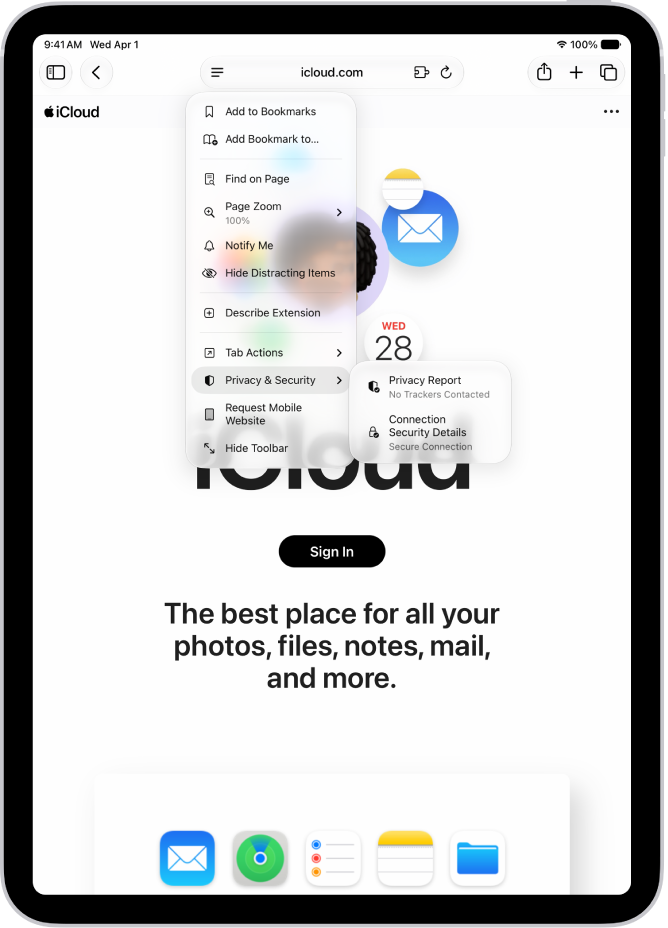
The Page Menu is open in Safari, and the Connection Security Details control is midway down the page.

  1. Go to the Safari app on your iPad.
  2. Go to the website and tap the Page Menu button on the left side of the search field. Then tap Privacy & Security.
  3. Tap Connection Security Details.

See also

Tag: Safari

When you find something special in the App Store, you can share a link to it or send it as a gift. From the app’s details in the App Store app on your iPad, you can choose a sharing option, or choose Gift App to give it to someone.

Note: Not all apps are available to send as gifts.

  1. Open the App Store app on your iPad.
  2. Tap the app you want to share or give to see its details.
  3. Tap the Share button and choose a sharing option or tap Gift App.

You can listen to Apple News Today, an audio briefing of the day’s top stories hosted by Apple News editors. With an Apple News+ subscription, you can also listen to audio versions of select Apple News+ stories in the News app and in the Podcasts app.

You can get notifications for Apple News Today show notes, too, and if you’re not a subscriber, a preview of an Apple News+ audio story plays at the end.

Here’s how to listen to Apple News Today on iPad.

Note: Apple News and Apple News+ aren’t available in all countries or regions.

Play Apple News Today

  1. Start the News app on your iPad.
  2. Tap Audio and then tap Apple News Today below Apple News Podcasts.
  3. Tap an episode, then tap the Play button to start listening.

    To learn about the audio controls, see Play audio stories.

When the briefing concludes, you hear a preview of an Apple News+ audio story if you aren’t an Apple News+ subscriber.

Get Apple News Today show notes notifications

  1. Start the News app on your iPad.
  2. Swipe down to the bottom of the sidebar and then tap Notifications & Email below Manage.
  3. Turn on notifications for Apple News Today.

See also

Tag: News

You can use SharePlay while playing music on a HomePod, Apple TV 4K, or other third-party Bluetooth® speaker, and everyone can control the music with their iPad.

The host needs iPadOS 18 or later and an Apple Music subscription, while participants just need iPadOS 18 or later. Everyone needs an internet connection and Bluetooth turned on, and anyone joining can control what plays.

Here’s how to play music together using SharePlay on iPad.

Before you begin

  • The host must have an iPad with iPadOS 18 or later and be an Apple Music subscriber.
  • Participants must have an iPad with iPadOS 18 or later, but don’t need to have an Apple Music subscription.
  • Everyone must have an internet connection and Bluetooth turned on.
  • Everyone must allow their contacts to discover them when playing music to a speaker—go to Settings > Apps > Music, then turn on Discoverable by Nearby Contacts if it isn’t on already.

Start SharePlay from Music on your iPad

Using SharePlay to play music together? As the host, you’ll start on your iPad.

  1. Open the Music app on your iPad.
  2. While a song is playing, tap the MiniPlayer to open the Now Playing screen.
  3. Tap the Playback Destination button and select a playback destination.

    The music starts playing to the device you selected. See Stream video and audio with AirPlay.

  4. Tap the MiniPlayer to open the Now Playing screen. Tap the SharePlay button.

    A QR code appears; tap the QR code to enlarge it.

  5. To begin controlling the music, participants can scan the QR code on your iPad.

Join SharePlay with the iPad camera

  1. Go to the Camera app on your iPad.
  2. Point the camera at the QR code on an iPad that’s already joined SharePlay.

    A button appears below the picture of the QR code.

  3. Tap the button, then tap Connect.

    The host receives a notification and must tap the Checkmark button on their iPad to allow you to join.

Quick tip: After you approve someone to join SharePlay, they’re automatically approved the next time they join, too.

Leave SharePlay

Tap the SharePlay button at the bottom of the Now Playing screen, then tap Leave.

See also

Tag: Music

On iPad, you can check how much storage space is available and increase the available space by removing items you no longer need. Photos and videos, messages, downloaded videos, and apps are common sources of storage use, and iPad can automatically remove unused apps while keeping your data.

Check storage on your iPad

  1. Start the Settings app on your iPad.
  2. Tap General and tap iPad Storage.

The top of the screen shows the available storage.

Remove items to increase storage

Common sources of storage use on iPad are listed below. To increase available storage, do any of the following:

  • Photos and videos: Back up your photos and videos to iCloud, then remove them from your device. See Back up and sync your photos and videos with iCloud.
  • Messages: Delete conversations and attachments you no longer need. See Delete messages and attachments in Messages.
  • Downloaded videos: Review videos you’ve downloaded for offline viewing in the TV app and other streaming apps, and remove ones you’ve already watched.
  • iCloud Drive Documents: Find and delete files you no longer need in the Files app. See Delete a file or folder.
  • App files: Some apps—such as Pages, Numbers, and Keynote—download files for offline use. Open each app and remove files you no longer need.
  • Apps: Delete apps you no longer use. Note that some iPad apps are larger than their iPhone equivalents. See Remove or delete apps.

Offload unused apps automatically

When storage is low, iPad can automatically remove unused apps while keeping your data. The app icon stays on your Home Screen with a cloud symbol—tap it to reinstall the app.

  1. Start the Settings app on your iPad.
  2. Tap Apps, tap App Store, and turn on Offload Unused Apps.

Keep selected files

You can keep downloaded files from being removed if you always want to access them on your iPad. See our guide, Keep selected files downloaded.

See also

If your iPad is connected to an iPad keyboard, you can use keyboard shortcuts to quickly perform actions in the Reminders app. You can learn keyboard shortcuts right on your iPad. It’s one of the ways you can use shortcuts on an Apple external keyboard with iPad.

Examples of keyboard shortcuts

  • Create a new list: Press Shift-Command-N.
  • Add a new reminder: Press Command-N.
  • Show completed reminders: Press Shift-Command-H.
  • Show all reminders assigned to you: Press Command-5.

Learn keyboard shortcuts

Press and hold the Globe key or Command (⌘) key until the shortcuts appear.

See also

You can rate and review a show, read reviews from other listeners, and delete a review you wrote if you later change your mind.

You can rate a show from 1 to 5 stars, write a review to add your thoughts, and edit your review later. You can also follow your favorite podcasts, and subscribe to a show or channel in Podcasts on iPad.

Here’s how to rate or review podcasts on iPad.

Rate or review a show

  1. Open the Podcasts app on your iPad.
  2. Search or browse to find a show, or tap Shows in the sidebar.
  3. Tap the show you want to rate or review and then scroll down to Ratings & Reviews.
  4. Do any of the following:
    • Rate a show: Tap a star to rate the show from 1 to 5.
    • Review a show: Tap Write a Review. Tap a star to rate the show and enter your review. Tap the Send button.
    • Edit a review: Tap Write a Review, make any changes. Then tap the Send button.

Delete a rating or review

  1. Open the Podcasts app on your iPad.
  2. Choose Account > Account Settings in the menu bar.
  3. Tap your name (you may need to sign in), then tap Ratings and Reviews.
  4. Tap Ratings and Reviews, then tap Edit.
  5. Tap the Remove button next to the rating or review you want to remove.
  6. Tap Done.

See also

Background Security Improvements provides additional protection to your iPad in between software updates. You just turn on Automatic Install for Background Security Improvements, and these security improvements install on your iPad on their own. You can also learn more about Background Security Improvements.

Important: In rare instances of compatibility issues, these security improvements may be temporarily removed and then installed in a future software update.

Turn on Automatic Install for Background Security Improvements

Go to Settings > Privacy & Security > Background Security Improvements, then turn on Automatically Install.

Learn more about Background Security Improvements

Go to Settings > Privacy & Security > Background Security Improvements, then tap Learn More.

See also

You can print a grocery list, checklist, to-do items, project tasks, and more. You just go to the Reminders app on your iPad, view the list you want to print, and print it. That works for grocery lists, checklists, and to-do items alike.

  1. Go to the Reminders app on your iPad.
  2. View the list you want to print.
  3. Tap the More button and tap Print.

See also