Tips and tricks for all things Apple! Whether you want to learn tips for a Mac, iPhone, iPad, Apple Watch, or much more, you will find many tricks, tips, tutorials, and excellent walkthroughs for Apple devices and software here.
Mac laptops are popular with college kids for various reasons. Apart from being trendy and esthetically pleasing, they are easy to organize routine for a student whose life revolves around essay and assignments. These tips work well for anyone using this brand, but we have tailored them especially to MacBook for college students since most reach out with questions.
First, how to get through college on a Mac
Here are a few Mac tips and tricks to make your experience even better.
Check out the Night Shift
If you are working nights while advancing your education, more power to you, but this is not about the graveyard shift. When burning the midnight oil, you want to protect your eyes from your laptop’s glare by activating Night Shift or Dark Mode that then introduces a warmer light ideal for studying at night.
One moment it is 4 PM and the next, you’re late for dinner. Dynamic Desktop changes this by switching gears depending on the time of day. When you make the right changes, the wallpaper will clue you in on time changes based on how the sun goes down. No more missing dinner because you lost track of time while online.
Desktop Stacks
It’s pretty easy to identify a MacBook for students since the desktop is often littered with documents. Well, the developers noted this and probably thought, “Just do your assignments and we’ll provide professional help with organization.” Desktop Stacks enable smart sub-folders to save your documents depending on a format, such as PDF, doc, and so on. Just when you thought saving documents in your Mac couldn’t get any easier, they went and did that!
Mac apps for Students to Get You Through College
Mac is known for its trendy apps, but not all are tailored to a student’s needs. Well, someone must have heard the constant cry of college kids since we now have some cool apps.
Manuscript
Even with all these helpful apps, you will still be required to do your assignments and hand them in time. One of the apps you may need to check out is Manuscript for editing and perfecting footnotes. Its simplicity makes it possible for even the busiest student to go through their assignment in just a few minutes to ensure they are sending in the best copy.
MacFly Pro
You have probably let too many files to pile on your laptop with the hope of cleaning up later, only to slow it down after you forgot. Sorting through documents manually is tiring, which is why MacFly Pro is rated as highly as it is by students. It gets rid of duplicate files and other useless fill-ups that you should have gotten rid of yesterday.
Paste
If you’ve ever copied information to use later, then forgot, you will appreciate the assistance from Paste. It saves up all the copied information so that you can go through it later to pick up the useful stuff. This comes in handy when researching for an academic paper and citations.
Evernote
Almost every student has interacted with this cloud-based app for taking notes, but that doesn’t dim its light. These tips for engineering students and any other person who needs to scribble as their day progresses are quite useful. Evernote eliminates the need for typing everything on sticky notes on your laptop, and even better is the fact that it syncs the notes you make on your laptop with your phone.
Explore your Mac for Full Benefit
We could not exhaust all the cool things you could achieve with your Mac. The first step is taking the time to know your laptop better by using the above apps more frequently and checking its settings. Developers are always updating apps to make them even more appealing to their targeted audience
Apple highlighted a handful iPhone 12 tips and tricks, but there are so many more underneath the hood. We’ve dug through the Device to find those iPhone 12 tips and tricks that you may (or may not) stumble upon as you start to use your new device. These iPhone 12 tips and tricks will make using your phone that much easier. Continue reading to discover 5 Best iPhone 12 tips and tricks You Wouldn’t Have Known About.
Best iPhone 12 tips and tricks
Enhance Your Voice Recordings
Do you use the voice recorder to record notes, lectures, or other stuff? Well, a new feature in iPhone 12 will make these recordings way much clearer by reducing background noise.
To take advantage of this improved recording, you need to make a voice recording and then edit it.
To edit your voice recording, tap on the three-dot ellipsis to bring up the edit menu then hit Edit Recording.
Tap on the Magic Wand and then choose done.
iPhone will automatically scan your audio clip and reduce the background noise. This new and improved audio clip will sync across all your Apple devices.
Tap the Back of Your Phone to Launch Shortcuts
First discovered in a beta version of iOS 14, this Genius trick allows you to tap on your iPhone’s back to trigger an action or shortcut. You can choose from various activities during the setup, including taking a screenshot, launching Siri, etc. To setup the back tap feature, simply head over to Settings > Accessibility > Touch > Back Tap. You then can choose the number of taps you want to use and the actions you wish to trigger.
Automatically Make Eye Contact in FaceTime
First appearing in a beta version of iOS 13, this feature never made it into the final version of iOS until iOS 14. With this feature enabled, it appears as if you are making eye contact with the camera even when you are looking at the screen. To enable this feature, head over to Settings > FaceTime > Eye Contact.
Choose Your Default Email or Web Browser
After years of asking for this feature, The Cupertino-based brand finally has given users the ability to change the default email or web browser. Instead of using Safari, you can choose to open Chrome, Firefox, or any other compatible browser you have installed on your iPhone.
To change your browser or email app, start the Settings app on your iPhone and then find the email or browser app that you want to set as the default. Tap on the app and then select “Default Browser App” or “Default Email App” to set your preferred app.
If you can’t find this option, make sure youriPhone 12 is running the latest version of iOS 14 and the app has been updated. This option only appears if the app has been updated and has specifically added this feature.
Search and Swipe Emojis
Tired of scrolling through emojis to find the most appropriate one? Then the new search feature in iOS 14 is for you. Simply bring up the emoji keyboard and use the new search bar at the top to find the perfect emojis in a fraction of a second. Still can’t find the appropriate one? Swipe the emojis to the left to Bring up more!
Best iPhone 12 tips and tricks? Now you know!
Have we missed some iPhone 12 tips and tricks here? let us know in the comments section below.
In this article, I’ll show you the best iPhone 12 pro tips and tricks you probably didn’t know your phone can do.
Your iPhone 12 pro can do a lot, but some of its best features are hidden away and most people don’t know them. After you have mastered them, however, you can get the most out of your phone. These iPhone 12 pro tips, tricks, and time-savers greatly expand what you can do with your iOS device and will do wonders for your workflow.
You may think you know all iPhone 12 Pro tips and tricks, but there’s a hi possibility that you don’t. Read on to learn about five iPhone 12 pro tips and tricks you probably didn’t know your device can do.
Best iPhone 12 pro tips and tricks
The following are the best iPhone’ 12 Pro tips and tricks for 2020.
You Can Fast Charge to Half Capacity in Just 30 Minutes
If you run out of battery life all of a sudden, don’t panic. The iPhone 12 has a fast charging option that lets you charge your Device up to 50% in just Half an hour. But, you have to do it correctly. To charge as fast as you can, you’ll need Apple’s optional 20W charger and the USB-C to Lightning cable that comes with iPhone 12.
You Can Use the iPhone 12 as a Car Key
Apple’s CarKey feature has been a long time in the making. Earlier this year, Apple finally opened the door to let you use your iPhone as a key fob. You can use this virtual key to unlock your car, start your vehicle, and more. Even better, you can share your virtual key with others. It’s only available on some BMW series but is expected to roll out to other models in the near future.
It takes a bit to add your virtual key to your Apple Wallet. You have to have an account on the website for your vehicle manufacturer. Both your car, the Apple Wallet app must be linked to the same account. Once paired, you can store your actual key fob somewhere safe and carry your iPhone instead.
You Can Stream and Play Games from Your Xbox
The A14 Bionic processor includes a four-core GPU which will allow you to play console-quality games. Besides playing Apple Arcade games, you will also be able to play Xbox games. The latest version of Microsoft’s Xbox app adds the ability to stream games from a connected Xbox console. With the iPhone 12’s faster processor and OLED displays, gaming on the iPhone 12 will be impressive.
You Can Take amazing Nighttime Selfies
Apple improved the camera system on the iPhone 12, adding a new LiDAR (Light Detection and Ranging) camera. As its name suggests, LiDAR measures the distance from the camera to the objects in your surroundings. The LiDAR camera aids in augmented reality applications and it plays a role in low-light and portrait photography by improving autofocus and reducing capture time. Add in the A14 Bionic chipset, which enables advanced Night Mode photography, and you have an incredible tool for taking photos in the dark.
The iPhone 12 series features an IP68 rating, which means it can withstand a decent amount of abuse before it starts to fail. The IP in IP68 stands for Ingress Protection, while the 6 indicates protection from particulates like sand and dust. For particulates, the highest rating is 6, and the iPhone 12 meets that level. The 8 is the waterproof rating, which is measured on a scale up to 9. If you drop your iPhone 12 into a lake, it can survive underwater for 30 minutes at a depth of up to 6 meters (20 feet). This beats the iPhone 11, which is water-resistant for 30 minutes up to just 2 meters. It also outperforms the iPhone 11 Pro series, which can go down to 4 meters before suffering water damage.
Best iPhone 12 pro tips and tricks? Now you know
Have we missed some iPhone 12 Pro tips and tricks here? let us know in the comments section below.
Want to learn how to spot a fake iPhone 13? If you want to buy a new iPhone 13, then you most likely want to know whether what you’re buying is a fake or real Apple iPhone 13. This article will guide you on how to identify a fake iPhone 13 and distinguish it from the original.
The more trade and sales migrate to online, the more of a risk of getting fake iPhones. It has become a very lucrative business for deceitful phone manufacturers. Fake iPhones used to be SUPER obvious, but the market is getting much smarter as time goes on. In this article, I’ll explain a few tips to look for when determining if your iPhone 13 is genuine or fake.
You can also use the tips on this guide to spot a fake iPhone 13 mini, iPhone 13 Pro, and iPhone 13 Pro Max.
Let’s begin with the external features. This is where the knock off iPhone 13 is VERY similar to the un-trained eye.
Check the packaging/Build
Just like fake iPhone 12, the packaging is one of the first features that you should check when trying to spot a fake iPhone 13. The outside might look exactly like the original packaging; however, it’s usually made of a bit cheaper material. Sometimes when opening these boxes, the phone is in a plastic wrap, rather than its distinct pull off tabs. There may also be product instructions with giant foreign characters. The genuine iPhone 13 box contain information such as the model, description of the phone, the country name where it is manufactured, serial number and a bar code that ensures this is a genuine product. A fake iPhone 13 box won’t include these extra details about your device. When you take the fake iPhone out, you should also notice a distinct weight difference.
Look for a memory card slot
The iPhone 13 does not feature a memory card slot. If you see a memory card slot at the back or the side of the device, then start backing out because you are looking at an Iphone 13 copy version.
Check the Apple logo on the back of the iPhone
Once you get the phone unwrapped, just flip it over and look at the logo on the back of the iPhone. Although this can look similar to the original one, there are usually slight, small errors that distinguish a fake. An iPhone 13 replica has a slightly recessed logo and/or a mirror finish. An authentic Apple logo should not feel raised or textured. If rubbing your finger across the logo feels different than rubbing across anywhere else on the back of the iPhone, the phone is likely not original.
Check the charging port
Moving to the next tip on how to spot fake Apple iPhone 13, we can look at the bottom of the phone, which will give away a few different factors to determine the validity of this device. Generally, a fake iPhone 13 will have a plastic border around it or just simply and engraved line around the port to simulate the same build as the original product.
Check the Penta lobe screws
Next to the charging port you can see some of the common screws used in all the iPhone products. These are called Penta lobe screws, simply meaning they have 5 screw head points. The fake iPhone 13 have normal cross screws which can be a dead giveaway if you pay attention to such a small element.
Check the camera body
Next you can look at the camera build from the back. This is not from within the app itself but just the camera alone. Usually in the fake iPhone 13, recedes a bit, giving the camera less height than that of the original iPhone.
Now let’s turn on the iPhone. Here are where things get seemingly weird.
Check the welcome logo
The welcome logo is the first thing that you see when you turn on an iPhone. This is not something you experience usually on fake iPhone 13. Usually you get a screen with the word “Welcome” rather than the original Apple logo. This is a complete dead giveaway of a fake device.
Check the IMEI/Model number
An original iPhone 13 box should display a model number, serial number, and IMEI. These numbers should match what you see when you you go to Settings > General > About. If these numbers don’t match the box it came in, then it clearly is a knock off attempt at an iPhone 13.
Test the serial number of your iPhone
Another way to spot fake iPhone 13 is by checking the serial number on Apple’s Check Coverage website.
You can easily find the serial number of your Apple iPhone 13 by going to Settings > General > About > Serial Number.
Now, go to https://checkcoverage.apple.com and enter your iPhone serial number to see if it is a real iPhone 13. Entering the iPhone’s serial number into Apple’s warranty status website should display the model, warranty period, support status, and other information about the phone. If you see a message that says ”We’re sorry, but this serial number is not valid,” then your iPhone 13 is a clone.
Check the camera app
Now we’ll get into the camera within the app itself. Knockoff iPhone 13 NEVER have the top of the line camera in them so you will notice a distinct difference in the quality. Remember how cameras looks back in the mid 2000s? That’s pretty much what you will get. It’s like the quality went back to standard definition. Unless you’re so outdated with smartphones, there is no way you wouldn’t notice the quality difference when using either the selfie camera or the rear facing camera.
Check the iTunes and App Store
Here is the biggest difference betweenreal and fake iPhone 13. Most fake iPhone 13 devices are running off Android because they can adjust the interface’s skin. Android devices DO NOT have an iTunes or App store. If you click these, it will redirect to another app and/or go to a google play store. If these apps do anything besides open the expected apple stores, then it is fake software and a clone iPhone 13.
Look for Apple’s default apps
The iPhone 13 come with certain apps installed, including the App Store, Settings, Compass, and Safari. If you see a Play Store app on your iPhone 13, it’s a dead giveaway that you’re using an Android that was made to look like an iPhone 13.
Check the Screen brightness
Generally, the first thing you’ll notice is that the screen is not as vibrant as it should be in the fake iPhone 13. Colors look washed out and overall you think your brightness setting is turned all the way down.
Pay attention to the price
Another warning sign is that the clone iPhone 13 devices are much cheaper than the original model – though not always, as some vendors try to sell these phones for just slightly less than original value, preying on people’s ignorance. If the device is being sold far cheaper than a regular iPhone 13 suggested price, then think twice before buying the product. If the price is too good to be true, chances are, it’s a counterfeit iPhone 13.
iPhone 13 Clone – Final Thoughts
At first glance, it is quite easy to mistake a clone for an original iPhone 13, as the makers pay high attention, especially to the phone’s appearance. Let us know if you’ve spotted any fake iPhone 13, iPhone 13 mini, iPhone 13 Pro, or iPhone 13 Pro Max and be careful when buying or trading online with these distinct feature differences!
As a regular AirPods user you have probably already experienced it: an incoming message that interrupts your music. It can be very useful to have Siri read messages to you, but we have a tip for those who no longer want this.
For example, you can turn off Announce Messages with Siri
When wearing AirPods, Announce Messages with Siri can be very useful. Especially if you are expecting a message that you really don’t want to miss. But it can also be very annoying. Just in the middle of an intriguing podcast episode, Siri starts reading an incoming message. If the latter sounds familiar to you, it is definitely worth reading on.
Turn off Announce Messages with Siri
Open the settings app on your iPhone and choose Notifications;
Select Announce Messages with Siri;
You can now turn off the feature for all apps by turning off the toggle at the top next to Announce messages with Siri .
You can also choose to turn notifications on or off from a specific app. You can also choose between different senders: Favorites, Recent, Contacts and Everyone. For example, you can choose to receive a notification from your employer while listening to a podcast and to let other messages pass you by.
Add Announce messages with Siri to Control Center
Do you want to be able to adjust your settings regularly? Then put ‘Announce messages with Siri’ in your Control Center. This is done as follows:
Go to Settings and select Control Center;
Under More controls, tap the plus sign and choose Announce messages with Siri;
You can now tap the icon when you want to turn the function on or off.
MagSafe is one of the most interesting new iPhone 12 features, but what exactly is it and what can you do with it? GeeksModo answers.
MagSafe FAQ: What is MagSafe and more
With MagSafe, Apple brings an interesting new function to the iPhone, which is mainly intended to make chargers and accessories work better with the smartphone. In this article, we answer six frequently asked questions about MagSafe.
MagSafe FAQ
What is MagSafe?
Where does the term MagSafe come from?
What are the charging benefits of MagSafe?
Which iPhones support MagSafe?
Which accessories work with MagSafe?
What does this mean for future iPhone accessories
1. What is MagSafe?
MagSafe is a new magnetic connector in the iPhone 12 lineup. The housing of the iPhone contains a circular magnet, which you can attach securely with accessories that have a similar circular magnet. For example, you can click covers onto the iPhone, or attach the ‘MagSafe charger’ to improve wireless charging.
2. Where does the term ‘MagSafe’ come from?
It is not the first time that Apple has used the term MagSafe: Mac enthusiasts know the term from the MacBooks until 2016. MagSafe was the name for the adapter, which you could click on the MacBook with a magnet. However, if your cable accidentally got stuck behind, the magnet shot loose and your MacBook didn’t fall to the floor. With the switch to usb-c, MagSafe on the Mac has unfortunately disappeared.
3. What are the charging benefits of MagSafe?
If you charge smartphones wirelessly, the charging speed depends on how you place the device on a wireless charger. It is important that the charger is properly placed on the rechargeable battery, but that is sometimes difficult to determine.
With MagSafe that is a thing of the past: the magnetic connection clicks onto the charger exactly the right way, so that you can charge wirelessly up to two times faster, according to Apple.
4. Which iPhones support MagSafe?
Because a special magnet has to be placed in the iPhone, older iPhones cannot use MagSafe. For the time being, only the iPhone 12, iPhone 12 mini , iPhone 12 Pro and iPhone 12 Pro Max support this connection. But assume that all future iPhones will do this too.
5. What kind of accessories work with MagSafe?
The MagSafe connection offers possibilities for new accessories. Not only chargers, but also covers can be attached to an iPhone more easily and securely. In addition, completely new things are possible. For example, a small card holder has already been unveiled that you can ‘stick’ on the back of your iPhone and a special MagSafe case will be released later this year that completely covers your iPhone and only leaves room for a clock.
The handy thing is that the magnet is so strong that you can stick multiple MagSafe products together. An iPhone 12 with a MagSafe case and a MagSafe card holder on it, for example.
6. What does this mean for future iPhone accessories?
During the iPhone 12 event, Apple has already mentioned that MagSafe will also be available for third-party accessory makers. Belkin would already be working on products that support MagSafe. So you can count on us in the coming months and years to see many accessories that will take advantage of this new connection.
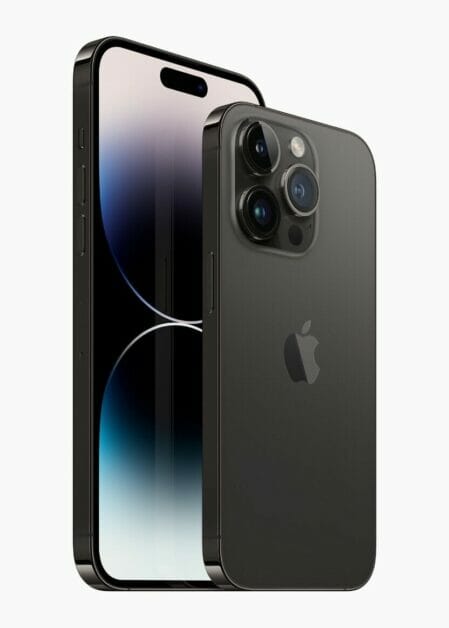
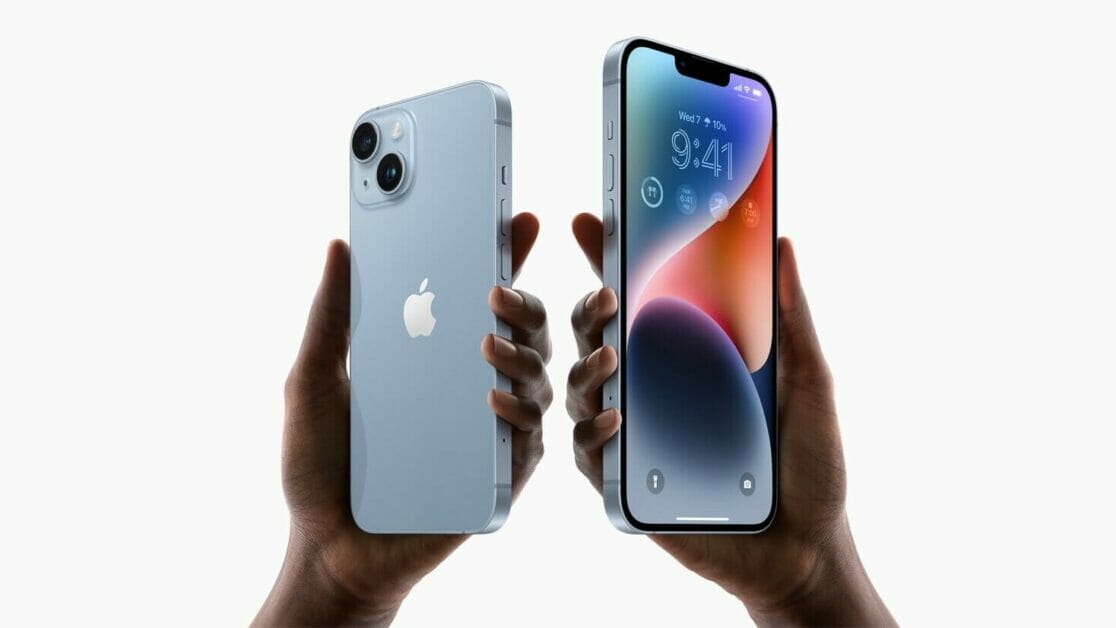
If you’re looking to get the most out of your iPhone 14 or iPhone 14 Pro, you’ve come to the right place. In this article, we’ve compiled a list of the best iPhone 14 and iPhone 14 Pro tips and tricks you should definitely know about!
Most of the tips and tricks highlighted are available for all iPhone 14 models, but there are one or two that are limited to the iPhone 14 Pro and iPhone 14 Pro Max that won’t be applicable to iPhone 14 and iPhone 14 Plus.
If you haven’t heard yet, Dynamic Island and Always-On-Display are two of the big-ticket features on the iPhone 14 Pro and iPhone 14 Pro Max, but those items are just the beginning. You’ll be excited to learn that there are several new hidden iPhone 14 and iPhone 14 Pro tips and tricks that could completely change how you use your phone. Get out your iPhone 14/14 Pro – and work your way through some of our favourite tips and tricks.
## Best iPhone 14 and iPhone 14 Pro tips and tricks
Here is a list of the Best iPhone 14 and iPhone 14 Pro Tips and Tricks you should try first:
1. Use Apple’s Dynamic Island Feature
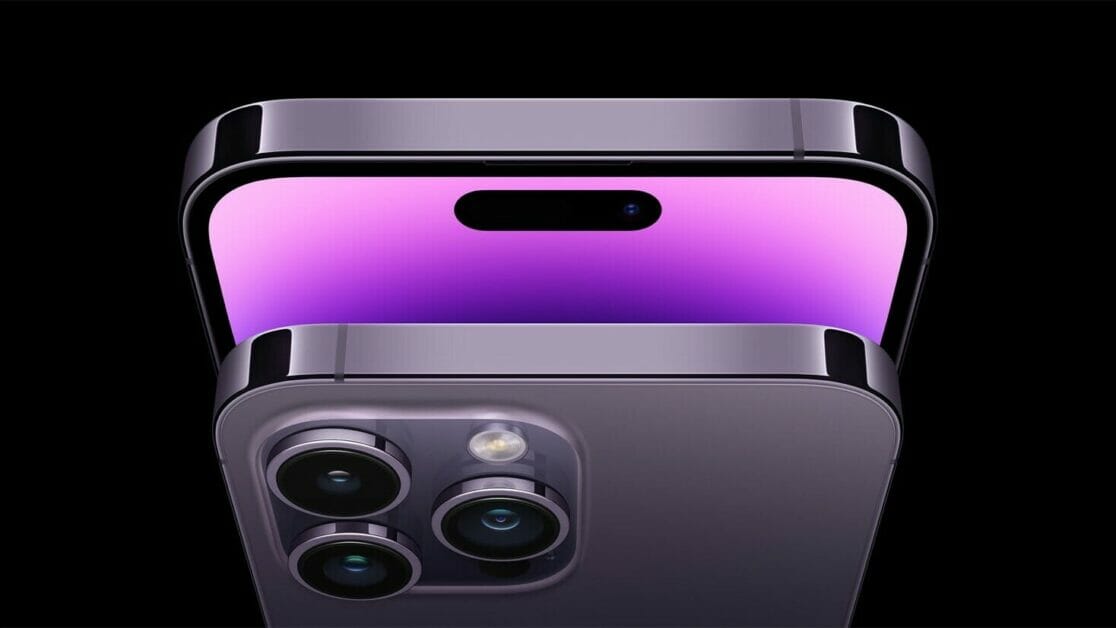
Dynamic Island is Apple’s new “notch” for the iPhone 14 Pro and iPhone 14 Pro Max. Instead of looking like a blacked-out dead space at the top of the screen, it can morph into different shapes and sizes. You can even interact with it. It can change to show you incoming calls, alerts, notifications, Face ID authentication, turn-by-turn navigation, music playing, and so on. You can tap or long press on the area to access different functions or launch apps. Think of it as a multi-tasking shortcut – one that still hides iPhone’s TrueDepth front camera as well as the sensors that enable Face ID.
Dynamic Island isn’t just limited to notifications or alerts, but also ongoing activities such as directions in the Maps app, music that might be playing, or how much is left in your timer. Those remain visible at the top of your phone in Dynamic Island, and they’re interactive, so you can tap, swipe, or long-press. Say you order a Lyft and then proceed to browse the web or play a game. The Dynamic Island will show your Lyft ride’s estimated time of arrival at the top of your screen as you use other apps. At any time if you want to open Lyft, tap Dynamic Island. Or, say you’re in an ongoing call and then minimise it, Dynamic Island will elongate horizontally and show the call duration on the left with a voice waveform on the right.
If you have two apps running in the background, Dynamic Island can split into two sections, so you’ll see a smaller pill on the left for one app and a small circle on the right for another app. For instance, if you have a song playing from the Music app and a timer set on the Clock app, you’ll see the song’s art on the left pill and the timer icon inside the circle on the right. You can only see a maximum of two apps appear on Dynamic Island when they’re running in the background.
The most impressive thing about Apple’s Dynamic Island feature is how it can intuitively morph into different shapes to display all sorts of glanceable info. For instance, when you put your phone on silent, connect your AirPods, access Face ID, or plug your charger, the cutout will expand and display the activity and then immediately go back to normal.
Also, if there’s an ongoing background activity, such as a call, playlist, podcast, or timer, the cutout will stay expanded until it ends. You can tap it to go to the app or long-press it to explore options, allowing for better multitasking.
For instance, if you get a call while scrolling through your Instagram feed, the cutout will expand to show you who’s calling and the option to accept or deny it. Once you pick up the call, the cutout will stay expanded during the duration of the call. You can long-press the cutout to access various options to cut the call, switch to FaceTime, mute yourself, and more.
Similarly, if you’re listening to music while reading an e-book, you can long-press the cutout to see options to pause the song, skip forward or back, or jump to a particular part in the song. And if there are multiple ongoing background activities, the iPhone 14 Pro’s Dynamic Island will form a new circular bubble beside the pill-shaped cutout. All of this without leaving the app you’re in.
2. Use Always-On display with your iPhone 14 Pro or iPhone 14 Pro Max
With Always-On display, your iPhone 14 Pro or iPhone 14 Pro Max dims the Lock Screen while still showing helpful information, like the time, widgets, and wallpaper, all while using new technologies that make the display incredibly power efficient.
This can be useful when you just want to glance at the time or see relevant information from your Lock Screen widgets without unlocking your iPhone and going directly into an app.
The display always remains on by intelligently lowering its brightness and refresh rate to as low as 1Hz to save battery life. Always-On display is on by default on iPhone 14 Pro and iPhone 14 Pro Max. To turn Always-On display off or on, follow these steps:
Go to Settings > Display & Brightness.
Scroll down to Always On and turn Always-On display off or on.
3. Capture steadier video with Action mode
With Action mode on iPhone 14 Pro and iPhone 14 Pro models, you can capture smooth hand-held video even when you’re moving around a lot.
Open the Camera app and swipe to Video mode.
Tap the button to turn on Action mode.
Tap the Shutter button and record your video.
Action mode works best with lots of light, and the Camera will show “More light required” if things are too dark. You can change your settings to use Action mode in lower light.
In the Settings app, tap Camera.
Tap Record Video.
Turn on Action Mode Lower Light.
Action mode can capture video at either 1080p or 2.8k resolution up to 60 frames per second. It supports Dolby Vision HDR or, on iPhone 14 Pro models, Apple ProRes video formats.
4. Manage Crash Detection on your iPhone 14 Pro
When your iPhone 14 Pro detects a severe car crash, it will display an alert and will automatically initiate an emergency phone call after 20 seconds unless you cancel. If you are unresponsive, your iPhone will play an audio message for emergency services, which informs them that you’ve been in a severe crash and gives them your latitudinal and longitudinal coordinates with an approximate search radius.
When a crash is detected, Crash Detection won’t override any existing emergency calls placed by other means.
Crash Detection is on by default. You can turn off alerts and automatic emergency calls from Apple after a severe car crash in Settings > Emergency SOS, then turn off Call After Severe Crash. If you have third-party apps registered to detect crashes on your device, they will still be notified.
5. Use Emergency SOS via satellite on your iPhone 14
With this iPhone 14 trick, you can use Emergency SOS via satellite to text emergency services when you’re out of cellular and Wi-Fi coverage.
Emergency SOS via satellite can help you connect with emergency services under exceptional circumstances when no other means of reaching emergency services are available. If you call or text emergency services and can’t connect because you’re outside the range of cellular and Wi-Fi coverage, your iPhone tries to connect you via satellite to the help that you need.
If you need to contact emergency services, follow these tips to help connect your iPhone to a satellite:
Hold your phone naturally in your hand. You don’t need to raise your arm or hold your phone up, but don’t put it in a pocket or backpack.
Make sure that you’re outside with a clear view of the sky and the horizon.
Be aware that trees with light foliage might slow down the connection, and dense foliage might block it. Hills or mountains, canyons, and tall structures can also block the connection.
In case you need to turn left or right or move to avoid a blocked signal, your iPhone provides guidance—just follow the onscreen instructions.
To text emergency services via satellite
First, try calling emergency services. Even if your normal cellular carrier network isn’t available, you might be able to make the call.
If your call won’t connect, you can text emergency services via satellite:
Tap Emergency Text via Satellite.
You can also go to Messages to text 911 or SOS, then tap Emergency Services.
Tap Report Emergency.
Using simple taps, answer the emergency questions to best describe your situation.
You can also choose to notify your emergency contacts that you contacted emergency services, along with your location and the nature of your emergency.
To connect to a satellite, follow the onscreen instructions.
After you’re connected, continue following the onscreen instructions to stay connected while you send your message to emergency services.
Once you’re connected, your iPhone starts a text conversation with emergency responders by sharing critical information like your Medical ID and emergency contact information (if you have set them up), the emergency questionnaire answers, your location (including elevation), and remaining battery life for your iPhone.
6. Hidden and Recently Deleted albums protection
The Hidden album in the Photos app is clearly not hidden, seeing as you can easily find it, making it impractical for adequately hiding private photos and videos. While Apple does have an option to make the Hidden album “invisible,” anyone with access to your phone can make it visible again and view everything inside.
Thanks to an iPhone 14 trick, you can now lock the Hidden album. You don’t actually need to do anything to toggle this feature on. If you want to check it out, launch the Photos app and go to the Albums tab at the bottom of the screen. If you scroll down, you’ll see a tiny lock next to the Hidden and Recently Deleted albums. To view what’s inside, use Face ID or your passcode.
7. View and share saved Wi-Fi passwords
Apple has allowed iOS users to share Wi-Fi passwords for a while now, but only by placing two Apple devices near each other. And if that feature didn’t automatically work, you couldn’t just dig out the password from your settings. Plus if you wanted to share a saved Wi-Fi password with someone else, like an Android user or someone on a computer, you had to know the password. Until now.
In Settings, go to Wi-Fi and tap the tiny information icon to the right of the network you want the password for. To view the network password, tap the Password section and then use Face ID or enter your passcode to view it. You can then tap Copy to copy the password into your clipboard and share it.
8. Find and remove any duplicate photos and videos
Maybe you’ve saved the same photo multiple times or downloaded a video more than once, and so you’ve got duplicates littered in your photo album. It may not be a problem if you’ve got the storage to spare, but if not, it might be a good idea to go back and remove every single duplicate — which is now easy to do thanks to an iPhone 14 trick.
In Photos > Albums, you should now see a new Duplicates album under Utilities, where Apple scans through all of your photos and shows you any photo or video you’ve saved more than once. From there, you can either delete any duplicates, or simply press Merge, which will keep the photo with the highest quality (and relevant data) and then move the others to the trash.
Although you’ll probably want to go through each set of duplicates, to ensure that they’re actually exact copies and not similar photos, you can also hit Select > Select All > Merge to remove every single photo and video that Apple thinks is a duplicate, all at once.
9. Pin your favorite tabs in Safari
Safari caps your open tabs at 500, and if you’re nearing that limit, it might be pretty darn hard to find the exact tab you’re looking for. You could scroll endlessly, but there’s now an easier way to find the exact tab you’re looking for.
In Safari, if you press down on an open tab, you now have the option to hit Pin Tab. This will move that tab to the top of Safari, where it will exist as a tiny tab preview, permanently pinned there, which you can then tap to view.
If you press down and unpin a tab, it will move to first in your grid of open tabs.
10. Pair Nintendo Switch Joy-Cons with your iPhone
Apple has long allowed you to pair third-party controllers, like the PS5 Sony DualSense and Xbox Core Controller, to your iPhone and iPad, in order to more comfortably play mobile video games like the Apple Arcade library, Minecraft and Call of Duty. And you can add another console controller to that list.
If you own a Nintendo Switch, you can now pair your Joy-Con controllers to your iPhone 14 Pro. To start, hold down the little black pairing button on the Joy-Con, until the green lights start running back and forth. This means the device is in pairing mode. Next, open your iPhone and go to Settings > Bluetooth and select the Joy-Con from the list. Repeat this step with the other Joy-Con.
11. Recover recently Deleted Chats in Message
If you have the habit of deleting messages in the Message app and happen to require them at a later point in time, you can recover the deleted messages on your iPhone 14 Pro. The deleted messages are moved to the Recently Deleted folder in the Message app itself. Here’s how to access the Recently Deleted folder in Message,
Open the Messages app.
Tap the Edit button at the top left.
Select the Recently Deleted folder.
Select the chat you want to Recover the messages from.
Note: Deleted messages will be available in the Recently Deleted folder for 30 days, after which the messages will be deleted permanently.
12. Easily Delete contacts
With previous versions of iOS, deleting a contact on iPhone was a tiresome process. You had to go to the detailed information of the contact, select the Edit option, and then scroll down all the way to finally select the Delete Contact option. Apple has finally heard the requests of its users as it has made the process of deleting a contact easier in iOS 16. You can now simply tap and hold on a particular contact to delete it from your list.
13. Disable ‘Lock to End Call’
One of the quirks that iPhone users (especially the new users who switch from Android) complain about is that pressing the lock button ends the call. You can finally disable the ‘Lock to End Call’ feature with this iPhone 14 trick.
Open the Settings app.
Go to Accessibility.
Select Touch.
Toggle off Lock to End Call.
14. End call using Siri
With iPhone 14, other than tapping the on-screen end call button or side button of the device to end a call, you can have your virtual assistant, Siri, hang up a call for you in a very high-handed way. While you are on a call, just say “Hey Siri, hang up” and the assistant will do it for you.
While this is a convenient and hands-free way to end a call, it is recommended to use it with caution as the caller on the other end will be able to hear your command to Siri.
15. Restart your iPhone 14 with Siri
Another hidden iPhone 14 trick is rebooting your device with Siri. Just wake your assistant up with a “Hey Siri” call and say “reboot ” or “restart”. When Siri asks for confirmation, reply with a “Yes” or “No” and that’s it! You don’t even have to unlock your device to complete the action using Siri, so it can be done entirely remotely.
16. Dictate emojis with Siri
You could previously dictate texts with Siri, but if you’re the type who thinks emojis are worth a thousand words, your iPhone’s digital assistant couldn’t really helped you. Dictate a lovely message to your sweetie that ends with a heart emoji, and Siri will quite literally type “heart emoji” in the text. It really kills the mood.
iOS 16 makes Siri smarter about dictated emojis, and now, telling the assistant “heart emoji” will yield a nice red heart right there in your text message.
17. Skip Siri confirmation
Previously, if you ask Siri to send a message to a contact and dictate the content, it asks for confirmation. The positive side is that you can check if Siri has transcribed your message correctly.
Nonetheless, it is another added step and takes more time. With this iPhone 14 Pro trick, you can turn it off and send messages automatically with Siri. Here’s how,
Open the Settings app.
Go to Siri & Search.
Tap Automatically Send Messages.
Toggle onAutomatically Send Messages.
18. Make Siri listen longer
While we’re on the subject of Siri improvements, let’s talk about an accessibility feature that Apple actually revealed back in May, a month before its iOS 16 preview. Back then, Apple promised a host of accessibility features was coming to the iPhone, and one of the promised additions that caught my eye was the ability to the adjust Siri’s pause time.
Adjusting the pause time will make the digital assistant wait longer before responding to your request. It’s ideal for anyone with impaired speech, but really if you find yourself rushing to complete a Siri command before the assistant leaps into action, you’ll appreciate this iOS 16 addition as well.
Go to Settings.
Tap Accessibility.
Tap Siri.
19. Merge Duplicate Contacts
If your Contacts app is riddled with duplicates that you haven’t been able to fix, then this iPhone 14 Pro trick is for you. The update includes a dedicated feature for merging duplicate contacts, solving problems with multiple contacts once and for all.
In the iOS 16 Contacts app, if you have more than one contact card for the same person, the app will automatically detect the duplicate and let you know that duplicates were found.
The “Duplicates Found” interface is at the top of the app, and if you tap it, the Contacts app is able to merge all of the duplicate contact cards into one.
Prior to now, there was no built-in way to quickly manage duplicate contacts in the iOS Contacts app, so the new iOS 16 feature should be a relief for those dealing with Contacts issues. This feature did previously exist on the Mac, but it was not available on iOS devices.
20. Copy and Paste Photo Edits
Want all of your photos to have the same aesthetic, or have improvements you want to make to an entire batch of images? That’s possible with this iPhone 14 Pro trick, which lets you copy edits from one photo and apply them to another photo with a tap. Here’s how:
Open Photos and select the edited image.
Tap the Three Dots at the top right.
Tap Copy Edits.
Go to the image you want to paste the edit and tap the Three Dots at the top right.
Tap Paste Edits and done.
The same edits are now applied to the selected image too.
21. Sort Playlists in Apple Music
Playlists are great, but in Apple Music, they’re fixed in the order you created them. If you want to change things up, you’ll have to open the editor and do it by hand. Now, with this hidden iPhone 14 Pro trick, you can easily sort Playlists by title, artist, album, or release date.
22. Use Face ID in Landscape Mode
The iPhone 14 Pro models support Face ID in landscape mode, making it easier to unlock the iPhone when it’s not held in the standard portrait orientation.
23. Lock Notes with a Passcode
Rather than creating a new password for a note, you can now simply use your device passcode or Face ID/Touch ID to lock a note, which is much easier.
Open the Notes app.
Tap and Hold the note you want to lock.
Select Lock Note.
Tap Use iPhone Passcode.
24. Enable haptic feedback on the Keyboard
There’s a keyboard setting in iPhone 14 Pro that lets you enable haptic feedback that can be felt when you’re typing. The vibrations are for each key tap, offering users a physical confirmation that a letter has been pressed. Here’s how to enable it:
Go to Settings.
Tap Sounds & Haptics.
Select Keyboard Feedback.
Toggle on Haptic.
25. Add Quick Note to Control Center
Apple introduced Quick Note as one of the best new iPadOS 15 features earlier last year. What makes this a useful feature is its ability to let you start taking notes from anywhere on your device. So whenever an interesting idea strikes, or if you wish to pen down important points in a meeting, you need not open the Apple Notes app and use the Quick Notes instead. Now, with the release of iOS 16, Apple has extended this productivity-centric feature to provide a quick and simplified note-taking experience on iPhone as well. Here’s how to add this tile to your Control Center:
First, open the Settings app on your iPhone and select “Control Center“.
Under the “More Controls” section, find “Quick Note” and tap the green “+” button next to it. That’s it! The Quick Note icon will now show up in the control center.
Note: If you want the Quick Note icon to appear higher in the control center, touch and hold the three horizontal lines next to Quick Note to drag the icon to your desired location in the Control Center.
Once the Quick Note icon is available in your device’s Control Center, taking a Quick Note is merely a tap away. Here’s how it works:
First, bring up the control center on your iPhone.
Then, tap on the Quick Note icon (sticky note with a squiggly line).
Now, a Quick Note window will appear on the iPhone screen to let you jot down your thoughts or anything that you want to take note of. Since it provides all the familiar formatting tools and features, including a document scanner and markup, so you can take notes with the desired efficiency. Make sure to tap “Save” at the top-right corner to save your note.
26. Schedule Emails in the Mail App
Have you ever tried to remember to email someone about something on a particular date in the not-so-distant future, but ended up forgetting to send it when the day eventually came around? If that sounds familiar, scheduling emails could be the perfect way to ensure it doesn’t happen again.
Whether it’s a birthday or other celebration, or maybe something business-related that you need to bring up on a specific future date, This iPhone 14 Pro trick offers you the ability to schedule emails ahead of time. Here’s how to schedule emails in the Mail app,
Open Mail app.
Tap Add New icon located at the bottom right corner and draft your mail.
Press and hold the Upwards Arrow, representing Send.
27. Convert currency through the Camera
Currency conversion is a convenient tool to save your pocket from taking any heavy losses in over-priced deals especially if you travel abroad a lot. Usually, we browse the web to convert currency. Following this method can get hectic, especially if you’re traveling abroad. However, with this hidden iPhone 14 Pro trick, you can convert currency directly from your Camera and no longer need to manually enter the currency values online.
Here’s how to convert currency directly through your iPhone’s camera:
Open the Camera and point it to the text.
Tap the Scan icon at the bottom right corner.
When done, tap the Convert icon at the bottom left.
You can now see the currency value converted!
28. Get Translations Directly From the Camera App
Apple in iOS 16 has brought its system wide translate feature to the Camera app, allowing the iPhone to be used to translate signs, packaging, and more in real time.
Using the translate feature is as simple as opening up the Camera app and pointing it at the text you want to translate. Tap on the text selection button in the app to select the detected text, and then choose the translate option to get an instant translation.
You can pause the view to get translations overlaid on text, and zoom in for a closer look. It’s a useful feature that’s perfect for signs and other wording that you might not understand when you’re traveling.
29. Edit messages in iMessage
I think it’s safe to say that everyone has relied too much on autocorrect when sending an iMessage, leading to potentially embarrassing typos. Prior to iOS 16, you had to own the mistake and accept that it would exist on the recipient’s phone, forever. However, with this iPhone 14 Pro trick, you have the ability to edit a message within 15 minutes after it was sent.
You’ll need to act fast after you realize your mistake. But once you do and you’re still within the 15-minute window, all you need to do is long-press on the message, then select Edit from the list of options.
The text field will show back up, letting you fix your error and then save it.
On the recipient’s end, if they’re using iOS 16 as well, a small “Edited” label will appear below the message that no longer shows any signs of wrongdoing.
For those on older versions of iOS, they’ll receive a second message with the corrected text.
30. Unsend messages in iMessage
The process for completely deleting a message you’ve sent within the last 2 minutes — helpful if you send it to the wrong contact or thread — is nearly identical to editing a message.
Once you realize the error of your ways, long-press on the message until you see a menu pop up. From that menu, tap Undo Send. There’s a small animation that shows the message disappearing, followed by a line of text in the thread letting everyone know a message was removed.
Easy-peasy, right?
31. Create a sticker from images
With this iPhone 14 Pro trick, you can create stickers from images and share these stickers with other applications. It is shared as a sticker in iMessage and as a PNG image in other instant messaging services. Here’s how to do it,
Open the Photos app.
Select the image you want to create as a sticker.
Tap and Hold the image.
You can copy the image and paste it as a sticker in iMessage or any other service you want. Or you can share the image from the same page. You can also save the sticker in notes.
32. Personalize Lock Screen
One of the things you look at the most on your iPhone is the lock screen. iOS 16 brings the most substantial update to the iPhone’s lock screen yet. Press and hold to edit your lock screen. You can swipe to try out several different styles. Each style changes the color filter for the background photo and the font on the lock screen so everything complements each other. This feels a bit like Apple’s take on Google’s Material You, which launched with Android 12.
You can also customize the fonts for the time and date, and add lock screen widgets like temperature, activity rings and a calendar. The widgets are akin to complications on the Apple Watch lock screen.
You can even set up multiple customized lock screens with different widgets and easily swipe to switch between them. There’s also a photo shuffle option that automatically changes the pictures on your lock screen.
33. Skip CAPTCHAs using Private Access Tokens
The CAPTCHA — which stands for Completely Automated Public Turing test to tell Computers and Humans Apart — has been a necessary evil across the internet. CAPTCHAs are designed to make sure that a person is accessing a website or service, and not a bot. I find them annoying, as they often involve reading strangely written letters or having to find all the images that have a truck. Tapping on images of traffic lights or deciphering squiggly text to prove you are human is now a much less common nuisance for iPhone users, as this iPhone 14 Pro trick lets you bypass CAPTCHAs in supported apps and websites.
This cool iPhone 14 Pro trick can be found in the Settings app under Apple ID > Password & Security > Automatic Verification. When enabled, Apple says iCloud will automatically and privately verify your device and Apple ID account in the background, eliminating the need for apps and websites to present you with a CAPTCHA verification prompt.
34. Transfer an eSIM Between iPhones via Bluetooth
This iOS 16 trick allows an eSIM to be transferred between iPhones via Bluetooth while setting up cellular service.
In the Settings app on an iPhone running iOS 16, tapping on ”Set up eSIM” brings up an option to transfer an eSIM and its associated phone number from another iPhone via Bluetooth. To transfer an eSIM from another iPhone, Apple says to make sure the other iPhone is nearby, unlocked, has Bluetooth turned on, and is running iOS 16 or later.
Open the Settings app on your new iPhone.
Tap Cellular.
Above the Cellular Data section, tap the Set Up eSIM button.
When prompted, tap the Transfer From Another iPhone button.
From there, you’ll be prompted to the next screen which provides the following message: “To transfer a phone number from another iPhone, make sure your other iPhone is passcode protected, nearby, unlocked, has Bluetooth turned on, and is running iOS 16 or later.
35. Use Spotlight on the Home Screen
This hidden iPhone 14 Pro trick lets you access Spotlight search from the Home Screen without swiping down or left. You’ll find it right above the dock, which makes it easier to search for apps, contacts, documents, images, and more. Spotlight can fetch results using the information from images stored in Messages, Notes, and Files, like text, objects, people, and so on.
36. Set a Reminder to Check Emails Later
At times, you might want to check an important email later. With this iPhone 14 Pro trick, you can add a reminder to check messages in the future. Simply swipe right on an email and select Later. Ask the Mail app to remind in an hour, tonight, tomorrow, or later.
37. Drag and Drop Subjects With Visual Lookup
Apple’s updated Visual Lookup feature in iOS 16 can separate subjects from the background of an image with a simple long-press action. You can use it to grab an object from a picture and drop it as a sticker into the Messages app, for example. Thanks to machine learning, you no longer need to spend time drawing outlines using third-party apps to get a sticker you want.
38. Use Live Text in video
Live Text was already great with iOS 15. You could grab information from a photo by selecting the text available, a telephone or address, for example.
Now, with Live Text in videos, text is completely interactive in paused video frames, so you can use functions like copy and paste, lookup, and translate.
In addition, Live Text with iOS 16 adds recognition of Japanese, Korean, and Ukrainian text. Last but not least, data detected in photos and videos is actionable with a single tap. Track flights or shipments, translate foreign languages, convert currencies, and more.
Here’s how to use Live Text in a video:
Open the Photos app and open the preferred video.
Scroll the video to the point where you want to extract the text.
Pause the video, tap and hold on to the text on video.
Live Text will automatically recognize text and show you the following options copy, select all, look up, translate, search web and more.
Tap on the desired option to use the text as needed.
Also, the Live Text feature can be used over Map to copy the address.
39. Add the battery percentage to the status bar
With this iPhone 14 Pro trick, you can add the battery percentage back to the status bar. Simply go into Settings, then choose Battery, then toggle on the new Battery Percentage option. It might even be enabled by default, but that only appears to be the case for some users.
40. Track your orders in Apple Pay
Let’s wrap up by highlighting some features in Apple’s existing apps that have gotten overshadowed by other changes. For instance, in the Wallet app, the big change brought about by iOS 16 is Apple Pay Later, in which you can divvy up your purchase into four installment payments. But that’s not the only new capability available when you buy things with Apple Pay in iOS 16.
You’ll also be able to track orders of your Apple Pay purchases directly from within the Wallet app. The feature only works with participating merchants, but considering how widespread Apple Pay has become since Apple introduced it in 2014, you’d imagine that there will be a lot of retailers providing order tracking info to you via Wallet.
Your favorite iPhone 14 and iPhone 14 Pro tips and tricks
So these were some of the best iPhone 14 Pro and iPhone 14 Pro tips and tricks you would love to try today. My favorite iPhone 14 and iPhone 14 Pro tips and tricks include ability to edit/delete messages, ability to end calls with Siri, and ability to schedule emails in Mail. There’s surely plenty more hidden iPhone 14 Pro and iPhone 14 Pro Max tips and tricks to discover, so I’ll keep tapping, swiping and noting anything I find. Did we miss out on something important that needs to be added to the list? Which are your favorite iPhone 14 and iPhone 14 Pro tips and tricks? Share your thoughts in the comment section below.
The orange dot is an indicator that an app is using your iPhone’s microphone. The green dot means an app is accessing the camera on your iPhone.
If you have updated your iPhone or iPad to iOS 14 or iPadOS 14, you may have noticed something new pop up on the top right of the display every now and then. Just above where the mobile network, Wi-Fi and battery indicators are located. These new pop-ups that you may occasionally see may include an orange dot or a green dot. Don’t worry: These dots don’t signal some sort of malicious SpyWare, nor are they proof that Apple engineers are spying on you. Instead, these dots are meant to warn you about some app behavior on your iPhone, known or unknown.
With the new iOS 14 software update, Apple has integrated these notifications for when an app on your iPhone is accessing the microphone or the camera, front or back. Often, you may actually be using an app for video calls, posting a photo on social media and more, but there may be times when app may misbehave or there may be malicious apps trying to access your iPhone’s camera or microphone. You will immediately receive a warning, that something is amiss.
When that green or orange dot pops up, Apple is simply giving you more information about how the app is accessing the sensors on your iPhone. From there, it’s up to you to decide whether you want to keep those permissions on, or keep the mic and camera to yourself. The orange dot is an indicator that an app is using your iPhone’s microphone. These could be apps that you may be using at the moment, like WhatsApp for voice calls, Zoom for audio calls or even recording something using the Voice Memos app. These are just some examples. A green dot is an indicator that an app is accessing the camera on your iPhone. The dot may appear when you are making a FaceTime video call, a Skype call, trying to post something on Instagram or taking a photo. The thing is, you will not see the orange and green notification dots simultaneously. If you are using your iPhone to record a video, for instance, you will only see the green notification for camera access.
“An orange indicator means the microphone is being used by an app on your iPhone,” is what Apple says in the support documentation, and adds, “A green indicator means either the camera or the camera and the microphone are being used by an app on your iPhone”.
These are features that should help you figure out if an app installed on your iPhone is trying to access the microphone (to possibly snoop on you) or the iPhone’s camera (to photograph or video graph you or the place you are at) without your consent. That would be a significant brach of privacy, and if it wasn’t for these colorful dots, there really wouldn’t be any way of knowing about app behaviour, particularly in the background. At this point, Bring up the control center by swiping down from near the top right of the iPhone Display to see the details on which app is trying to access your iPhone’s camera or microphone. This is indeed a fantastic way to know if an app is behaving suspiciously or trying to snoop on you.
Many people use their phones without even knowing all the features they offer. Some basics features are easy to find while others require a little bit of research. Talking about the iPhone and iPad users, there are so many different areas where Apple put special restrictions for their users. Yes, there are various ways to bypass those restrictions but many people don’t even know that a method exists. In this post, I have compiled 10 useful iPhone/iPad tricks and hidden features you should check out. These 10 useful iPhone/iPad tricks will surely make your work easier. Let’s get started.
iPhone/iPad tricks and hidden features you probably didn’t know
1. How to transfer files wirelessly across iPhone and PC
The vast majority of people are looking for an easy method to transfer their files from PC to iPhone and from iPhone to PC but since the launch of the iPhone 2G, the only method that Apple offered to transfer files between iPhone and PC is iTunes. Which I trust is a very cumbersome method especially if you want to transfer only one or two files. Thankfully, there is an easy and quick method to transfer files between PC and iPhone via your Wi-Fi network. All you have to do is to connect your iPhone and your PC to the same Wi-Fi network so you can access them wirelessly. The name of the app is Air Transfer. You can check the full instructions here.
2. How to lock Apps on Your iPhone
There are numerous reasons why you might want to restrict access to your iPhone apps. Maybe you let your child use your phone and want to keep them out of messaging and productivity apps. Or perhaps you’d just like a little more privacy in general. There’s nothing wrong with that! Locking apps on your iPhone is easier than you realize. You can either use Screen Time or Guided Access if you want a built-in option. You can check the full instructions here
3. How to download videos on iPhone/iPad — Any iOS version
As we already know How strict Apple is in giving features like downloading files from all over the internet. Apple allows its users to download data only from secure applications such as App Store, Apple Music, iTunes, etc. basically all the Apple iOS stock apps. In iOS 13, Apple gave users the permission to download any kind of file on Safari Browser. You can download any type of file from Safari but there are so many people who don’t know the right place to download files especially video/audio files.
Here is a very simple method to download any video from Google, Instagram, Twitter, Facebook, YouTube, or anywhere from the internet. In addition, you can export downloaded videos to your photos app or if you want to just run the video on the background you can do that as well. You can check the full instructions here
4. Read YouTube Videos as Articles on Your Phone Instead of Watching Them
Looking to read YouTube videos instead of just watching them? Well. Check out free Videoticle service! With the power of the Shortcuts app on your iPhone, you can turn any video you’re watching into a Medium –style article that you can browse, read, and follow along with, complete with screenshots.
Converting YouTube videos into written articles can especially come in handy if you want to watch something but don’t want others to see that you’re watching it, like when you’re at work or school. After converting the YouTube video into an article, you can read it quietly without anyone taking notice (unless they’re right behind you, of course). You can check the full instructions here
5. How to Scan documents with your iPhone
Having the world at your fingertips has never been easier thanks to the modern technology. Unfortunately, you can’t always do everything with your smartphone. Sometimes you’re forced to use clunky old technology, such as printers and scanners. How boring.
Thankfully, when you need a document scanned, you can ignore that grumpy old scanner altogether. You can scan a document right from your iPhone or iPad using a few different apps. We show you how. You can check the full instructions here
6. How to hide photos on iPhone/iPad — iOS 14 Only
I know most of you already know how to hide your photos inside the iOS photos app but with the release of iOS 14, iPad OS, and macOS Big Sur, Apple deeply focused on the privacy side of things and enable so many new privacy features for its users. Apple released iOS 14 with a bunch of new features including the feature to completely hide photos from the photos app. I know all of you are curious to know the trick to hide your private photos inside your photos app. You can check the full instructions here
7. Turn On Low Power Mode at any % in iOS 14
Apple is not providing large capacity batteries on the iPhone. That is why most of the people enable Low Power Mode on their iPhone all the time. The only drawback with Low Power Mode is that it disables a lot of activities on the background including display brightness, push mail, and background downloads. It helps you to give some more battery to get you to the rest of the day. What if you want it to automatically enable at any percentage and you don’t need to activate it. There is a nifty trick that is available in iOS 14 which allows you to TURN ON low power mode at any battery percentage. You can check the full instructions here
8. How to make iPhone music louder
NOT happy with your iPhone’s loudness? It’s very easy to crank up the volume with settings tweaks – and some real-world tricks. And yes, one way to make iPhone speaker louder involves putting your device in a bowl. You can check the full instructions here
9. How to Change the Default Apps on iPhone — iOS 14
In iOS 12, Apple introduced a feature to delete default applications from iPhone and iPad. But for browser and mail apps, Apple forced its users to use the default apps. In iOS 14, the Cupertino based brand has removed the restriction of using default applications. Giving this option to change default apps like mail and safari is not because they are not good to use, actually, they are perfect for those who love to live inside the Apple Eco System. But there are so many other people who prefer to use other apps. For example, many people prefer to use Google Chrome and for mailing app, many people prefer to use Gmail. If you happen to have a Windows laptop or Android tablet then there is no way to enjoy the same email experience or sync browsing history on those devices if you use Safari on your iPhone. The good news is that, in iOS 14, Apple gave this option to its users to change the default apps. Please follow these steps if you want to change your default apps in iOS14. You can check the full instructions here
10. How to Customise Homescreen App Icons
Apple gave its users the ability to automate different tasks in iOS. This can be done using Apple’s Shortcut app. Through this shortcut app, people found a new way to change the theme of homescreen icons in iOS 14. There is an easy and more quick method which helps you to customize your homescreen icons in any iOS version from iOS 12 to iOS 14. Also, this method removes the app shift issue that I have already discussed above. Here are the instructions to theme your homescreen icons. You can check the full instructions here
These are ten of my favorite useful tips and tricks for the iPhone/iPad. If you found this article helpful, make sure to share it with others. Which trick did you find so useful? Please let us know in the comments section below.
When you meet someone important for the first time, you’re going to want to make a good impression, and a big portion of that impression is going to have to do with how you look. The case is the same when it comes to having a clean, modern looking design for your website or app.
Now, if someone sees an example of your work somewhere and they like it, they might go and look you up, and then there is your one chance to really connect with that visitor for your site.
Of course, that means they’re going to have to find you in the first place, so it’s very important that your site be search engine optimized. This means implementing specific strategies to make sure that you are promoted by Google and by other search engines is carving out an online presence like building a physical store, and we all know that with today’s technology, people’s patience fades quickly and they expect to find things right away or they might lose interest.
Now when they do find you, you also want to make sure that you’re able to show them who you are, what you’re about or what your business is all about. This means that your site is going to have to be convenient, to navigate and to read on all browsers and all devices, because nowadays, quality web design is becoming the norm and people don’t really tolerate anything less.
A good design of your site gives you credibility and authority in your field. If your site looks messy and poorly put together, people are going to assume that the case is the same with you and your work.
Now, what makes a good site isn’t always obvious, but there are a lot of similarities between well-designed sites. For instance, people searching for custom eCommerce web design services should hire a professional. The reason for that is that there are many web design principles learned by professionals. Designers know how to catch your eye. They know where to put important information so that it will be read, they know how and where to put calls to action and relevant links.
It’s important to understand how a better design can help your website or app. Most developers create a website or an app with great performance but fail to focus on the designing which leads to the downfall of the app or site. The balance between the functionality and design of an app is challenging to keep but that’s what ought to be done.
How a Better Design Can Help Your Website or App
To answer the question, ‘How can a better design help your website or app?’ let us look at the pointers below:
Creates a good impression
For a startup or any small business, the first impression is very important. When users download your app, they should be attracted to it instantly so that they use it on a regular basis. Clean and fresh design of your app not only makes the app attractive but also helps the user to navigate from one screen to another seamlessly.
Similarly, when your audience visits your website, it gives them their first impression of your business. They will judge your business in a matter of moments. In this brief moment, you want to create a good impression on your audience. If your website looks unattractive or dated, your visitors will immediately have a negative impression of your business. They won’t find your website engaging. Consequently, you’ll miss out on leads because they’ll leave your site for a competitor’s site.
Get featured in app store and Google
Whether an iOS app is good or not is determined by how many users like it. The ratings and reviews by satisfied users will bring your iOS app to the top lists. To get your app featured in the App Store, it has to have a good design that provides the best experience to the user. Getting featured in the top lists of any category will automatically inspire trust and encourage more app downloads as a result.
In the same vein, your website needs to be designed well. A well designed website can increase organic traffic and earn first page rankings in Google. A poor site design can easily slow your load time. A slow load time will be detrimental to your ability to engage with users. This is because, of tons of people who use search engines every day, only a small percentage navigate past the first page of the Google SERPS.
Get loyal customers
It’s no doubt that well designed apps have more users. Apps such as Instagram, Twitter, Facebook, Candy Crush, etc. have great design which has drawn tons of users to them. The satisfaction that comes from great user experience is what makes users loyal.
By the same token, people can judge how you will treat them by looking at your website. Your web design gives them insight as to how you view your audience. If you don’t dedicate yourself to your website’s design, your audience knows that you won’t dedicate yourself to helping them.
Your website is like a customer service representative. If your website is bright, modern, and engaging, your visitors will feel more at home on your page. You’ll give the impression that you are open and welcoming to new people who visit your website. Conversely, a dated and an unattractive site makes your business appear cold and aloof. People don’t want to check out a business that doesn’t value them enough to make a good first impression. People will just drop by for a second and then bounce away, never to come back.
Saves Time and Cost in the Long Run
When you work with a well-designed app right from the outset, you can be pretty sure that there will be less need for app maintenance and updates. And since those two things will be at bay, the challenges that you might face after app launch will also be very minimal.
In the same way, if you’re building a website, it’s best to do it right from day one. Not only does a good website design ensure security and compliance with industry or government regulations, but it also saves you cash on maintenance.
The bottom line
Design is crucial because it impacts how your audience perceives your brand. The impression you make on them can either get them to keep using your app or turn to a different one. Similarly, design can make visitors linger on your website and learn about your business or bounce from yours to one that looks more professional.