Got a tip for us?

You can perform searches and use text replacements from anywhere on iPhone without taking your hands away from Magic Keyboard. You can open Search with a shortcut, and set up text replacements, so typing “omw” enters “On my way.” You can also change the actions that are performed by the Command key, and choose additional accessibility keyboard shortcuts.

  • Open Search: Press Command-Space.

    Note: You can change the actions that are performed by the Command key (and other modifier keys like Caps Lock). Go to Settings > General > Keyboard > Hardware Keyboard, tap Modifier Keys, tap a key, then choose the action you want it to perform.

  • Use text replacements: You can set up text replacements that enter words or phrases after you type just a few characters. For example, type “omw” to enter “On my way!”
  • Choose additional accessibility keyboard shortcuts: Go to Settings > Accessibility > Keyboards > Full Keyboard Access, then turn on Full Keyboard Access.

You can send a link to a copy of a Freeform board, so others can download the copy and add it to their boards, if you are signed in to your Apple Account. You can also export your Freeform board as a PDF to send a copy of it to others.

Anyone with the link can take the copy and make it their own. To send one, you must be online and signed in to iCloud.

Send a copy of a board

All it takes to send a copy of your board to anyone is a link, and they can then make the copy their own. To send a copy of the board, you need to be online and signed in to iCloud.

  1. Start the Freeform app on your iPhone.
  2. Do one of the following:
    • While browsing All Boards: Touch and hold the board you want to share and tap Share.
    • From inside a board: Tap the Share Board button.
  3. Tap the pop-up menu under the board name and choose Send a Copy. Tap one of the following:
    • Copy iCloud Link: The link is copied to your clipboard. You can then paste it anywhere you like.
    • Any contact or app icon: Follow the onscreen instructions.

You can send this link to as many recipients as you like. Anyone with the link can download the copy within 30 days. When browsing for the board, recipients can find it in All Boards, not the Shared section. (Shared is only for boards you’re collaborating on.)

Each new link sends a copy of the board as it was when you created it. When you send someone a copy, it opens as a new board. Changes on your board don’t appear on theirs, and anything they change doesn’t affect yours.

Note: Sending a copy leaves access to the original board unchanged.

Send a PDF of a board

  1. Start the Freeform app on your iPhone.
  2. Open a board, or tap the New Board button to start a new one.
  3. In the board you want to send, tap the More button and then tap Export as PDF. (You may have to scroll down.)

    If you saved scenes in your board, choose to export one of the following:

    • The entire board as a single page: Tap Board.
    • One scene per page: Tap Scenes.
  4. Choose how you want to send the PDF, such as in Messages or Mail and then follow the onscreen instructions.

People and groups you recently communicated with appear as icons. Tap one to send the board to them.

You can also export a board as a PDF while browsing All Boards. Touch and hold the thumbnail or name of the board, tap Share, then tap Export as PDF.

Quick tip: For a PNG of your board, take a screenshot and share it from the Photos app. Or select and copy the items you want to share, then paste them into other apps, like Mail or Files, as a PNG.

On supported models, you can use Camera to take photos in Apple ProRAW. Apple ProRAW combines the information of a standard RAW format along with iPhone image processing to offer additional creative control when you make adjustments to exposure, color, and white balance.

It’s available on all cameras, including the front camera, though not in Portrait mode. Once it’s turned on, you can also change the Apple ProRAW default resolution and format. ProRAW photos retain more information about the images, so they have larger file sizes.

Set up Apple ProRAW

To set up Apple ProRAW on supported models, go to Settings > Camera > Formats, then turn on Apple ProRAW or ProRAW & Resolution Control (depending on your model).

Note: Because Apple ProRAW photos retain more information about the images, their file sizes are larger.

Take a photo with Apple ProRAW

  1. Open Camera on your iPhone.
  2. Depending on your settings, tap either JPEG or HEIC at the top of the screen. Then tap RAW.
  3. Tap the screen anywhere outside of the menu to close it.
  4. Tap the Shutter button to take your shot.

To preserve your ProRAW setting, go to Settings > Camera > Preserve Settings, then turn on Apple ProRAW or ProRAW & Resolution Control (depending on your model).

Change the Apple ProRAW default resolution and format

On supported models, choose 12 MP, 48 MP, or HEIF 48 MP as your ProRAW default resolution.

  1. Start the Settings app on your iPhone.
  2. Tap Camera, then tap Formats.
  3. Turn on ProRAW & Resolution Control.
  4. Tap ProRAW Format, then select an option.
Tag: Photos

You choose the language and region of your iPhone during setup. If you travel or move, you can change the language or region.

You can add or remove a language, and change regional settings like the calendar format, the temperature unit (Celsius or Fahrenheit), and the measurement system (metric, US, or UK). You can also set the first day of the week, the date format, and the number format, along with Live Text, the text you can select in images to copy or to take action on.

Add or remove a language

  1. Start the Settings app on your iPhone.
  2. Tap General and tap Language & Region. Do any of the following:
    • Add a language: Tap Add Language, then select a language.
    • Remove a language: Swipe left on a language, then tap Delete.

Change the regional settings

  1. Start the Settings app on your iPhone.
  2. Tap General and tap Language & Region. Set the following:
    • The region
    • The calendar format
    • The temperature unit (Celsius or Fahrenheit)
    • The measurement system (metric, US, or UK)
    • The first day of the week
    • The date format
    • The number format
    • Live Text (text you can select in images to copy or take action on)
Tag: iPhone

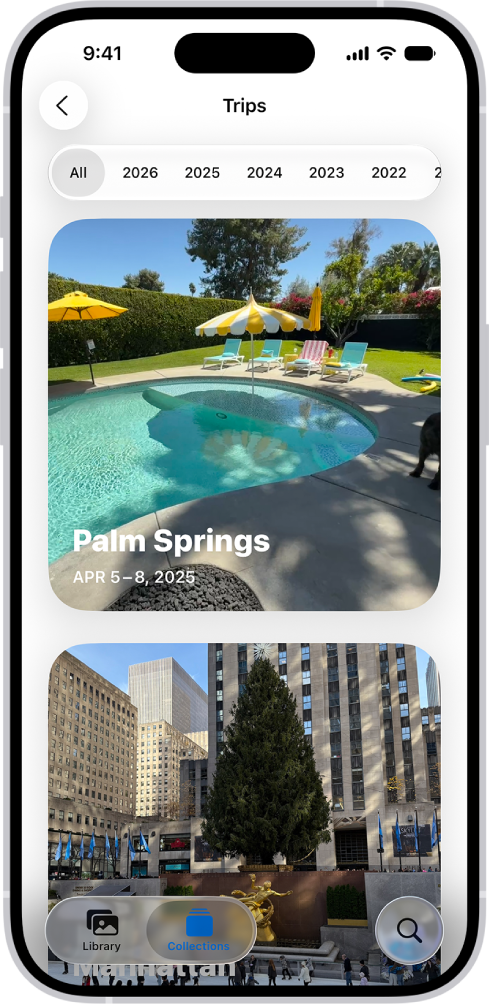
In the Photos app, you can quickly find photos and videos from your trips grouped into collections, based on location data from the photos. They’re all in Trips, in Collections. And to help you find older trips, you can jump to a year.

Trips is open in the Photos app. A row of years appears along the top of the screen. All is selected, and below it are collections of photos, each from a different trip.

  1. Open the Photos app on your iPhone.
  2. Tap Collections, scroll down to Trips, and tap the trip collection you want to view.

Tap a year at the top of the screen to help you find older trips.

Tag: Photos

If you subscribe to Apple News+, you can find personalized food content, including a large catalog of recipes with features like adjustable recipe yields, nutrition facts, customizable units, and easy-to-start timers.

Your recommendations get more personalized as you read more food content and recipes. You can search by recipe title, ingredient, or keyword, save a recipe, and prepare it. You can also look at other recipes or stories while you’re reading one, and filter recipes.
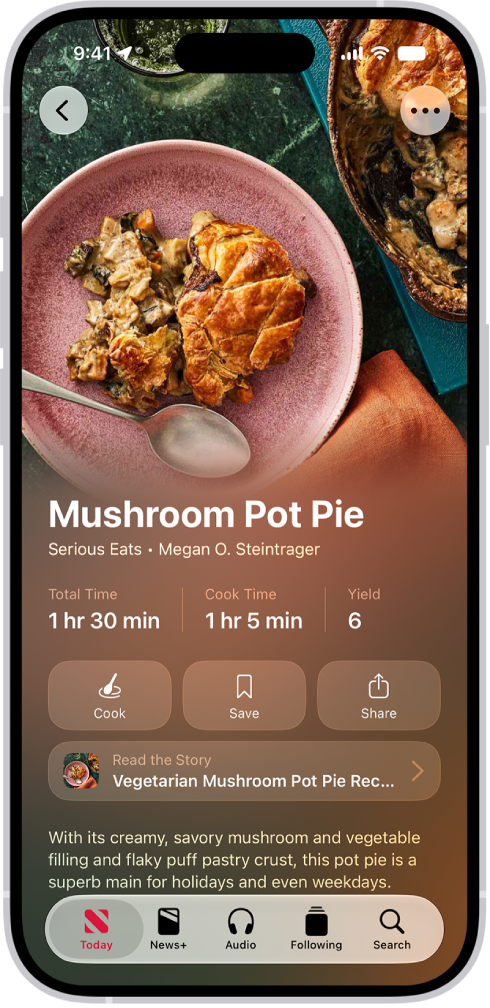
A recipe in Apple News+.

Note: Apple News, Apple News+, and food features aren’t available in all countries or regions.

Browse stories and recipes

  1. Open the News app on your iPhone.
  2. From the Today feed, tap Food, then scroll down to see stories and recipes.

Reading more food content and recipes makes your recommendations more personalized.

Quick tip: Swipe left or right to look at other recipes or stories while you’re reading one.

Search for and filter recipes

  1. Open the News app on your iPhone.
  2. From the Today feed, tap Food.
  3. Tap Recipe Catalog at the top of the feed or the Recipe Catalog button. Then do any of the following:

    • Search by recipe title, ingredient, or keyword: Tap the search field, enter a term, and then tap the Search button.
    • Filter by category: Tap a category, such as Vegetarian.
    • Add and combine filters: Tap the Filter button and tap a filter. Then tap the Done button.
    • Remove a filter: Tap the Remove button next to a filter below the search field.
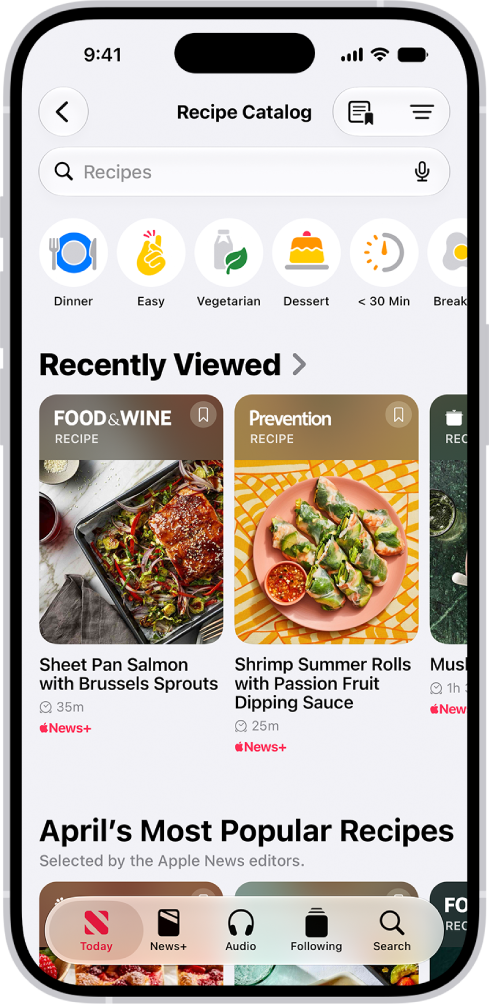
    The Recipe Catalog in Apple News+.

Save a recipe

  1. Open the News app on your iPhone.
  2. From the Today feed, tap Food and then scroll down to browse recipes. Or search for and filter recipes, as above.
  3. Do one of the following:
    • While browsing or viewing search results: Tap the Save Recipe button.
    • While a recipe is open: Tap Save.
  4. To revisit saved recipes, tap Saved Recipes in the Following list or the Food feed, or tap the Saved Recipes button in the Recipe Catalog.

To remove a recipe from your saved recipes, touch and hold the recipe, then tap Unsave Recipe.

Prepare a recipe

  1. Open the News app on your iPhone.
  2. From the Today feed, tap Food and then scroll down to browse recipes. Or search for and filter recipes, as above.
  3. To open a recipe, do one of the following:

    • Tap a recipe in the search results.
    • While reading a food story that includes a recipe, tap the View Recipes button. If the story has multiple recipes, tap the View Recipes button, then tap the recipe you want to prepare.
  4. Scroll to see the recipe’s ingredients, directions, nutrition facts, and ratings, or tap Ingredients, Directions or More to jump between them.

    Tip: You can add a recipe’s ingredients to your grocery list. While viewing the recipe, tap the More button, then tap Add to Grocery List.

  5. To focus on the directions, tap Cook.

    Steps appear in a larger font and the display stays on while you’re preparing the recipe.

  6. While viewing directions, do any of the following:

    • Use a cooking timer: When a timer appears in a step, tap the Timer button, swipe up or down to adjust the timer duration, then tap Set Timer.
    • View ingredient quantities: When an ingredient in a step appears in bold, tap the ingredient to view how much is used in the recipe without going back to the ingredients list.
    • Keep track of which ingredients you already prepared or used: While viewing the ingredients list, tap an ingredient.

Quick tip: To keep track of recipes you’ve prepared, tap the More button while viewing a recipe, then tap Mark as Cooked.

If you notice that a recipe is miscategorized, has incorrect ingredients or directions, or doesn’t display properly, tap the More button, tap Report a Concern, then follow the onscreen instructions.

Customize the units used in recipes

In all Apple News+ recipes, you can convert the units from US to Metric and from Fahrenheit to Celsius. And for baking recipes, you can show ingredient measurements in weight.

  1. Open the News app on your iPhone.
  2. Open a recipe, as above.
  3. Tap the More button and tap Customize Units.

Adjust a recipe’s yield

  1. Open the News app on your iPhone.
  2. Open a recipe, as above.
  3. Tap the More button, then tap Scale Recipe.
  4. To adjust the recipe yield, tap or, or type the scale factor.

To reset the ingredients to their original quantity, tap the Revert button.

Note: Cook times, temperature, equipment, or cookware size aren’t affected by scaling a recipe.

Add notes to a recipe

Notes you add to a recipe can record your results, ingredient or step substitutions, or how long a step took to complete on your stove or oven.

  1. Open the News app on your iPhone.
  2. Open a recipe, as above.
  3. Tap the More button. Then do either of the following:
    • Add a note: Tap Add Notes.
    • Edit a note: Tap Edit Notes.
  4. Enter your observations and then tap the Done button.

Rate a recipe

  1. Open the News app on your iPhone.
  2. From the Today feed, tap Food and then scroll down to browse recipes. Or search for and filter recipes, as above.
  3. Open a recipe, scroll down to Ratings, and tap a star to select a rating.

Access food content offline

You can make the Food feed, Recipe Catalog, and Saved Recipes accessible in Offline Mode.

  1. While you’re online, open the Settings app on your iPhone.
  2. Tap Apps and tap News. Tap Automatic Downloads (below News+ Offline Mode).
  3. Turn on Food & Recipes.

Tag: News

In the Find My app, after you share your location with a friend, you can ask to see their location on a map. Once they receive and accept your request, you can see their location. You can also remove a friend, and when you do, that person is removed from your People list.

Ask to see a friend’s location

  1. Start the Find My app on your iPhone.
  2. Tap People and then tap the name of the person whose location you want to see.

    If you don’t see a person in the list, make sure you’re sharing your location with them.

  3. Tap Ask To Follow Location.

You can see their location as soon as your friend receives and accepts your request.

Note: If your friend is in the People list but you can’t see their location on the map, ask them to check that they’re sharing their location. Location Services also needs to be turned on in Settings > Privacy & Security > Location Services > Find My.

Remove a friend

When you remove a friend, you’re also removed from their People list, and that person is removed from yours.

  1. Start the Find My app on your iPhone.
  2. Tap People, tap the name of the person you want to remove, and tap the More button.
  3. Tap Remove.
Tag: Find My

You can mark up a webpage, highlight your favorite parts, draw and write notes, and share your document as a PDF with others. Markup works right inside Safari. When you’re done, your marked-up webpage is saved as a PDF in the location you choose.

A PDF of a webpage is being annotated with the Markup tools, which are at the bottom of the screen. The webpage has a selection highlighted.

  1. Open the Safari app on your iPhone.
  2. Go to a webpage, tap the Page Menu button, and then tap Share. If your Tabs layout is Bottom or Top, tap the Share button.
  3. Tap Markup. Use the tools to annotate the webpage.
  4. Tap the Done button and then choose Save File To.
  5. Enter a name for the file, then tap Save.
Tag: Safari

With My Sports, you can follow your favorite sports, teams, leagues, and athletes; receive stories from top sports publications, local newspapers, and more; access scores, schedules, and standings for the top professional and college leagues; and watch highlights.

Before you can use My Sports, you must sign in to your Apple Account and to the App Store on your iPhone.

Here’s how to follow your favorite teams with My Sports on iPhone.

Set up iPhone to use My Sports

You need to do the following before you can use My Sports:

  • Sign in to your Apple Account: Go to Settings , tap “Sign in to your iPhone,” then enter your Apple Account information.
  • Sign in to the App Store: Go to Settings , tap your name, then tap Media & Purchases.

Get started with My Sports

To use My Sports, you first need to allow syncing between the Apple TV app, Apple News, and the Apple Sports app. Once syncing is allowed, you’ll automatically follow the same teams in all three.

  1. Open the News app on your iPhone.
  2. From the Today feed, tap Sports.
  3. Tap Pick Your Teams and tap Pick Your Teams.
  4. On the Manage My Sports screen, tap the Follow button next to sports, teams, leagues, and major sporting events to follow them.

    Sports topics you previously expressed interest in appear below Suggested. To search (by team name or location and more), tap the search field.

  5. Tap the Close button to close the Manage My Sports screen and then do any of the following:

    • View comprehensive sports coverage: Tap Following and then tap Sports (below Sections).
    • Check the most important sports stories at a glance: Tap Today and swipe up to the Sports group.
    • Get stories and team updates: After you follow a topic or team and allow syncing between Apple News, the Apple TV app, and the Apple Sports app, you can sign up for the Sports newsletter for stories and team updates. (Not available in all countries or regions.)
    • Get notified about a team or league you follow: Allow syncing between Apple News, the Apple TV app, and the Apple Sports app. turn on notifications for Sports.

Browse all available sports

  1. Open the News app on your iPhone.
  2. From the Today feed, tap Sports.
  3. Tap All Sports at the top of the screen and then tap a sport or league to go to its feed.
  4. To follow that sport or league, tap the Follow button.

Manage sports topics

Once you’ve set up My Sports, you can follow and unfollow sports topics.

  1. Open the News app on your iPhone.
  2. From the Today feed, tap Sports.
  3. Scroll down to My Sports, tap Manage, and then do any of the following:
    • Follow a topic: Tap the Follow button next to each topic you want to follow.
    • Unfollow a topic: Tap the Unfollow button next to topics you want to unfollow and then tap Unfollow.
    • Reorder topics: Touch and hold the Reorder button, then drag topics to the order you prefer.
  4. Tap the Cancel button.

Show scores, schedules, highlights, and more

With My Sports, you’ll get scores and schedules for your favorite teams, plus video highlights, stats and stories for individual games and events, and stories related to your favorite teams.

  1. Open the News app on your iPhone.
  2. From the Today feed, tap Sports, then do any of the following:
    • Show scores and schedule: Swipe left on the scores at the top of the feed and then tap See More.
    • Show stats and stories for individual games: Tap a score at the top of the feed, or swipe down to a sports topics you follow. Then tap a game.
    • Follow game updates with a Live Activity: During a game, tap a score at the top of the feed and tap Follow Live. You’ll get real-time updates from the Apple Sports app on your Home Screen and Lock Screen.
    • Watch a live game: Tap a score at the top of the feed. Tap Open in Apple TV (before or after the game) or Watch on Apple TV (during a live game). Or swipe down to a topic you follow and tap the game’s tile. Tap Open in Apple TV or Watch on Apple TV. If the game is available in your area and you subscribe to a service that broadcasts the game, you can watch it in the Apple TV app or in a supported app.
    • Note: Supported sports apps may require a separate subscription. Not all games are available in all areas.
    • View highlights: Swipe up to the Highlights section and then tap the Play button in the thumbnail. Tap Highlights to see more highlights.
    • Note: Highlights are available only for select leagues.
    • Read sports stories related to topics you follow: Swipe up to For You, then tap a story.

Stop syncing My Sports

You can also stop syncing between the Apple TV app, Apple News, and the Apple Sports app.

Note: You can no longer use My Sports if you turn off Sync My Sports.

  1. Open the Settings app on your iPhone.
  2. Tap Apps, then tap News.
  3. Turn off Sync My Sports.
Tag: News

You can open and use a website as if it’s an app. You add it to your Home Screen from Safari’s Share menu, with Open as Web App turned on, and it opens just like an app. You can even get notifications from the web app.

  1. Start the Safari app on your iPhone.
  2. Go to the website.
  3. Tap the Page Menu button and tap Share. If your Tabs layout is Bottom or Top, tap the Share button.
  4. Scroll down the list of options and tap Add to Home Screen. If you don’t see Add to Home Screen, you can add it. Scroll down to the bottom of the list, tap Edit Actions, and then tap Add to Home Screen.
  5. Turn on Open as Web App.
  6. Tap Add.

An icon for the web app is added to your Home Screen. When you tap the icon, the website opens just like an app. You can receive notifications from the web app and quit the web app like you would any app.

Tag: Safari